Step One If you have Windows, uninstall iTunes 7.7 as well as Apple Mobile Device Support and then reboot your computer. Go to your Control Panel and use Add/Remove Programs or Programs and Features(Vista) to do this!
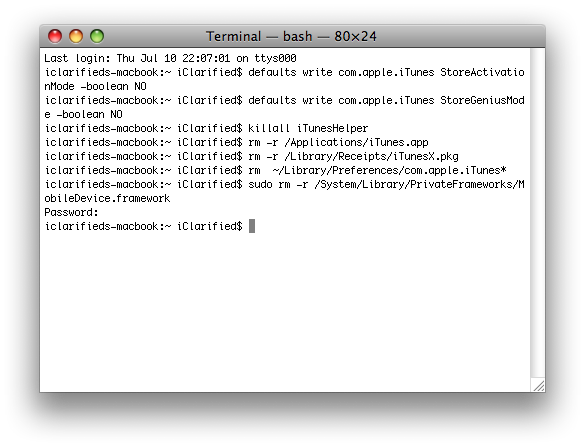
If you have Mac OS X, open Terminal from Applications:Utilities. Enter the following commands into the Terminal window:
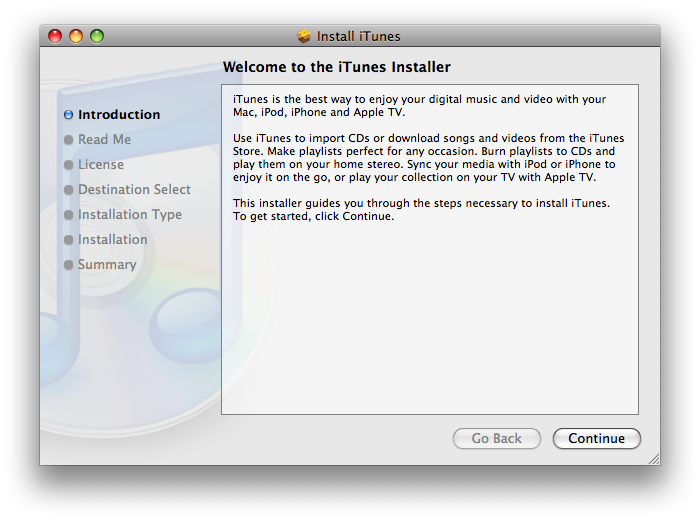
Step Two Install iTunes 7.5 onto your computer using the download links provided above.
Step Three Before attempting to launch iTunes 7.5 for the first time you need to delete or rename the iTunes folder.
Windows: Rename the C:Documents and Settings**your user name**My DocumentsMy MusiciTunes folder to iTunes Backup.
Mac OS X: Select the iTunes folder in your Music directory and rename it iTunes Backup. You press the Enter key to rename a file in Mac OS X.
Step Four Launch iTunes by selecting its icon in the dock.
Step Five Put your iPhone into DFU mode by following these instructions.
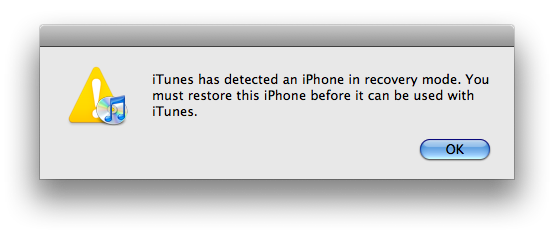
Step Six iTunes will notify you that it has found an iPhone in recovery mode. Click the OK button.
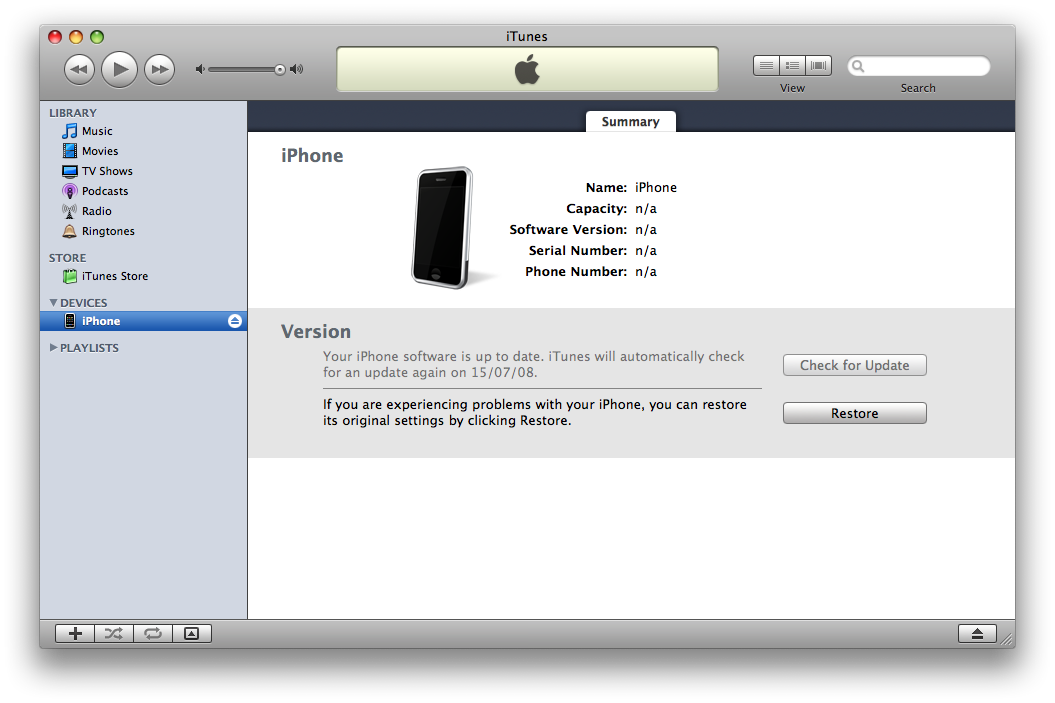
Step Seven Hold down Option and press the Restore button. If you are using Windows hold down Shift and press the Restore button.
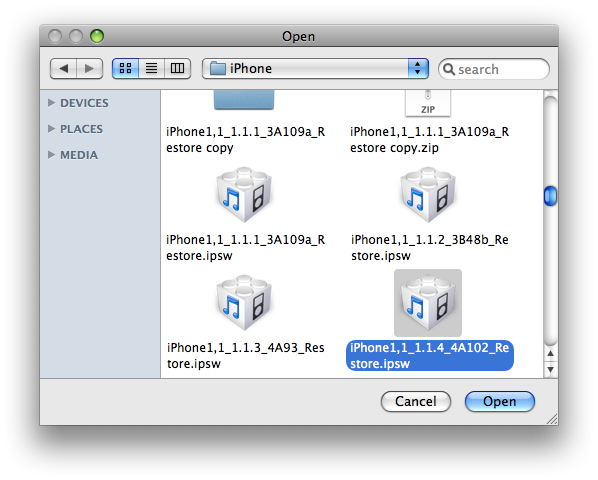
Step Eight Select the iPhone 1.1.4 firmware file you downloaded earlier and click the Open button.
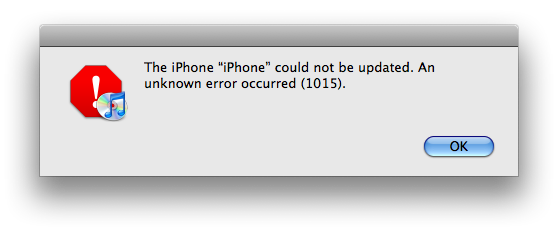
Step Nine Once the restore has completed you will get a 1015 error or similar.
If you get an error in the 1600s then try putting the iPhone into DFU mode and try again. You might also want to try a different USB port, remove your SIM card and then restart your system and if all else fails use a different computer!
Step Ten Now you can use your favourite unlocking method to kick your iPhone out of restore mode and unlock it.
Below are some instructions to help you with the more popular methods; however, I would suggest using PwnageTool as it will downgrade your baseband.
NOTES*** The first time I tried this I opened iLiberty+ with iTunes still open. It immediately kicked my phone out of recovery mode and then the application closed down. I reopened it and then was able to unlock successfully on my first attempt.
IMPORTANT*** PwnageTool will downgrade your baseband. There is no reason to use an alternate tool do perform this function but if you must... Here are instructions to use KiPhone to downgrade your Baseband.
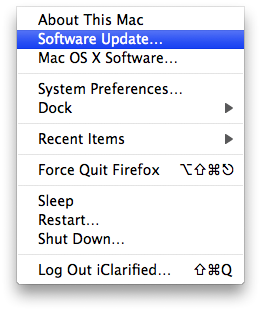
Step Eleven Select Software Update from the Apple Menu at the top left hand corner of your screen.
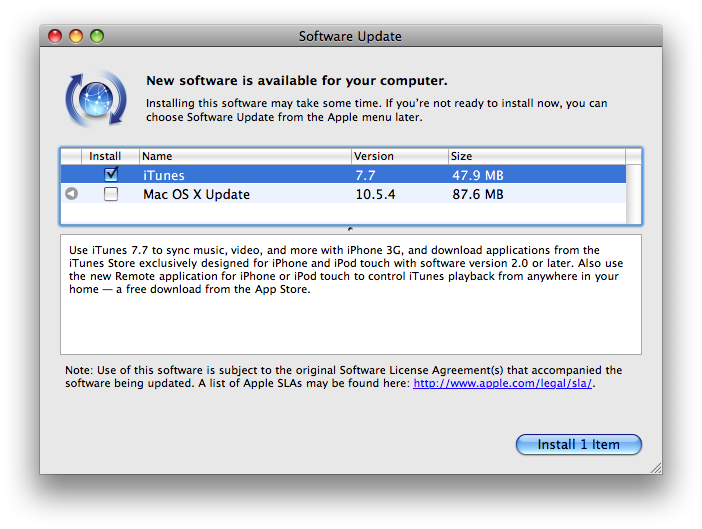
Select iTunes 7.7 from the list of software available for install and click the Install 1 Item button.
For windows users just reinstall iTunes 7.7 from the Apple website here
Step Twelve Once installation of iTunes 7.7 has completed you can rename the folder iTunes Backup created in Step Three to just iTunes. You will then get your library back!
Get the iClarified Daily Newsletter
Apple news, rumors, tutorials, price drop alerts, in your inbox every evening, free.
Unsubscribe at any time.
Success!
You have been subscribed.
Add Comment
Would you like to be notified when someone replies or adds a new comment?
Yes (All Threads)
Yes (This Thread Only)
No
Notifications
Would you like to be notified when we post a new Apple news article or tutorial?
hi, i followed this tutorial with a pwned 2.0 iPhone and get error (1) when i try and restore the firmware in DFU mode, anyone know how to get past this? thanks
I only want to suggest a thing. Before Pass No. Six, I had to reinstall Apple Mobile Device, thats Quicktime. You did not cmment anythig about it in the tutorial and without that program the computer is not able to detect your Iphone. Thanks. :)
Hey, sure! the risks are very simple: buakcp all your data before attempting to jailbreak, in the very rare event that everything doesnt go according to plan, you can restore your iphone/ipad through itunes and it will be as if you havent done anything! now if you decide to go through with it, just download absinthe 0.4 for windows/mac/linux, according to your os and follow the onscreen instructions.Let me know what happens
Hi all! Seriously I've been so frustrated with all the Rapidshare links given to download Kiphone because it never works. Can someone please give me another link so that I can download it from another site? Much appreciated! Thanks!!
In Step one it says to remove itunes 7.7 etc and rename folders....and then instal 7.5.
Is it possible just to start off on a new computer with itunes 7.5 or is there something in 7.7 that is necessary after the removal and re-install of 7.5? thank you in advance for your help. :)
hello everyone
i have downloaded 2.0 fw for my 2g iphone and i would like to downgrade to 1.1.4 when i used this tutorial i reached to the step where i should rename the itunes folder at the documents and settings but the problem is i cant rename it !!! it's protected!! As a result, i getting an unkown error # 20 when to restore !! any ideas , advises would be really appericated
hi every one , accidetnly i uppdate my iphone2G to 2.0 . and i unlocked with winpwn now i cant downgrad to 1.1.4. if i try it in itune 7.5 in dfu mode i pressed shift + restore buton i selected my 1.1.4 firm ware . after extracting file one error comin iphone could not restore unknown error 5 occured . i tryed it more than 26 times .same error im geeting here . please anyone can help me.
Please help! I downgraded my iphone from 2.0.1 to 1.1.4 and i got the error 1015 so up to here it should be fine... then i unlocked my iphone using ziphone 3.0 and everything is perfect i got the installer and eveything the only thing is i dont have SIGNAL!!! what should i do?? ive tried all the steps again and nothing im desperate im about to cry. ive tried to reset all setting from my iphone but nothing PLEASE HELP ME!!!!!






![Apple Tests Face ID and Action Button for iPhone Duo, Considers Larger Display [Gurman]](/images/news/102972/102972/102972-160.jpg "Apple Tests Face ID and Action Button for iPhone Duo, Considers Larger Display [Gurman]")



![Google Maps Brings Gemini AI to Navigation on Apple CarPlay [Video]](/images/news/102960/102960/102960-160.jpg "Google Maps Brings Gemini AI to Navigation on Apple CarPlay [Video]")

![How To Back Up Your iPhone to an External Drive on Mac [Video]](/images/tutorials/72786/72786/72786-160.jpg "How To Back Up Your iPhone to an External Drive on Mac [Video]")

![How To Find Your IP Address on iPhone [Video]](/images/tutorials/496/496/496-160.jpg "How To Find Your IP Address on iPhone [Video]")

![16-Inch MacBook Pro With M5 Pro Drops to $2,429 ($570 Off), Lowest Price We've Seen [Deal]](/images/news/102957/102957/102957-160.jpg "16-Inch MacBook Pro With M5 Pro Drops to $2,429 ($570 Off), Lowest Price We've Seen [Deal]")

![16-Inch MacBook Pro With M5 Max Drops to $3,499 ($900 Off), Lowest Price We've Seen [Deal]](/images/news/102900/102900/102900-160.jpg "16-Inch MacBook Pro With M5 Max Drops to $3,499 ($900 Off), Lowest Price We've Seen [Deal]")
![Mac Studio With M5 Max Is $200 Off, Lowest Price We've Seen [Deal]](/images/news/102897/102897/102897-160.jpg "Mac Studio With M5 Max Is $200 Off, Lowest Price We've Seen [Deal]")
![14-Inch MacBook Pro With M5 Pro Drops to $2,069.10 ($429 Off) [Deal]](/images/news/102879/102879/102879-160.jpg "14-Inch MacBook Pro With M5 Pro Drops to $2,069.10 ($429 Off) [Deal]")
