These are instructions on how to allow iPhone applications to run in the background. This tutorial will require a jailbroken iPhone on the 2.0 or higher firmware. You can find a tutorial to jailbreak your iPhone here.
In this example we will allow AIM to keep running in the background so you can get text message alerts without having the application open!
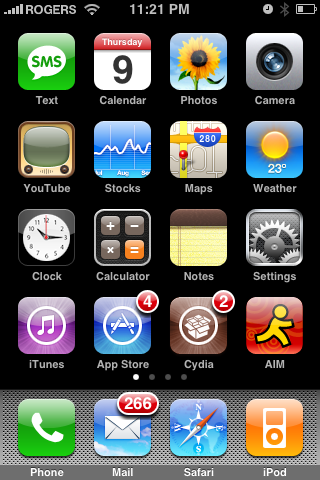
Step One Press to launch Cydia from your Springboard.
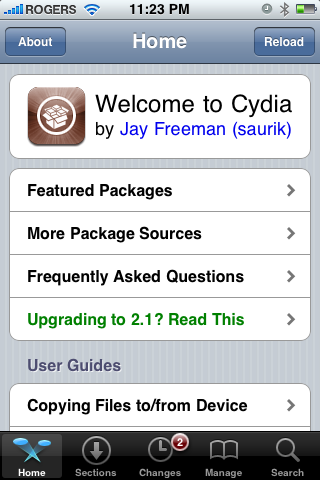
Step Two Press to select Sections from the tabs at the bottom of the screen.
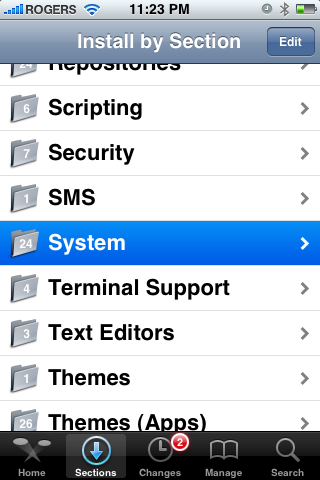
Step Three Press to choose the System section.
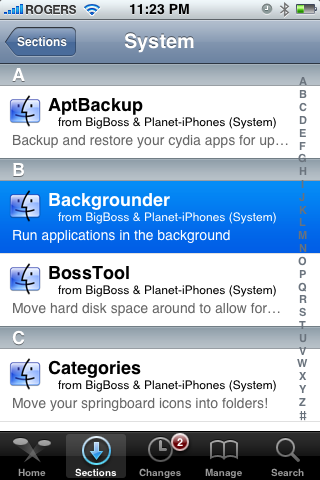
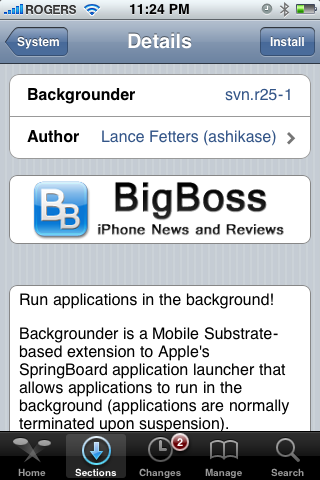
Step Four Press to select Backgrounder from the list of packages.
Step Five Press the Install button at the top right hand corner.
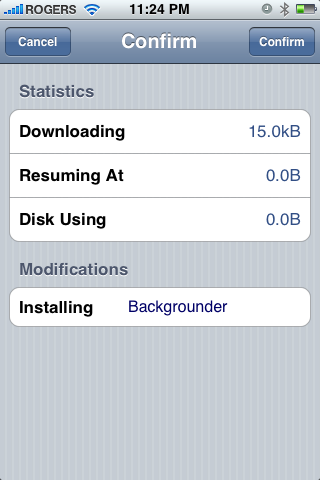
Step Six Press the Confirm button at the top right hand corner of the screen.
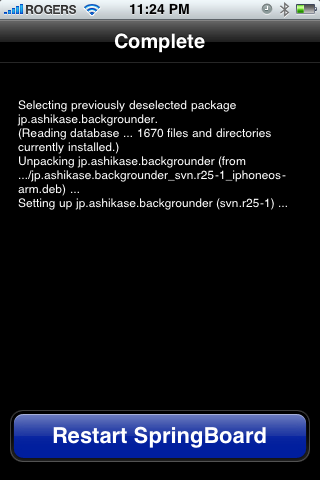
Step Seven Once the installation has completed successfully click the large Restart Springboard icon.
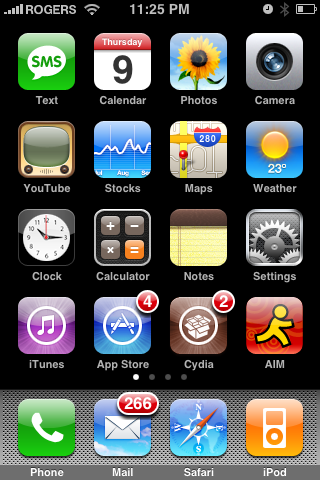
Step Eight Now that you have been returned to the Springboard, open an application that you would like to have running in the background. In this example I will press to launch AIM from the Springboard.
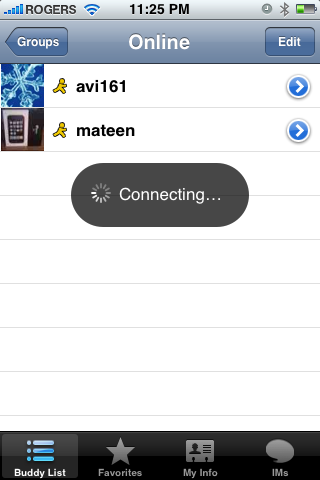
Step Nine If you have logged into AIM before you will notice that it connects to the network
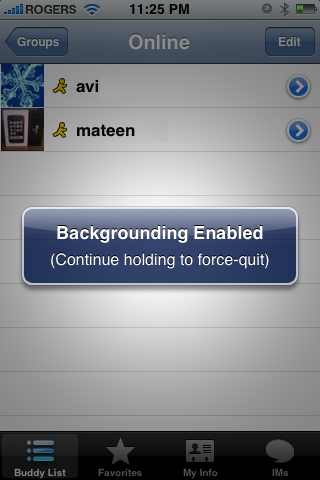
Step Ten Now hold the Home button down for a few seconds. Notice a message appears telling you Backgrounding Enabled.
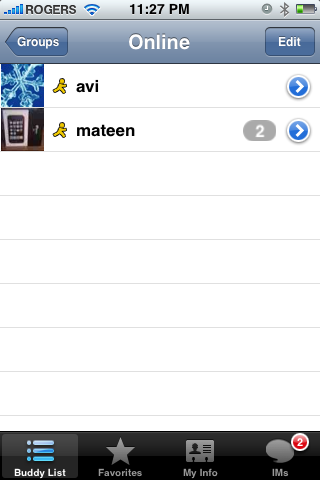
Step Eleven You can now return to your Springboard and if someone sends you a message on AIM your iPhone will audibly inform you that a message has come in. AIM will stay running in the background. Press to launch AIM again. Notice you are not shown the connecting message. You will also notice that you have messages waiting!
NOTE**: This can be used for a lot of other applications such as Simplify Media etc. If you have success with any other applications please let others know in the comments.
You can turn off backgrounder by holding the Home button for a few seconds until you see the Backgrounding Disabled notice.
Get the iClarified Daily Newsletter
Apple news, rumors, tutorials, price drop alerts, in your inbox every evening, free.
Unsubscribe at any time.
Success!
You have been subscribed.
Add Comment
Would you like to be notified when someone replies or adds a new comment?
Yes (All Threads)
Yes (This Thread Only)
No
Notifications
Would you like to be notified when we post a new Apple news article or tutorial?
Works great on skype as long as the phone does not go into sleep mode. It doesn't work when iPhone goes into sleep mode. Anyway to make it work when the phone goes into sleep mode?
you can just turn off the sleep mode by going into settings, then to general and then go to auto lock to set it into NEVER, so now you get messages at any giving time, hope it was a help, take care
Palringo worked for me! This is one of the first jailbreak apps I have installed(Backgrounder) and its exactly what I was looking for! So simple, yet sooo useful!
backgrounder doesn't work on aim. when the phone goes on sleep mode or when it's idle (when I'm not using it), it goes to a black screen. I'll be checking on my sidekick to see if the screenname I used on the iphone signed off. And sure enough it signed off when the iphone went on sleep mode. Then I signed back on iphone and went to surf the internet. I imed my iphone screenname and my iphone didn't beep or anything. I imed it 3 more times and waited until the iphone went to sleep. Touched the screen and checked AIM. No messages were waiting for me! This sucks. I wanted the iphone but since the AIM doesn't work good even with backgrounder, I probably wont go ahead and purchase a data plan for it.
Backgrounder is also great for:
1) Tuner - listening to online radio while playing a game / browsing the web.
2) Fring - you can be contacted via skype.
3) Contacts - yes, contacts. If your contacts freezes for about 2 seconds
when you load it (and it probably does - check it if you didn't notice it by now...)
then just use backgrounder on it to get immediate access to your contacts.
No more delay for me :)



![Boot Speed Test: iPhone Duo vs iPhone 18 Pro Max [Video]](/images/news/103104/103104/103104-160.jpg "Boot Speed Test: iPhone Duo vs iPhone 18 Pro Max [Video]")



![How To Turn Off iPhone [Video]](/images/tutorials/94999/94999/94999-160.jpg "How To Turn Off iPhone [Video]")
![How To Back Up Your iPhone to an External Drive on Mac [Video]](/images/tutorials/72786/72786/72786-160.jpg "How To Back Up Your iPhone to an External Drive on Mac [Video]")

![How To Find Your IP Address on iPhone [Video]](/images/tutorials/496/496/496-160.jpg "How To Find Your IP Address on iPhone [Video]")


![Beats Headphones, Earbuds, and Pill Speaker Are Up to 41% Off [Deal]](/images/news/103026/103026/103026-160.jpg "Beats Headphones, Earbuds, and Pill Speaker Are Up to 41% Off [Deal]")

![New Fire TV Stick 4K Drops to $29.99 (50% Off) [Deal]](/images/news/102984/102984/102984-160.jpg "New Fire TV Stick 4K Drops to $29.99 (50% Off) [Deal]")
![Apple's iPhone 18 Pro and Pro Max Cases Are Up to 37% Off [Deal]](/images/news/102978/102978/102978-160.jpg "Apple's iPhone 18 Pro and Pro Max Cases Are Up to 37% Off [Deal]")
