****THIS TUTORIAL HAS BEEN UPDATED FOR THE NEW ULTRASN0W UNLOCK THAT WORKS ON THE 3.0 FIRMWARE. IF YOU ARE ON THE 2.2 FIRMWARE THIS TUTORIAL WILL STILL WORK; HOWEVER WE RECOMMEND YOU UPDATE TO 3.0 AND FOLLOW THESE INSTRUCTIONS****
These are instructions on how to software unlock the iPhone 3G for use with any GSM cellphone carrier.
Before you can follow these instructions you must have a jailbroken iPhone and you must be on the 02.28.00 baseband(modem firmware). This means that you must be running the 2.2 firmware or have used PwnageTool(NOT QUICKPWN) to install 2.2.1 without upgrading the baseband.
To find your firmware and modem firmware(baseband) versions you can follow this tutorial. If you are not on baseband version 02.28.00 then you need to follow one of these tutorials before unlocking: Mac, Windows
For your convenience this tutorial is available in video format also.
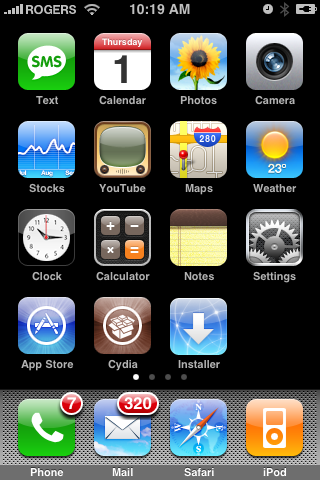
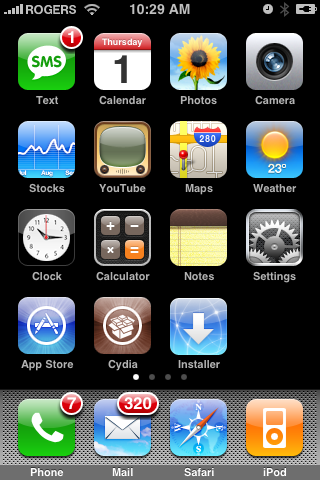
Step One Press to launch Cydia Installer from your SpringBoard.
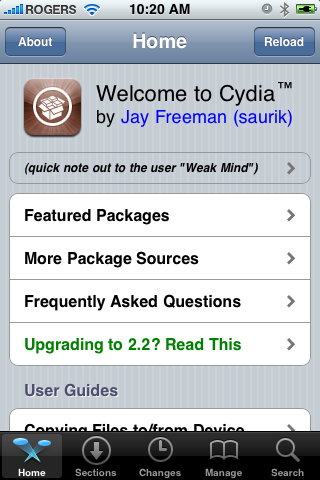
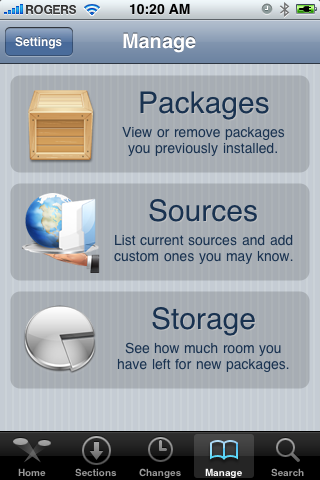
Step Two Press to select the Manage tab at the bottom of the screen.
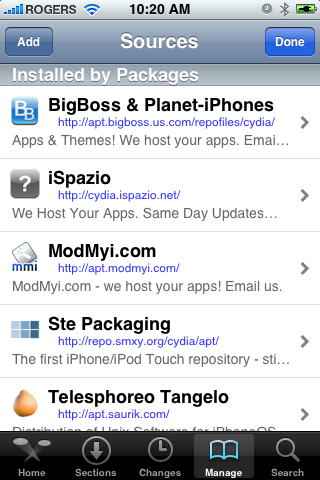
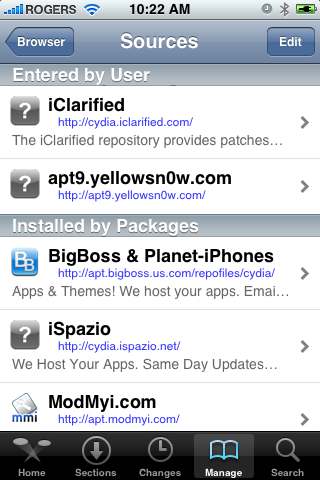
Step Three Press to select the large Sources button
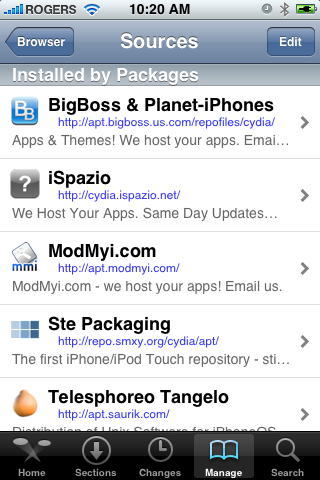
Step Four Press the Edit button at the top right of the screen.
Step Five Press the Add button at the top left of the screen.
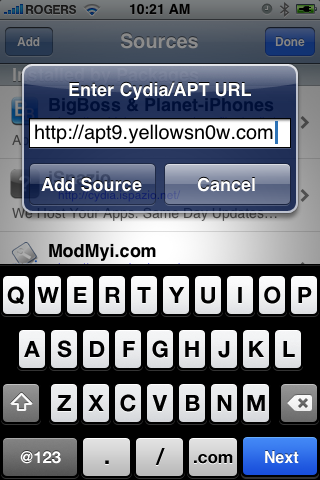
Step Six Enter http://apt9.yellowsn0w.com/ as the source url and press the Add Source button.
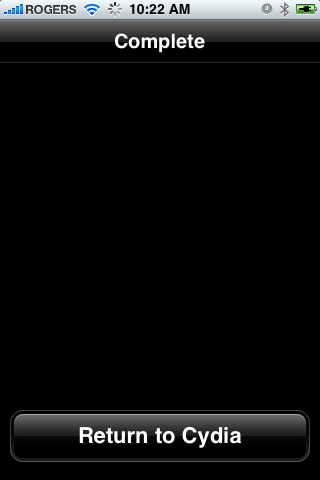
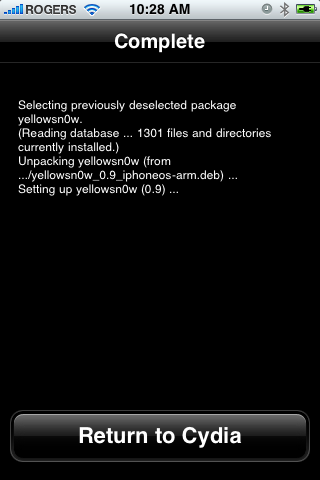
Step Seven Once the source has been added press the large Return to Cydia button.
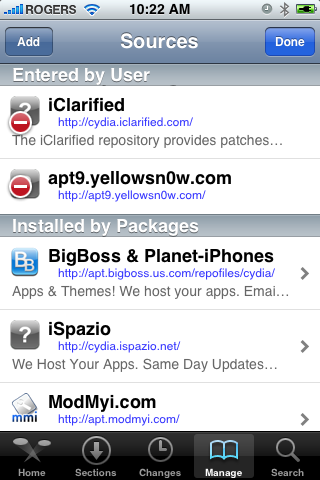
Step Eight Press the Done button at the top right of the screen.
Step Nine Press to select apt9.yellowsn0w.com from the list of user entered sources.
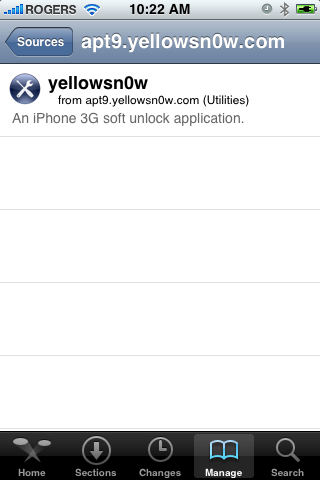
Step Ten Press to select yellowsn0w from the list of packages
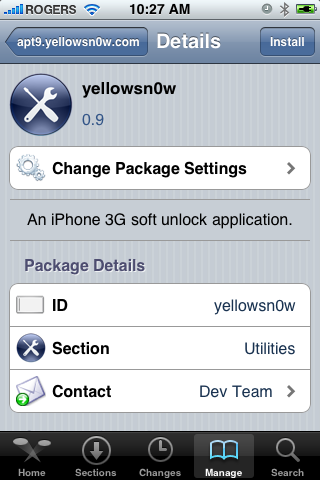
Step Eleven Press the Install button at the top right of the screen.
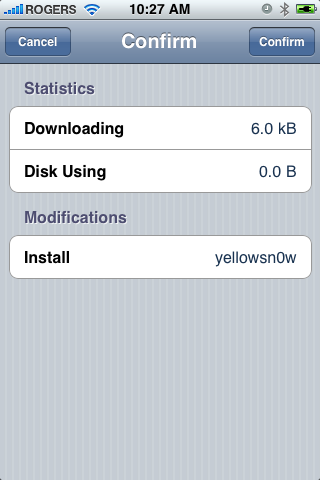
Step Twelve Press the Confirm button at the top right of the screen.
Step Thirteen After installation completes successfully press the large Return to Cydia button.
Step Fourteen Now press the Home button then power off and power on the iPhone. You do this by holding down the power button for 3 seconds then moving the power slider that appears to the right. Press the power button again to turn on the phone.
Step Fifteen You should now be able to insert the SIM of your choice!
***HINTS: It seems that getting your iPhone to pick up your new carrier can be helped by turning off 3G and perhaps toggling the Airplane Mode switch on and off. If you are still having problems try removing and reinserting the SIM or booting with the new SIM already inside. Finally, you can also try to Reset Network Settings from the Settings:General:Reset Menu.
***IMPORTANT: For those having trouble. The yellowsn0w application can simply be uninstalled. If you have tried all the hints and suggestions and still have problems just use Cydia to remove the package and then reboot. You will then have service with your locked carrier as always.
***THANKS: A big thank you to all the members of the iPhone Dev-Team for all their hard work! It is much appreciated by all.
***UPDATES: The Dev-Team has made yellowsn0w 0.97 available. This version supports the 2.2.1 firmware using the 02.28 baseband.
Get the iClarified Daily Newsletter
Apple news, rumors, tutorials, price drop alerts, in your inbox every evening, free.
Unsubscribe at any time.
Success!
You have been subscribed.
Add Comment
Would you like to be notified when someone replies or adds a new comment?
Yes (All Threads)
Yes (This Thread Only)
No
Notifications
Would you like to be notified when we post a new Apple news article or tutorial?
I jailbroke and unlocked my 3G to use on the T-Mobile network and it is working fine. The only thing is that prior to jailbreaking and unlocking it, you were able to send pictures in text messages. Once I unlocked it however, the icon button to "add a picture" into the message no longer appears. Anyone have any ideas? Any help would be much appreciated! Thanks is advance!
Ive gotten as far as updating the sources. It says downloading packages at the bottom of the screen, the blue bar is completely filled but it froze right then and there... any ideas here?
Hi guys,
Downgraded baseband, jailbroken, unlocked
Everything worked great!!!!
It tool me quite a lot of reboot and airplane mode to get it to recognize the new sim but now it works like a charm
Thank you guys
I bought iphone from at&t network,2.1 firmware unlocked with turbosim in india now I did jailbroking using quickpwn(windows user) firmware 2.2 basenand 2.30..now when I inserted my Indian sim card(airtel without 3g service)..it did not work .please help..my iphone is just PAPER WEIGHT now
Yo !!! You people rule!! I'm from Macedonia and i have an iPhone 3G, i used it with turbosim card but it was B A D!! so i said let me try this... and it really works!! thakns u saved me 30 euros !!
For me changing providers was easy. In Canada there are two providers that have the iPhone Fido and Rogers. I had a Fido iPhone. When I switched my provider to Rogers my iPhone would not work with my new sim card. So I put the Rogers sim in my iPhone and went to the Apple store. I told them that that battery in my phone wasn't working right. They just replaced the whole phone and because they thought it was a Rogers phone because of the sim card I now have a working Rogers iPhone. No unlock required.
Hey Folks,
I have an Iphone 3g version 2.2.1 firmware 2.30.03 and a bootversion 5.08
I succesfully jailbreaked and succesfully downgraded the baseband to 2.28.00
Then I installed yellowsn0w to unlock and... it's still locked...
have tried it 3 times from beginning to end now, not knowing what I did wrong...
anyway my main issue is that my original T-Mobile sim card doesn't work anymore neither!
so it's nothing more than a IPod Touch right now... please help!
I'm new to this. I have both mac & windows vista &iphone 3g. What is the status to jailbreak & unlock with the latest firmware? I'm confused on this & don't want to try anything in case I wreck up my phone. Is a card such as rebel sim better for me? Help!
I have a 2g iphone that was on 2.2.1 and I lowered it to 2.2. It has been jailbroken with quickpwn, and I also put the yellowsn0w app on with Cydia. After cydia installs it, I don't see any new icons. I've tried toggle airplane mode, reboot, etc. After switching to a TMOBILE SIM, THE PHONE BRICKS ITSELF AGAIN WANTING TO CONNECT TO ITUNES. Works fine with ATT sim card, has not detected any other simcard. Help!
As far as I can remember you don't need
yellowsn0w with 2g I think you are following 3g
guide.Do the jailbreak again but remember
to tick activate box.You don't need to restore
in iTunes b4 you redo the jailbreak make sure
u use the 2g guide
I was able to get Boot to load this time around. However when the iphone comes back on I still get the same message of "Different SIM detected, please connect to itunes"
Are you doing the jailbreak with that sim card
installed I think you should do. Try it anyway and remember
to tick activate then if that fails start again from
the beginning of the how to.
NOTHING WORKS! I cant get my iphoe unlocked! It says i should plug my iphone into itunes, but then itunes says i need to insert a valid sim in order to activate the phone! Its been 3 weeks PLS i need help!
thanks for the feedback....but when i plug the iphone in my computer, itunes does not even pick up my iphone... i says insert valid sim inorder to activate phone! The features like ipod and wifi was working before, but then i restored the phone inoder to try and get it to work! Now i cant even use those features, as the phone needs to be "activated 1st" driving me INSANE!!!! Do u know if i can take it to a shop in NY to hav it unlocked?
Listen try putting the phone in dfu mode
then jailbreak using quickpwn u do not need iTunes to unlock
if it works then sync with iTunes but do not restore.
It should work as long as your 2.2 I think u can buy a turbo sim
but check first I live in uk so don't know about my
i did put it in dfu mode, but when i tries to run jailbreak it said i should plug my phone into the computer, and then i couldnt select the type of device i wanted to jailbreak... i trying again now!
Fantastic! The Jailbreak worked! And i hav use of the ipod and other features again!!!! However when i insert my Sim it says NO SIM!
U are very helpful! Thanks mate! Im totally rubbish with these things!
i have the same problem as Jack. I was able to jailbreak my phone, but when i insert my sim its says NO SERVICE. But if I insert the same sim in another iphone it works. I am also not able to install yellowsnOw on to my iphone, when i try to do it i get the message
"Did not find repository
The indicated repository could not be found. This could be because you are trying to add a legacy Installer repository (these are not supported). Also, this interface is only capable of working with exact repository URLs. If you host a repository and are having issues please contact tje author of Cydia with any questions you have."
kindly guide me through this. thx





![iFixit Investigates iPhone Duo Screen Failures, Points to Possible Hinge Issue [Video]](/images/news/103038/103038/103038-160.jpg "iFixit Investigates iPhone Duo Screen Failures, Points to Possible Hinge Issue [Video]")
![Apple's Touchscreen MacBook Pro to Cost 'Significantly' More [Gurman]](/images/news/103035/103035/103035-160.jpg "Apple's Touchscreen MacBook Pro to Cost 'Significantly' More [Gurman]")
![Apple Stores Get iPhone Scanner to Fight Return Fraud [Report]](/images/news/103029/103029/103029-160.jpg "Apple Stores Get iPhone Scanner to Fight Return Fraud [Report]")
![Apple TV Shares 'Full Throttle' With F1 Drivers and Vince Young Ahead of U.S. Grand Prix [Video]](/images/news/103023/103023/103023-160.jpg "Apple TV Shares 'Full Throttle' With F1 Drivers and Vince Young Ahead of U.S. Grand Prix [Video]")
![7 iPhone Duo Settings to Change [Video]](/images/tutorials/103039/103039/103039-160.jpg "7 iPhone Duo Settings to Change [Video]")
![How To Back Up Your iPhone to an External Drive on Mac [Video]](/images/tutorials/72786/72786/72786-160.jpg "How To Back Up Your iPhone to an External Drive on Mac [Video]")

![How To Find Your IP Address on iPhone [Video]](/images/tutorials/496/496/496-160.jpg "How To Find Your IP Address on iPhone [Video]")

![Beats Headphones, Earbuds, and Pill Speaker Are Up to 41% Off [Deal]](/images/news/103026/103026/103026-160.jpg "Beats Headphones, Earbuds, and Pill Speaker Are Up to 41% Off [Deal]")

![New Fire TV Stick 4K Drops to $29.99 (50% Off) [Deal]](/images/news/102984/102984/102984-160.jpg "New Fire TV Stick 4K Drops to $29.99 (50% Off) [Deal]")
![Apple's iPhone 18 Pro and Pro Max Cases Are Up to 37% Off [Deal]](/images/news/102978/102978/102978-160.jpg "Apple's iPhone 18 Pro and Pro Max Cases Are Up to 37% Off [Deal]")
![16-Inch MacBook Pro With M5 Pro Drops to $2,429 ($570 Off), Lowest Price We've Seen [Deal]](/images/news/102957/102957/102957-160.jpg "16-Inch MacBook Pro With M5 Pro Drops to $2,429 ($570 Off), Lowest Price We've Seen [Deal]")
