These are instructions on how to set the backup interval of Time Machine to change how often your computer is backed up.
If you don't know how to setup Time Machine in the first place you should see this tutorial first.
Step One Open a new Finder window by clicking its icon in the dock
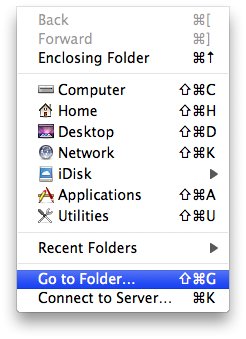
Step Two Select Go to Folder... from the Go Menu.
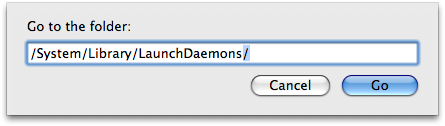
Step Three Input /System/Library/LaunchDaemons/ as the folder to open, then click the Go button.
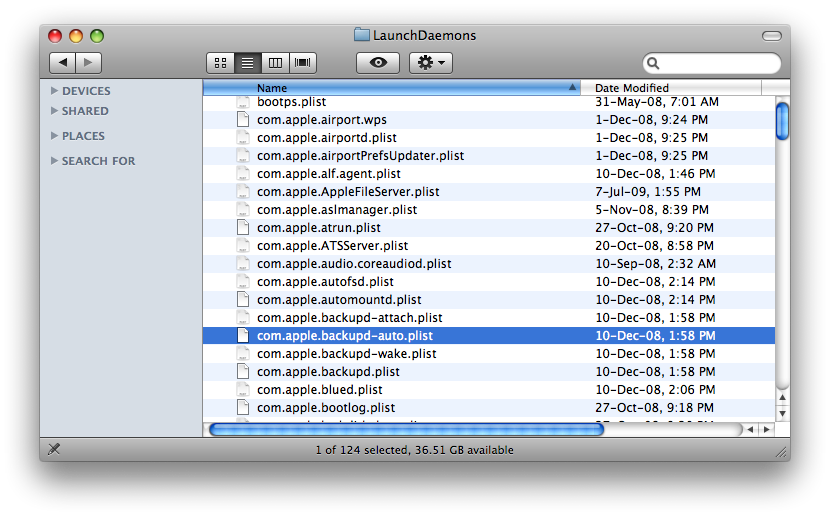
Step Four Locate com.apple.backupd-auto.plist from the list and drag it to your desktop.
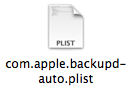
Step Five Double click the com.apple.backupd-auto.plist file from the Desktop to open it.
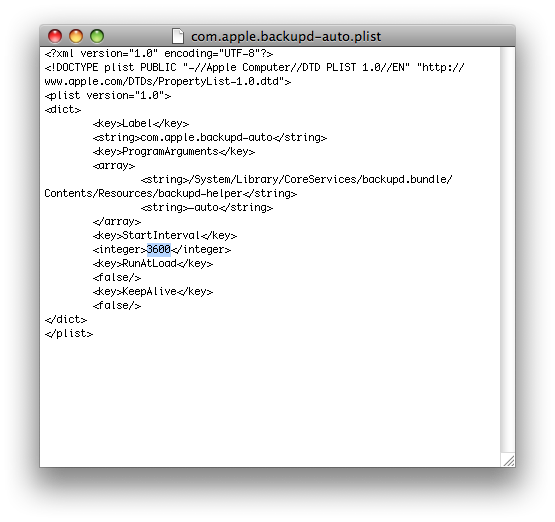
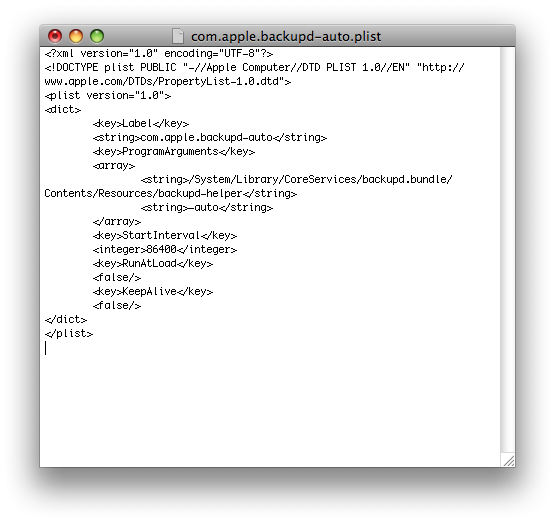
Step Ten Locate the key StartInterval then change its value to the interval of your choice (in seconds).
It will look like this: StartInterval 3600
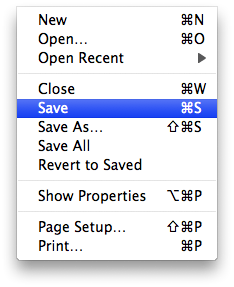
Step Eleven Select Save from the File Menu to save your changes.
Step Twelve Now drag the com.apple.backupd-auto.plist from your Desktop to the LaunchDaemons folder.
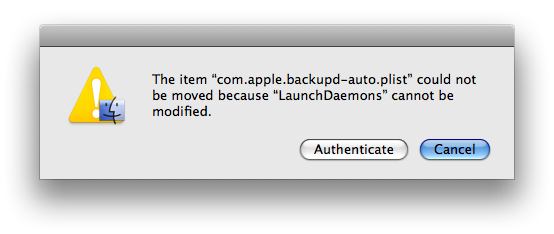
You will get a message stating that the item "com.apple.backupd-auto.plist' could not be moved because "LaunchDaemons" cannot be modified. Click the Authenicate button.
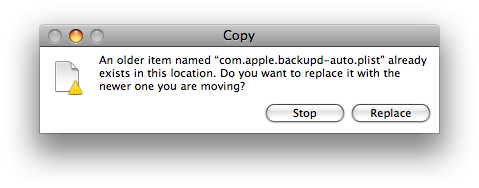
You will be asked to confirm replacing the existing file with the newer one you are moving. Click the Replace button.
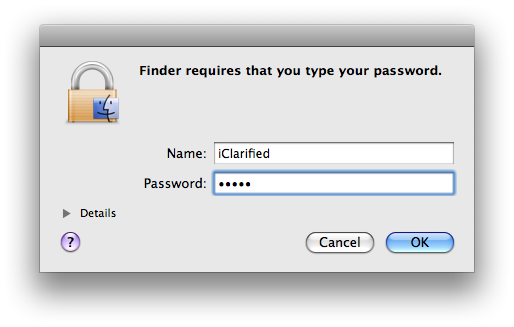
You will now be asked to enter your administrator username and password. Do this then click the OK button.
Step Thirteen The next time you reboot your computer the Time Machine backups will take place according to your set interval.
Get the iClarified Daily Newsletter
Apple news, rumors, tutorials, price drop alerts, in your inbox every evening, free.
Unsubscribe at any time.
Success!
You have been subscribed.
Add Comment
Would you like to be notified when someone replies or adds a new comment?
Yes (All Threads)
Yes (This Thread Only)
No
Notifications
Would you like to be notified when we post a new Apple news article or tutorial?









![Apple TV Shares Official Trailer for 'Trying' Season 5 [Video]](/images/news/101148/101148/101148-160.jpg "Apple TV Shares Official Trailer for 'Trying' Season 5 [Video]")






![Apple Watch Series 11 is Back on Sale for Just $299 [Deal]](/images/news/101081/101081/101081-160.jpg "Apple Watch Series 11 is Back on Sale for Just $299 [Deal]")
![AirPods Max 2 Drop to New All-Time Low of $499 [Deal]](/images/news/101063/101063/101063-160.jpg "AirPods Max 2 Drop to New All-Time Low of $499 [Deal]")
![AirPods Max 2 Hit All-Time Low Price of $509 ($40 Off) [Deal]](/images/news/101039/101039/101039-160.jpg "AirPods Max 2 Hit All-Time Low Price of $509 ($40 Off) [Deal]")
![New 13-Inch M5 MacBook Air Hits All-Time Low Price of $899.99 [Deal]](/images/news/100969/100969/100969-160.jpg "New 13-Inch M5 MacBook Air Hits All-Time Low Price of $899.99 [Deal]")
![AirPods Pro 3 Drop to $199 Ahead of Memorial Day [Deal]](/images/news/100935/100935/100935-160.jpg "AirPods Pro 3 Drop to $199 Ahead of Memorial Day [Deal]")
