These are instructions on how to auto install a DEB file using Cydia. This procedure does not require the use of Terminal or MobileTerminal.
To continue you must be using a jailbroken iPhone with OpenSSH installed, have Fugu installed, and know your iPhone's IP Address.
You can use these instructions to install multiple .deb files at once. Once installed you will be able to remove individual ones using Cydia Installer.
Step One Launch Fugu from your Applications folder.
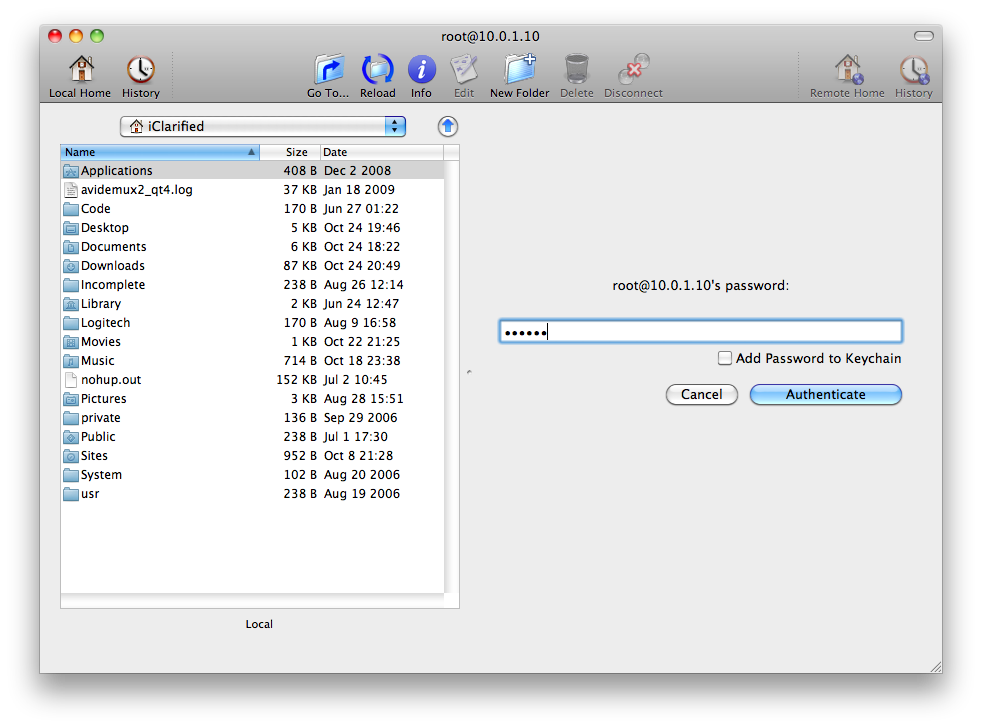
Step Two Input your iPhone's IP Address in the Connect To: field, enter root as the Username, then click the Connect button.
Step Three When prompted input alpine as the password and click Authenticate.
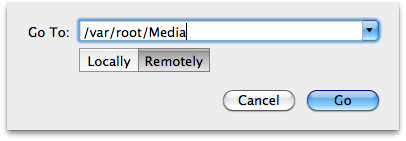
Step Four Click the Go To... button from the Fugu toolbar.
Step Five Input /var/root/Media as the location to Go To. Make sure Remotely is selected then click the Go button.
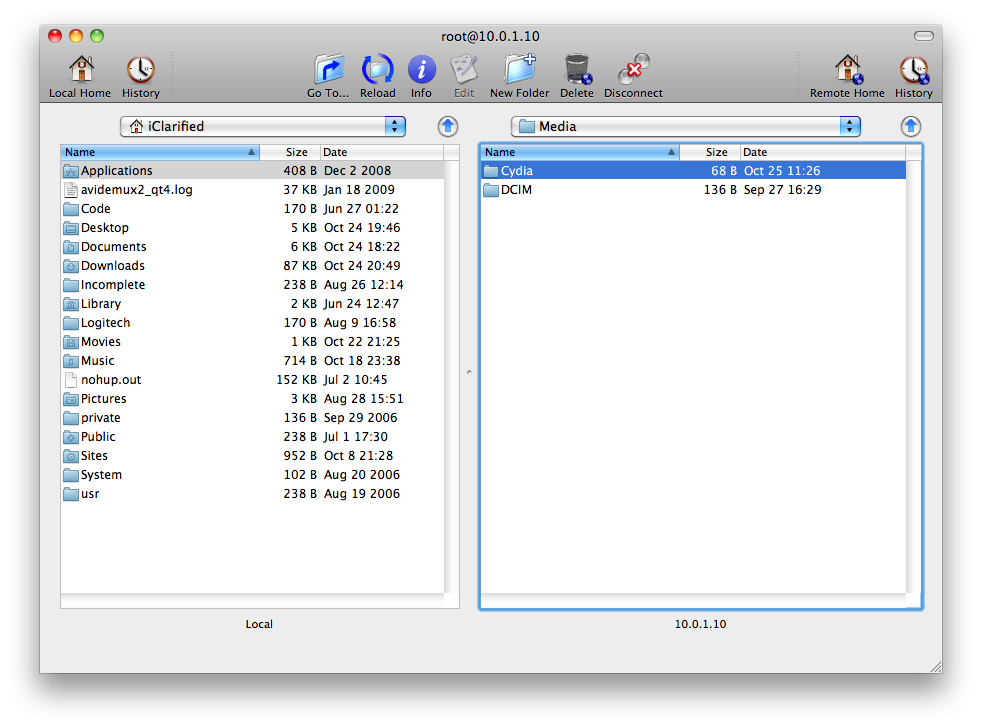
Step Six If you do not have a Cydia folder in the /var/root/Media folder, you will need to create one.
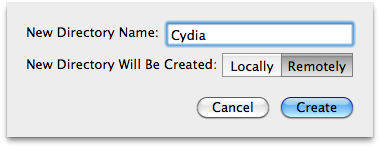
Click the New Folder button on the Fugu toolbar.
Input Cydia as the New Directory Name. Set the directory to be created Remotely then click the Create button.
Step Seven Double click the Cydia folder to enter the directory.
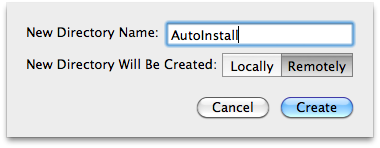
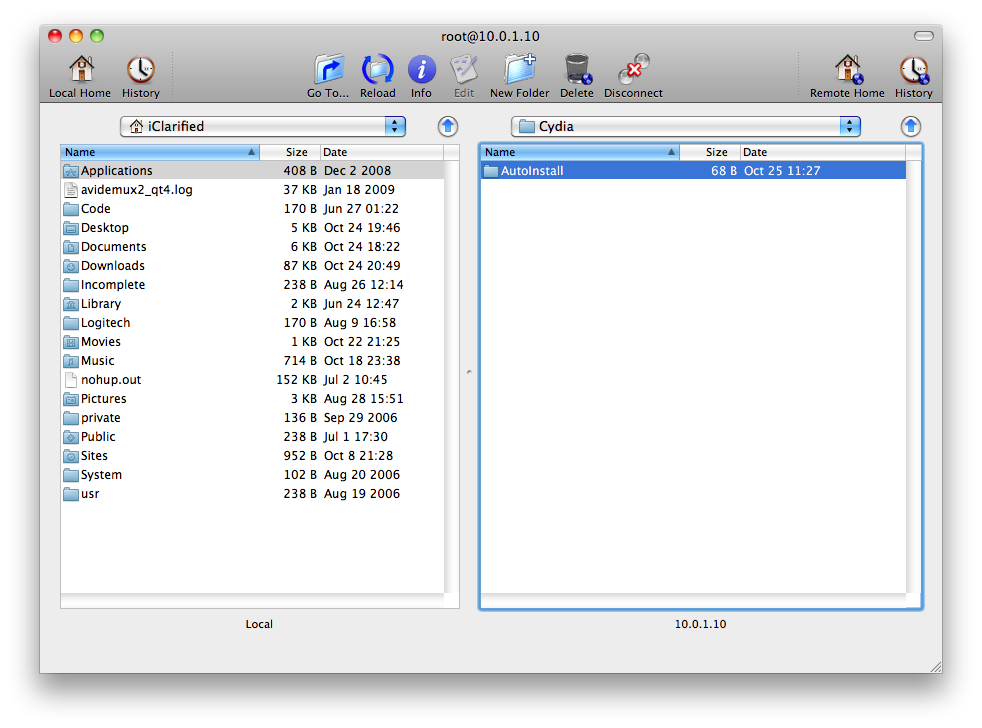
Step Eight If you do not have a AutoInstall folder in the /var/root/Media/Cydia folder, you will need to create one.
Click the New Folder button on the Fugu toolbar.
Input AutoInstall as the New Directory Name. Set the directory to be created Remotely then click the Create button.
Step Nine Double click the AutoInstall folder to enter the directory.
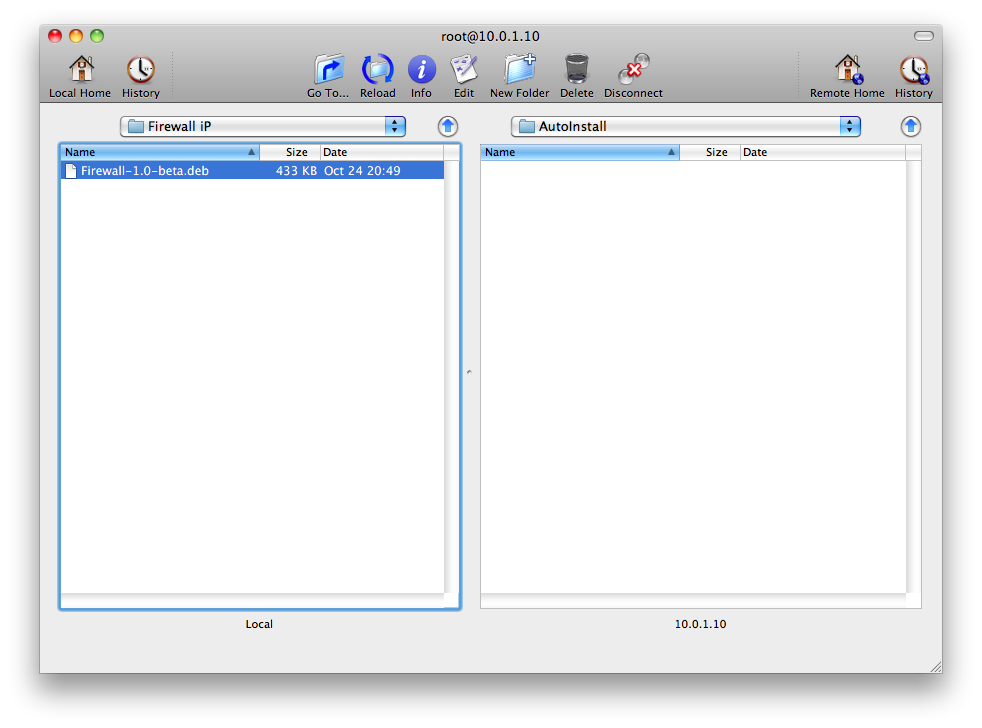
Step Ten Now use the left pane in Fugu to navigate to the location of the DEB files you would like to install
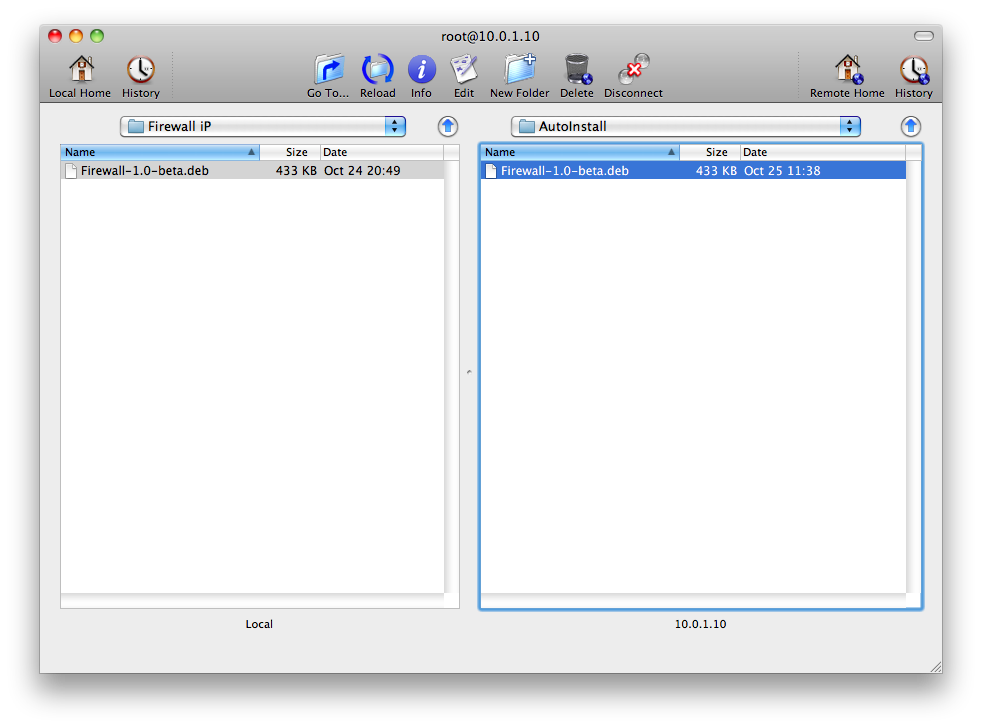
Step Eleven Drag the DEB files from the left pane to the right pane.
Step Twelve Once fully copied all you must do is power off and on your iPhone, twice! You will then see the applications installed on your Springboard and in Cydia Installer.
Alternatively, you can power off once and then respring.
Get the iClarified Daily Newsletter
Apple news, rumors, tutorials, price drop alerts, in your inbox every evening, free.
Unsubscribe at any time.
Success!
You have been subscribed.
Add Comment
Would you like to be notified when someone replies or adds a new comment?
Yes (All Threads)
Yes (This Thread Only)
No
Notifications
Would you like to be notified when we post a new Apple news article or tutorial?
Read this : 2 easy steps for installing .deb
1. You will need only 1 thing, and it's called iFile
2. Open your .deb in iFile and click to install it.
Reboot/Respring, Done
another way.. is to use Mobile Terminal
Download MobileTerminal in Cydia.
Put your .deb file in /tmp using iFile
1) Start MobileTerminal
2) enter: su
3) enter: alpine (default pass)
4) dpkg -i /tmp/NameOfTheFile.deb
5) delete the deb file
6) reboot/respring
Ya that's what I do... however I like the idea of AutoInstall...
beside when u do the "dpkg -i crap.deb" usualy crap.dep disapears afterworth...
hence my 2 questions, where do they go? where can I store them safley in order to copy them / send them later may be many time over??
and second question, How should I set the permissions on this Cydia folder and Autoinstall folders???
Euh? Yes you can... it's called open console. It's under secure ftp. If you care to run the debian package manager yourself instead of having Cydia do the job for you, sure it works fine. Just the default fonts sucks big time.
deb files are sort of like .app but for cydia, or just think of the ad a compressed file.
also wanted to add that you can do this over and file transfer program it doesnt have to be ssh.
Dude... Thanks for the link. it's bit outdated but very very useful... thanks again...
if u have any more of these please. I download all these deps, and sources on my PC as a backup when i need to reinstall when an experiment goes wrong.
That is very helpful
.app? Hummm well, they are Debian packages... like RedHat's RPM or MacOS's pkg files. Yeah, it's like a TAR compressed file but I guess for windows people it's more like a cabinet (.cab) file. APP files are self contained and uncompressed. Not to be pedantic, but I thought it was confusing the way it was said. Anyway, search for debian packages if you care ...










![Tim Cook Expected at White House State Dinner for Xi Jinping [Report]](/images/news/102260/102260/102260-160.jpg "Tim Cook Expected at White House State Dinner for Xi Jinping [Report]")
![Apple Debuts Official Trailer for 'Knife Edge: Chasing Michelin Stars' Season 2 [Video]](/images/news/102258/102258/102258-160.jpg "Apple Debuts Official Trailer for 'Knife Edge: Chasing Michelin Stars' Season 2 [Video]")

![Apple Releases macOS 27.2 Golden Gate Beta to Developers [Download]](/images/news/102249/102249/102249-160.jpg "Apple Releases macOS 27.2 Golden Gate Beta to Developers [Download]")









![Apple Studio Display XDR Hits All-Time Low of $2,969.99 ($329 Off) [Deal]](/images/news/101976/101976/101976-160.jpg "Apple Studio Display XDR Hits All-Time Low of $2,969.99 ($329 Off) [Deal]")
