These are instructions on how to jailbreak your iPhone 3GS on the 3.1.2 firmware using RedSn0w for Mac. If you are already on firmware 3.1.2, do NOT update to firmware 3.1.3. The Windows version of this can be found here. The iPhone 3G version of this tutorial is here. The iPhone 2G version of this tutorial is here
This tutorial can be used to jailbreak before applying the BlackSn0w unlock. You can find instructions on how to apply the unlock here.
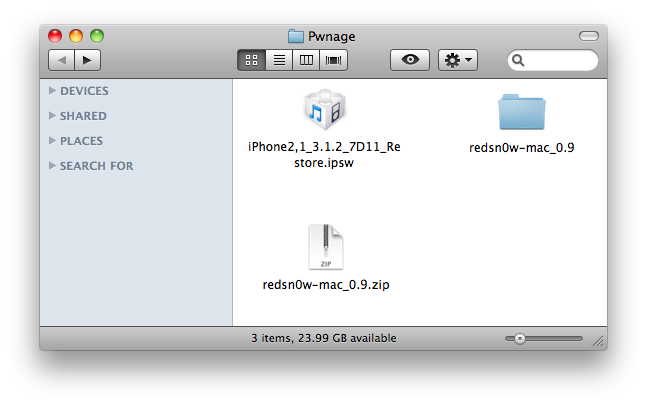
Step One Create a folder on your desktop called Pwnage
Download RedSn0w from here and place it in the Pwnage folder. Likewise, download the latest 3.1.2 firmware from below and place it in the same folder.
Double click the redsn0w zip file to extract the redsn0w folder to the Pwnage folder.
Step Two ***If you are running iPhone OS 3.1.2 you may skip this step***
Connect your iPhone to the computer and launch iTunes.
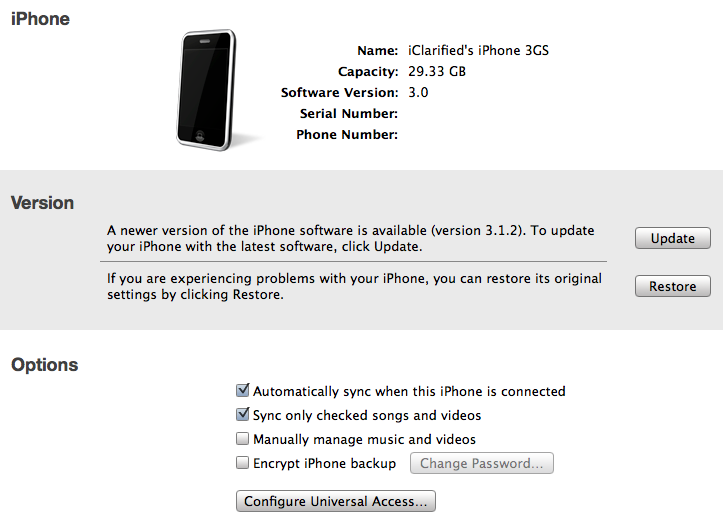
Select your iPhone from the list of devices on the left. Now hold down Option and click the Restore button. Restore is preferred as it won't create any wasted space on your iPhone.
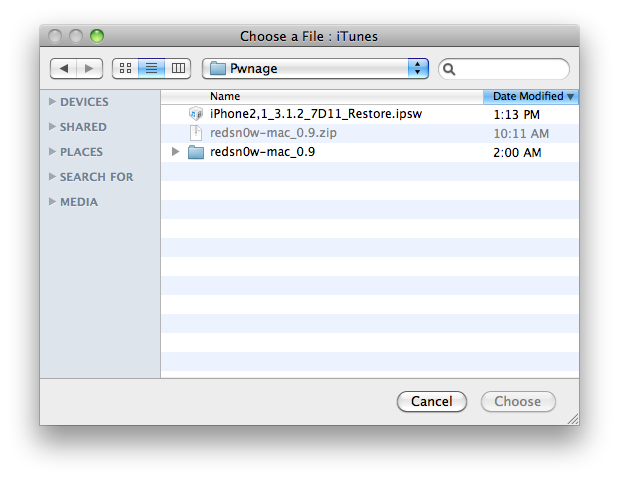
Navigate to the Pwnage folder on your desktop and select the firmware ipsw. Click the Open button to continue.
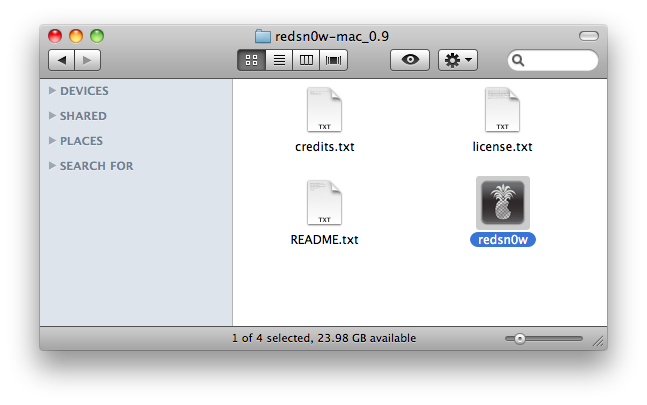
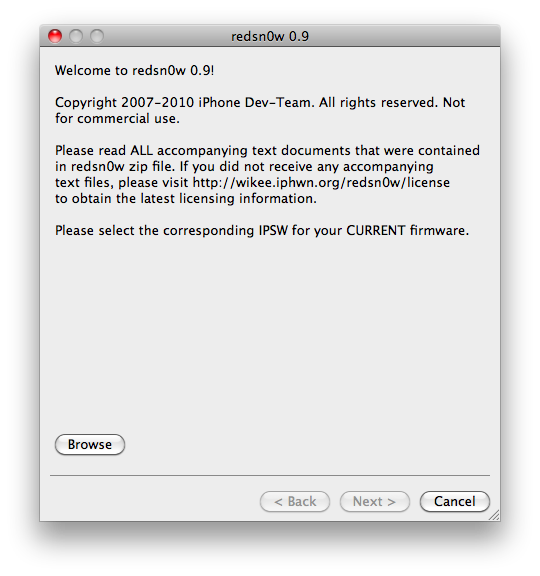
Step Three Once iTunes has finished updating your iPhone to the desired firmware open the Pwnage folder on your desktop and launch the redsn0w application from the redsn0w folder we extracted earlier.
Step Four Once RedSn0w opens click the Browse button
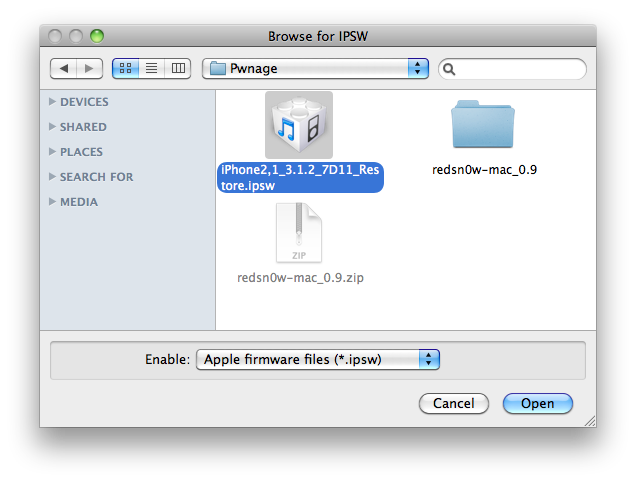
Step Five Select the firmware ipsw we placed in the Pwnage folder on our desktop then click Open
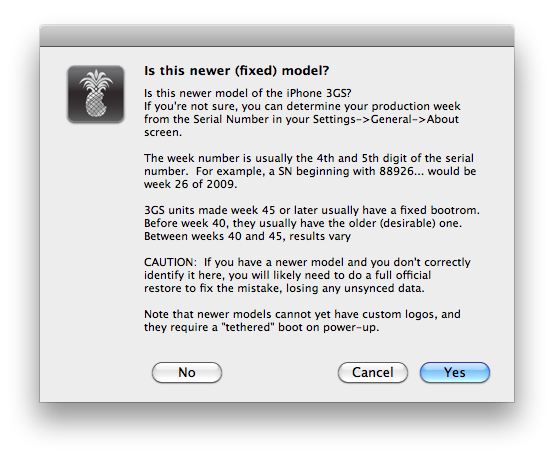
Step Six RedSn0w will ask you if this is a newer (fixed) model iPhone. Newer models of the iPhone 3GS have a fixed bootrom which requires you to connect your device to the computer each time you wish to reboot.
To find your serial number you can follow these instructions. The week number is usually the 4th and 5th digit of the serial number. For example, a serial number beginning with 88926 would be week 26 of 2009. 3GS units made week 45 or later will usually have a fixed bootroom. Before week 40 they usually have the older bootroom. Between weeks 40 and 45 the results vary.
If you believe your device has a fixed bootrom then press the Yes button. Otherwise press the No button.
If you accidentally select the wrong option you may have to do a full restore so please make this choice carefully.
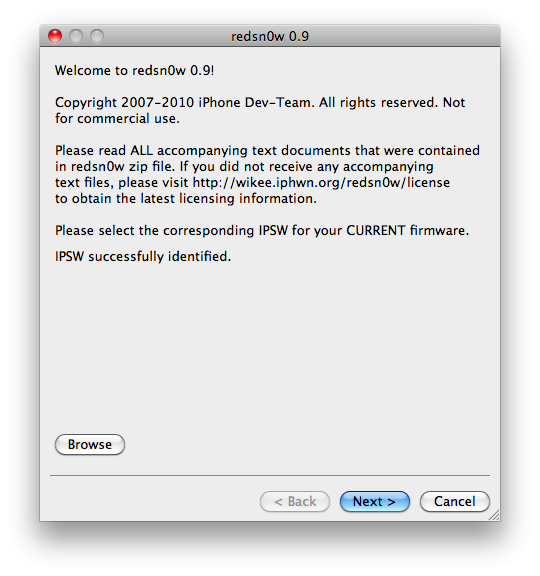
Step Seven Once the firmware has been verified click the Next button to continue.
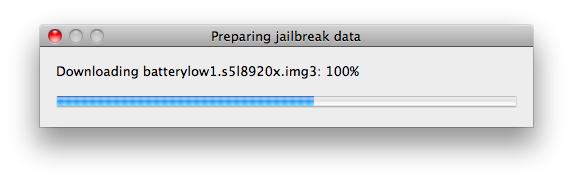
Step Eight RedSn0w will now prepare the jailbreak data
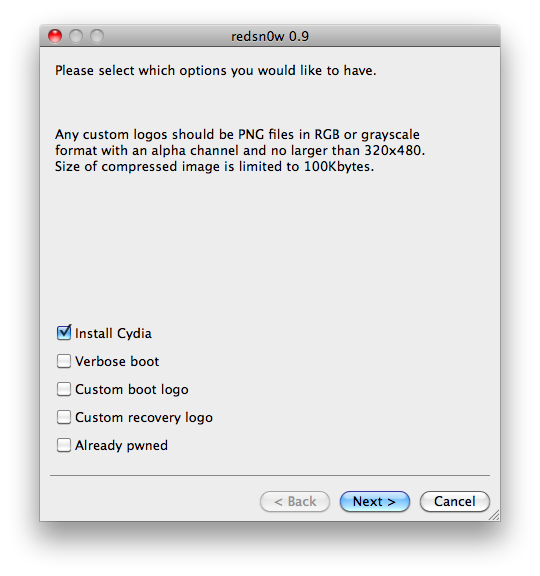
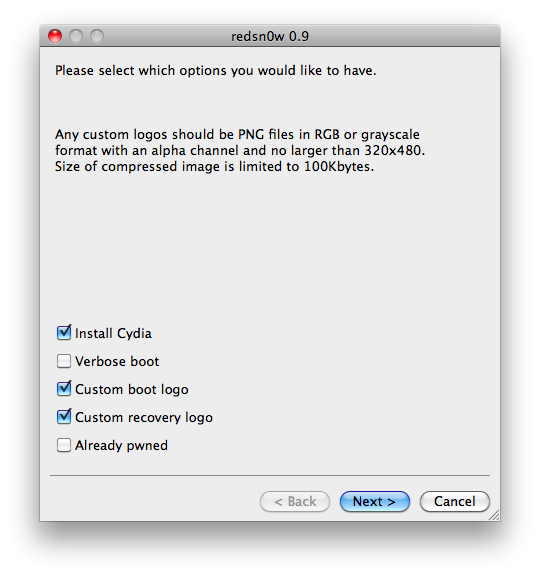
Step Nine From this window you can select the jailbreak options you would like. If you have already pwned your device check the Already pwned option.
Verbose boot displays detailed information on boot of your device and is generally only needed by developers and advanced users.
Make sure Cydia is selected. For this tutorial we will also select Custom boot logo and Custom recovery logo.
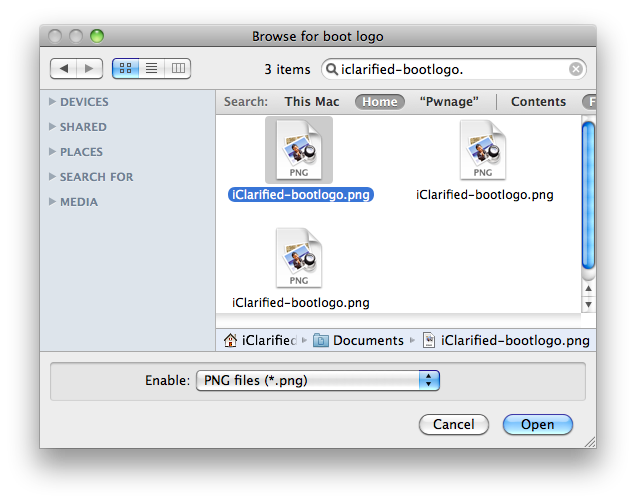
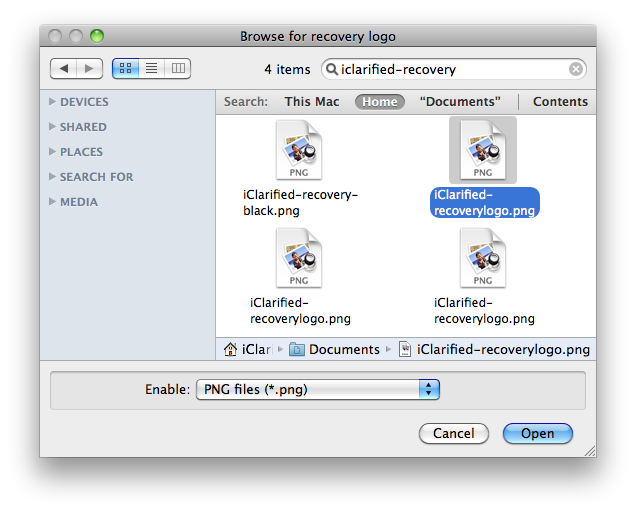
When you click to select each custom logo option a dialog window will appear asking you to select the image. Locate the image you would like to use then press the Open button.
*Remember the rules for boot logos are: RGB or Grayscale format with Alpha channel and dimension below 320x480. If you would like to use the iClarified ones they can be found here: Boot Logo, Recovery Logo
Click the Next button to continue
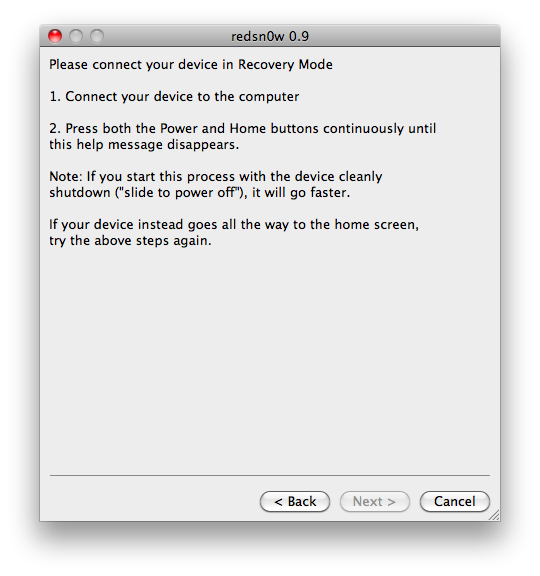
Step Ten RedSn0w will now instruct you on how to put your iPhone into recovery mode. Disconnect you iPhone 3GS from the computer then power it off. Then hold down the Home button while reconnecting the device to the computer. Don't let go of the button until RedSn0w detects the iPhone and begins installation.
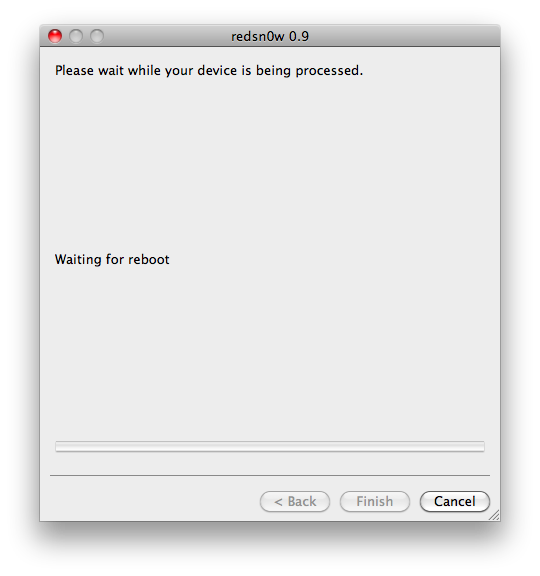
Step Eleven Your iPhone will now reboot
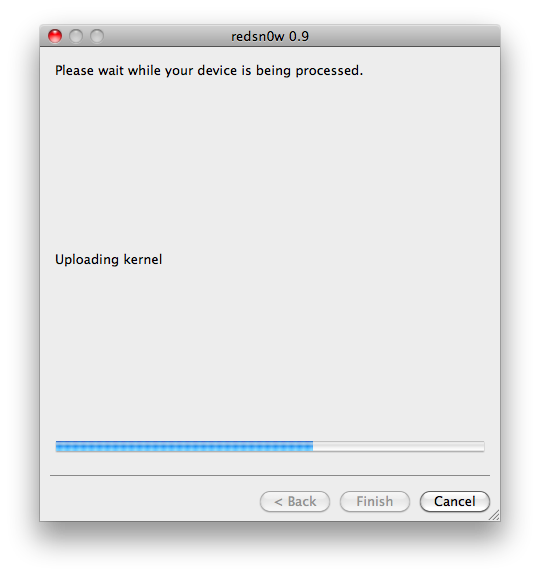
Step Twelve RedSn0w will then begin uploading the new RAM Disk and kernel.
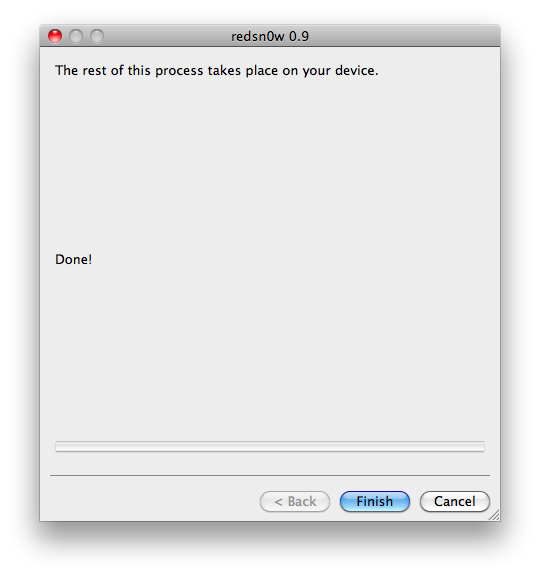
Step Thirteen Once this is complete you will be notified that RedSn0w is done. Click the Finish button. When your iPhone finishes rebooting (5 minutes or so) it will be jailbroken with Cydia on the SpringBoard.
*As usual a big thanks to the iPhone Dev-Team for their hard work and contribution to the iPhone community.
Get the iClarified Daily Newsletter
Apple news, rumors, tutorials, price drop alerts, in your inbox every evening, free.
Unsubscribe at any time.
Success!
You have been subscribed.
Add Comment
Would you like to be notified when someone replies or adds a new comment?
Yes (All Threads)
Yes (This Thread Only)
No
Notifications
Would you like to be notified when we post a new Apple news article or tutorial?
Hi,
I have iphone 3GS 3.1.3 with base band 5.12.01 and old bootrom locked in emergency call. Please let me know if i will be able to jailbreak and unlock now or still I have to wait. Help please..
Does this tutorial really work for the iPhone 3GS 3.1.3, I havn't seen that this tutorial works on the 3.1.3 firmwire before?
Anyone who has succed to jailbreak their iPhone with this tutorial?
I've got a 3GS, never JBen, 3.1.2 and 5.11.07 baseband...
While the process goes all the way to completion, upon reboot, it does not seem that my iPhone is JBen at all, and I do not have any Cydia icon.
I also cannot restore in step 2 with the IPSW in the tutorial - getting an apple error message. any thoughts?
When will there be a fix for the restart problem? i´m so sick off it. that i have to have a computer du lock it ut if i have to restart the phone.........
/Tom
I have the "fixed" iphone that needs unlocking everytime I reboot with Blackra1n. Will I still have to unlock on rebooting if I use this new jailbrake?
have problem whid restarting. if i chouse Yes it go to Itunes and i have to do a fabrik reinstall why? this up date of redsnow should be Okey for my devise. i halve week 44....anybody who has the same problem?
Any idea where to find a trusted !! custom ipsw for the 3GS? I need to keep my modem FW at 4.26 for the unlock. I guess that if I take the ipsw provided here as download link would also upgrade my modem FW and make the unlock with ultrasn0w impossible? Tom
Hm, confused now. I own the 3GS and checked the serial no (NOT the model no), 4th and 5th are 24 so obviously I have an older model. Now I need jailbreak and unlock and currently run software version 3.0 with modem fw 04.26.08.
The tutorial states that I need to update to the newest FW 3.1.2 but doesn't that also update also my modem FW? I learned that the updated modem FW does not allow an unthethered unlock, i.e. I have to run unlock every time the battery dies. Is this now still correct? Or can I indeed use the latest redsn0w version, update to FW 3.1.2, have model FW updated too and still have an unthereed unlock?
As I sadi, confused :-)
Phil
Thanks Miguel. But that is then indeed a tethered jailbreak as mentioned by GeoHot on his blog/site? And I understood that I can use redsn0w for an unthethered jailbreak instead? I do not want to run into the problem to have a cable and laptop at hand in case my battery dies...
Is there any reson to use this instead of the very easy and fast blackra1n?? I have no interest in custom bootlogo.
Used blackra1n on my 3GS and it is working fine.






![Pro Photographer Austin Mann Tests iPhone 18 Pro Camera [Video]](/images/news/102297/102297/102297-160.jpg "Pro Photographer Austin Mann Tests iPhone 18 Pro Camera [Video]")
![Apple Releases Xcode 27.1 Beta With iPhone Duo SDKs and Simulator [Download]](/images/news/102276/102276/102276-160.jpg "Apple Releases Xcode 27.1 Beta With iPhone Duo SDKs and Simulator [Download]")
![Apple Shares 'new trick' Shot on iPhone 18 Pro Ad Featuring ROSÉ [Video]](/images/news/102273/102273/102273-160.jpg "Apple Shares 'new trick' Shot on iPhone 18 Pro Ad Featuring ROSÉ [Video]")









![Apple Studio Display XDR Hits All-Time Low of $2,969.99 ($329 Off) [Deal]](/images/news/101976/101976/101976-160.jpg "Apple Studio Display XDR Hits All-Time Low of $2,969.99 ($329 Off) [Deal]")
