These are instructions on how to capture your iPhone 3GS iBEC and iBSS which will be required to jailbreak in the near future. The Mac version of this tutorial can be found here
**NOTE: It seems like most are able to capture both their iBEC and iBSS files in DFU mode. To try it just in DFU mode skip steps 4 through 6.
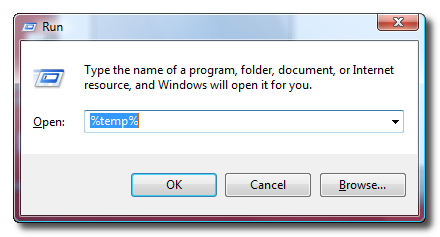
Step One Press the Windows key + R to bring up the run dialog. In the entryfield type %temp% then click OK.
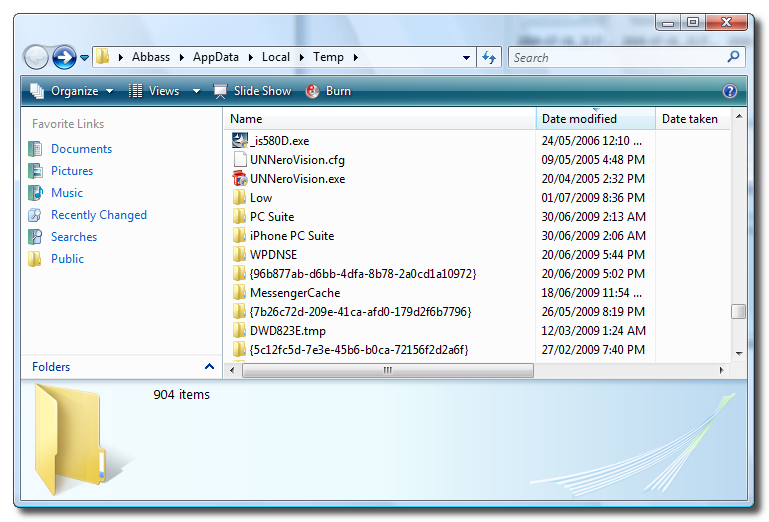
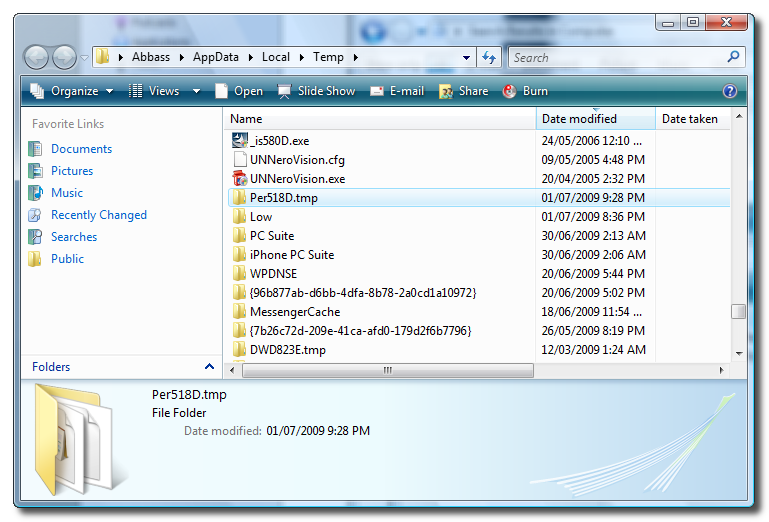
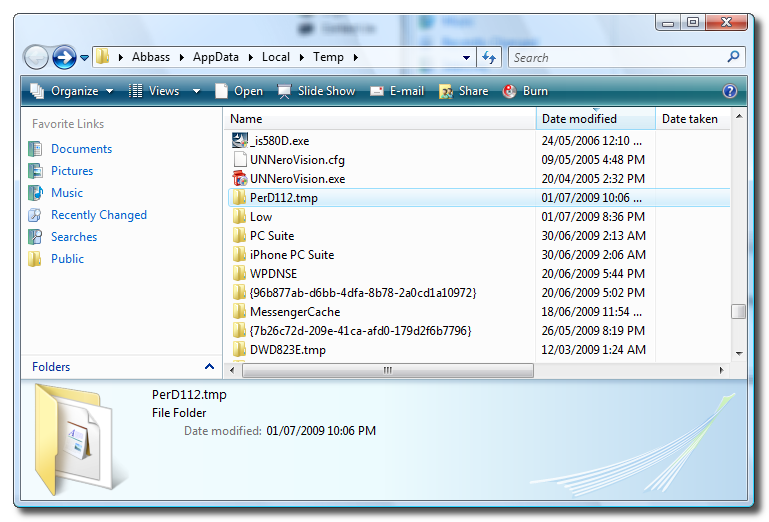
This will bring up the windows temp folder for your user account. Make sure you order the folder by date modified with the most recent at the top. Scroll down to the top of the folder list.
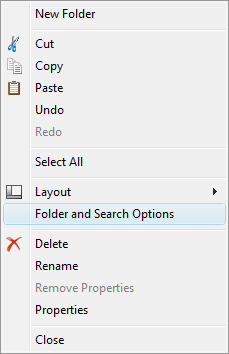
You must be able to view hidden files and folders. In Vista you can do this by selecting Organize from the toolbar then choosing Folder and Search Options.
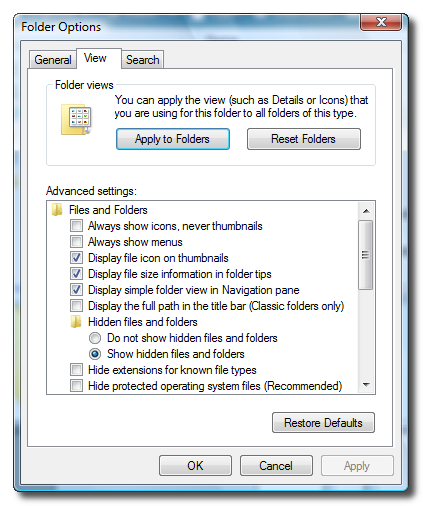
From the View tab of the window that appears choose Show hidden files and folders then click OK
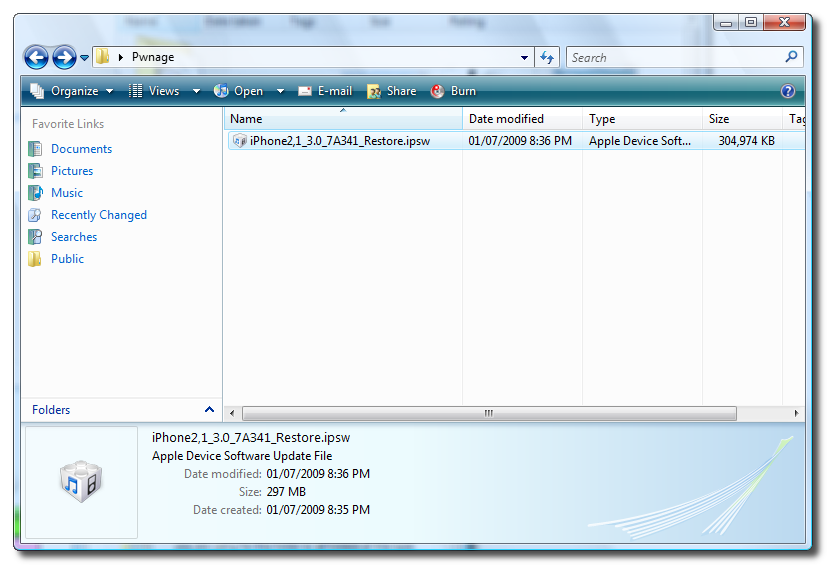
Step Two Create a new folder on your desktop called Pwnage and place the 3.0 firmware in the folder. You can download the firmware from here
Step Three Launch iTunes from your Programs menu.
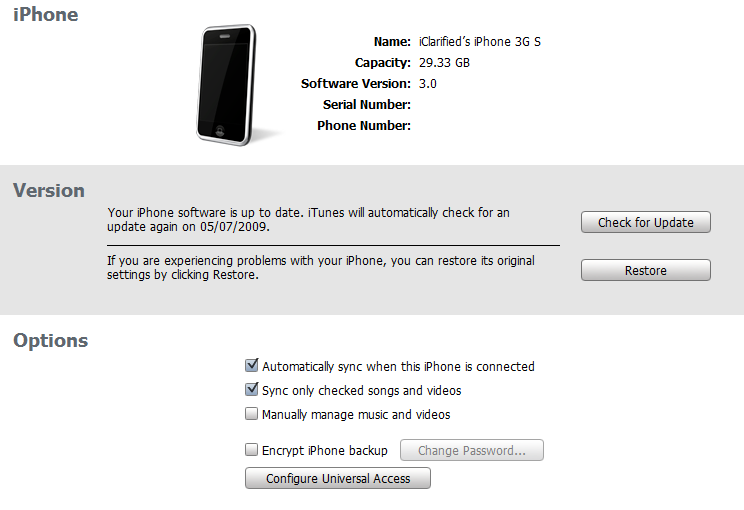
Step Four Make sure your iPhone 3GS is connected to the computer then select from the list of devices on the left. Hold down the Shift key and click the Restore button
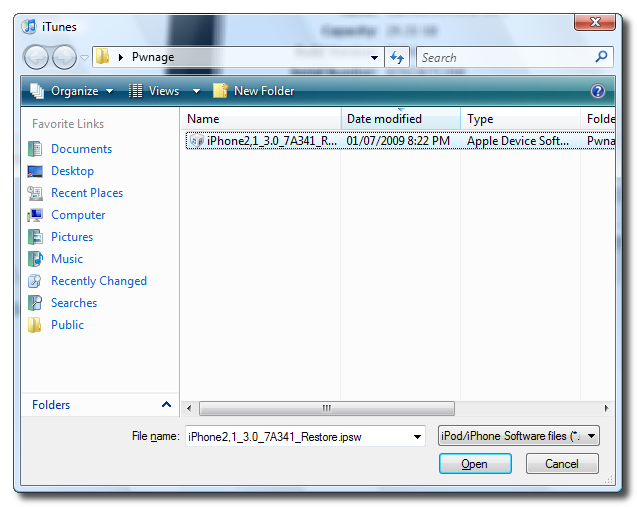
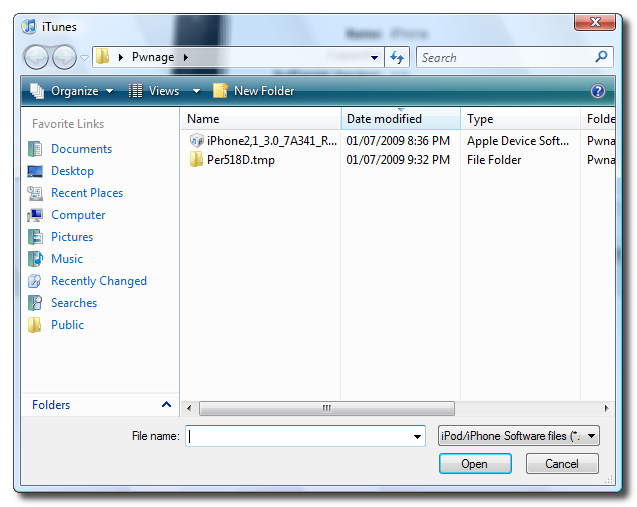
Select the iPhone2,1_3.0_7A341_Restore.ipsw file from the Pwnage folder on your desktop and click the Open button.
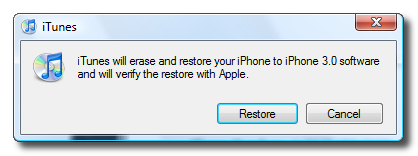
Your iPhone will now begin restoring to the 3.0 firmware. You will be warned that this will erase your phone. Click the Restore button to continue.
Step Five As the restore is progressing watch the %TEMP% folder we have open. A new folder will appear with a name similar to Per518D.tmp. When the folder does appear, select it, then press Control+c to copy it to the clipboard.
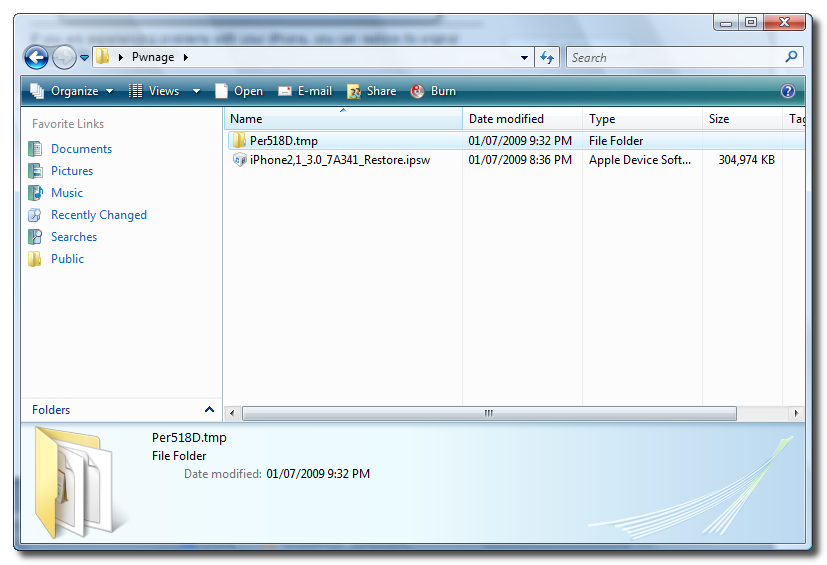
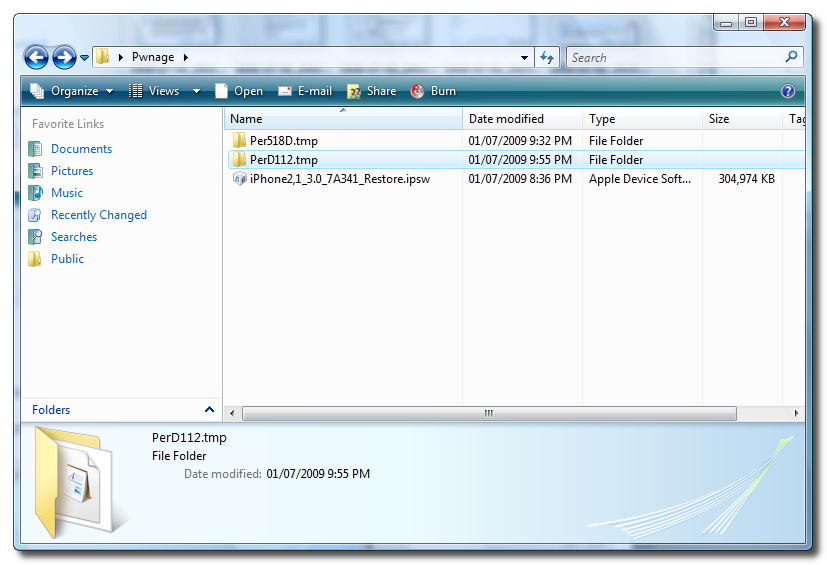
Move to the second Finder window that is showing the Pwnage folder and press Control+v to copy the file folder into the window.
**Remember you only have a limited time to do this as the folder will be removed very shortly. It seems like a new folder will pop into the %TEMP% directly three times during the DFU restore. You need to capture the first one that appears.
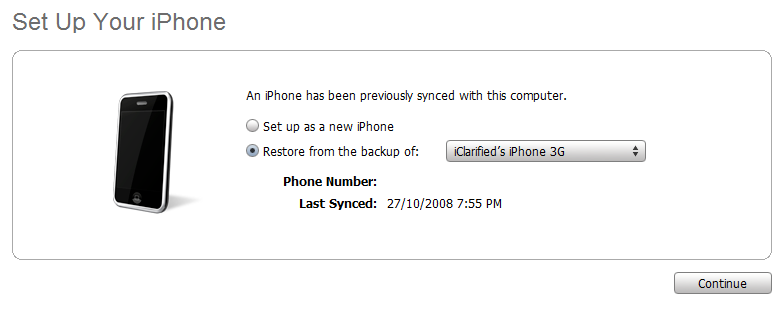
Step Six Once the restore has completed iTunes will ask you to restore from backup or set up as a new phone. To keep your settings as before select Restore from the backup of: then click the Continue button
Step Seven Once the backup has been restored we will need to do another iPhone restore from DFU mode to get our iBSS. To do this follow these instructions to put your iPhone into DFU mode.
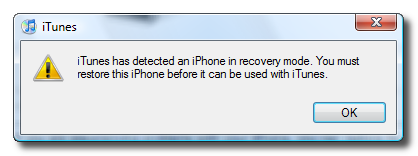
iTunes will popup a message saying it has detected an iPhone in recovery mode. Click okay to this message then Hold down the Shift key and click the Restore button
Select the iPhone2,1_3.0_7A341_Restore.ipsw file from the Pwnage folder on your desktop and click the Open button.
Your iPhone will now begin restoring to the 3.0 firmware. You will be warned that this will erase your phone. Click the Restore button to continue.
Step Eight As the DFU mode restore is progressing watch the /tmp folder we have open in Finder. A new folder will appear with a name similar to PerD112.tmp. When the folder does appear, select it, then press Control+c to copy it to the clipboard.
Move to the second Finder window that is showing the Pwnage folder and press Control+v to copy the file folder into the window.
**Remember you only have a limited time to do this as the folder is removed shortly.
Step Nine Once the DFU restore has completed iTunes will ask you to restore from backup or set up as a new phone. To keep your settings as before select Restore from the backup of: then click the Continue button to finalize the restore.
Step Ten That's it. We now have captured our iBEC and iBSS. You can move these to a safe place to be used for a future jailbreak of your iPhone 3GS.
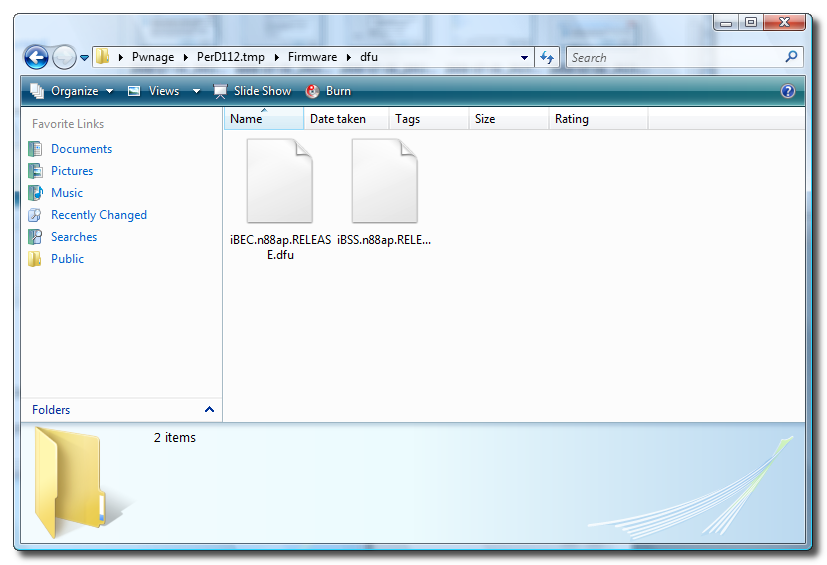
To confirm you have the files look in Pwnage/Per????.tmp/Firmware/dfu. You should see two files: iBEC.n88ap.RELEASE.dfu and iBSS.n88ap.RELEASE.dfu
Get the iClarified Daily Newsletter
Apple news, rumors, tutorials, price drop alerts, in your inbox every evening, free.
Unsubscribe at any time.
Success!
You have been subscribed.
Add Comment
Would you like to be notified when someone replies or adds a new comment?
Yes (All Threads)
Yes (This Thread Only)
No
Notifications
Would you like to be notified when we post a new Apple news article or tutorial?
I have a 16gb 3GS currently running 3.0.1. I have tried this process many times (with the phone plugged in normal, in recovery mode, in DFU mode) and cannot get itunes to load the iPhone2,1_3.0_7A341_Restore.ipsw firmware to my phone. Every time it just says that my device is not eligible for this firmware. What can I do? Is there a way of blocking itunes from checking eligibility and just installing? Or is there an app I can install on the phone to fetch the iBEC and iBSS straight out?
I'm not sure if this will work, but it's worth a try and doesn't require any restoring.
Download the firmware, then make a copy and change the file extension from .ipsw to .zip, unzip it, go to Firmware/dfu and there you go! The iBEC and iBSS are there!
Hello
I am only getting the iBEC.n88ap.RELEASE.dfu one and no IBSS. I have tried the grabber and manually, but cant find that file. I have the 3GS with 3.0.1 firmware. Can any one advise me?
Thank you
Thanks. Got the ibes but could not get the ibss...and currently give up. Had problems getting into the dfu mode (or out of it for that matter)....then when itunes finally worked out it forced me to update to 3.0.1....(trial 1) and then restored with shift restore to 3.0 version...both times grabbed the temp file...both times it showed up as ibec... not the ibss file....so i hope the ibec file is enough as I give up...for now!
i just bought a new iphone 3gs today and tried this and i think i just 'bricked' my iphone.
i'm not able to restore it using the apple provided update, nor can i restore it using the firmware provided at the link from iclarified. i don't know if this has happened to anybody else but if anyone can help i'd really appreciate it.
i keep getting the following error: the iphone "iphone" could not be restored. an unknown error occurred (14).
i'm using windows 7 but tried restoring it on two other computers; one running windows vista & the other running windows xp. i've been searching online for a the last few hours with no luck! one person said, their iphone started working the next morning when they tried to restore it so i'm kinda hoping i end up in the same situation but if not i'm screwed. or well i guess ill have to take it to the apple store.
I just tried the initial restore on 8.2.0.23 and I kept getting the same error you did. I installed 8.2.1 and it has worked fine so far... I'm not out of the woods yet though. I think I forgot the password to my backup!
Does someone know if I need to re-capture these files each time I restore? Or does the "signature" in these files NOT change with each restore??? Thanks for the help
hey @ brandon,
each time apple will send u a different certificate but it is custom to your iphone. even though there will be differences in the certs apple sends you, if you save any of them then they will work no probs because they are officially signed. and after that there is no more validation.
C:\Users\All Users\Apple Computer\iTunes\iPhone Temporary Files\Firmware\dfu
On Vista this is where i found my iBSS file as well. Even using the Grabber program it just does not show up tin the %temp% directory.
Thanks for the note, that's exactly what I was looking for. In XP the directory to find BOTH files is C:\Documents and Settings\All Users\Application Data\Apple Computer\iTunes\iPhone Temporary Files\Firmware\dfu
I assume that they are there while doing the restore in DFU mode.
in my case I grabbed both files, BUT there were no questions reg. restoring "as a new phone" or "restore from backup...". iTunes asks me for the personalö information to complete the account activation.
is it jusual? Do I need to do it?
tx
Ok people...if you want your IBEC and IBSS files this is the easiest solution I have found! Download IBEC IBSS Grabber...unzip it and read the .txt file. You will run the program, specify a file location, click "start watching" and then put your 3GS into DFU mode and restore....VOILA! Works perfectly and no stress trying to catch the IBSS file that everyone is missing. I did this in VISTA.
Yes...I got 3 also....the one u want is the first folder...the one that has both the IBEC and IBSS files. The second folder will only have IBEC and the third folder won't even have a DFU subfolder. Hope this helps.
Ok, here what worked for me because I too want to capture these files so future jailbreaks from The Dev Team are easy. Watch the video by TheVincentLee where he goes through the whole process including putting your phone into DFU. Use dirfnt's tool to capture/copy the folders for you and after the restore, search for .dfu. I tried the manual method a few times and kept missting the iBSS file too
Good advice! The youtube video link is broken, but it is fairly easy to get into DFU mode. The iBEC & iBSS grabber tool is excellent though - saves you from a bit of a hassle :)
To everyone who is only able to get the iBEC file: make sure you are in complete DFU mode. This is different from the soft DFU mode. Watch this clip and you will be on your way: http://www.youtube.com/watch?v=34FA6M-hhQ0 (took me 4 times to finally realize this!)
ok i just got a replacement 3GS and i was able to get teh iBSS file with the old phone i had, but doing the same method i am unable to get the iBSS file. the iBEC file shows up but not the iBSS.
any ideas?
The link to the youtube file that shows how to put th iPhone in complete DFU mode has been taken down. Anyone know where we can find new directions to put the iphone in complete DFU mode to get the iBSS files?
Instructions for putting the iphone into complete DFU:
1) Iphone should be on and plugged in to itunes
2) press and hold power and home keys for ten seconds (actually hold it for ten seconds)
3) let go of power key but keep home key pressed
4) let go of home key when itunes reports that your phone is connected in recovery mode
bump on this as it turned out to be my problem. I could never get the iBSS file, even after using the grabber tool, until i realized that I wasn't in complete DFU mode. Once i was in complete DFU mode (like Kenneth describes), it worked like a charm and i got both files.
Just did mine got both files and new certification,waiting on dev team.
They will come through soon. I hope the jailbreak isn't as much hassle as retrieving these files.




![iPhone Ultra Could Launch Only in the U.S. at First [Report]](/images/news/101765/101765/101765-160.jpg "iPhone Ultra Could Launch Only in the U.S. at First [Report]")
![Apple in Talks to Pay Publishers for Siri AI News Access [Report]](/images/news/101762/101762/101762-160.jpg "Apple in Talks to Pay Publishers for Siri AI News Access [Report]")



![Apple Watch Series 11 Titanium Cellular Drops to $639 ($160 Off) [Deal]](/images/news/101736/101736/101736-160.jpg "Apple Watch Series 11 Titanium Cellular Drops to $639 ($160 Off) [Deal]")


![Apple AirPods Pro 3 Drop to $189.99, Lowest Price in a Month [Deal]](/images/news/101682/101682/101682-160.jpg "Apple AirPods Pro 3 Drop to $189.99, Lowest Price in a Month [Deal]")
