***** IMPORTANT: These instructions have been updated for the latest iPhone firmware. Please follow the up to date instructions here *****
These are instructions on how to jailbreak your iPhone 3GS on the 3.0.x iPhone firmware using RedSn0w for Windows. The Mac version of this tutorial is here. The 3G version of this tutorial is here . The 2G version of this tutorial is here
This tutorial can be used to jailbreak before applying the UltraSn0w unlock. You can find instructions on how to apply the unlock here.
** If you would like to jailbreak on the 3.0.1 firmware you can follow these exact instructions; however, in Step Two use this 3.0.1 iPhone firmware file instead of the 3.0 one. Continue with the instructions as indicated.**
Step One Create a folder on your desktop called Pwnage
Download RedSn0wfrom here and place it in the Pwnage folder. Likewise, download the latest 3.0 firmware from below and place it in the same folder.
Extract the RedSn0w executable from the zip file to the Pwnage folder.
Step Two Connect your iPhone to the computer and launch iTunes.
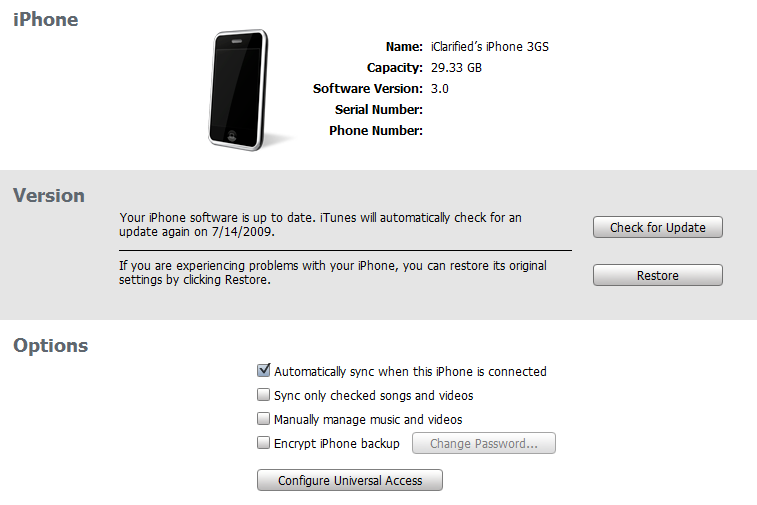
Select your iPhone from the list of devices on the left. Now hold down shift and click the Restore button. Restore is preferred as it won't create any wasted space on your iPhone.
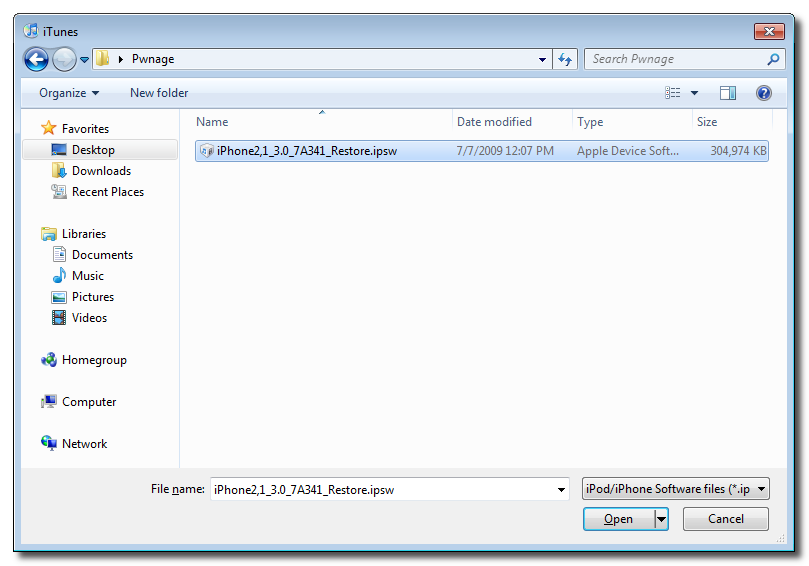
Navigate to the Pwnage folder on your desktop and select the firmware ipsw. Click the Open button to continue.
Step Three Once iTunes has finished updating your iPhone to the desired firmware you may launch redsnw0w.exe from the Pwnage folder on your desktop.
Step Four Once RedSn0w opens click the Browse button
Step Five Select the firmware ipsw we placed in the Pwnage folder on our desktop then click Open
Step Six Once the firmware has been verified click the Next button to continue.
Step Seven Make sure Cydia is selected and click the Next button.
Step Eight RedSn0w will now instruct you on how to put your iPhone into recovery mode. Disconnect you iPhone 3GS from the computer then power it off. Then hold down the Home button while reconnecting the device to the computer. Don't let go of the button until RedSn0w detects the iPhone and begins installation.
Step Nine Your iPhone will now reboot
Step Ten RedSn0w will then begin uploading the new RAM Disk and kernel.
Step Eleven Once this is complete you will be notified that RedSn0w is done. Click the Finish button. When your iPhone finishes rebooting (5 minutes or so) it will be jailbroken with Cydia on the SpringBoard.
Get the iClarified Daily Newsletter
Apple news, rumors, tutorials, price drop alerts, in your inbox every evening, free.
Unsubscribe at any time.
Success!
You have been subscribed.
Add Comment
Would you like to be notified when someone replies or adds a new comment?
Yes (All Threads)
Yes (This Thread Only)
No
Notifications
Would you like to be notified when we post a new Apple news article or tutorial?
I am not a Macintosh/Apple fan, I use Windows/Linux/Android. However, I bought an iPhone 3G 16GB for $50 from a friend. I've Jailbroken it but now I face two problems. Cydia tells me that there are some Essential Updates to download and install but when I confirm the installation none of the files download successfully. I get an error for each one then I'm taken back to the Cydia main page.
Secondly, now that I'm Jailbroken, when I plug in my iPhone and open iTunes it asks me to Setup as New iPhone or Restore from Previous Backup, until I choose one of these options I can't sync my iPhone to my PC and/or copy music over etc. Why? How can I get by this? After these problems are resolved I need to unlock the iPhone but I can't move forward until the Cydia issues are fixed...
Help!!!
PAinguIN
I have 3GS with new bootrom. I have heard it can be jailbroken on 3.1.3 now. But there is no tutorial here!!!...Plz gimme link of a tutorial.
Thank you!
I bought a 3gs and I recieved it for 5 days ago, is it blocked against jailbreaking or what? I tried to jailbreak it but it wouldn't work, why is that?
If you have gotten a 3gs within the past 3 months there is a new block and they cannot be unlocked. Not sure if this is your problem but figured I'd let you know.
Someone told me the new iphone3gs can't be jailbroken yet cause it will keep getting locked and that have to waiting for new programs? then how am i suppose to download bosspref to off EDGE? SOS
hey i just used redsn0w to jb but when i browse for iPhone2_1_3.0.1_7A400_Restore.ipsw it says unable to recognize specified IPSW what is the solution??? i have a 3GS iphone with 3.0.1 frimware baseband 4.26.08 and i have never JB or unlcoked
Everyone who is having problems with downloading the IPSW files....
Download FireFox web browser and use it instead of Internet Explorer. Makes all the difference in the world. Works great every time. No problems.
Okay I followed all the instructions to a tee and I have a 3GS with firmware 3.0.1 and when I tried to load the new iPhone2,1_3.1.2_7D11_Restore.ipsw as it's extracting into my iPhone iTunes give me an error that reads 'The iPhone could not be restored. This device isn't eligible for the requested build. Any suggestions???
Hi all
can please someone confirm that it is safe to use this tutorial now that apple blocked restoring of old FW 3.0.x?
So I just follow this tutorial WITHOUT first restoring to 3.0.1: I directly start with the jailbreaking-thing using redsn0w with FW 3.0.1 I installed on my so far non-jailbroken 3gs for weeks, ok?
Thanks!
Ter11
Hi,
I have an iphone 3gs and was JB before but when the itunes 9 came it accedently upgraded to 3.1.2Fm and now I just cant unlock it, I did all I mean Blackra1n and then Cydia, and all goes ok, but then when I put my sim it says " searching" and then no network,
so guys I really need help, what to do, am on windows vista,
plzzzzzzzzzzzzzzzzzzzzzzzzzzzzzzzzzzzzzzzzzzzzz
thanks
You will need to restore your iPhone to an earlier backup file. IE: Pre 3.1.2 then be sure to download the proper ISPW file according to your iPhone. https://www.iclarified.com/entry/index.php?enid=750
Watch the video and follow the steps accordingly. FYI I have done several iPhones since the 3.1.2 update without any problems. I use the RedSnow software, it is the only one that I have found to be reliable. The others all have a problem. Such as your very problem. Torrent Client and Torrent Files that some use are not very stable. Try RedSnow and you should be ok.
I understand that the restore option will erase everything on my iphone, and then I'll have to reinstall all apps and re-define all my email accounts etc?
Thank you.
I tried to jailbreak my iPhone 3GS with OS 3.0.1 and when restoring (using either the xxxA400_Restore.ipsw or xxxA341_Restore.ipsw file with Shift+Restore) I received the error message that "The iPhone could not be restored. This device isn't eligible for the requested build.".
If I understand the support at the Apple website correctly this is due to the fact that Apple doesn't allow a restore of an older OS version and OS 3.1 is out already.
Unfortunately the iPhone is already in recovery mode since my office computer didn't allow the access of the Apple server(s). If I use the Restore thze iPhone will be updated to OS 3.1 which as of now can't be jailbreaked with a Windows machine.
Does anybody have an idea how to proceed since I cannot use the phone at all at the moment?
I've tried RedSnow and I've tried to restore to 3.0. When I try to restore to 3.0 it comes up with the error "device isn't eligible for requested build". Used Saudik's rerouting to try and trick itunes by changing the IP in the "hosts" file, but no luck. Can't seem to get around the restore. I just got the 3gs yesterday, so I'm not sure if there has been a more advanced block by Apple.
I download the FM but when i go open it with my Iphone restore its not in the folder. I have re-downloaded it 3 times. In the tutorial it shows its just one ispw file but when i download it its a zip file and no ispw inside of it. What is wrong?
Alright, newbie here! Bought my iPhone today with version 3.1 preinstalled. I've downloaded the 3.0 FW, attempted the restore and it gave me the sane error others have said below. Knowing this, I skipped step 1 and 2 and ran redsn0w. Everything checked out, disconnected the USB and restarted while holding the Home key and reconnected the USB once the iTunes and USB cable showed up on the screen. redsn0w auto detected this and continued. It finished and "Done!" appeared so I clicked Finish.
Heres the thing, the iPhone didn't reboot so I manually rebooted. Once it came back up no Cydia.
I even tried restoring to Apple's 3.1 and starting over fearing that my initial sync may have caused some issues. After restoring I tried it again and still nothing. Please help!
Can I apply a jailbreak after my iPhone is already jailbroken? (iPhone 3GS firmware 3.0.1). When jailbreaking will my iPhone data be deleted? Since iTunes doesn't permit to restore firmware lower than 3.1.
Hello PPL!
Question 1
Since apple blocked installing FW previous than 3.1 can i still restore with a 3.0.1 version?
Question 2
Why cant we just run redsnow to jailbrake ? Why do we have to run itunes and make a restore?
Imagine i have my iphone already with FW 3.0.1..wouldnt be enought to just run redsnow?
Ok.. just saw ahead the solution.. start jailbraking using only redsnow and skip itunes restore step!
BUT now the MILLION DOLLAR QUESTION IS:
If i install apps...etc.etc... and in future my phone gets hang ups or not working well, will i be able to "RE-JAILBRAKE-IT" over the jailbraked already ?
What i mean is: can i apply again redsnow and the iphone goes back to its original point (with no apps etc) and jailbraked ?
OK. THis is what I did to jailbreak my new 3Gs. I just bought it today with the FW 3.0.1. I followed the tutorial and got the message saying "device isn' t eligible for the requested build". So I skipped the Shift and Restore part. I went straight to step 3 and use the restore 3.0 instead of the 3.0.1 because Redsn0w does not recognized 3.0.1. And then follow the rest of the steps and BAM, jailbroken! So far my phone is working.
I dont get it .... I did this jailbrake for 2 people 3 weeks ago and it worked fine.... Now I'm doing it for me since my old 3gs was thrown in a pool and now i have another one..... In itunes I hold down shift then restore ...select the firmware .... then it says my iphone isn't eliable for the requested build.... can someone help
To do a restore the fw must be signed by Apple and now Apple signs only 3.1. You may try to jailbreak without restoring, I don't know if it works, maybe somebody tried already...
Otherwise you'll have to wait for a 3.1 jb and then restore/jb to 3.1
OS 3.1 has been released. This means that when I try to restore my iPhone 3GS 3.0.1 to OS 3.0 or 3.0.1 I can't - the only option is to restore AND update to 3.1 which I do NOT want to do.
Is there a safe way of jailbreaking my iPhone that does not involve putting it into recovery mode and at risk of updating to OS 3.1
I have not been able to grab my IBSS or IBEC due to the 3.1 issue.
Am I stuck?
switch your iphone off
then switch on and keep menu button pressed while connecting iphone to PC
keep untill itunes appeares
then realase menu button
keeping shift pressed , press restore....
you will be offered to restore from a hard drive
That doesn't work anymore, it did maybe a month ago, but now when you select from a hard drive it will start restoring to a previous OS but will then come up with an error message... hence my issue.
Thanks though.




![iFixit Investigates iPhone Duo Screen Failures, Points to Possible Hinge Issue [Video]](/images/news/103038/103038/103038-160.jpg "iFixit Investigates iPhone Duo Screen Failures, Points to Possible Hinge Issue [Video]")
![Apple's Touchscreen MacBook Pro to Cost 'Significantly' More [Gurman]](/images/news/103035/103035/103035-160.jpg "Apple's Touchscreen MacBook Pro to Cost 'Significantly' More [Gurman]")
![Apple Stores Get iPhone Scanner to Fight Return Fraud [Report]](/images/news/103029/103029/103029-160.jpg "Apple Stores Get iPhone Scanner to Fight Return Fraud [Report]")
![Apple TV Shares 'Full Throttle' With F1 Drivers and Vince Young Ahead of U.S. Grand Prix [Video]](/images/news/103023/103023/103023-160.jpg "Apple TV Shares 'Full Throttle' With F1 Drivers and Vince Young Ahead of U.S. Grand Prix [Video]")
![7 iPhone Duo Settings to Change [Video]](/images/tutorials/103039/103039/103039-160.jpg "7 iPhone Duo Settings to Change [Video]")
![How To Back Up Your iPhone to an External Drive on Mac [Video]](/images/tutorials/72786/72786/72786-160.jpg "How To Back Up Your iPhone to an External Drive on Mac [Video]")

![How To Find Your IP Address on iPhone [Video]](/images/tutorials/496/496/496-160.jpg "How To Find Your IP Address on iPhone [Video]")

![Beats Headphones, Earbuds, and Pill Speaker Are Up to 41% Off [Deal]](/images/news/103026/103026/103026-160.jpg "Beats Headphones, Earbuds, and Pill Speaker Are Up to 41% Off [Deal]")

![New Fire TV Stick 4K Drops to $29.99 (50% Off) [Deal]](/images/news/102984/102984/102984-160.jpg "New Fire TV Stick 4K Drops to $29.99 (50% Off) [Deal]")
![Apple's iPhone 18 Pro and Pro Max Cases Are Up to 37% Off [Deal]](/images/news/102978/102978/102978-160.jpg "Apple's iPhone 18 Pro and Pro Max Cases Are Up to 37% Off [Deal]")
![16-Inch MacBook Pro With M5 Pro Drops to $2,429 ($570 Off), Lowest Price We've Seen [Deal]](/images/news/102957/102957/102957-160.jpg "16-Inch MacBook Pro With M5 Pro Drops to $2,429 ($570 Off), Lowest Price We've Seen [Deal]")
