These are instructions on how to downgrade your iPhone 3GS from iOS 6.x to iOS 5.x using saved SHSH blobs and Redsn0w for Windows.
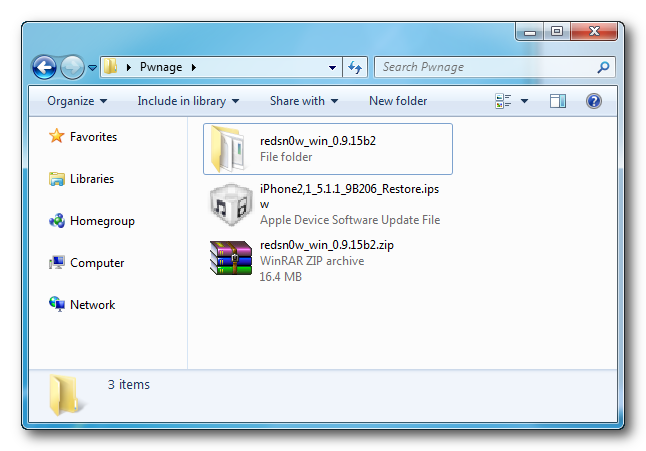
Step One Create a folder on your desktop called Pwnage
Download the latest version of RedSn0w from here and place it in the Pwnage folder. Likewise, download the firmware you would like to restore to and the firmware you are current on from here and place it/them in the Pwnage folder.
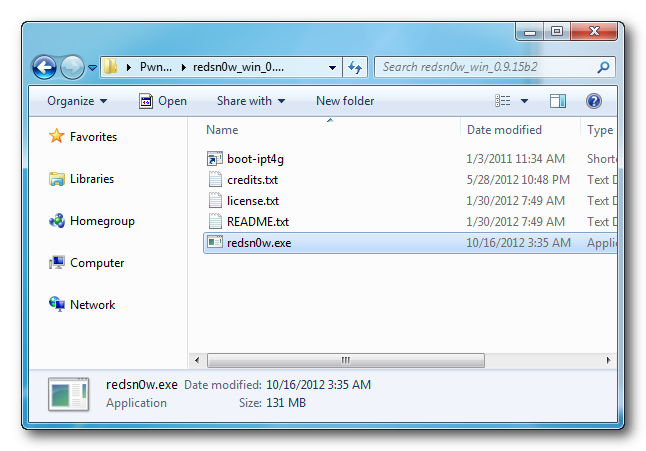
Extract the RedSn0w zip file to the Pwnage folder.
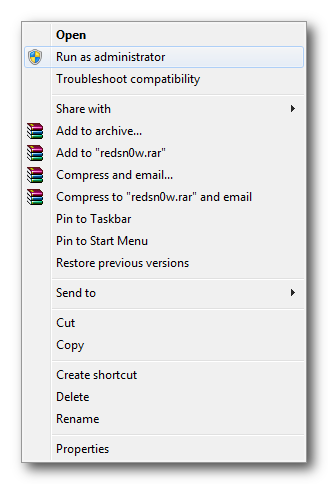
Step Two Right click or control-click the redsn0w application from the redsn0w folder we extracted earlier and choose Run as administrator from the popup menu that appears.
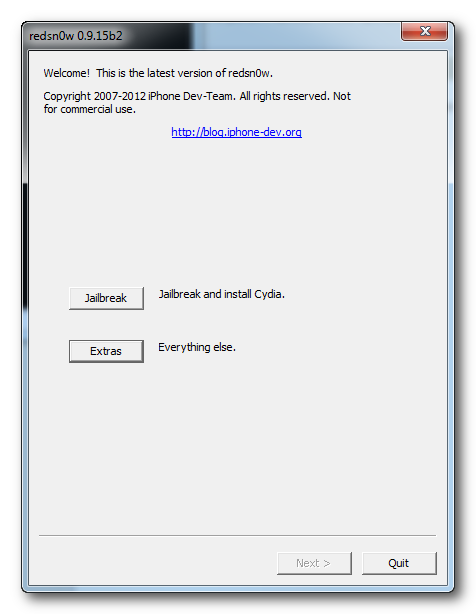
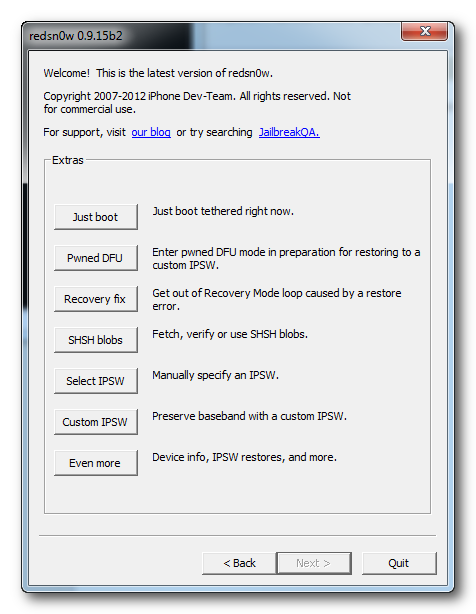
Step Three Click Extras from the main menu.
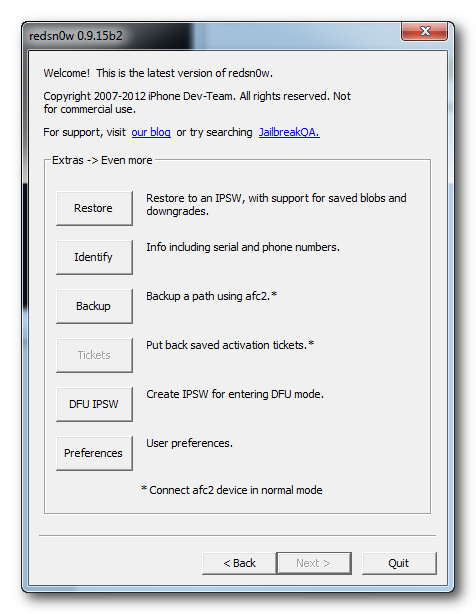
Step Four Click Even More from the Extras menu.
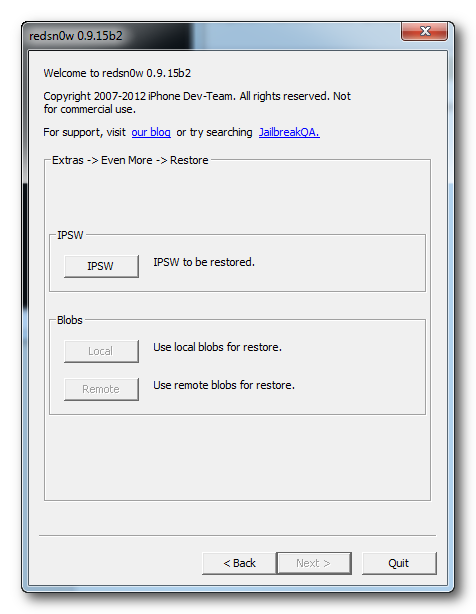
Step Five Click Restore from the Even More menu.
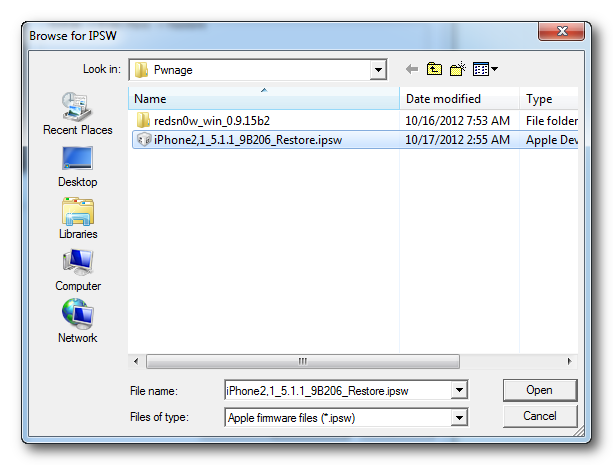
Step Six Click IPSW from the Restore menu, choose the IPSW you would like to restore to from the window that appears, and click Open.
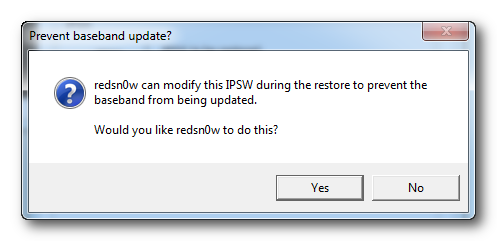
Step Seven Redsn0w will ask you if you would like to prevent the baseband from being updated. Click Yes.
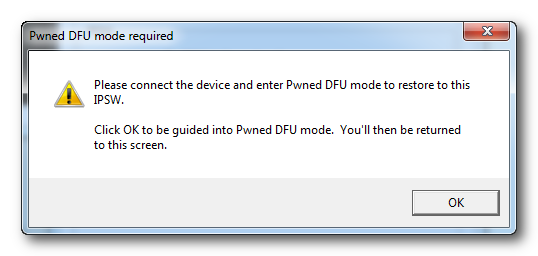
Step Eight Redsn0w will inform you that Pwned DFU mode is needed to restore. Click the OK button.
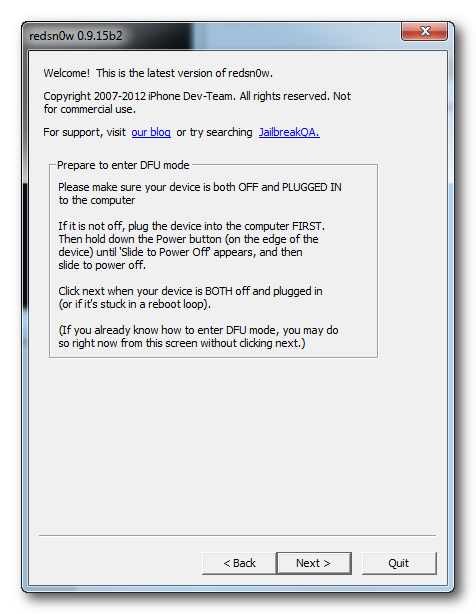
Step Nine Connect your device, turn it off, and then click the Next button
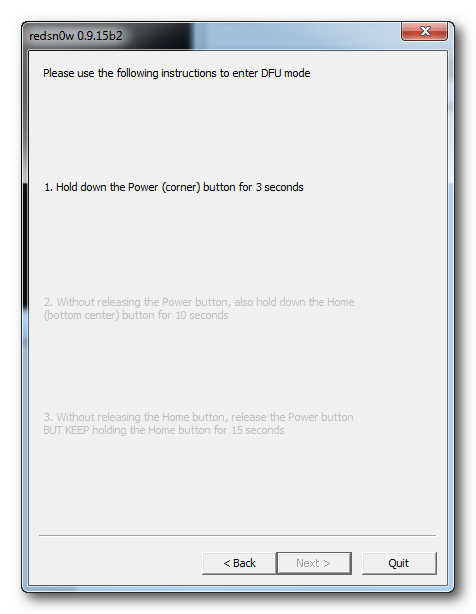
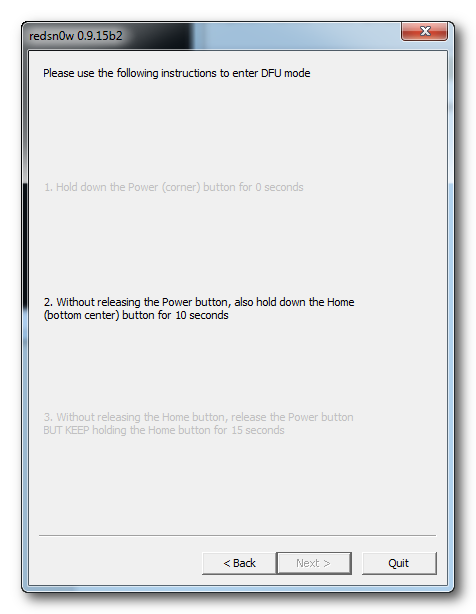
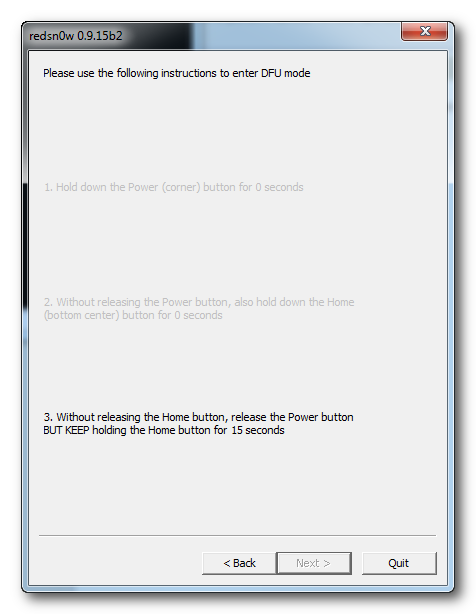
Step Ten RedSn0w will now guide you through the steps to get into DFU mode. You can find more help with DFU mode here.
Hold down both the Home button and the Power button for 10 seconds.
Release the Power button and continue holding the Home button until RedSn0w detects the device.
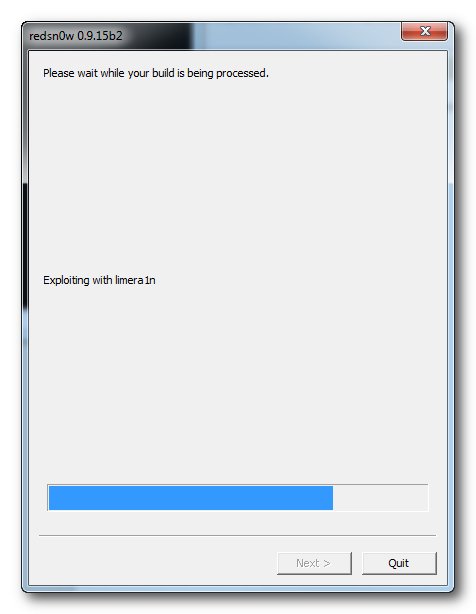
Step Eleven Your iPhone will now be exploited with limera1n.
Step Twelve RedSn0w will check Cydia to see if you have the correct blobs saved.
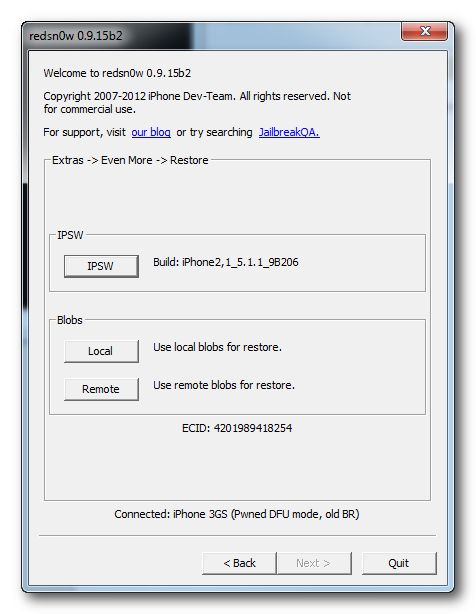
If RedSn0w is unable to find your blobs automatically you can try to click the Remote button to try again or you can click the Local button to search for blobs on your computer.
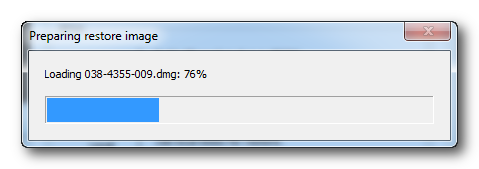
Step Thirteen RedSn0w will now prepare a system restore image.
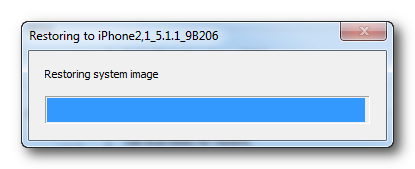
Step Fourteen Your device will then be restored to the new firmware.
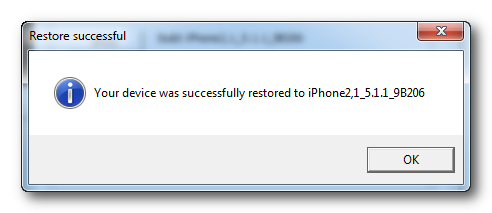
Step Fifteen You'll be informed when your restore has completed successfully.
ANSWERS: If you need help with this tutorial please post a question in the comments or submit a question to the iClarified community using our Answers section.
Get the iClarified Daily Newsletter
Apple news, rumors, tutorials, price drop alerts, in your inbox every evening, free.
Unsubscribe at any time.
Success!
You have been subscribed.
Add Comment
Would you like to be notified when someone replies or adds a new comment?
Yes (All Threads)
Yes (This Thread Only)
No
Notifications
Would you like to be notified when we post a new Apple news article or tutorial?
Hi I'm having trouble with this. After I select ipsw the progress bar goes until 99% then a dialog box appears and says "Couldn't upload iBSS.
Note:
iPhone 3G ios 3.1.3 BB 6.15.000
trying to restore to 4.2.1 since Edge is always on in 3.1.3 no matter what I do.
After downgrade still come message activate your iPhone , I have factory unlock iPhone 3gs plz sir know me that how to hactivate ?
Downgraded 6.1.3 to 5.0 Thanks sir
I followed every instruction on this tutorial but i always end up with the error "your iphone is in recovery mode" and when i turn it on it is still in 6.1.3.
I have all my blobs save from 5.1.1..
Does this really work?!
Becuse i have read from another article that redsnow is not yet supporting ios 6.1.3 !! And this article was made before 6.1.3 was released.
I also tried to use snowbreeze but i can"t see the ifaith option on the launched window.
I also tried another option with the use of redsnow and itunes altogether but i keep getting errors in itunes..
I just want to go back to 5.1.1 because ios 6.1.3 sucks on my 3gs; it drains my battery in just 6 hours of normal use..