***** IMPORTANT: These instructions have been updated for the latest iPhone firmware. Please follow the up to date instructions here *****
These are instructions on how to jailbreak your iPhone 3G on the 3.0.x firmware using RedSn0w for Mac. The Windows version of this tutorial is here. The iPhone 2G version of this tutorial is here
This tutorial can be used to jailbreak before applying the UltraSn0w unlock.
** If you would like to jailbreak on the 3.0.1 firmware you can follow these exact instructions; however, in Step Two restore using this 3.0.1 iPhone firmware file instead of the 3.0 one. Continue with the instructions as indicated.**
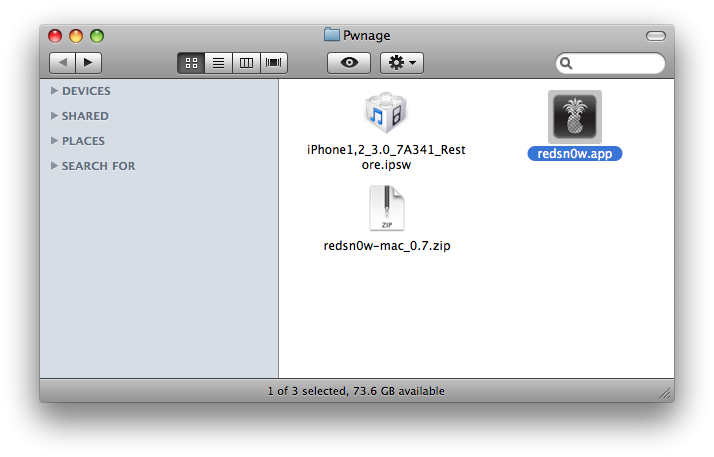
Step One Create a folder on your desktop called Pwnage
Download RedSn0w from here and place it in the Pwnage folder. Likewise, download the latest 3.0 firmware from below and place it in the same folder.
Extract the redsn0w application from the RedSn0w zip file to the Pwnage folder.
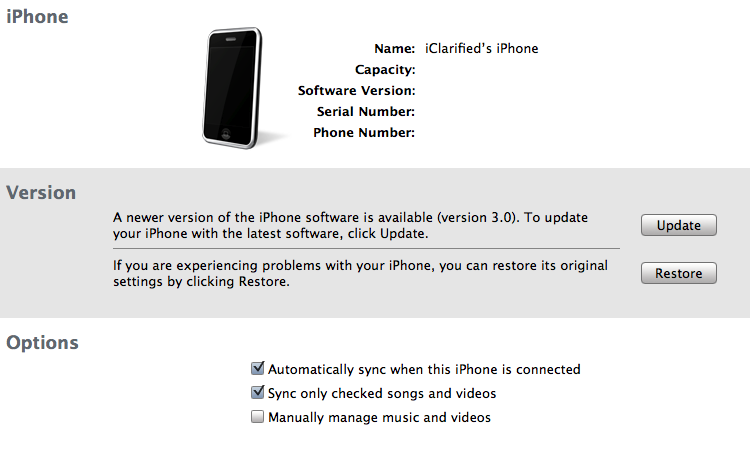
Step Two Connect your iPhone to the computer and launch iTunes.
Select your iPhone from the list of devices on the left. Now hold down Option and click the Restore button. Restore is preferred as it won't create any wasted space on your iPhone.
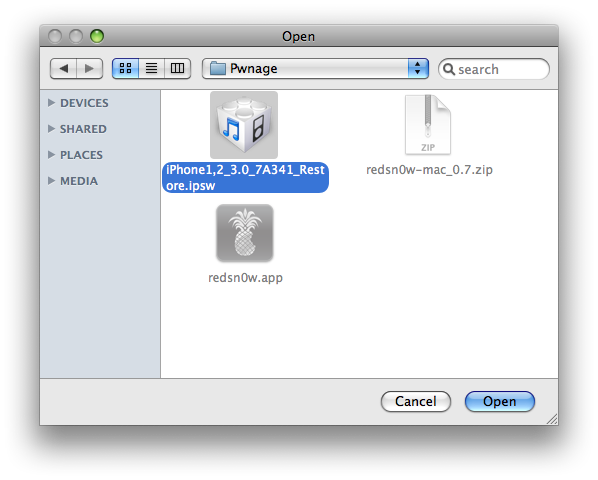
Navigate to the Pwnage folder on your desktop and select the firmware ipsw. Click the Open button to continue.
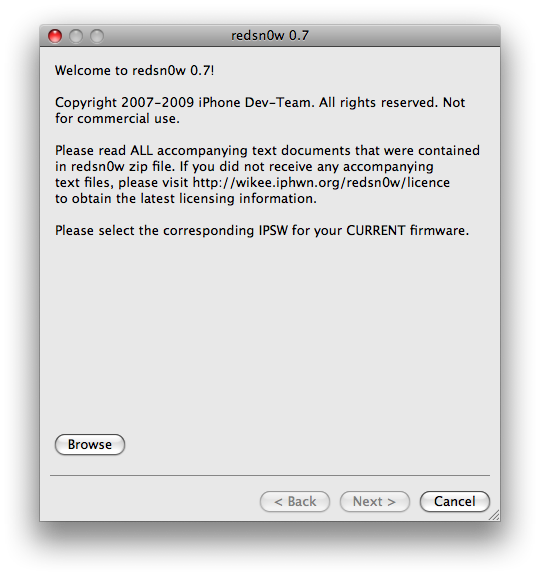
Step Three Once iTunes has finished updating your iPhone to the desired firmware you may launch redsnw0w.app from the Pwnage folder on your desktop.
Step Four Once RedSn0w opens click the Browse button
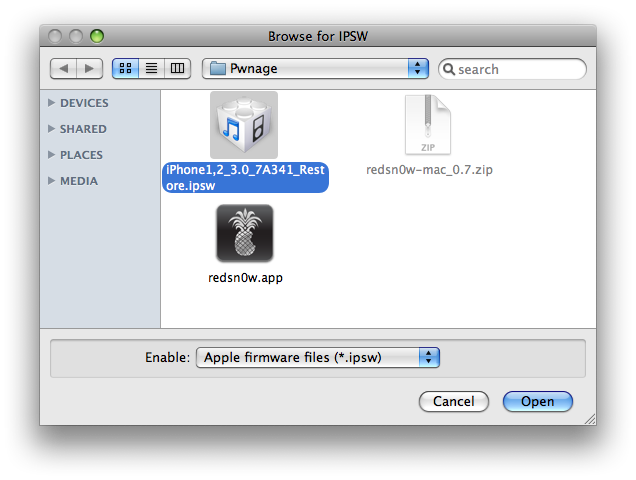
Step Five Select the firmware ipsw we placed in the Pwnage folder on our desktop then click Open
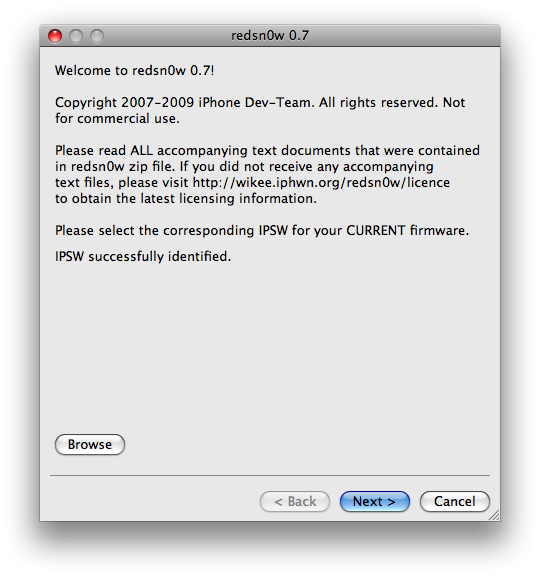
Step Six Once the firmware has been verified click the Next button to continue.
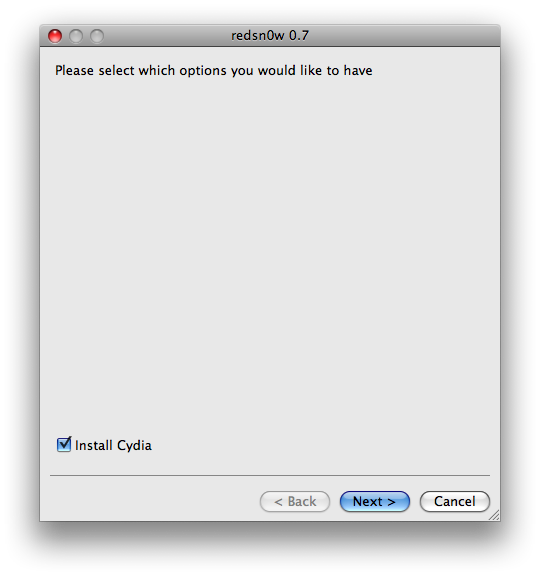
Step Seven Make sure Cydia is selected and click the Next button.
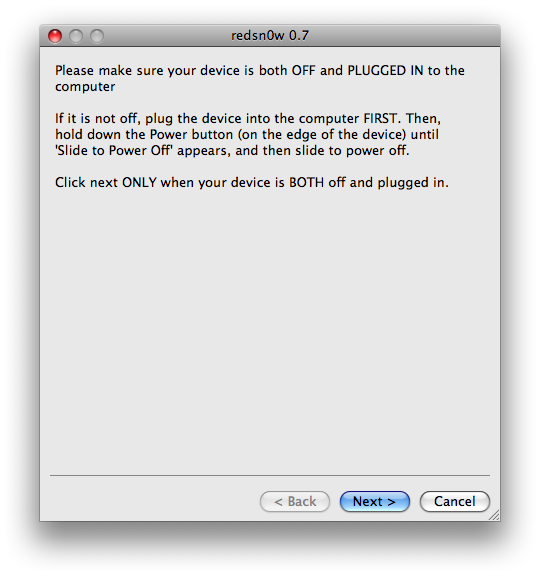
Step Eight Please plug your iPhone into the computer and make sure its OFF then click the Next button
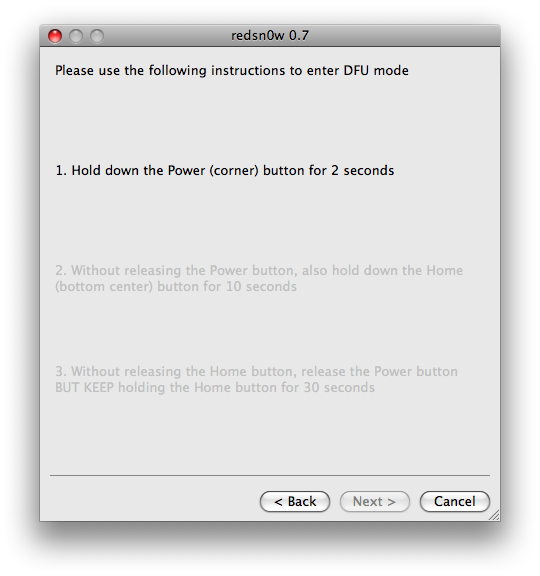
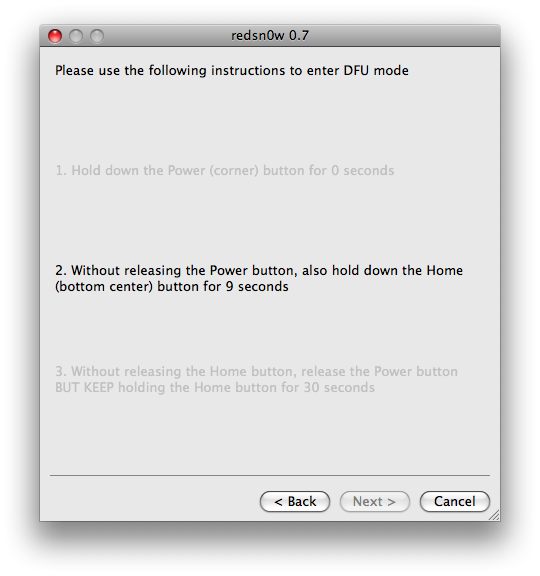
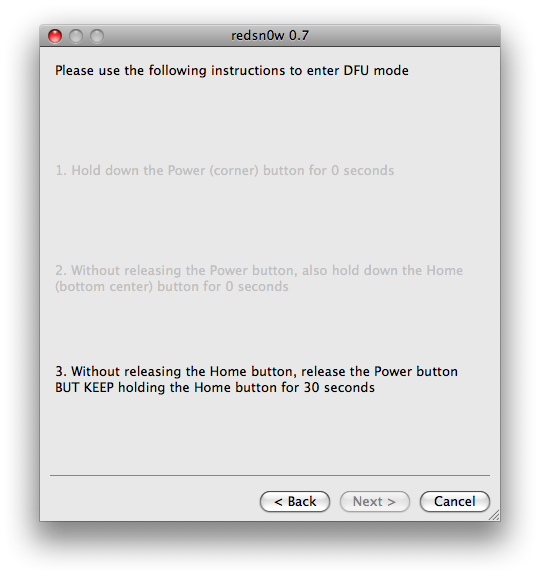
Step Nine RedSn0w will now guide you through the steps to get into DFU mode. You can find more help with DFU mode here
Hold down both the Home button and the Power button for 10 seconds.
Release the Power button and continue holding the Home button until RedSn0w detects the device.
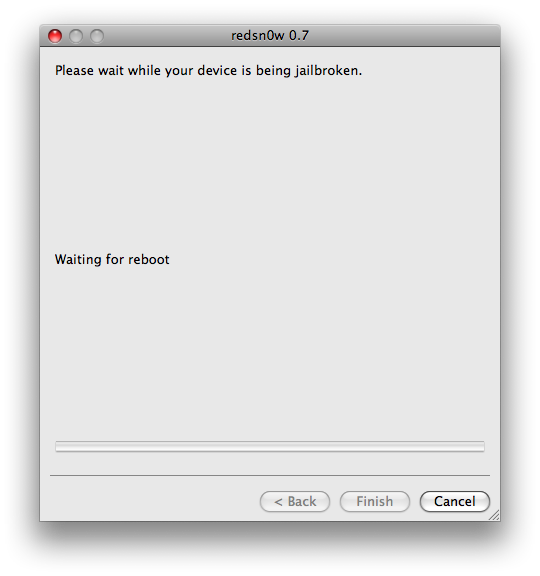
Step Ten Your iPhone will now reboot
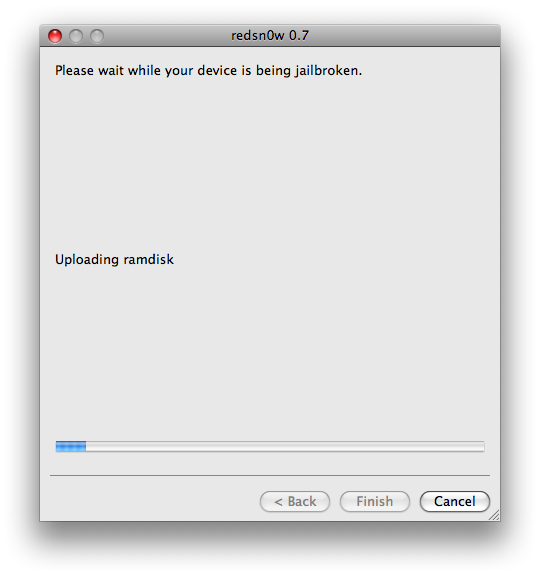
Step Eleven RedSn0w will then begin uploading the new RAM Disk.
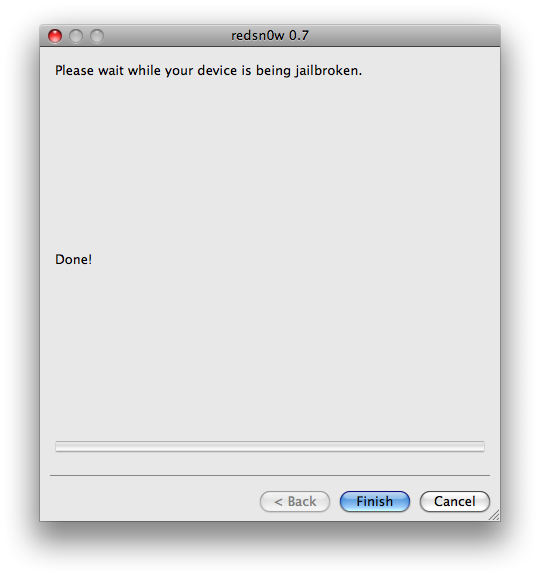
Step Twelve Once this is complete you will be notified that RedSn0w is done. Click the Finish button. When your iPhone finishes reboot (5 minutes or so). It will be jailbroken with Cydia on the SpringBoard.
Get the iClarified Daily Newsletter
Apple news, rumors, tutorials, price drop alerts, in your inbox every evening, free.
Unsubscribe at any time.
Success!
You have been subscribed.
Add Comment
Would you like to be notified when someone replies or adds a new comment?
Yes (All Threads)
Yes (This Thread Only)
No
Notifications
Would you like to be notified when we post a new Apple news article or tutorial?
Do I really need to restore my phone for this to work? I followed every single step except for that one, it took about 10 minutes for my phone to reboot, I didn't have any problems, but after the reboot my phone turned back on and it's as if I never jailbroke it. Nothing changed my phone is completely normal what is this jailbreak thing supposed to be like? What did I do wring?
PLZ HELP,,,,
after i JB my iphone, i sync all my app again to my iphone but the problem is that all of apps are not working,, so what shall i do???
i want to use my apps again please..
Guys: thanks for all the trouble but your redsnow app does not recognize the 3.0.1_7A400 ipsw, and it takes forever(!) to restore the backup which you have to do in order to re-restore to the 3.0_7A341. This adds to the insecurity of the whole enterprise, I'm getting really queasy feelings now...
Happy to report that after restoring my iPhone and restarting the process with the 3.0_7A34.ipsw image, it all worked fine. As someone noted, it got stuck (for more than 15 mins) in the reboot process, but uplugging and plugging back into the USB unstuck the process. It took about 1hr+ to restore the entire iphone after that (simply restore to the previous backup in iTunes) and I was jailbroken and back to my former data. A very happy customer! I was able to VoIP on skype to France for 15 mins for less than 55 cents. Thank you guys!
I believe the firmware for the iPhone 3g link is incorrect... it links to iPhone2,1_3.0.1_7A400_Restore.ipsw for the iPhone 3GS it should be iPhone1,2_3.0.1_7A400_Restore.ipsw correct?
Please somebody answer me!!!! Can I use this tutorial to jailbreak and then unlock my iphone? I just bought new iphone 3g(at&t carrier) firmware 2.2.1 modem 02.30.03. I really need to know because I already made useless my last iphone so I don't want to do the same with new one.
Hi! If I'll do jailbreak from this tutorial will it make my baseband 04.26.08 which I can use to unlock my iPhone 3g firmware 2.2.1 modem 02.30.03 bootloader 6.02 ?
I'm purchasing a refurbed, unactivated iPhone 3G from ebay. I do not know what version of the OS it already has installed on it. IF it already has 3.1 installed on it, will I be able to unlock and jailbreak it to T-Mobile?
That's certainly GREAT to know -- I'm glad I lost that last ebay bid then. Okay, so my #1 question to any ebay or craigslist iPhone 3G seller should be: What version of the OS is currently on it? If they have already upgraded to the latest 3.1, then I should avoid it, correct? I only have T-Mobile so I must get an iPhone that is unlockable. If they are already selling an unlocked 3G iPhone, then I should be good to go, correct? Do I need to ask them HOW they unlocked/jailbreaked it?
3G w/ 3.0.1 Using Mac Book Pro. Yes....if you got stuck in the rebooting part...unplug the usb and plug it again..it will work nicely....I've am doing it right now...phone still installing the bundles,,,,, I had to use the A341 restore ..not the A400 restore,,,,,Red Sn0w would not recognize it....... And yes, it also sync'ed all my data without asking if it was a new phone or not..... Thank you guys.....all you have to fix is the glitch that the red snow nor the Pwnage tool recognized the A400 restore you download from the iClarified or the mirror sites...but it works perfectly...not to unlock the Phone!!!!!!!!!!!!!!!
I've got an iPhone 3GS 32GB which came out of the box with 3.0.1
I've just used Redsn0w 0.8 to jailbreak. Used the 3.0 firmware and it worked absolutely fine. I followed the YouTube video from iPhoneinCanada (video 17pv60vVuh0).
My phone had not previously been jailbroken.
Hope this helps someone. I spent the last hours reading through comments and eventually decided to bite the bullet. Won't pretend I wasn't nervous...
Good luck.
hi K,
but did you unlock it....I agree with you ...yes it works perfectly on the JB..but according to my not expert results...it did not work for the 3.0.1 unlock...had to downgrade it to 3.0 and then do the unlock.
Hi,
I'm having the "unable to recognize specified ipsw.
I've read all the posts here and noone has yet solved the problem. Can anyone help??
I've tried doing it many times already. i've tried with both restores.
Hi, Yes, I tried using both the 3.0 and the 3.0.1 versions already. All had the same result. unable to recognize specified ipsw. Anyway, I jailbreaked it successfully using pwnagetool.
I just jailbroke my iphone 3G. Anyways I cannot connect to a Wifi Network cos it doesn't find any! I also typed in the SSID and the password but it just cannot find the wifi! Also, I did the reset thing and still it doesn't find a network!
what should I do? is there a wifi fix?
Excellent site.
I've now jailbroken my iPhone 3 times and have found no problems EXCEPT I've lost my visual voicemail. Is this common with anyone. I've done the reset network thing and its never worked, but thought someone would know about the VVM problems...
By the way, doing a restore does un-jailbrake your phone and will restore the VVM (make sure you shut down all the way). It'll take your through the VVM set up, but everything will still be there.
good luck and thanks for any help. (Jail broke on SnowLepoard.
So got the 3g all unlocked and everything goes well except after the unlock I only have sound through the headphones or the speaker phone if the headphones are not plugged it. Any Ideas????
I have an ipHONE 3g and I'm following the steps. I have made it to the reboot but my phone is frozen white. What do I to get past this ? MAC - SNOW LEOPARD - 3G 16 gig
AS PER CYDIA: Users jailbreaking iPhoneOS 3.0.1 with redsn0w 0.8 will need to select a 3.0 IPSW (3.0.1 is close enough to 3.0).
And if your iphone hangs when it says "waiting for reboot" on redsn0w, simply take the usb from the iphone out and plug it back in.
The screen freezes in waiting for reboot and unplug-plug does not work. Any more ideas? Would be grateful. Using Vista 32-bit running redsn0w as admin.
Which .ipsw are you using for the redsn0w verification step? If you're using the 3.0.1 one that you first restored with, it won't work. You will need to use the 3.0 file that is also referred to at the top of the tutorial.




![Google Maps Brings Gemini AI to Navigation on Apple CarPlay [Video]](/images/news/102960/102960/102960-160.jpg "Google Maps Brings Gemini AI to Navigation on Apple CarPlay [Video]")
![Anthropic Introduces Claude Duet AI Assistant for iPhone and Android [Video]](/images/news/102954/102954/102954-160.jpg "Anthropic Introduces Claude Duet AI Assistant for iPhone and Android [Video]")
![Apple Music Unveils New Brand Identity 'Made by Sound' [Video]](/images/news/102951/102951/102951-160.jpg "Apple Music Unveils New Brand Identity 'Made by Sound' [Video]")

![iPhone Duo Review Roundup: Impressive Hardware, Mixed Verdicts [Video]](/images/news/102945/102945/102945-160.jpg "iPhone Duo Review Roundup: Impressive Hardware, Mixed Verdicts [Video]")

![How To Back Up Your iPhone to an External Drive on Mac [Video]](/images/tutorials/72786/72786/72786-160.jpg "How To Back Up Your iPhone to an External Drive on Mac [Video]")

![How To Find Your IP Address on iPhone [Video]](/images/tutorials/496/496/496-160.jpg "How To Find Your IP Address on iPhone [Video]")

![16-Inch MacBook Pro With M5 Pro Drops to $2,429 ($570 Off), Lowest Price We've Seen [Deal]](/images/news/102957/102957/102957-160.jpg "16-Inch MacBook Pro With M5 Pro Drops to $2,429 ($570 Off), Lowest Price We've Seen [Deal]")

![16-Inch MacBook Pro With M5 Max Drops to $3,499 ($900 Off), Lowest Price We've Seen [Deal]](/images/news/102900/102900/102900-160.jpg "16-Inch MacBook Pro With M5 Max Drops to $3,499 ($900 Off), Lowest Price We've Seen [Deal]")
![Mac Studio With M5 Max Is $200 Off, Lowest Price We've Seen [Deal]](/images/news/102897/102897/102897-160.jpg "Mac Studio With M5 Max Is $200 Off, Lowest Price We've Seen [Deal]")
![14-Inch MacBook Pro With M5 Pro Drops to $2,069.10 ($429 Off) [Deal]](/images/news/102879/102879/102879-160.jpg "14-Inch MacBook Pro With M5 Pro Drops to $2,069.10 ($429 Off) [Deal]")
