![How To Turn Off iPhone [Video]](/images/tutorials/94999/454357/454357-64.png "How To Turn Off iPhone [Video]")
Here are five ways to turn off your iPhone: the buttons, Control Center, Settings, Siri, and the Action button on models that have one.
We tested each one on an iPhone 18 Pro Max running iOS 27.
Shut Down an iPhone With Face ID Using the Buttons
Step One: Press and Hold the Side and Volume Buttons
Press and hold the side button and either volume button together. Holding the side button alone brings up Siri instead.
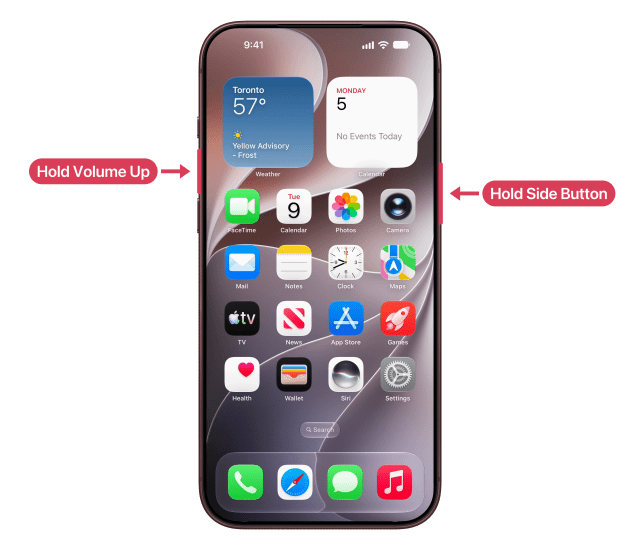
Let go as soon as the sliders appear: if you keep holding, an Emergency SOS countdown starts, and when it ends your iPhone calls emergency services.
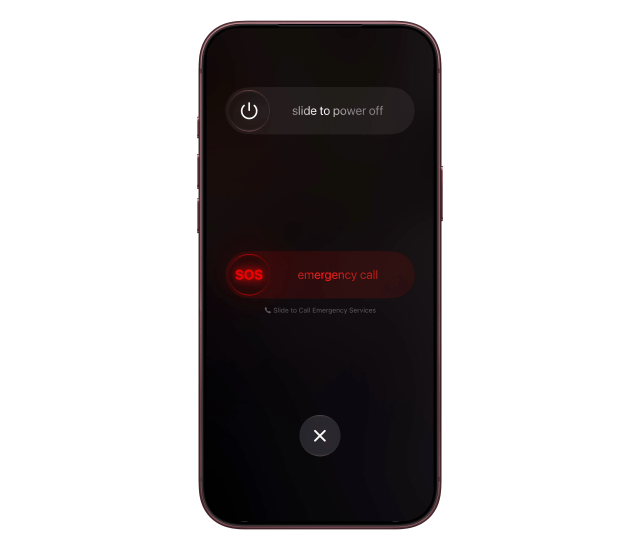
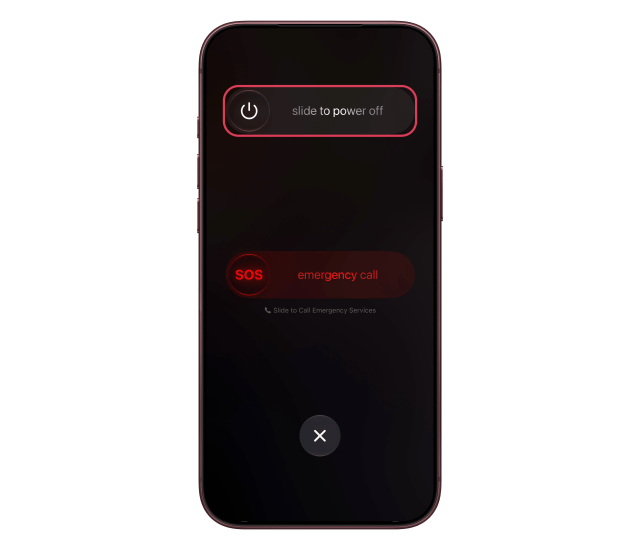
Step Two: Drag the Power Off Slider
Drag the power off slider to the right. Your iPhone can take up to 30 seconds to turn off.
Turn Off an iPhone With a Home Button
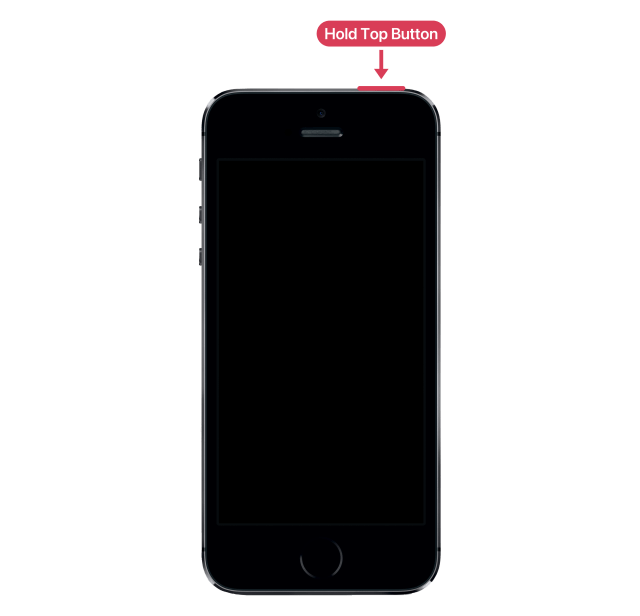
Step One: Press and Hold the Side or Top Button
On iPhone 6, 7, 8 and iPhone SE (2nd or 3rd generation), press and hold the side button until the power off slider appears, then drag it to the right.
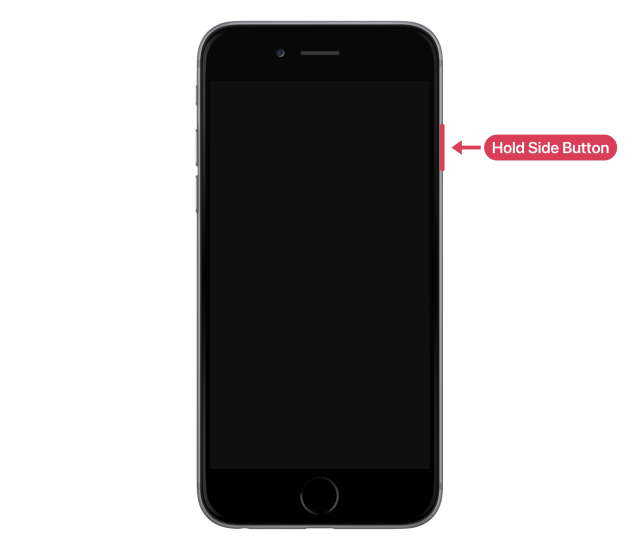
On iPhone SE (1st generation) and iPhone 5s or earlier, press and hold the top button instead.
Turn Off iPhone From Control Center
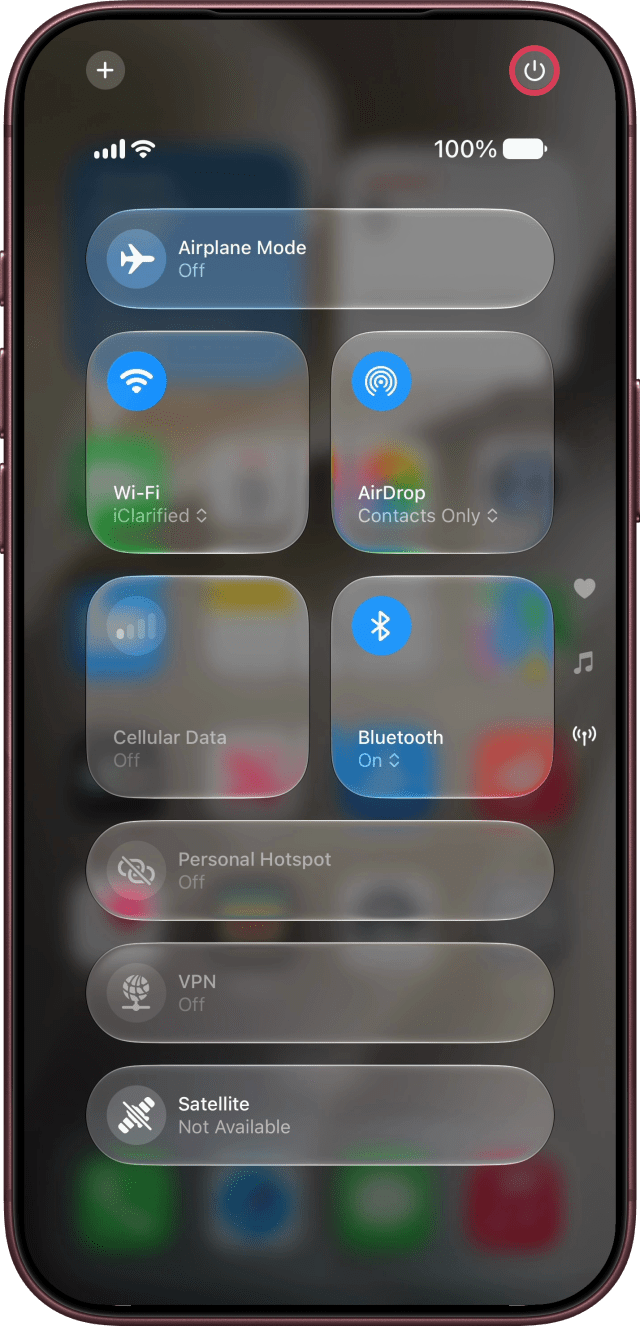
Step One: Touch and Hold the Power Button
Swipe down from the top-right corner of the screen to open Control Center, then touch and hold the power button in the top-right corner.
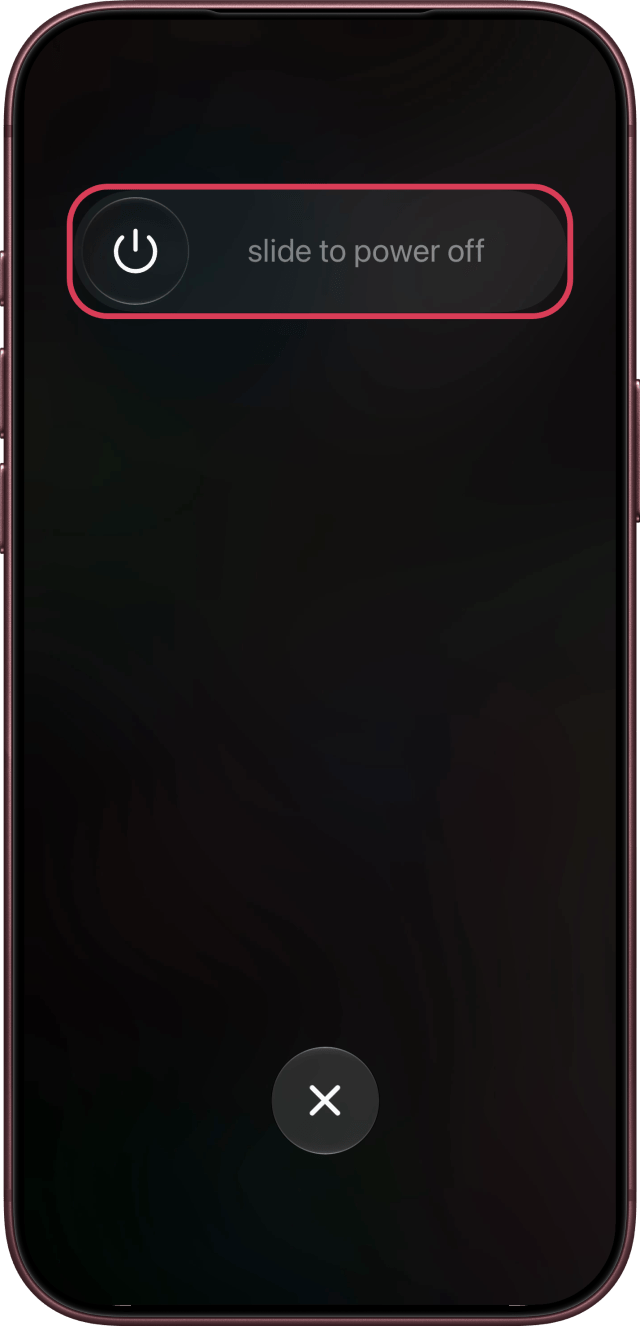
Step Two: Drag the Power Off Slider
Drag the slider to the right.
Shut Down iPhone From Settings
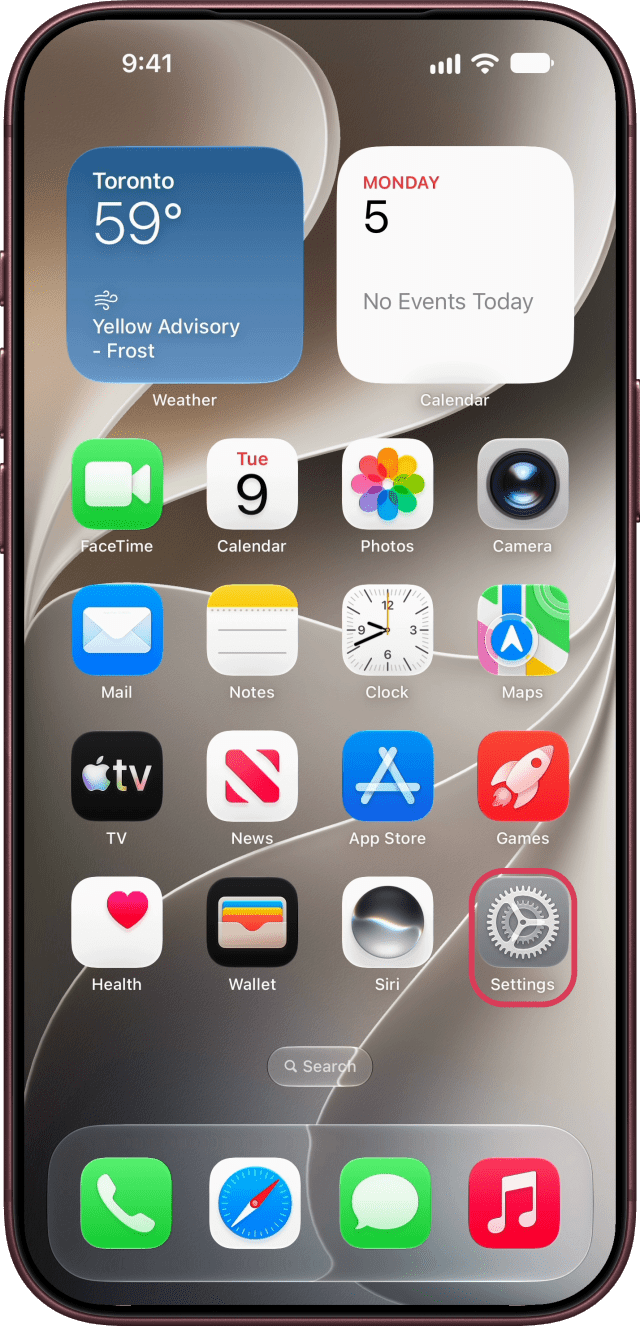
Step One: Open Settings
Open the Settings app.
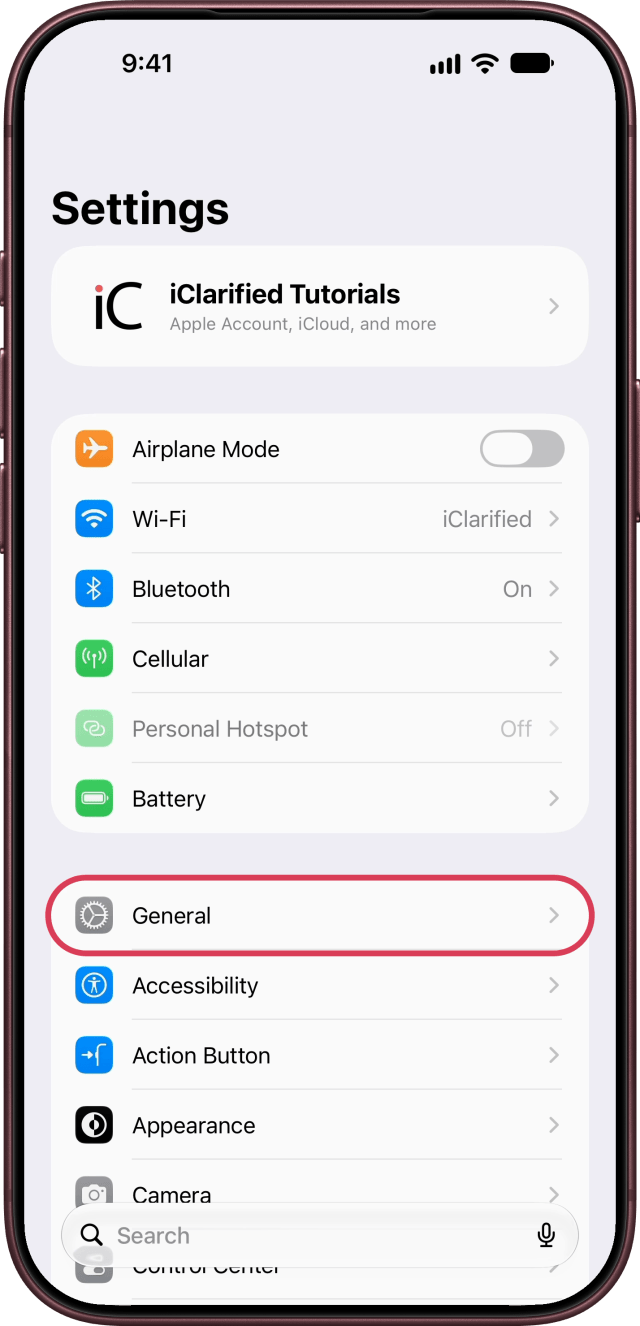
Step Two: Tap General
Tap General.
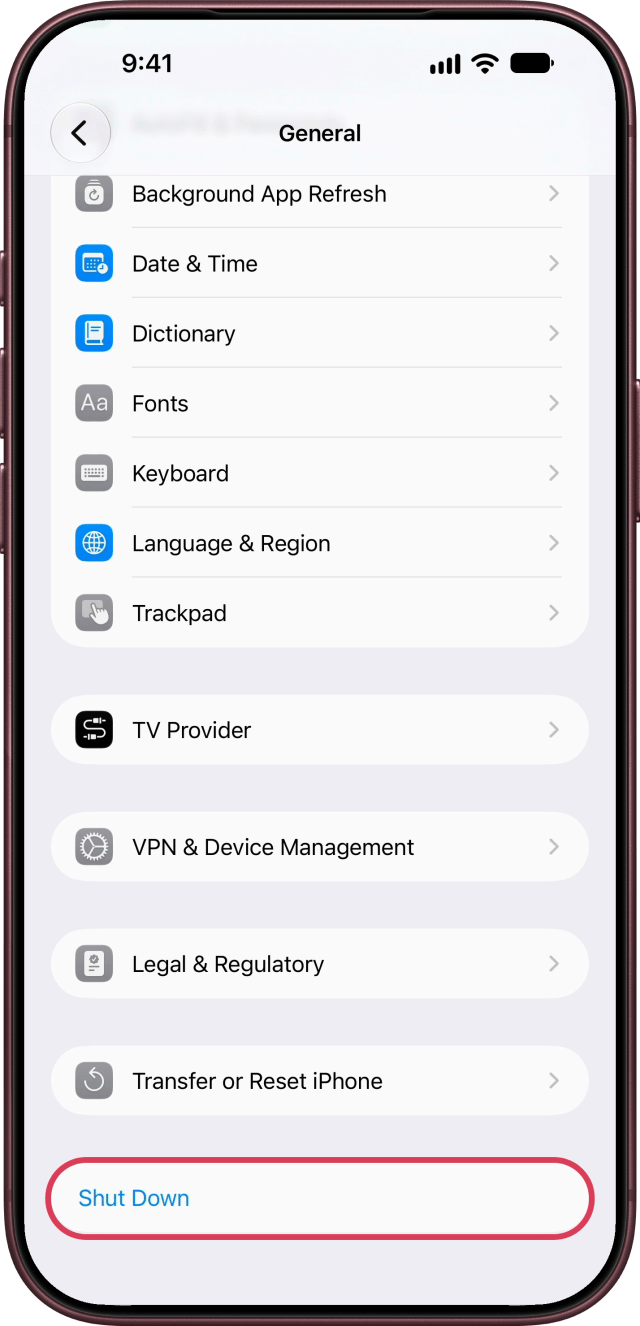
Step Three: Tap Shut Down
Scroll down to the bottom and tap Shut Down.
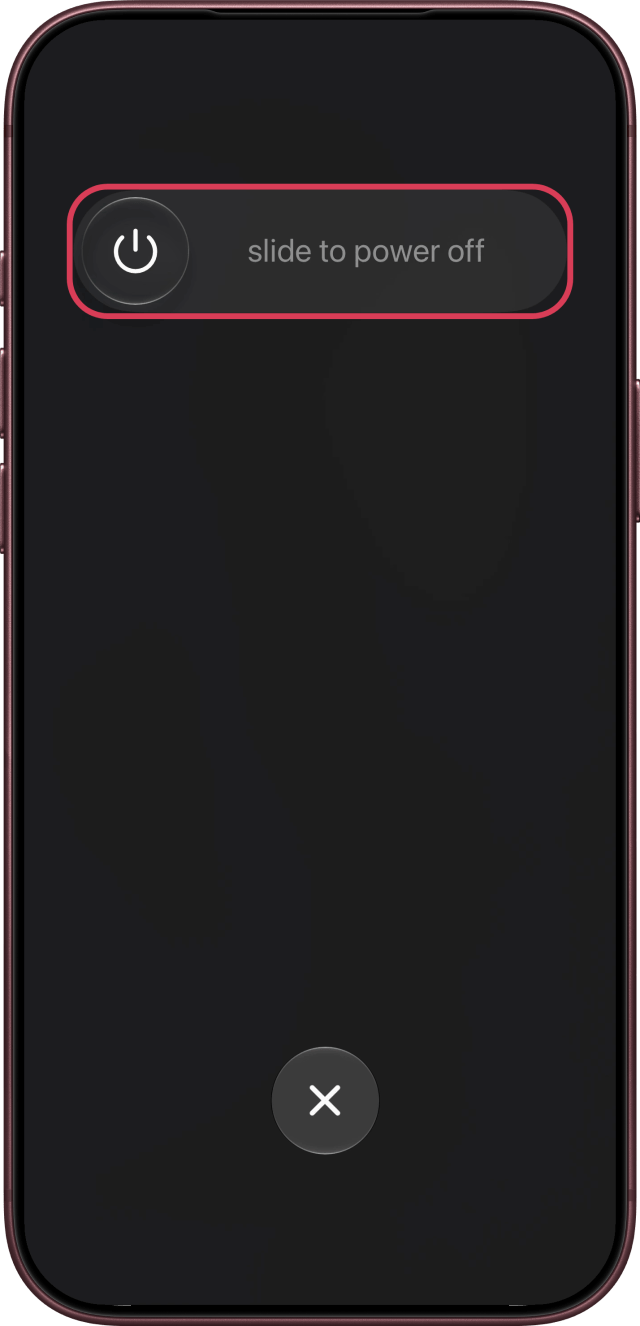
Step Four: Drag the Power Off Slider
Drag the slider to the right.
Ask Siri to Turn Off Your iPhone
Step One: Ask Siri
Say "Siri, turn off my iPhone."
Step Two: Say Yes
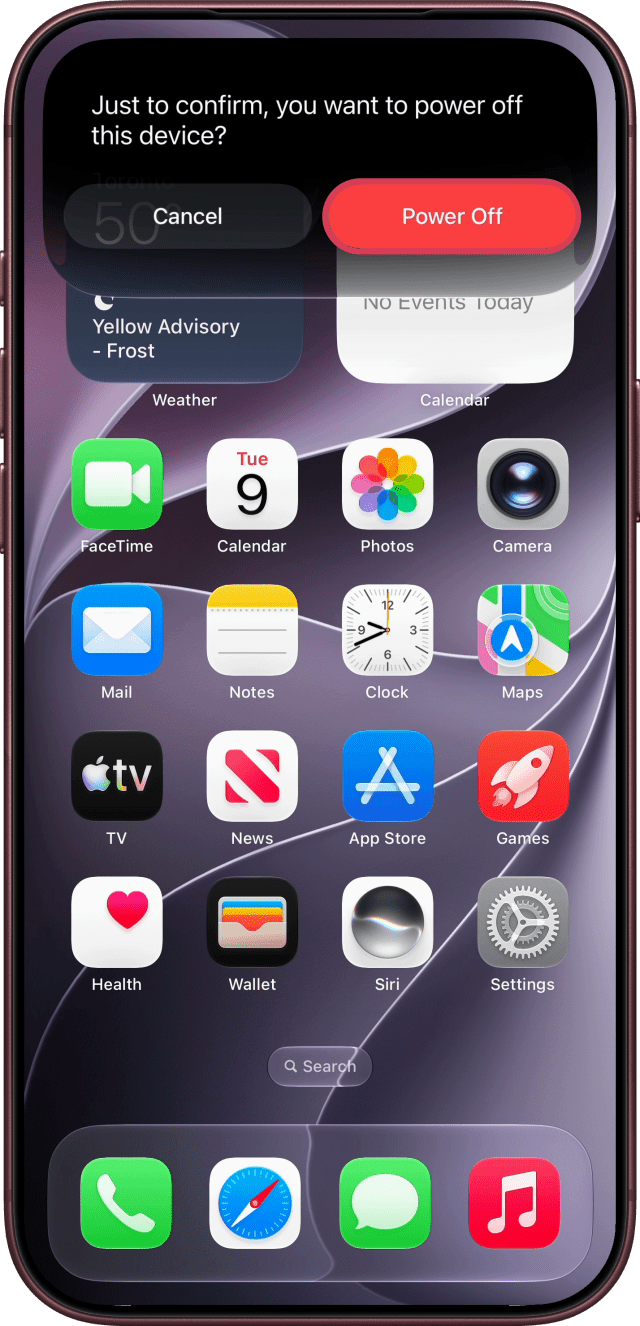
Siri asks "Just to confirm, you want to power off this device?" Say "Yes" so you don't have to touch your iPhone at all, or tap Power Off.
Turn Off iPhone With the Action Button
On iPhone 15 Pro and later models with an Action button, you can set the button to run a shortcut that shuts down your iPhone.
Step One: Start a New Shortcut
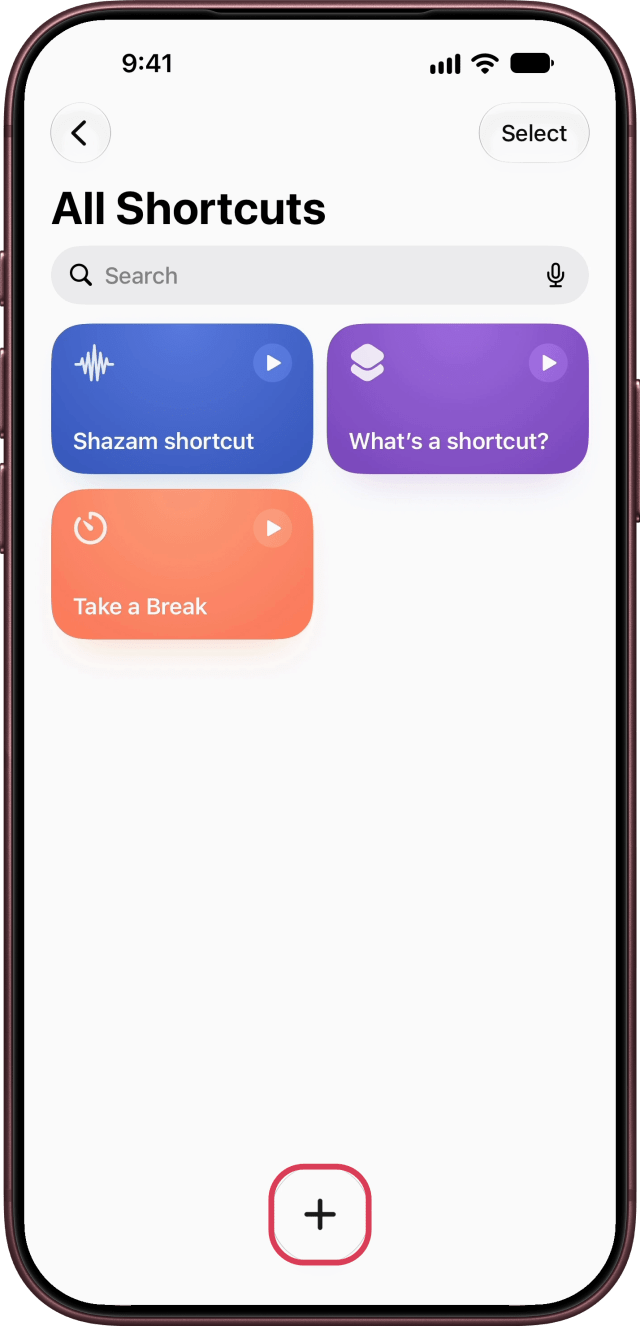
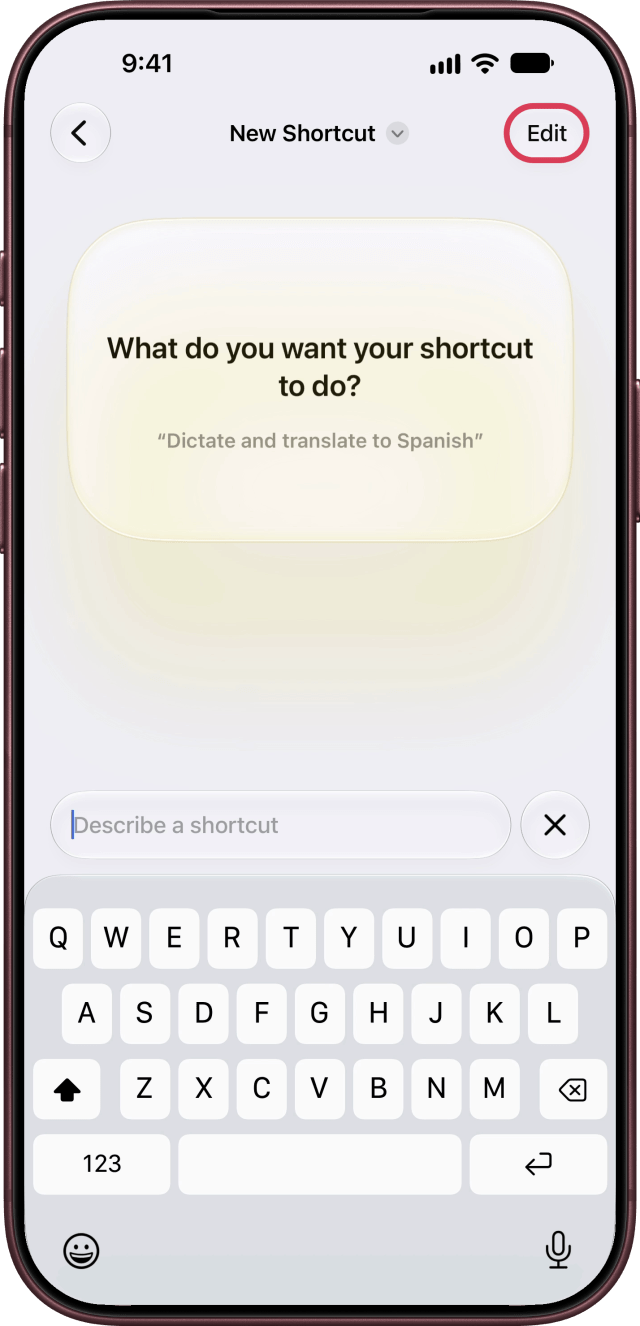
Open the Shortcuts app, tap the plus button, then tap Edit.
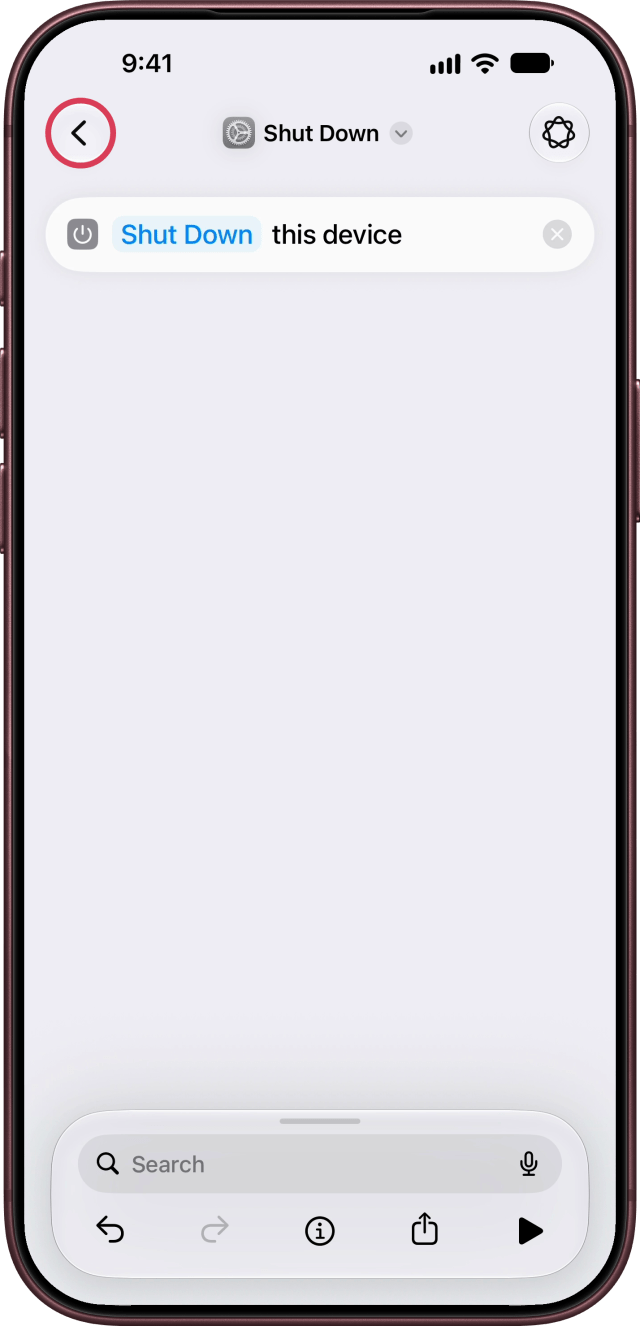
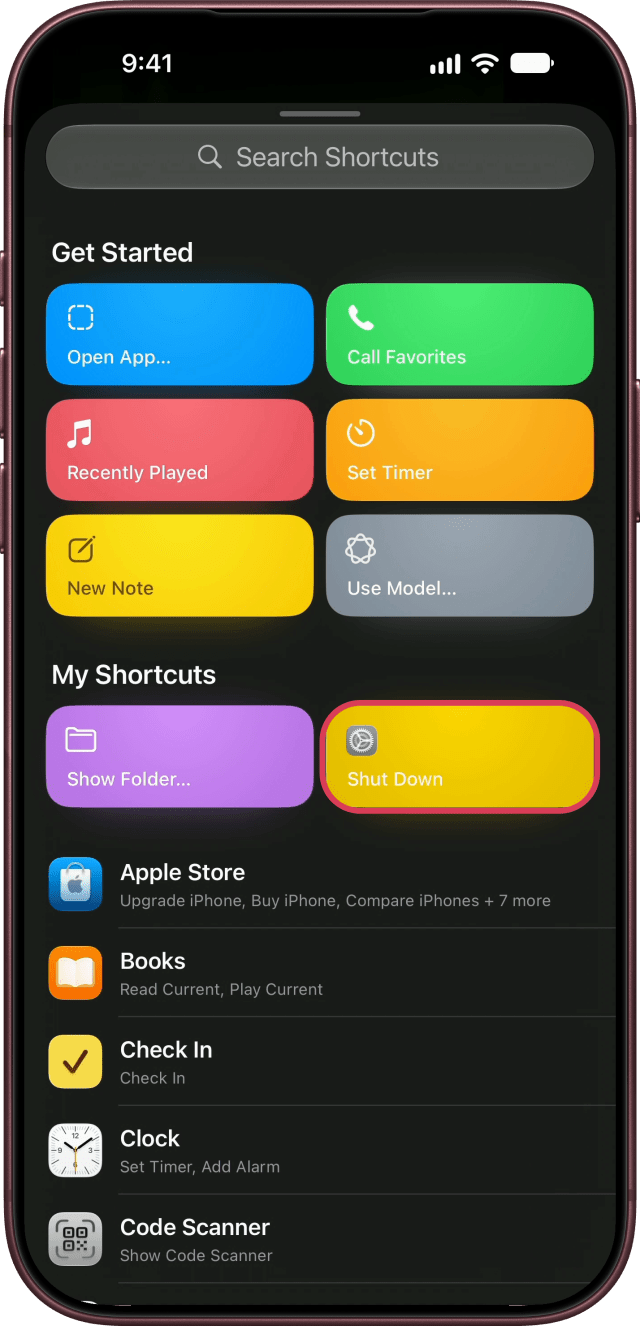
Step Two: Add the Shut Down Action
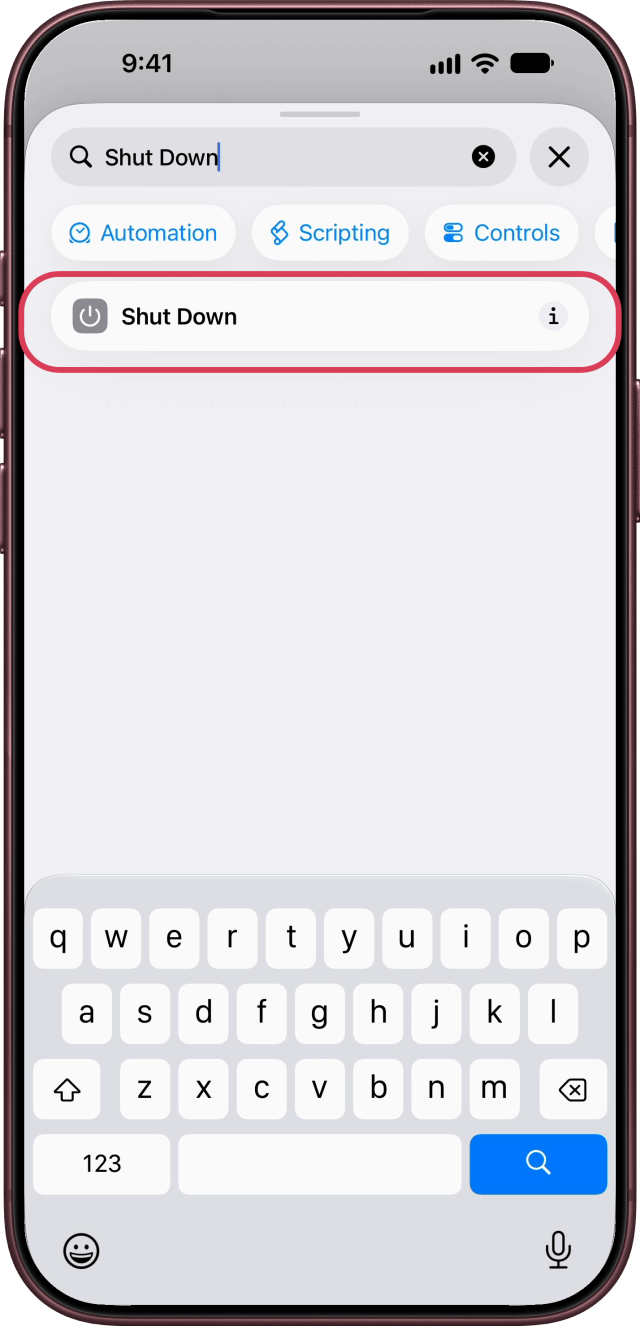
Search for "Shut Down" and tap Shut Down. The shortcut names itself Shut Down. Tap the back button to save it.
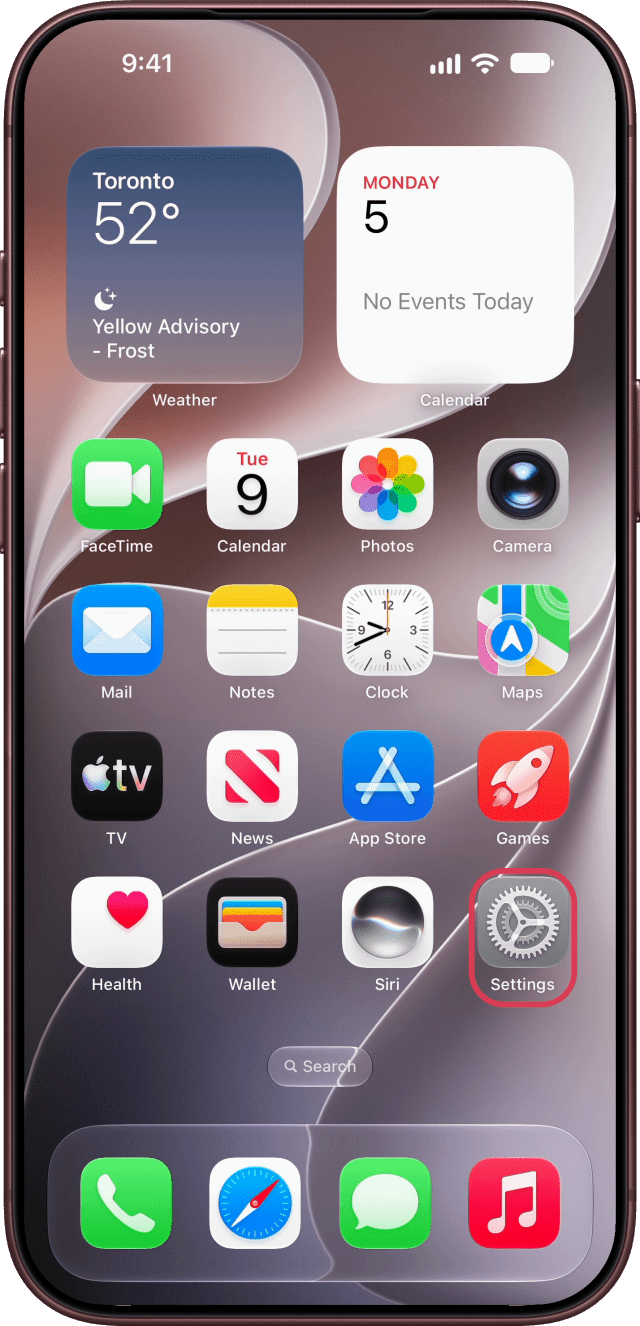
Step Three: Open Action Button Settings
Open Settings and tap Action Button.
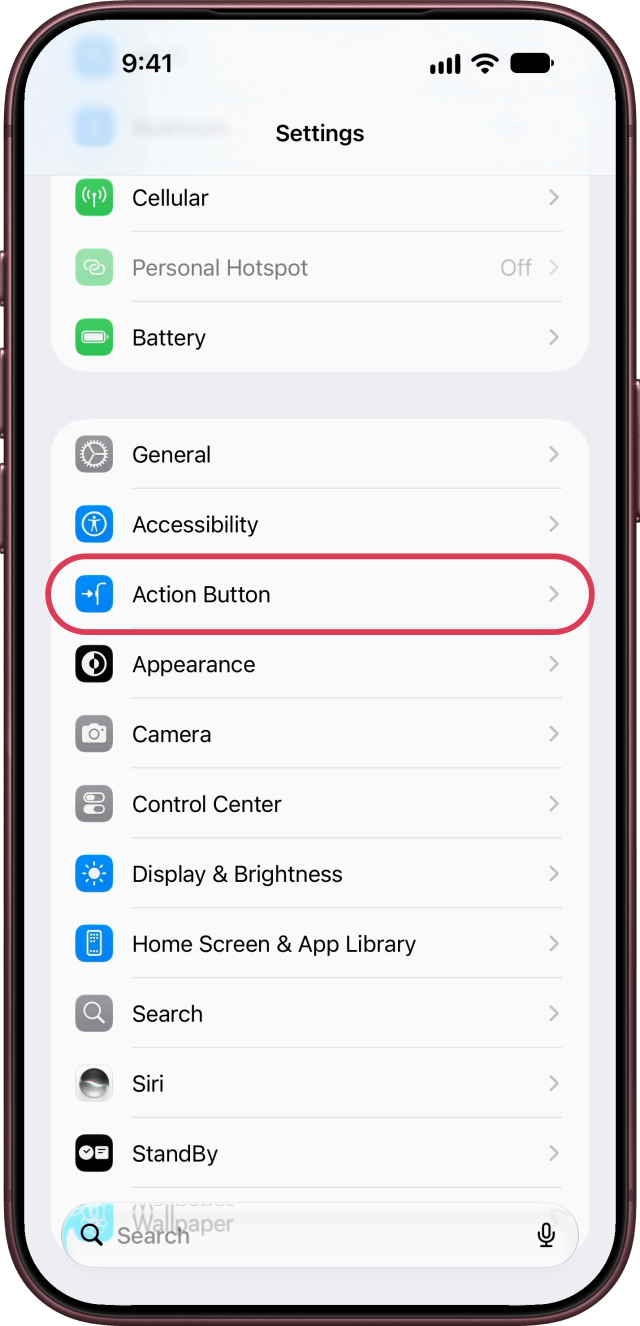
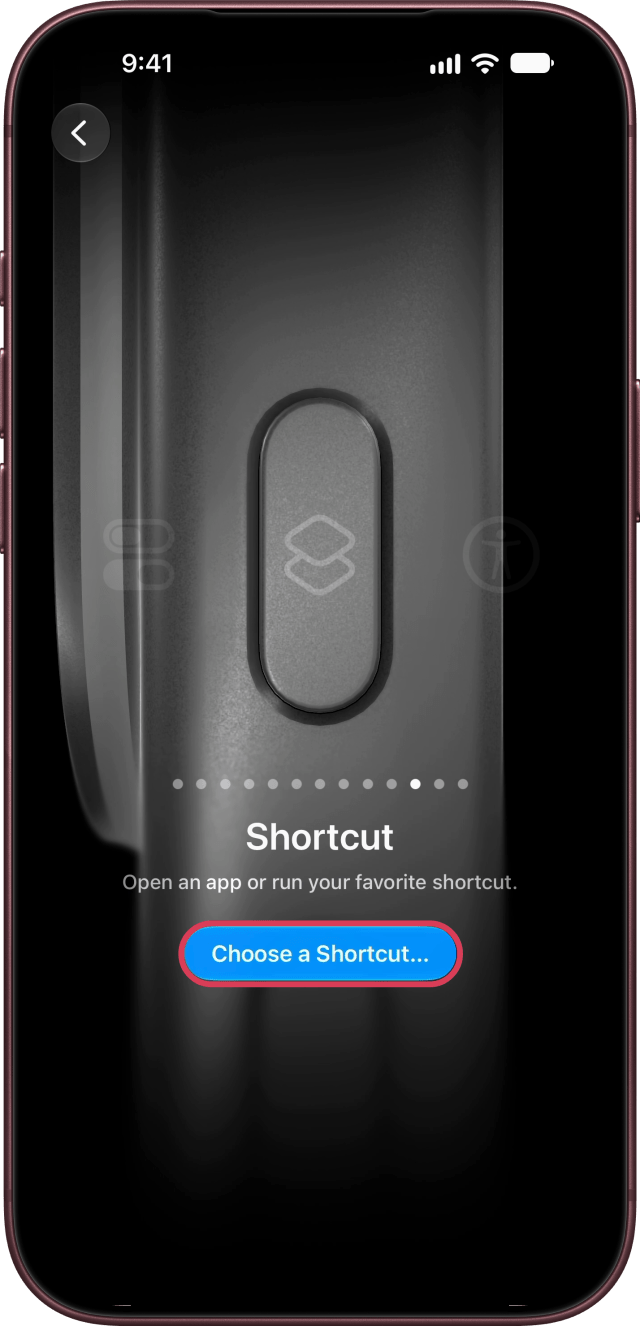
Step Four: Choose the Shut Down Shortcut
Swipe to Shortcut, tap Choose a Shortcut… and pick Shut Down.
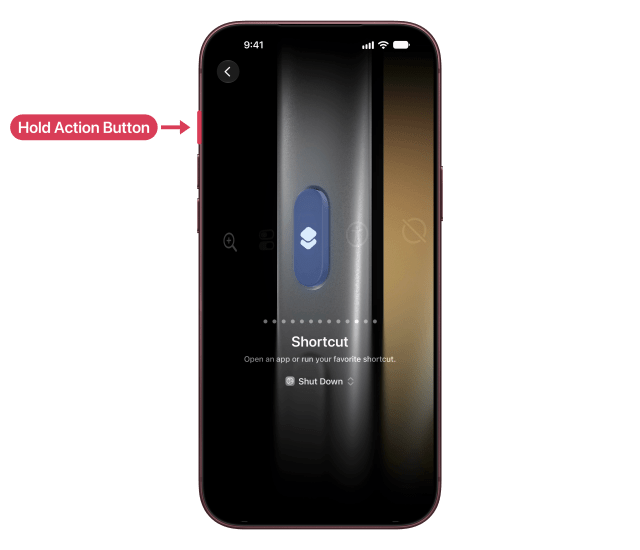
Step Five: Press and Hold the Action Button
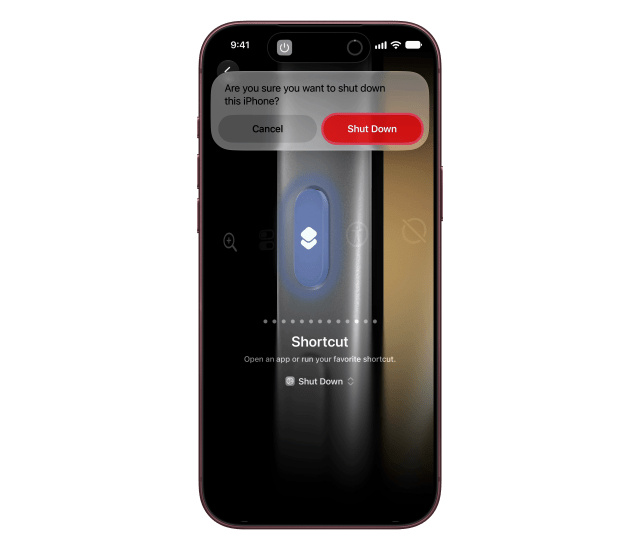
Now press and hold the Action button.
Then tap Shut Down on the alert that appears.
Turn Your iPhone Back On
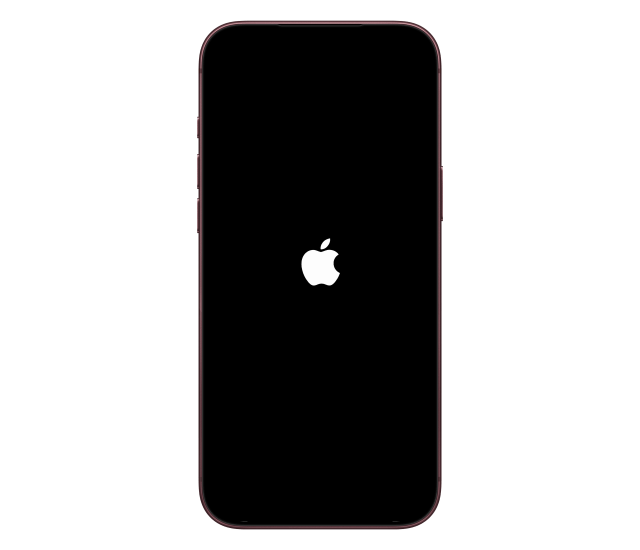
Press and hold the side button.
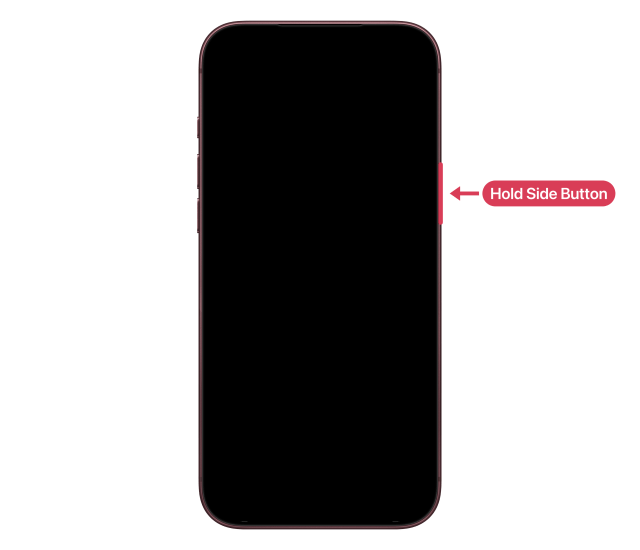
When the Apple logo appears, let go. On iPhone SE (1st generation) and iPhone 5s or earlier, use the top button. If the button is broken, connect your iPhone to a charger and it turns on by itself.
If Your iPhone Is Frozen
If your iPhone won't respond and won't turn off, force restart it instead.


![Apple Watch Series 12 and Ultra 4 Score 4/10 in iFixit Teardown [Video]](/images/news/102633/102633/102633-160.jpg "Apple Watch Series 12 and Ultra 4 Score 4/10 in iFixit Teardown [Video]")
![Apple Partnering With LG on Smart Lock, Doorbell, Thermostat, and Cameras [Report]](/images/news/102627/102627/102627-160.jpg "Apple Partnering With LG on Smart Lock, Doorbell, Thermostat, and Cameras [Report]")


![Apple Releases Public Beta 2 of iOS 27.2, macOS Golden Gate 27.2, and More [Download]](/images/news/102621/102621/102621-160.jpg "Apple Releases Public Beta 2 of iOS 27.2, macOS Golden Gate 27.2, and More [Download]")
![How To Back Up Your iPhone to an External Drive on Mac [Video]](/images/tutorials/72786/72786/72786-160.jpg "How To Back Up Your iPhone to an External Drive on Mac [Video]")

![How To Turn Off iPhone [Video]](/images/tutorials/94999/94999/94999-160.jpg "How To Turn Off iPhone [Video]")
![How To Force Restart iPhone [Video]](/images/tutorials/95012/95012/95012-160.jpg "How To Force Restart iPhone [Video]")

![Mac mini Drops to New Low of $769 for Prime Big Deal Days [Deal]](/images/news/102624/102624/102624-160.jpg "Mac mini Drops to New Low of $769 for Prime Big Deal Days [Deal]")