![How To Force Restart iPhone [Video]](/images/tutorials/95012/454486/454486-64.png "How To Force Restart iPhone [Video]")
If your iPhone is frozen or won't respond, and you can't turn it off and back on, a force restart will get it going again. It won't erase anything on your iPhone.
The buttons depend on your model. iPhone 8 and later, including iPhone SE (2nd and 3rd generation), take three quick presses. On iPhone 7 you hold the side and volume down buttons together, and on iPhone 6s and earlier the Home button with the side or top button. We tested the steps for iPhone 8 and later on an iPhone 18 Pro Max running iOS 27.
Force Restart iPhone 8 or Later and iPhone SE (2nd or 3rd Generation)
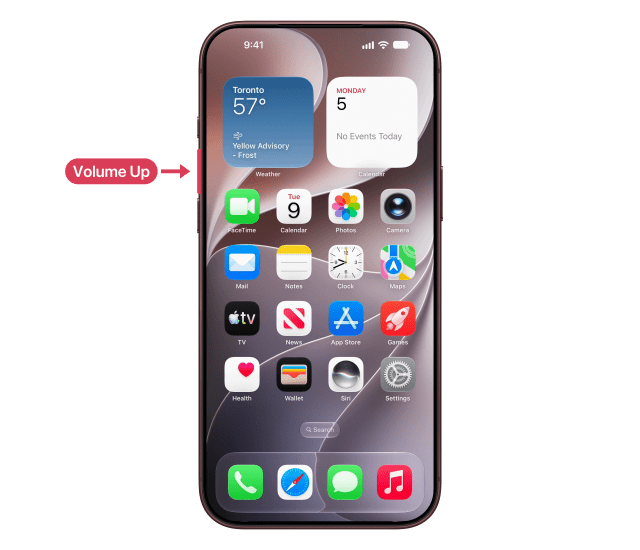
Step One: Press and Release Volume Up
Press and quickly release the volume up button on the left side of your iPhone.
Step Two: Press and Release Volume Down
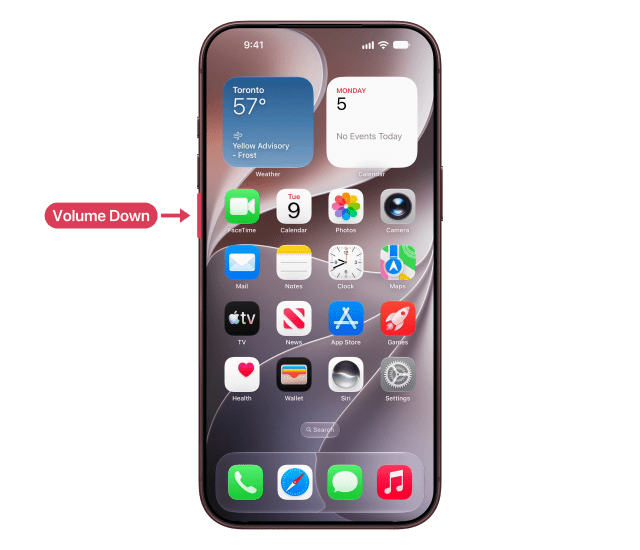
Then press and quickly release the volume down button, just below it.
Step Three: Press and Hold the Side Button
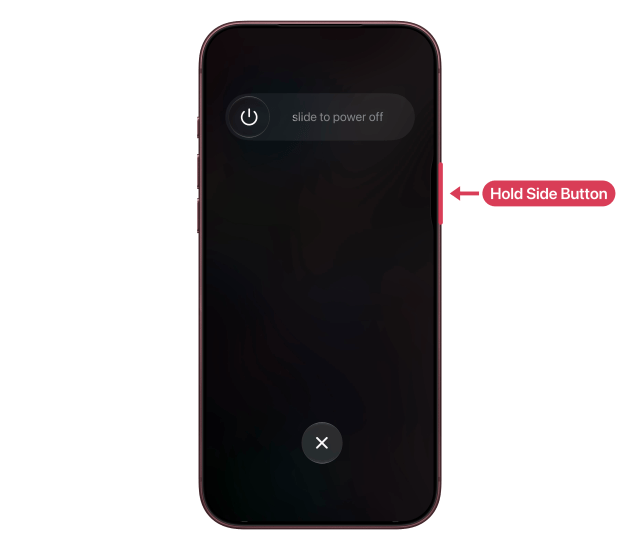
Now press and hold the side button on the right. Keep holding, even when the power off slider appears. When the Apple logo appears, let go. It takes about 10 seconds.
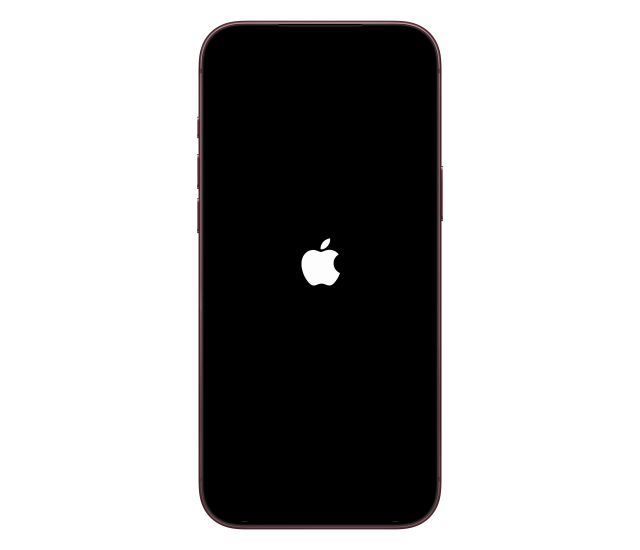
If your iPhone doesn't restart, start over and press the buttons in quick succession.
Force Restart iPhone 7 or iPhone 7 Plus
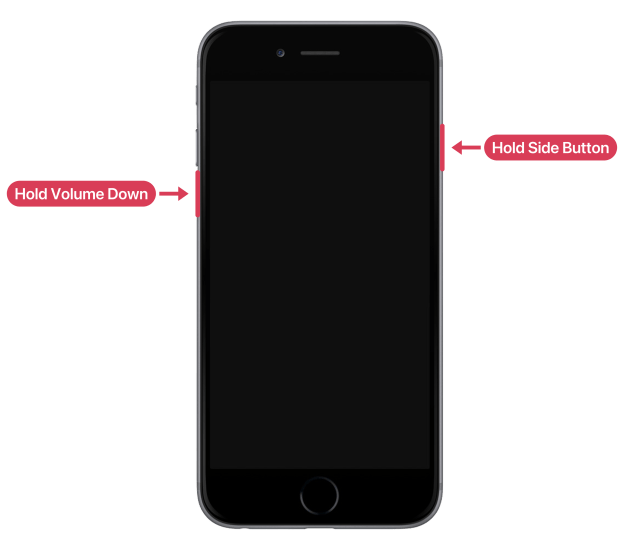
On iPhone 7 and iPhone 7 Plus, you hold two buttons together instead.
Step One: Press and Hold the Side and Volume Down Buttons
Press and hold the side button and the volume down button at the same time. When the Apple logo appears, let go. It can take longer than 10 seconds.
Force Restart iPhone 6s or iPhone 6
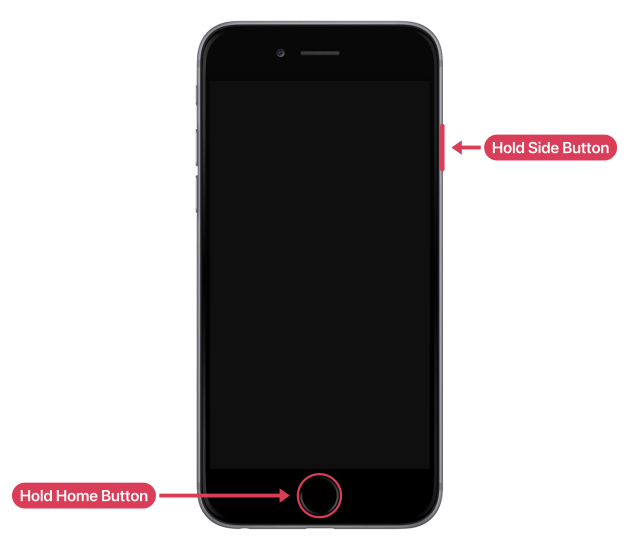
On iPhone 6s and iPhone 6, you hold the Home button together with the side button.
Step One: Press and Hold the Home and Side Buttons
Press and hold the Home button and the side button at the same time. When the Apple logo appears, let go. It takes about 10 seconds.
Force Restart iPhone SE (1st Generation) or iPhone 5s and Earlier
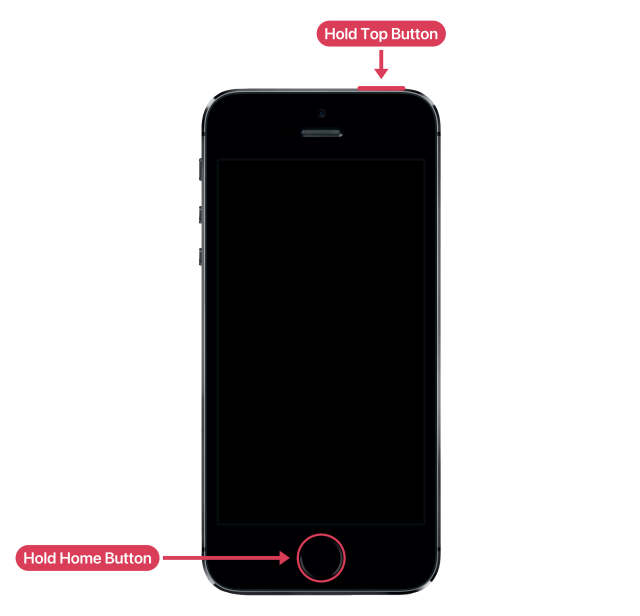
On iPhone SE (1st generation) and iPhone 5s or earlier, the button you hold with the Home button is on top.
Step One: Press and Hold the Home and Top Buttons
Press and hold the Home button and the top button at the same time. When the Apple logo appears, let go. It takes about 10 seconds.
If Your iPhone Still Won't Restart
Charge your iPhone for an hour, then try again. If it still won't turn on, it might need service.

![Apple Watch Series 12 and Ultra 4 Score 4/10 in iFixit Teardown [Video]](/images/news/102633/102633/102633-160.jpg "Apple Watch Series 12 and Ultra 4 Score 4/10 in iFixit Teardown [Video]")
![Apple Partnering With LG on Smart Lock, Doorbell, Thermostat, and Cameras [Report]](/images/news/102627/102627/102627-160.jpg "Apple Partnering With LG on Smart Lock, Doorbell, Thermostat, and Cameras [Report]")


![Apple Releases Public Beta 2 of iOS 27.2, macOS Golden Gate 27.2, and More [Download]](/images/news/102621/102621/102621-160.jpg "Apple Releases Public Beta 2 of iOS 27.2, macOS Golden Gate 27.2, and More [Download]")
![How To Back Up Your iPhone to an External Drive on Mac [Video]](/images/tutorials/72786/72786/72786-160.jpg "How To Back Up Your iPhone to an External Drive on Mac [Video]")

![How To Force Restart iPhone [Video]](/images/tutorials/95012/95012/95012-160.jpg "How To Force Restart iPhone [Video]")
![How To Turn Off iPhone [Video]](/images/tutorials/94999/94999/94999-160.jpg "How To Turn Off iPhone [Video]")

![Mac mini Drops to New Low of $769 for Prime Big Deal Days [Deal]](/images/news/102624/102624/102624-160.jpg "Mac mini Drops to New Low of $769 for Prime Big Deal Days [Deal]")