To free up storage on your iPhone, go to Settings > General > iPhone Storage, turn on what it recommends, and offload or delete the apps you don't use. Then empty Recently Deleted in Photos, Messages and Files, where deleted items keep using space for 30 days.
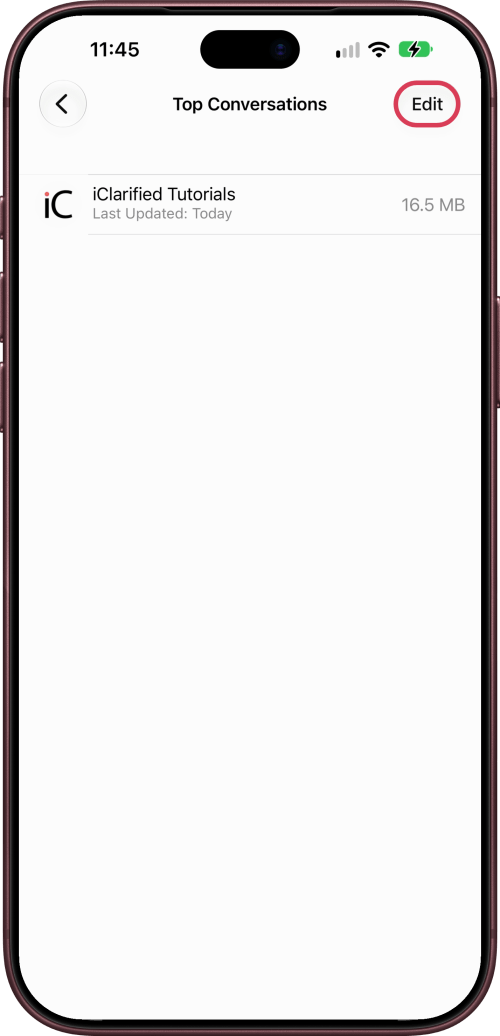
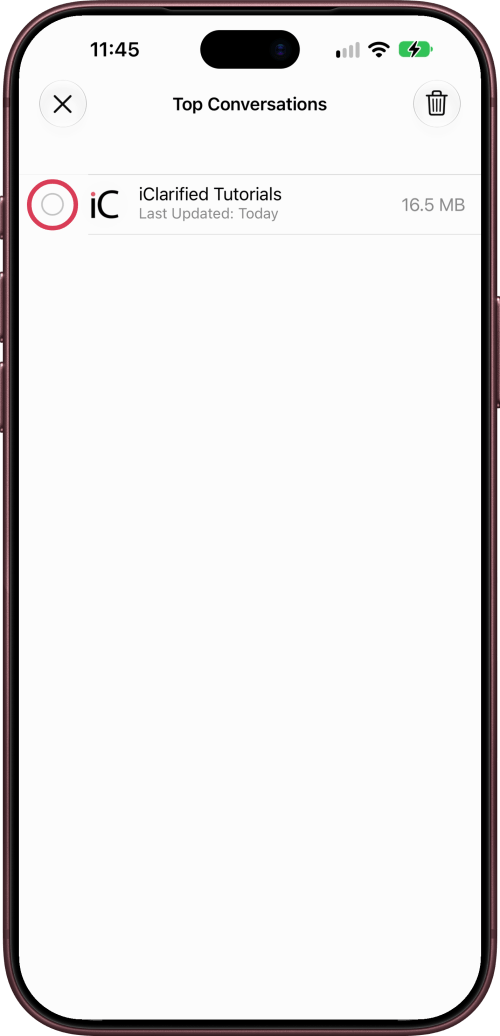
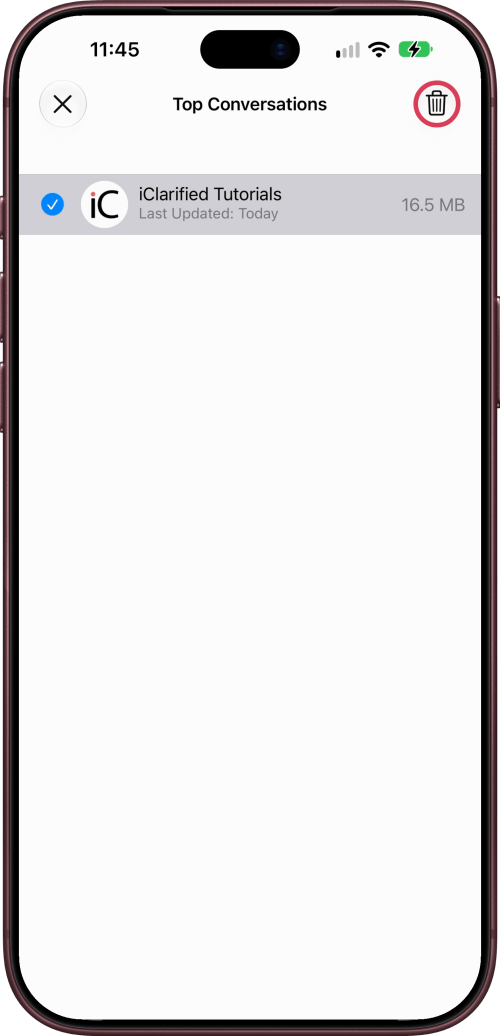
Deleting a conversation from Top Conversations in iPhone Storage is immediate: it skips Recently Deleted, so it can't be recovered.
We tested each step on an iPhone 18 Pro Max running iOS 27.
Free Up Space When Your iPhone Storage Is Full
Step One: Open iPhone Storage
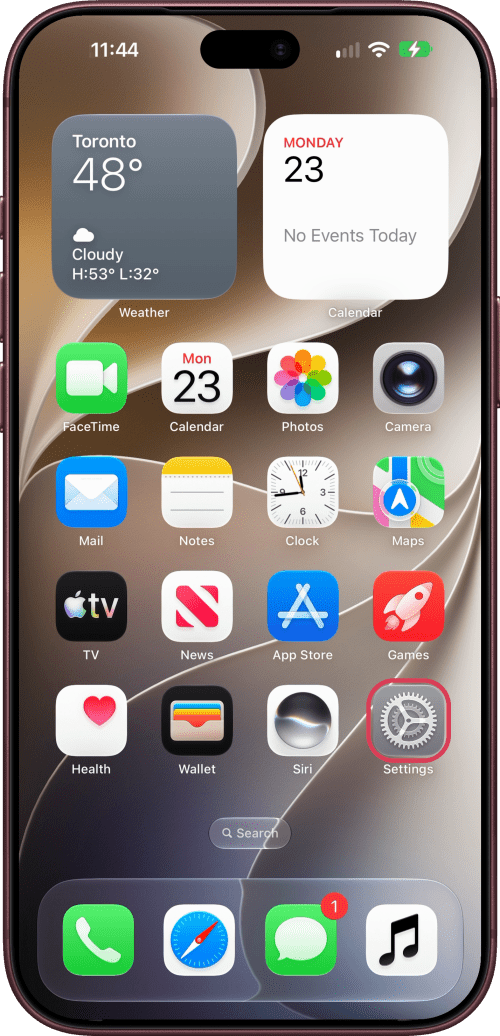
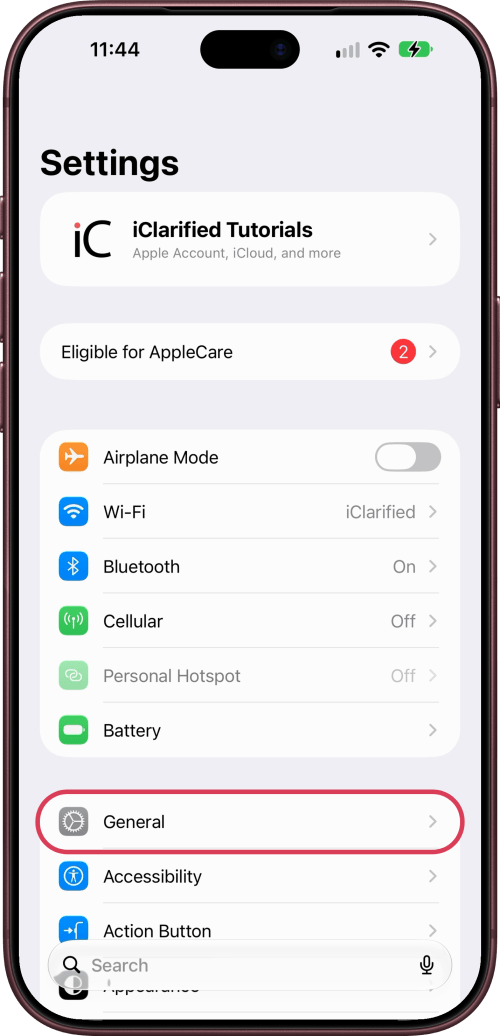
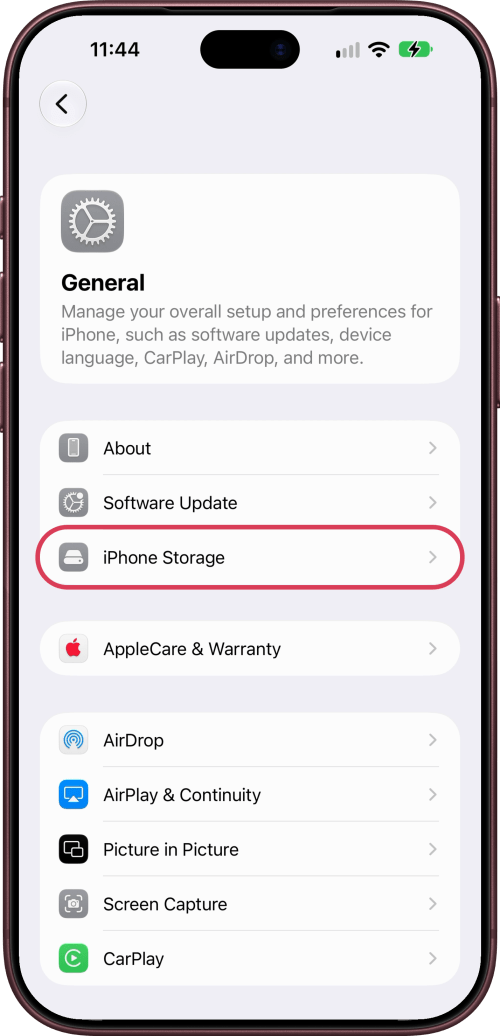
Open the Settings app, tap General, then tap iPhone Storage. The bar at the top shows how much space you've used and what's using it.
Step Two: Turn On Offload Unused Apps
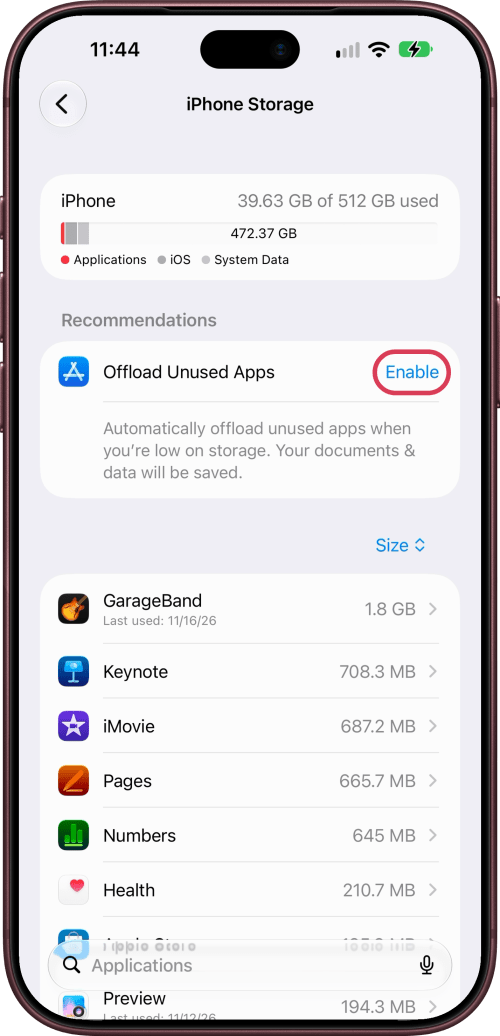
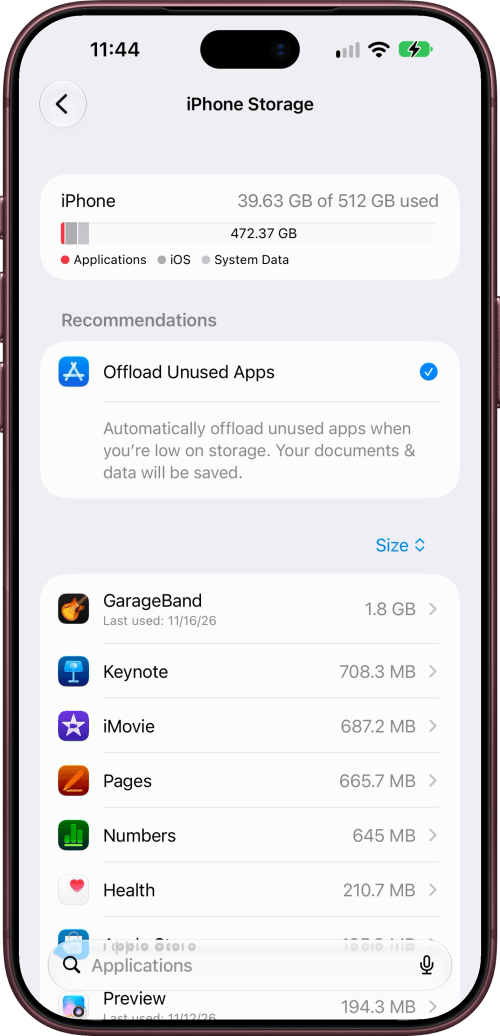
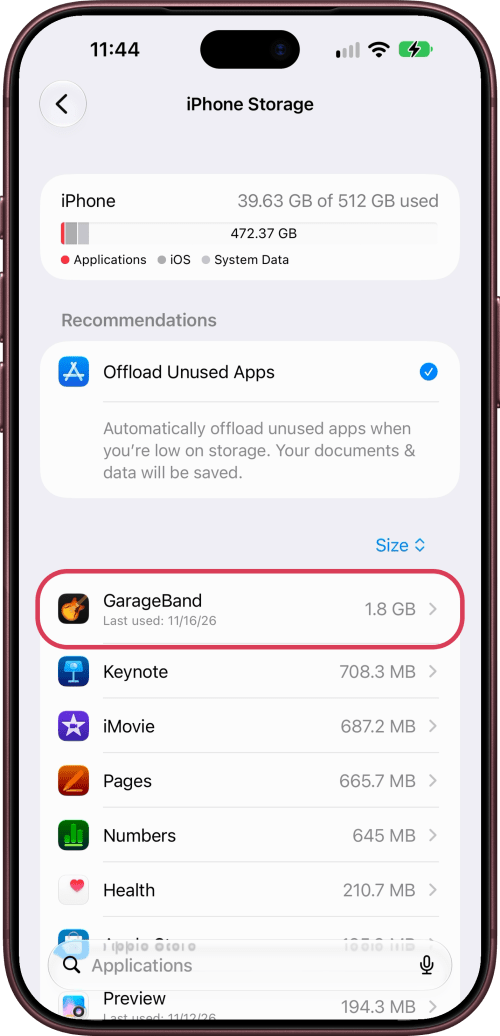
Under Recommendations, your iPhone suggests ways to save space based on what's on it. Ours offered Offload Unused Apps. Tap Enable, and when you're low on storage, your iPhone removes apps you don't use but keeps their documents and data. The same switch is in Settings > Apps > App Store.
Step Three: Offload or Delete an App
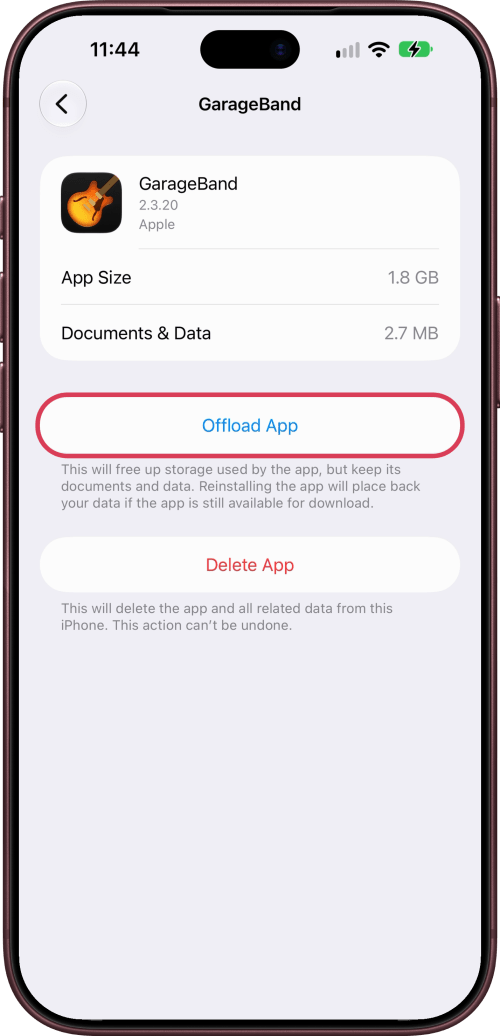
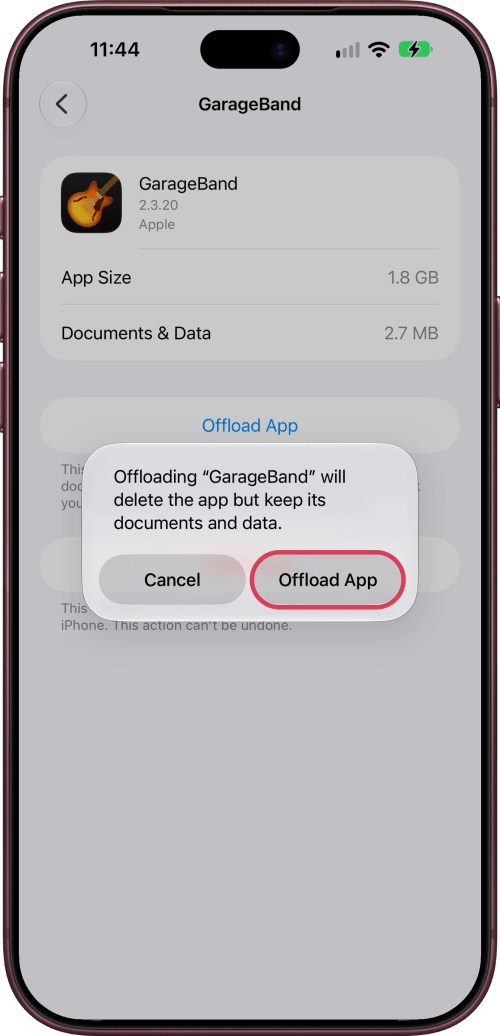
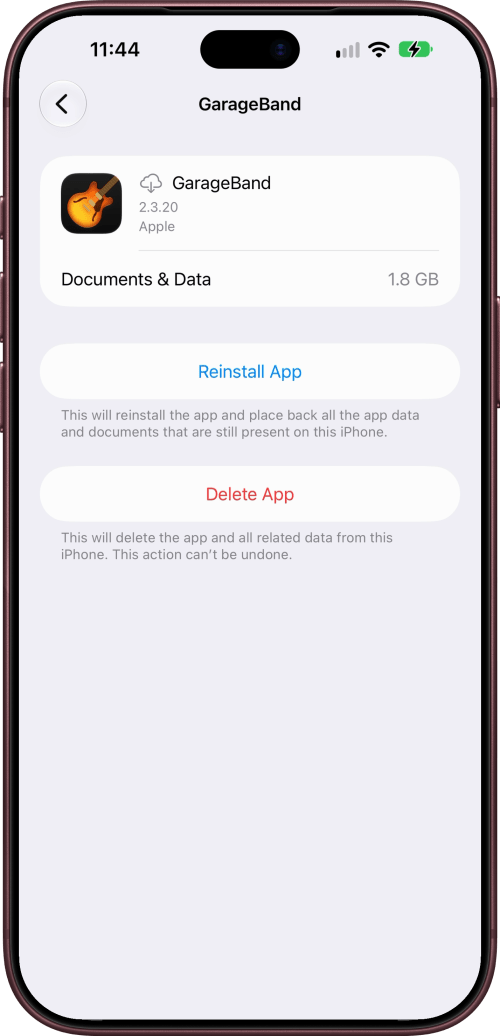
Your apps are listed from largest to smallest. Tap one to see its App Size and its Documents & Data. Tap Offload App, then Offload App again: the app is removed, but its documents and data stay, and its icon stays on your Home Screen, so a tap reinstalls it. Delete App removes the app and all of its data.
Step Four: Delete Your Biggest Conversations
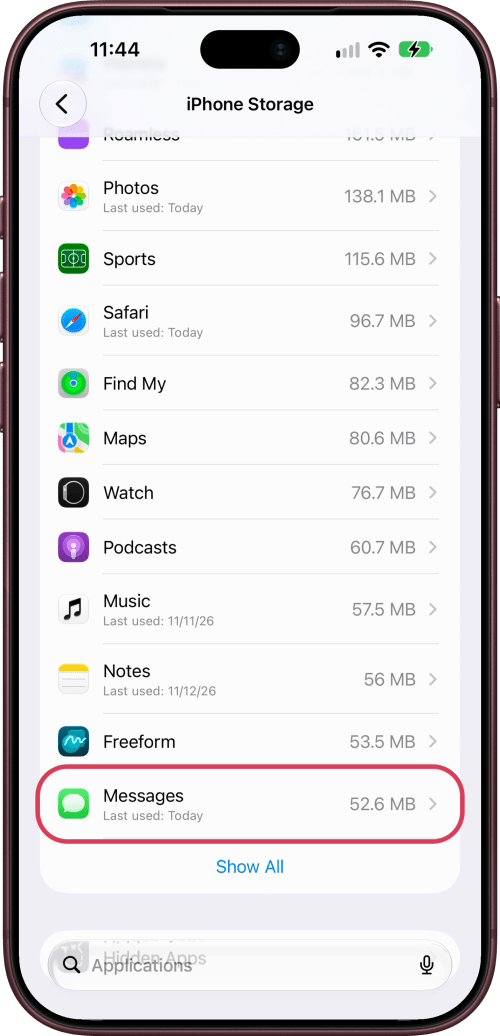
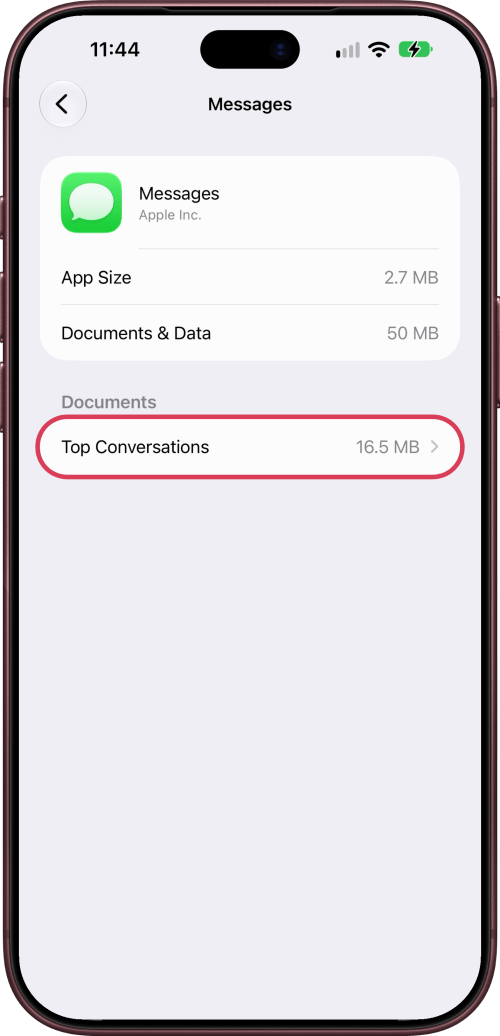
In iPhone Storage, scroll down and tap Messages, then Top Conversations to see which conversations use the most space. Tap Edit, select one you don't need, and tap the trash button. It's deleted right away and doesn't go to Recently Deleted, so you can't recover it.
Step Five: Keep Messages for Less Time
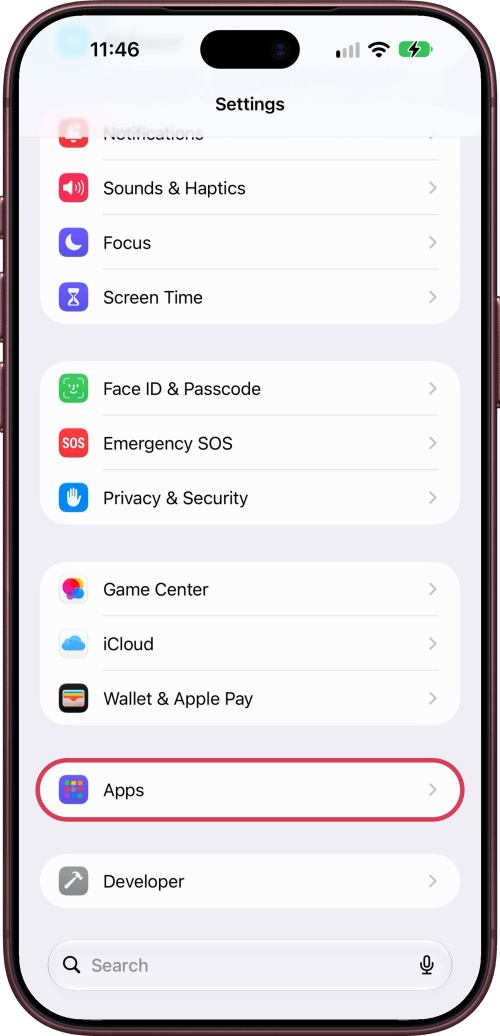
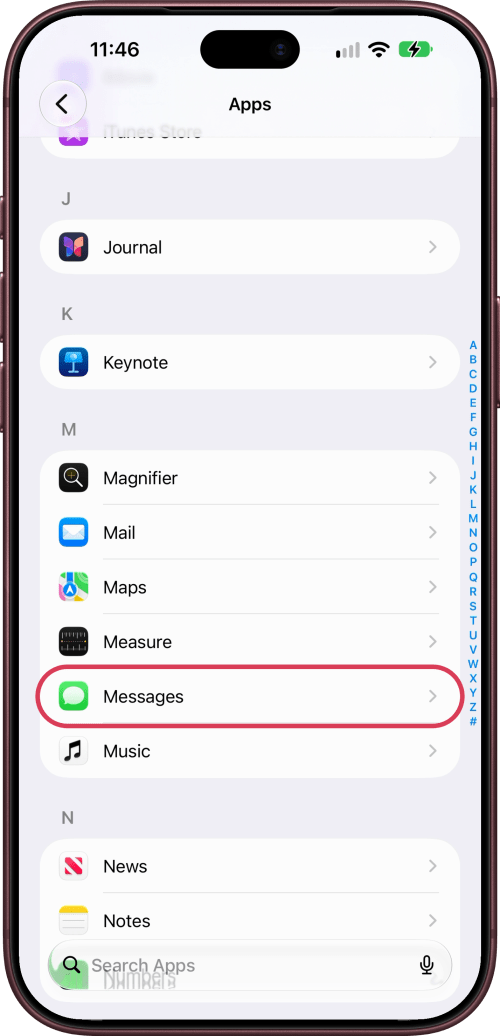
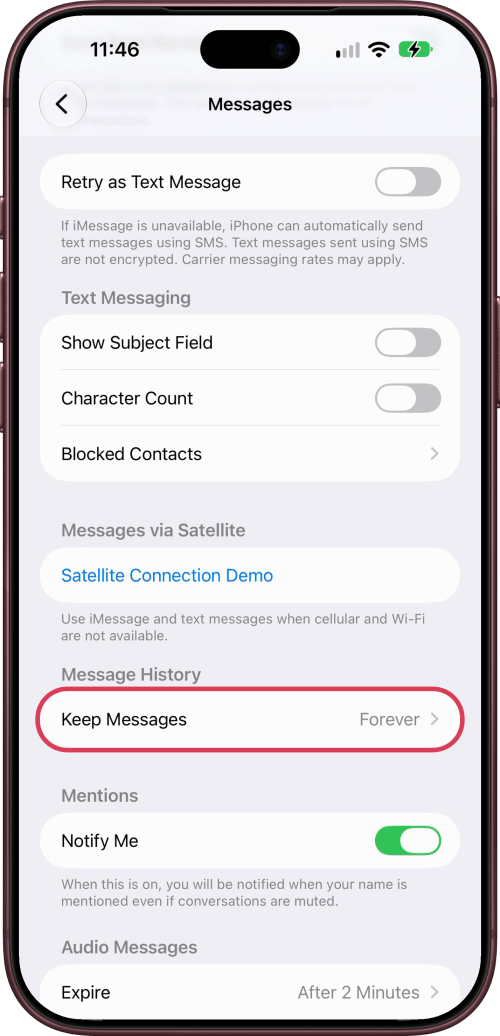
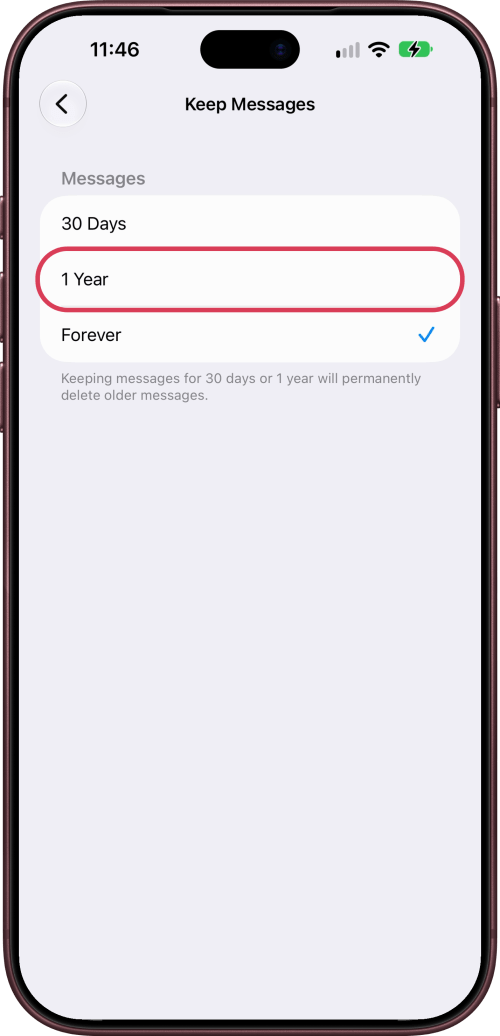
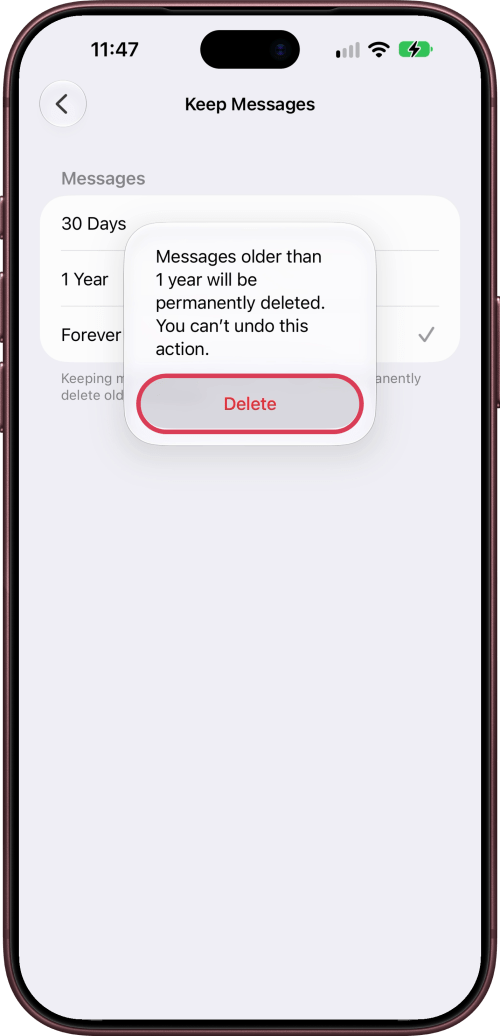
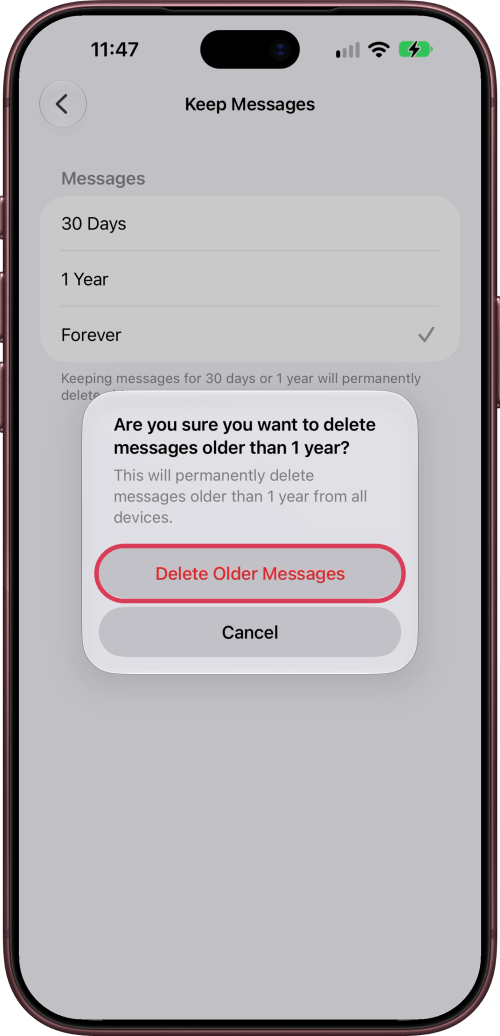
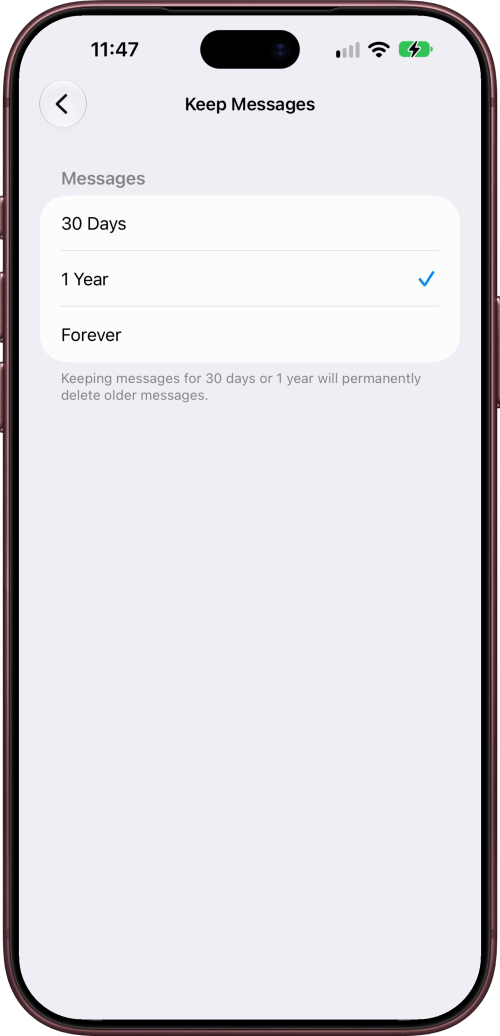
Messages keeps your conversations forever unless you change it. In Settings, scroll down and tap Apps, then Messages. Scroll down and tap Keep Messages, change it from Forever to 1 Year or 30 Days, then tap Delete and Delete Older Messages. Older messages and their attachments are deleted for good, so save any photos you want to keep first.
Step Six: Optimize iPhone Storage for Photos
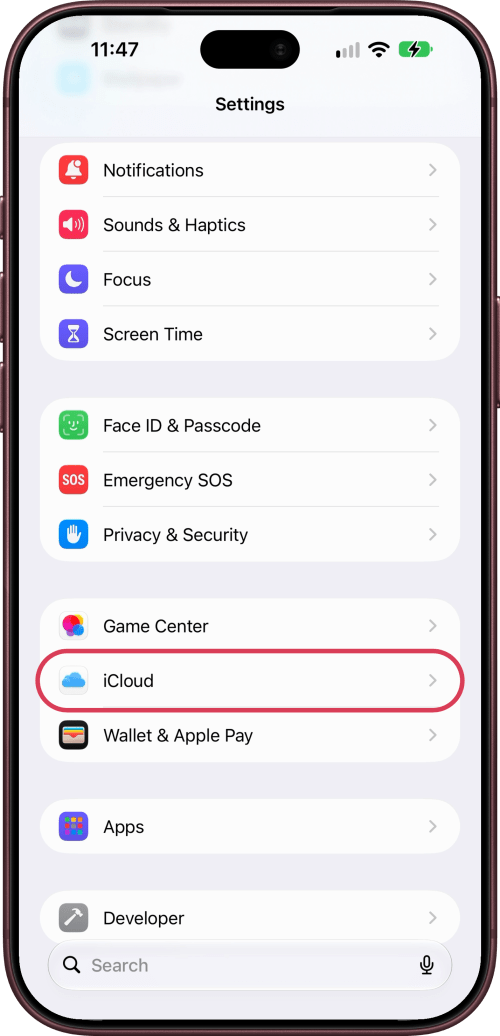
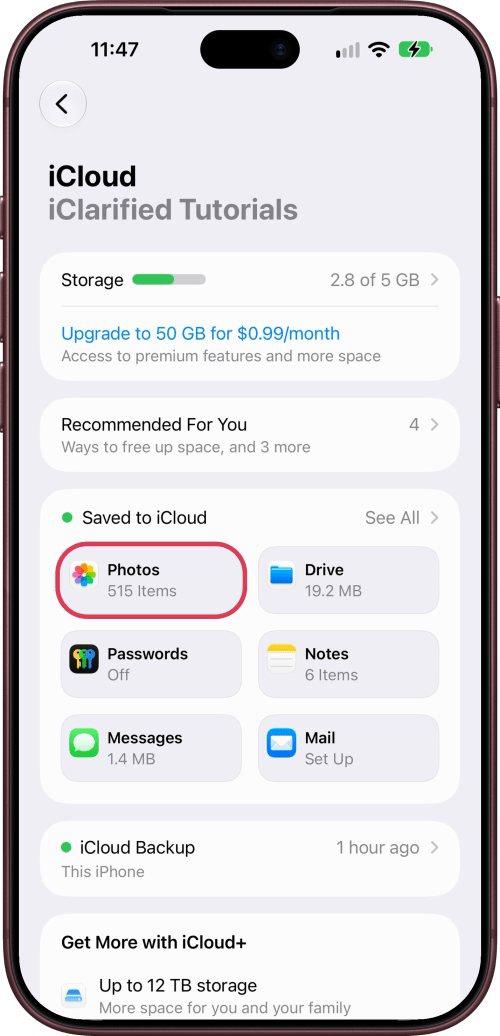
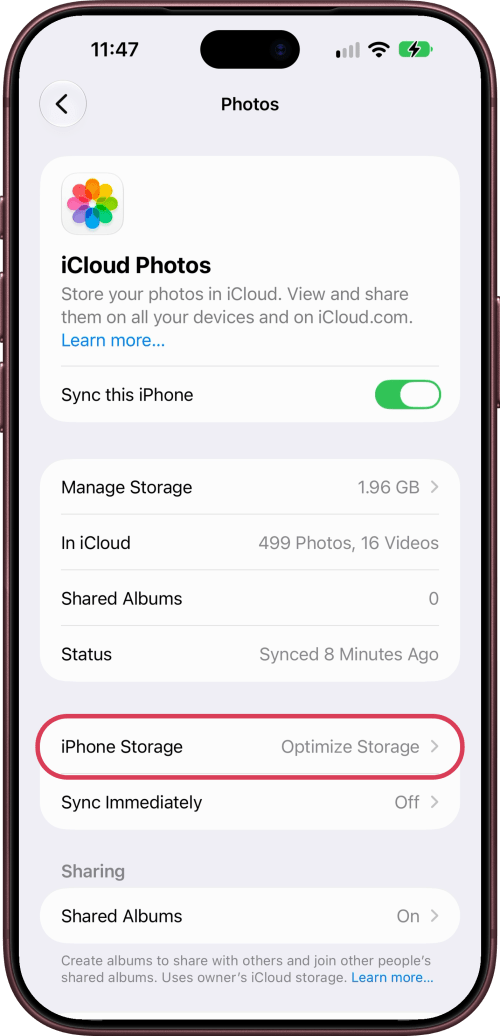
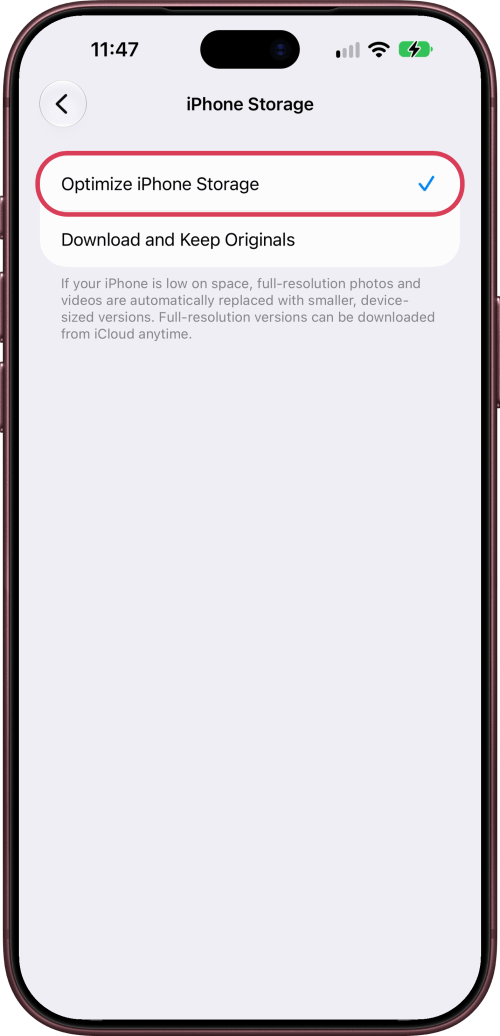
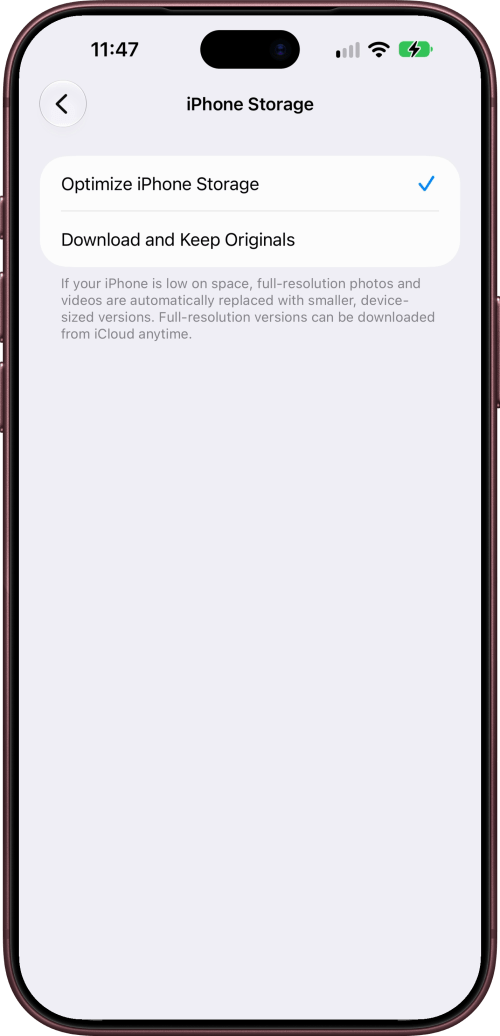
If you use iCloud Photos, tap iCloud in Settings, then Photos, then iPhone Storage, and choose Optimize iPhone Storage instead of Download and Keep Originals. Your full-resolution photos and videos stay in iCloud, and your iPhone keeps smaller versions when it's low on space. Your whole library has to fit in your iCloud storage: 5 GB is free, and more comes with iCloud+.
Step Seven: Empty Recently Deleted in Photos
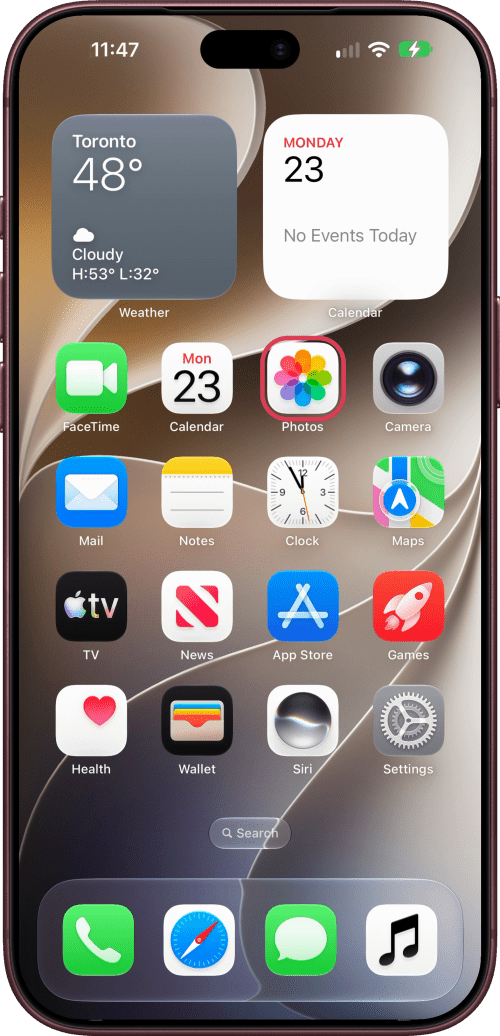
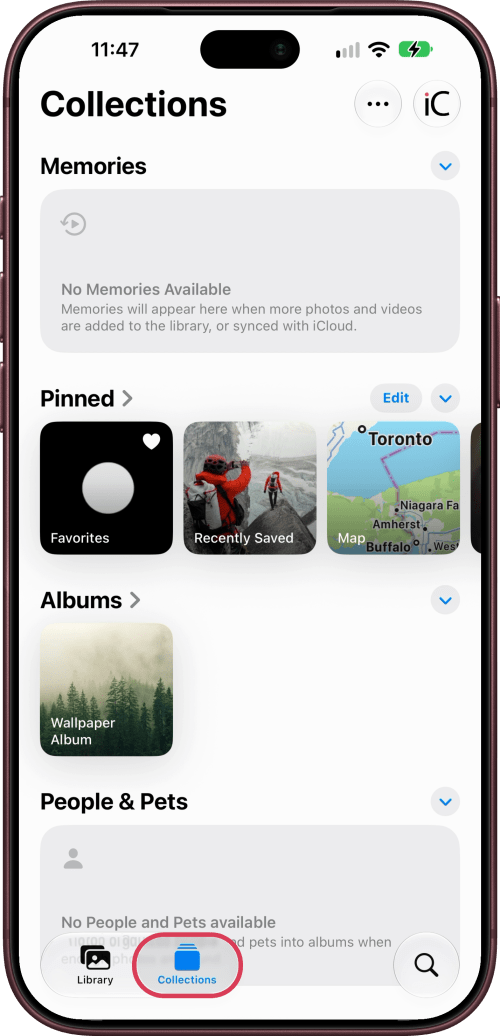
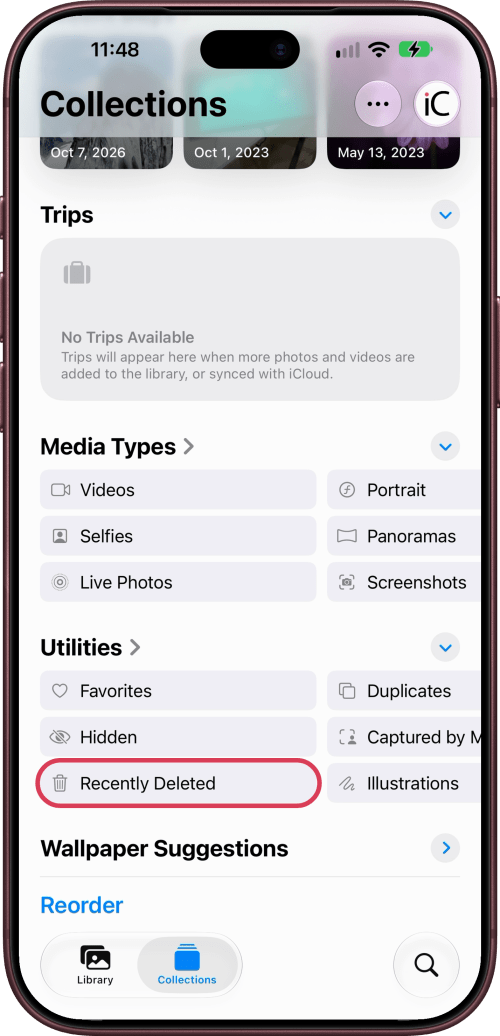
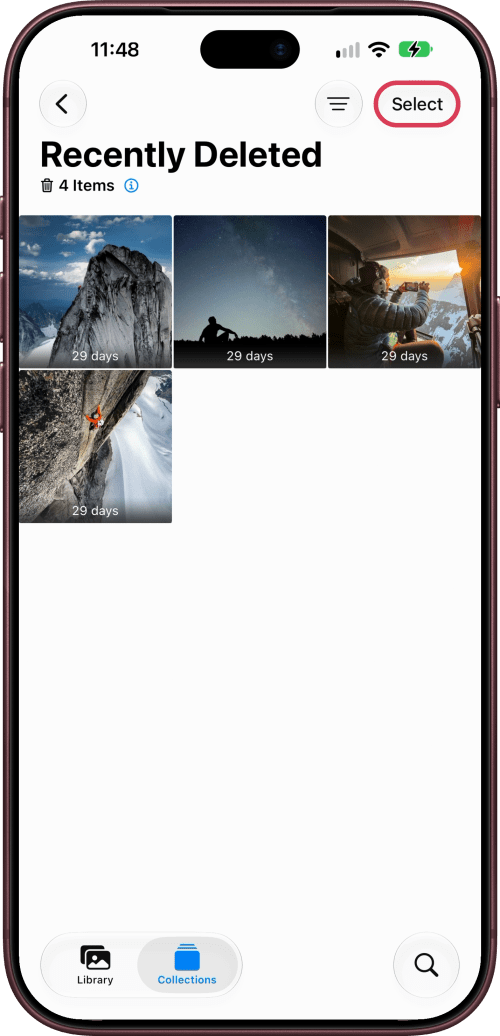
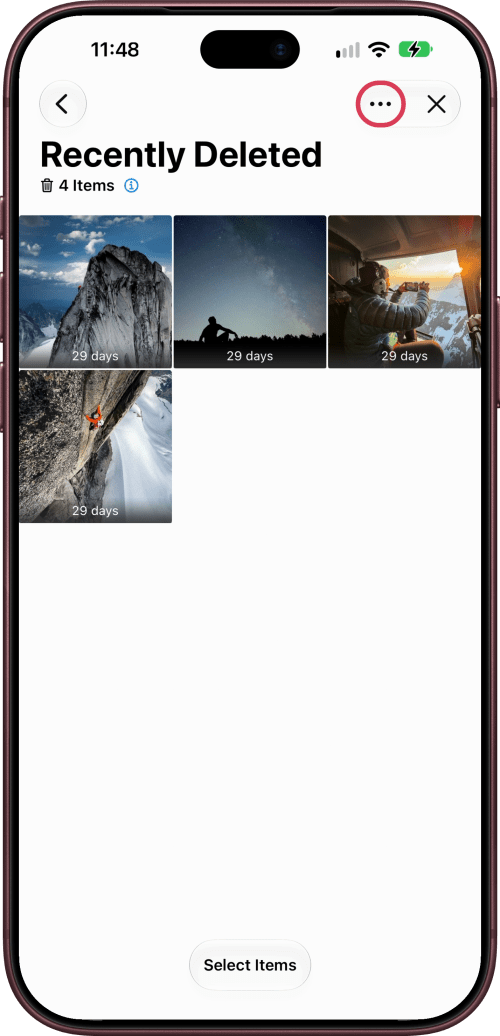
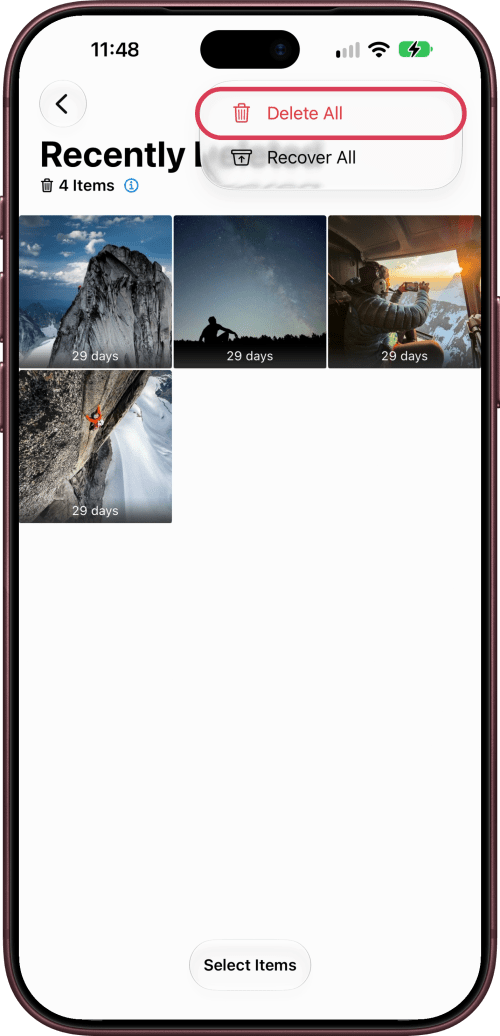
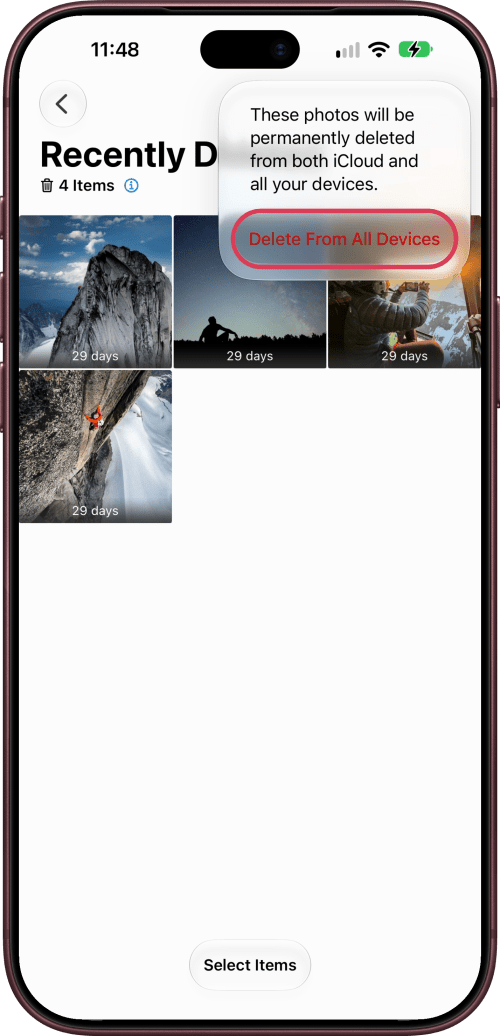
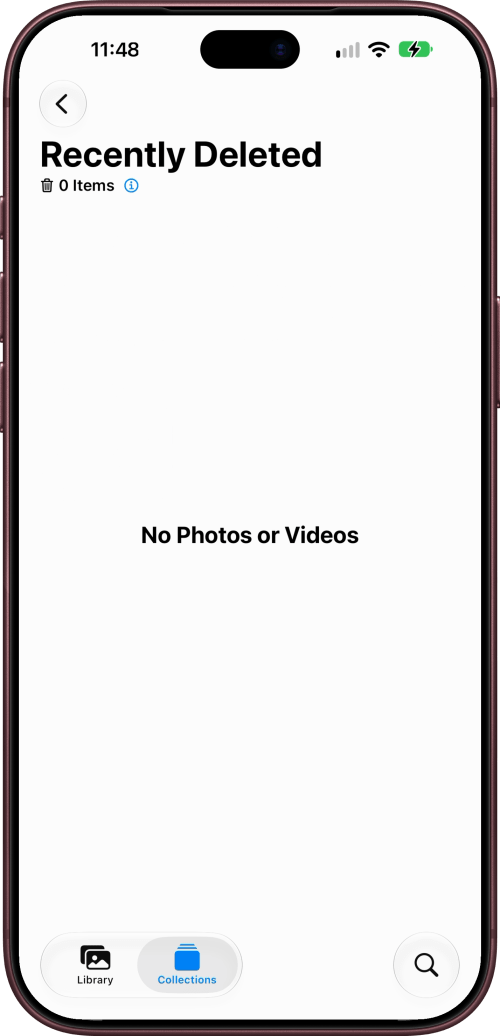
Photos and videos you delete stay in Recently Deleted for 30 days, and they still take up space. Open Photos, tap Collections, scroll down, and tap Recently Deleted. Tap Select, tap the More button, then tap Delete All and Delete From All Devices.
Step Eight: Empty Recently Deleted in Messages
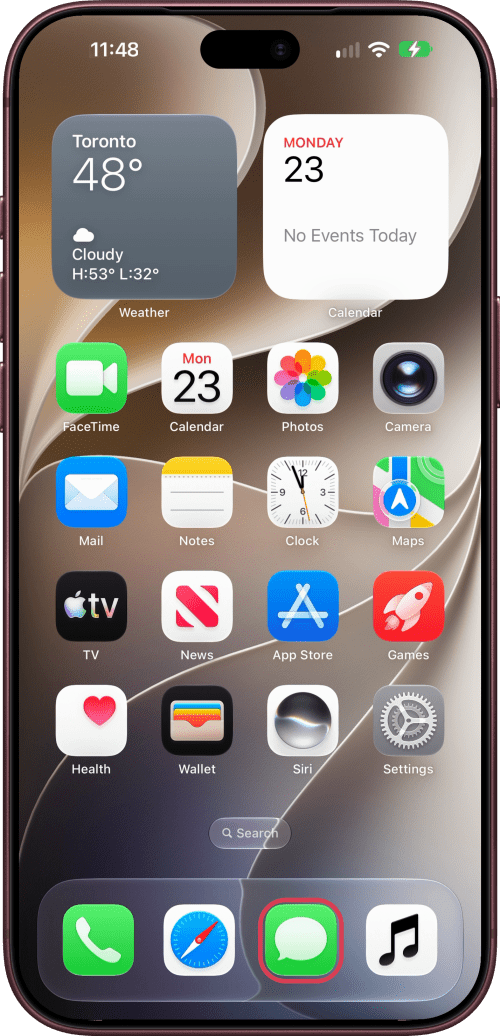
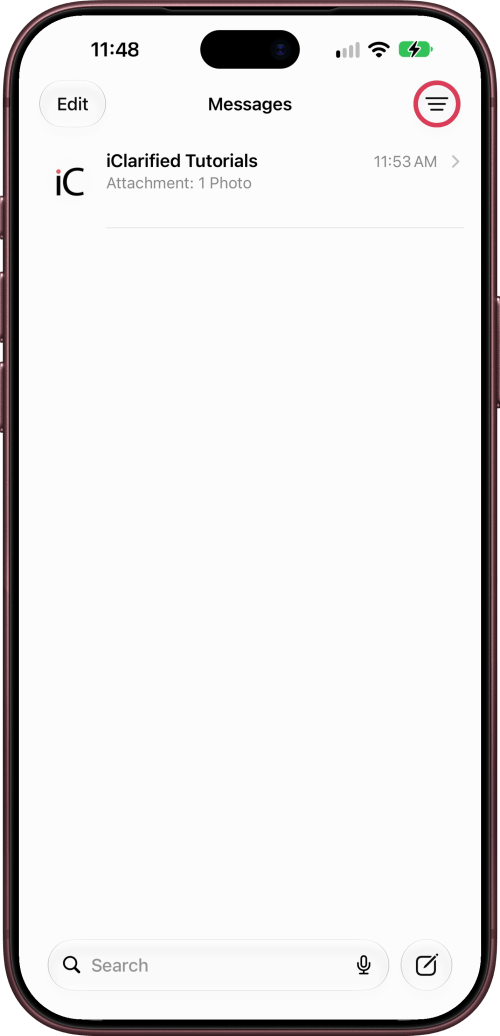
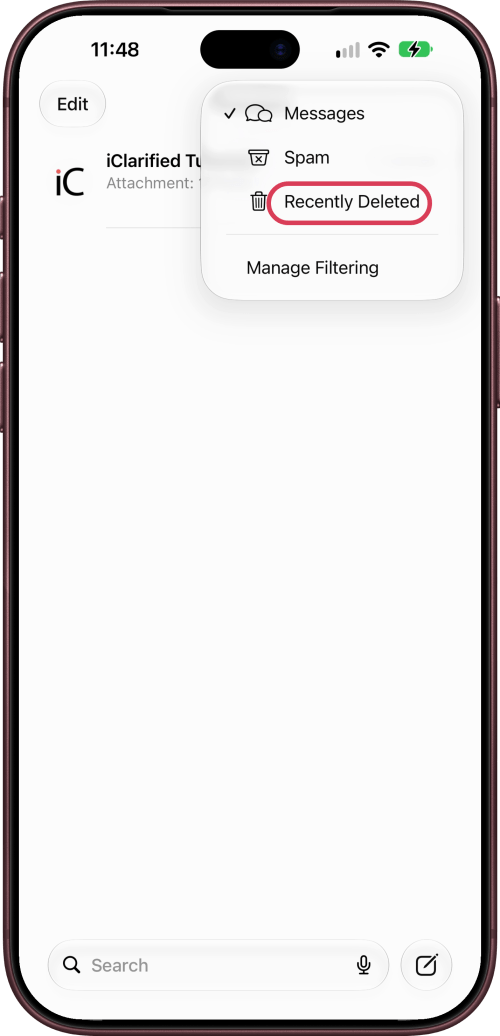
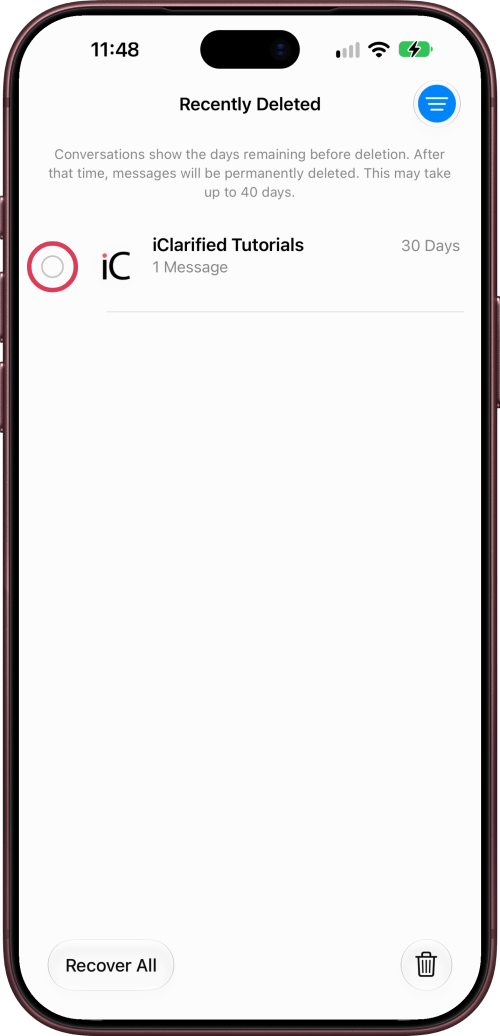
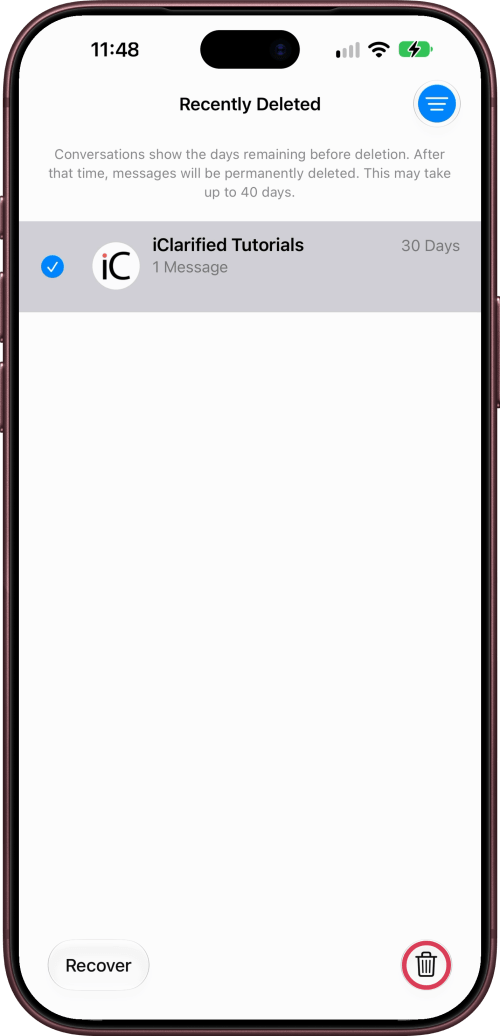
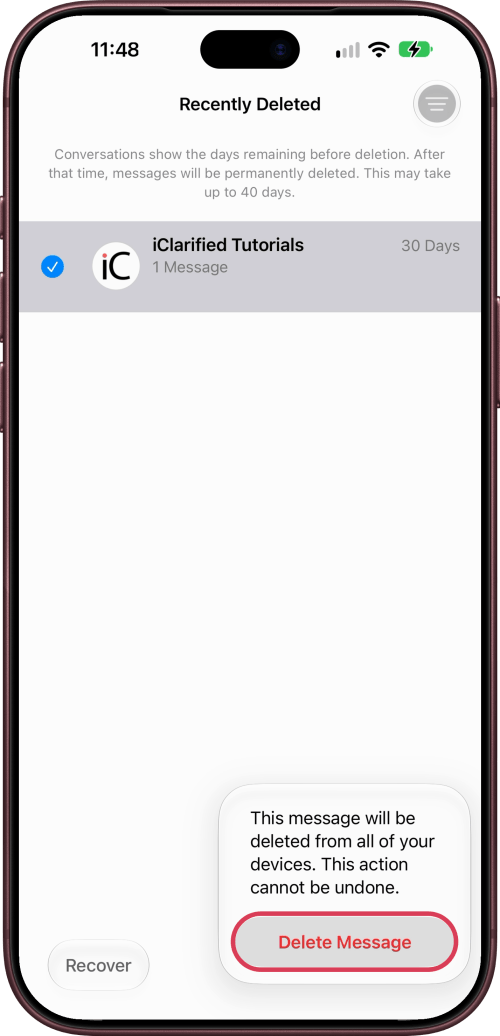
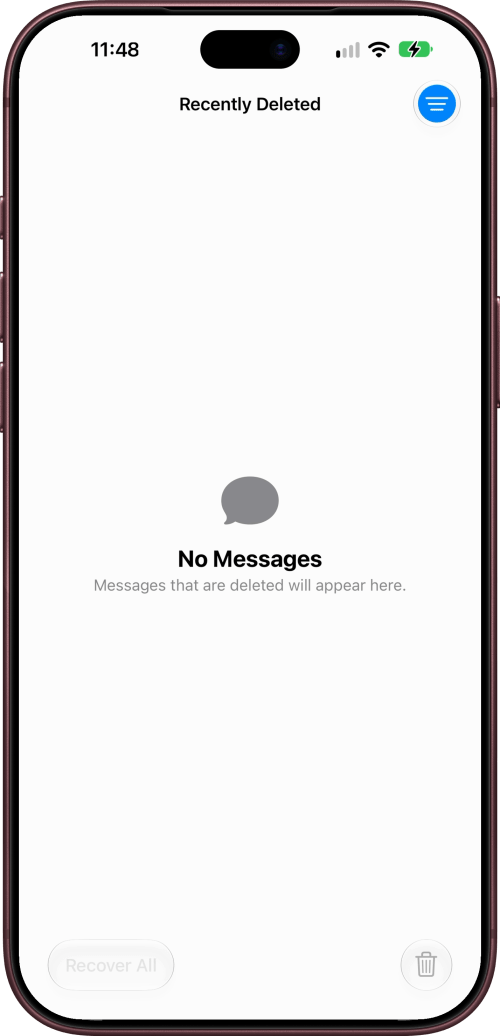
Messages keeps deleted conversations for 30 days too. Open Messages, tap the filter button, and choose Recently Deleted. Select a conversation, tap the trash button, then tap Delete Message.
Step Nine: Empty Recently Deleted in Files
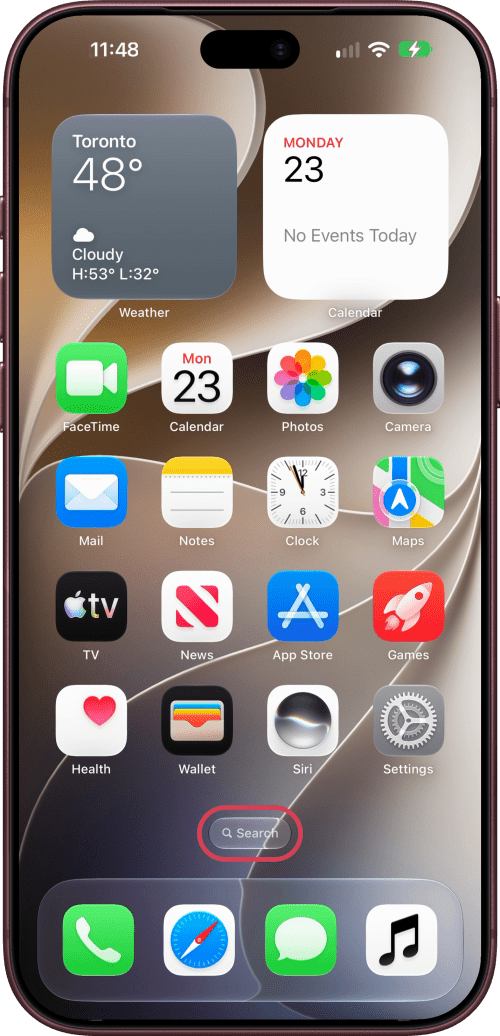
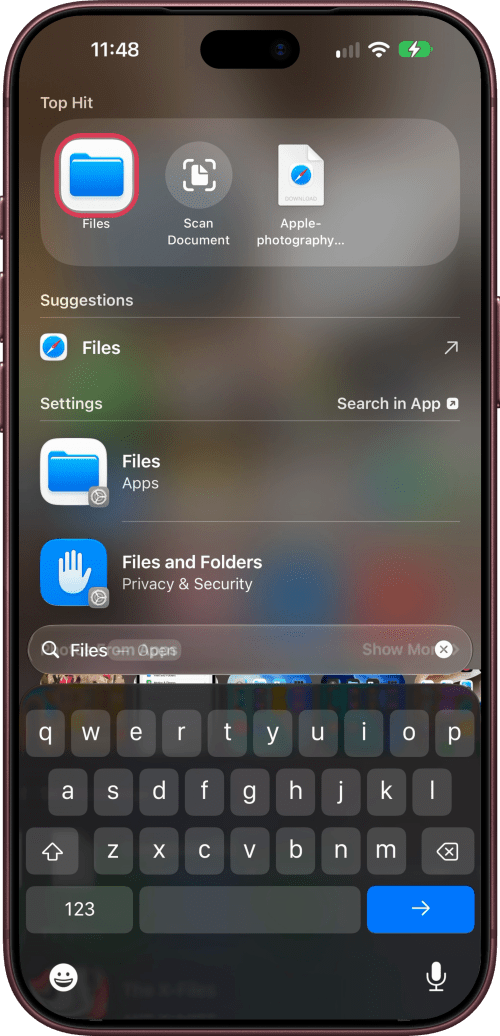
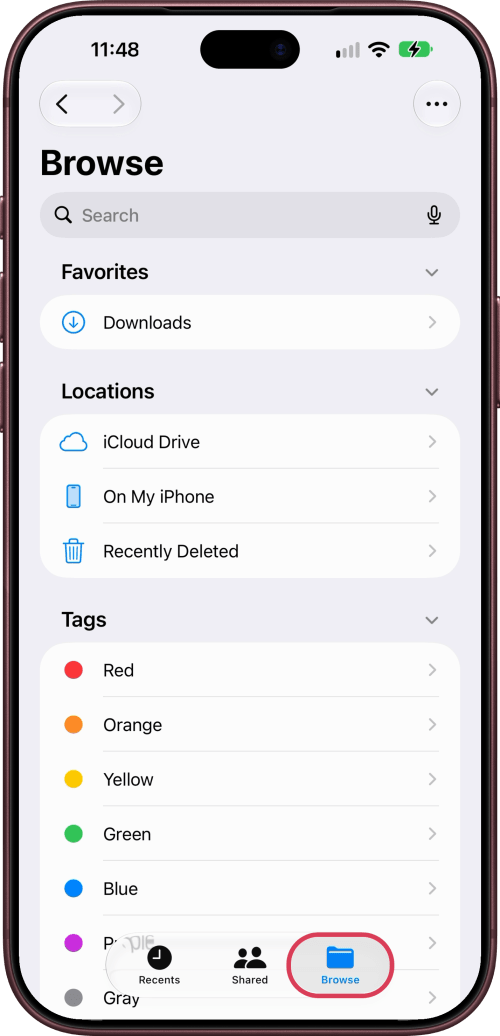
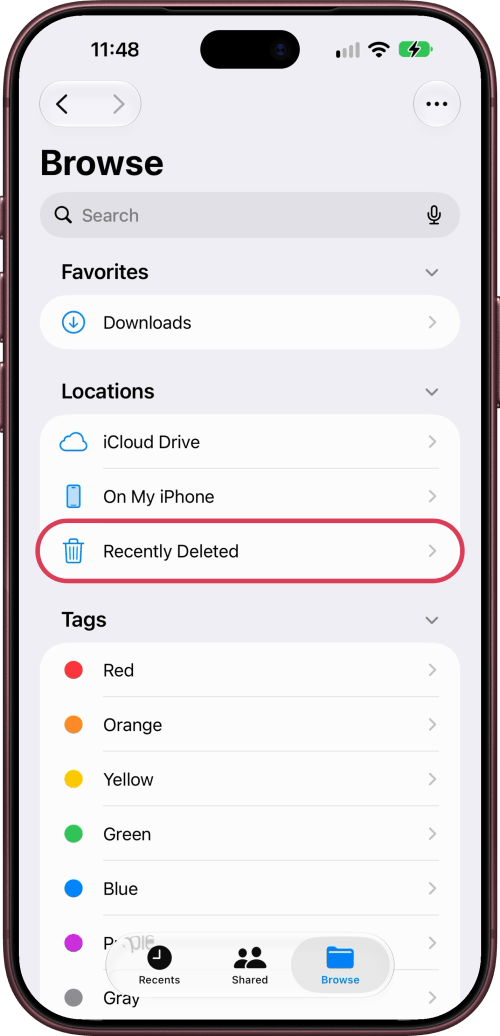
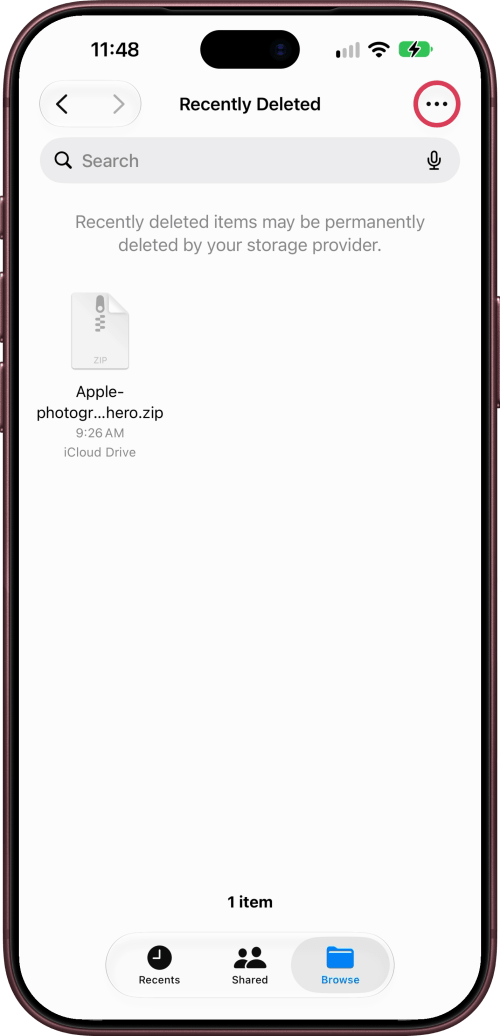
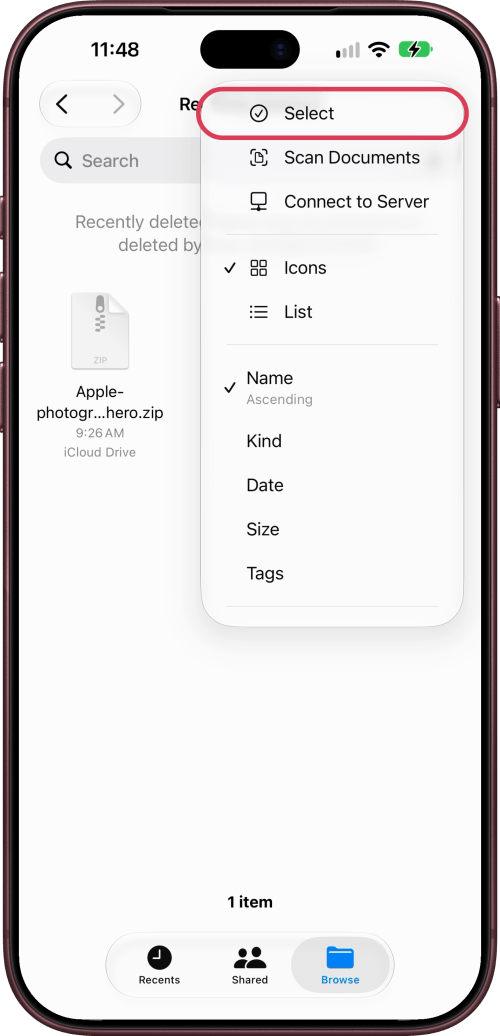
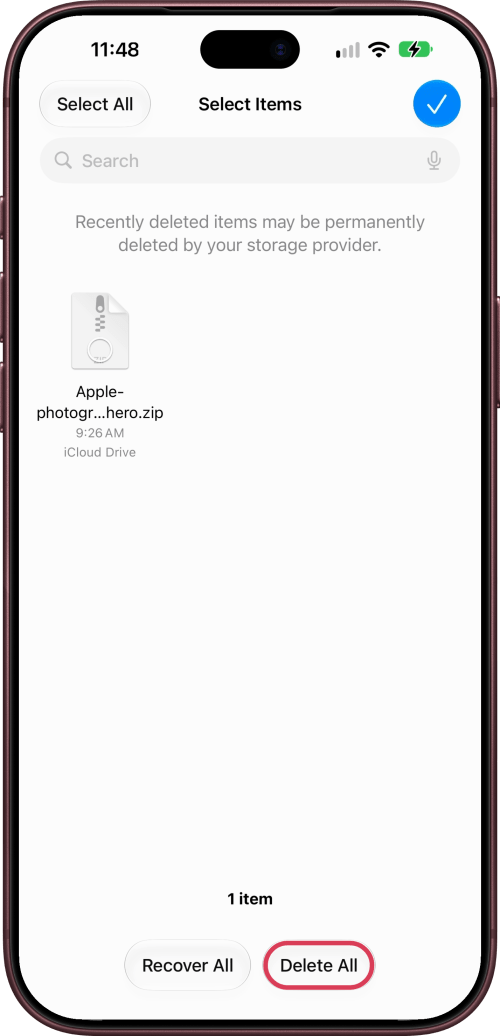
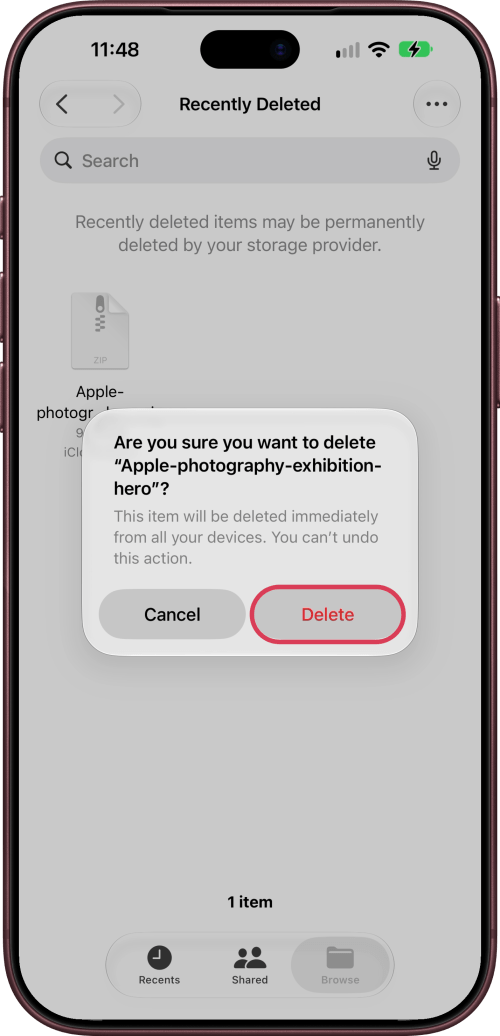
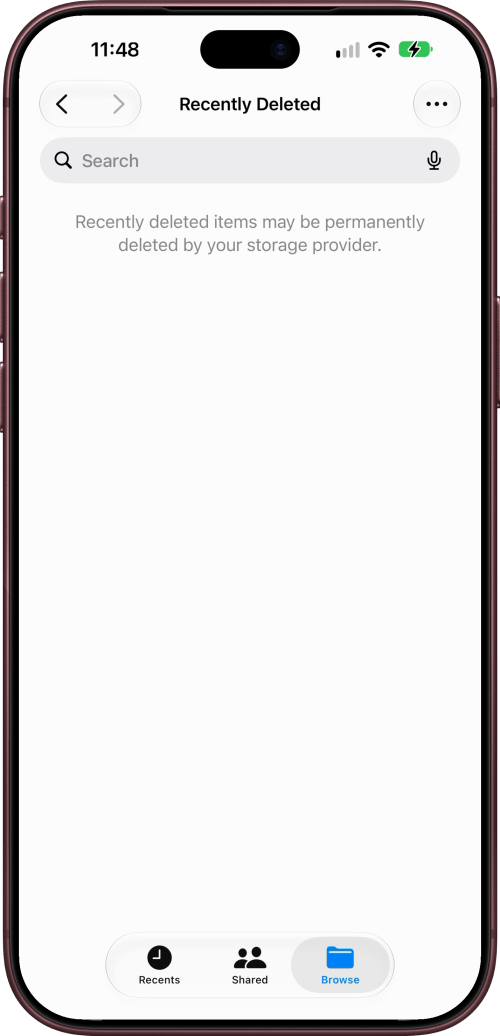
Files keeps deleted files for 30 days as well. Tap Search on the Home Screen and open Files, then tap Browse and Recently Deleted. Tap the More button, then Select, Delete All and Delete.
What System Data Is
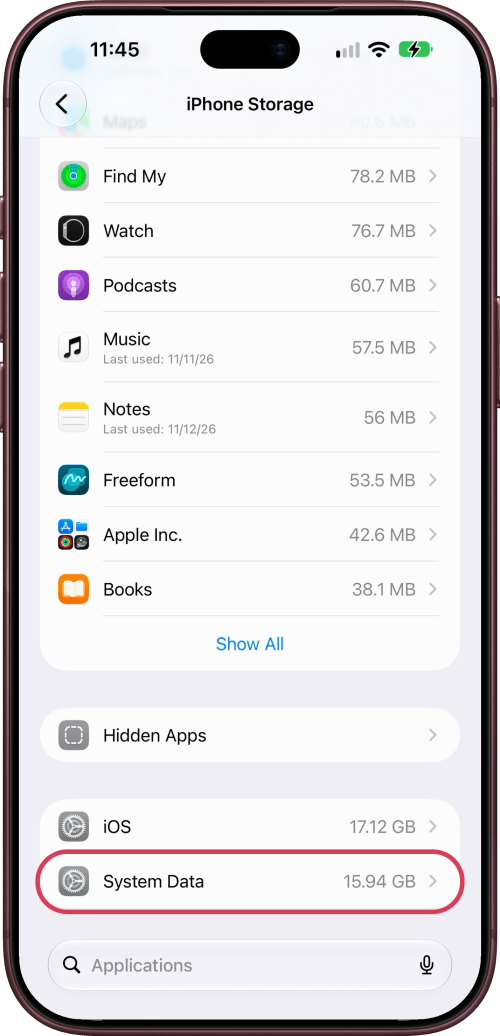
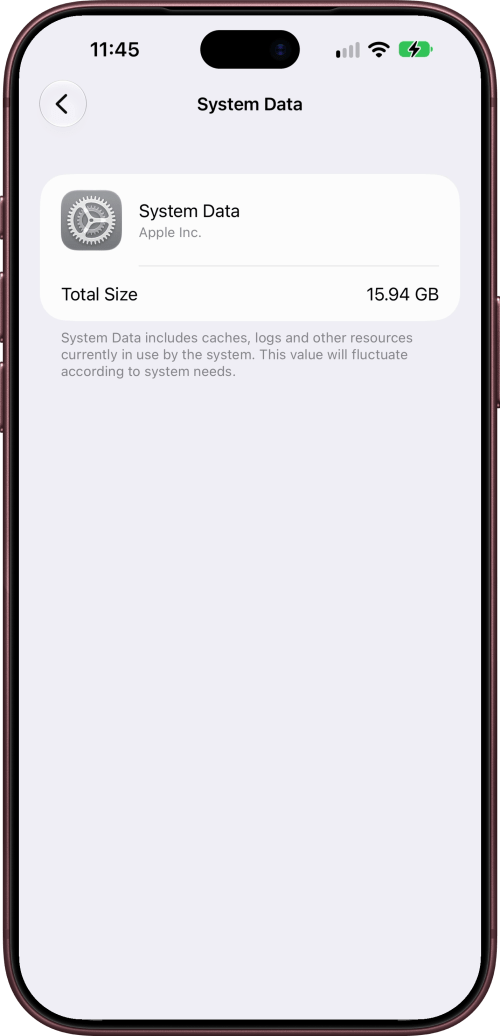
At the bottom of iPhone Storage, tap System Data to see its size. Apple describes it as caches, logs and other resources the system is using now, and its size changes with the system's needs. There's no button to clear it: your iPhone removes cached and temporary files itself when it needs the space.
If Your iPhone Still Says It's Full
Give it a moment. After you offload or delete apps and files, the space can take a moment to show up in iPhone Storage. An offloaded app comes back with a tap on its icon, with its documents and data where you left them.