
These are instructions on how to reformat a Windows Formatted iPod so that it can be used with a Mac.
If you wish to keep the songs you have on the iPod you must first follow this tutorial to copy the iPod's songs to your iTunes Library:
How to Transfer Music From Your iPod to a New Mac
Step One
Launch iTunes by selecting its icon in the dock
Step Two
Connect your iPod to the computer. Once it shows up in iTunes press the Restore button under the Summary Tab.
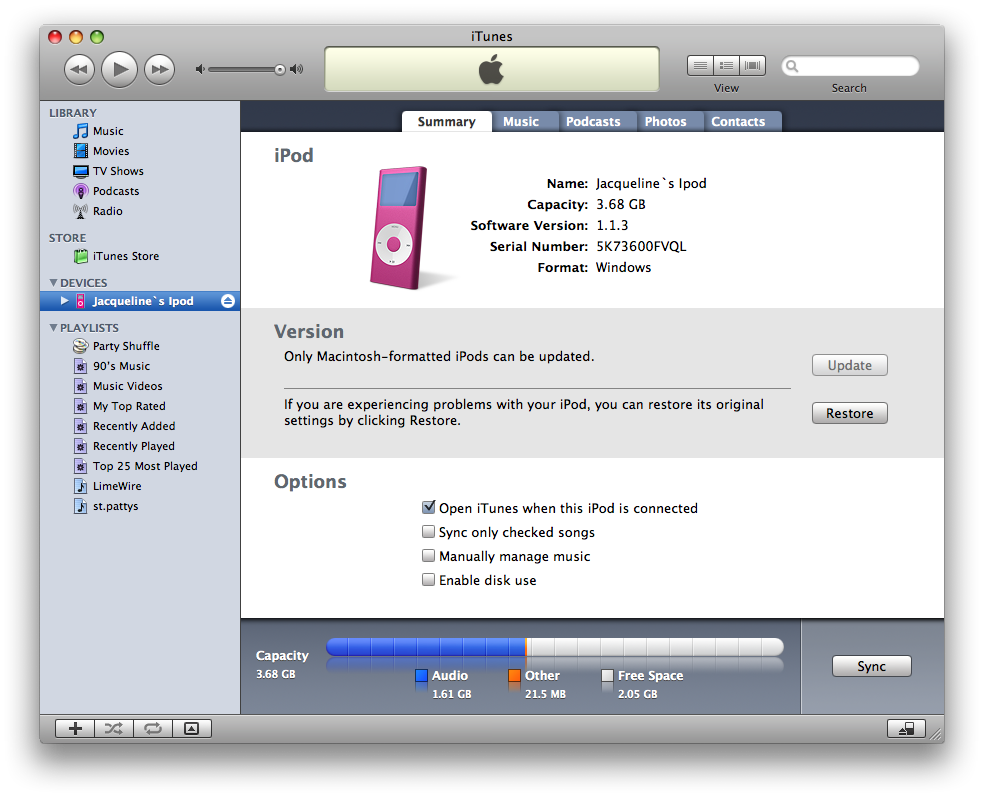
Step Three
A popup will appear warning you that all the songs on your iPod will be erased. Click the Restore button.
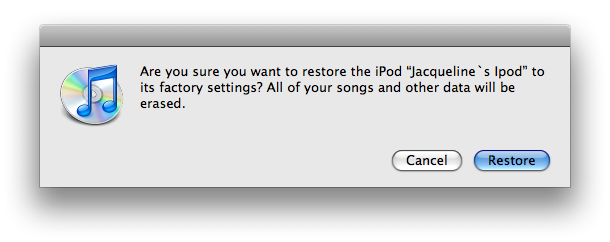
Step Four
An iPod Software Update window will open. Click the Next button.
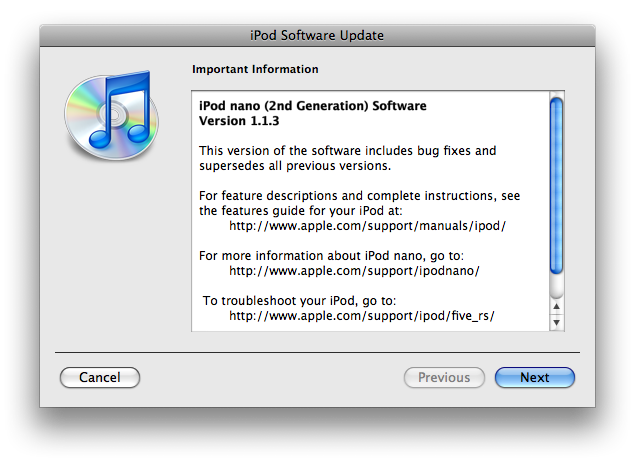
Step Five
Click the Agree button to accept the license agreement.
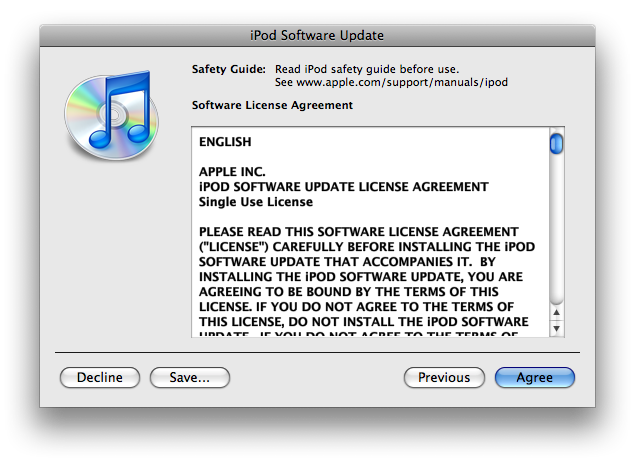
Step Six
iTunes will now go and download the latest firmware for your iPhone.
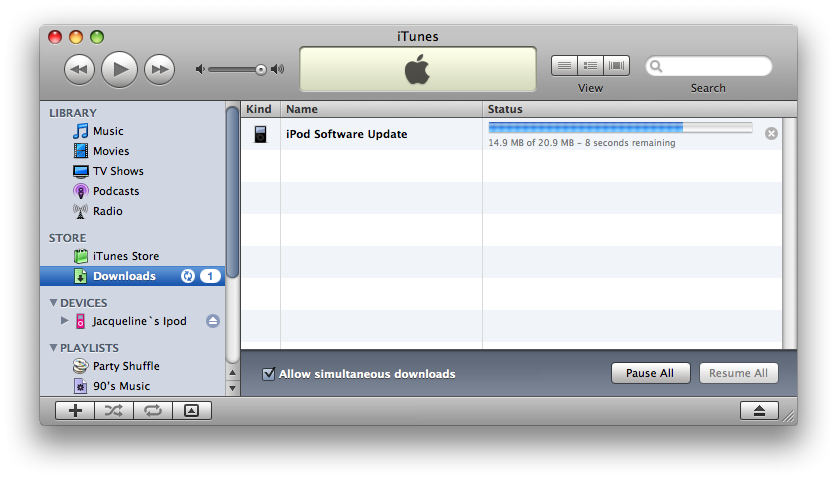
Step Seven
Once installation begins it will ask you for an Administrator's username and password. Enter this information then click the OK button.
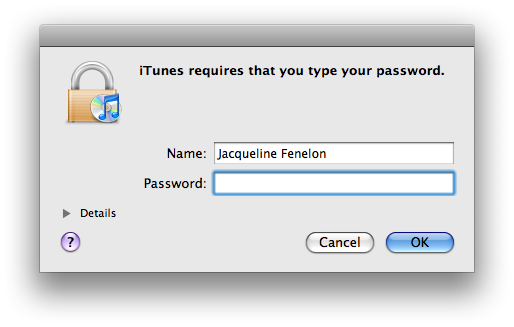
Step Eight
iTunes will then format and update your iPod after which it will reboot.
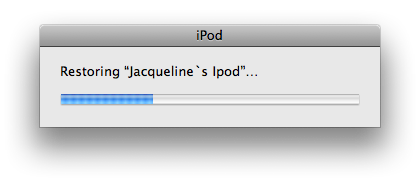
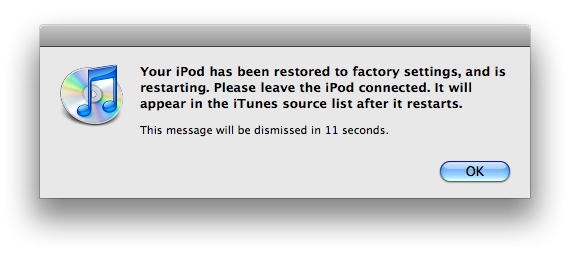
Step Nine
Once complete you will be asked to name your iPod. Do this then press the Done button.
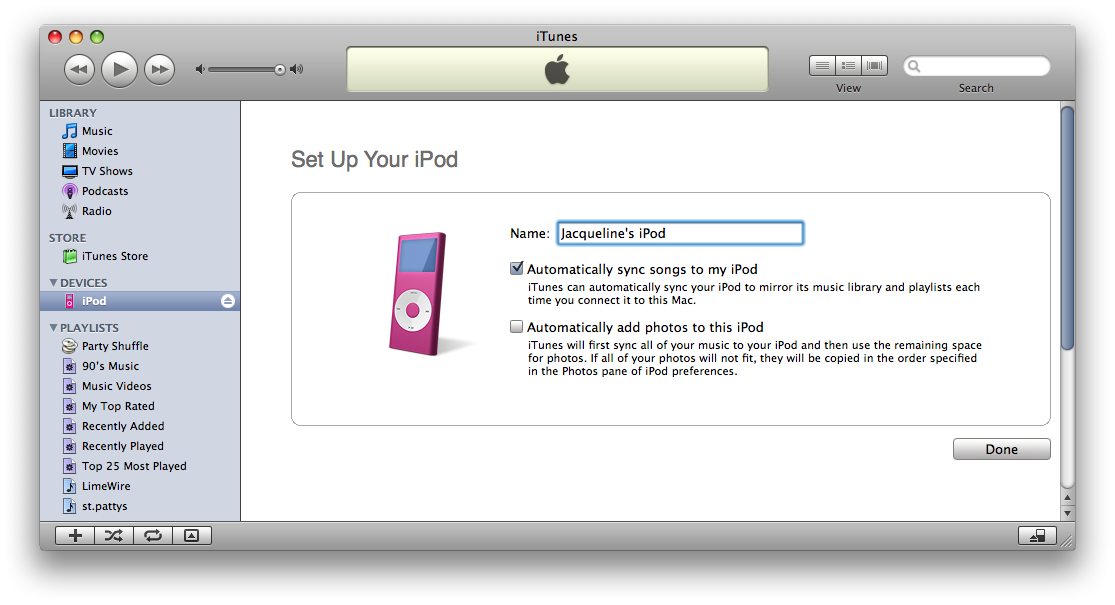
Step Ten
iTunes will now automatically begin syncing your library to the iPod!
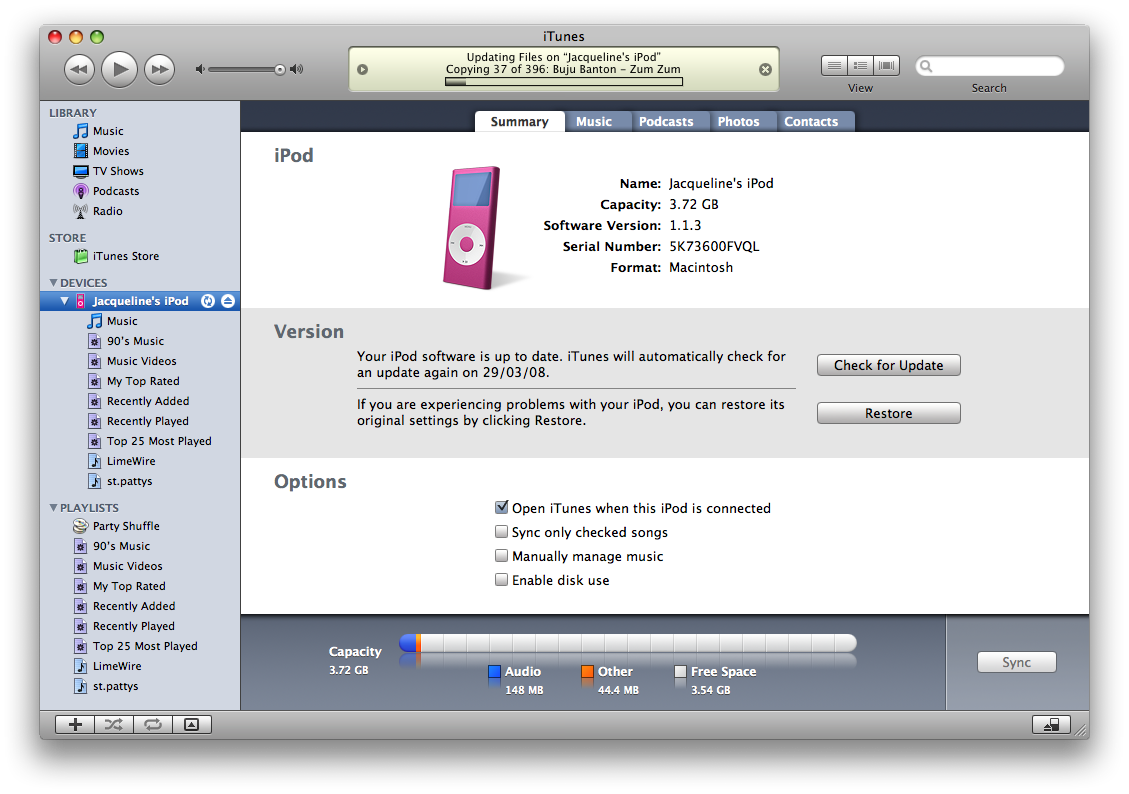
If you wish to keep the songs you have on the iPod you must first follow this tutorial to copy the iPod's songs to your iTunes Library:
How to Transfer Music From Your iPod to a New Mac
Step One
Launch iTunes by selecting its icon in the dock
Step Two
Connect your iPod to the computer. Once it shows up in iTunes press the Restore button under the Summary Tab.
Step Three
A popup will appear warning you that all the songs on your iPod will be erased. Click the Restore button.
Step Four
An iPod Software Update window will open. Click the Next button.
Step Five
Click the Agree button to accept the license agreement.
Step Six
iTunes will now go and download the latest firmware for your iPhone.
Step Seven
Once installation begins it will ask you for an Administrator's username and password. Enter this information then click the OK button.
Step Eight
iTunes will then format and update your iPod after which it will reboot.
Step Nine
Once complete you will be asked to name your iPod. Do this then press the Done button.
Step Ten
iTunes will now automatically begin syncing your library to the iPod!


![Apple Tests Microphones and a Remote Speaker for New Apple TV [Report]](/images/news/102729/102729/102729-160.jpg "Apple Tests Microphones and a Remote Speaker for New Apple TV [Report]")
![Apple's New 'HomeView' Hub to Launch Without an App Store [Gurman]](/images/news/102726/102726/102726-160.jpg "Apple's New 'HomeView' Hub to Launch Without an App Store [Gurman]")
![How To Turn Off iPhone [Video]](/images/tutorials/94999/94999/94999-160.jpg "How To Turn Off iPhone [Video]")
![How To Back Up Your iPhone to an External Drive on Mac [Video]](/images/tutorials/72786/72786/72786-160.jpg "How To Back Up Your iPhone to an External Drive on Mac [Video]")
![How To Forward Calls on iPhone [Video]](/images/tutorials/92926/92926/92926-160.jpg "How To Forward Calls on iPhone [Video]")






![Mac mini Drops to $779.99 for Prime Big Deal Days [Deal]](/images/news/102624/102624/102624-160.jpg "Mac mini Drops to $779.99 for Prime Big Deal Days [Deal]")
