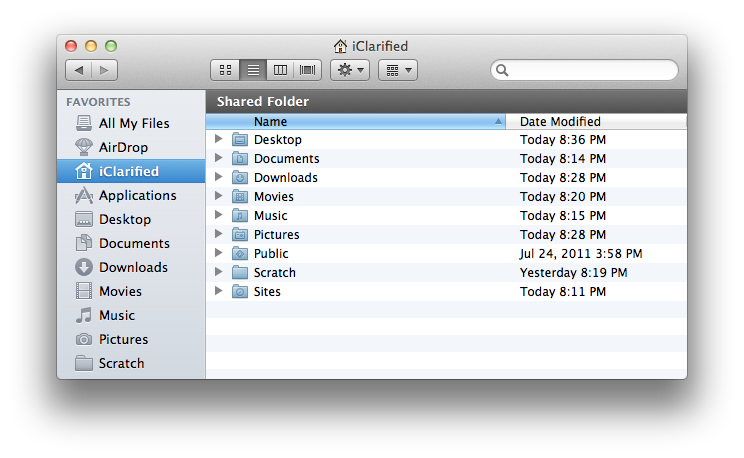
Apple has hidden the user Library folder by default in Mac OS X Lion. These are instructions on how to make it visible again.
Step One Launch a new Terminal window from your Applications:Utilities folder.
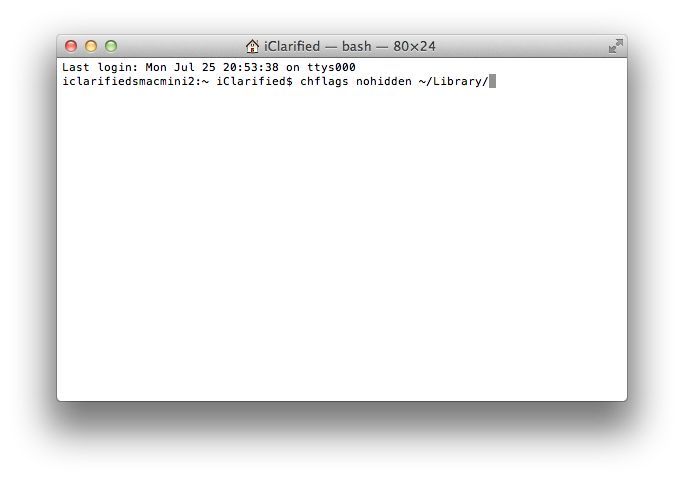
Step Two Type in chflags nohidden ~/Library/ into the Terminal window and press Enter.
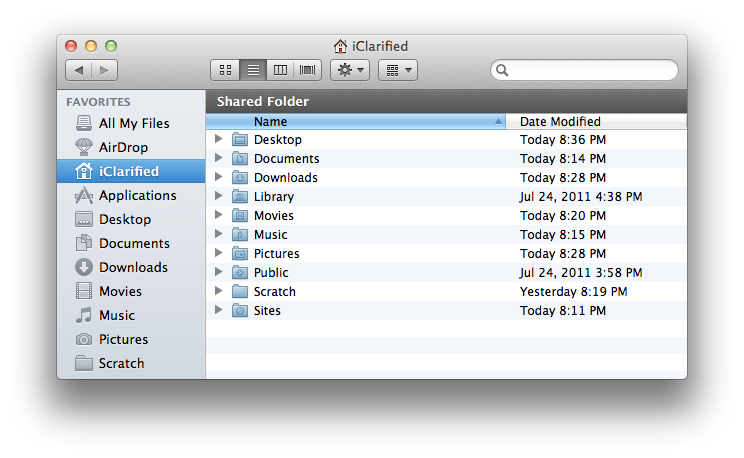
Step Three Voila, your Library folder will now appear in your Finder window.
NOTE: If you don't want to permanently make the Library folder hidden you can also just hold down Option and click the Finder Go menu to reveal a quick link to the folder.
Get the iClarified Daily Newsletter
Apple news, rumors, tutorials, price drop alerts, in your inbox every evening, free.
Unsubscribe at any time.
Success!
You have been subscribed.
Add Comment
Would you like to be notified when someone replies or adds a new comment?
Yes (All Threads)
Yes (This Thread Only)
No
Notifications
Would you like to be notified when we post a new Apple news article or tutorial?
This is more correct -> Note: If you don't want to permanently make the Library folder visible you can also just hold down Option and click the Finder Go menu to reveal a quick link to the folder.





![Apple's M5 Ultra Mac Studio to Feature Improved Cooling for AI Workloads [Report]](/images/news/101315/101315/101315-160.jpg "Apple's M5 Ultra Mac Studio to Feature Improved Cooling for AI Workloads [Report]")



![Apple Watch Series 11 On Sale for $279 (30% Off) [Deal]](/images/news/101319/101319/101319-160.jpg "Apple Watch Series 11 On Sale for $279 (30% Off) [Deal]")

![Amazon Prime Day 2026: Final Hours Deals Now Live [List]](/images/news/101308/101308/101308-160.jpg "Amazon Prime Day 2026: Final Hours Deals Now Live [List]")

![Amazon Prime Day 2026: Day 3 Deals Now Live [List]](/images/news/101299/101299/101299-160.jpg "Amazon Prime Day 2026: Day 3 Deals Now Live [List]")
