The iPhone settings you might want to turn off include Share iPhone Analytics, Personalized Ads, Precise Location for apps that don't need it, Summarize Notifications, Background App Refresh, and Prioritize Faster Shooting. All 20 are below, each with its path in Settings and a picture of every tap.
We checked each one on our iPhone 18 Pro Max running iOS 27. Every one turns back on the same way, so you can try a setting and change your mind.
Settings to Turn Off on Your iPhone
1. Turn Off Share iPhone Analytics
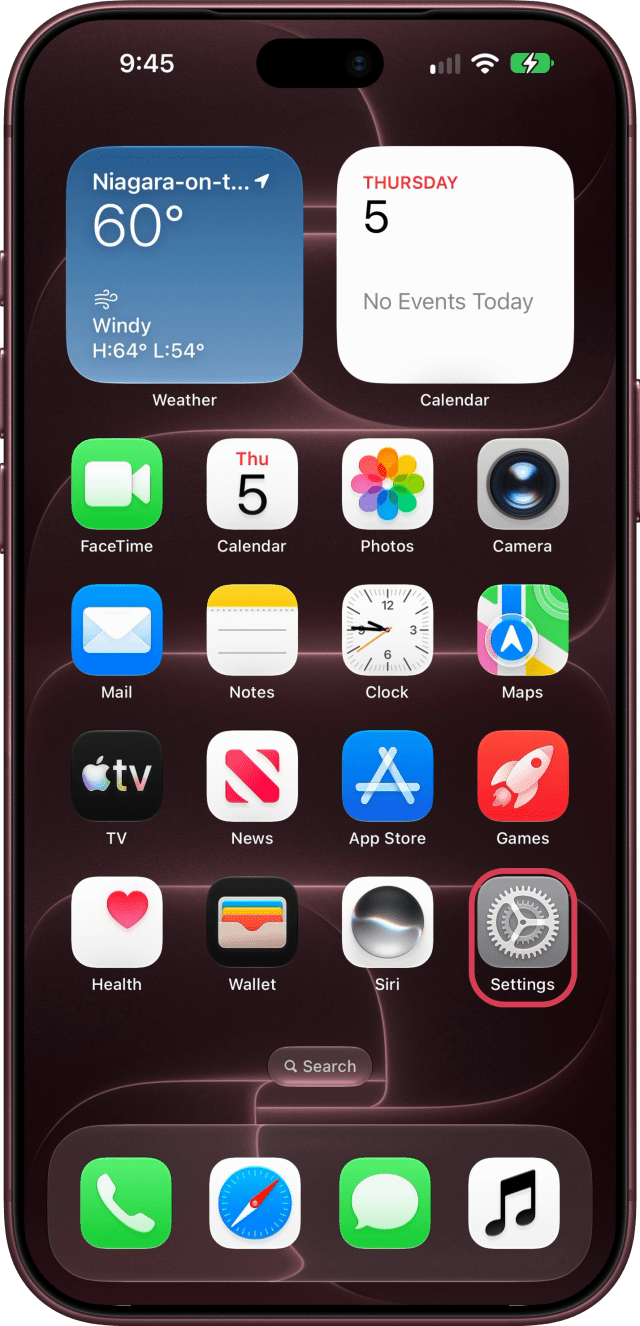
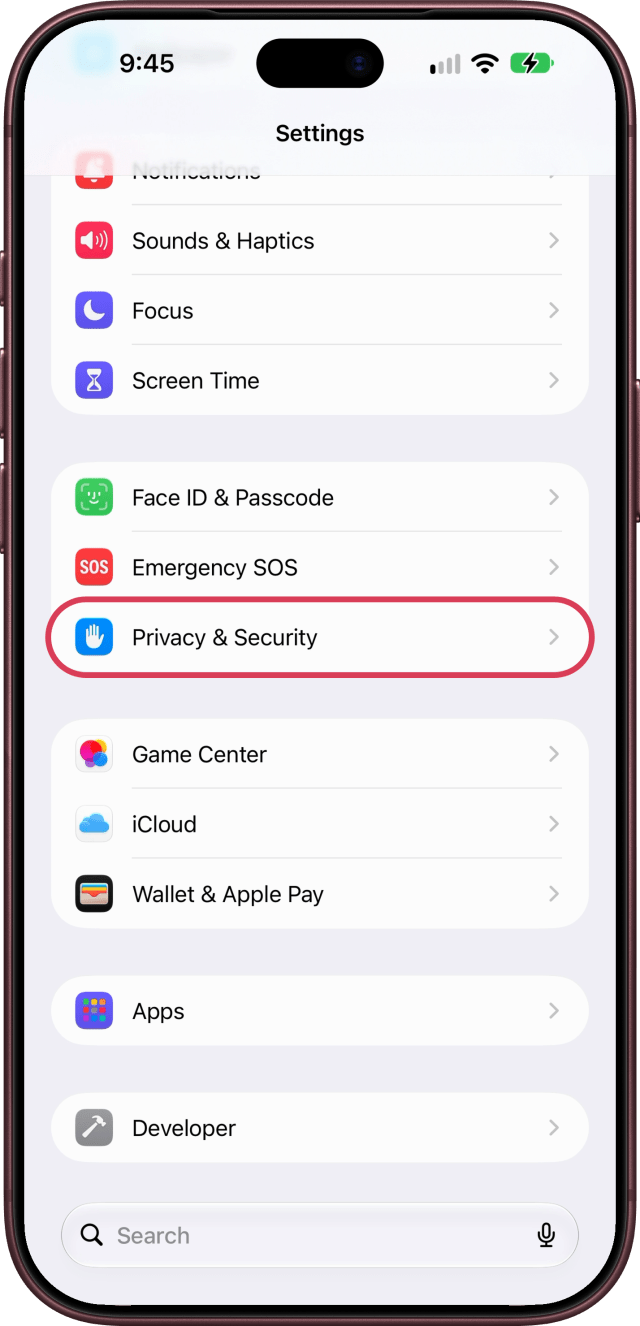
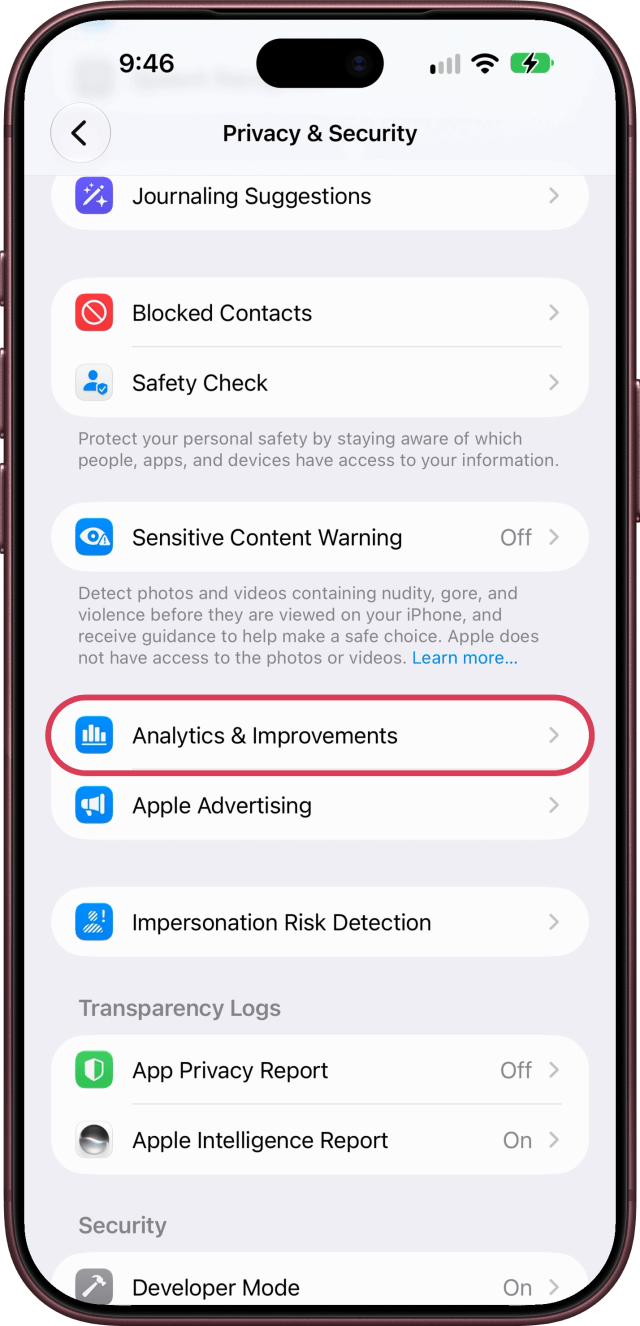
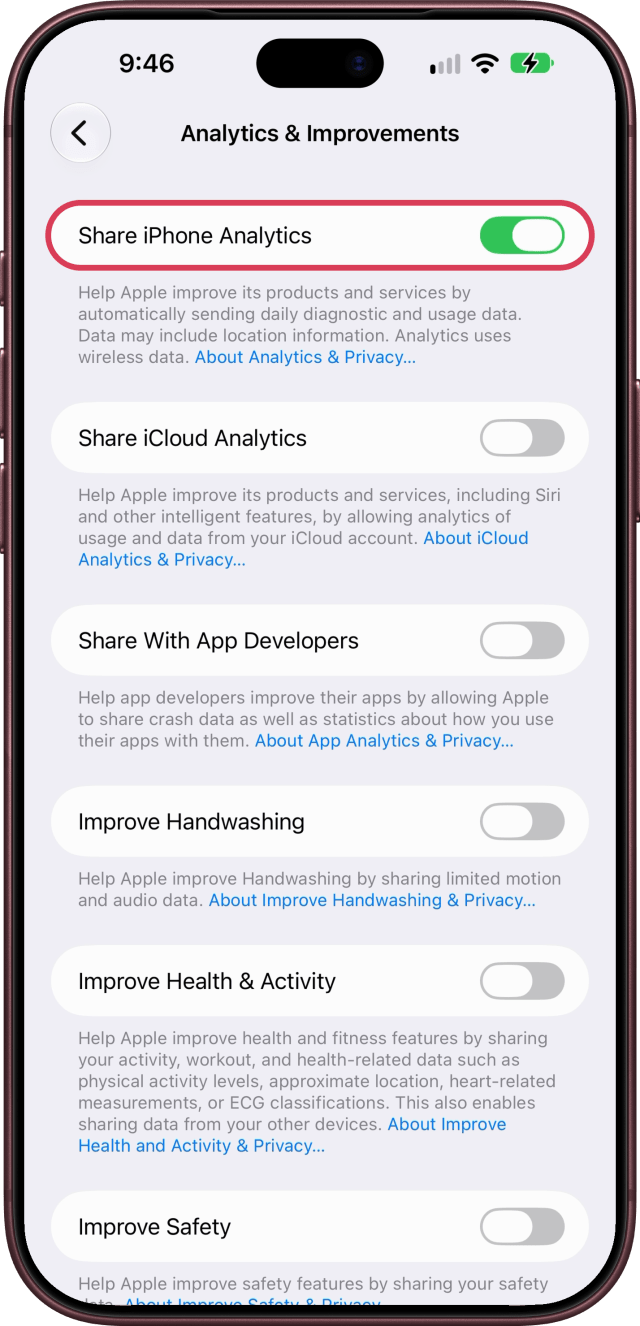
Your iPhone can send Apple diagnostic and usage data every day, and its own description says the data may include location information. Open Settings, scroll down and tap Privacy & Security, then scroll to the bottom and tap Analytics & Improvements. Turn off Share iPhone Analytics. Apple says none of this data identifies you, but sharing it is up to you.
2. Turn Off Improve Siri & Apple Intelligence
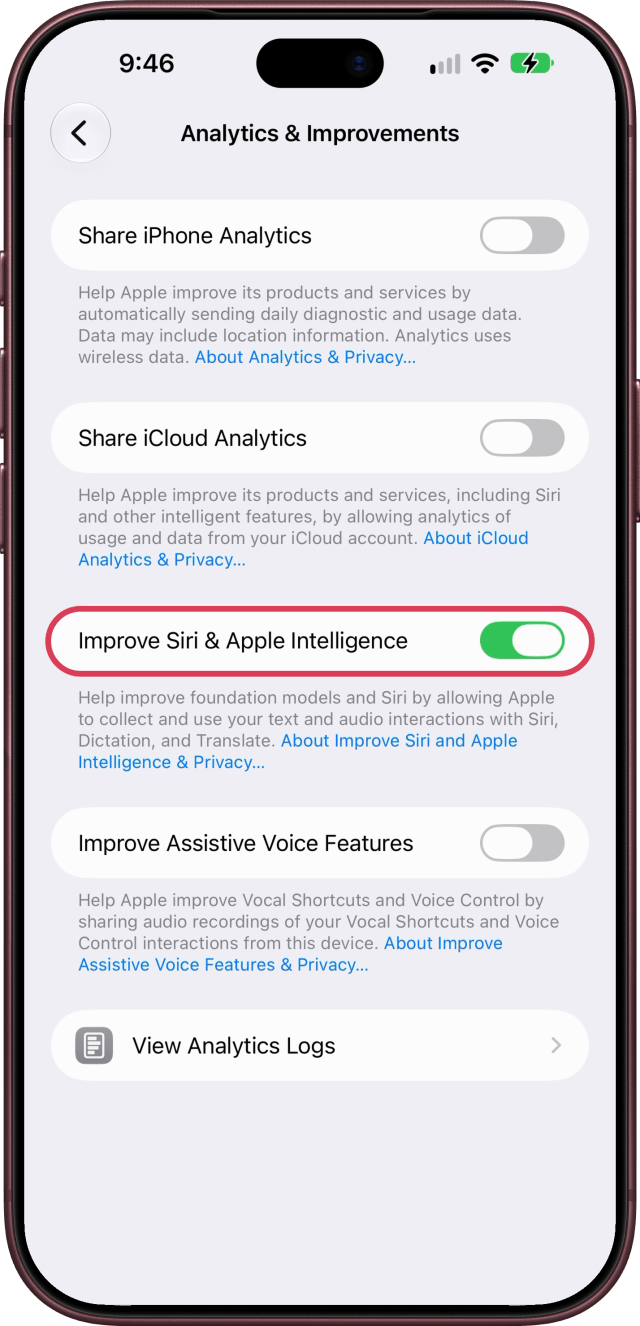
Improve Siri & Apple Intelligence lets Apple collect and review the audio and text of what you say to Siri, Dictation, and Translate. If you'd rather keep that to yourself, open Settings, scroll down and tap Privacy & Security, then scroll down and tap Analytics & Improvements, and turn it off. With it off, Apple doesn't store your audio.
3. Turn Off Personalized Ads
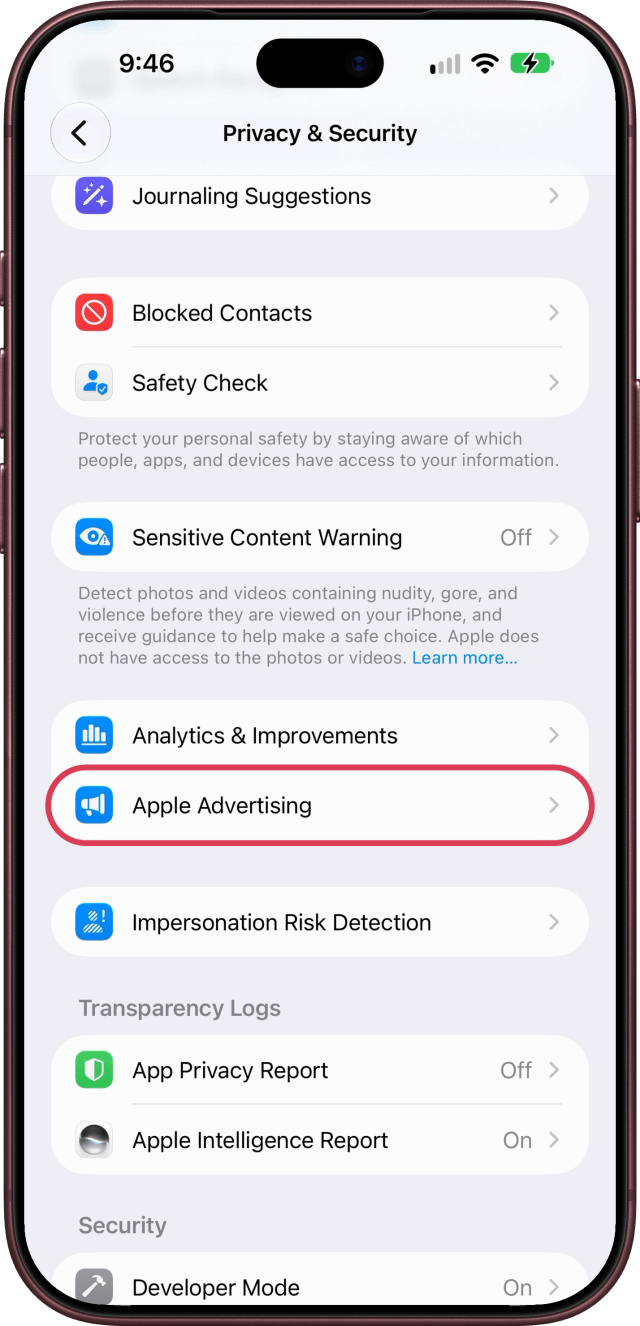
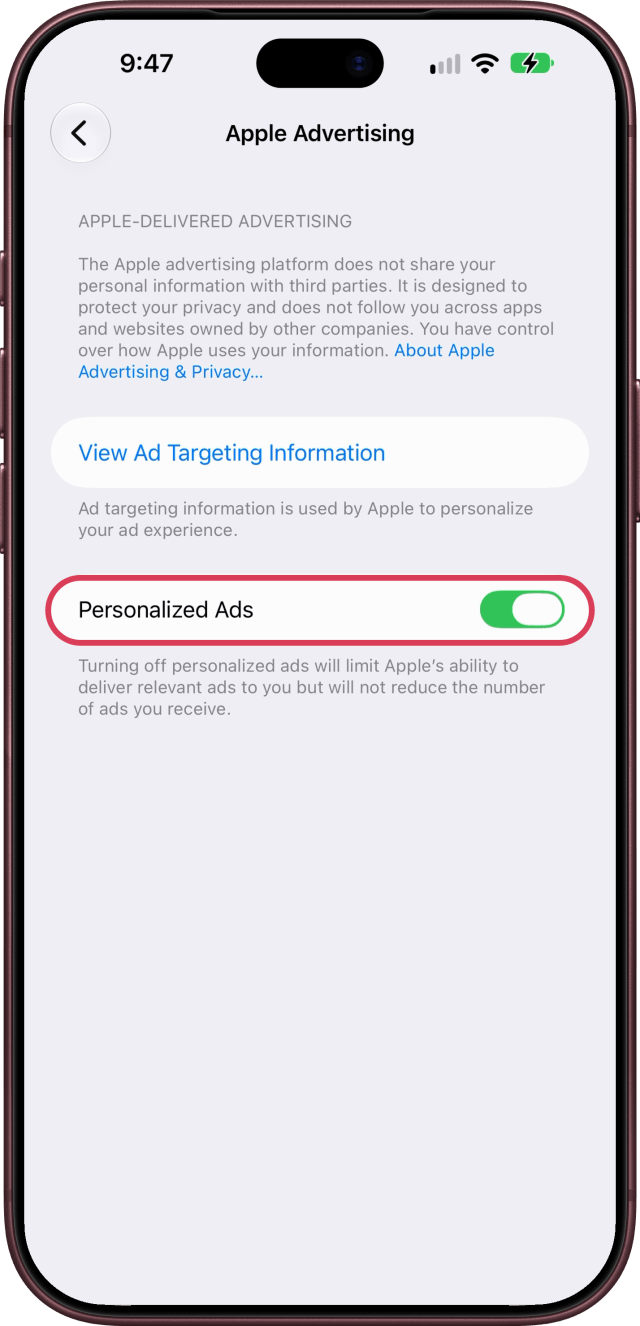
Apple shows ads in the App Store, Apple News, and Stocks, based partly on what you search for, download, and read. Open Settings, scroll down and tap Privacy & Security, then scroll down and tap Apple Advertising, and turn off Personalized Ads. You'll see just as many ads, but they'll be less relevant to you. View Ad Targeting Information shows what Apple uses.
4. Stop Apps Asking to Track You
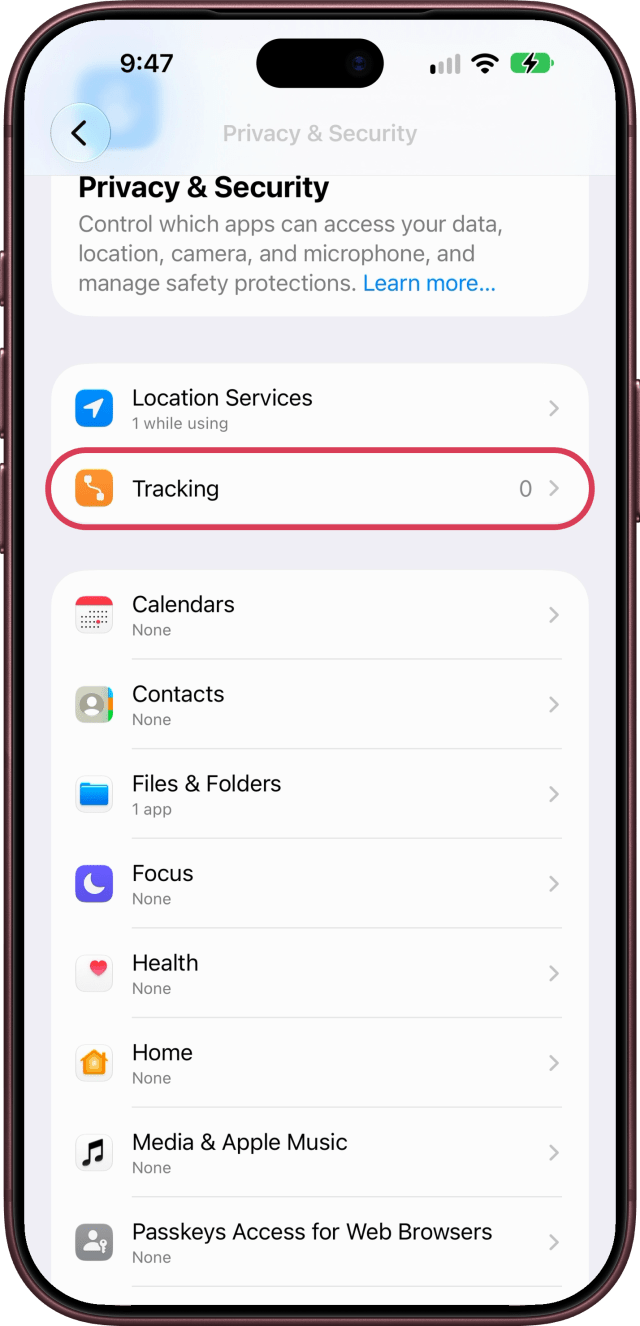
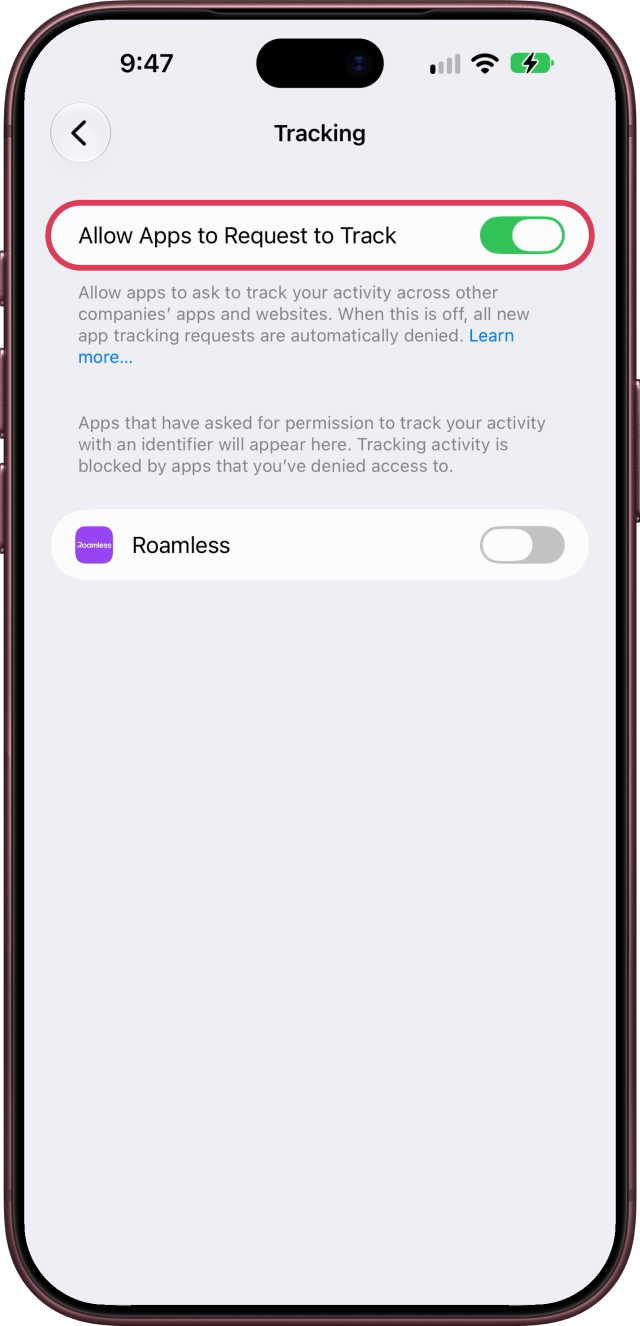
Apps have to ask before they track what you do across other companies' apps and websites. To stop them asking, open Settings, scroll down and tap Privacy & Security, then tap Tracking, and turn off Allow Apps to Request to Track. Every new request is then denied automatically. Apps that have asked before are listed below it, each with its own switch.
5. Turn Off Precise Location for Apps That Don't Need It
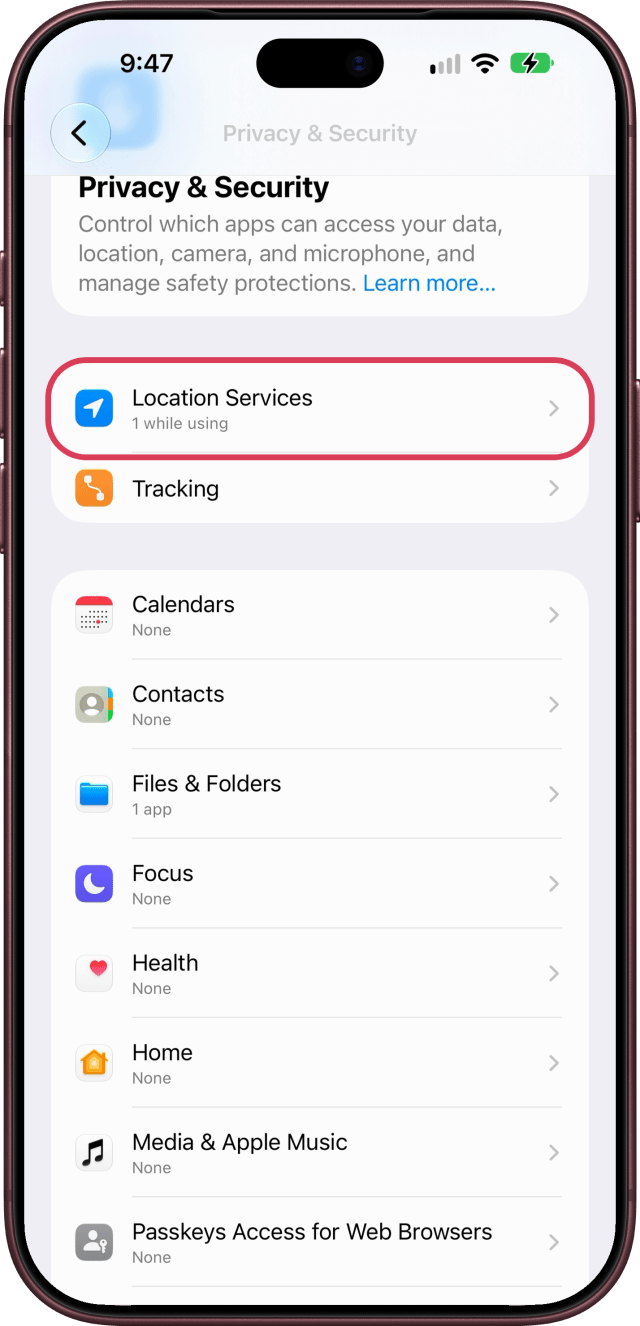
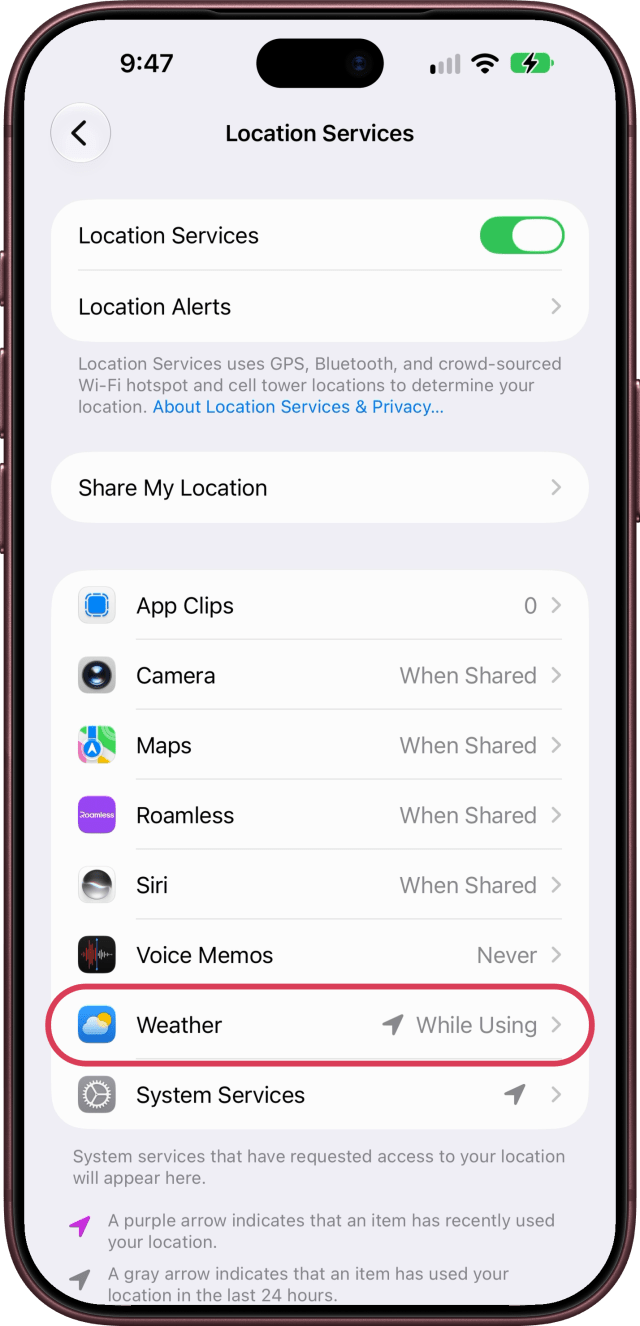
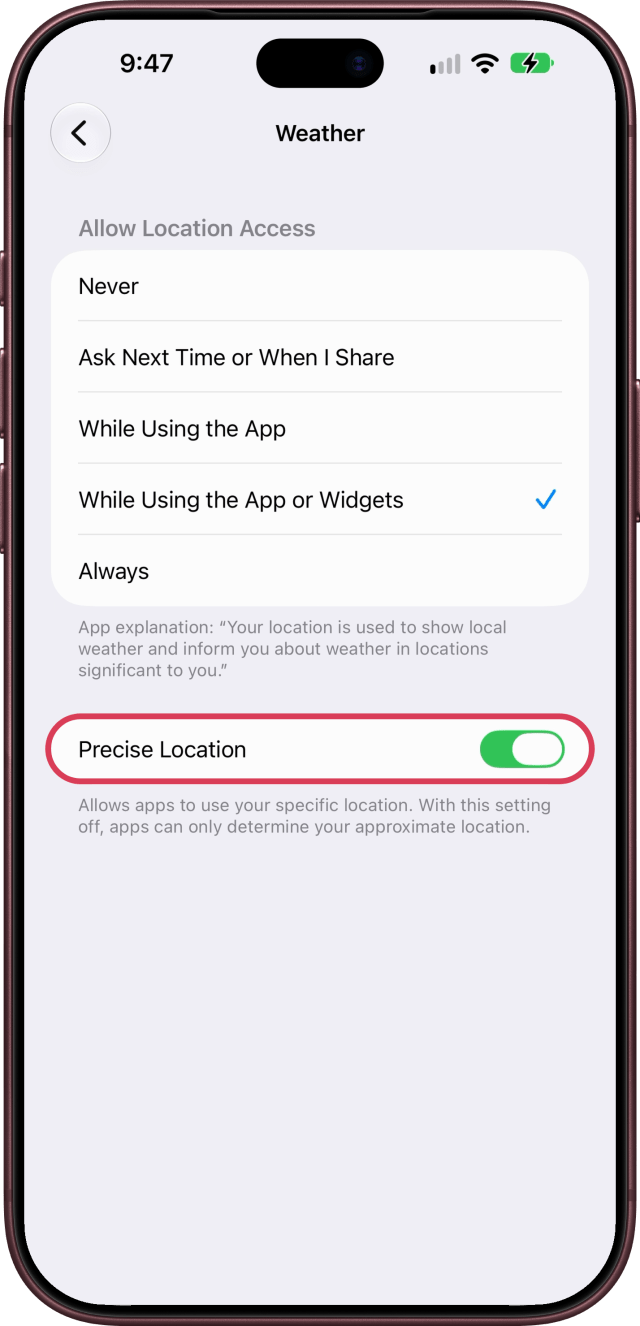
An app that only needs to know your town doesn't need your exact location. Open Settings, scroll down and tap Privacy & Security, then tap Location Services. Scroll down and tap an app, like Weather. Turn off Precise Location, and it gets only your approximate location. Keep it on for apps that give you directions, like Maps.
6. Stop Sharing Location for Product Improvement
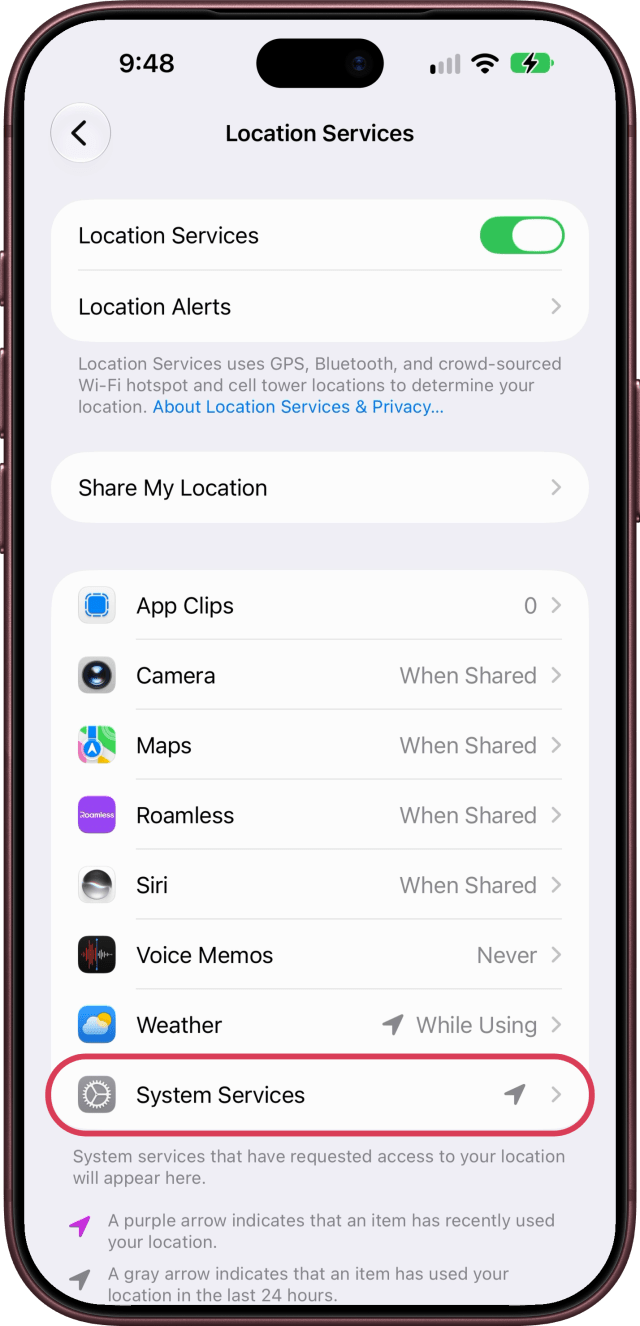
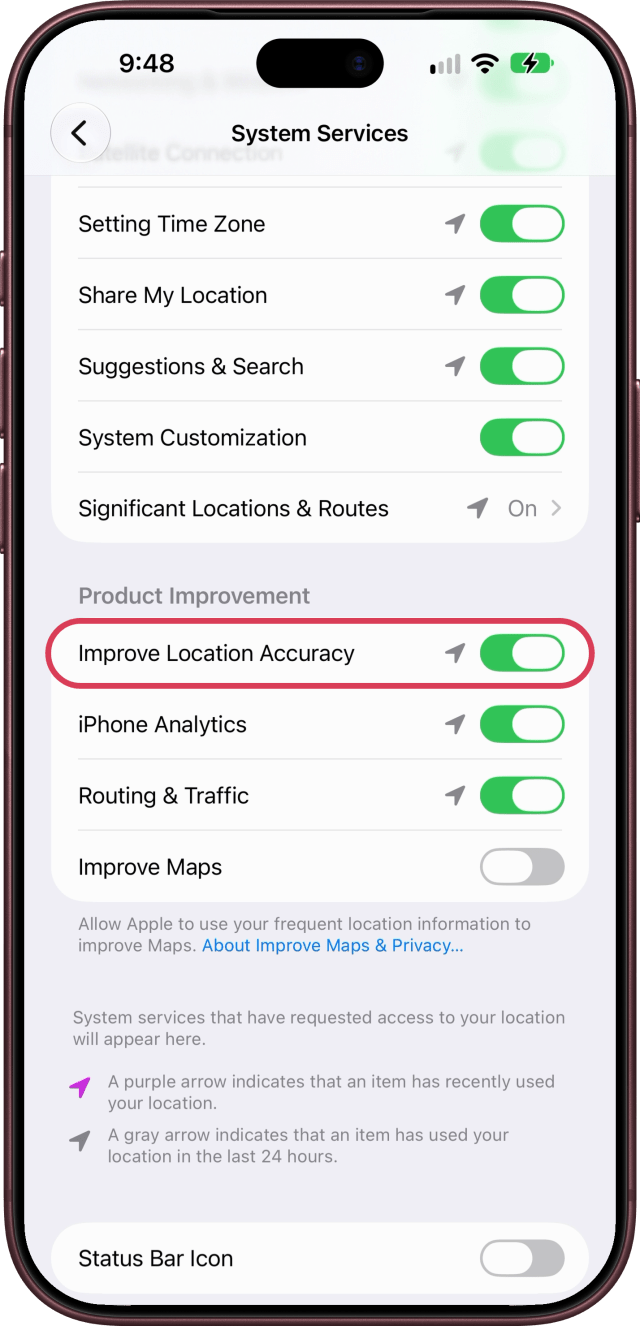
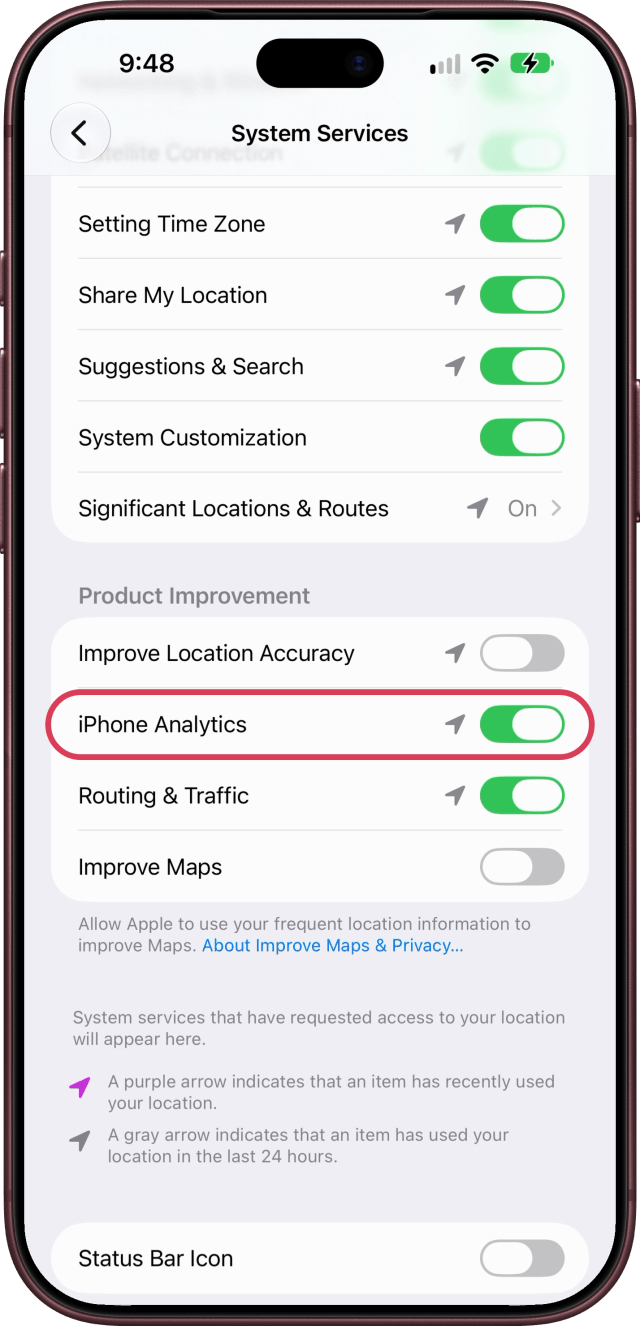
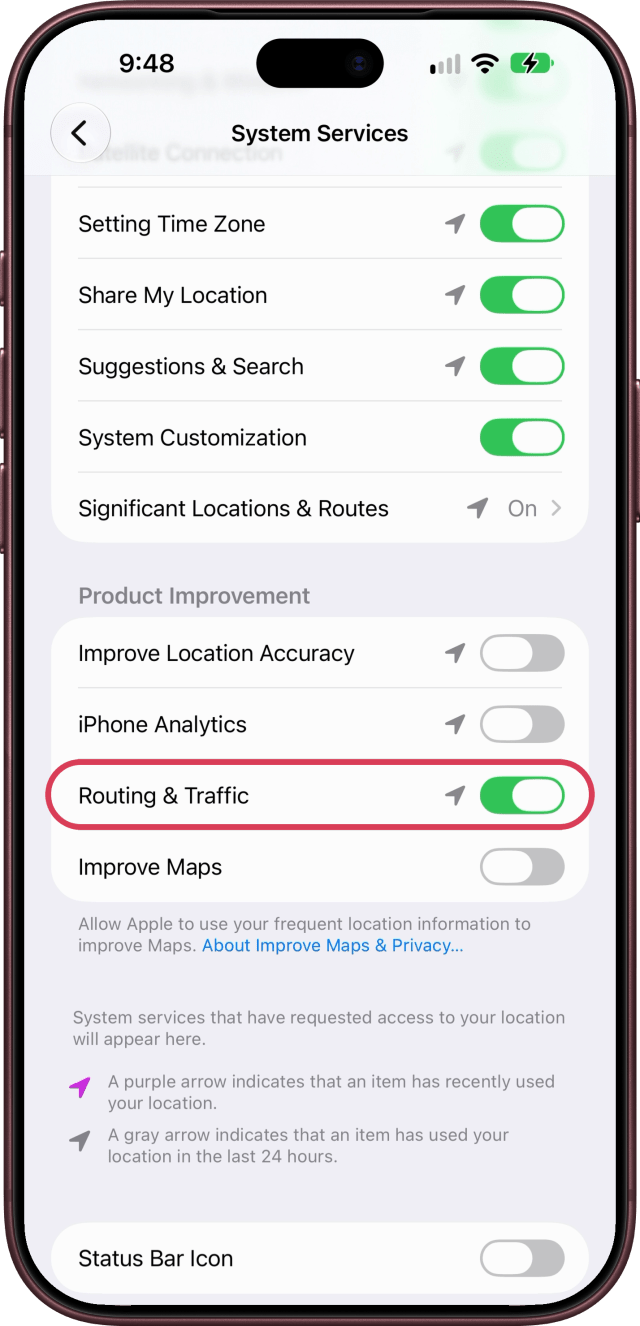
Your iPhone also shares location data to help Apple improve its own services. Open Settings, scroll down and tap Privacy & Security, then tap Location Services. Scroll to the bottom and tap System Services, then scroll down to Product Improvement. Improve Location Accuracy sends the locations of nearby Wi-Fi hotspots and cell towers, iPhone Analytics adds your location to the analytics you share, and Routing & Traffic sends your speed and direction while you travel. Apple says it's all anonymous, but you can turn off all three.
7. Remove the Audio Button From Messages
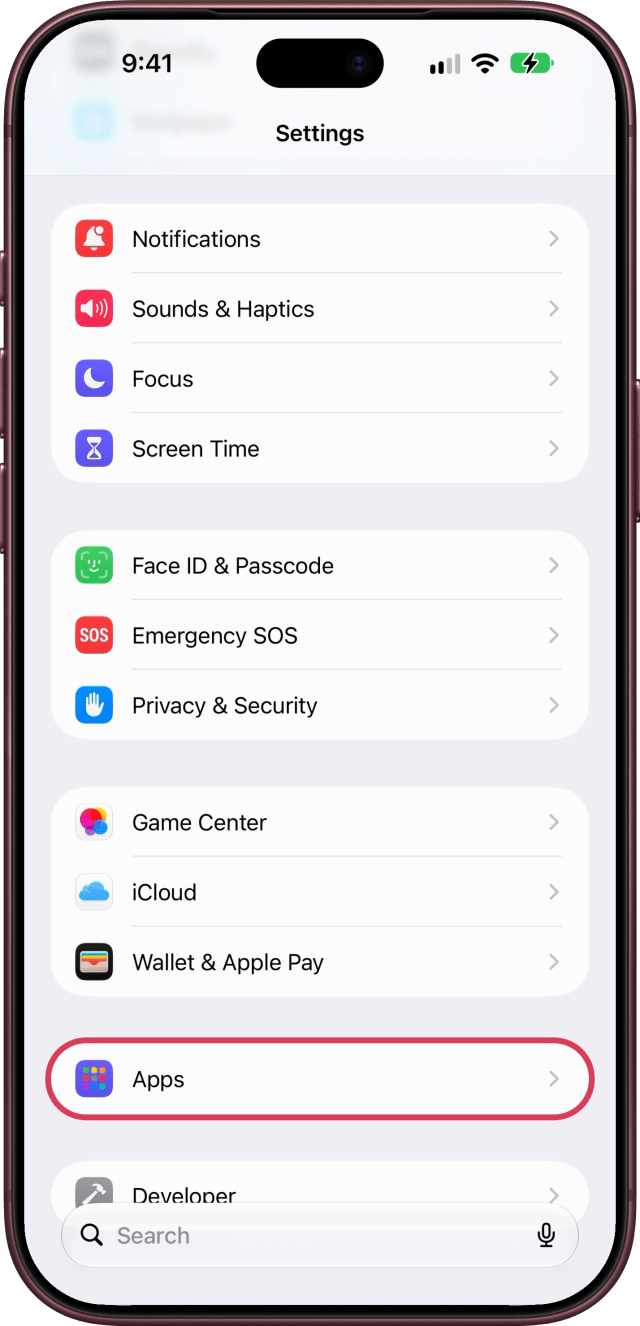
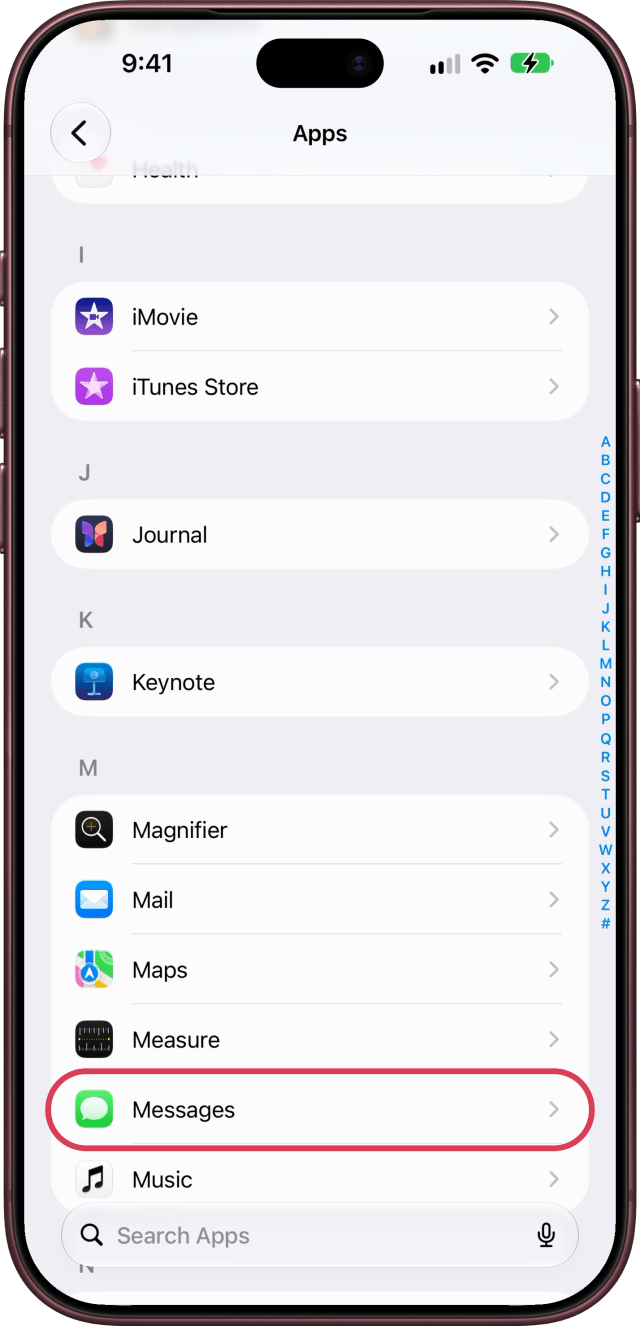
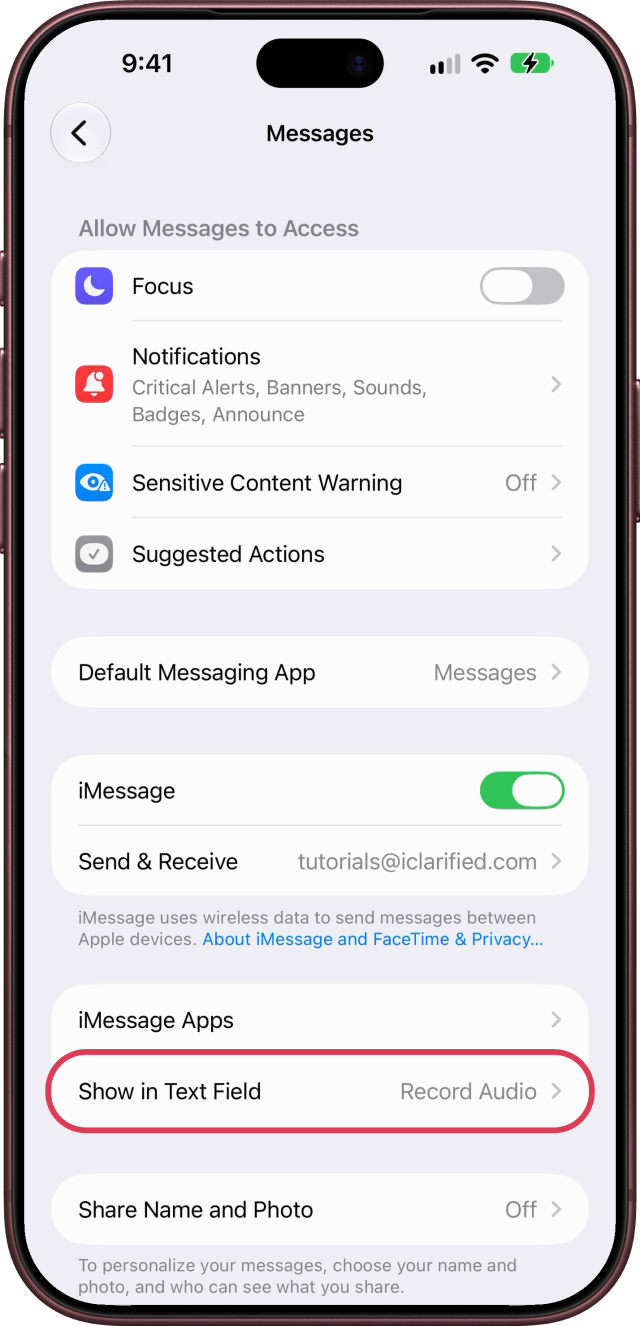
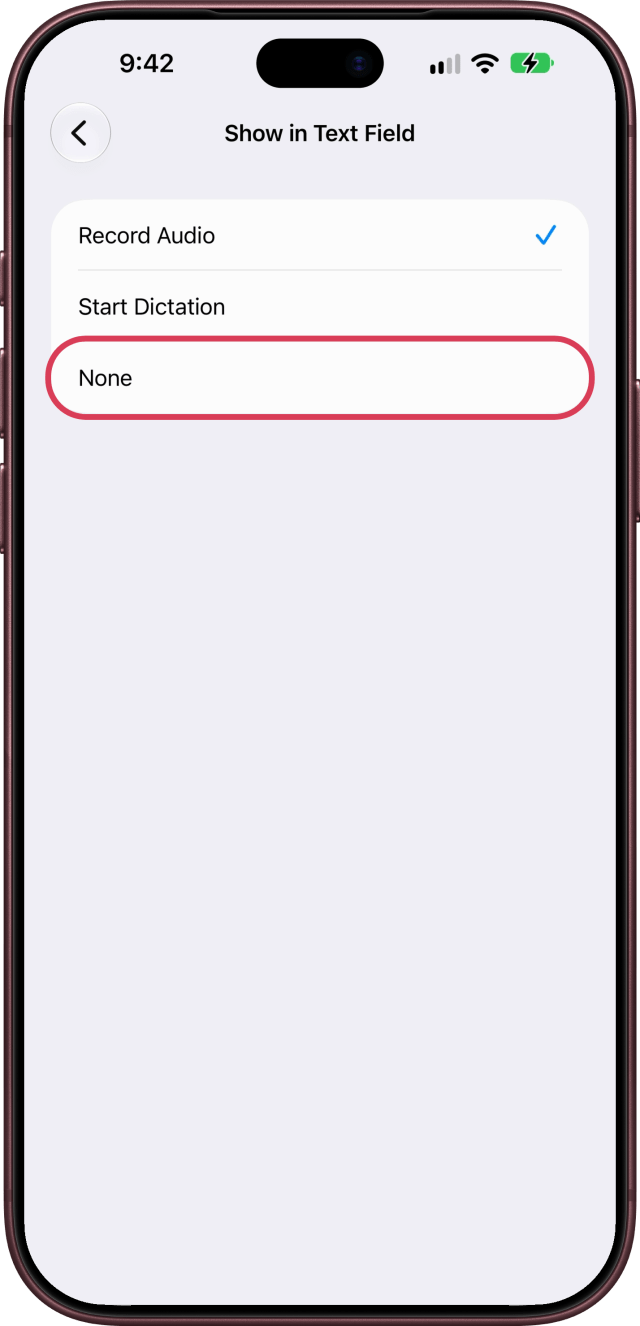
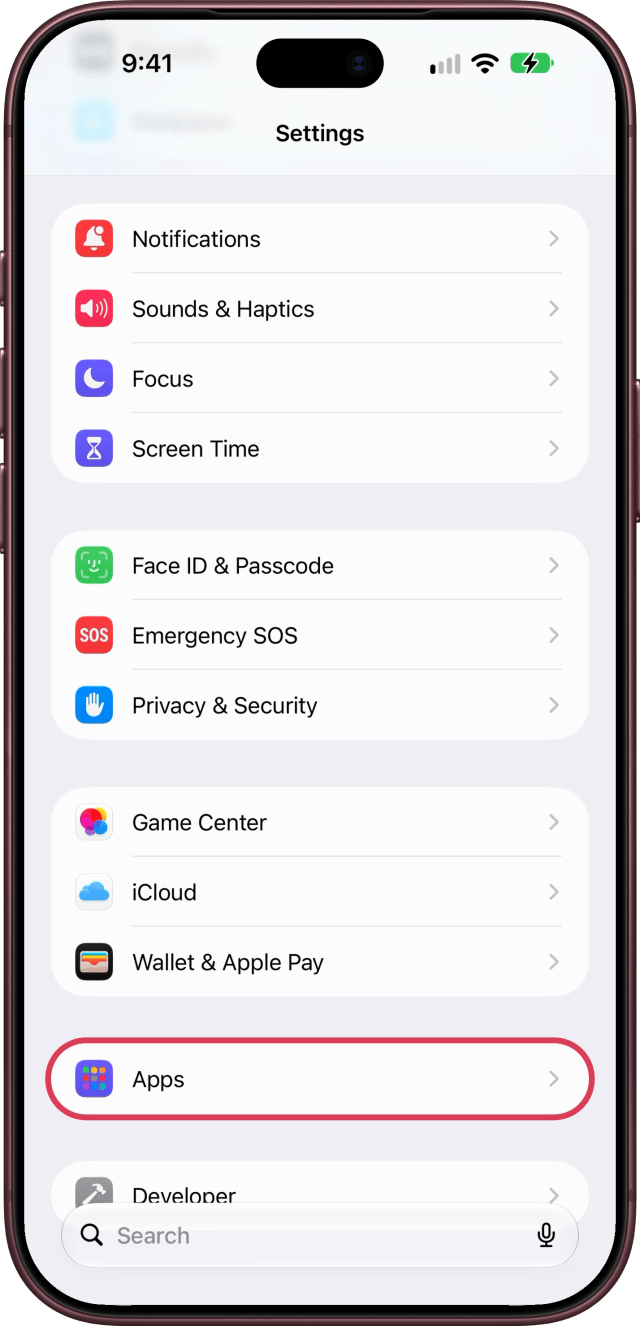
In Messages, a button in the text field records an audio message, and it's easy to tap by mistake. Open Settings, scroll down and tap Apps, then scroll down and tap Messages. Tap Show in Text Field and choose None. You can still dictate with the microphone on the keyboard.
8. Turn Off Message and Mail Summaries
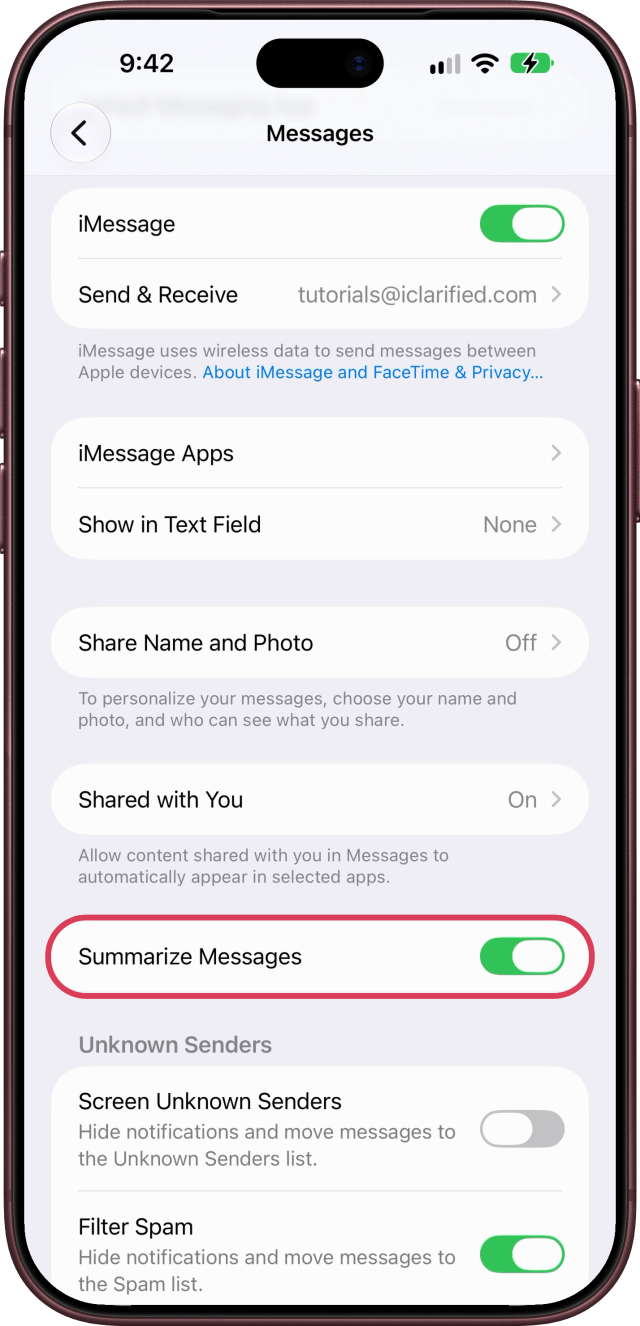
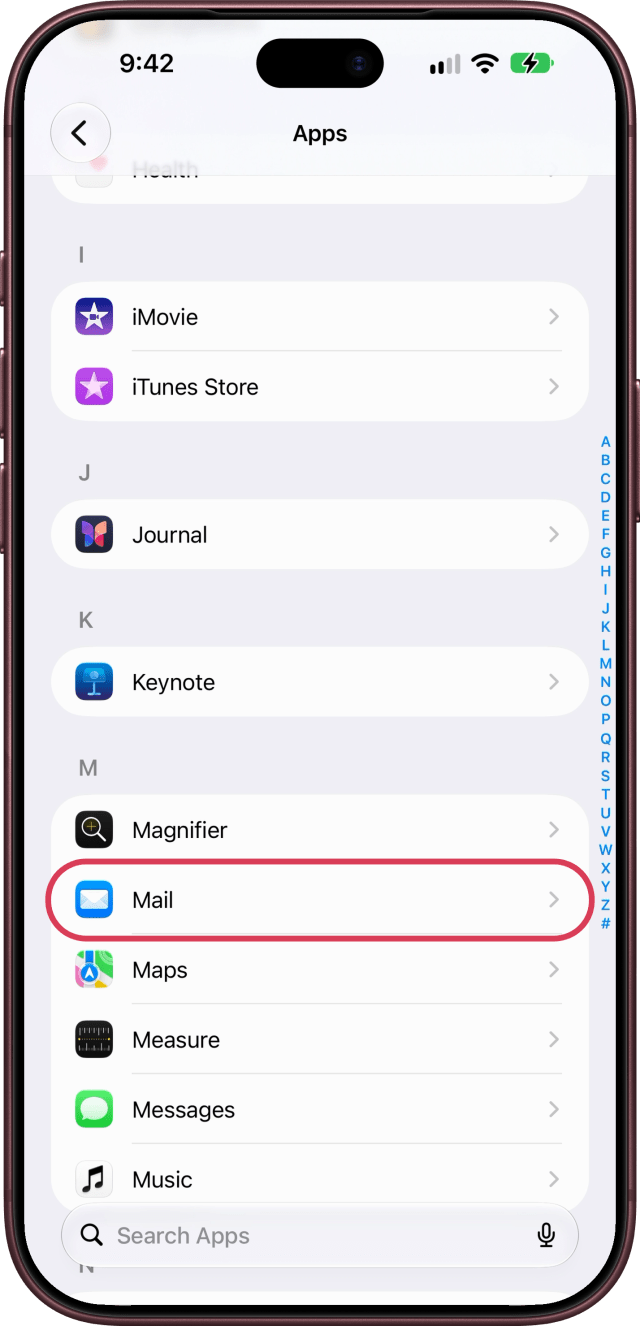
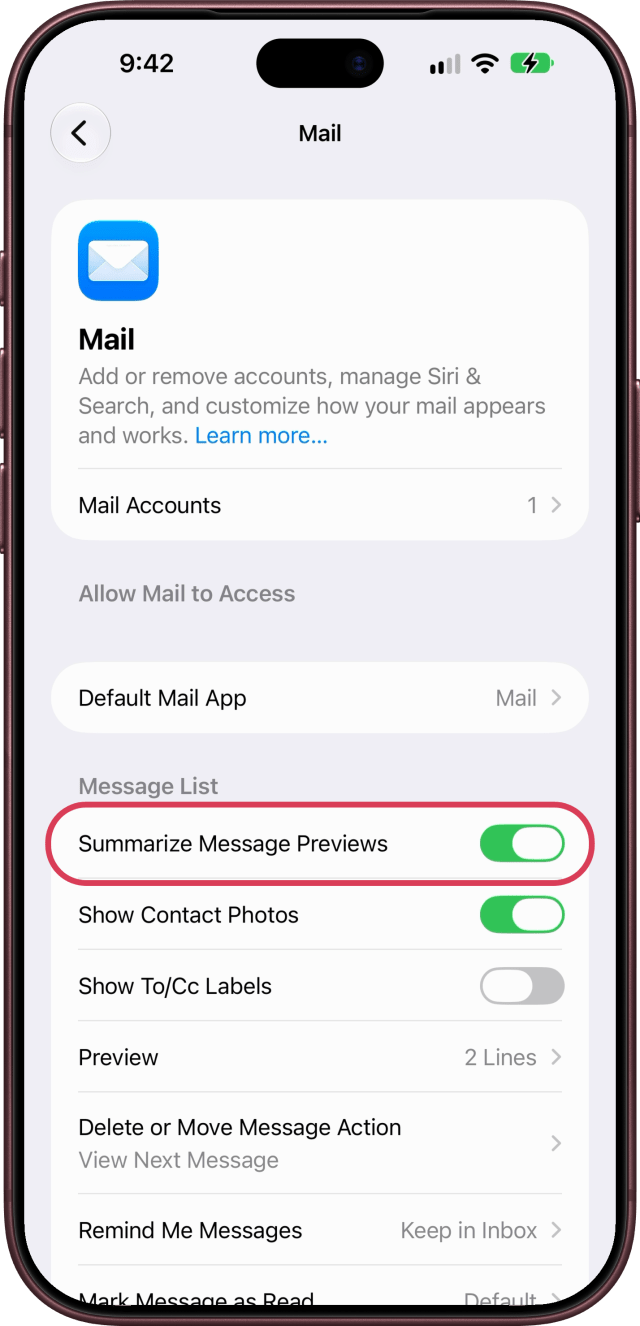
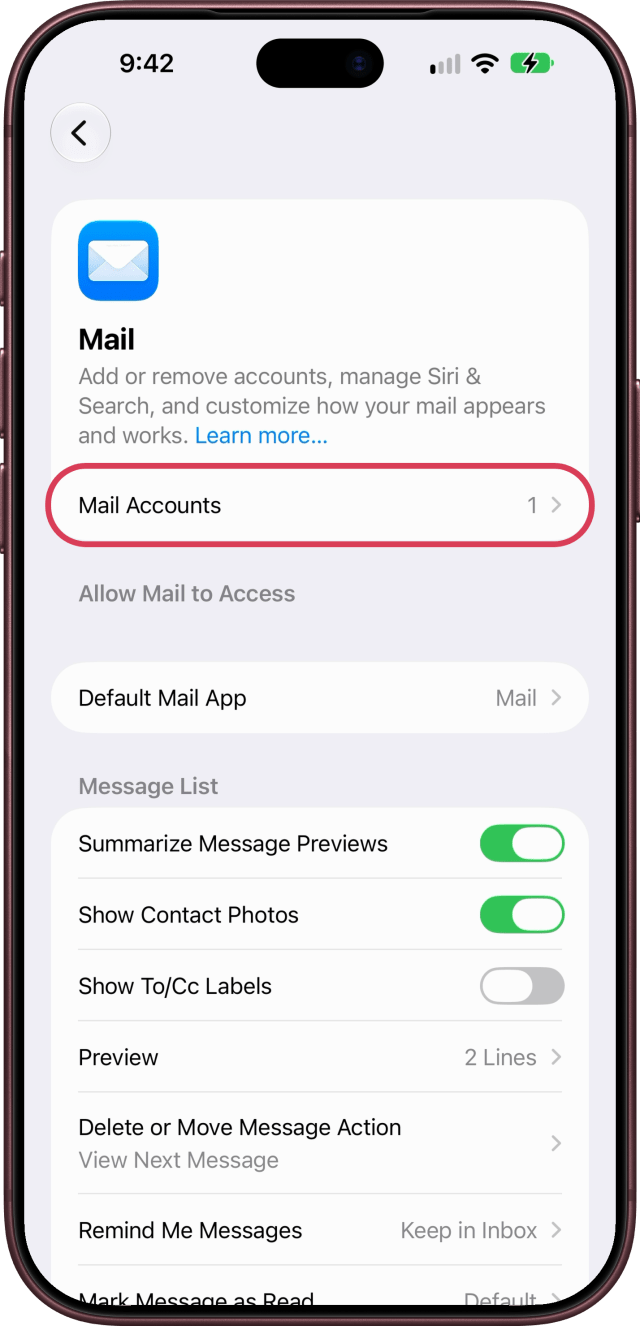
Apple Intelligence can also replace the previews in your conversation list with summaries. To see each conversation's latest message instead, open Settings, scroll down and tap Apps, then scroll down and tap Messages. Scroll down and turn off Summarize Messages. Mail does the same with its previews: in Apps, tap Mail instead, and turn off Summarize Message Previews.
9. Silence Calls From Unknown Numbers
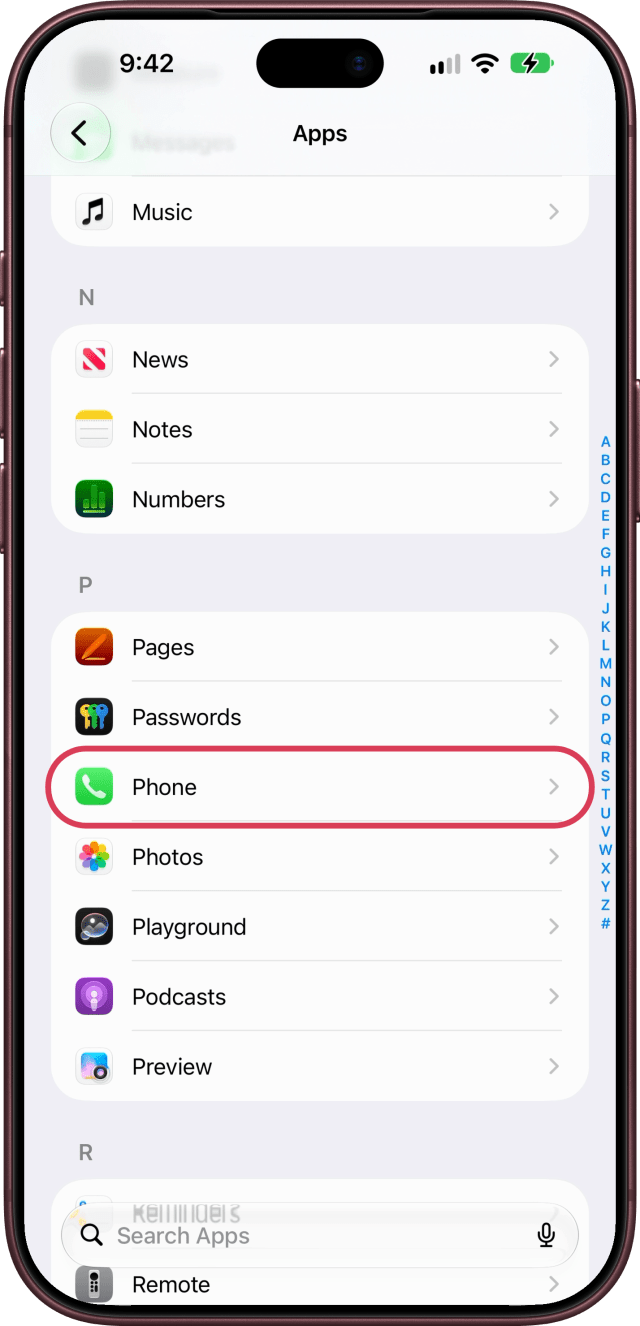
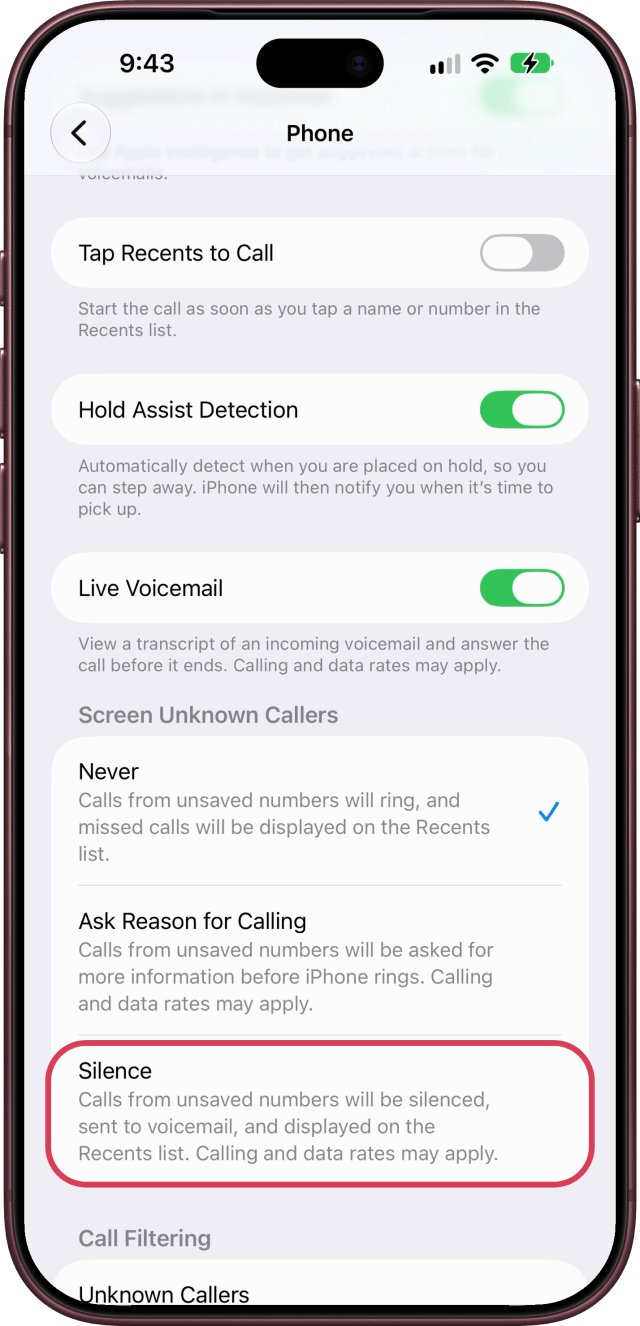
To stop calls from numbers you haven't saved from ringing, open Settings, scroll down and tap Apps, then scroll down and tap Phone. Scroll down to Screen Unknown Callers and choose Silence. Those calls are silenced, sent to voicemail, and listed in Recents. Save the numbers you can't miss to Contacts, or choose Ask Reason for Calling, which asks callers for more information before your iPhone rings.
10. Keep an App Out of Siri
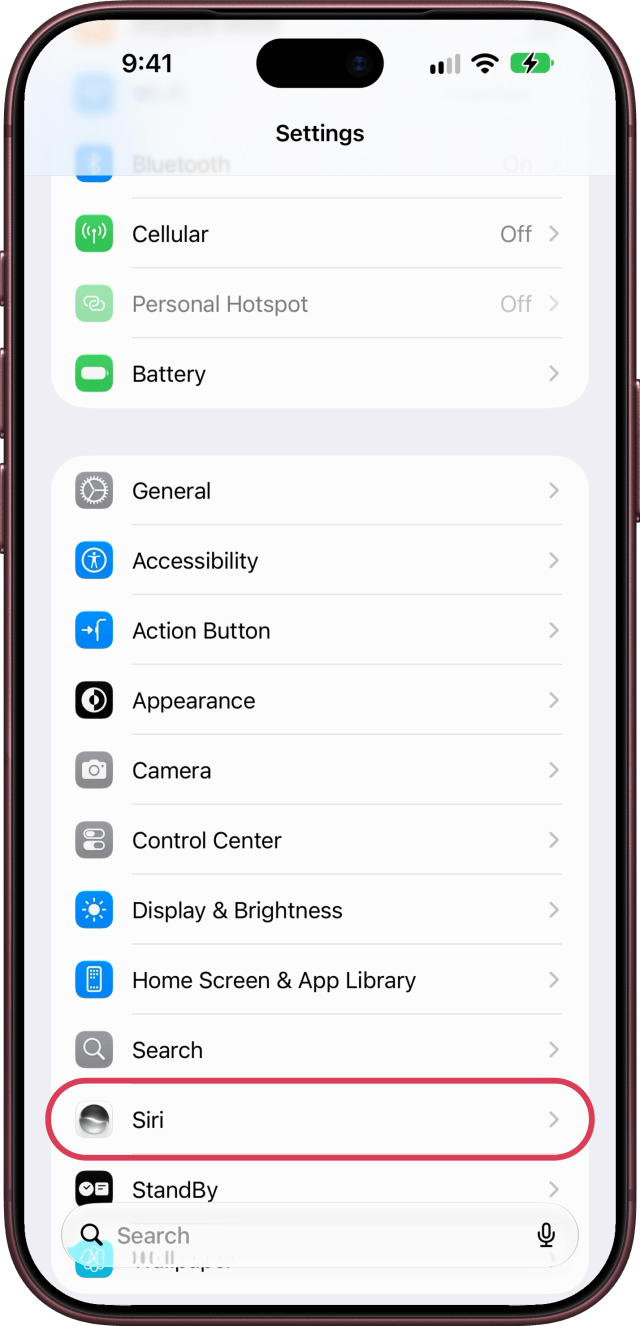
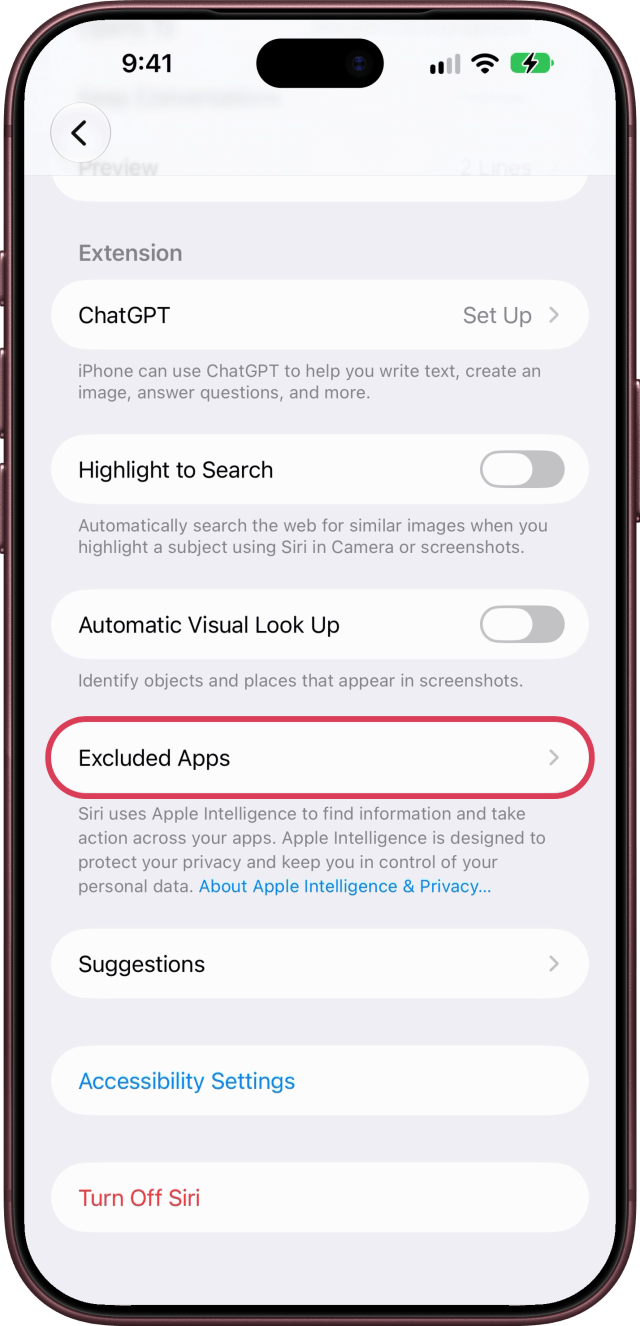
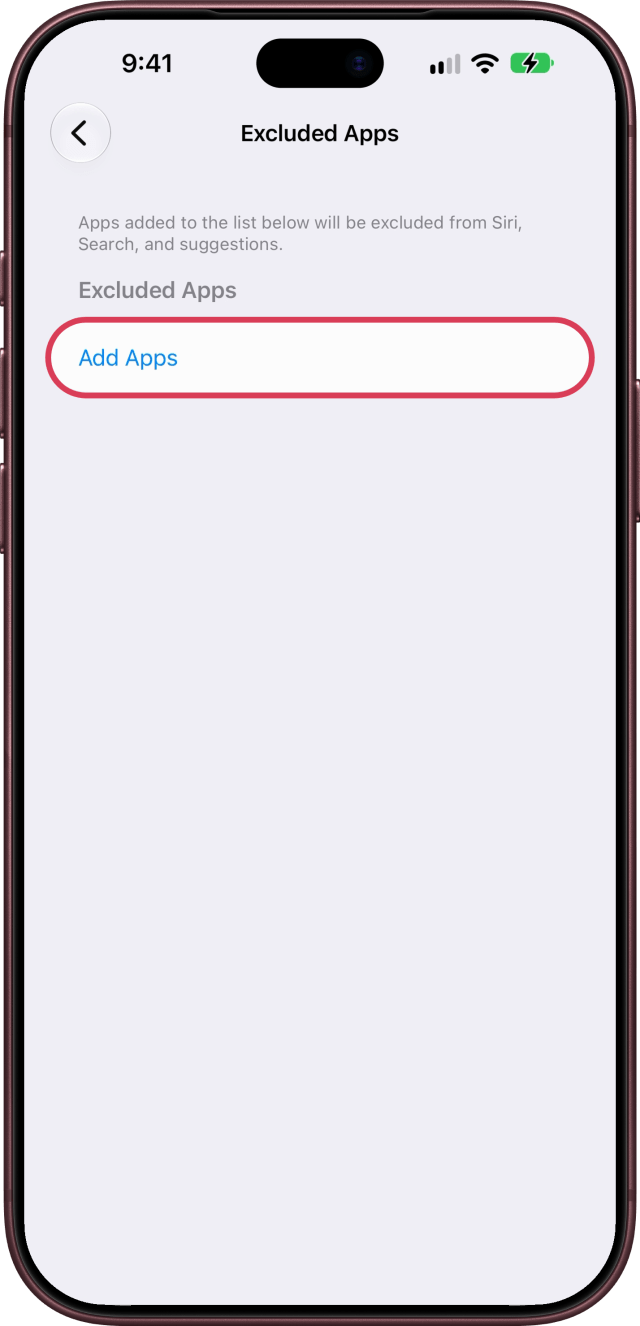
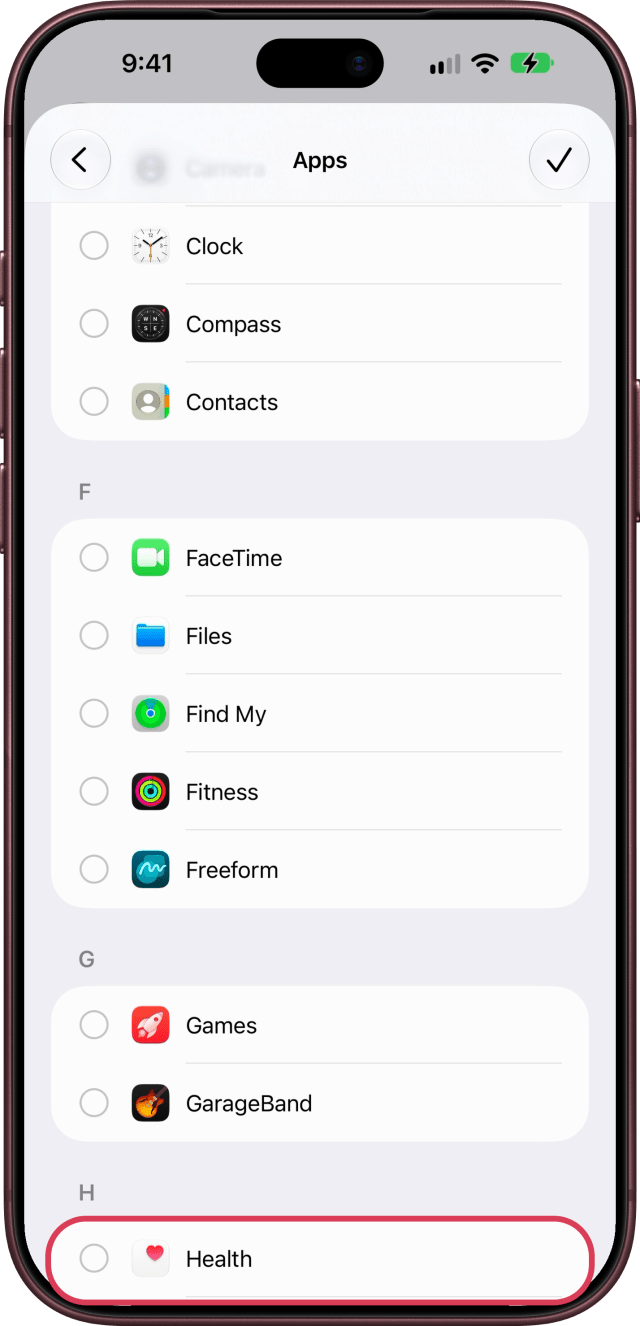
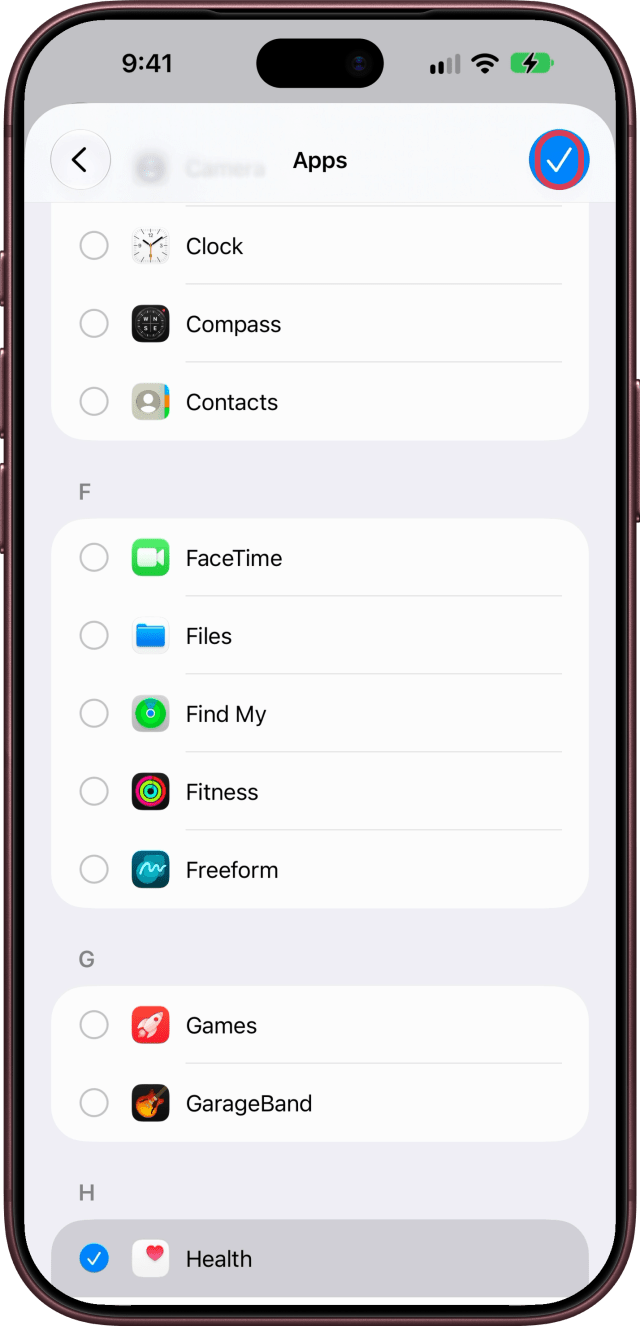
Siri can use the information in your apps, and every app is included unless you exclude it. To keep one out, open Settings, scroll down and tap Siri, then scroll to the bottom and tap Excluded Apps. Tap Add Apps, choose one, like Health, and tap the checkmark at the top right. It's then kept out of Search and suggestions too.
11. Turn Off Notification Summaries
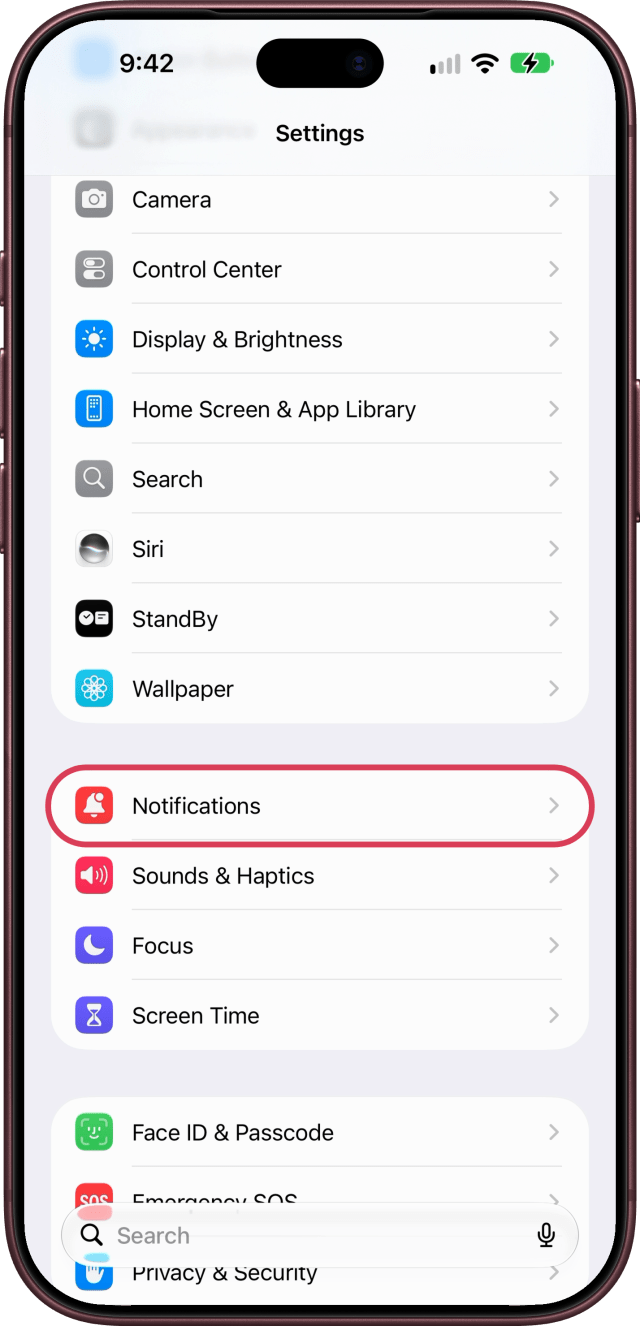
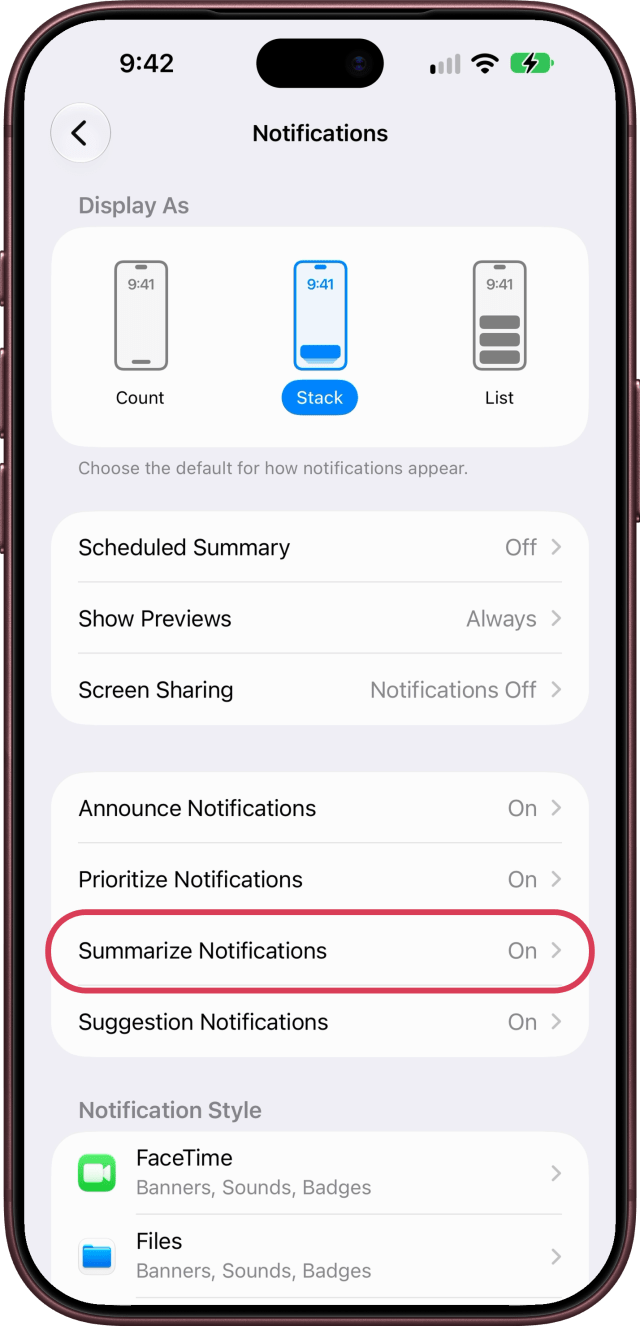
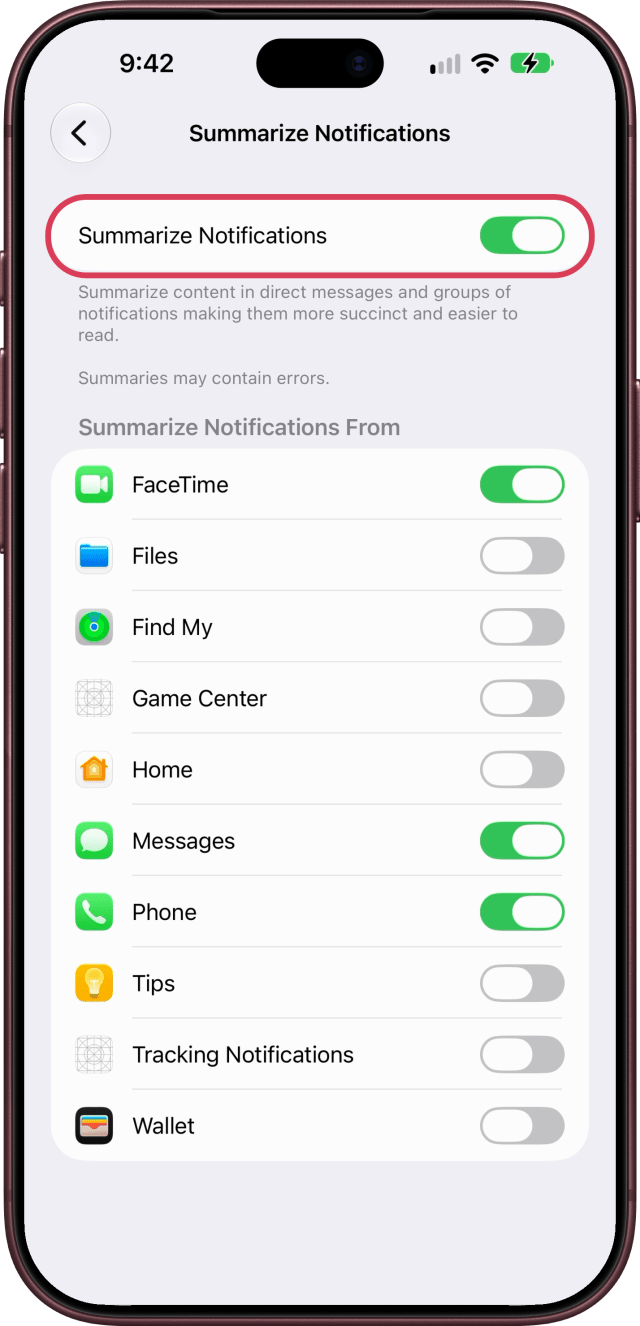
Your iPhone can summarize your notifications, and its own settings note that summaries may contain errors. To read them as they were sent, open Settings, tap Notifications, then Summarize Notifications, and turn off Summarize Notifications.
12. Show Notification Previews Only When Unlocked
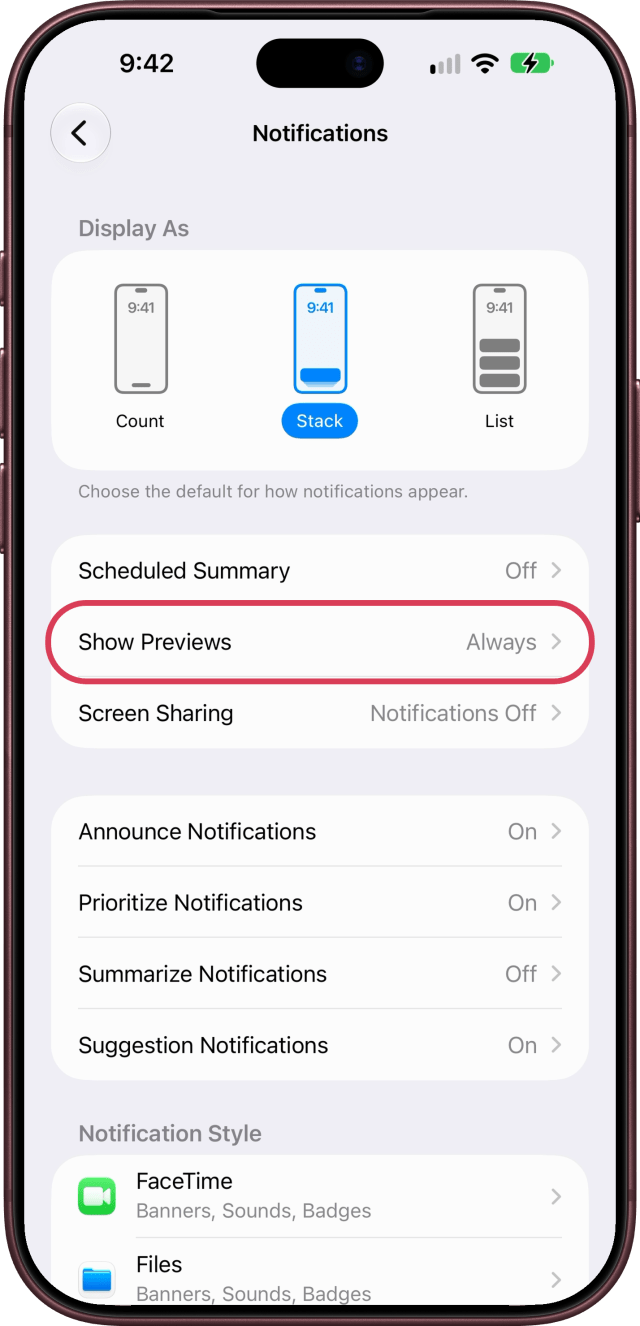
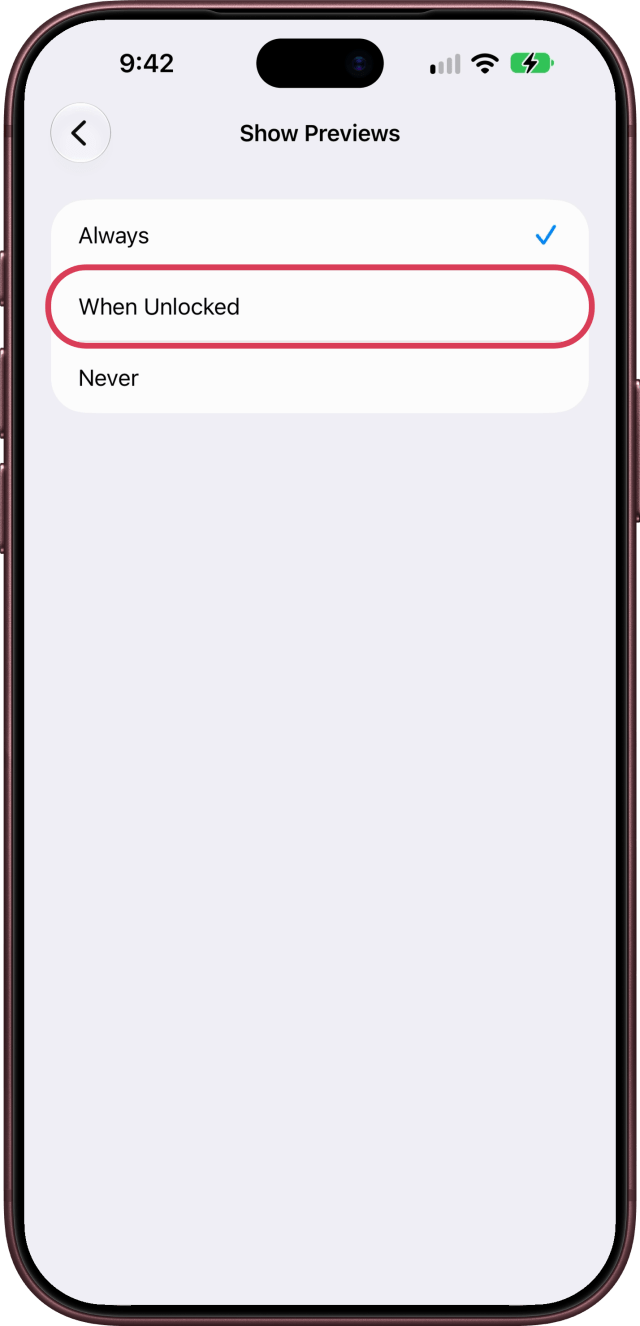
Notification previews can show the text of your messages and email right on the Lock Screen. To show them only once your iPhone is unlocked, open Settings, tap Notifications, then Show Previews, and choose When Unlocked. You can still change it for each app.
13. Hide the Wallpaper on the Always On Display
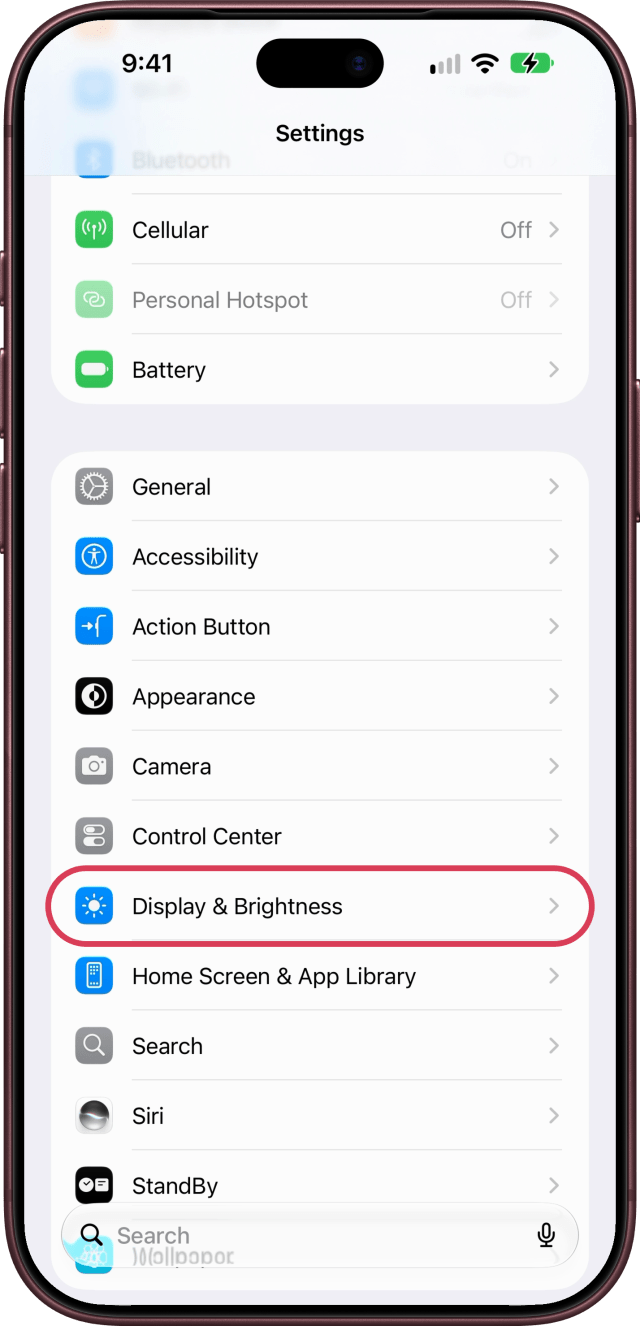
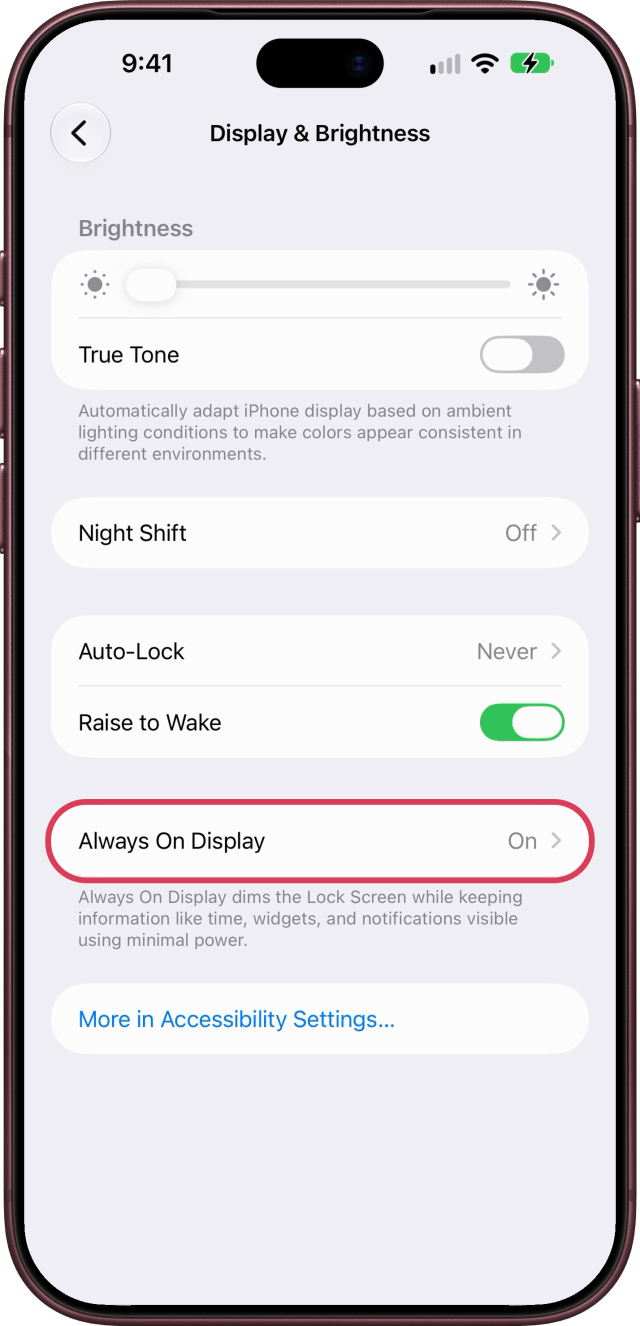
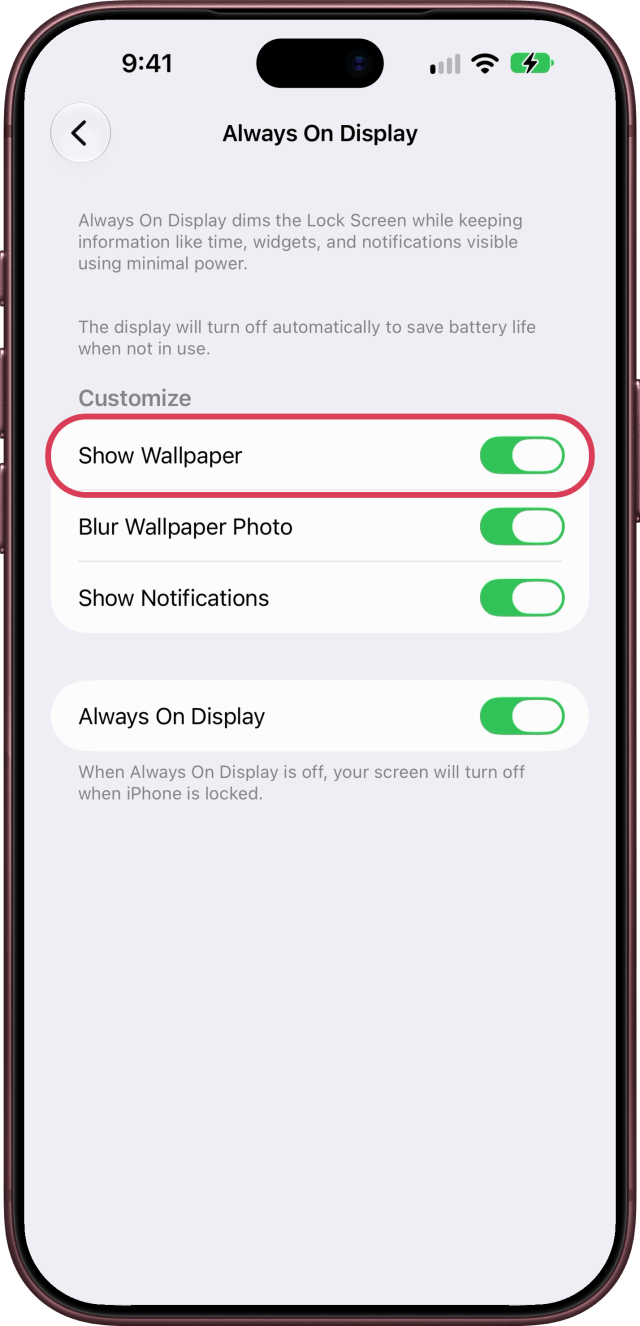
Always On Display keeps a dim Lock Screen showing after you lock your iPhone. To keep just the time, widgets, and notifications, open Settings, tap Display & Brightness, then Always On Display, and turn off Show Wallpaper. Or turn off Always On Display itself, and the screen turns off when your iPhone is locked.
14. Turn Off Auto-Play Video Previews
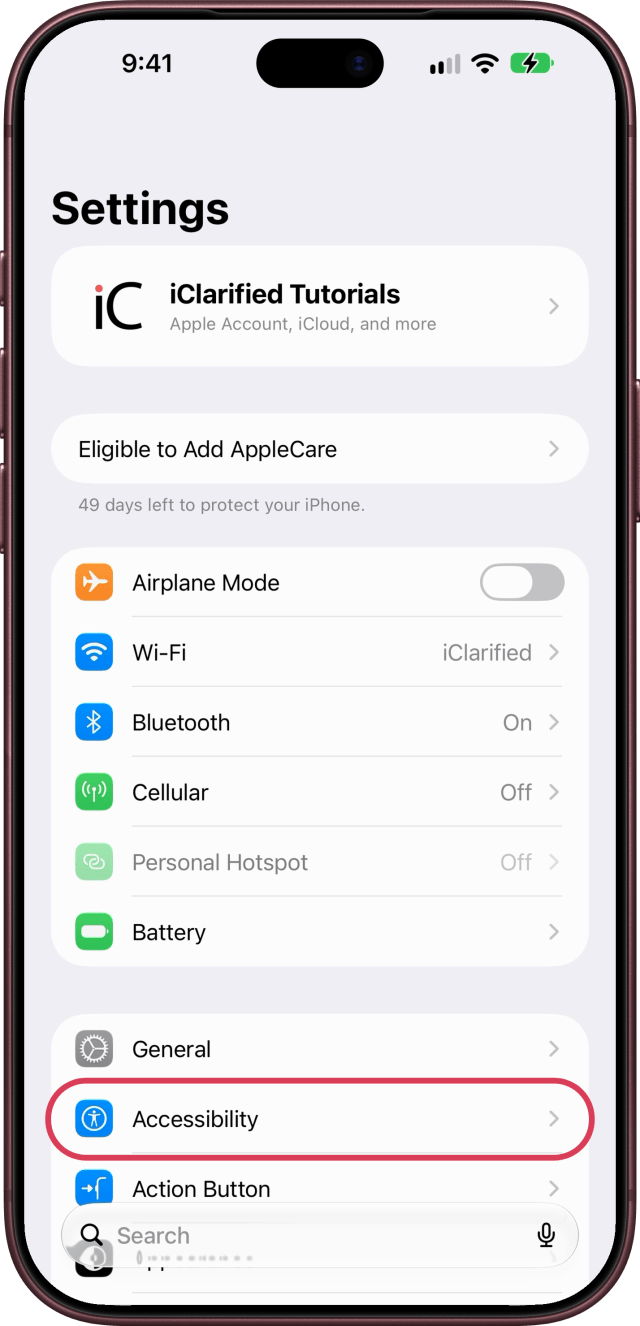
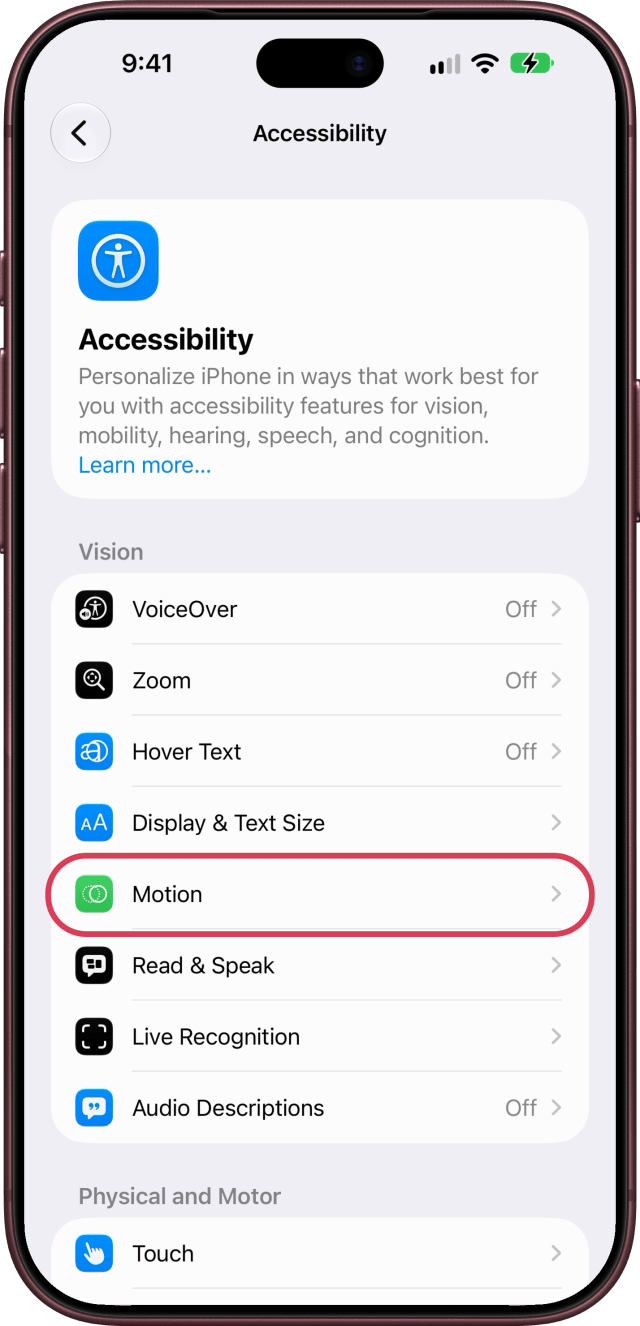
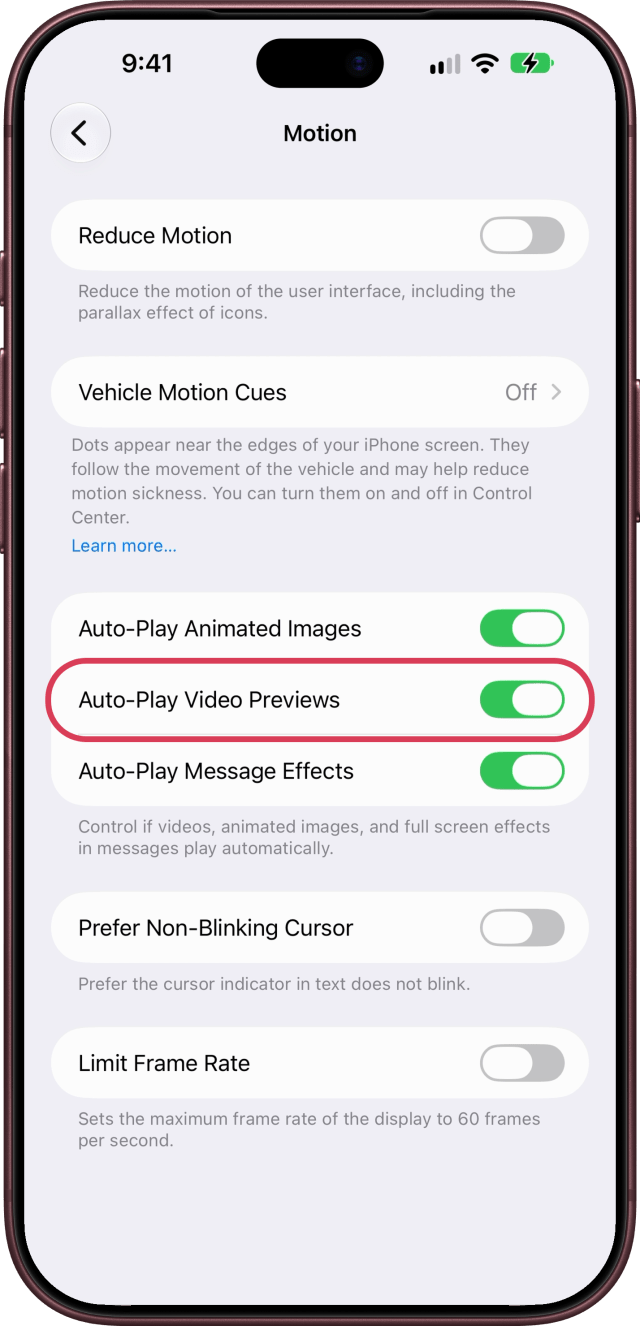
Apps like the App Store can play video previews on their own. To stop that, open Settings, tap Accessibility, then Motion, and turn off Auto-Play Video Previews. The switches beside it do the same for animated images and for full-screen effects in Messages.
15. Limit Background App Refresh
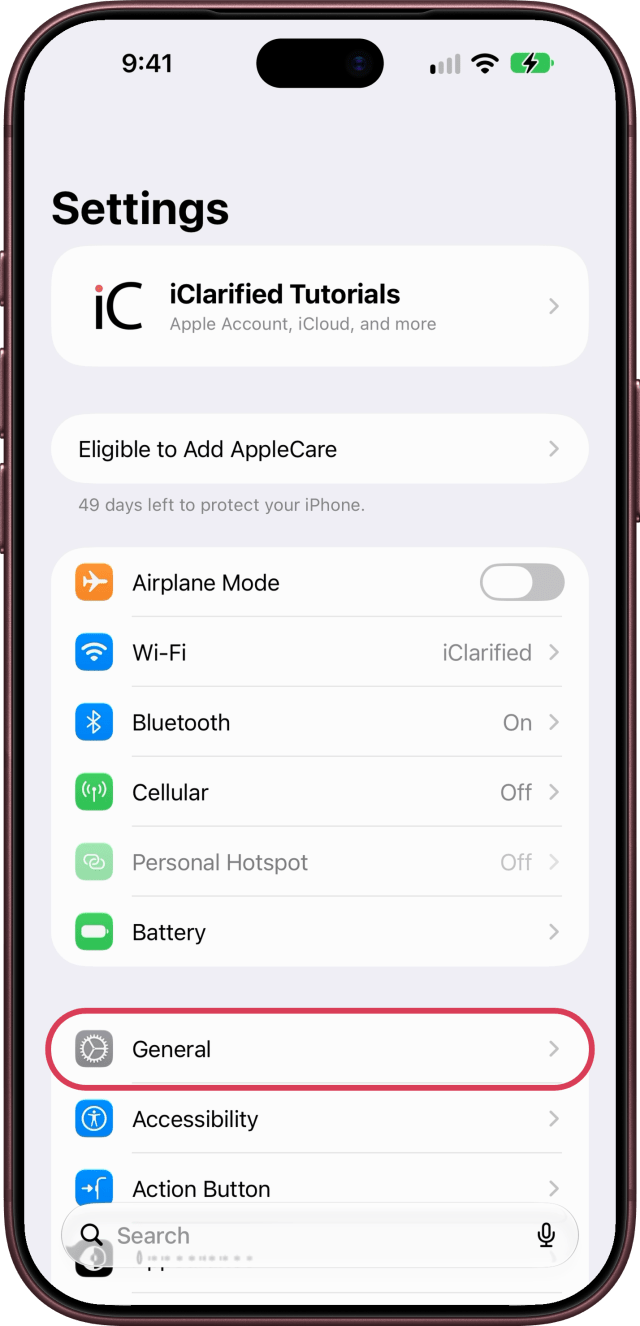
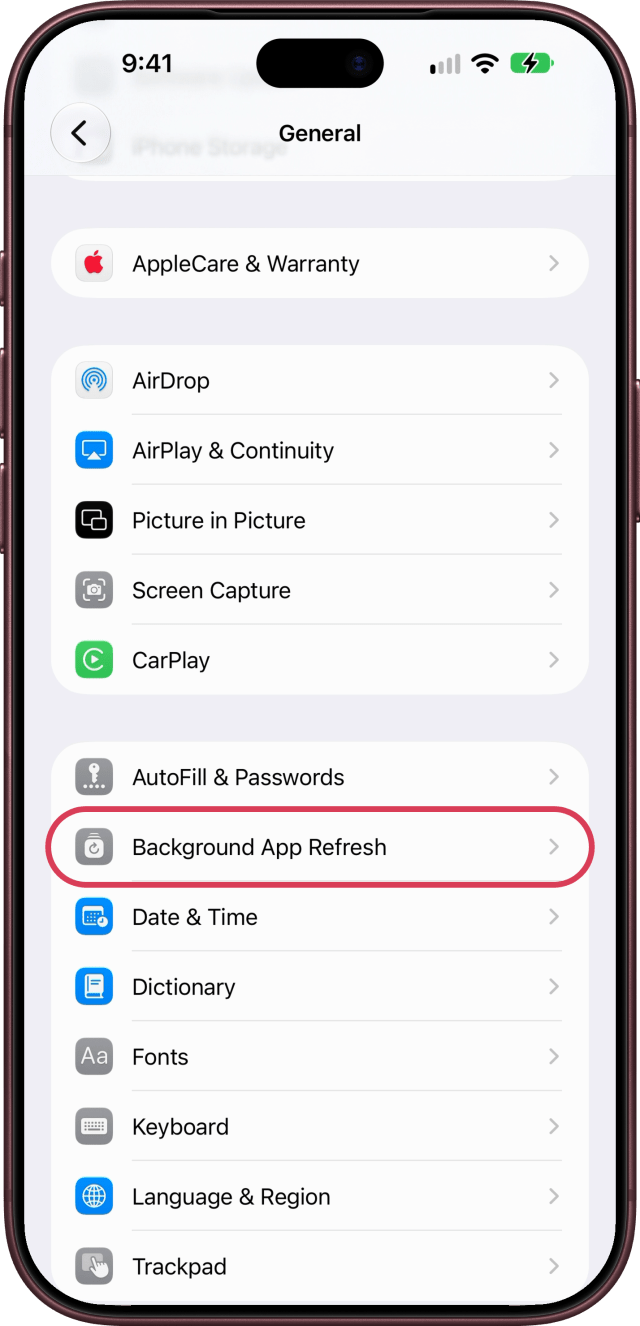
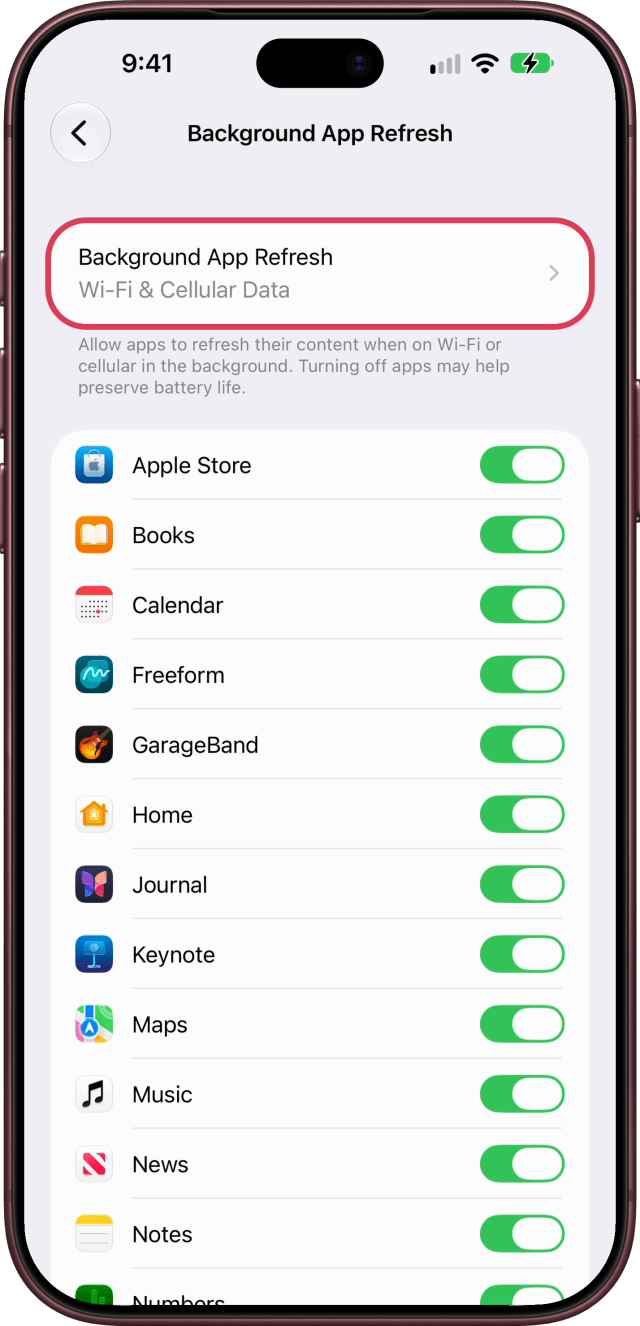
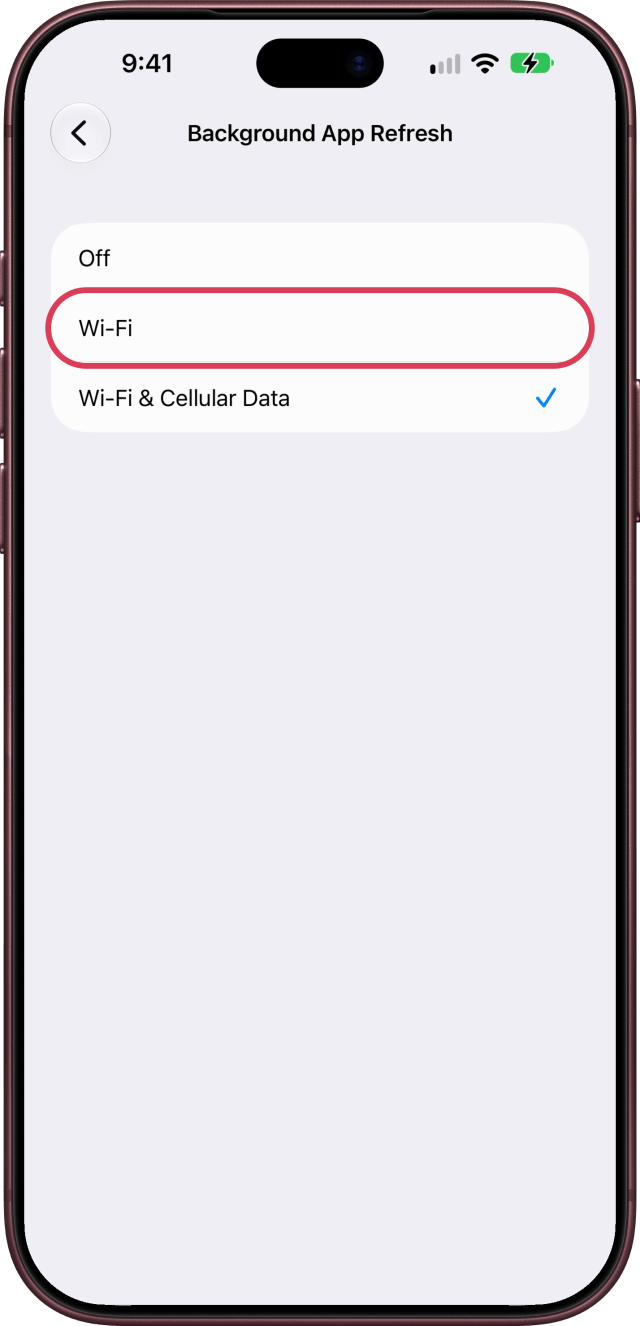
Apps can refresh their content in the background, even when you're not using them. Open Settings, tap General, then scroll down and tap Background App Refresh. Tap Background App Refresh again and choose Wi-Fi or Off. The page notes that turning apps off may help preserve battery life, and you can also do it app by app.
16. Turn Off Push for Mail
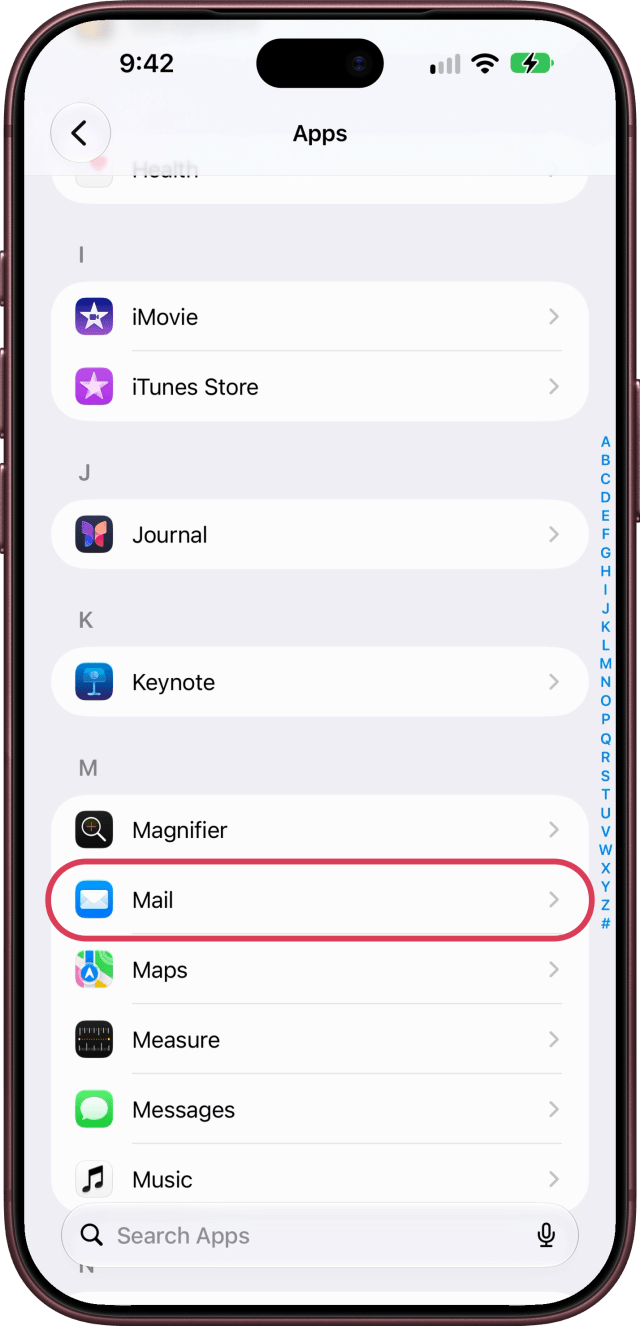
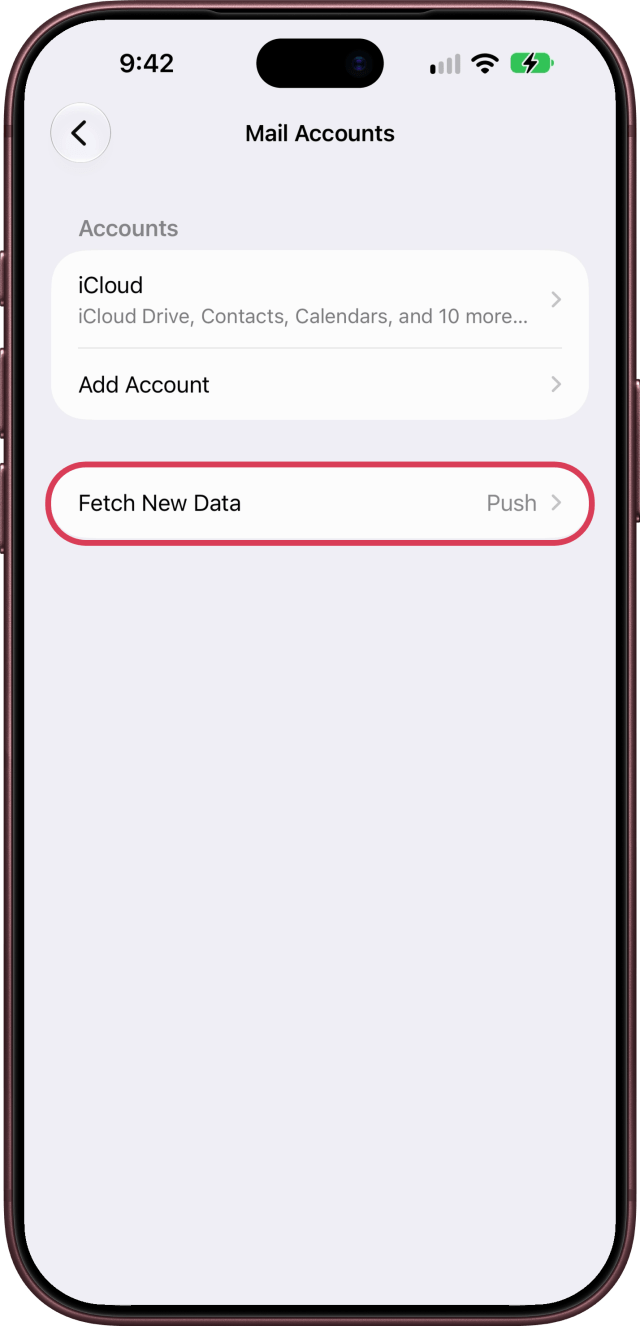
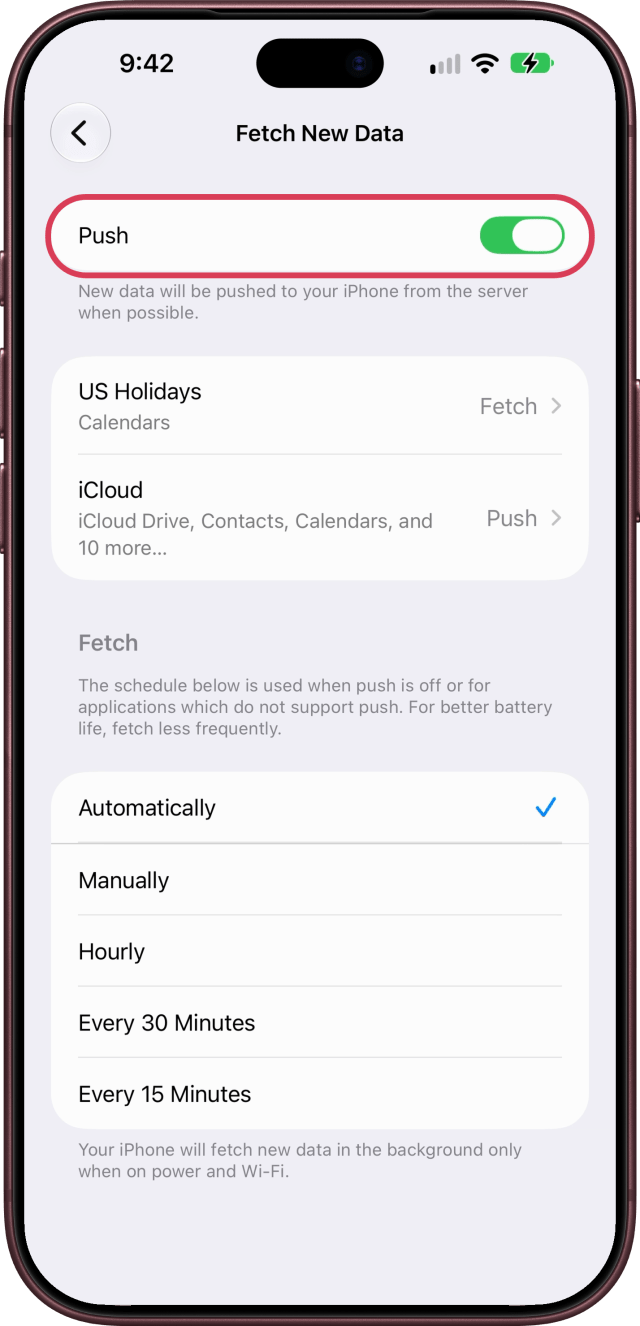
With Push on, new mail is pushed to your iPhone from the server as soon as it can be. If your email can wait, open Settings, tap Apps, then Mail, Mail Accounts, and Fetch New Data, and turn off Push. Your iPhone then checks on the schedule below it, and the page notes that fetching less often is better for battery life. With Automatically chosen, it checks in the background only on power and Wi-Fi.
17. Turn Off Connectivity Assist
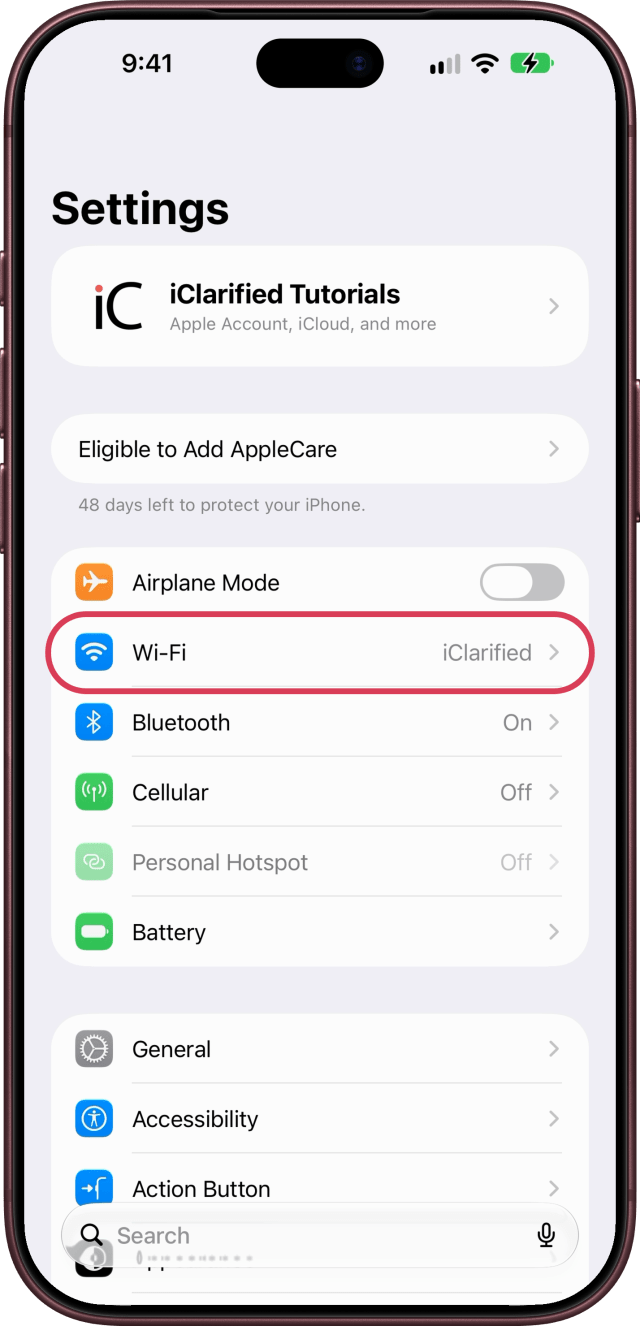
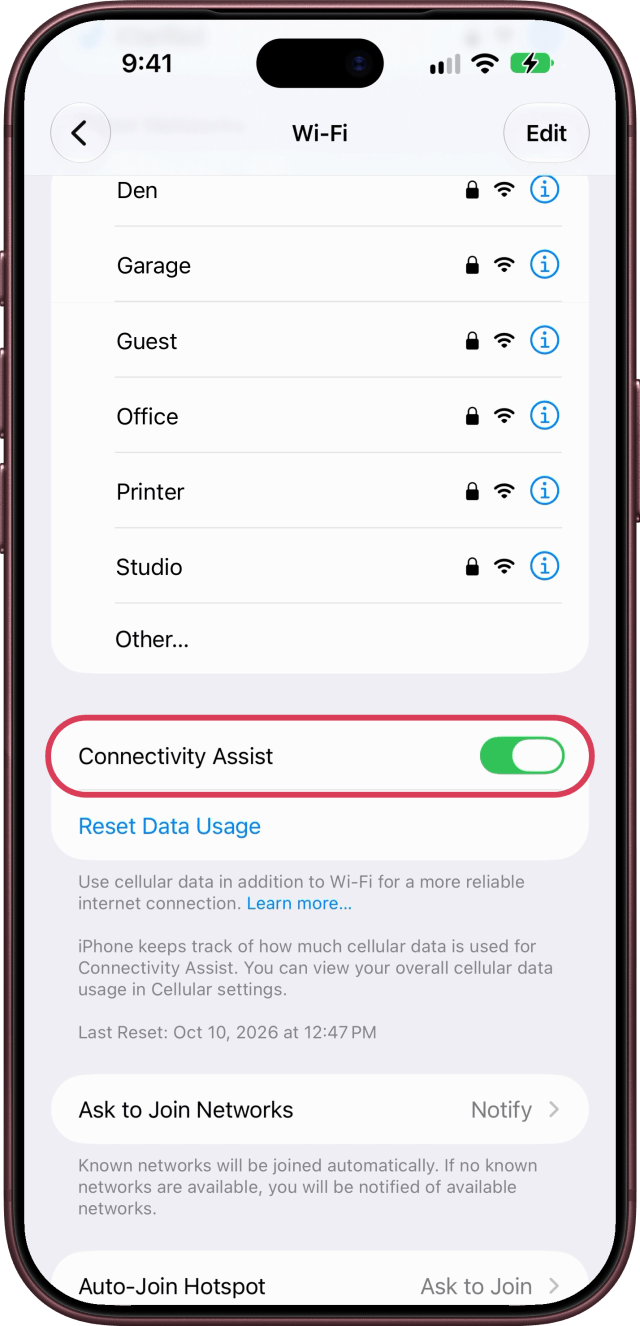
Connectivity Assist uses cellular data in addition to Wi-Fi, for a more reliable connection. On a small data plan, you might want to open Settings, tap Wi-Fi, and turn it off. Your iPhone keeps track of the cellular data it uses for this, and you can see your total in Cellular settings.
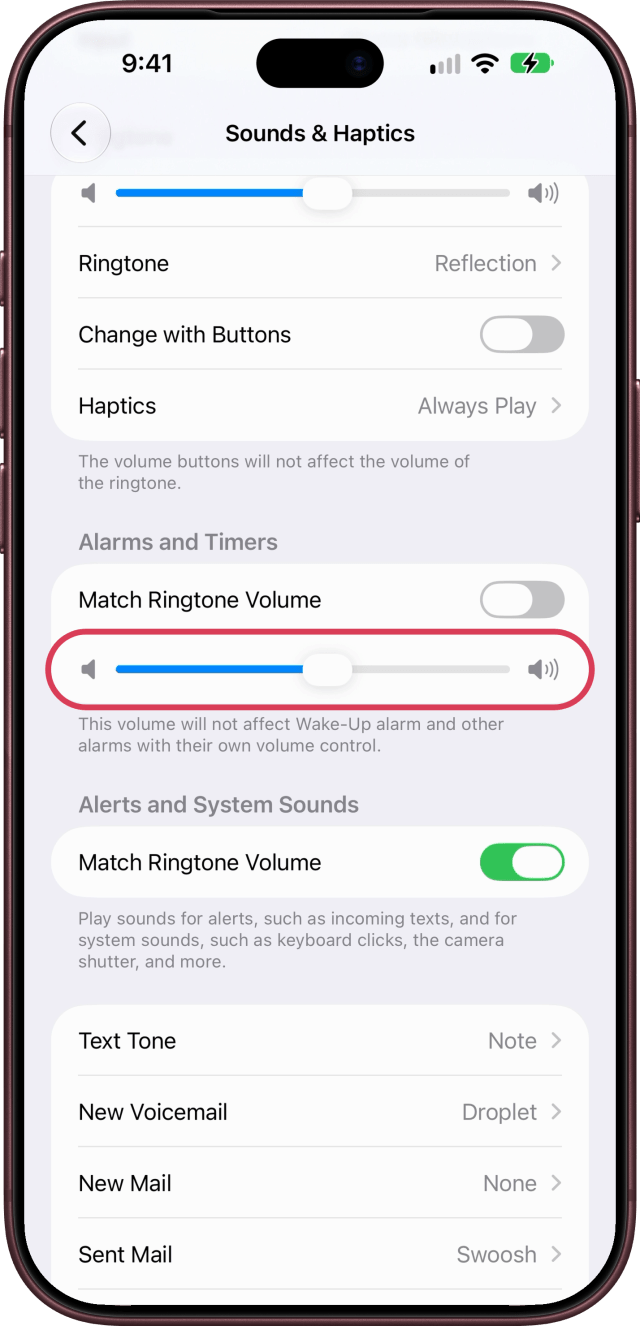
18. Give Your Alarms Their Own Volume
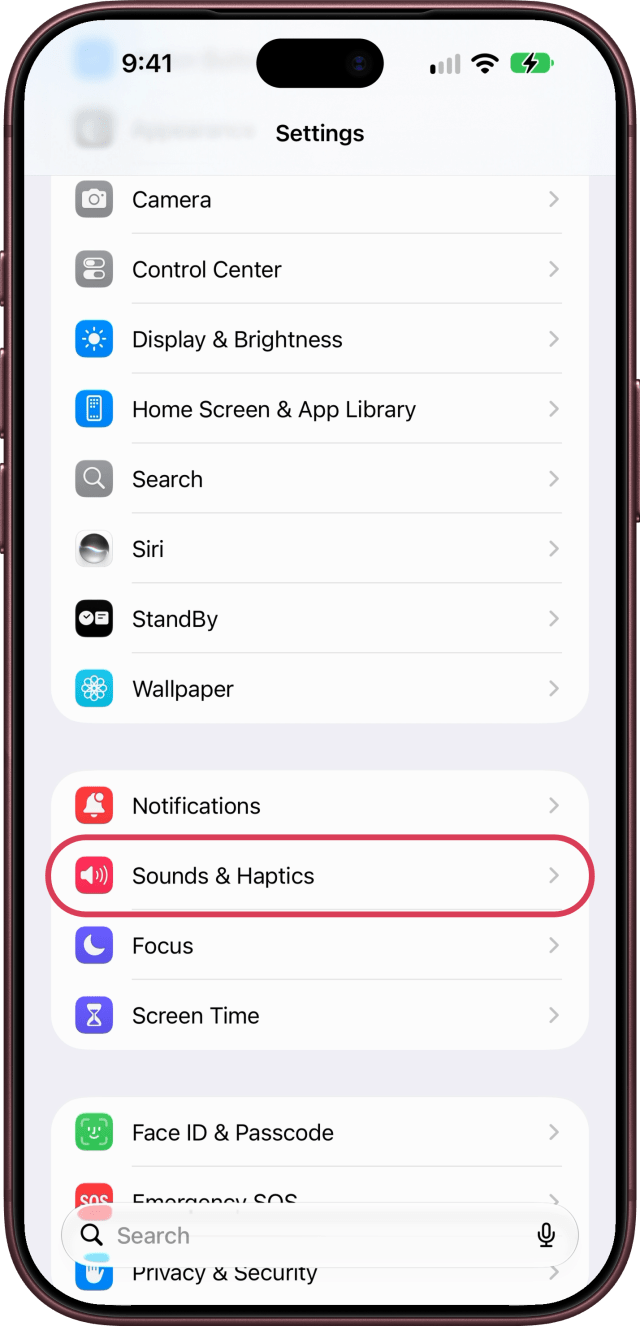
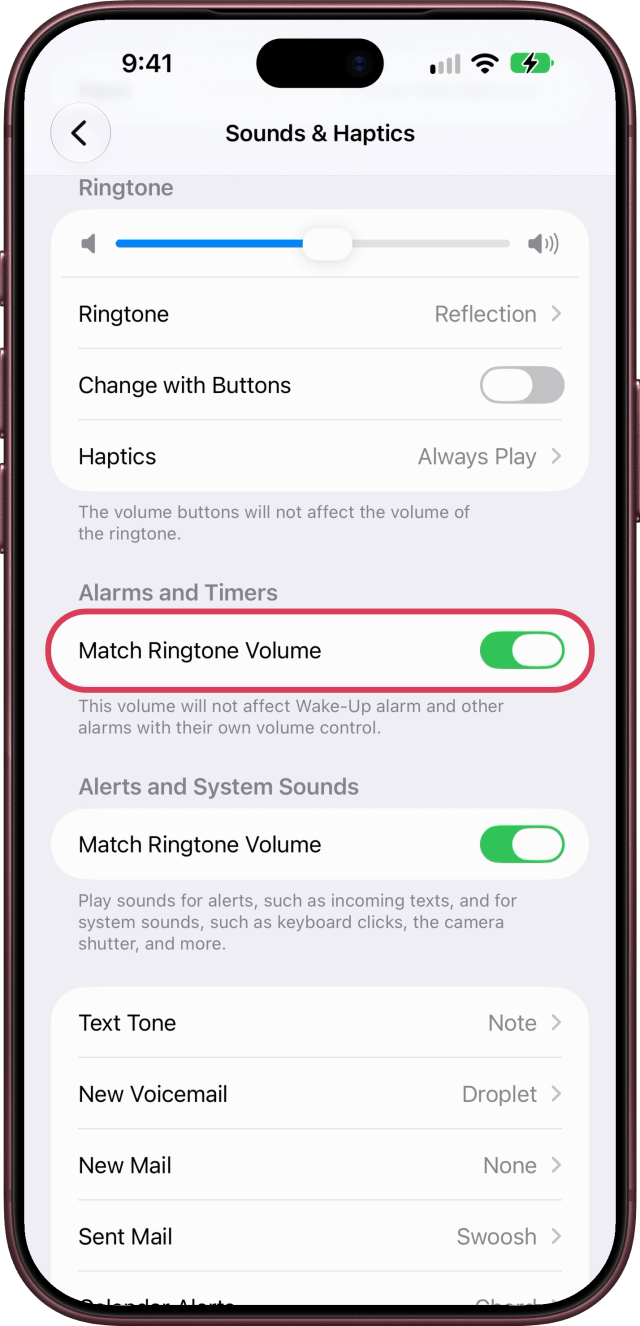
To keep your alarms loud when your ringer is down, open Settings, tap Sounds & Haptics, and under Alarms and Timers, turn off Match Ringtone Volume. Then drag the new slider to set your alarms' own volume. Your Wake-Up alarm, and any alarm with its own volume, keeps that.
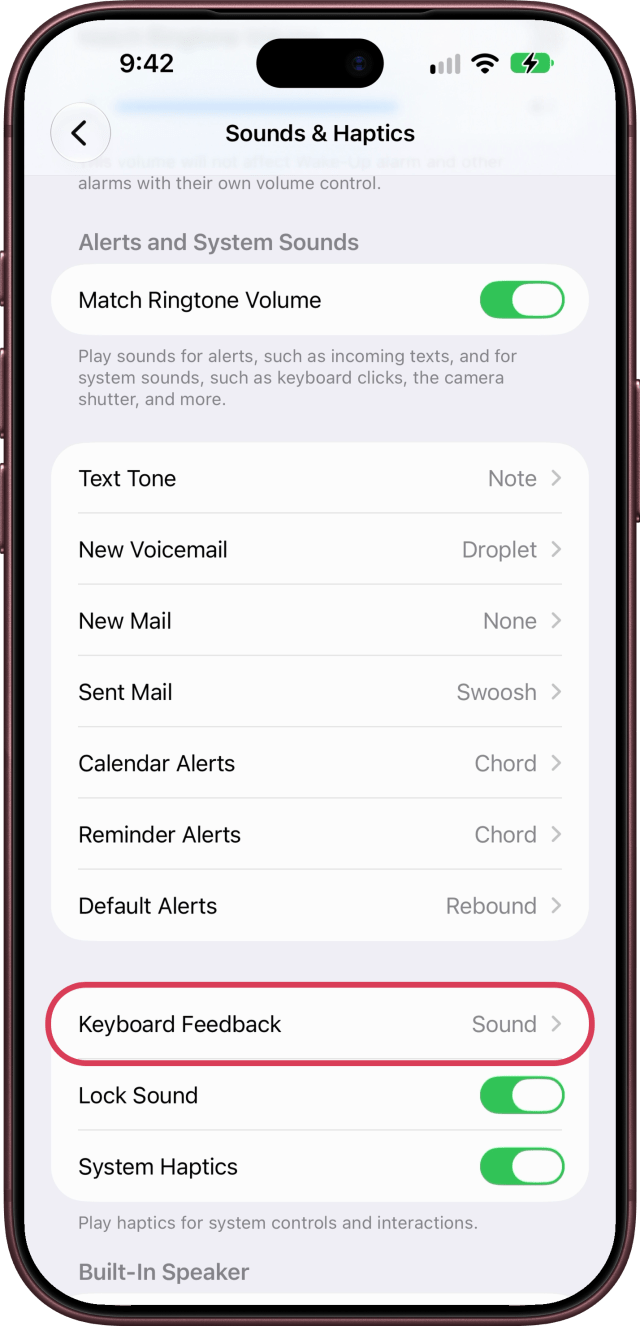
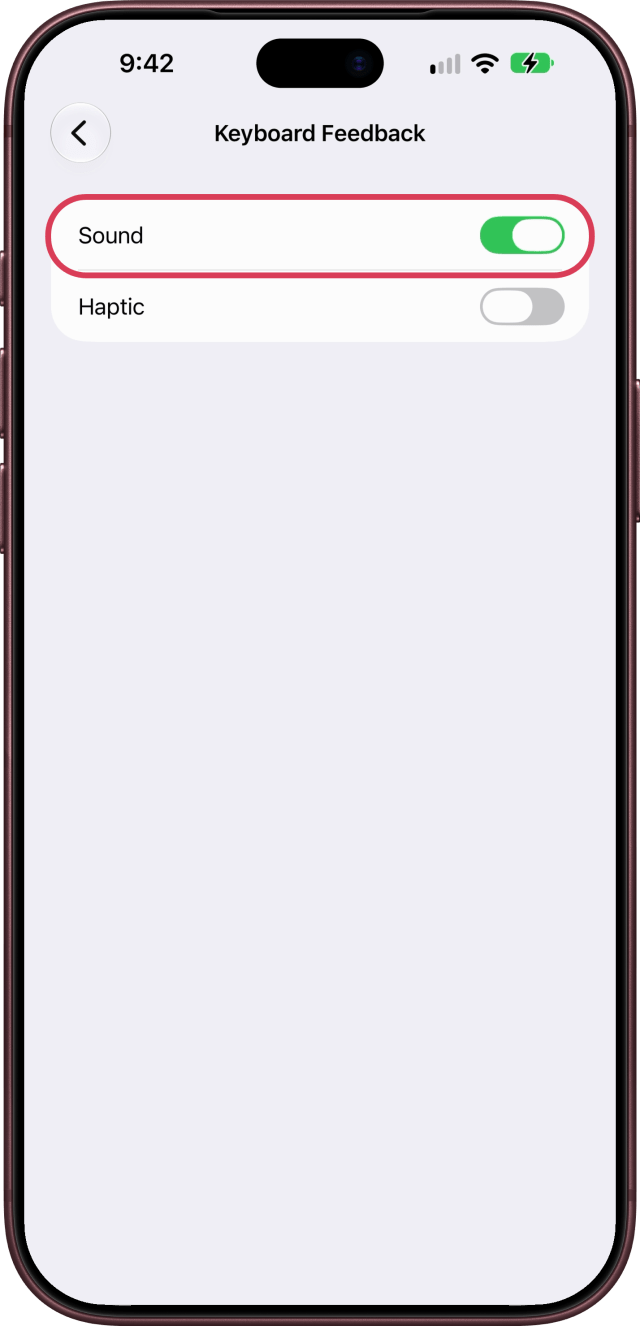
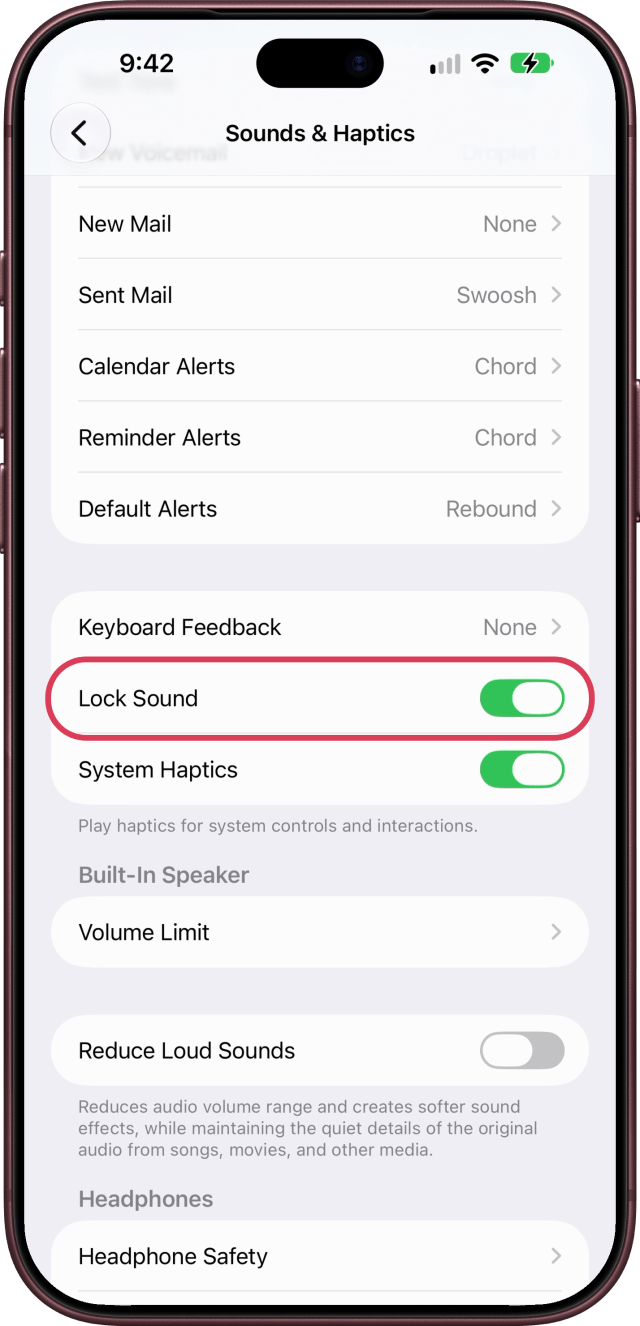
19. Turn Off Keyboard Clicks and the Lock Sound
To type without the clicks, open Settings, tap Sounds & Haptics, then scroll down and tap Keyboard Feedback, and turn off Sound. Haptic gives you a slight vibration for each key instead. On the Sounds & Haptics page, turn off Lock Sound, just below Keyboard Feedback, and your iPhone locks without a click too.
20. Turn Off Prioritize Faster Shooting
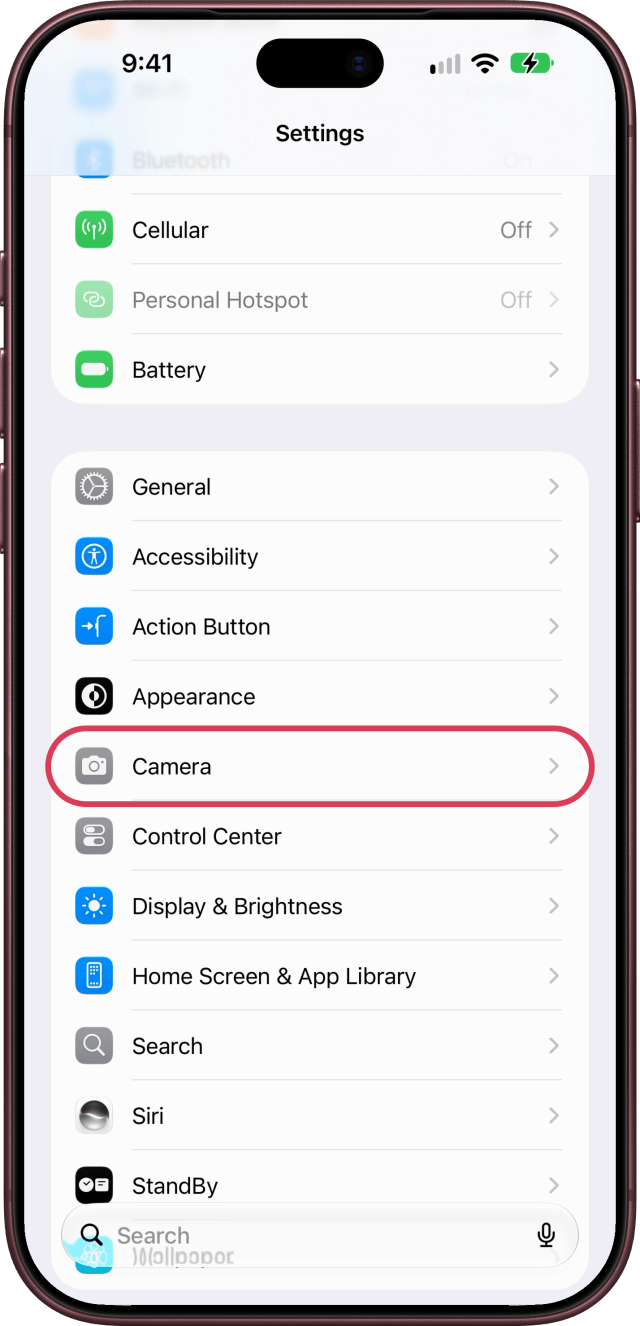
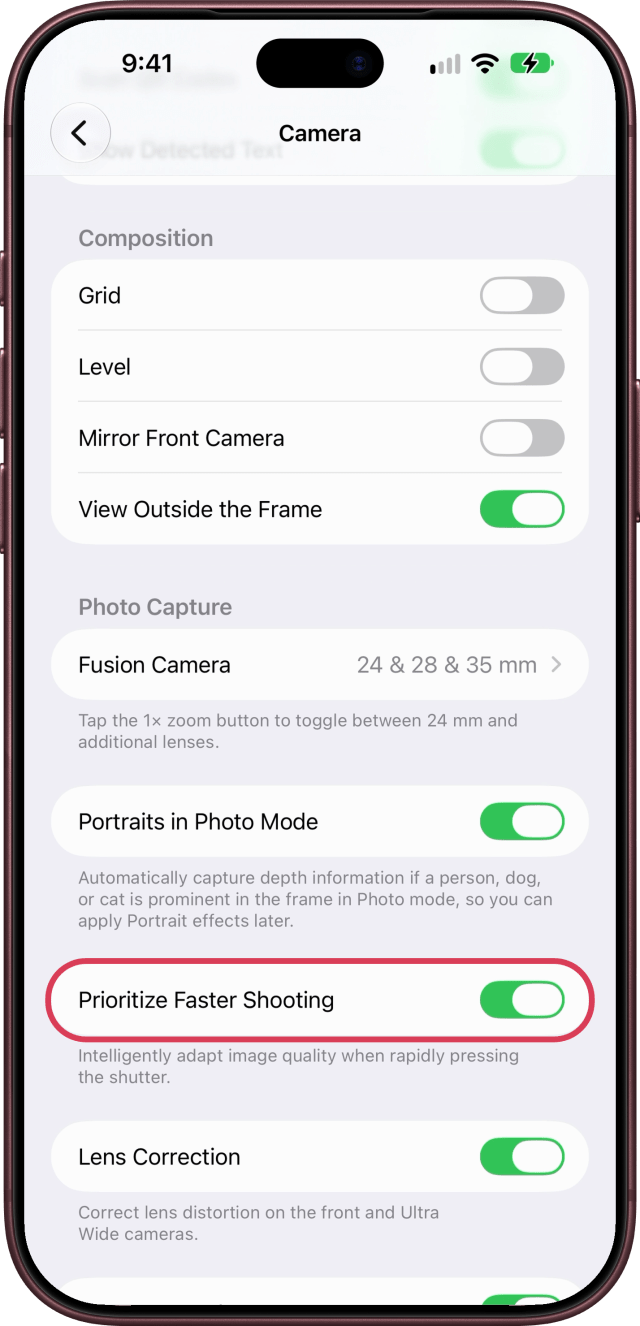
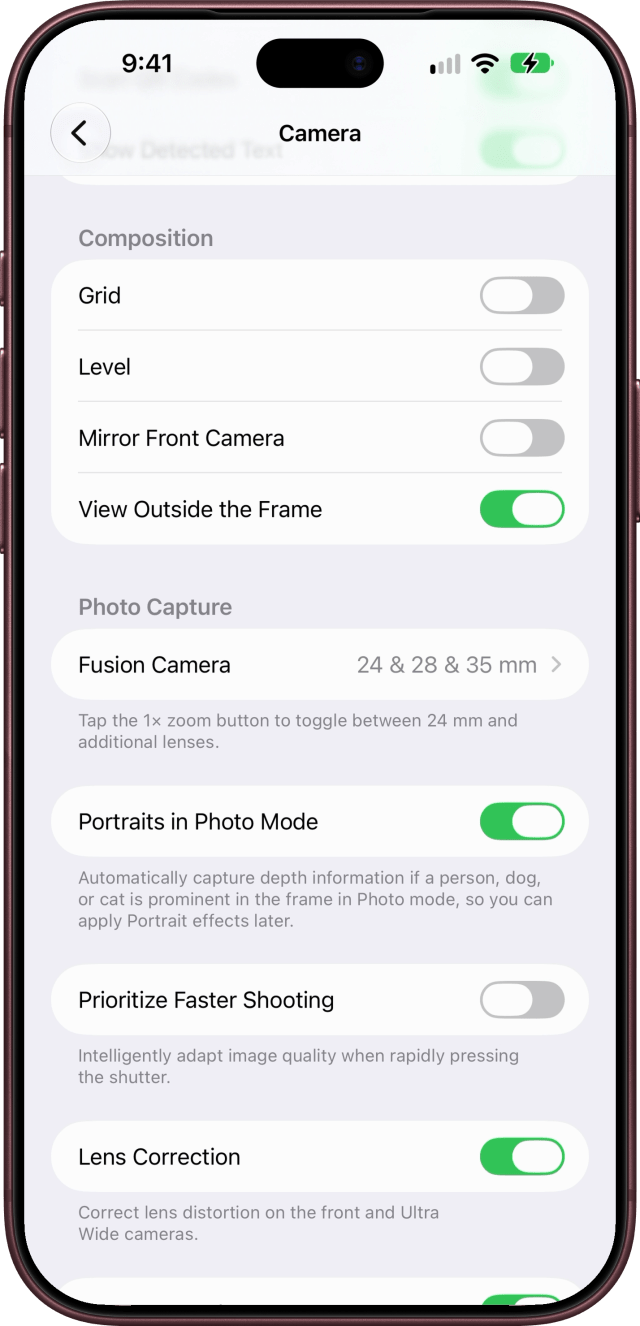
When you tap the shutter quickly, your iPhone adapts its image quality so it can take more photos. If you'd rather it didn't, open Settings, tap Camera, then scroll down and turn off Prioritize Faster Shooting. Apple turns it on by default.