![How To Turn Off Liquid Glass Transparency on iPhone [Video]](/images/tutorials/102307/483894/483894-64.png "How To Turn Off Liquid Glass Transparency on iPhone [Video]")
Liquid Glass has no off switch, but iOS 27 gives you two ways to take the transparency out of it. A new slider in Settings runs the glass from ultraclear to fully tinted, and an Accessibility setting, Reduce Transparency, turns the see-through backgrounds solid.
The slider is new in iOS 27 and lives in a new Appearance section of Settings. Its middle position is Apple's default; dragging it to the right makes the glass more opaque across iOS, from the Home Screen to Control Center. Reduce Transparency has been in Accessibility for years and goes the rest of the way.
We verified this on an iPhone 17 Pro Max and iPhone 18 Pro Max running iOS 27.
Reduce Liquid Glass Transparency on iPhone
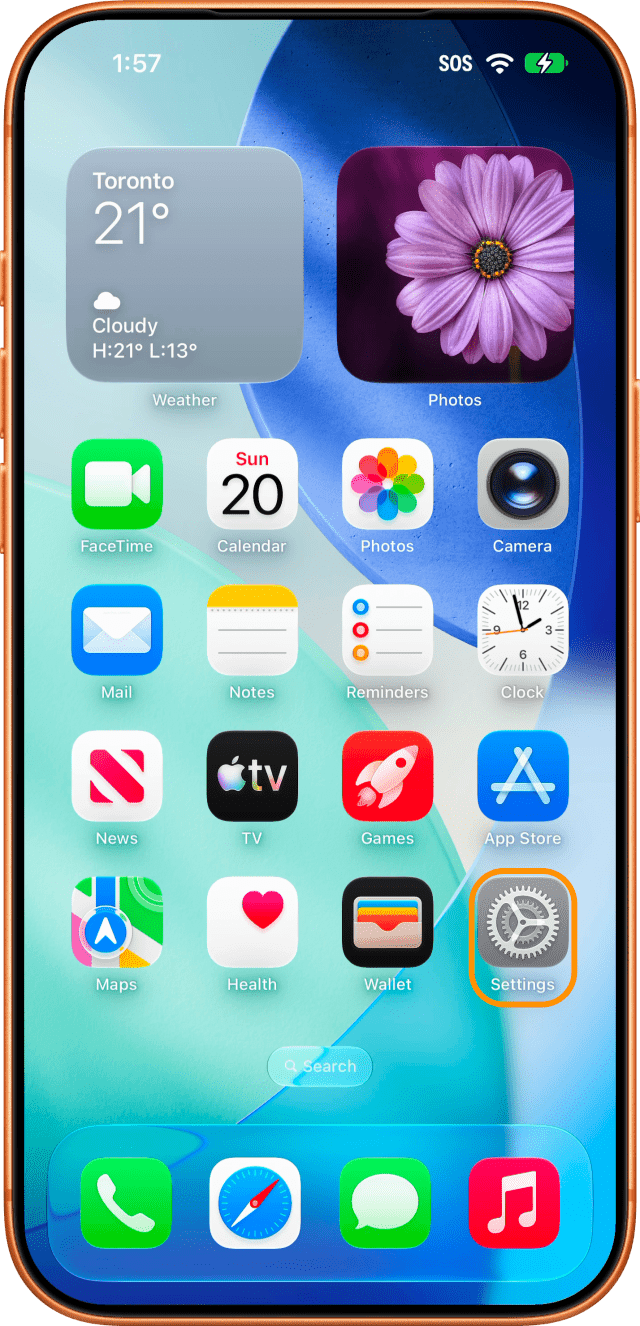
Step One: Open Settings and Tap Appearance
Open the Settings app from your Home Screen, then tap Appearance. It sits in the second group of settings, below Action Button.
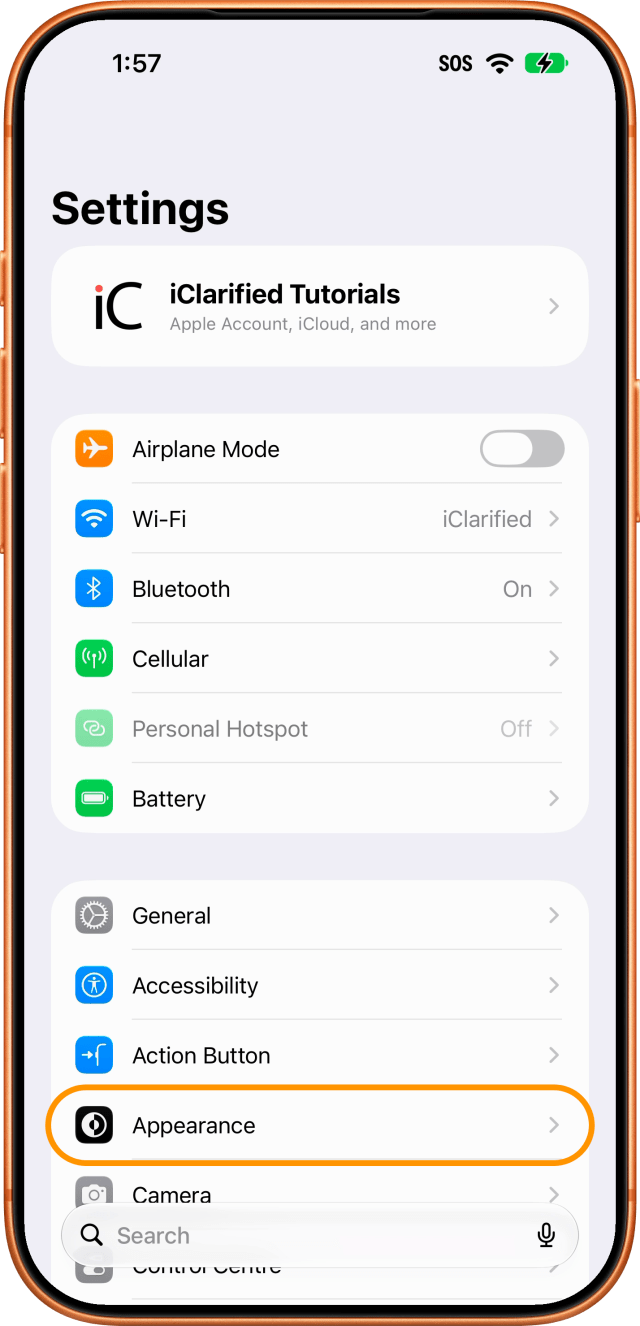
Step Two: Tap Liquid Glass
Tap Liquid Glass. The row shows the current setting beside it, which reads Default on an iPhone that has never touched the slider.
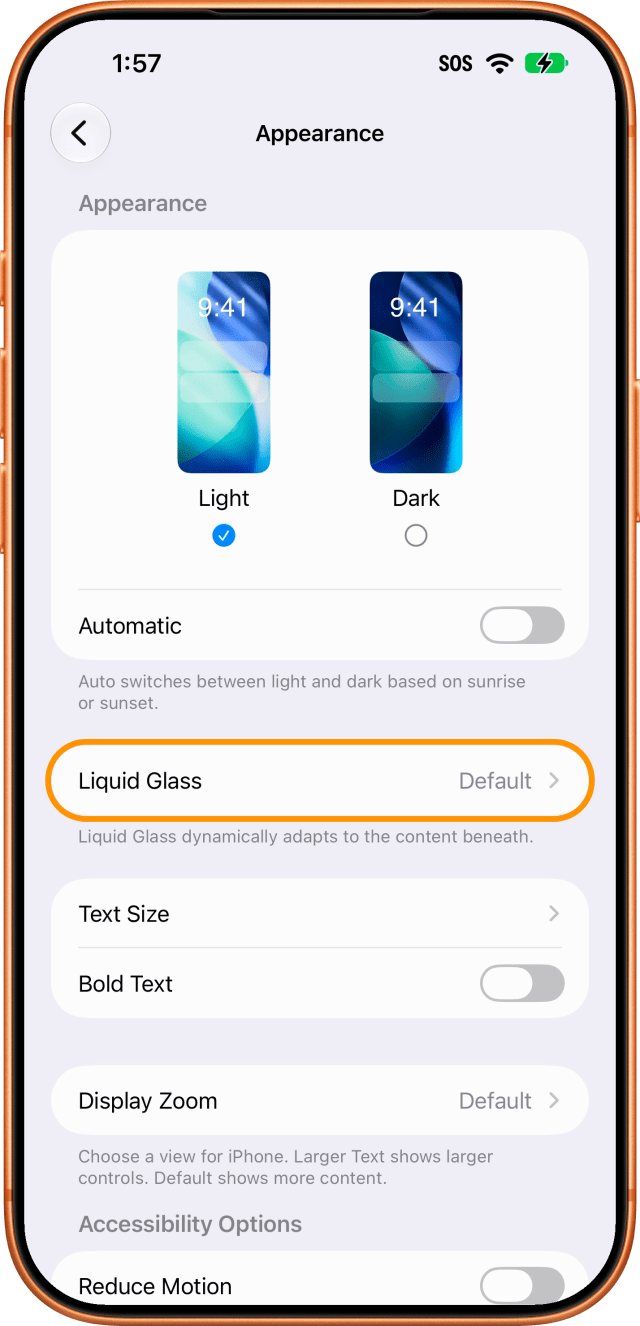
Step Three: Drag the Slider to the Tinted End
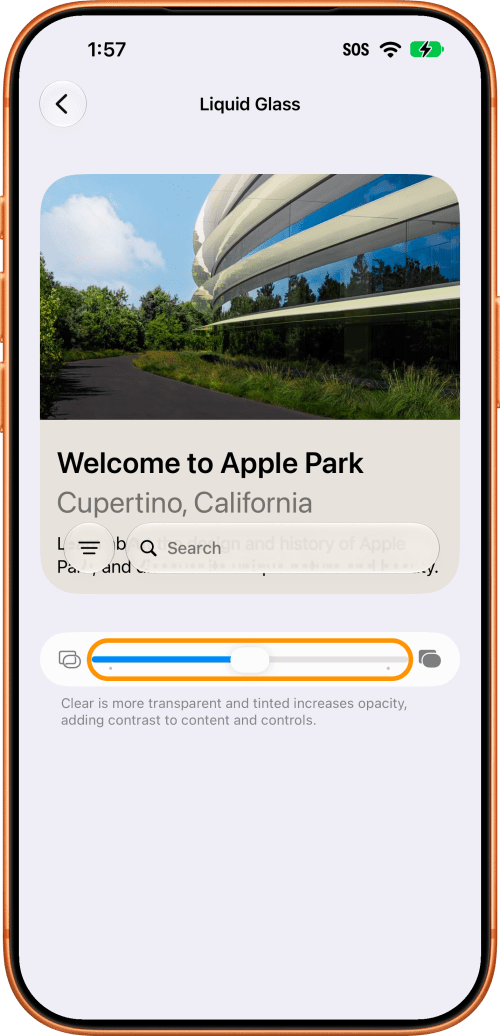
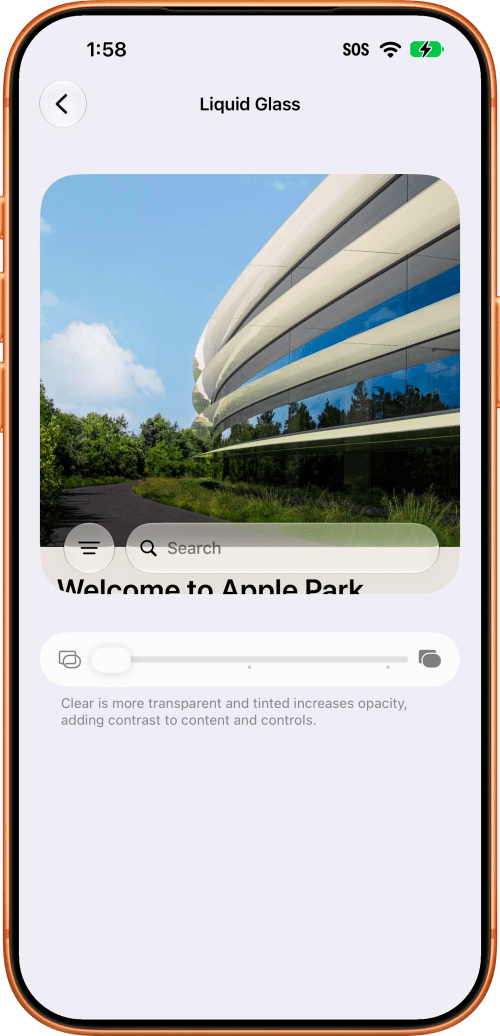
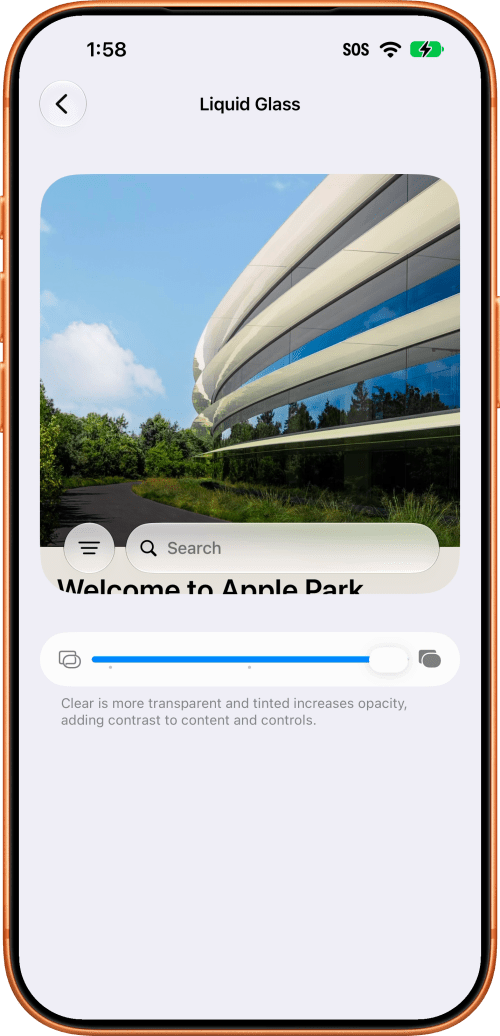
The Liquid Glass screen has a preview card above a slider, with a clear-glass icon at the left end and a filled icon at the right. If you drag the slider all the way to the left, the glass goes ultraclear, the most transparent it gets. Now drag it all the way to the right. That is fully tinted: in the preview, the buttons and the search bar turn opaque instead of see-through, and the same happens across your iPhone. The middle of the slider is Apple's default.
Step Four: Open Settings Again and Tap Accessibility
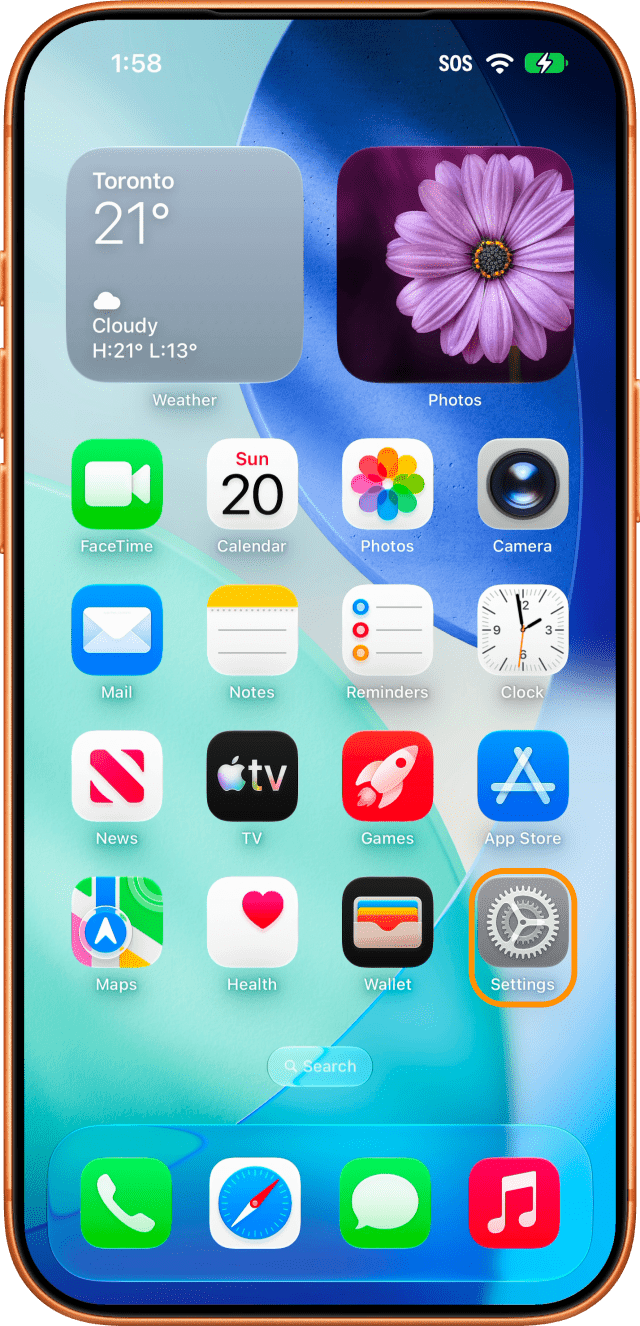
If that is still too much glass, one more setting turns the transparency off. Open the Settings app again and tap Accessibility, in the same group as Appearance.
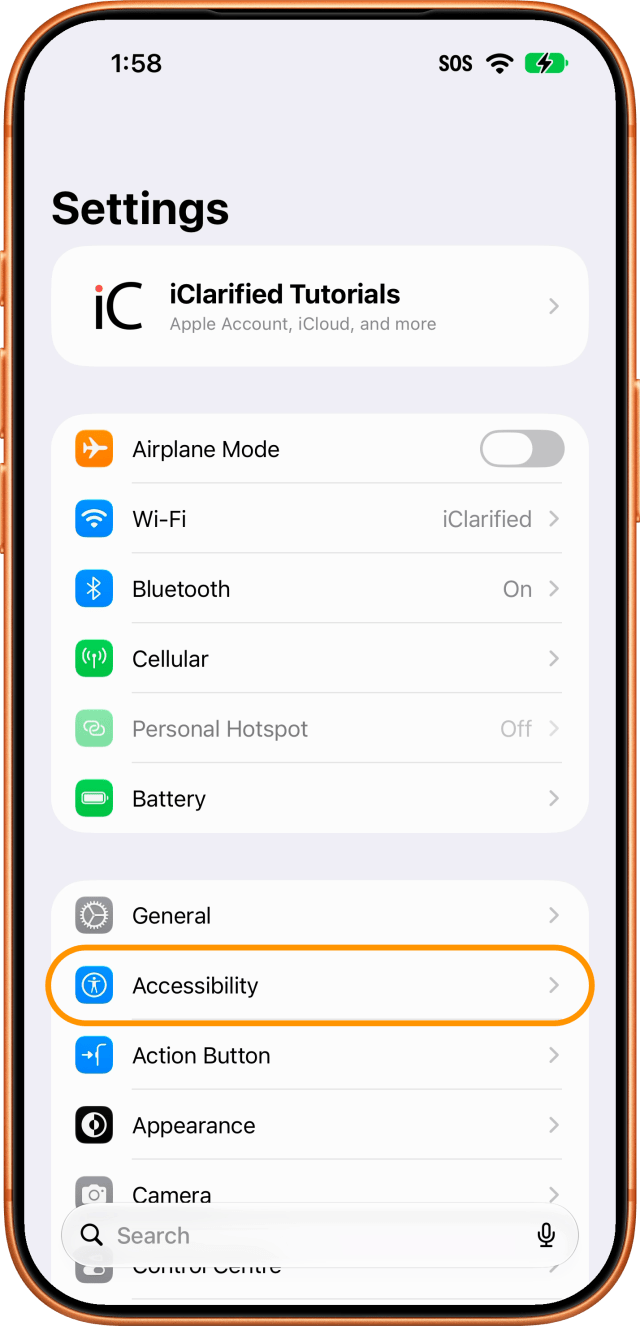
Step Five: Tap Display & Text Size
Under Vision, tap Display & Text Size.
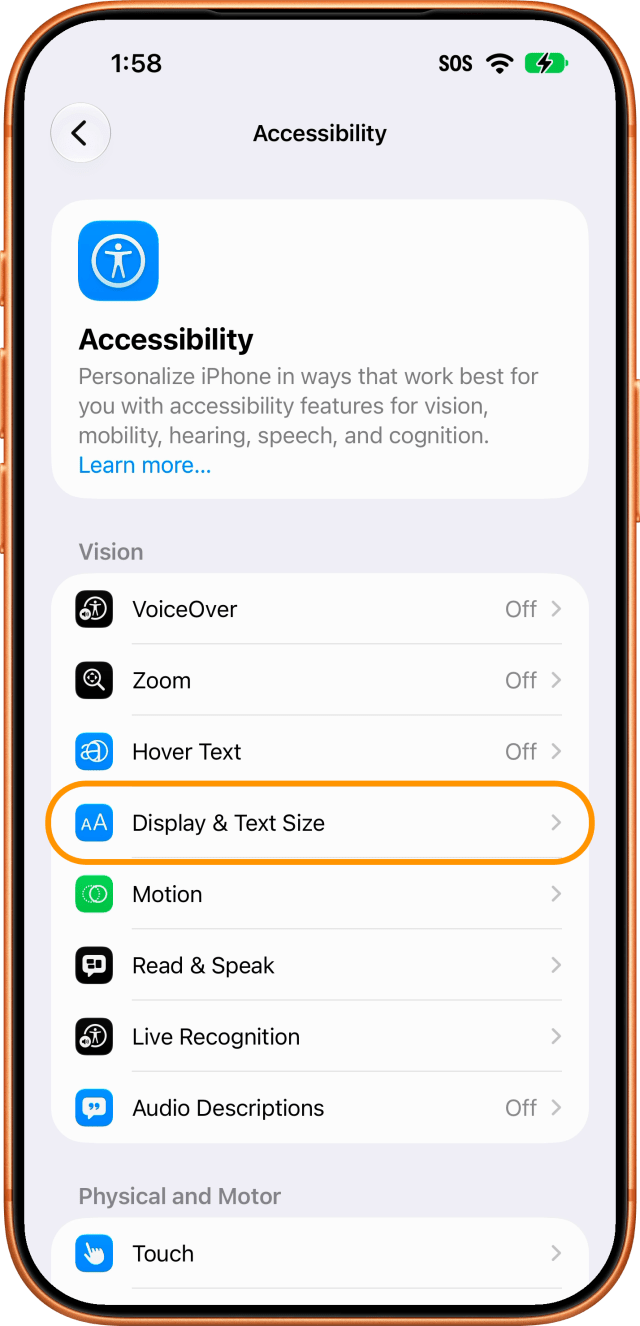
Step Six: Turn On Reduce Transparency
Turn on the Reduce Transparency switch. Apple's description under it reads "Improve contrast by reducing transparency and blurs on some backgrounds to increase legibility." You can see the change on this very screen: the back button turns solid white and a line appears under the title. That is the glass going flat across your iPhone.
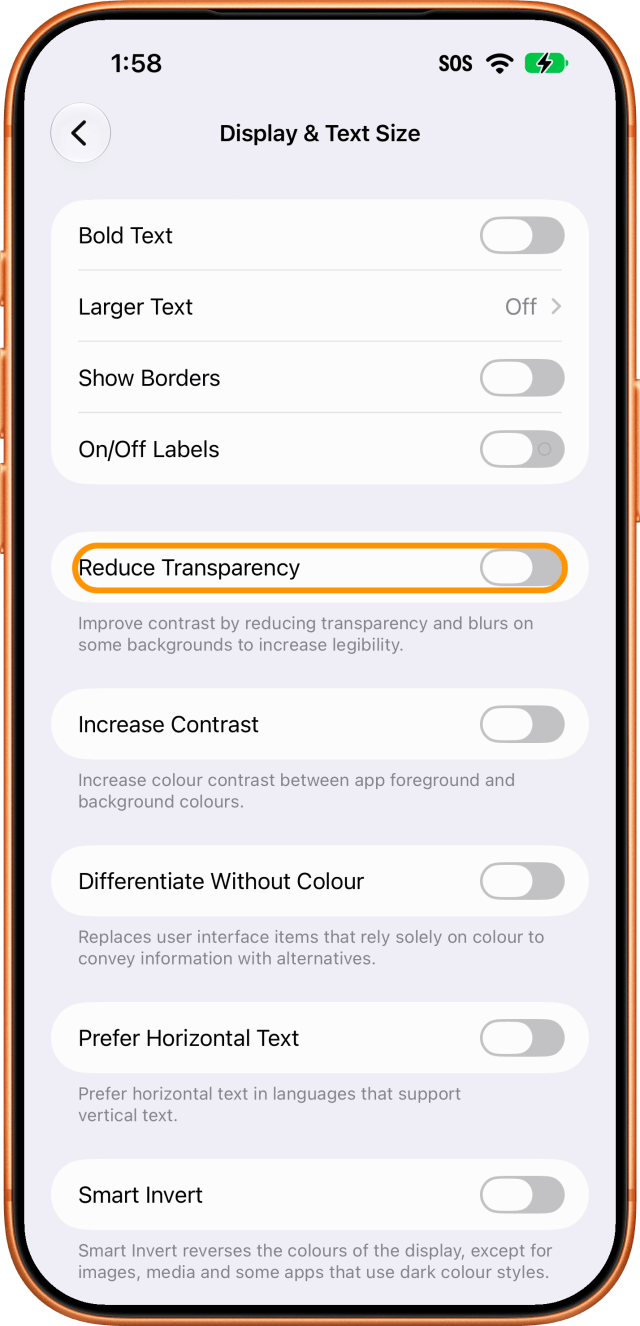
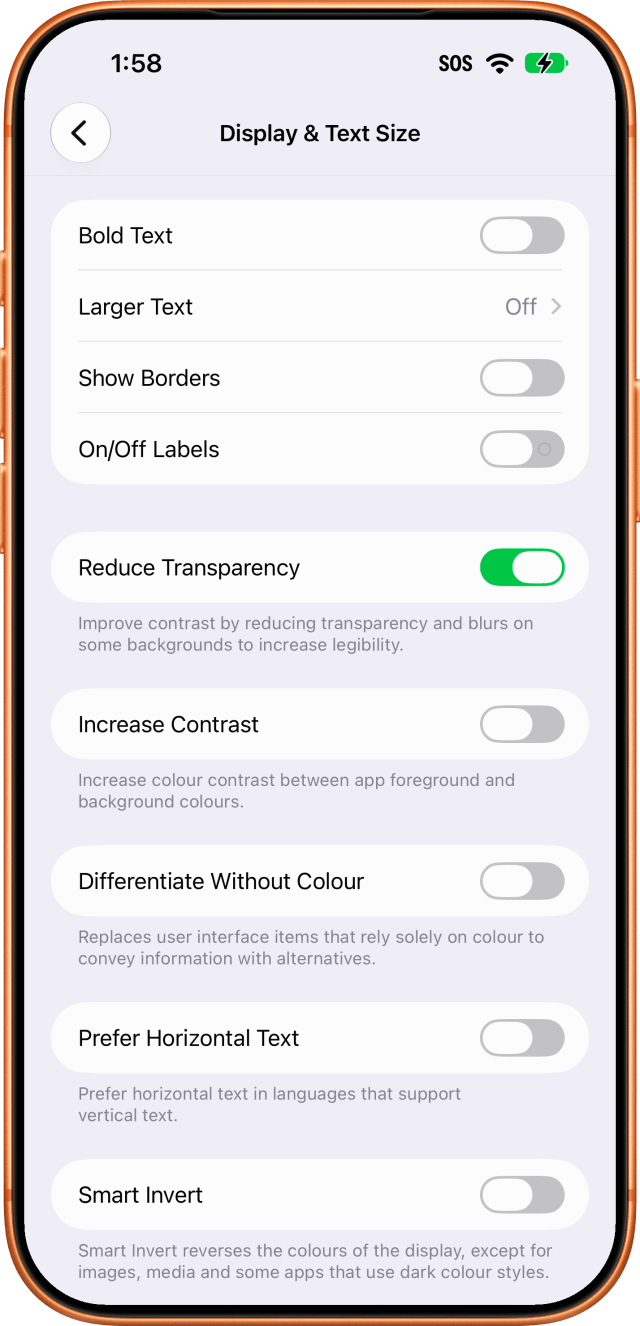
Bringing the Glass Back
Both changes reverse the same way they were made. Reduce Transparency switches back off on the Display & Text Size screen, and the slider under Appearance > Liquid Glass returns to the middle, Apple's default. Increase Contrast, the switch below Reduce Transparency, sharpens the edges of buttons and text without touching the transparency.

![watchOS 27.0.1 Fixes Unexpected Restarts on Series 12 and Ultra 4 [Download]](/images/news/102378/102378/102378-160.jpg "watchOS 27.0.1 Fixes Unexpected Restarts on Series 12 and Ultra 4 [Download]")
![Near-Borderless Anniversary iPhone Pro Still on Track Despite Display Tech Delays [Report]](/images/news/102375/102375/102375-160.jpg "Near-Borderless Anniversary iPhone Pro Still on Track Despite Display Tech Delays [Report]")
![Apple Developing Screenless Health and Fitness Tracker With Fabric Band [Report]](/images/news/102372/102372/102372-160.jpg "Apple Developing Screenless Health and Fitness Tracker With Fabric Band [Report]")

![How To Turn Off Liquid Glass Transparency on iPhone [Video]](/images/tutorials/102307/102307/102307-160.jpg "How To Turn Off Liquid Glass Transparency on iPhone [Video]")



![13-Inch M5 MacBook Air With 1TB Drops to $1,449 on Amazon [Deal]](/images/news/102345/102345/102345-160.jpg "13-Inch M5 MacBook Air With 1TB Drops to $1,449 on Amazon [Deal]")