To set a song as your ringtone on iPhone, save it to the Files app, touch and hold it, tap Share, then tap Use as Ringtone. That works for a song shorter than 30 seconds. For a longer song, import it into GarageBand, pick up to 30 seconds of it, and share the project as a Ringtone.
Both ways are free and need no computer, since GarageBand is Apple's own app and free in the App Store. Songs from Apple Music are protected, so they can't be used. We tested both on an iPhone 18 Pro Max running iOS 27.
Make a Custom Ringtone From a Song Without GarageBand
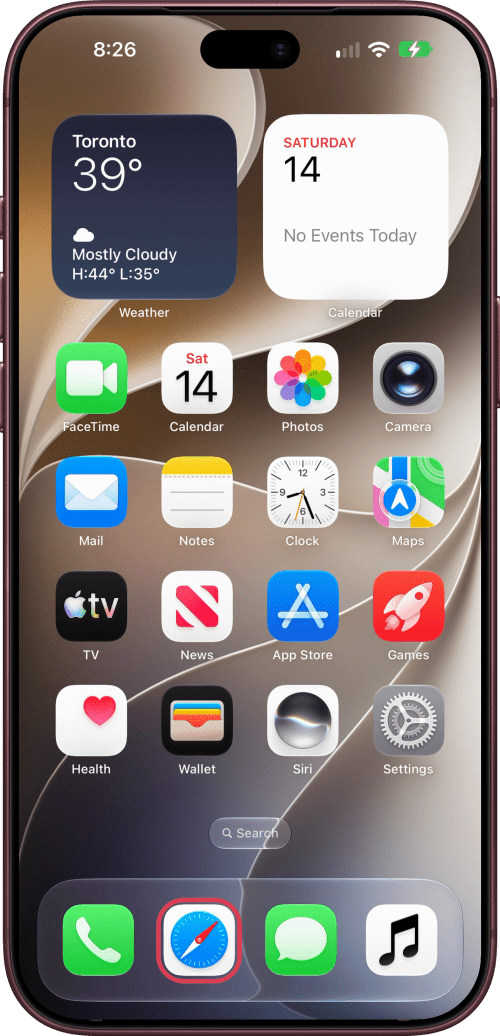
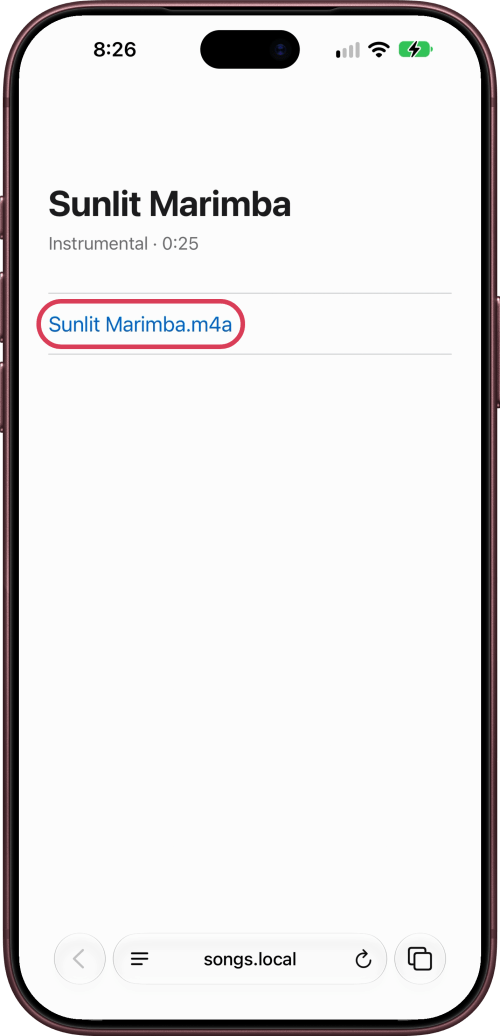
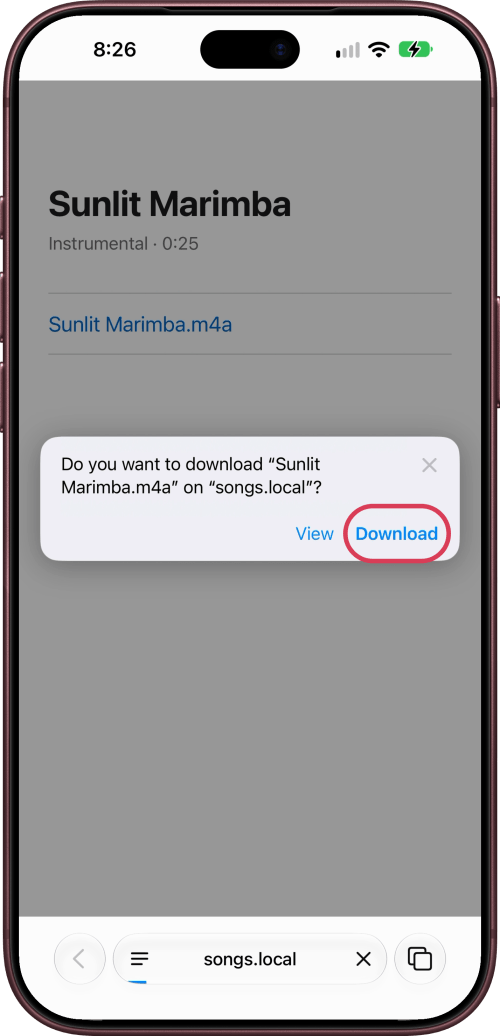
Step One: Download the Song in Safari
Open Safari and find your song. Tap its download link, then tap Download to save it.
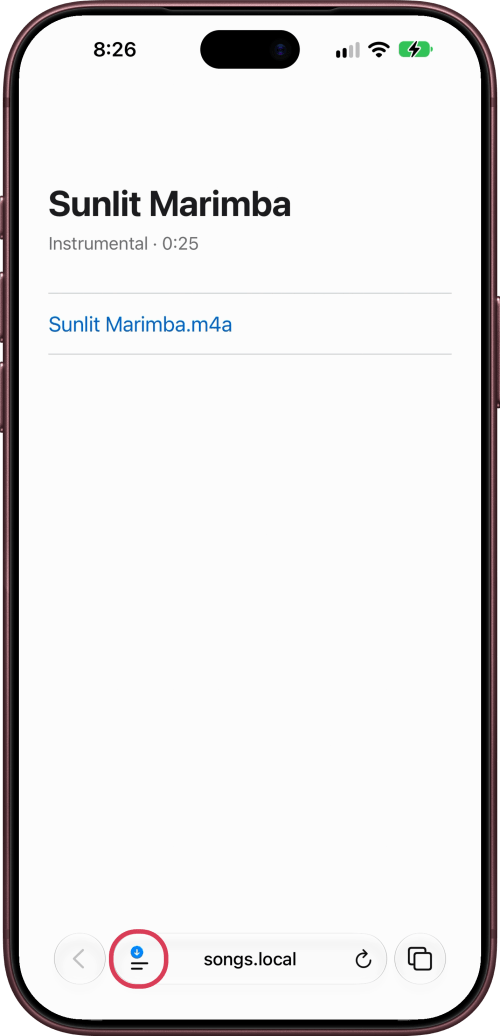
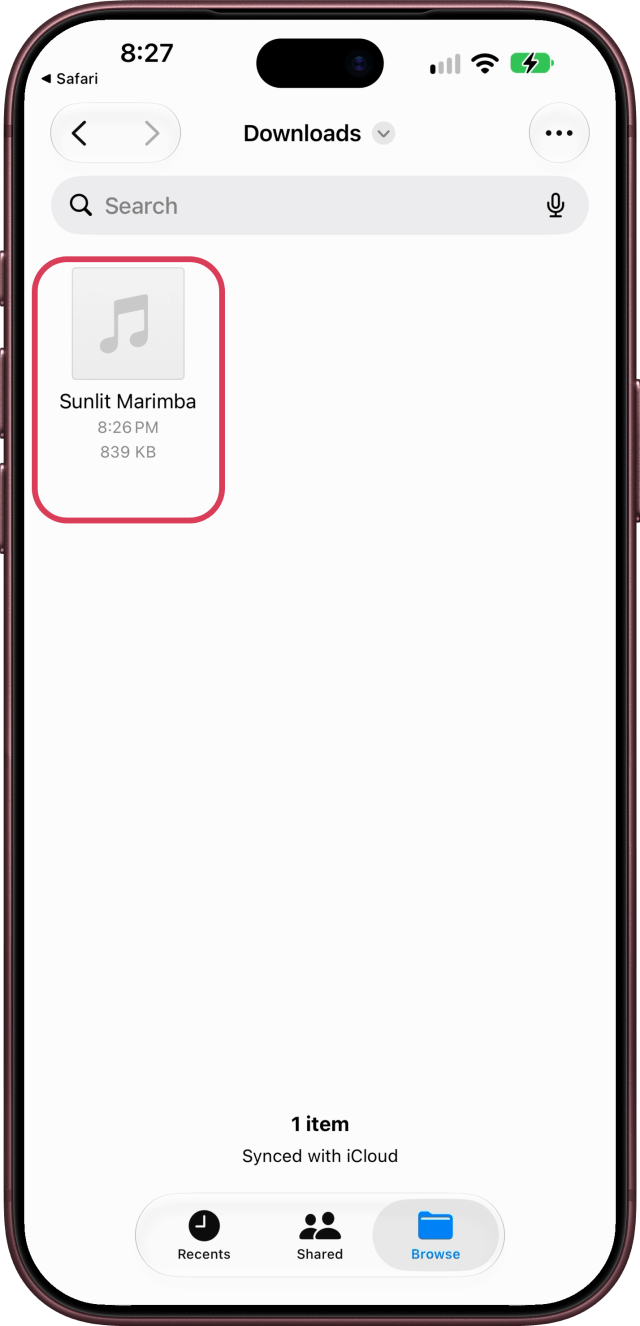
Step Two: Find the Song in the Files App
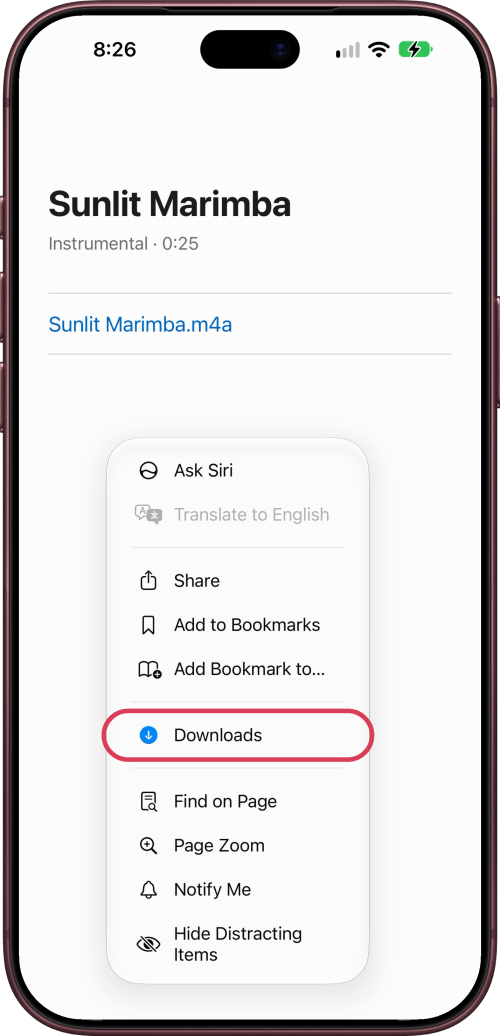
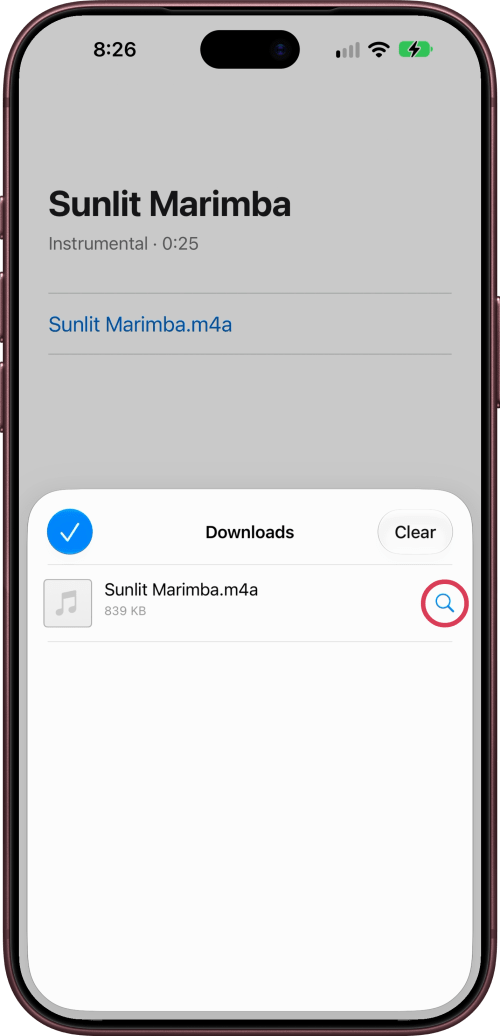
Tap the Page Menu button at the left of the address bar, then Downloads. Tapping the magnifying glass next to the song opens it in the Files app.
Step Three: Touch and Hold the Song, Then Tap Share
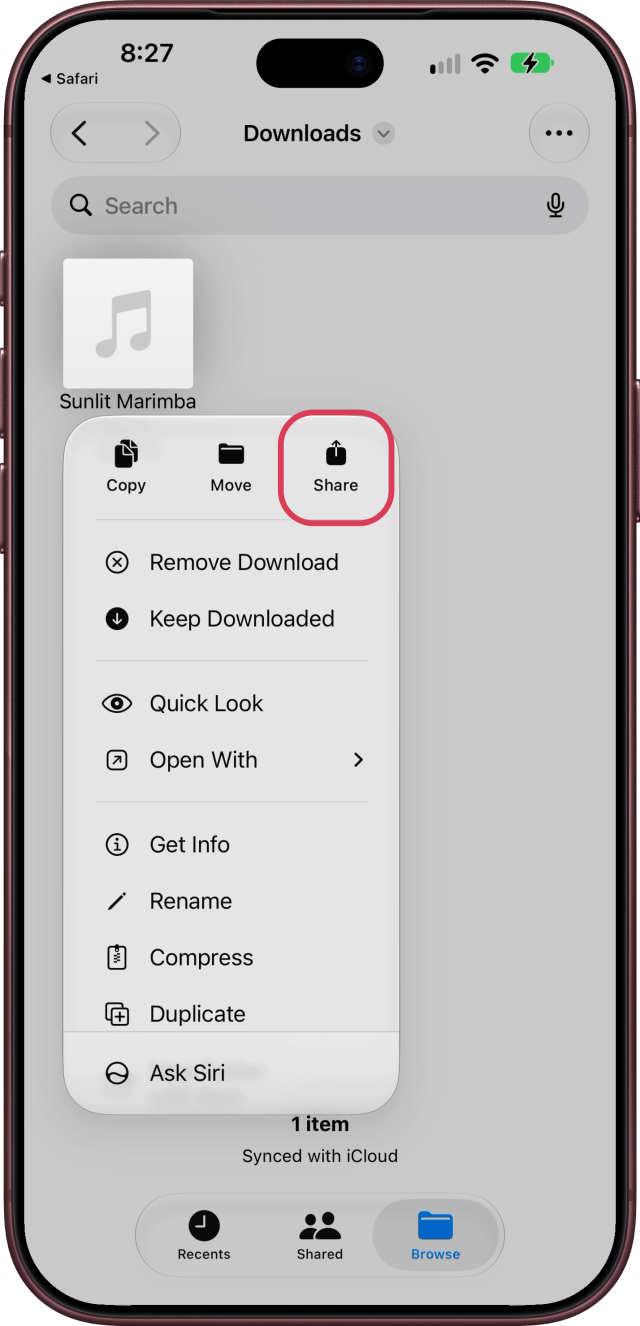
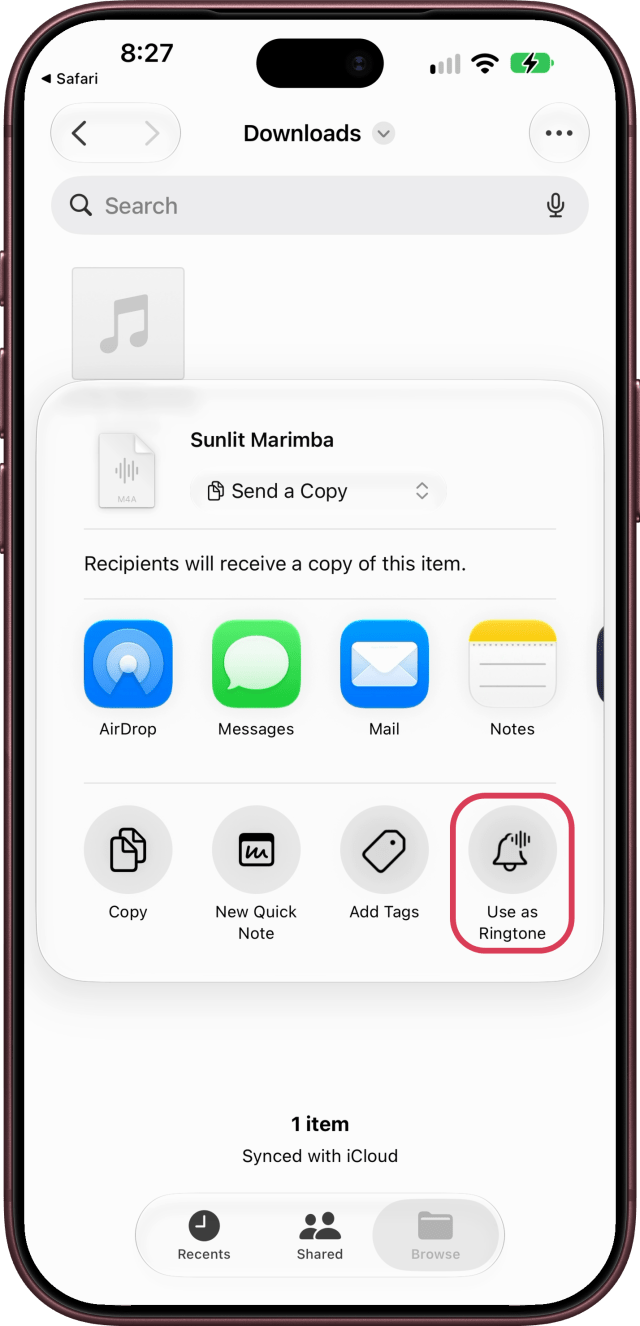
In the Files app, touch and hold the song, then tap Share.
Step Four: Tap Use as Ringtone
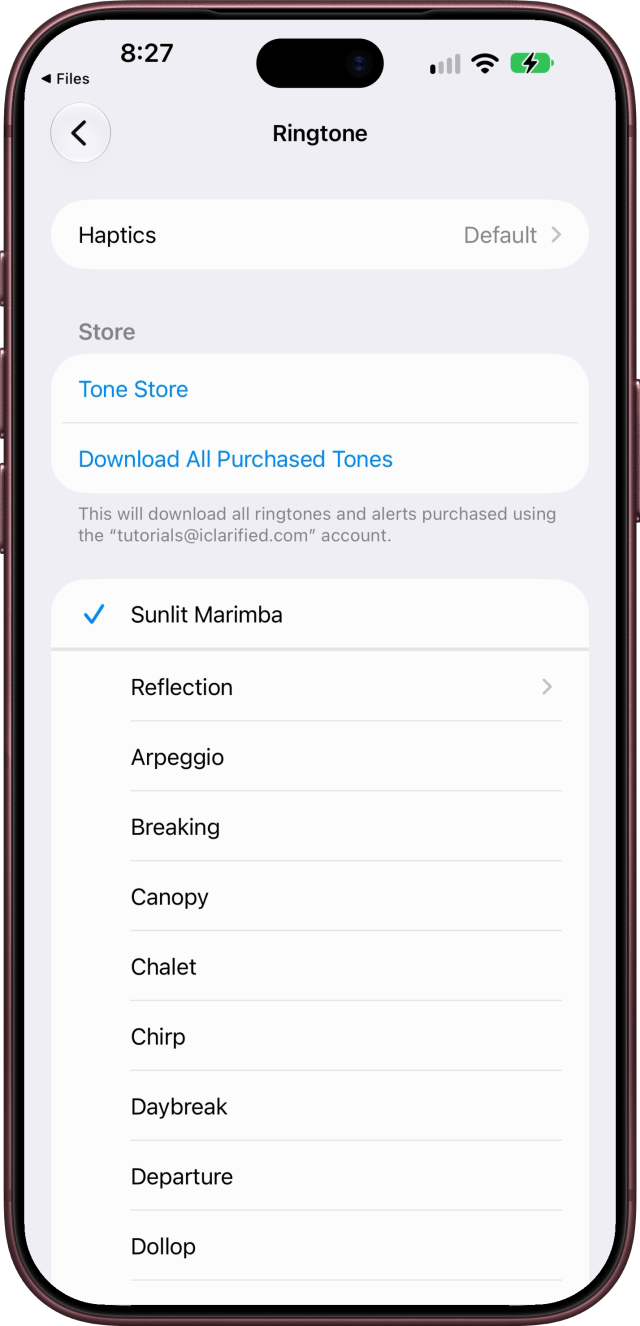
Tap Use as Ringtone. Your iPhone adds the song to your ringtones and sets it as your ringtone right away, opening Settings > Sounds & Haptics > Ringtone with the song ticked at the top of the list.
Use the Song as Your Text Tone
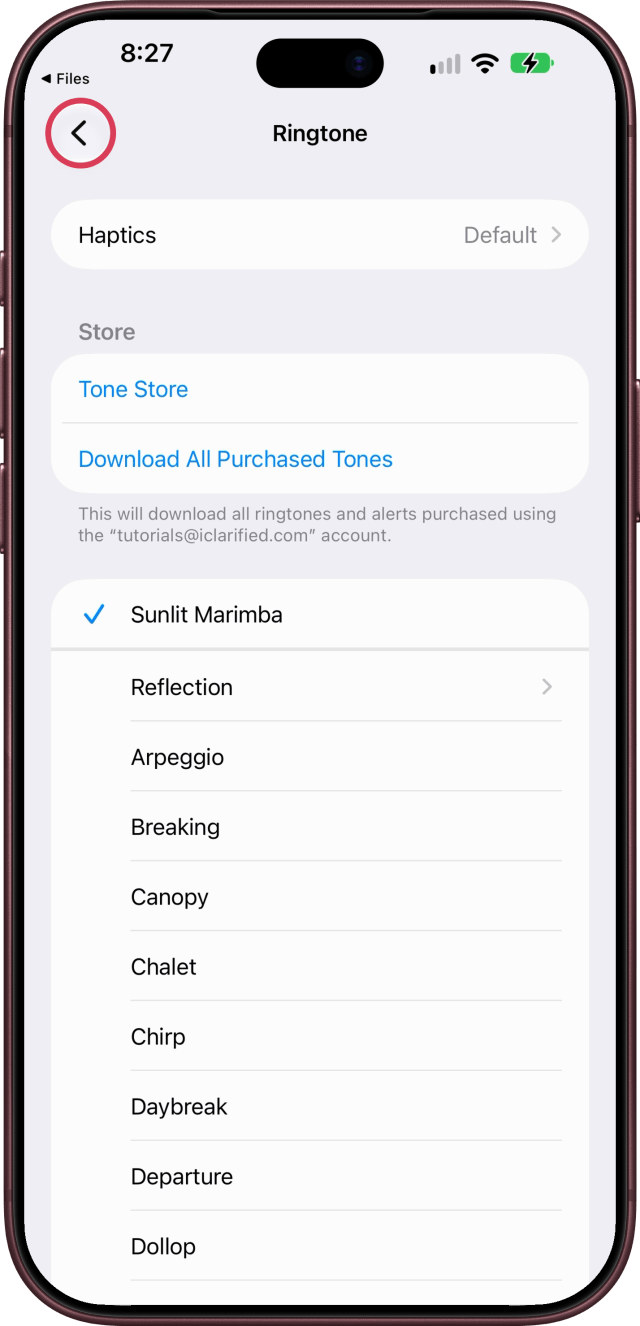
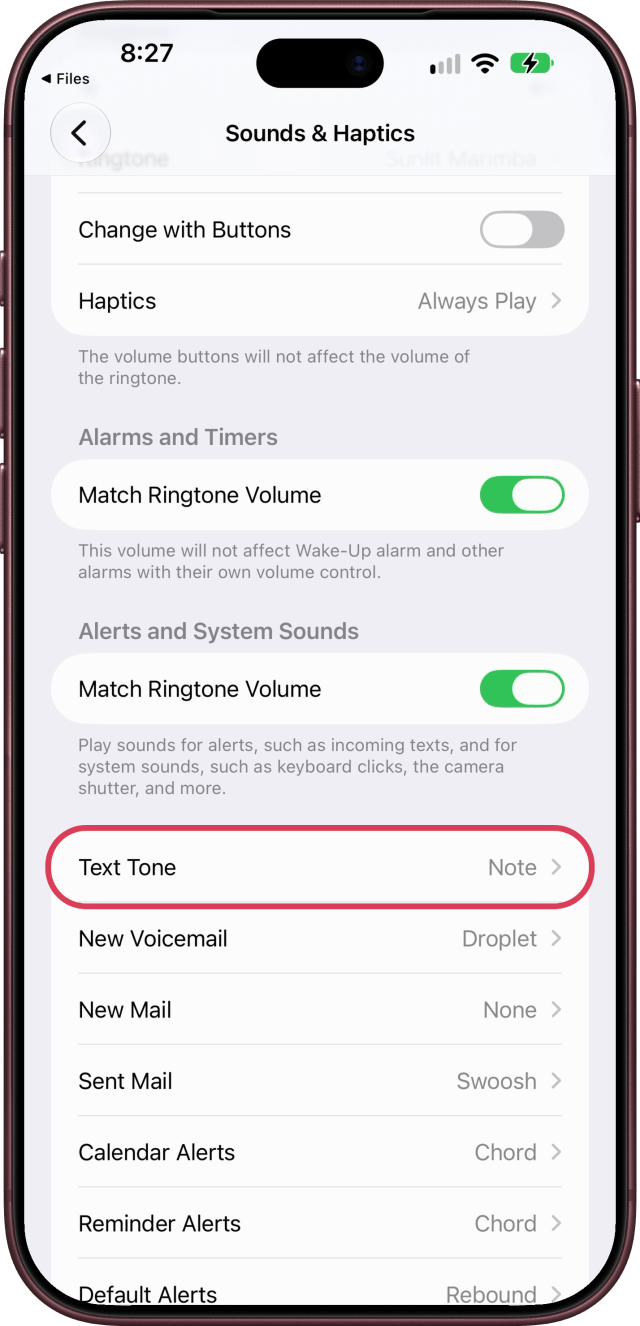
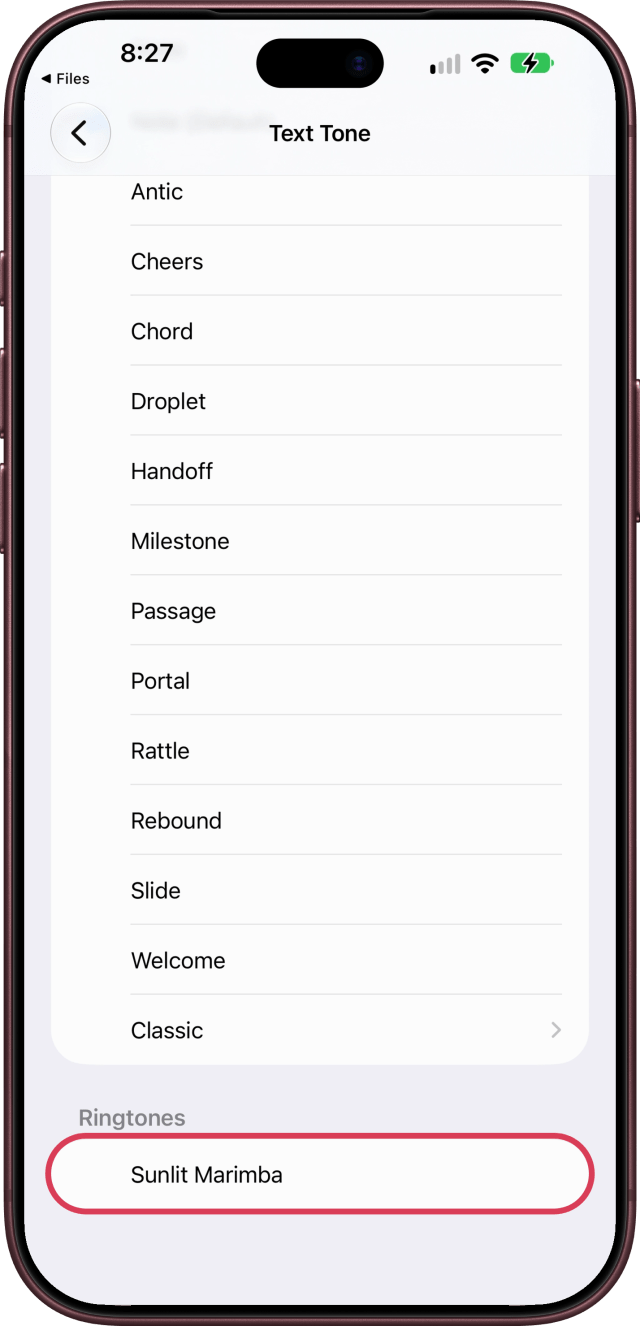
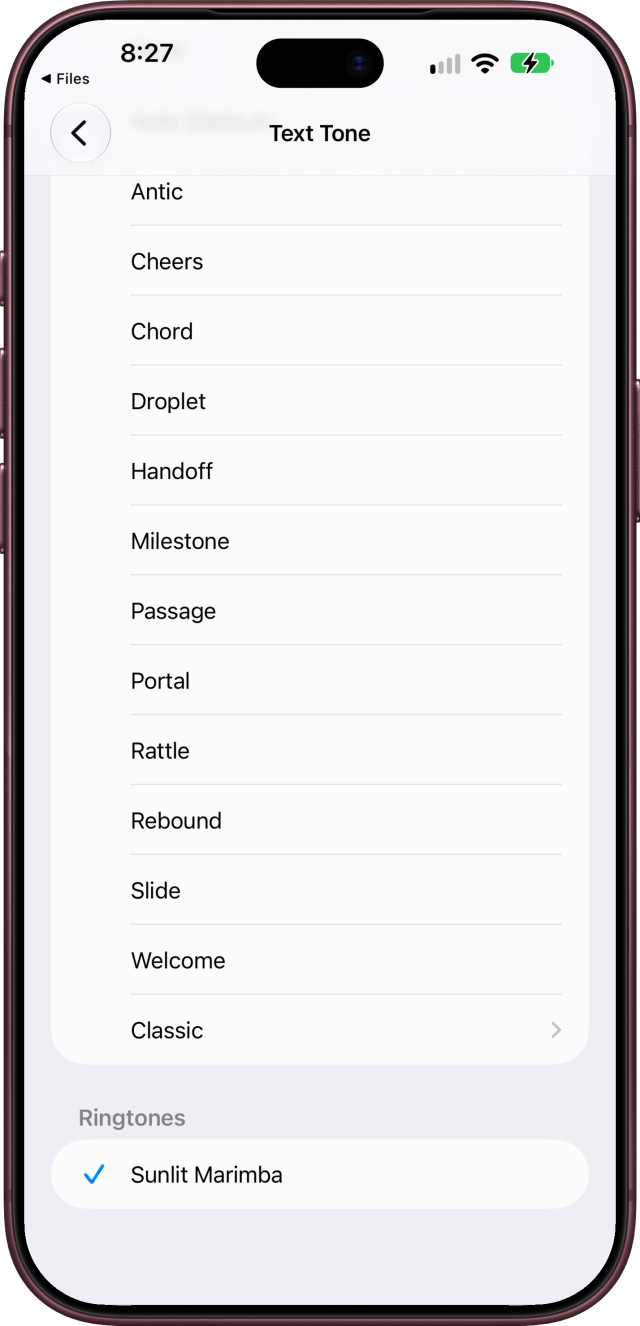
You can use it for messages too. Go back to Sounds & Haptics, scroll down and tap Text Tone, then scroll down and choose your song under Ringtones.
Turn a Longer Song Into a Ringtone With GarageBand
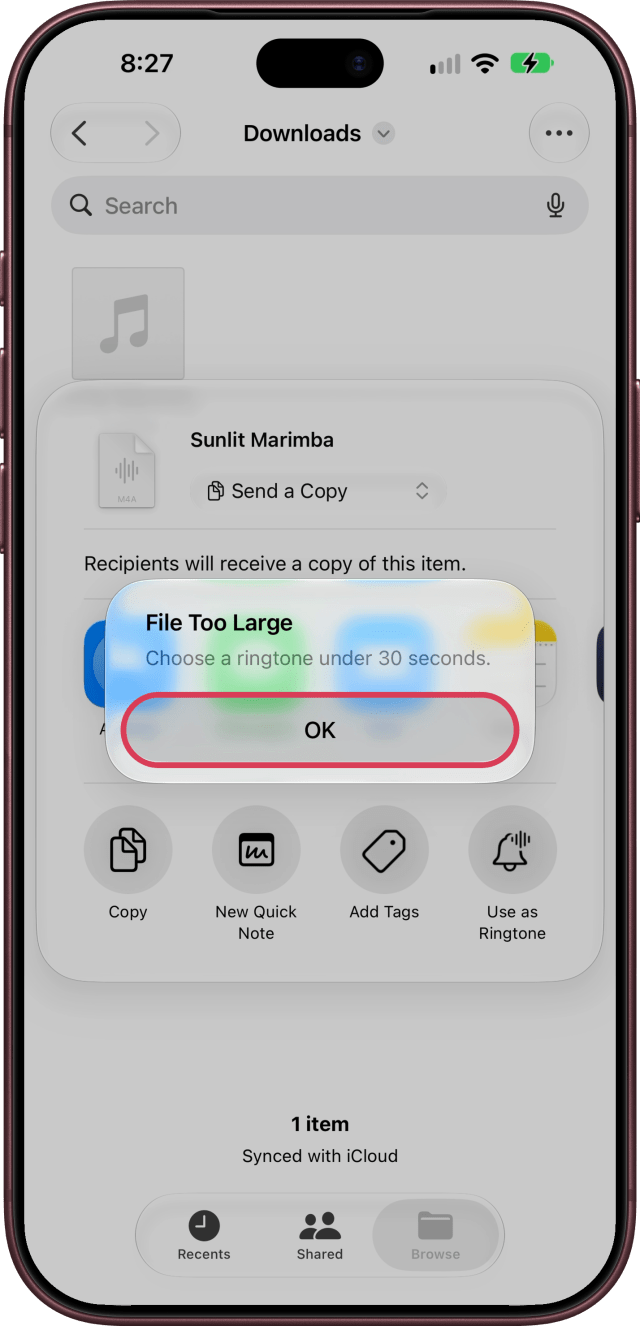
If your song is longer than 30 seconds, Use as Ringtone shows a File Too Large alert, "Choose a ringtone under 30 seconds.", and adds nothing. Tap OK. GarageBand can shorten the song for you.
Step One: Open a New Audio Recording in GarageBand
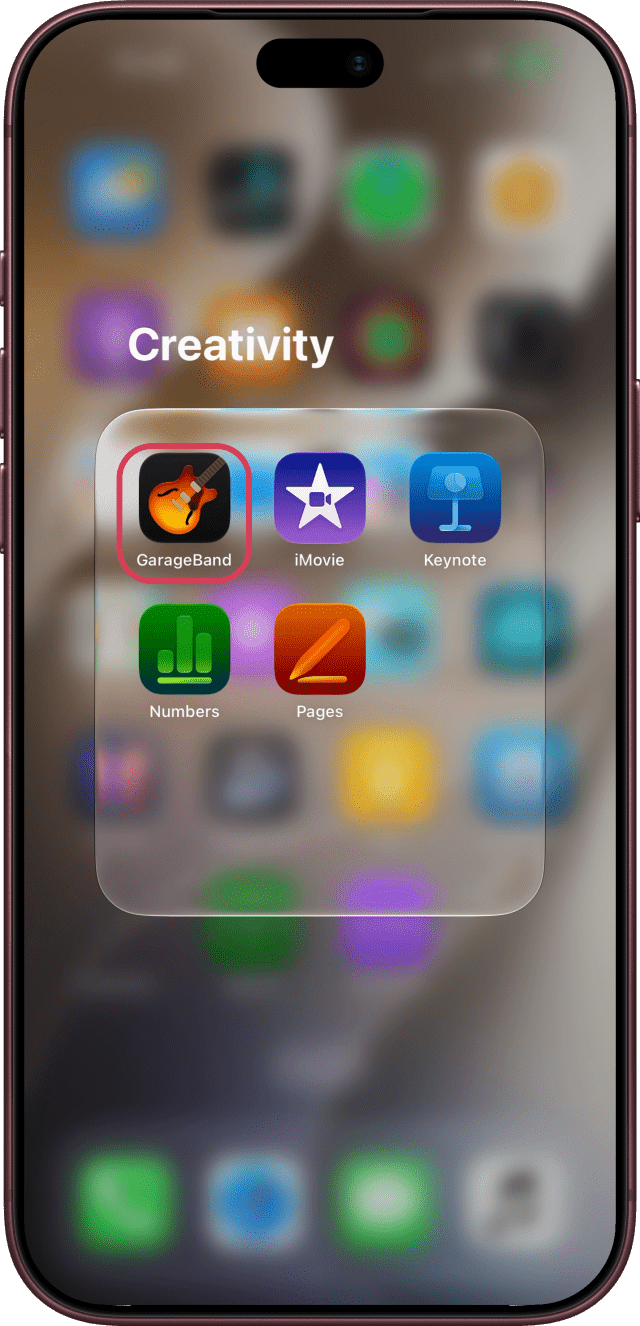
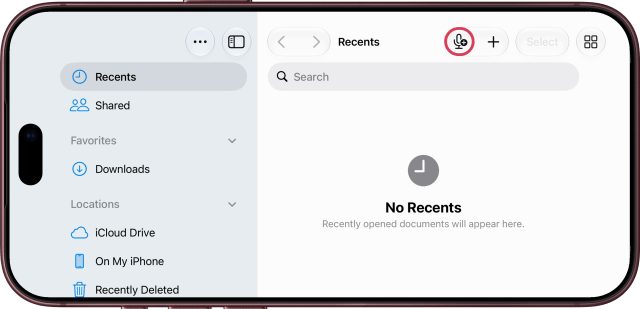
Download your song in Safari the same way. Then open GarageBand, which runs sideways, and tap the New Audio Recording button at the top.
The first time you open it, tap Continue on GarageBand's welcome screens. If you don't let it use the microphone, tap OK on the Audio Recording Disabled alert; a ringtone doesn't need the microphone.
Step Two: Open the Loop Browser
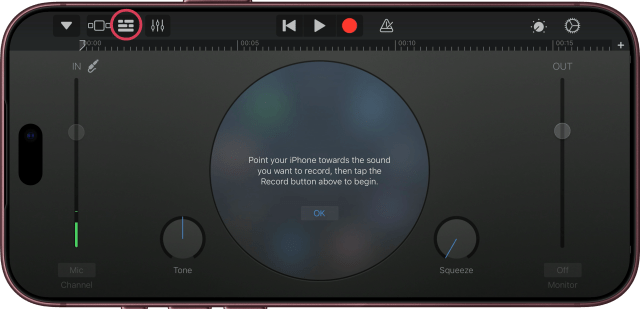
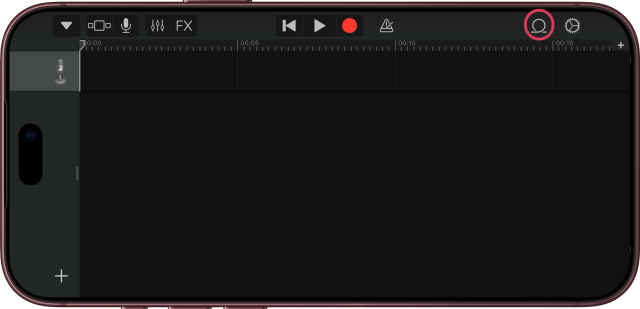
Tap the Tracks button, then the Loop Browser button at the top right.
Step Three: Choose Your Song From the Files App
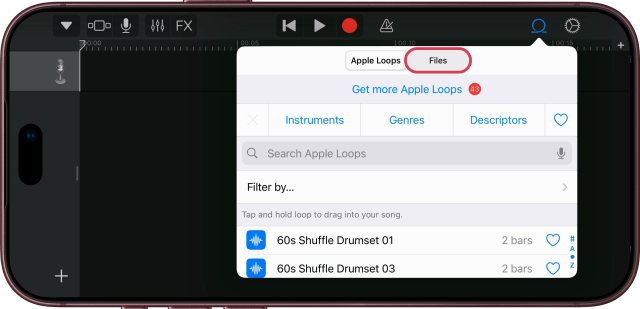
Tap Files, then Browse items from the Files app, and choose your song.
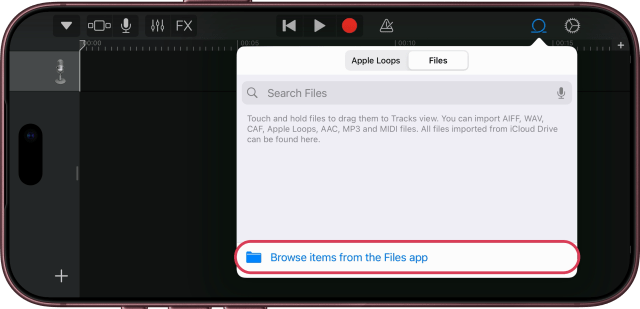
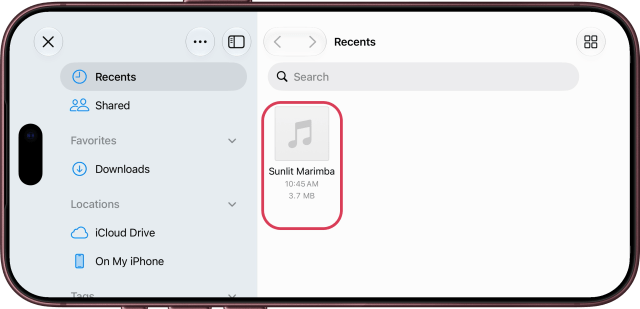
Step Four: Drag the Song to the Start of the Track
Touch and hold your song, and drag it to the start of the track.
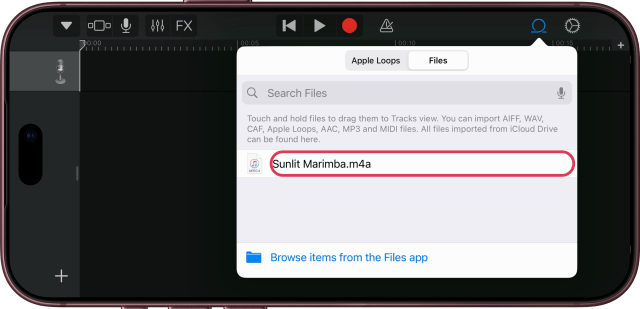
Step Five: Choose the Part You Want
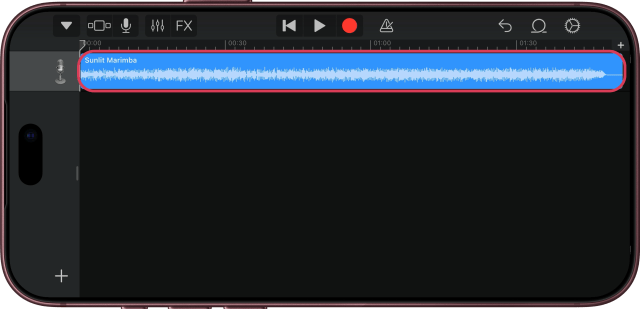
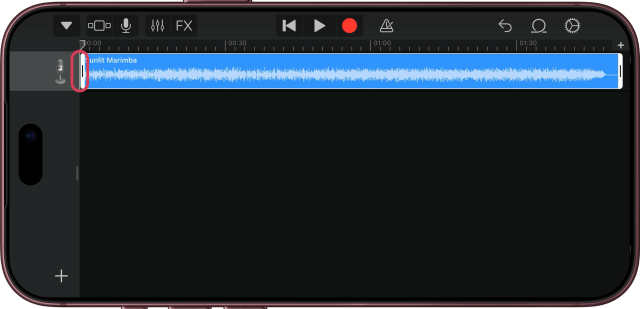
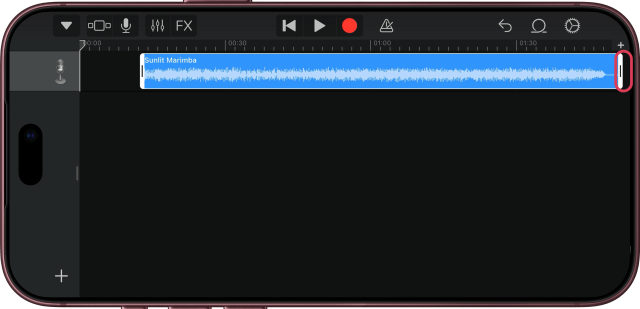
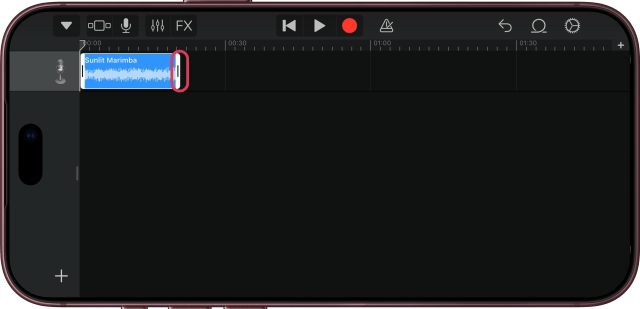
Pinch to zoom out until you can see the whole song. To use part of it, tap the song, then drag its left and right edges around the part you want. A ringtone repeats, and it can be up to 30 seconds long.
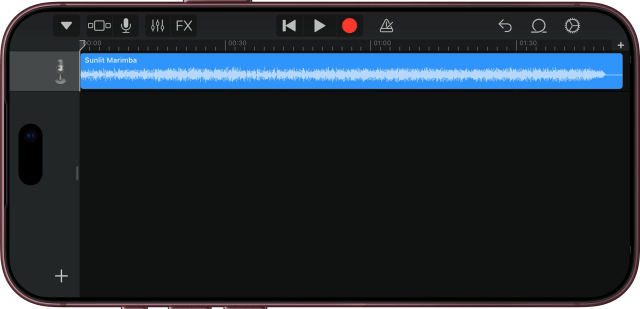
Step Six: Move It Back to the Beginning
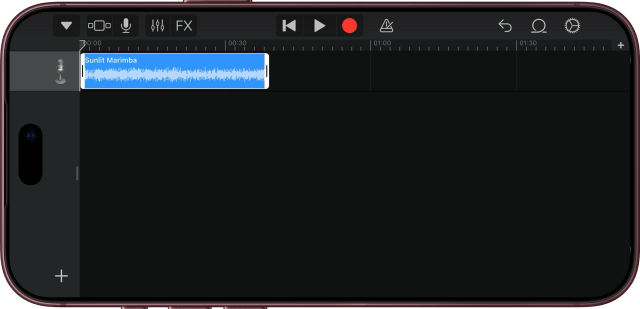
Drag the part you chose back to the beginning of the track.
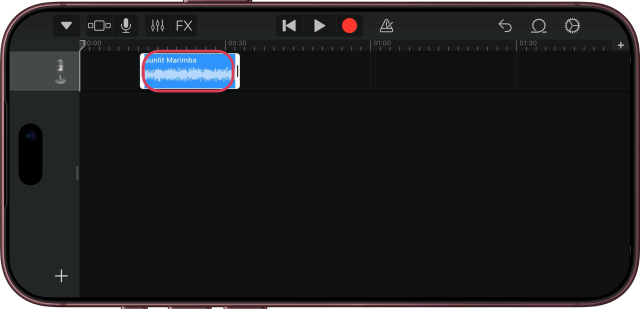
If you choose more than 30 seconds, GarageBand shortens the ringtone to 30 seconds when you share it.
Step Seven: Go to My Songs
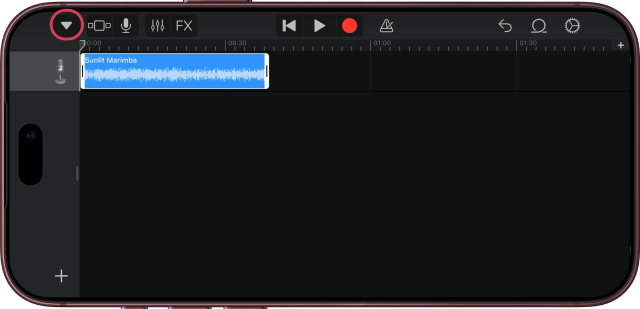
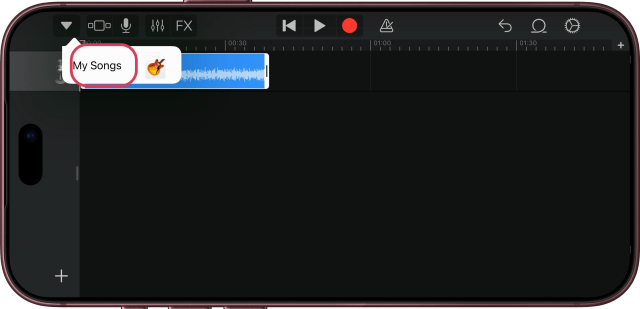
Tap the Navigation button at the top left, then tap My Songs.
Step Eight: Share the Project as a Ringtone
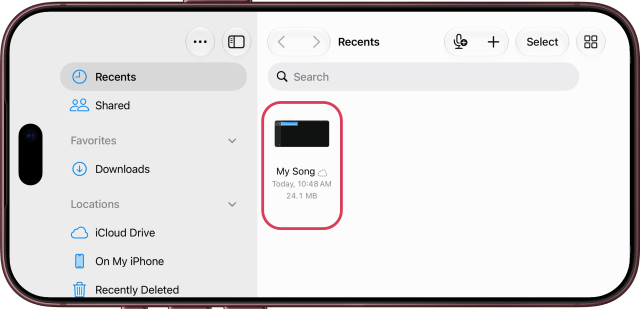
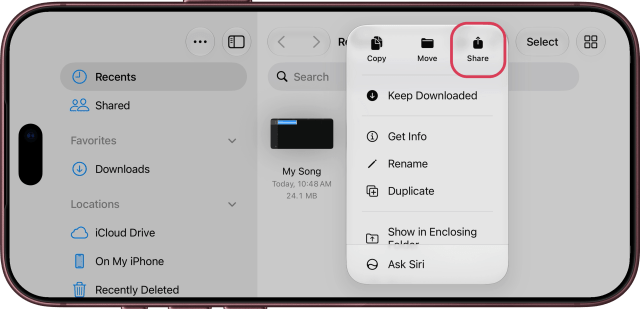
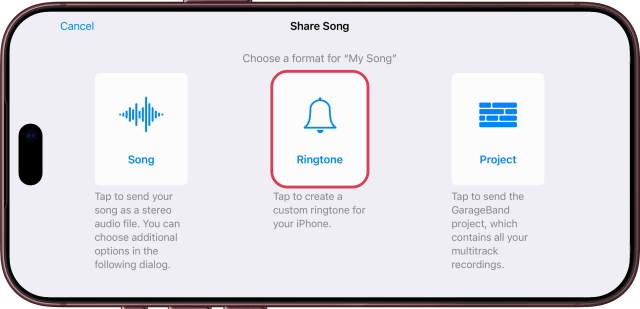
Touch and hold My Song, tap Share, then tap Ringtone.
Step Nine: Tap Continue, Then Export
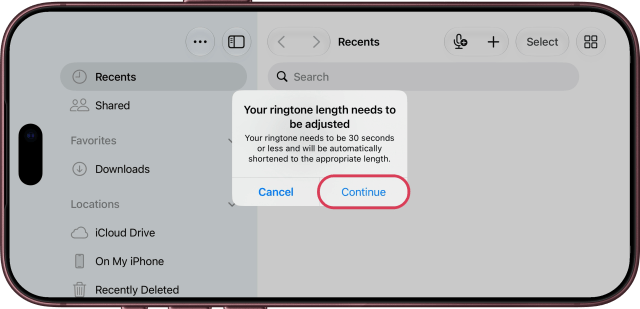
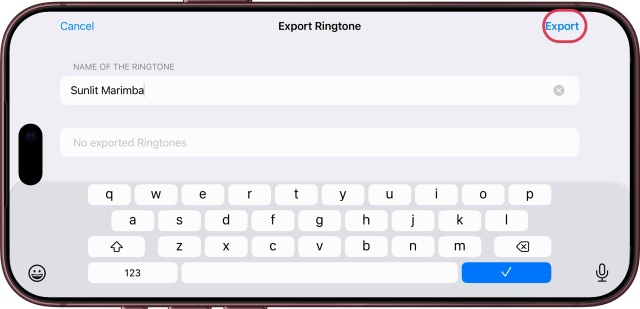
If GarageBand says your ringtone length needs to be adjusted, tap Continue. Give your ringtone a name, then tap Export.
Step Ten: Set It as Your Ringtone
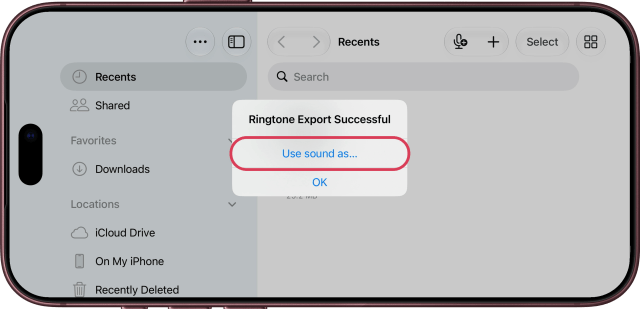
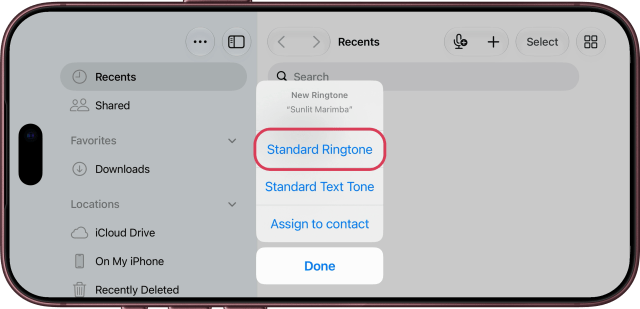
Tap Use sound as…, then Standard Ringtone to set it right away, or Standard Text Tone to use it for messages. The new ringtone also appears at the top of Settings > Sounds & Haptics > Ringtone.
Switch Back or Remove the Song
To switch back, open Settings > Sounds & Haptics > Ringtone and choose another ringtone. To remove the song, swipe left on it in that list and tap Delete.