These are instructions on how to enable and use the iTunes Genius feature.
Note: This tutorial was written in 2008 for iTunes 8, and the steps and screenshots show that version. Genius is still available today: - On a Mac (macOS Catalina and later), it's in the Music app: choose File > Library > Turn On Genius. Then select a song and choose File > New > Genius Playlist, or choose Controls > Genius Shuffle (Apple). - On Windows, iTunes uses the same menus (Apple). - To turn Genius off, choose File > Library > Turn Off Genius. Apple says you can't turn it off if your library is synced to multiple devices. - The Genius sidebar with its iTunes Store recommendations, shown in Steps Two and Ten, isn't part of Apple's current Genius instructions.
Genius makes playlists from songs in your library that go great together. The Genius sidebar recommends music you do not already have from the iTunes Store.
Step One Launch iTunes by selecting its icon in the dock.
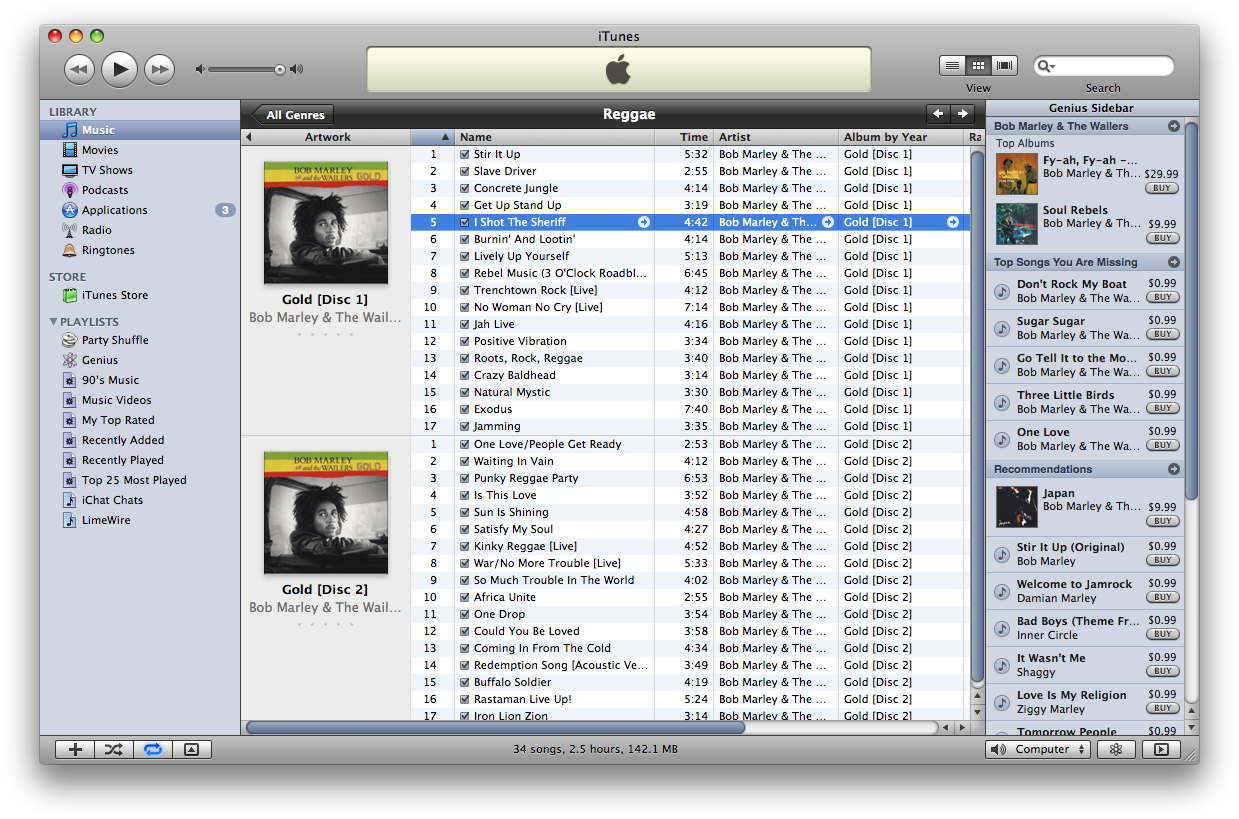
Step Two Notice the new Genius bar at the right of the iTunes window. If you do not see it you can click on the Genius sidebar toggle button.
Step Three Click the Turn on Genius button in the sidebar.
Step Four Click the Turn on Genius button again to continue.
Step Five Enter your Apple ID and password then click the Continue button. If you do not have an Apple ID you can sign up for one.
Step Six Check the box to agree to the Genius Terms and Conditions and then click the Continue button.
Step Seven iTunes will now gather information about your iTunes Library.
Step Eight It will then send the information to Apple.
Step Nine You will now be informed that Genius has been turned on. You can now create Genius playlists and use the Genius sidebar.
Step Ten Notice that if you select a song from your iTunes music library the Genius sidebar will populate with Top Albums, Top Songs You Are Missing, and Recommendations.
Step Eleven Select a song from your iTunes library and click the Genius button.
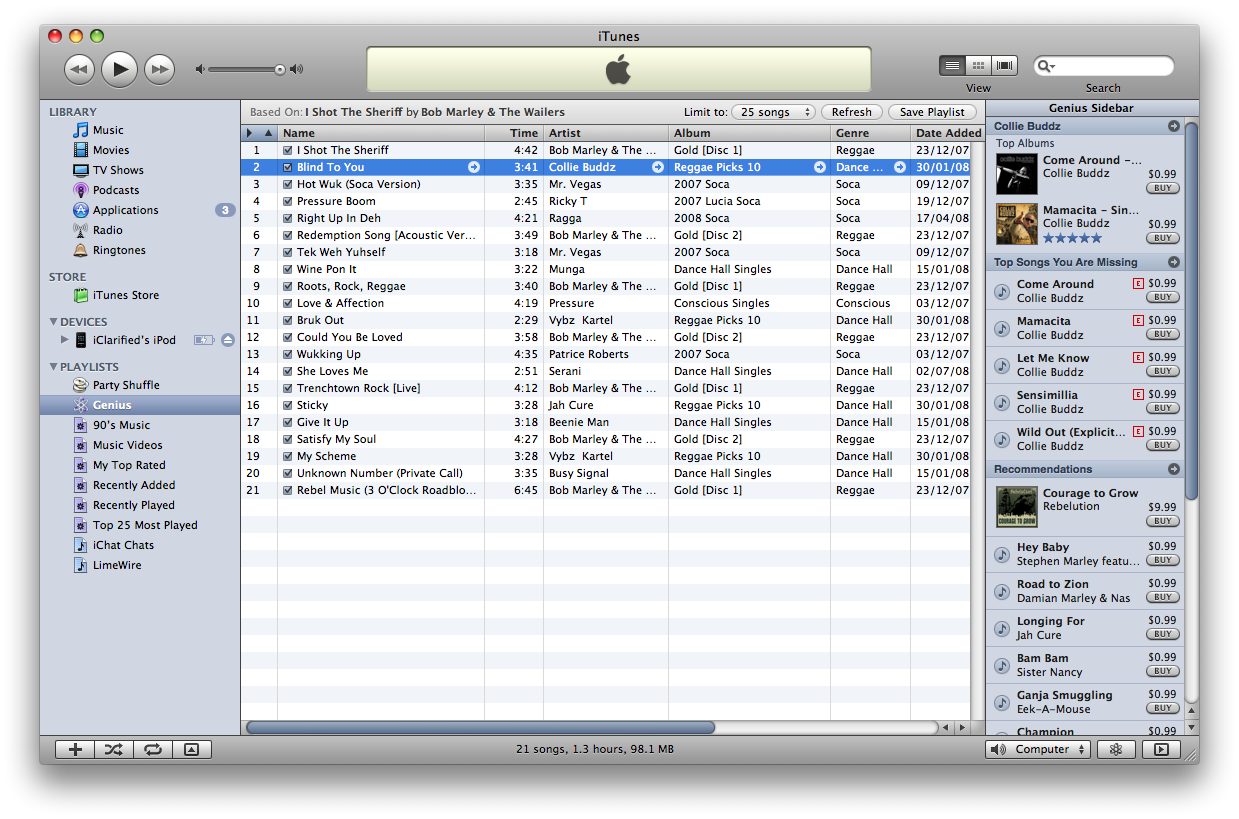
Step Twelve iTunes will now populate a list of similar songs from your library and create a new Genius playlist.
Step Thirteen You can limit the Genius playlist to 25, 50, 75, or 100 songs, refresh the playlist or save the playlist.
Step Fourteen Notice if you click a different song in the playlist the Genius sidebar will again populate with Apple's recommendations.
Get the iClarified Daily Newsletter
Apple news, rumors, tutorials, price drop alerts, in your inbox every evening, free.
Unsubscribe at any time.
Success!
You have been subscribed.
Add Comment
Would you like to be notified when someone replies or adds a new comment?
Yes (All Threads)
Yes (This Thread Only)
No
Notifications
Would you like to be notified when we post a new Apple news article or tutorial?