
![How To Update Your iPhone to iOS 27 [Video]](/images/tutorials/102243/483603/483603-64.png "How To Update Your iPhone to iOS 27 [Video]")
On an iPhone running iOS 26, the upgrade to iOS 27 appears at the bottom of the Software Update screen under ALSO AVAILABLE. If an iOS 26 point update is waiting, the prominent Update Now button installs that release and leaves your iPhone on iOS 26.
iOS 27 runs on iPhone 11 and later, along with the second-generation iPhone SE and later.
We upgraded an iPhone 17 Pro Max and an iPhone 16 Pro Max from iOS 26.7 to iOS 27.0 to check each step below.
Upgrade From iOS 26 to iOS 27
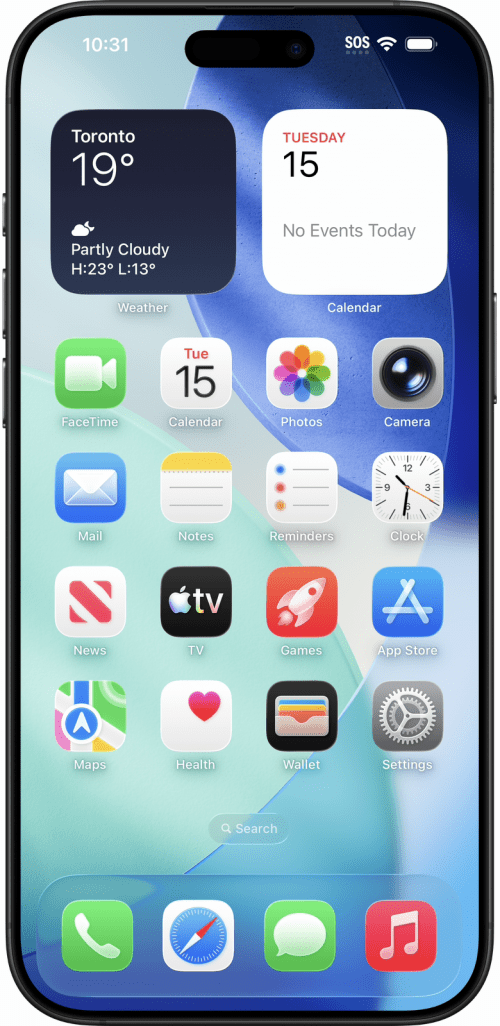
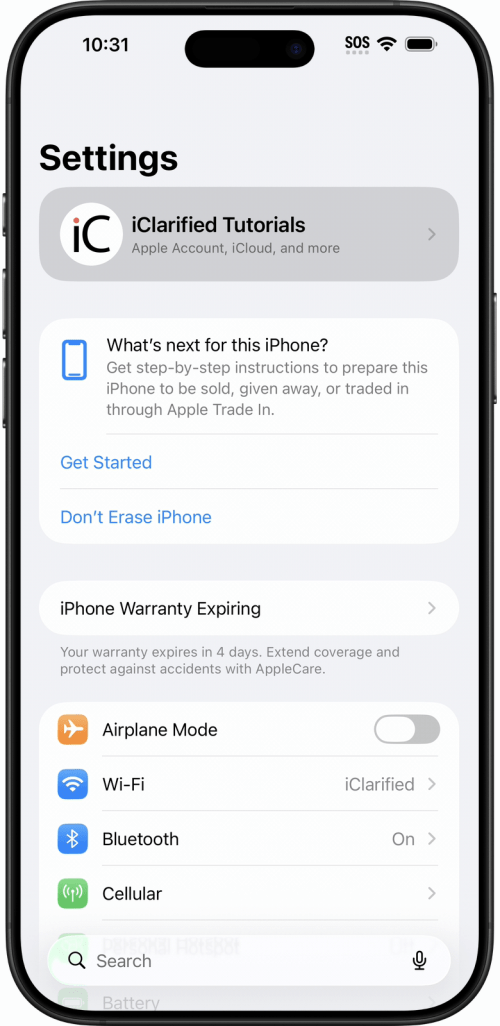
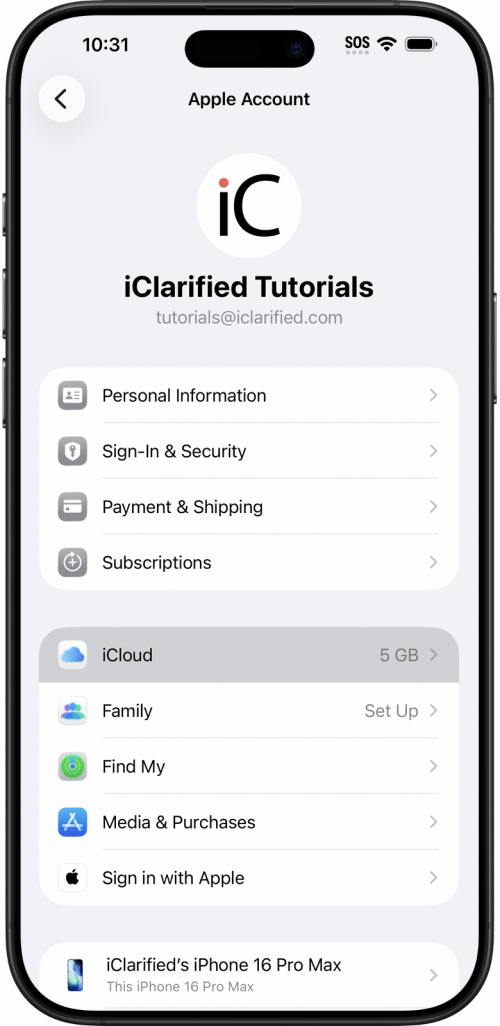
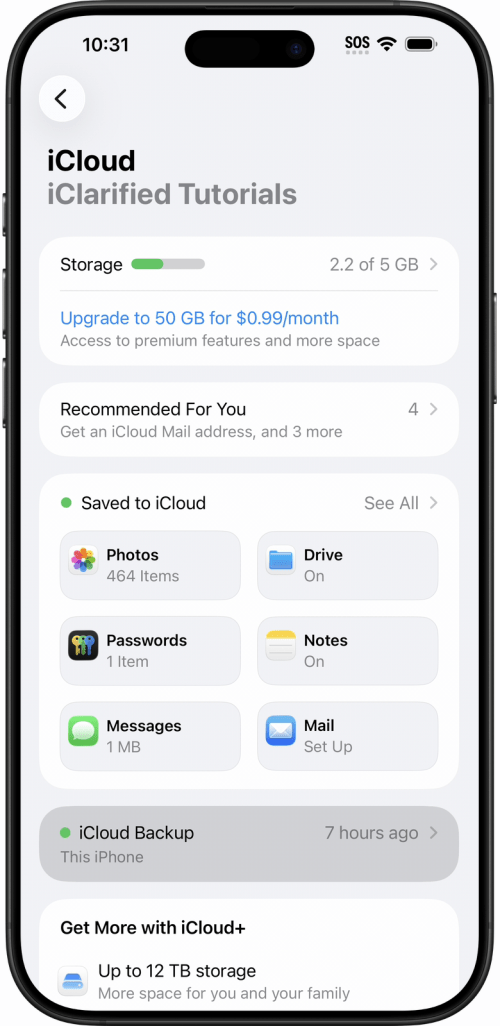
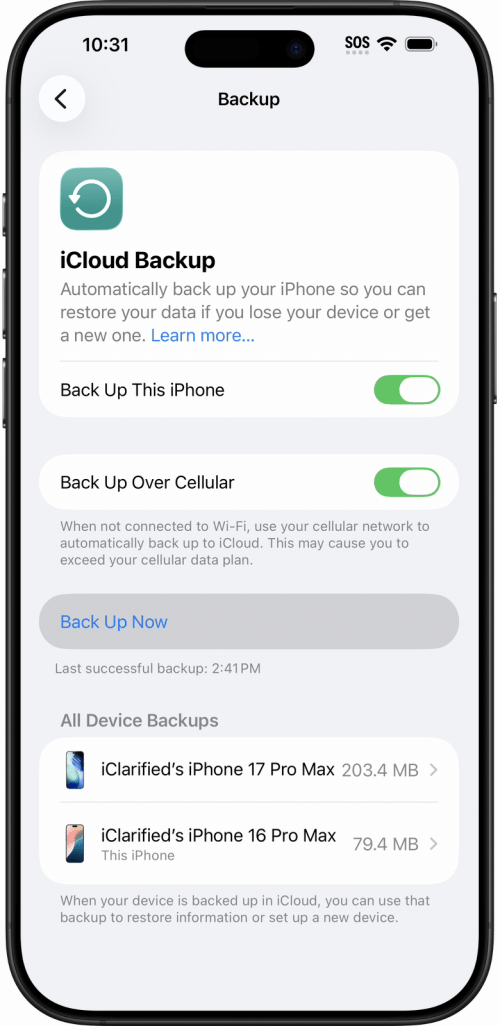
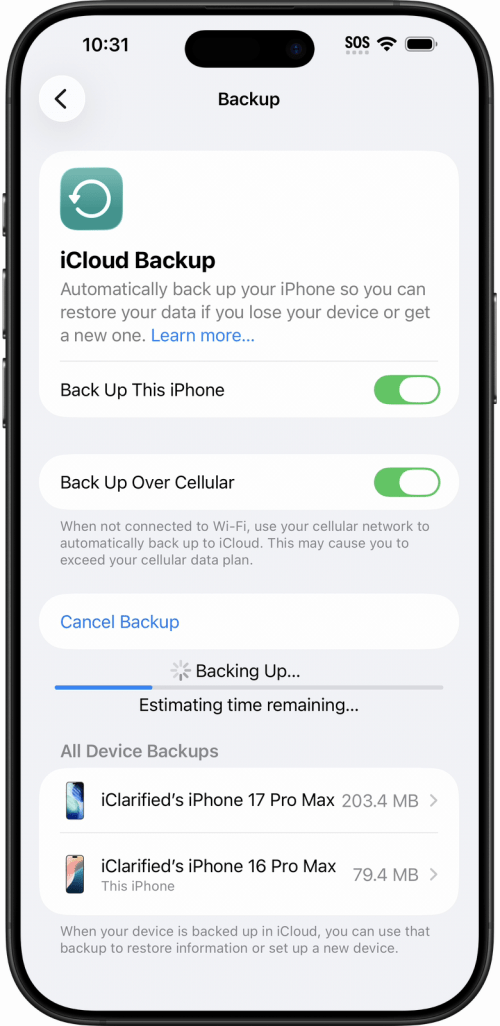
Step One: Back Up Your iPhone
Open the Settings app and tap your name, then iCloud and iCloud Backup. Tap Back Up Now and let it finish. A backup to a Mac or PC works just as well.
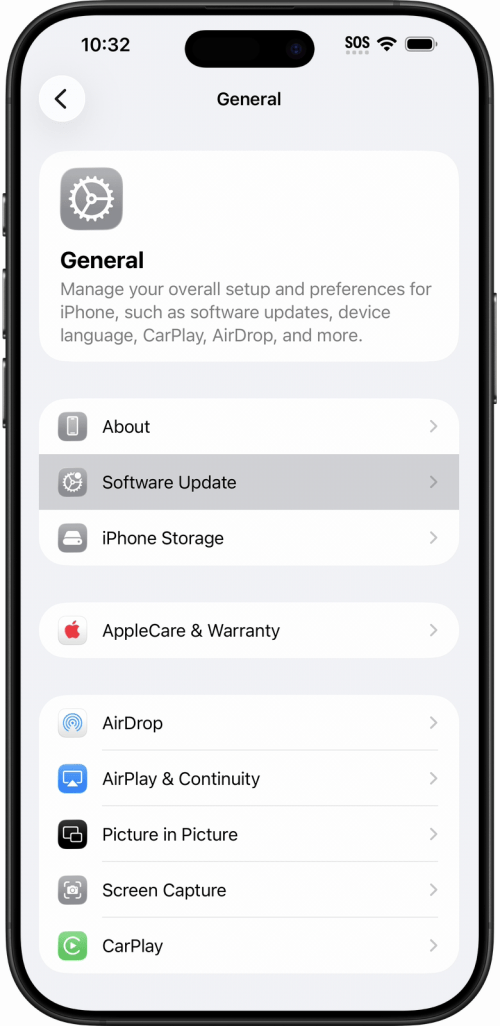
Step Two: Open Software Update
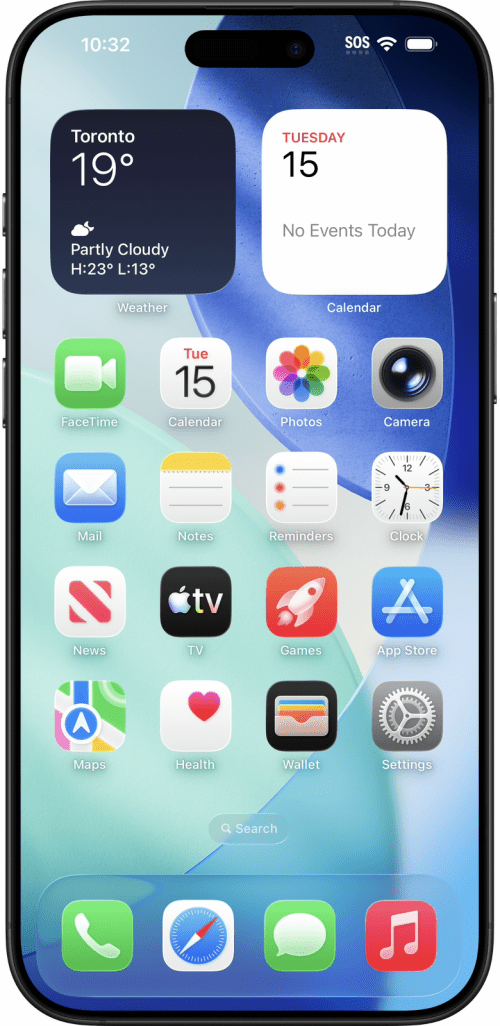
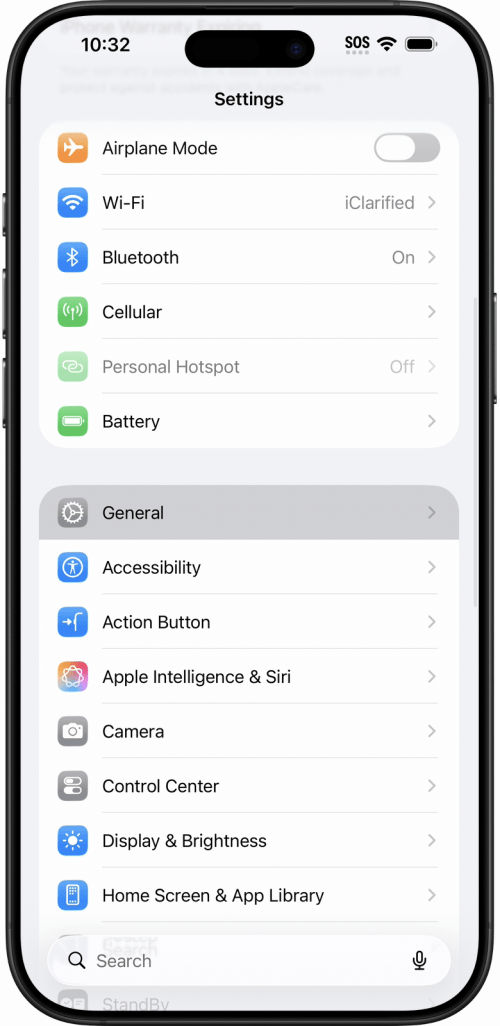
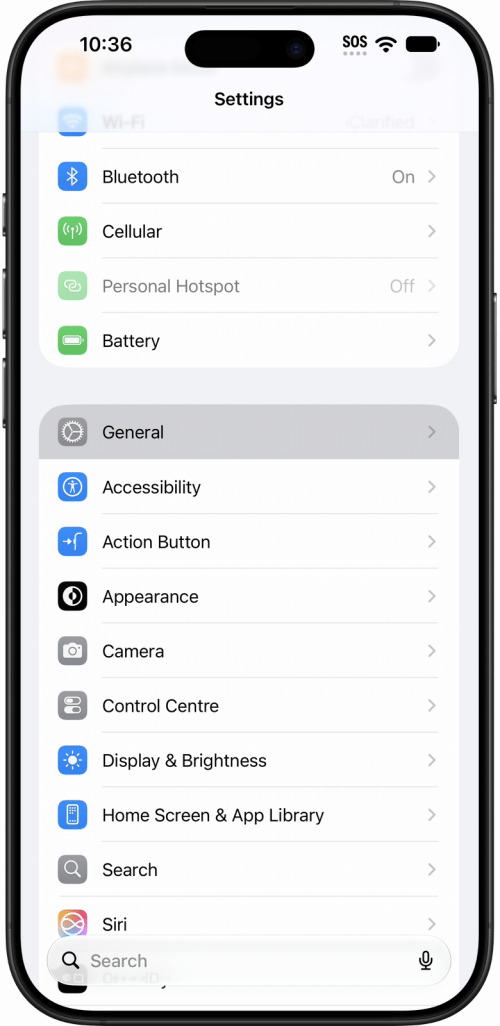
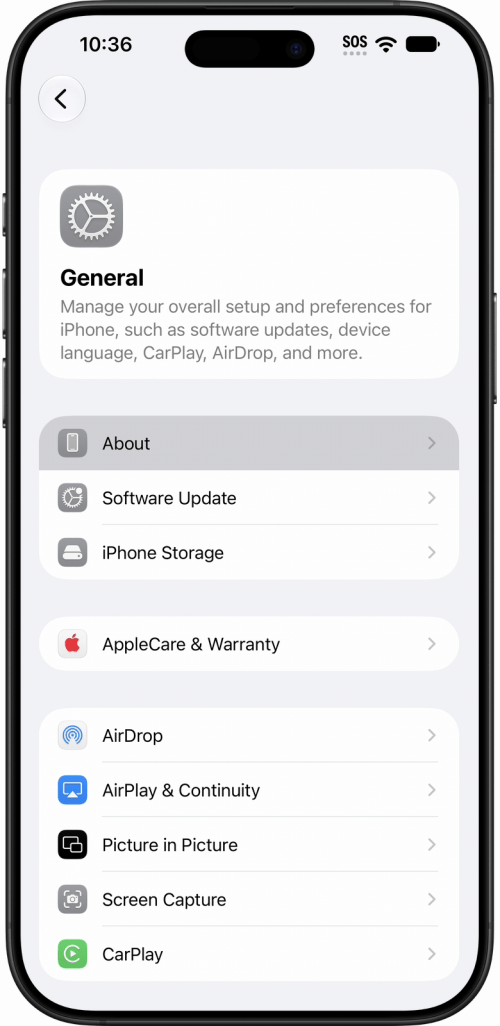
Connect your iPhone to Wi-Fi and make sure it has enough battery or is plugged into power. Open Settings, tap General, then Software Update. Your iPhone checks Apple's servers, which takes a few seconds.
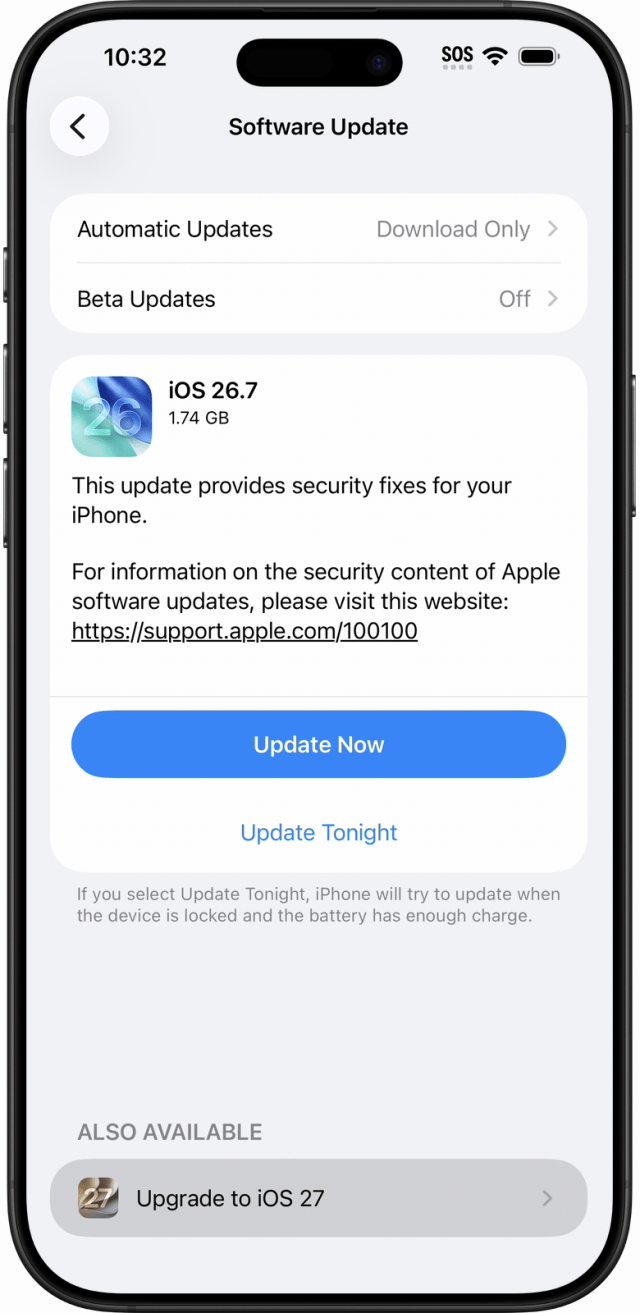
Step Three: Tap Upgrade to iOS 27 Under Also Available
The top of the screen reports where you are now, which on our iPhone read iOS 26 is up to date. The upgrade is below it: under ALSO AVAILABLE, tap Upgrade to iOS 27. That row opens another screen rather than starting the update.
If an iOS 26 point update is waiting, it appears at the top of the same screen with its own Update Now button. That button installs the point update and leaves your iPhone on iOS 26. Continue to ALSO AVAILABLE and tap Upgrade to iOS 27 instead.
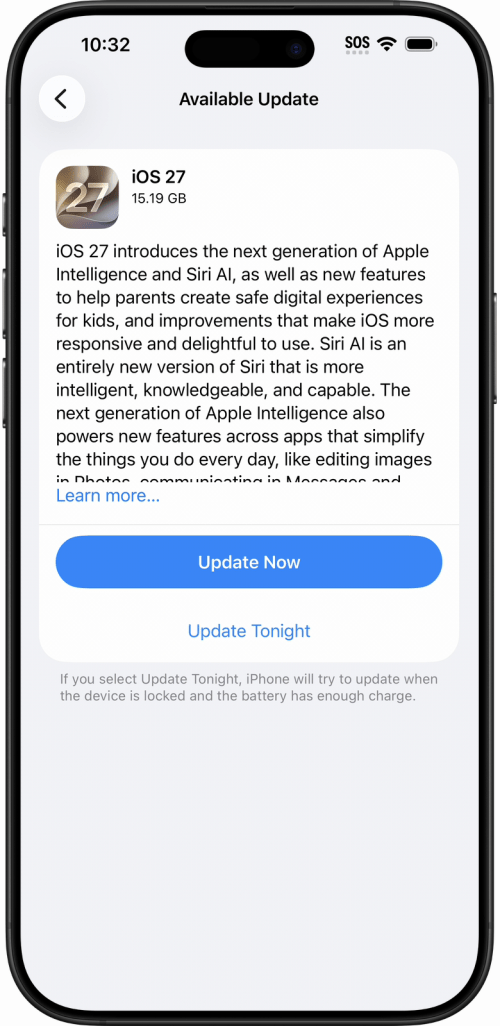
Step Four: Start the Upgrade
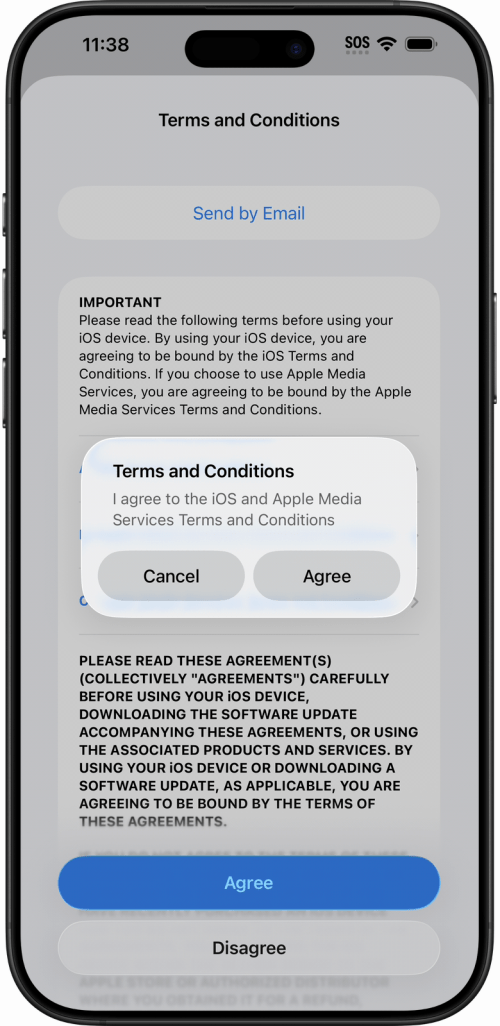
The Available Update screen describes what iOS 27 adds and how large the download is - 15.19 GB on our iPhone 16 Pro Max, and yours may differ. Tap Update Now, or Update Tonight to install it overnight. iOS then shows a Terms and Conditions screen: tap Agree, then tap Agree again on the confirmation sheet.
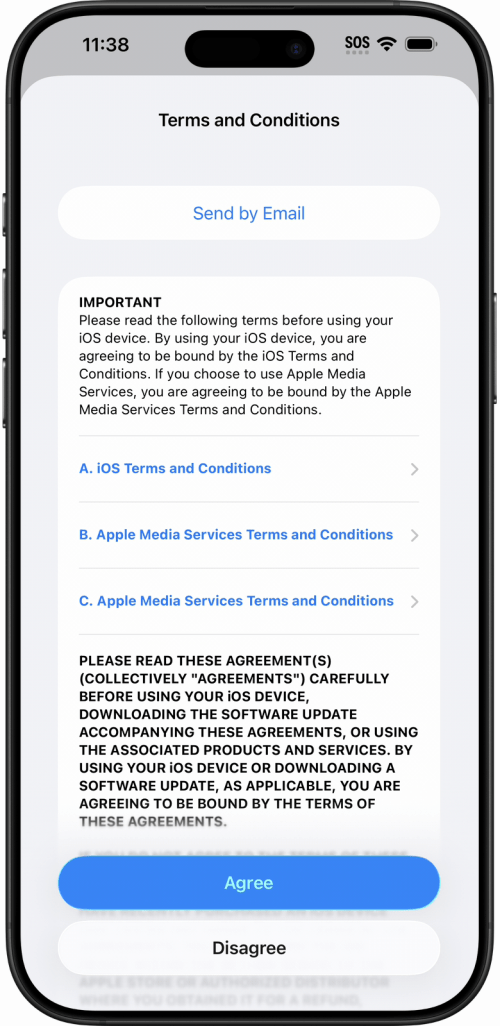
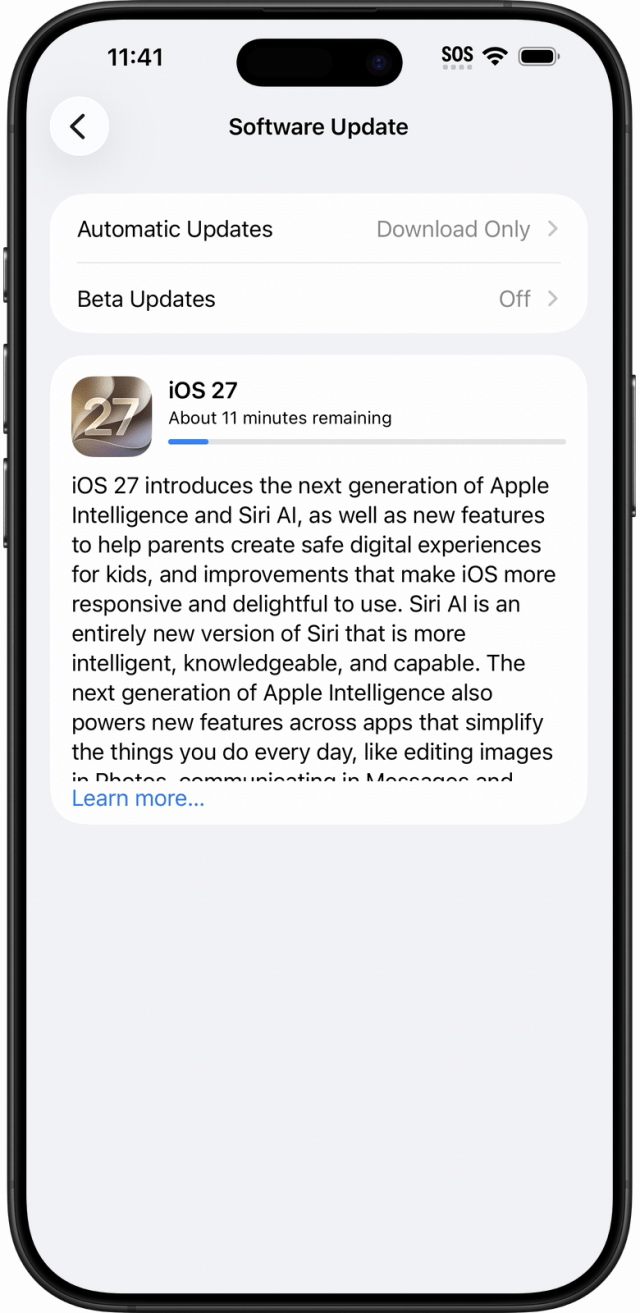
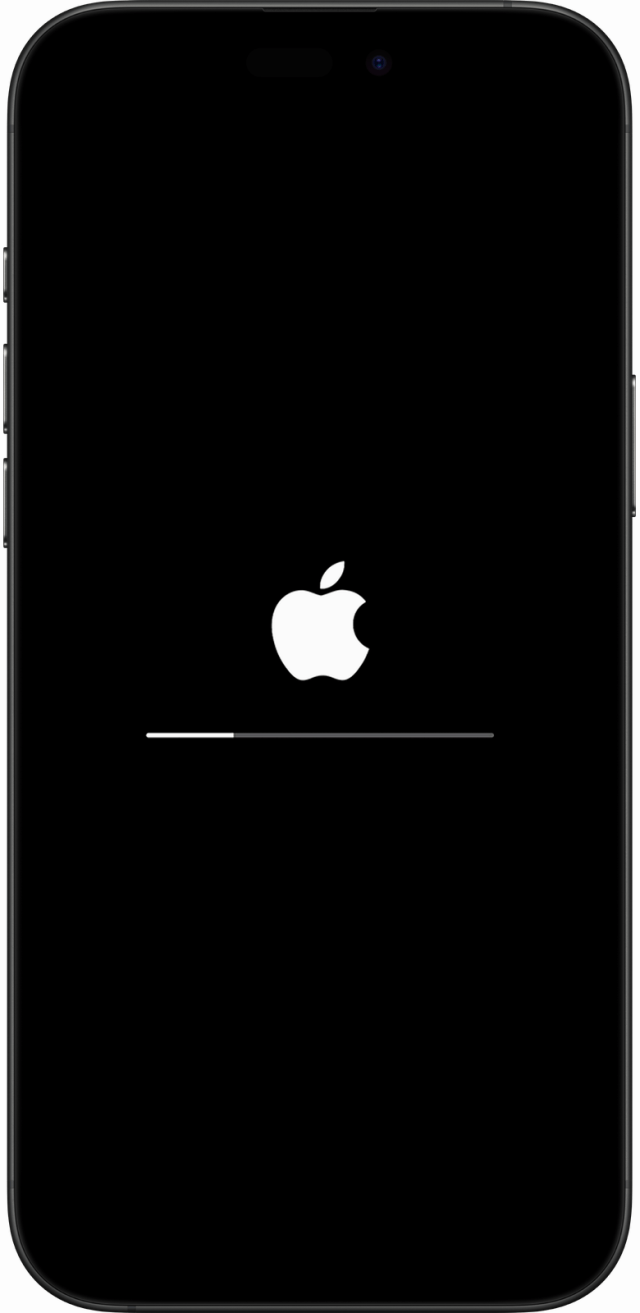
Your iPhone downloads the update, prepares it, and restarts to install. An Apple logo and a progress bar appear while it works, and it may restart more than once. Keep your iPhone sufficiently charged until the installation finishes.
Step Five: Check That You Are on iOS 27
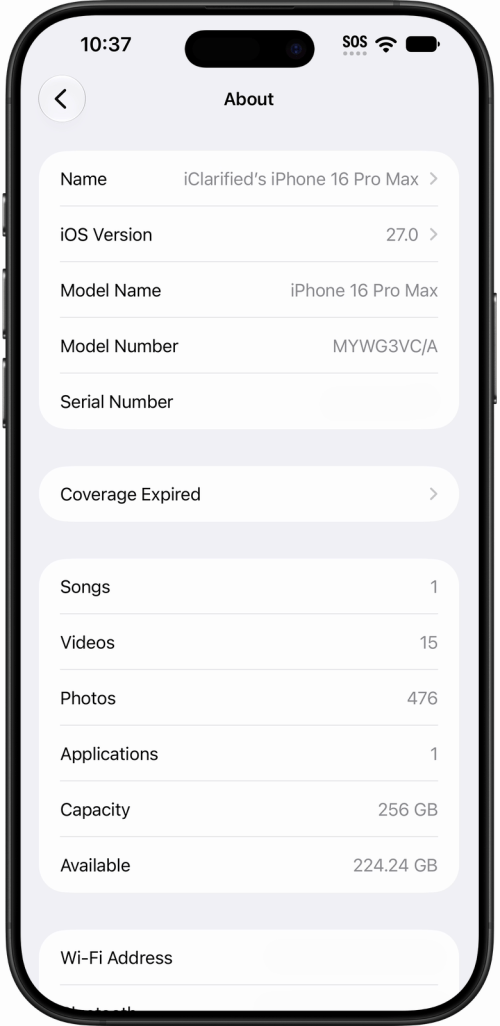
Open Settings, tap General, then About. Next to iOS Version you should now see iOS 27.0 or a later iOS 27 release.
If You Do Not See the Upgrade
If your iPhone is on the compatibility list but the upgrade has not appeared yet, wait a while and check Software Update again.

![Apple Previews What's Coming to Apple TV in November 2026 [Video]](/images/news/103230/103230/103230-160.jpg "Apple Previews What's Coming to Apple TV in November 2026 [Video]")
![Bots Are Snapping Up iPhone Duo Pickup Stock Within Seconds [Report]](/images/news/103227/103227/103227-160.jpg "Bots Are Snapping Up iPhone Duo Pickup Stock Within Seconds [Report]")
![Apple HomeView Could Double as a HomeKit Security Camera [Leak]](/images/news/103224/103224/103224-160.jpg "Apple HomeView Could Double as a HomeKit Security Camera [Leak]")



![How To Back Up Your iPhone to an External Drive on Mac [Video]](/images/tutorials/72786/72786/72786-160.jpg "How To Back Up Your iPhone to an External Drive on Mac [Video]")
![How To Find Your IP Address on iPhone [Video]](/images/tutorials/496/496/496-160.jpg "How To Find Your IP Address on iPhone [Video]")


![M5 MacBook Air Up to $200 Off, 13-Inch From $1,099.99 [Deal]](/images/news/103233/103233/103233-160.jpg "M5 MacBook Air Up to $200 Off, 13-Inch From $1,099.99 [Deal]")
![Apple Watch Ultra 4 Drops Back to All-Time Low of $699.99 ($99 Off) [Deal]](/images/news/103218/103218/103218-160.jpg "Apple Watch Ultra 4 Drops Back to All-Time Low of $699.99 ($99 Off) [Deal]")
![AirTag 2 4-Pack Hits All-Time Low of $69.99 ($29 Off) [Deal]](/images/news/103203/103203/103203-160.jpg "AirTag 2 4-Pack Hits All-Time Low of $69.99 ($29 Off) [Deal]")

![Beats Headphones, Earbuds, and Pill Speaker Are Up to 41% Off [Deal]](/images/news/103026/103026/103026-160.jpg "Beats Headphones, Earbuds, and Pill Speaker Are Up to 41% Off [Deal]")
