To scan documents on iPhone, open the Preview app and tap Scan Documents, then hold your iPhone over the page. It captures the page by itself and saves it as a PDF you can share.
The Notes and Files apps have the same scanner. Preview is the quickest way to a PDF, because your scan opens with Share right there.
We checked these steps on an iPhone 18 Pro Max running iOS 27.
Scan a Document to PDF With Preview
Step One: Open Preview
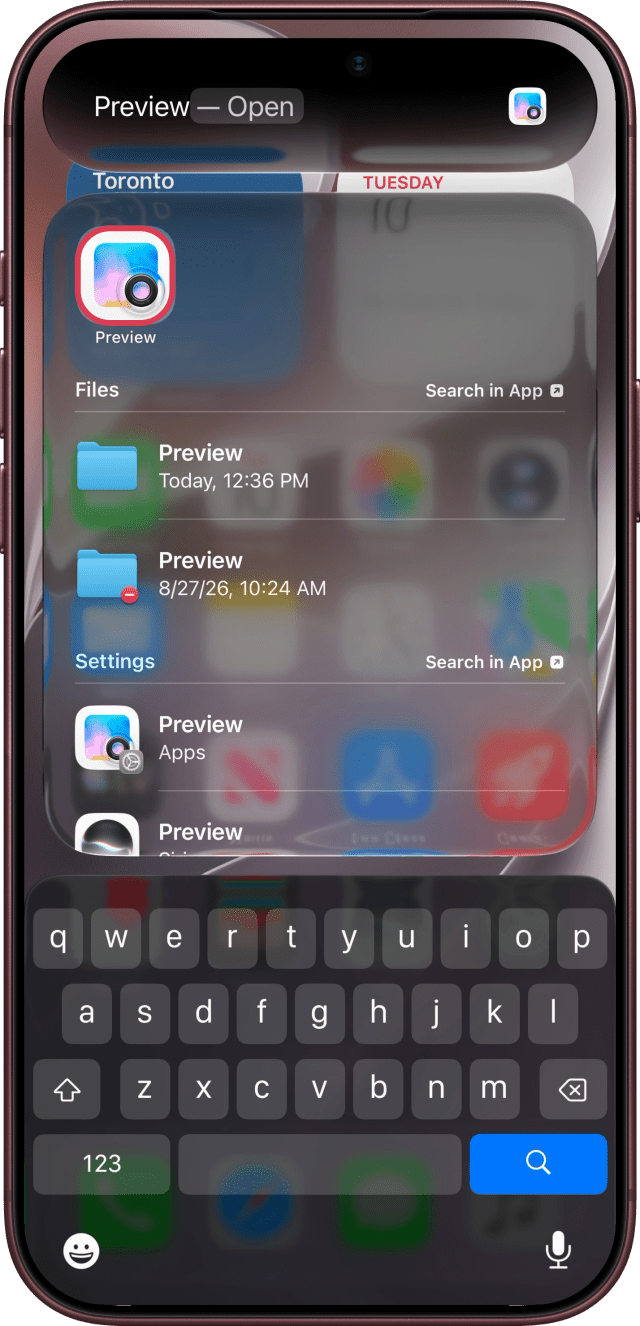
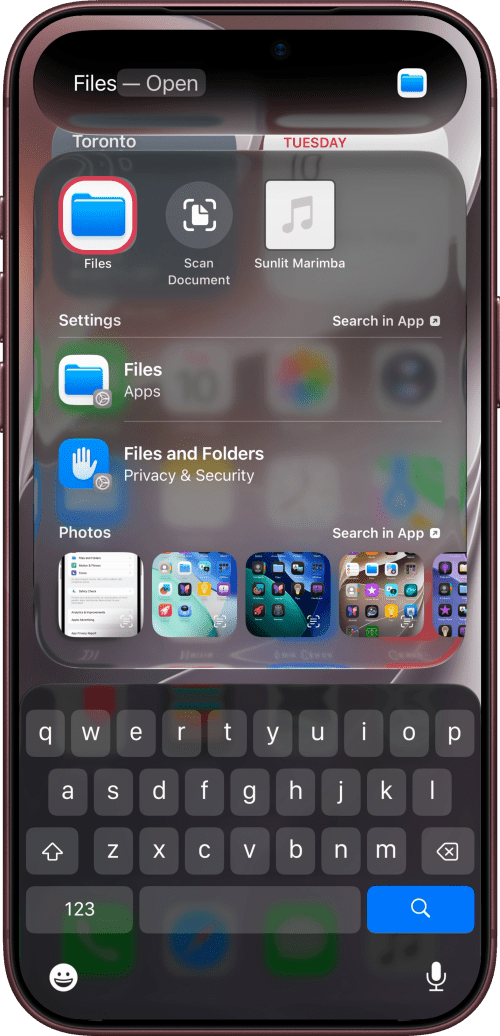
Swipe down on the Home Screen, search for Preview, and open it.
Step Two: Scan the Page
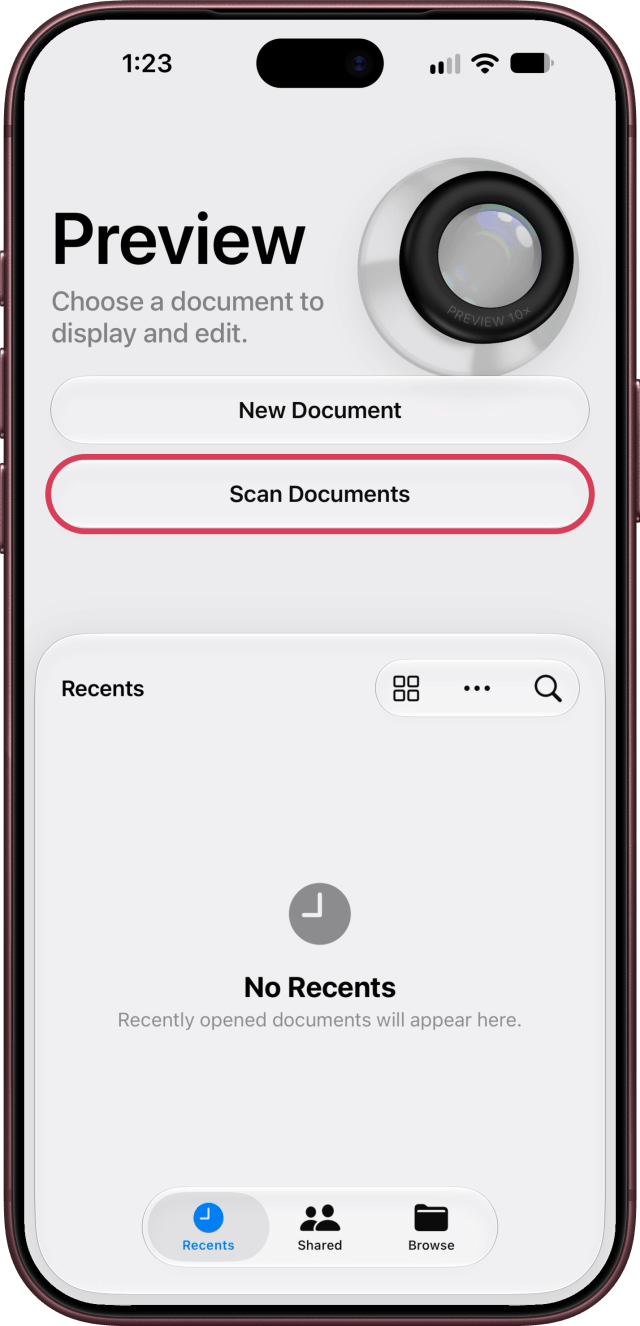
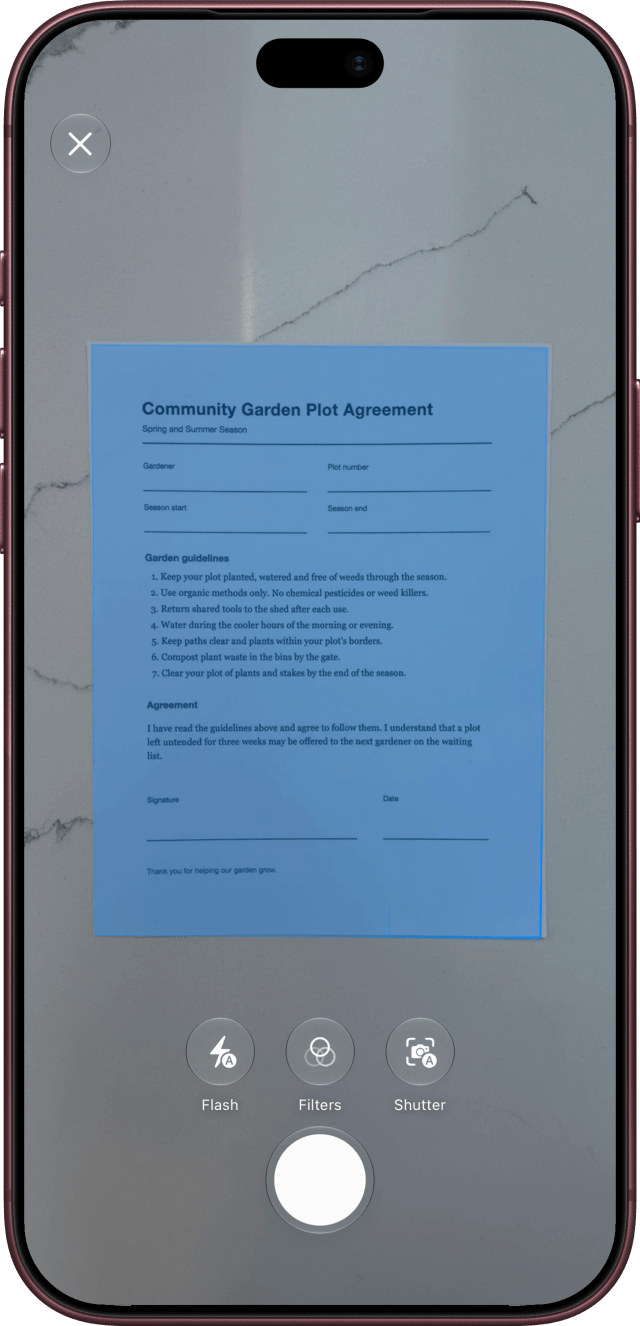
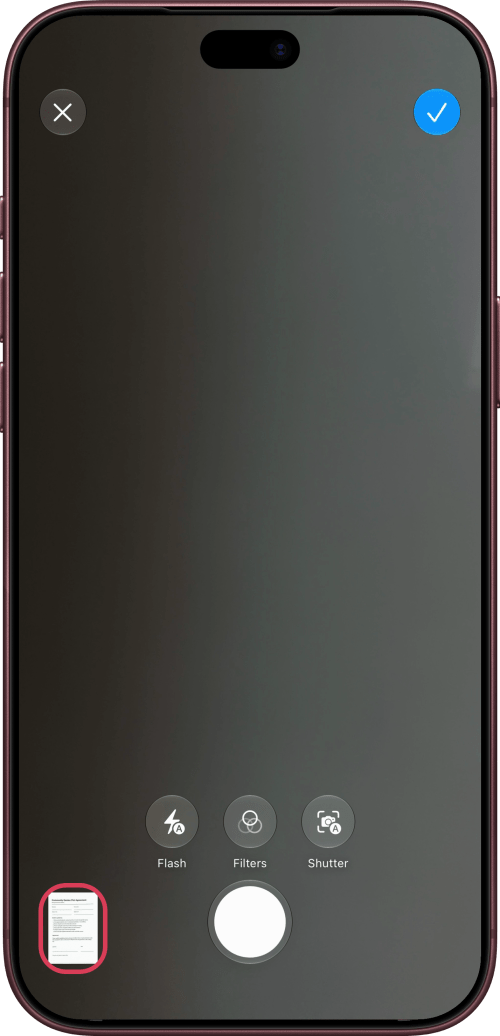
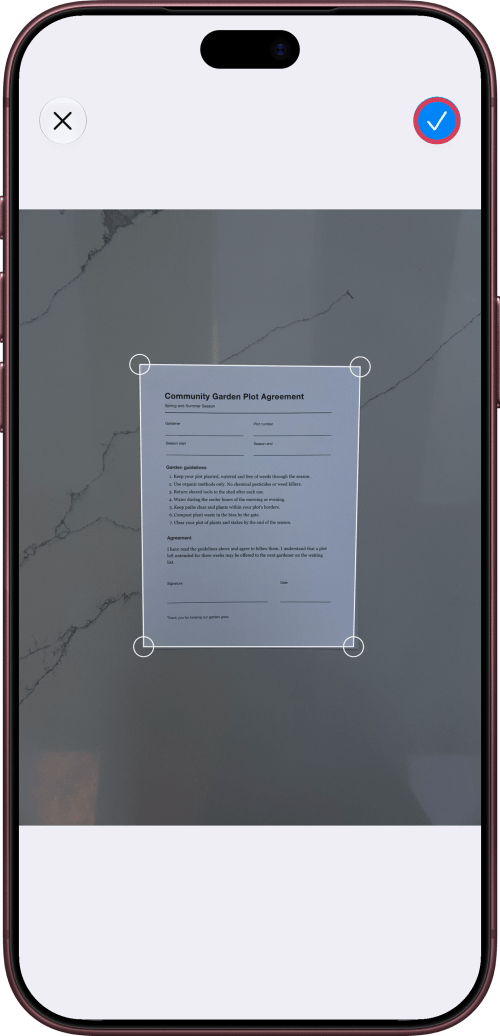
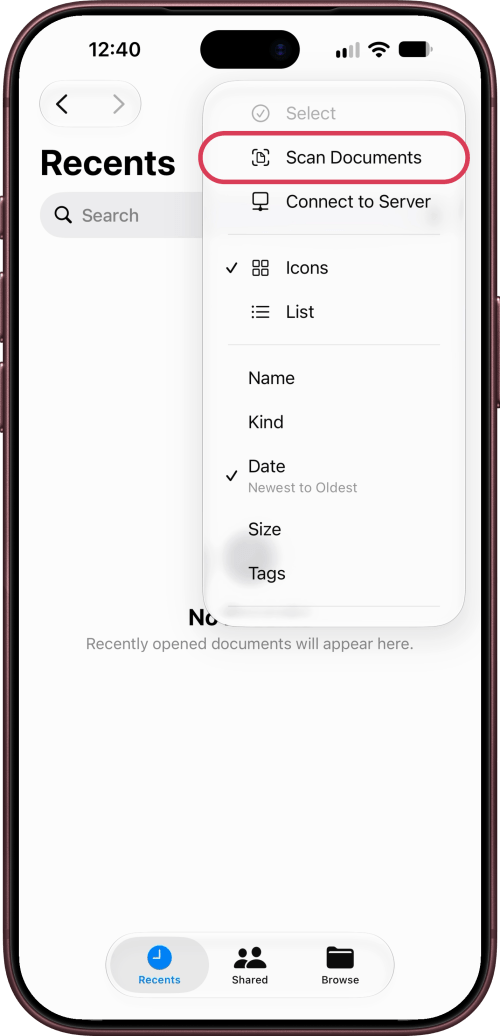
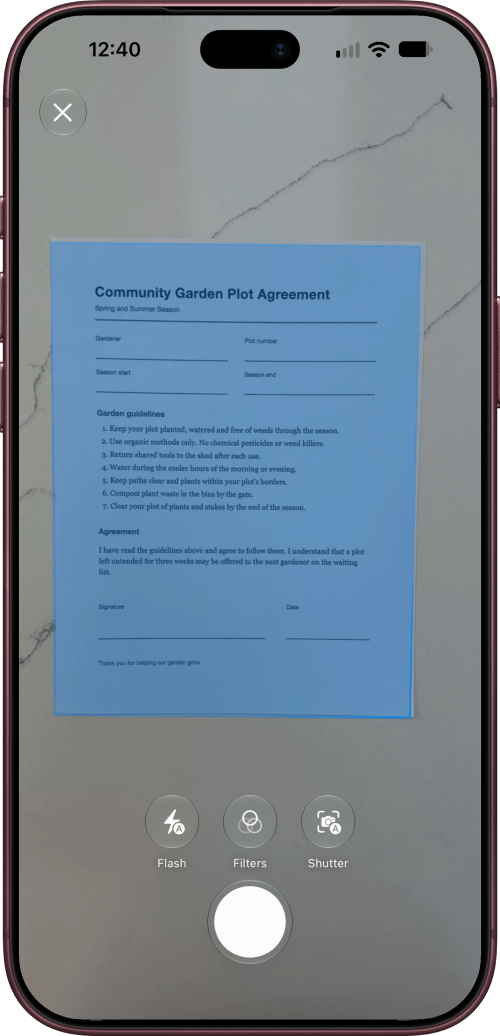
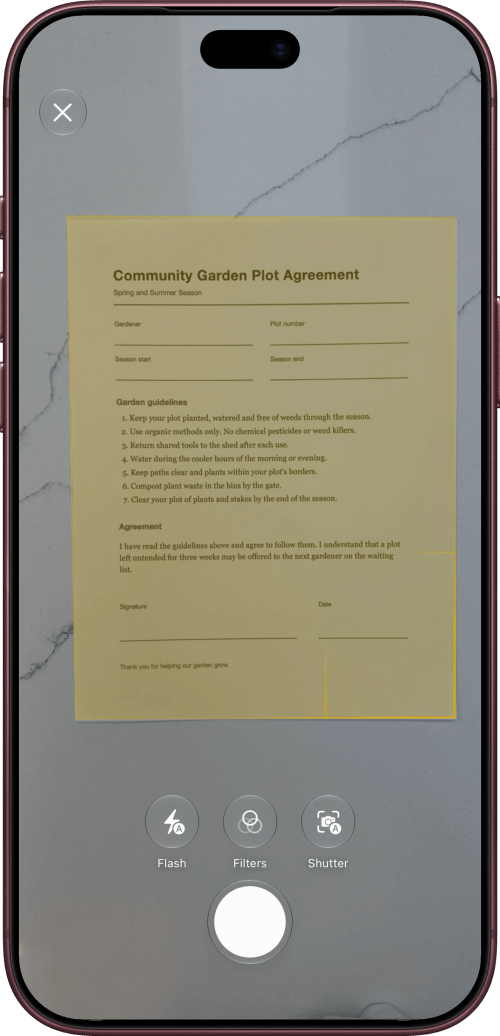
Tap Scan Documents, then hold your iPhone over the page. When the whole page is in view, your iPhone captures it by itself. Scan any other pages the same way.
Step Three: Fix the Edges
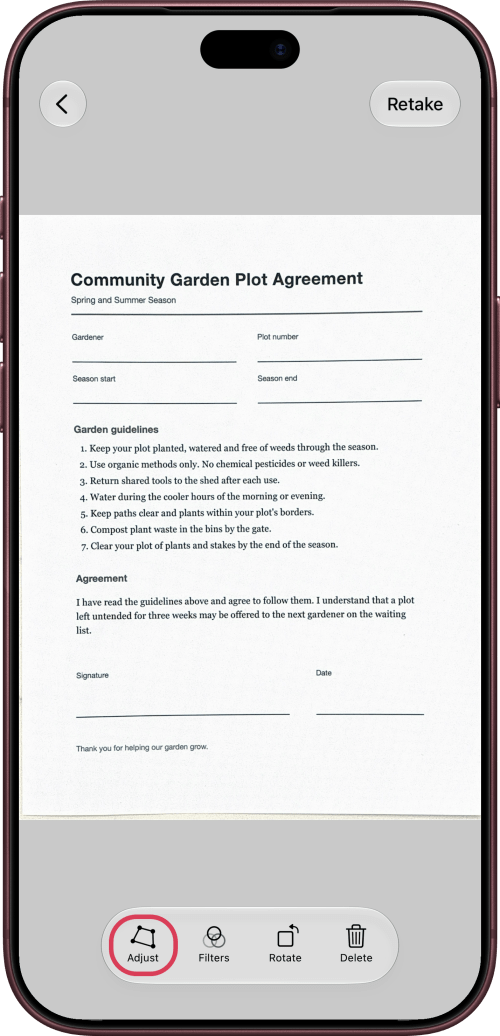
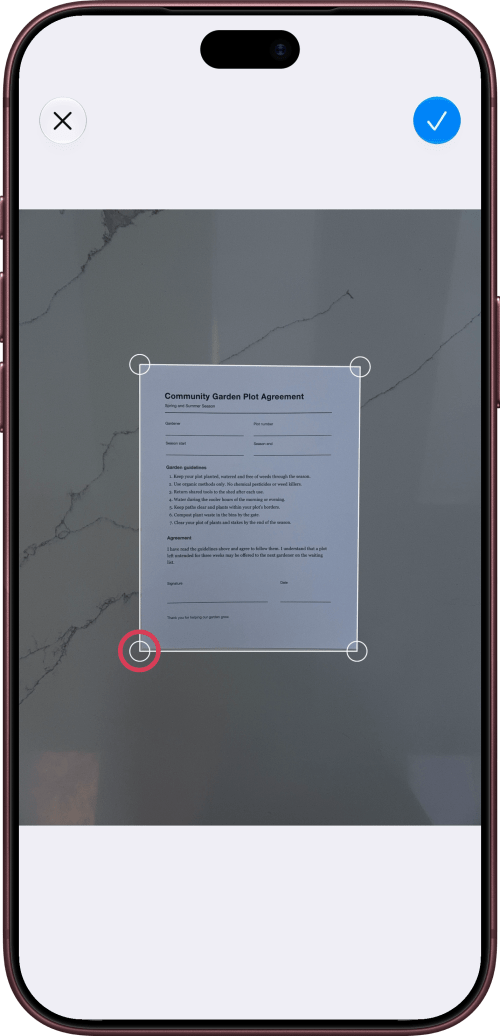
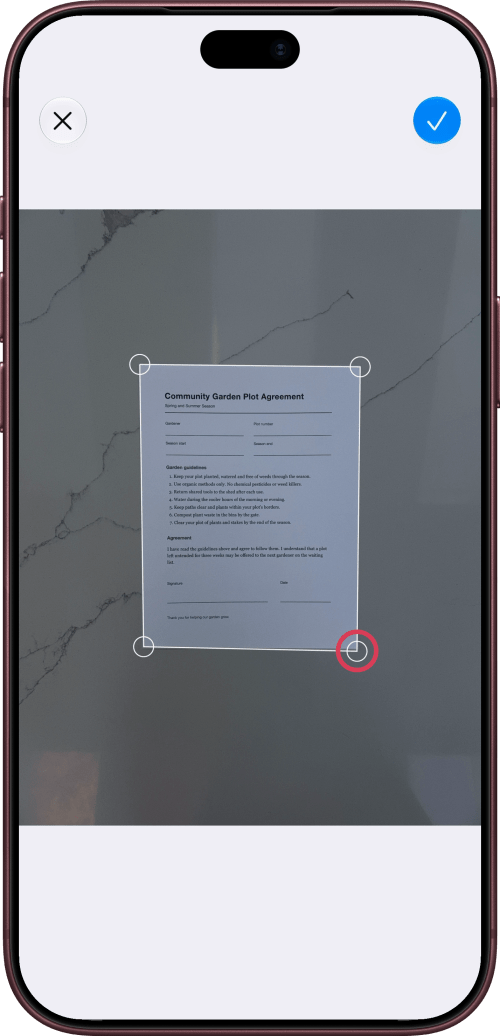
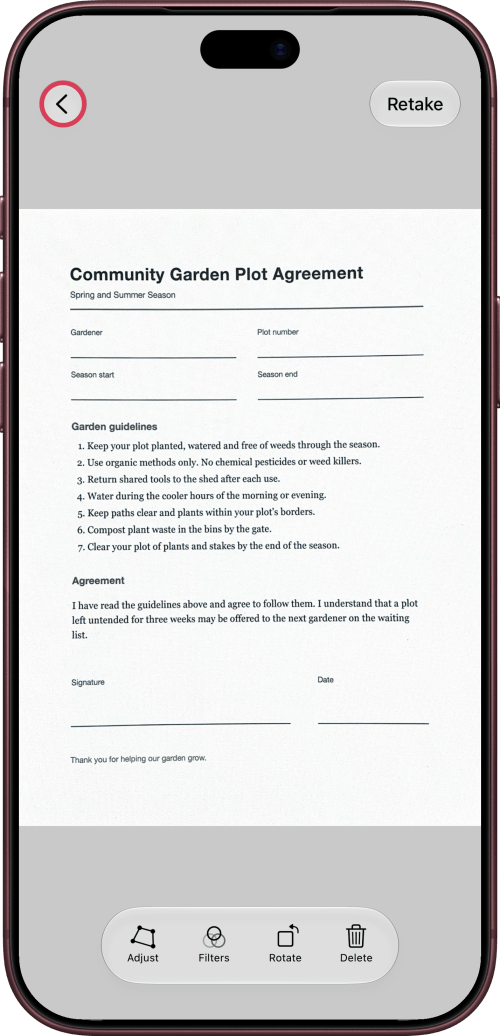
If the edges are off, tap the scan's thumbnail, then tap Adjust and drag the corners onto the page's corners. Tap Done, then Back.
Step Four: Save the PDF
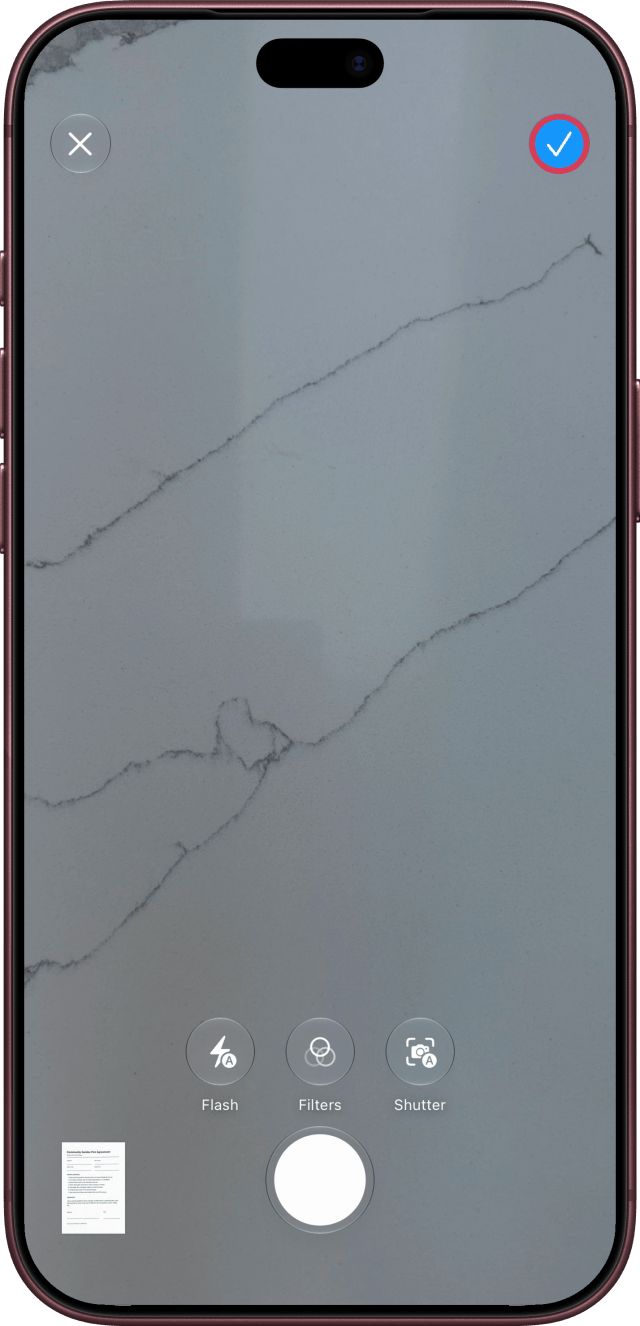
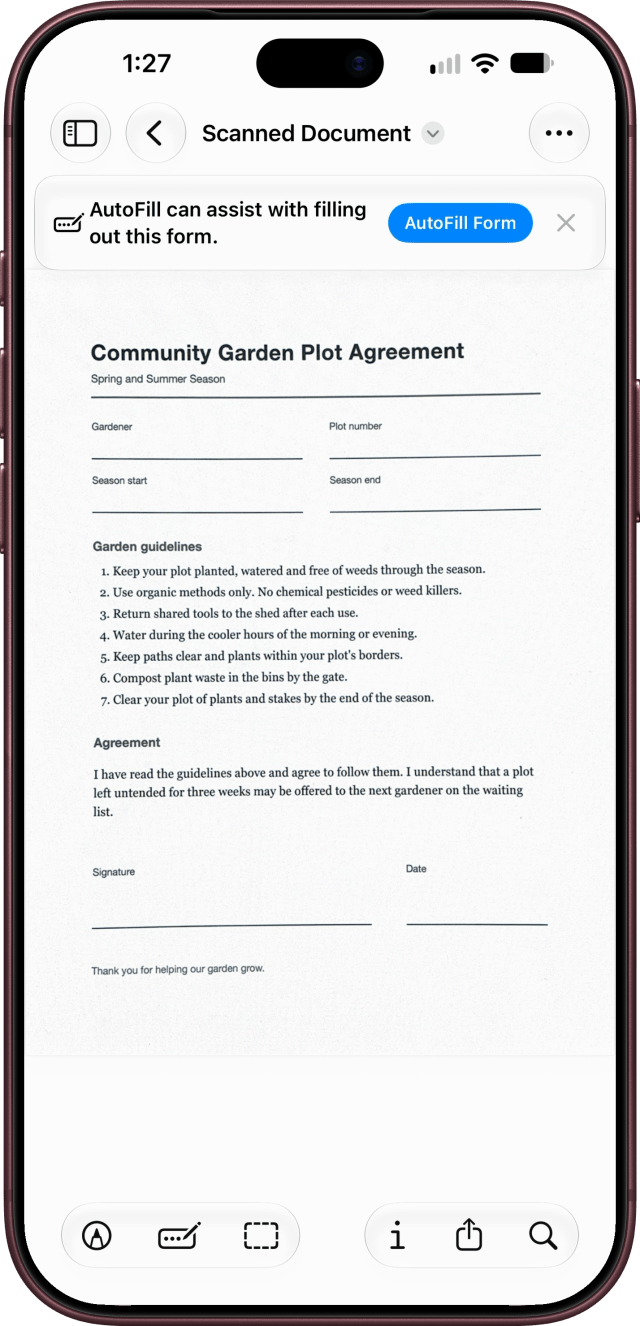
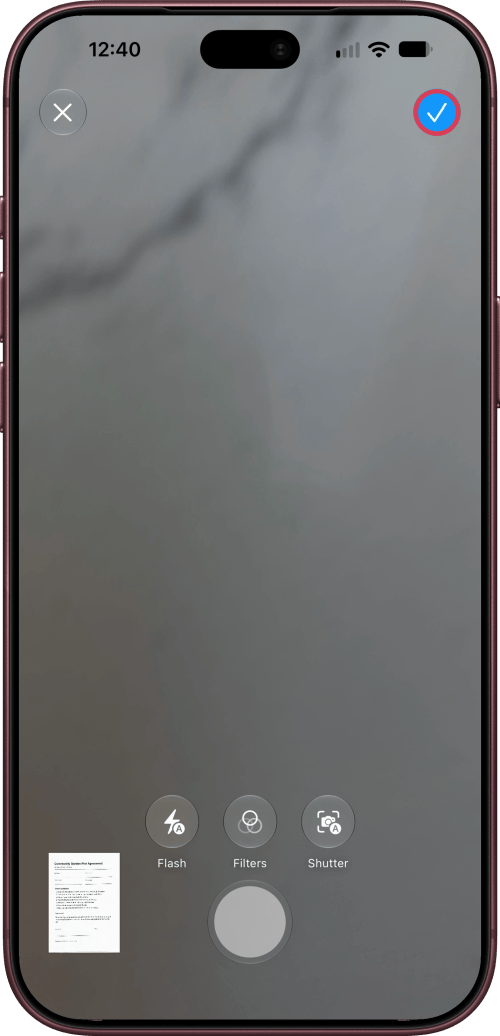
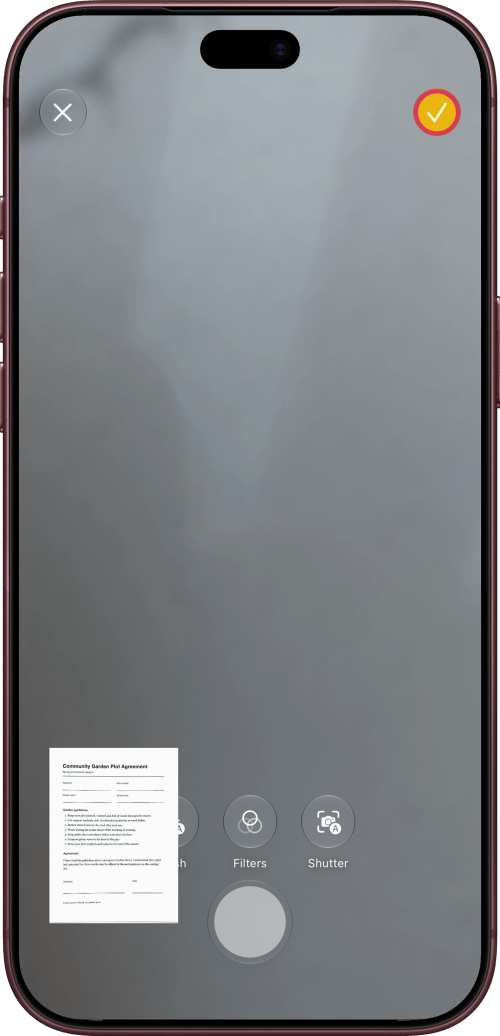
Tap Done. Preview saves your scan as a PDF and opens it. You'll also find it in the Files app, in iCloud Drive > Preview.
Step Five: Share the PDF
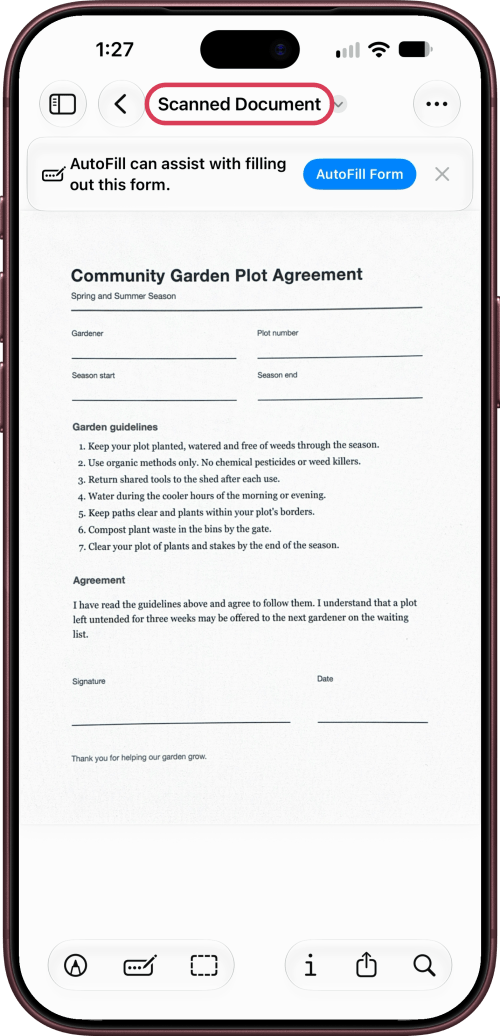
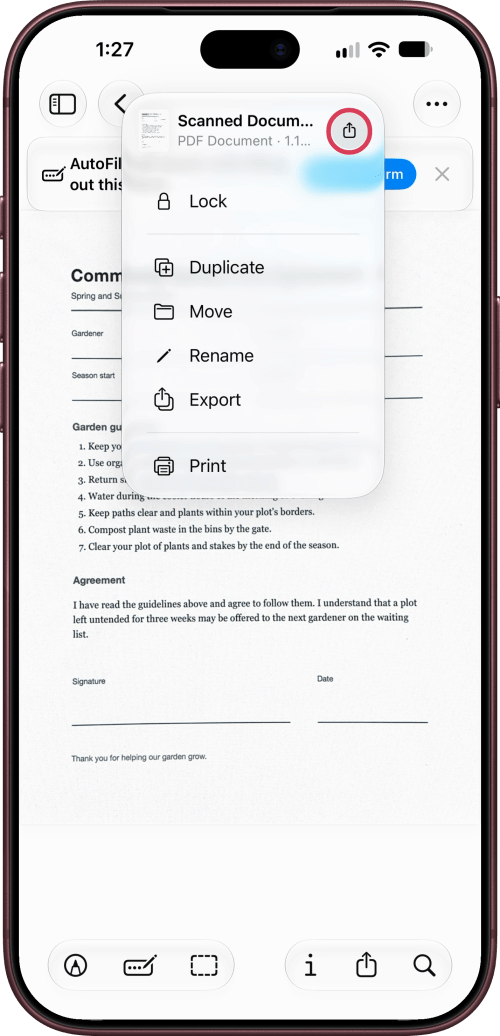
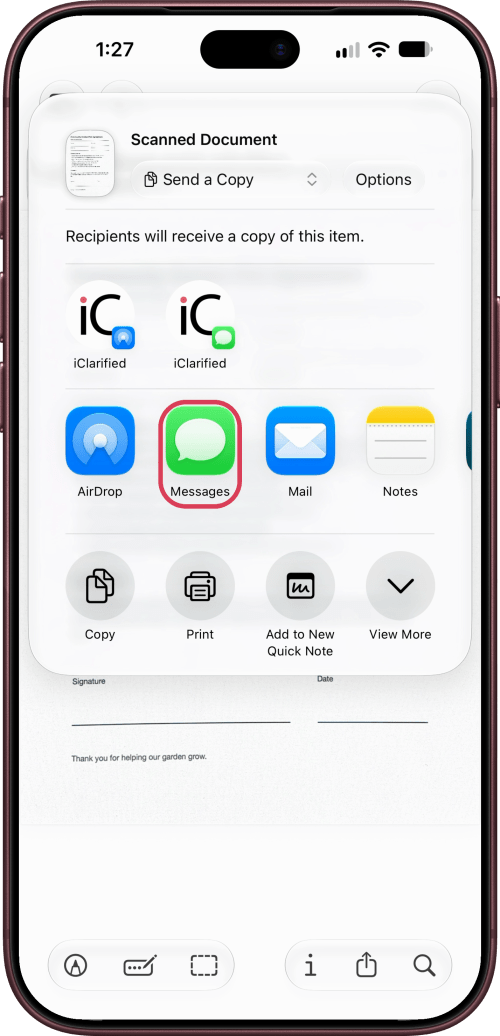
Tap the document's name, then tap Share, and choose Mail, Messages, or AirDrop.
Scan Documents in the Files App
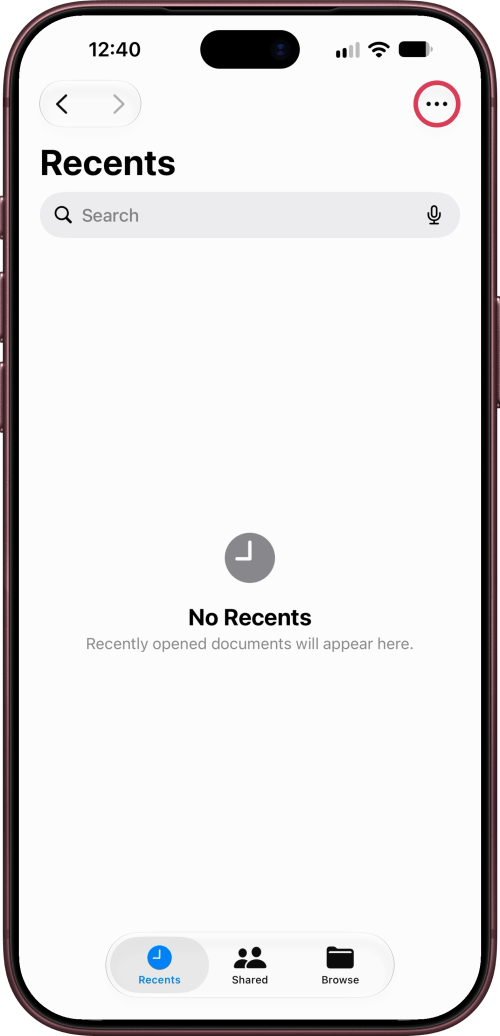
In Files, tap the More button, then tap Scan Documents and scan the page. Tap Done, choose a folder, and tap Save. The scan is saved there as a PDF.
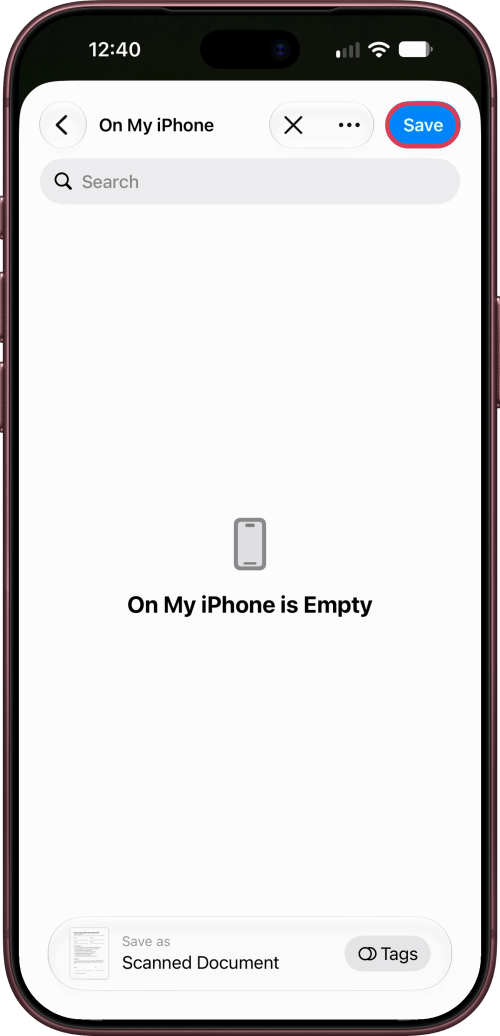
Scan Documents in Notes
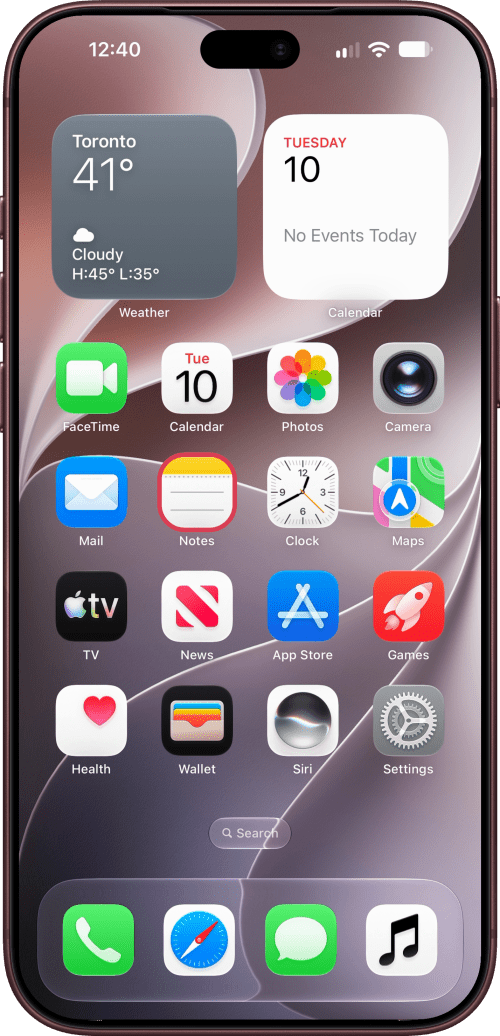
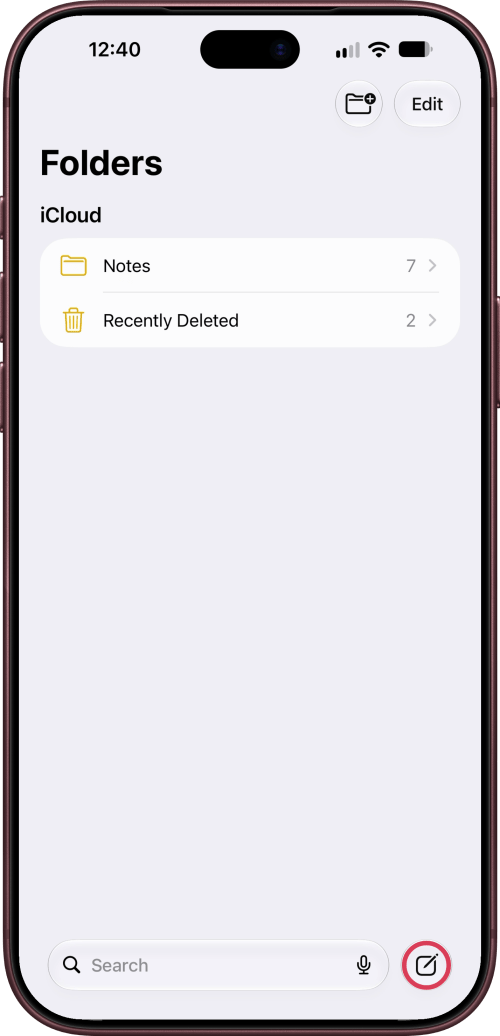
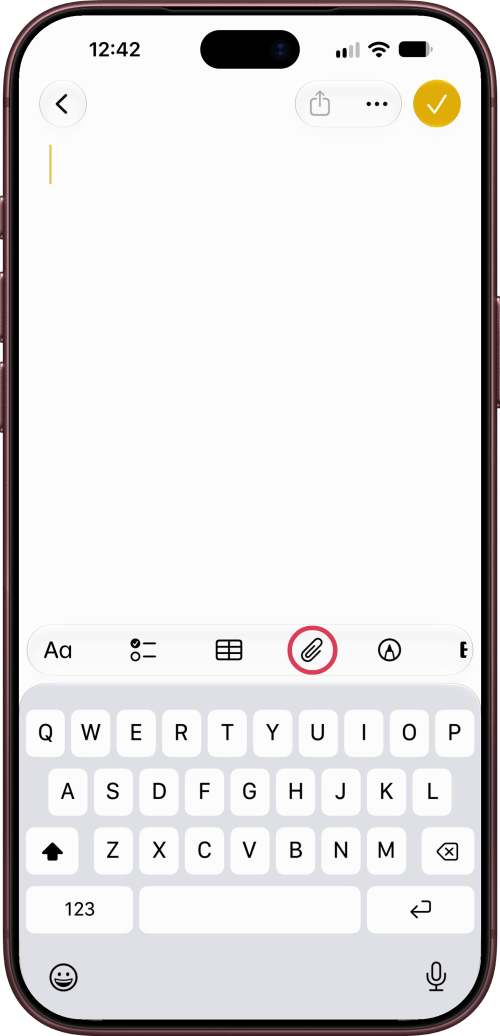
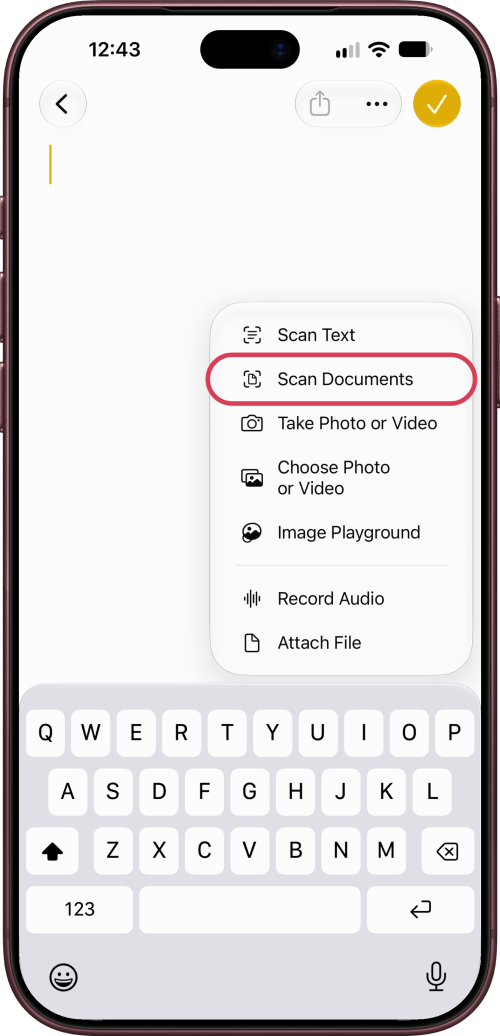
In a note, tap the Attachments button, then tap Scan Documents. Tap Done, and the scan is saved in the note as a PDF.
If a Page Isn't Captured
Tap the shutter button to capture the page yourself. In dim light, turn on Flash. If the edges come out wrong, tap the scan's thumbnail and use Adjust, as in Step Three.
If Your iPhone Doesn't Have Preview
Preview is on iPhones running iOS 26 or later. On older software, scan in Notes or Files instead. They use the same scanner.