How to Burn an ISO Disc Image Using Mac OS X Snow Leopard
Posted August 5, 2010 at 1:03am by
Shalom Levytam
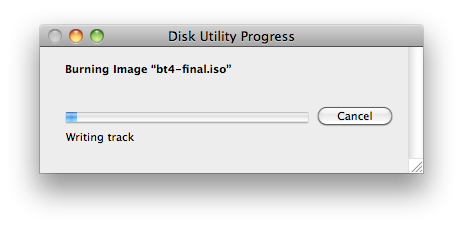
These are instructions on how to burn an ISO CD or DVD disc image using Mac OS X Snow Leopard.
Step One
Launch Disk Utility from Applications:Utilities.
Step Two
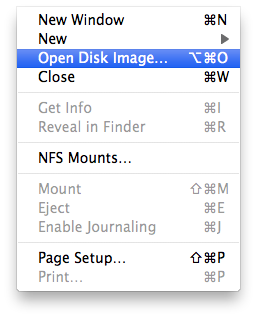
Click to select Open Disc Image... from the File Menu.
Step Three
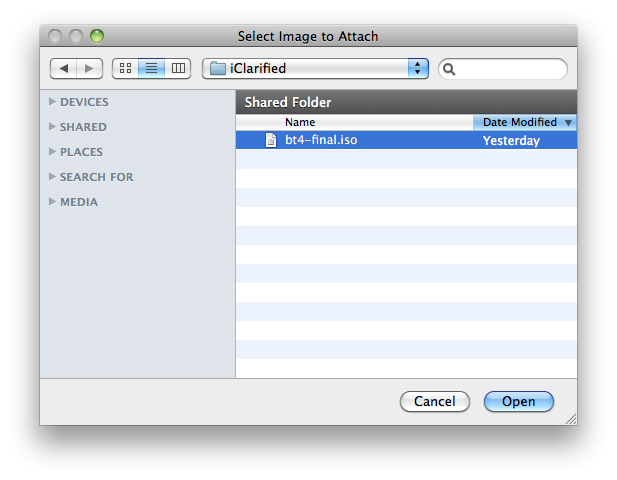
Navigate to your .iso file, select it, then click the Open button.
Step Four
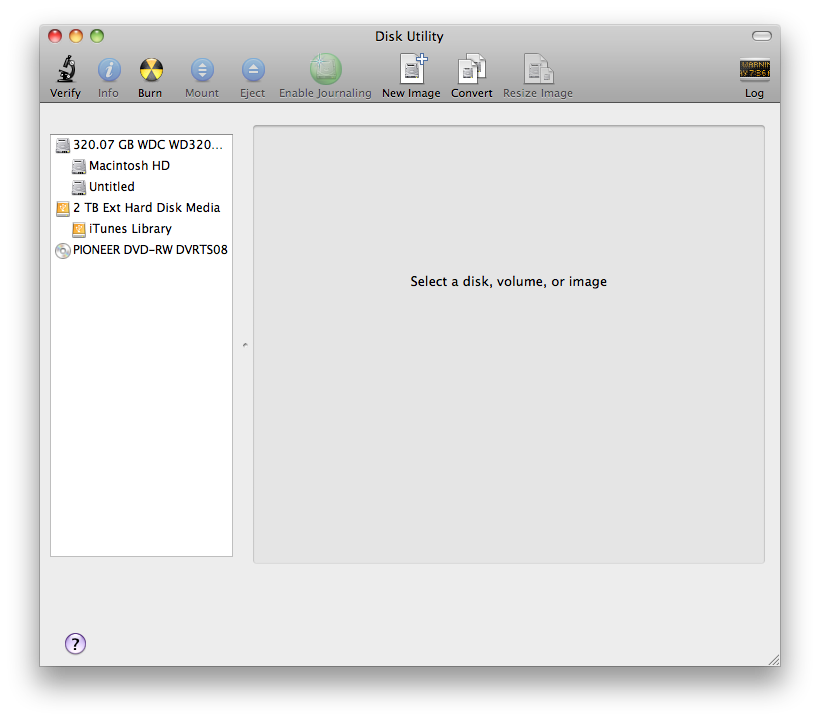
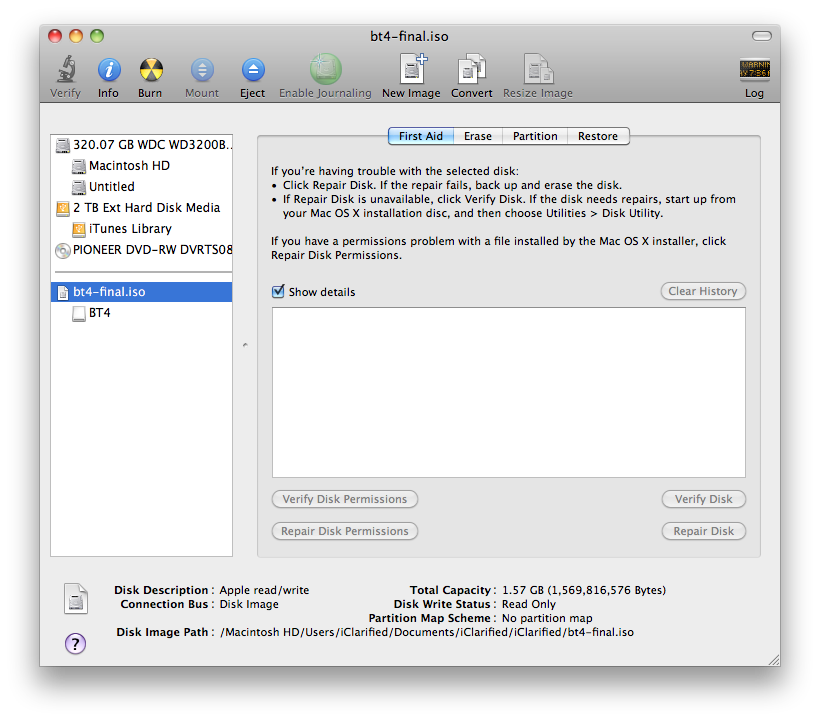
Click to select the disk image from the bottom left pane of the Disk Utility application.
Step Five
Click the Burn toolbar button.

Step Six
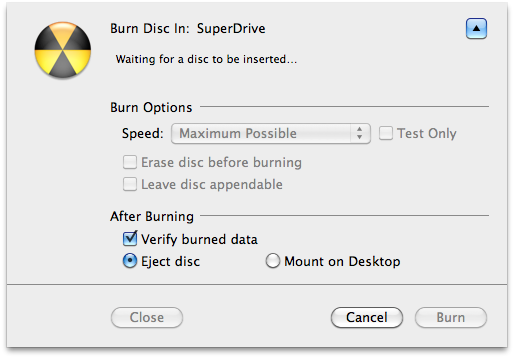
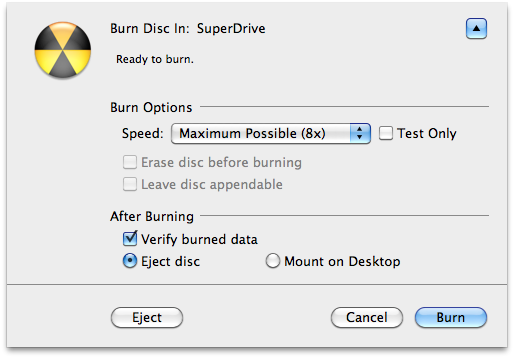
Insert your blank CD or DVD then click the Burn button.
Step Seven
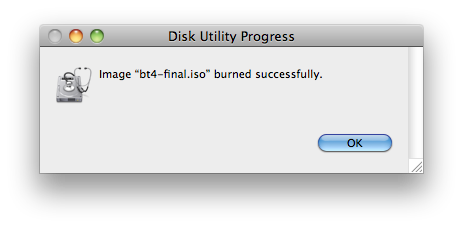
You will be notified once the burning process is complete.
Step One
Launch Disk Utility from Applications:Utilities.
Step Two
Click to select Open Disc Image... from the File Menu.
Step Three
Navigate to your .iso file, select it, then click the Open button.
Step Four
Click to select the disk image from the bottom left pane of the Disk Utility application.
Step Five
Click the Burn toolbar button.
Step Six
Insert your blank CD or DVD then click the Burn button.
Step Seven
You will be notified once the burning process is complete.


![Apple HomeView Could Double as a HomeKit Security Camera [Leak]](/images/news/103224/103224/103224-160.jpg "Apple HomeView Could Double as a HomeKit Security Camera [Leak]")

![iPhone 18 Pro Sales Rise 29% in China, Fall in U.S. and Japan [Report]](/images/news/103215/103215/103215-160.jpg "iPhone 18 Pro Sales Rise 29% in China, Fall in U.S. and Japan [Report]")

![How To Back Up Your iPhone to an External Drive on Mac [Video]](/images/tutorials/72786/72786/72786-160.jpg "How To Back Up Your iPhone to an External Drive on Mac [Video]")
![How To Find Your IP Address on iPhone [Video]](/images/tutorials/496/496/496-160.jpg "How To Find Your IP Address on iPhone [Video]")

![Apple Watch Ultra 4 Drops Back to All-Time Low of $699.99 ($99 Off) [Deal]](/images/news/103218/103218/103218-160.jpg "Apple Watch Ultra 4 Drops Back to All-Time Low of $699.99 ($99 Off) [Deal]")
![AirTag 2 4-Pack Hits All-Time Low of $69.99 ($29 Off) [Deal]](/images/news/103203/103203/103203-160.jpg "AirTag 2 4-Pack Hits All-Time Low of $69.99 ($29 Off) [Deal]")
![Beats Headphones, Earbuds, and Pill Speaker Are Up to 41% Off [Deal]](/images/news/103026/103026/103026-160.jpg "Beats Headphones, Earbuds, and Pill Speaker Are Up to 41% Off [Deal]")