These are instructions on how to change the default save location of OS X screenshots to a folder of your choice. By default Apple has screenshots save to your desktop.
Step One Launch Terminal from the Applications:Utilities folder.
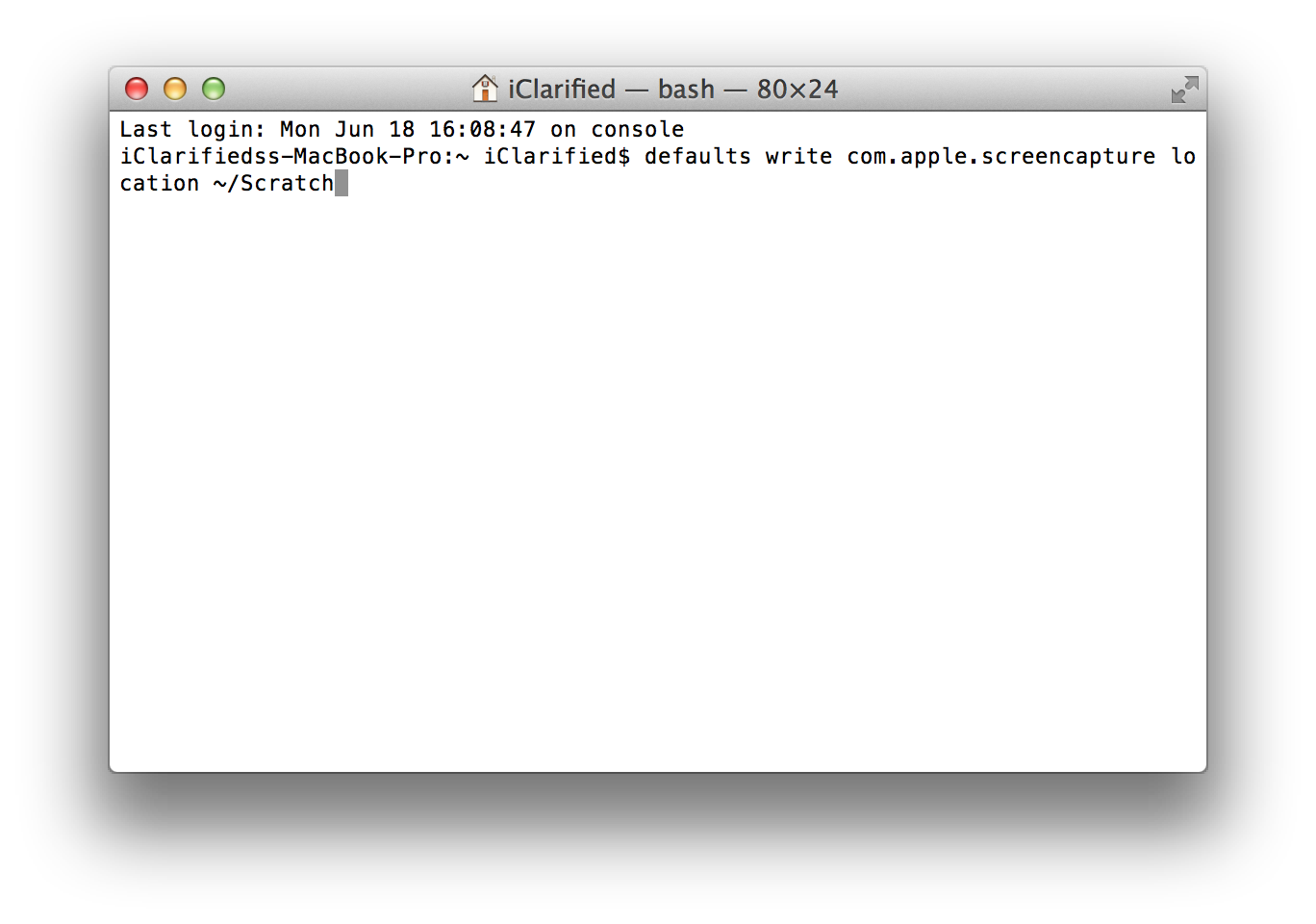
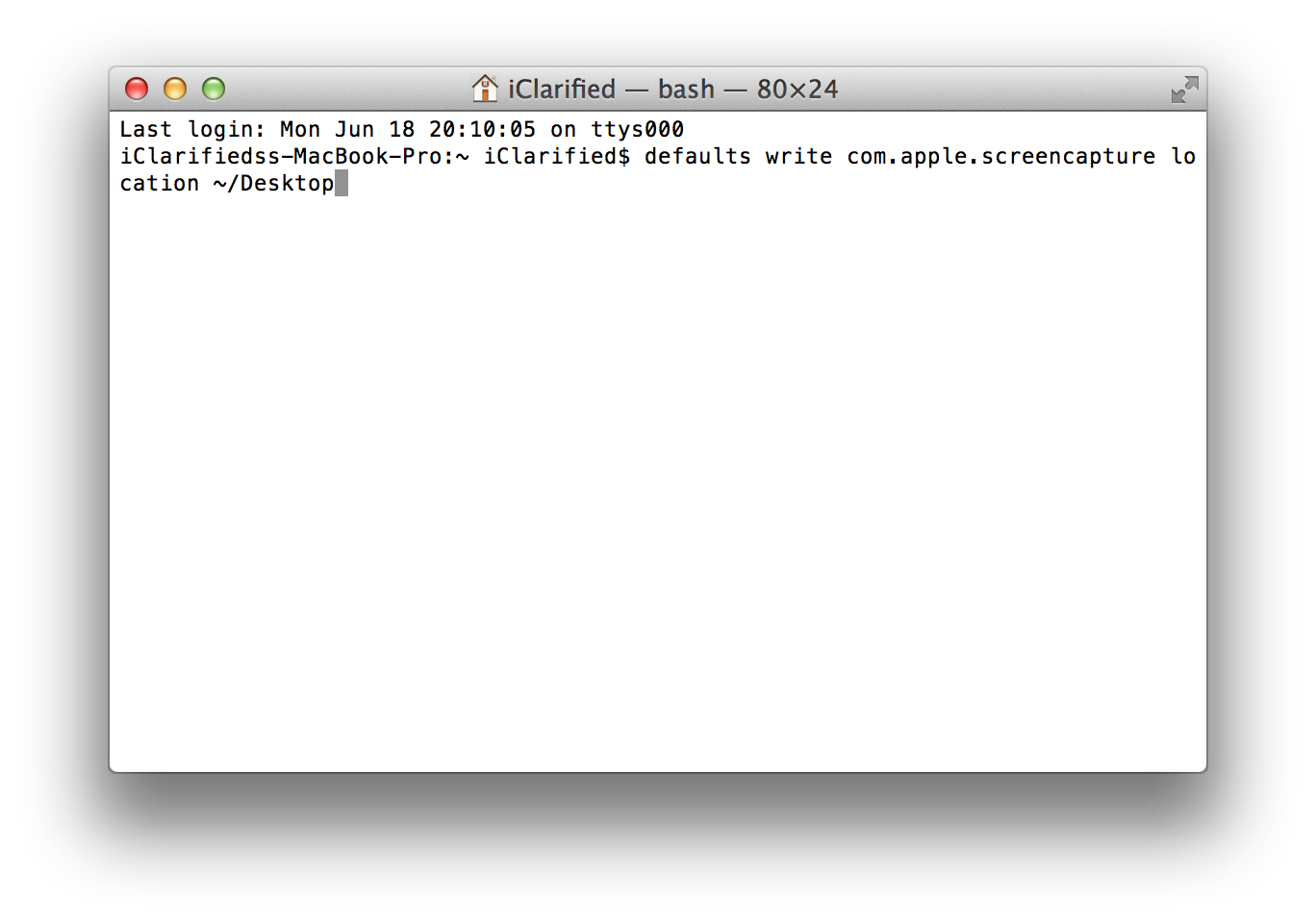
Step Two Input defaults write com.apple.screencapture location ~/Scratch into the Terminal window changing '~/Scratch' to a folder of your choice and then press Return.
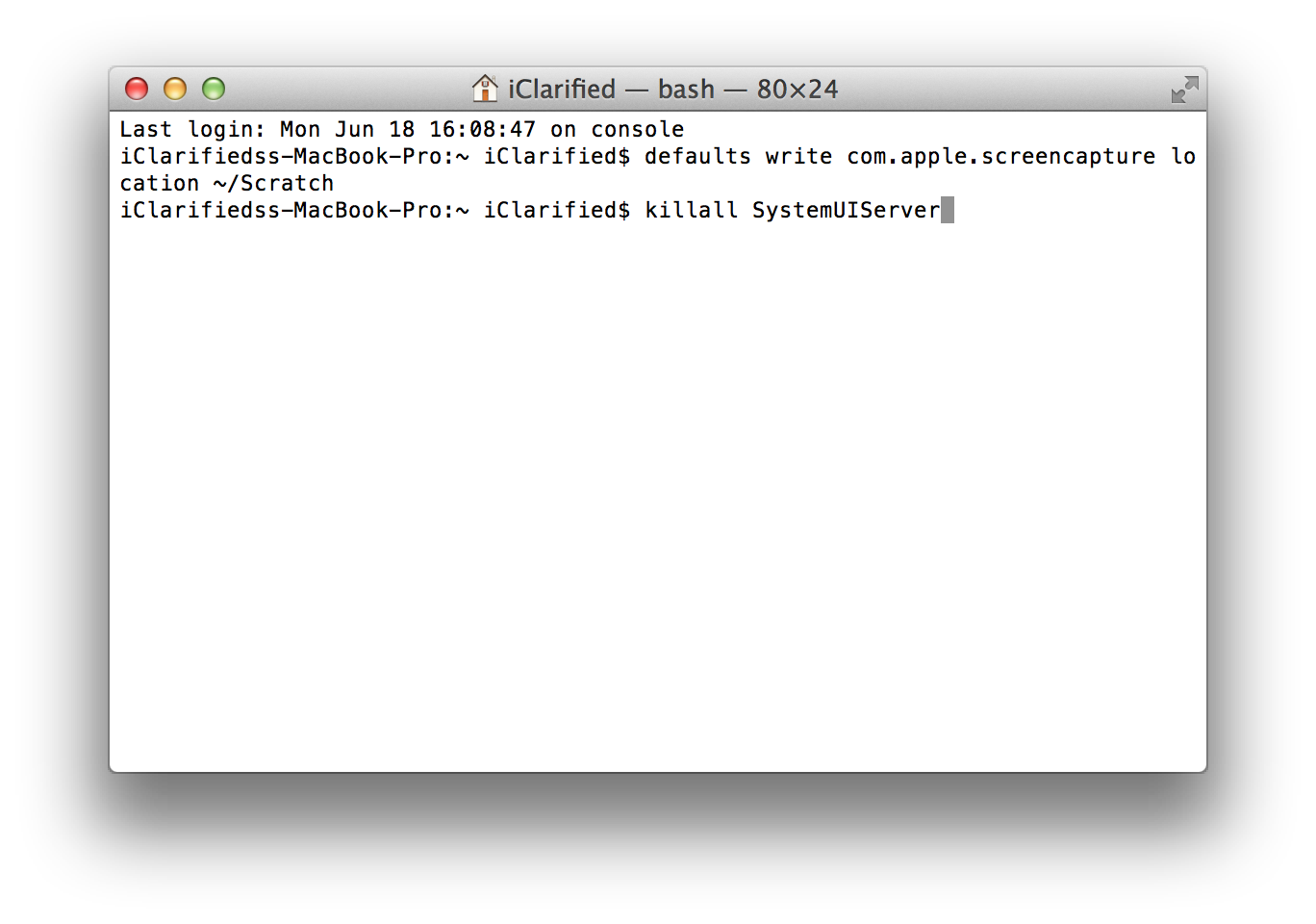
Step Three Input killall SystemUIServer into the Terminal window and press Return to make the changes immediate.
Undo To undo these changes simply follow them again using this command to change the save location: defaults write com.apple.screencapture location ~/Desktop
Get the iClarified Daily Newsletter
Apple news, rumors, tutorials, price drop alerts, in your inbox every evening, free.
Unsubscribe at any time.
Success!
You have been subscribed.
Add Comment
Would you like to be notified when someone replies or adds a new comment?
Yes (All Threads)
Yes (This Thread Only)
No
Notifications
Would you like to be notified when we post a new Apple news article or tutorial?



![Apple Debuts 'Matchbox The Movie' Trailer Starring John Cena and Jessica Biel [Video]](/images/news/101593/101593/101593-160.jpg "Apple Debuts 'Matchbox The Movie' Trailer Starring John Cena and Jessica Biel [Video]")
![Apple Watch Series 12, Ultra 4 Enter Late Testing Ahead of Launch [Report]](/images/news/101590/101590/101590-160.jpg "Apple Watch Series 12, Ultra 4 Enter Late Testing Ahead of Launch [Report]")
![Apple Shares First 'Neuromancer' Teaser, Sets January 22, 2027 Premiere [Video]](/images/news/101588/101588/101588-160.jpg "Apple Shares First 'Neuromancer' Teaser, Sets January 22, 2027 Premiere [Video]")
![Apple Smart Glasses Now Targeted for WWDC 2027 Reveal [Report]](/images/news/101587/101587/101587-160.jpg "Apple Smart Glasses Now Targeted for WWDC 2027 Reveal [Report]")
![Apple TV Shares 'Dark Matter' Season 2 Trailer [Video]](/images/news/101584/101584/101584-160.jpg "Apple TV Shares 'Dark Matter' Season 2 Trailer [Video]")