

How to Check How Much Space Your iPhone Apps are Using
Posted April 22, 2014 at 7:12am by
Shalom Levytam
These are instructions on how to check how much space your iOS apps are using on the iPhone.
Step One
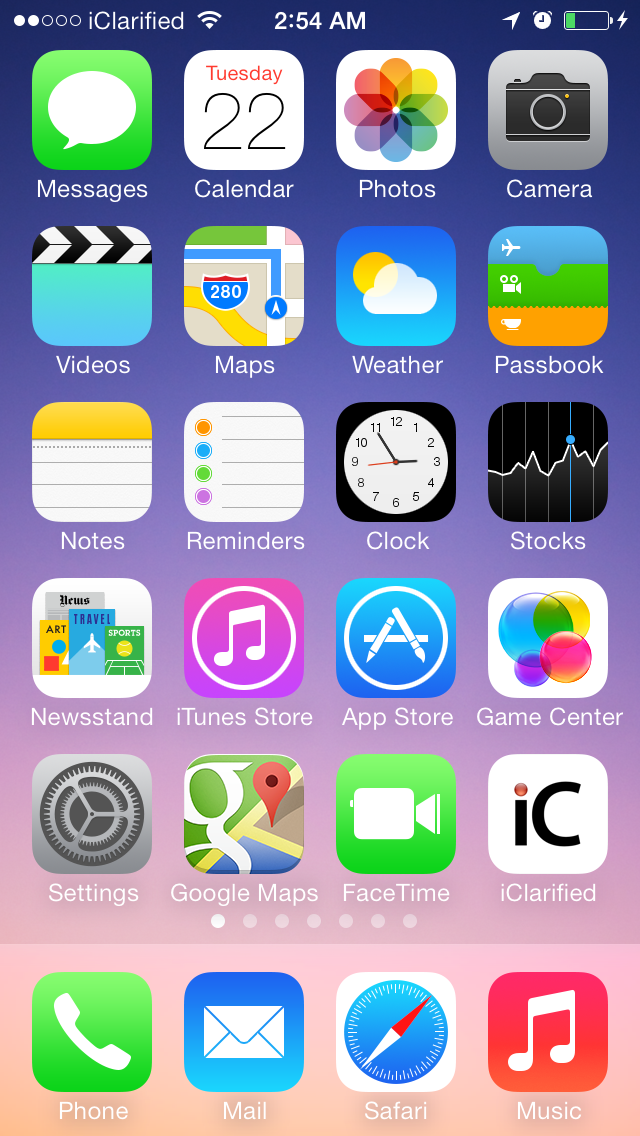
Tap to launch Settings from your Springboard.
Step Two
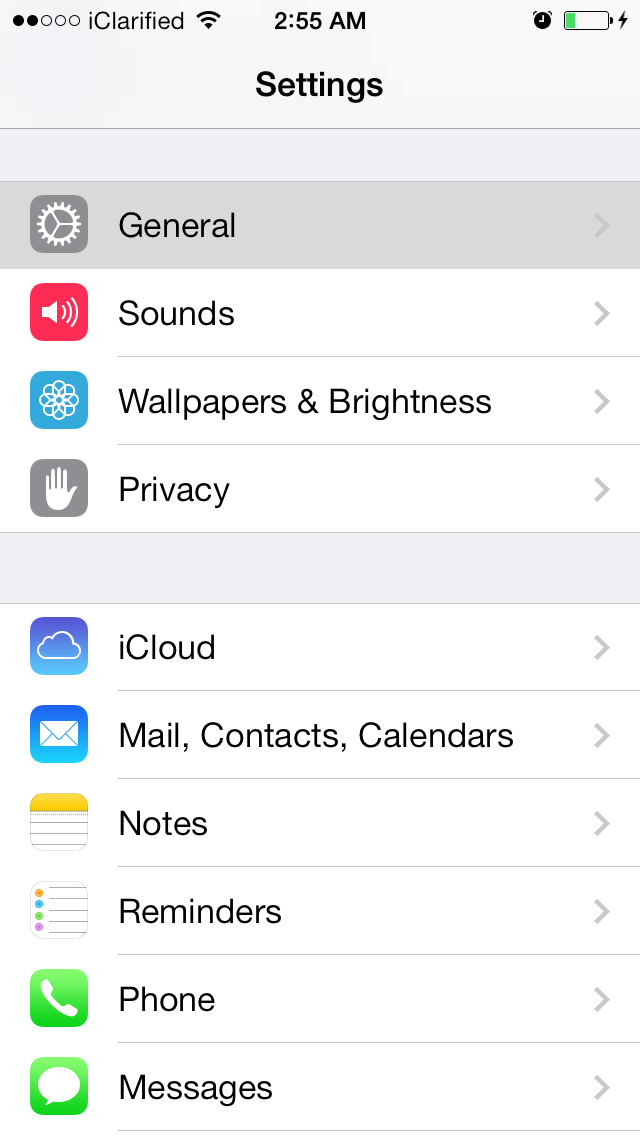
Choose General from the Settings menu.
Step Three
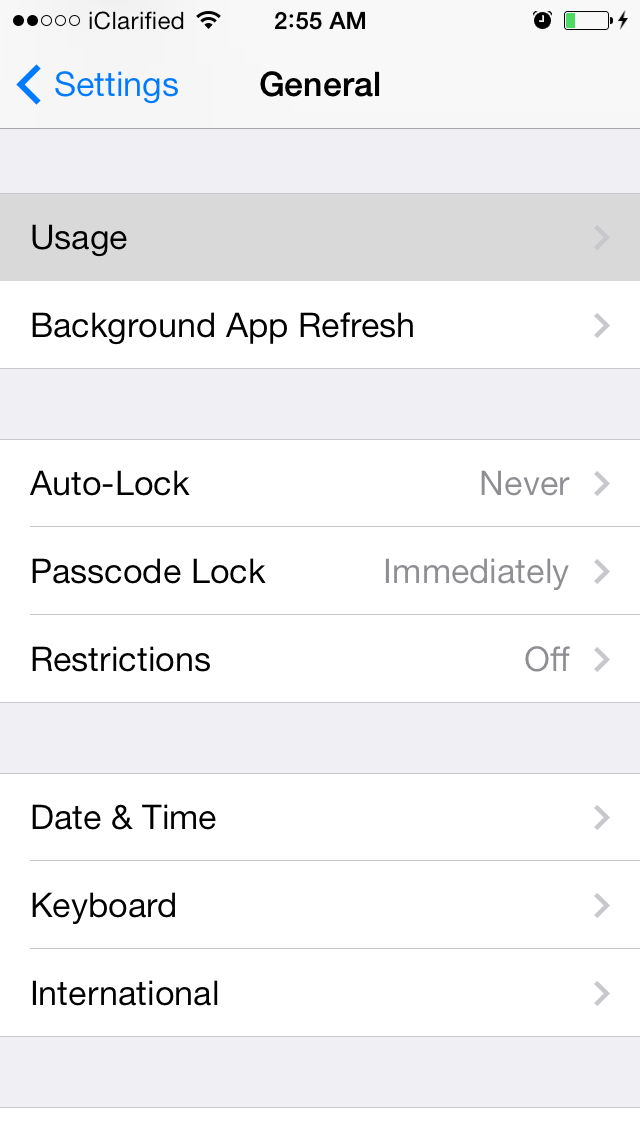
Select Usage from the General menu.
Step Four
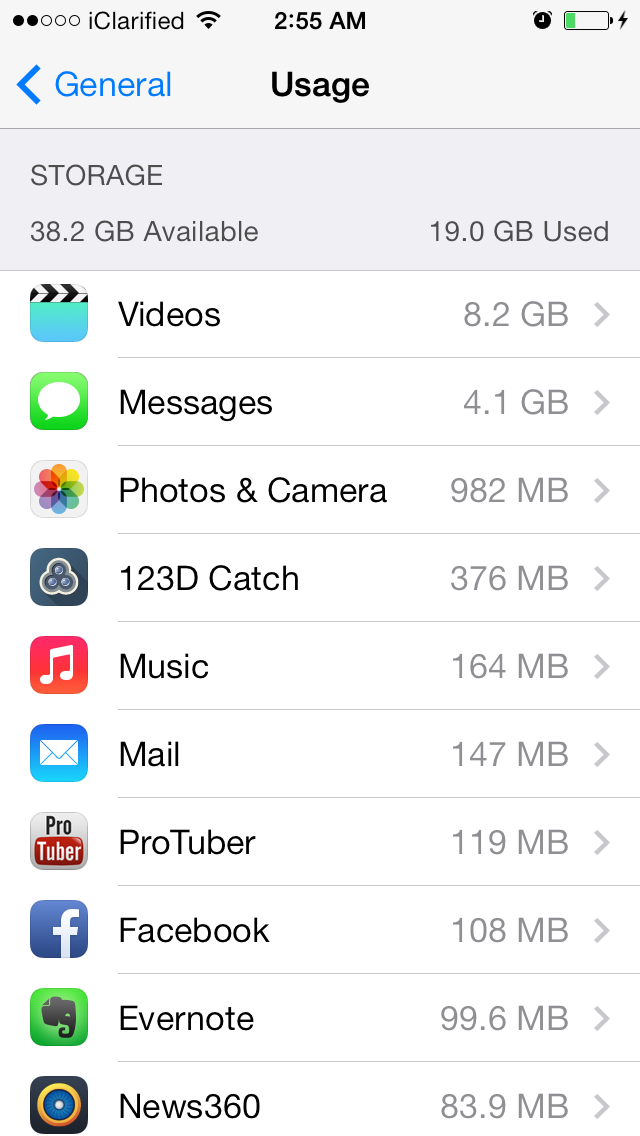
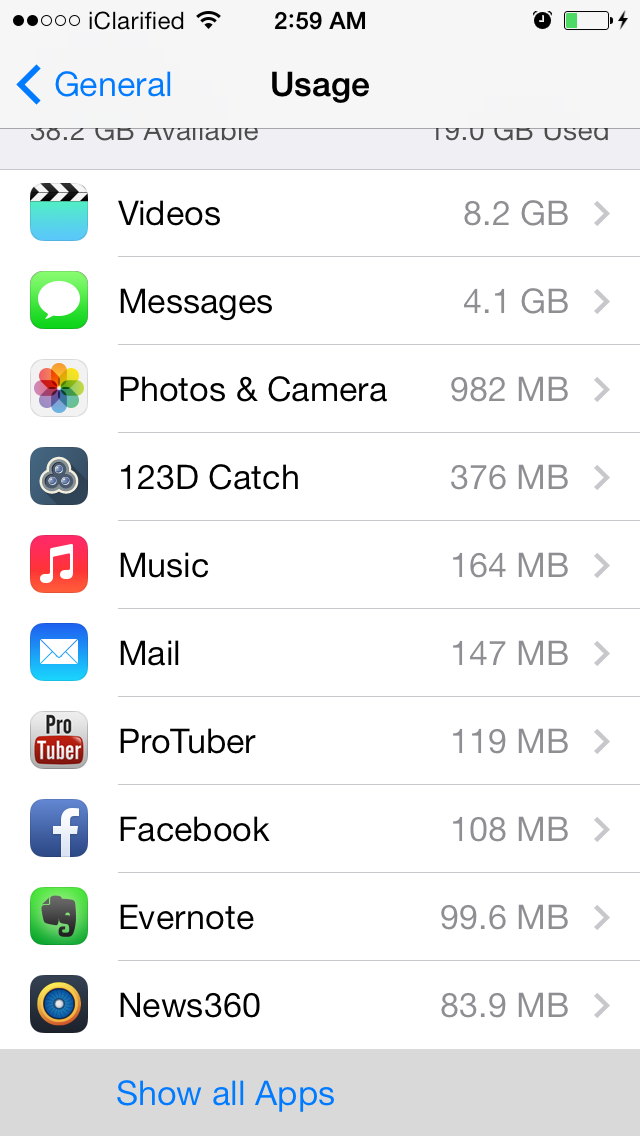
The Usage screen will display the top 10 apps using the most space.
Step Five
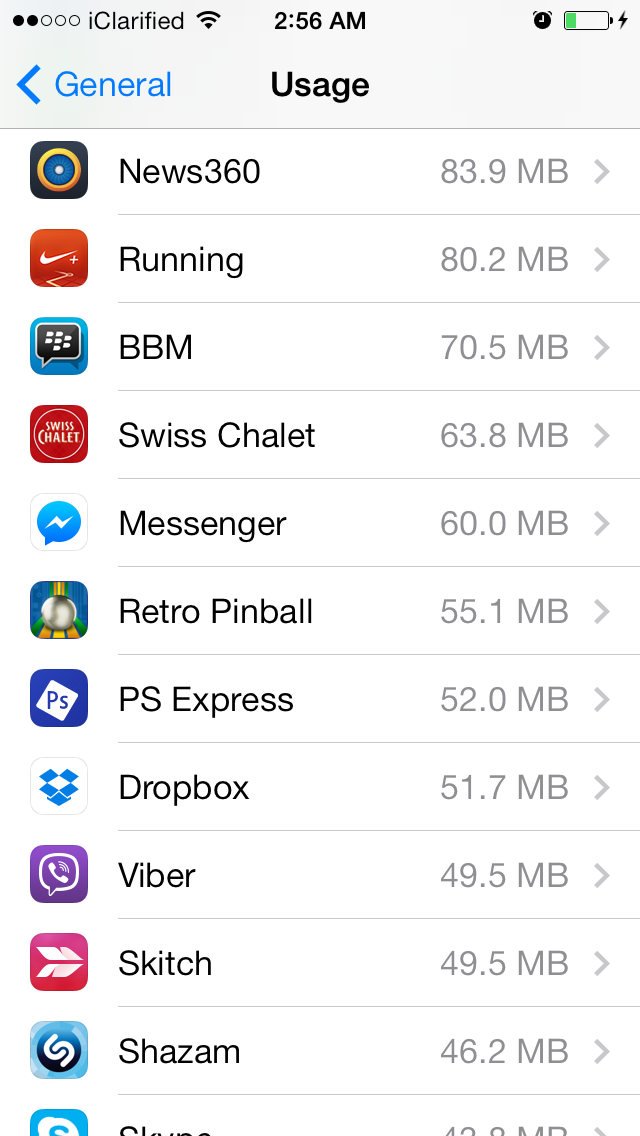
Tap the Show All Apps button to see the storage space used by all of your apps.
Step Six
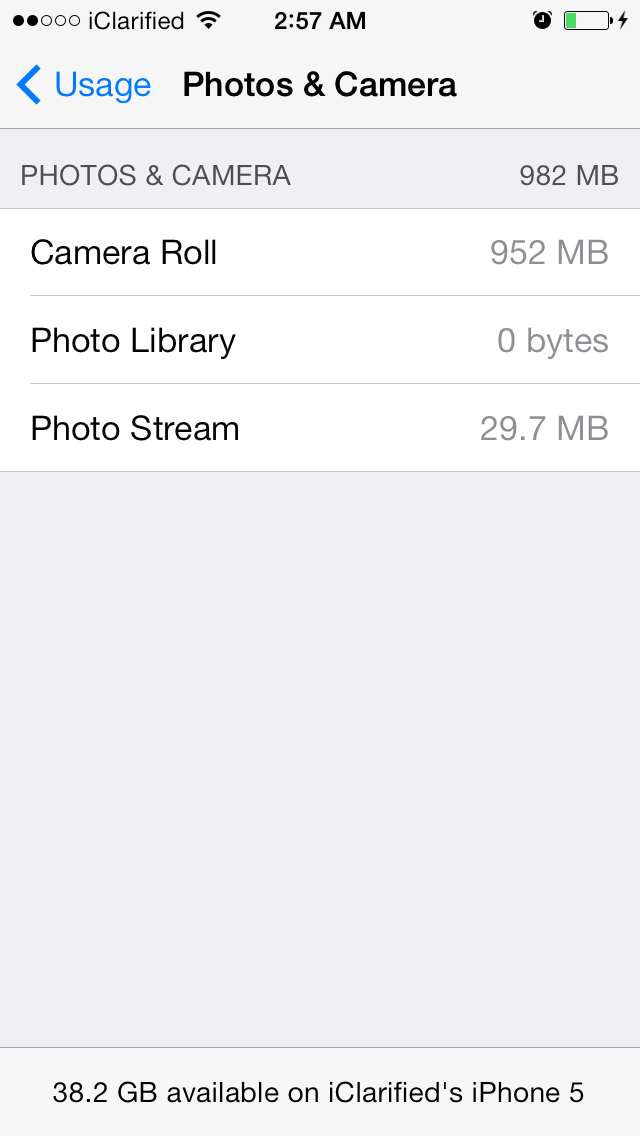
Tap an app to see any additional details about the space it uses.
Please follow iClarified on X, Facebook, or RSS for more tutorials.
Step One
Tap to launch Settings from your Springboard.
Step Two
Choose General from the Settings menu.
Step Three
Select Usage from the General menu.
Step Four
The Usage screen will display the top 10 apps using the most space.
Step Five
Tap the Show All Apps button to see the storage space used by all of your apps.
Step Six
Tap an app to see any additional details about the space it uses.
Please follow iClarified on X, Facebook, or RSS for more tutorials.





![Mac mini With M6 and M5 Pro Review Roundup [Video]](/images/news/102318/102318/102318-160.jpg "Mac mini With M6 and M5 Pro Review Roundup [Video]")
![Apple Releases macOS 27.2 Golden Gate Beta 2 to Developers [Download]](/images/news/102327/102327/102327-160.jpg "Apple Releases macOS 27.2 Golden Gate Beta 2 to Developers [Download]")

![How To Turn Off Adaptive Power on iPhone [Video]](/images/tutorials/102254/102254/102254-160.jpg "How To Turn Off Adaptive Power on iPhone [Video]")







![Apple Studio Display XDR Hits All-Time Low of $2,969.99 ($329 Off) [Deal]](/images/news/101976/101976/101976-160.jpg "Apple Studio Display XDR Hits All-Time Low of $2,969.99 ($329 Off) [Deal]")
