Apple Watch Live Rewind and Siri Recap: What Happens to Your Audio?
Apple Watch can now help you catch the words you missed or turn a conversation into notes. Live Rewind and Siri Recap arrived in the watchOS 27.3 developer beta on November 3 for Series 12 and Ultra 4.
Neither produces an audio recording you can play back. Instead, the Watch temporarily buffers sound, the paired iPhone processes it, and some text goes to Apple's Private Cloud Compute servers. What gets saved depends on which feature you use and what you choose to keep.
Which Watches and iPhones Work?
Both features require Apple Watch Series 12 or Ultra 4. Their S11 chip includes a Secure Exclave, an isolated area of the chip that handles audio separately from the operating system and apps. To try them now, you need the watchOS 27.3 developer beta and a compatible paired iPhone running the latest iOS beta.
Supported phones are iPhone 16, 16 Plus, 16 Pro, and 16 Pro Max; iPhone 17, 17e, 17 Pro, and 17 Pro Max; iPhone Air; iPhone 18 Pro and Pro Max; and iPhone Duo. Apple Intelligence and Siri AI must be enabled. The iPhone 16e and iPhone 15 Pro aren't supported, even though they can run Apple Intelligence.
Live Rewind and Siri Recap are limited to users 18 and older, work in English, and are unavailable in the EU and China. For the assistant's broader requirements, see our Siri AI compatibility guide.
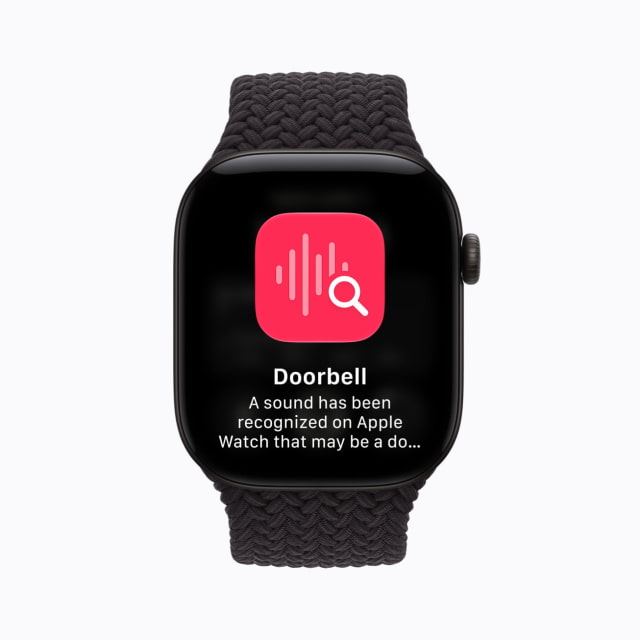
Live Rewind Shows Text From the Last 15 Seconds
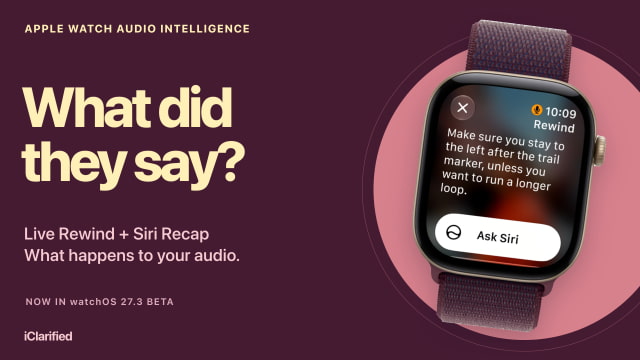
Live Rewind turns the preceding 15 seconds of speech into text on your wrist. To enable it, open the Watch app on iPhone, tap Siri, then Live Rewind, and turn on "Double Click Digital Crown." You then double-press the Crown whenever you want to catch an unfamiliar name, an instruction, or the end of a sentence you missed.
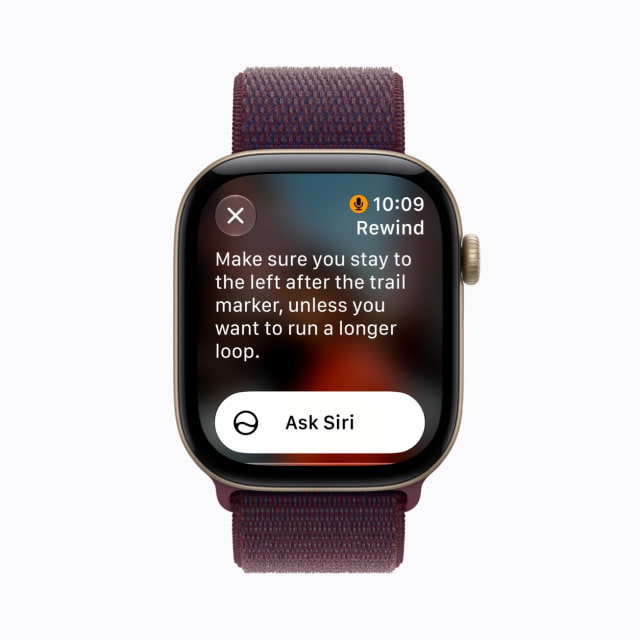
While the feature is enabled, the Watch keeps a short rolling audio buffer, replacing old sound as new sound arrives. Pressing the Crown triggers speech recognition for that 15-second window. It doesn't continuously transcribe conversations, and the result is text rather than an audio clip.
Your paired iPhone must be within wireless range. If the Watch can't reach it, Live Rewind fails and discards the buffered audio. A cellular Ultra 4 still needs its iPhone nearby for this feature.
The initial snippet is processed on the Watch and iPhone. It disappears about 30 seconds after the Watch display dims unless you save it or tap Ask Siri. Either of those actions sends the text to Private Cloud Compute; saving it keeps a copy in the Siri app.
Siri Recap Turns Conversations Into Notes
Siri Recap creates a title and a short summary of a conversation's main points. You enable it in the Watch app on iPhone, where you can set a schedule based on time or location, such as during work hours. You can also turn it on or off whenever you want from Control Center.
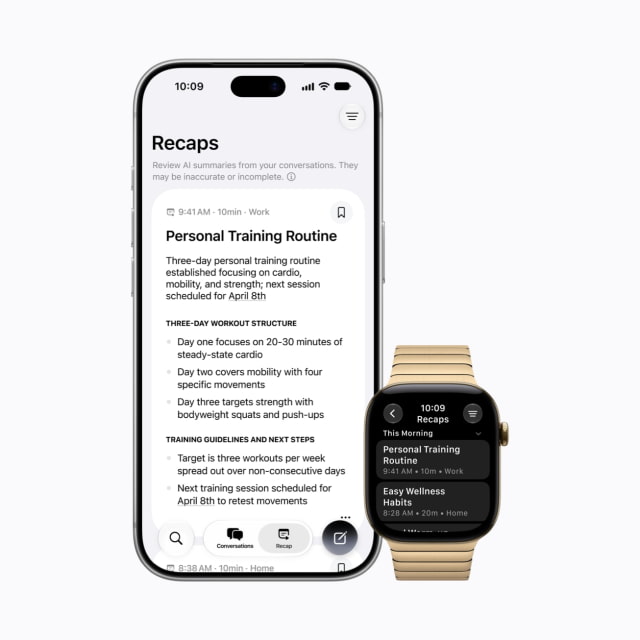
A Recap can help you revisit a project discussion or a set of instructions without taking notes throughout. It won't preserve every word or label who said what, although names mentioned in the conversation may appear in the summary.
Recap pauses while you listen to media or take a phone or FaceTime call through headphones paired to your iPhone or Watch. It also pauses summarizing nearby conversations when Active Noise Cancellation is on for your AirPods or Beats.
You can set summaries to delete automatically after a period of up to seven days unless you save them. To keep one, save it in the Siri app or export it to Notes, Journal, or another app. Exported copies are managed separately in the app you send them to.
Where the Audio and Text Go
For Siri Recap, the Watch encrypts the audio in its Secure Exclave and sends it to the paired iPhone. The iPhone transcribes and shortens the conversation inside its own Secure Exclave, according to Apple's Audio Intelligence privacy overview.
The iPhone then sends the condensed text to Private Cloud Compute, where Apple's models write the final summary. The text sent to the cloud is designed to be less than half the original transcript's length, cutting filler and repetition while keeping the main topics. The finished summary is encrypted and returned to your devices.
Some context goes with it, including calendar events, Now Playing information, and broad location details such as home, work, a city, or a type of place. Apple's privacy paper says this does not include precise GPS coordinates or a specific point of interest.
The raw audio is deleted after processing. Apple's design keeps it inaccessible to the operating system, apps, and the user, so there is no recording to replay or share. Private Cloud Compute receives condensed text for Recap, not raw audio; Apple says its servers use the data only to fulfill the request and do not retain it or make it accessible to the company.
Recaps and saved Rewind snippets sync through iCloud with end-to-end encryption when you have two-factor authentication and a device passcode enabled. Apple does not hold those encryption keys. Deleting an item in the Siri app removes it from your synced devices.
Will People Around You Know?
Live Rewind plays a chime through the Watch speaker when you activate it, even in Silent Mode or with headphones connected. A full-screen animation and microphone indicator also appear. Siri Recap has no activation chime, so people around you may not know it is summarizing the conversation.
Ask before using either feature in a private or sensitive discussion. Recap is designed to omit information such as financial details and authentication data, but automated filtering can miss things.
Live Rewind vs. Siri Recap
| Feature | Live Rewind | Siri Recap |
|---|---|---|
| Purpose | Read what was just said | Remember a conversation's main points |
| Activation | Double-press Digital Crown after opt-in | Opt-in; manual control or time / place schedule |
| Output | Text from the previous 15 seconds | High-level summary, not a transcript |
| Processing | Watch and iPhone; PCC if you save or ask Siri | Watch, iPhone, and Private Cloud Compute |
| Automatic deletion | About 30 seconds after display dims, unless saved or sent to Siri | Choose a period of up to 7 days, unless saved |
| Keep it longer | Save or use Ask Siri | Save or export |
| Speaker labels | No | No |
| Audible activation cue | Chime, including in Silent Mode | No activation chime |
| Availability | watchOS 27.3 developer beta | watchOS 27.3 developer beta |
Should You Turn Them On?
If you want help catching the occasional missed detail, I'd start with Live Rewind: you choose each moment it transcribes with a button press. Recap makes more sense for longer discussions you want notes from, with a schedule or manual controls to limit when it runs. Both can get things wrong, so confirm important dates, amounts, or instructions with the people involved. Features that use Apple's server-side models also have daily usage limits.
If you are buying a Watch, you do not need to pay extra for Ultra 4 to get these tools: Series 12 supports both. They are still beta features, so I would not upgrade solely for them yet. Our Series 12 vs. Ultra 4 comparison covers the display, battery, and other hardware differences.
You can check individual listings for the 42mm Series 12 and Ultra 4 with Alpine Loop, or browse other configurations and tracked retailers in our Apple Watch Price Tracker.