To use two apps at once on your iPhone Duo, open it in landscape, swipe up from the bottom of the screen, pause in the center, then drag the app to one side and tap a second app.
That's the first of seven tricks to try with your iPhone Duo open in landscape. The others swap and pair the two apps, go back to one app, start Split View from the Home Screen, open a second window of the same app, and split the keyboard.
We tried each one on our iPhone Duo running iOS 27, with Notes and Safari.
iPhone Duo Split Screen and Keyboard Tricks
1. Put Two Apps Side by Side
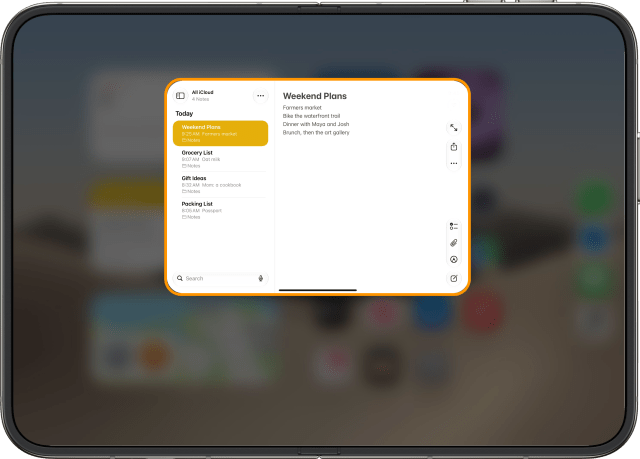
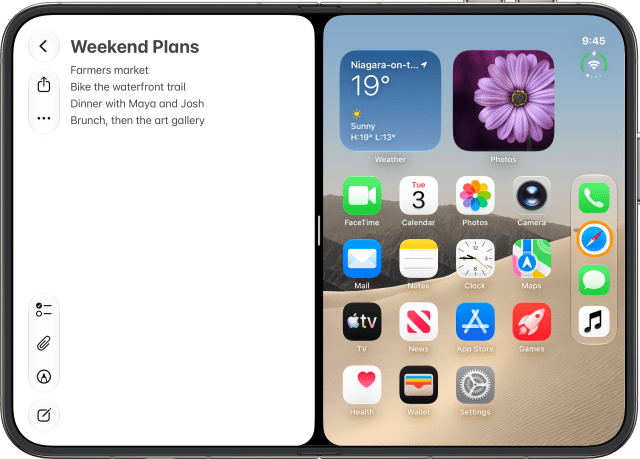
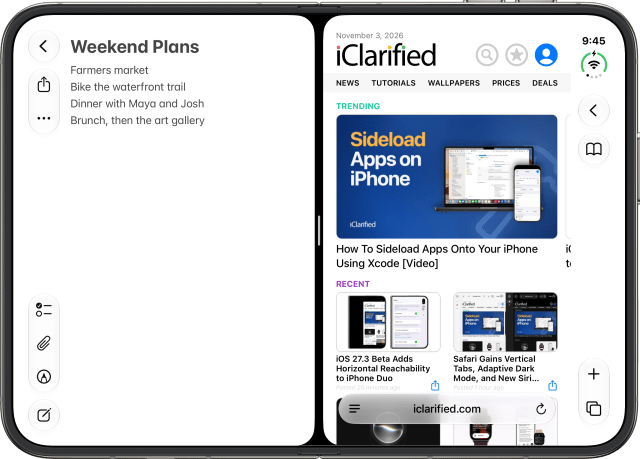
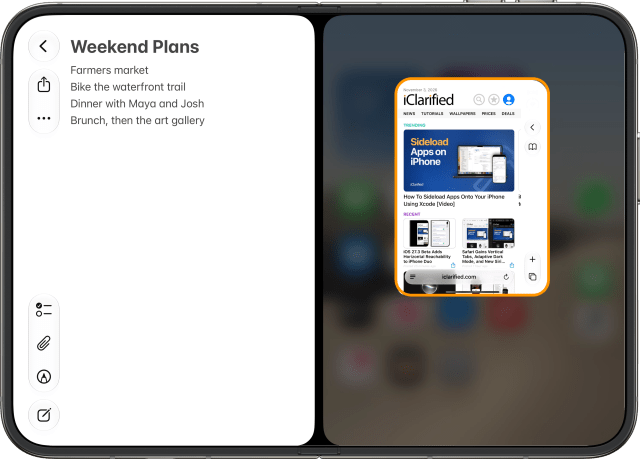
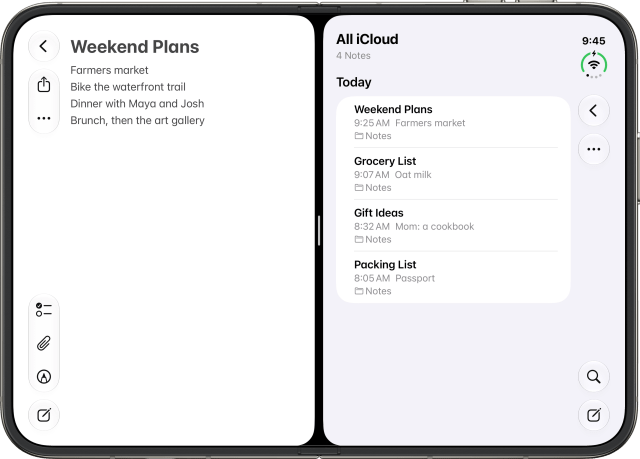
With your iPhone Duo open in landscape, swipe up from the bottom of the screen, pause in the center, then drag the app to the left or right side. It moves to the side to show your Home Screen. Tap a second app, like Safari, and the two share the screen equally.
2. Swap the Two Apps
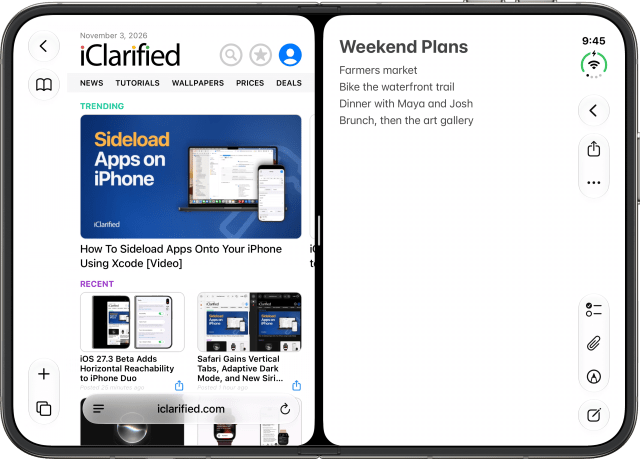
To swap them, swipe up from the bottom of one app, pause in the center, and drag it to the other side.
3. Pair Two Apps
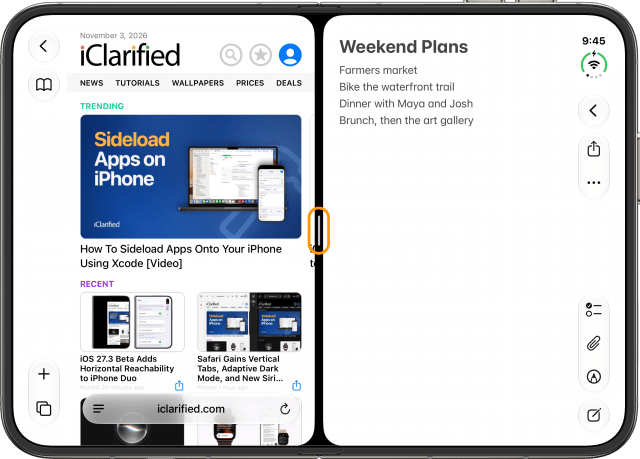
Tap the divider between the two apps to pair them. The next time you open either app, the other one opens with it.
4. Go Back to One App
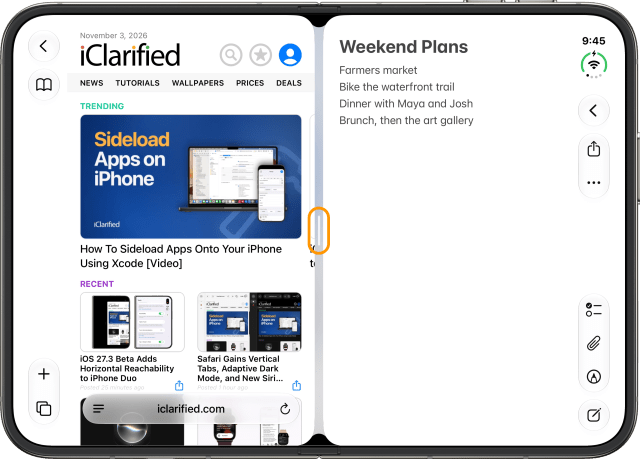
To go back to one app, drag the divider all the way to the left or right edge. Drag it to the left, and the app on the right fills the screen.
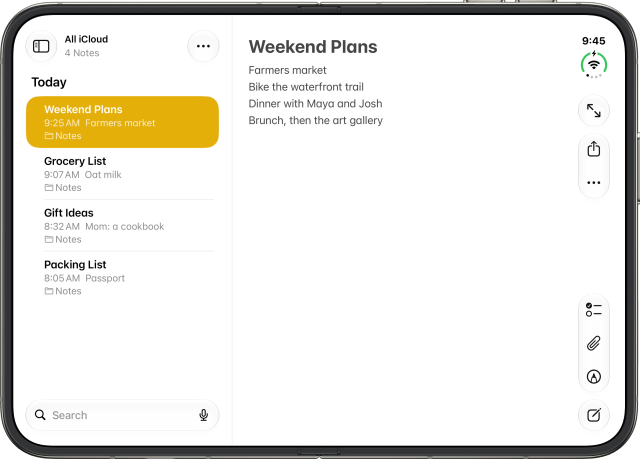
5. Open Split View From the Home Screen
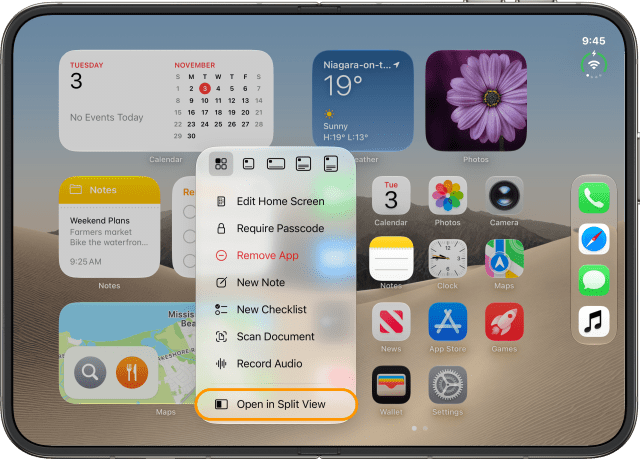
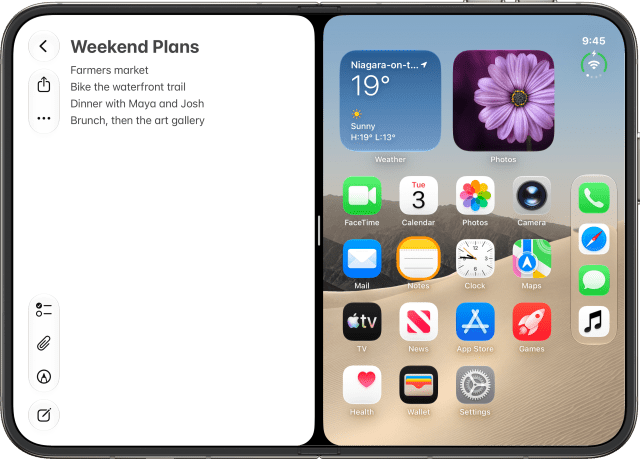
You can also start from the Home Screen. Touch and hold an app, like Notes, and tap Open in Split View. It opens on one side, with your Home Screen on the other, ready for a second app.
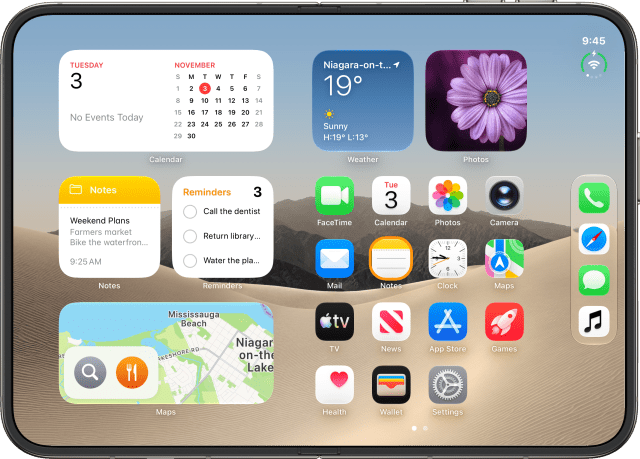
6. Open a Second Window of the Same App
Apps that support more than one window, like Notes, Safari, Mail and Files, can open twice. With the app in Split View, tap its icon on the Home Screen again.
7. Split the Keyboard
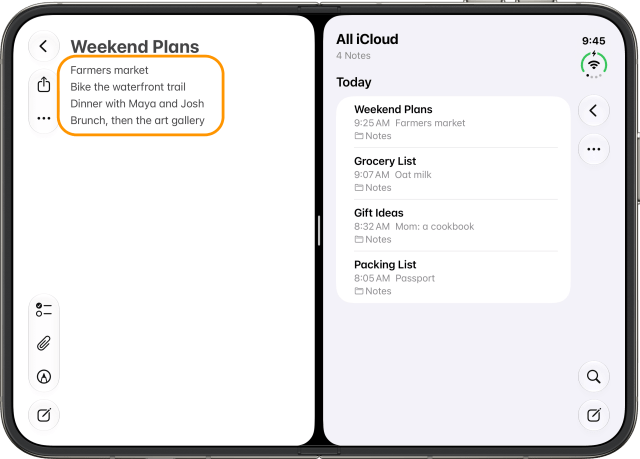
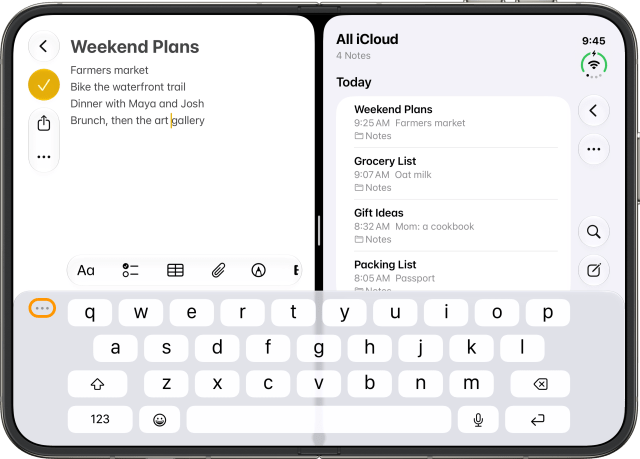
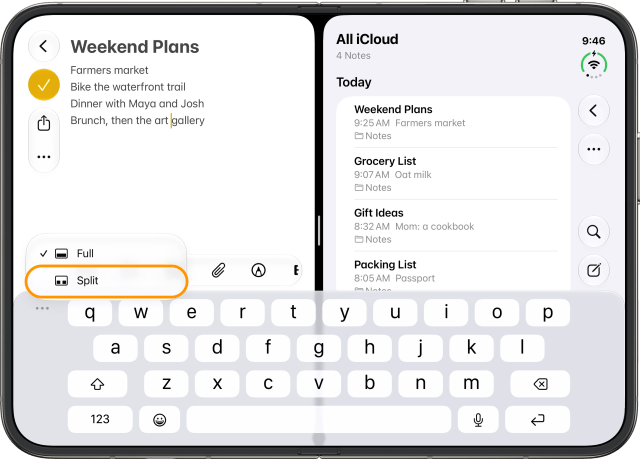
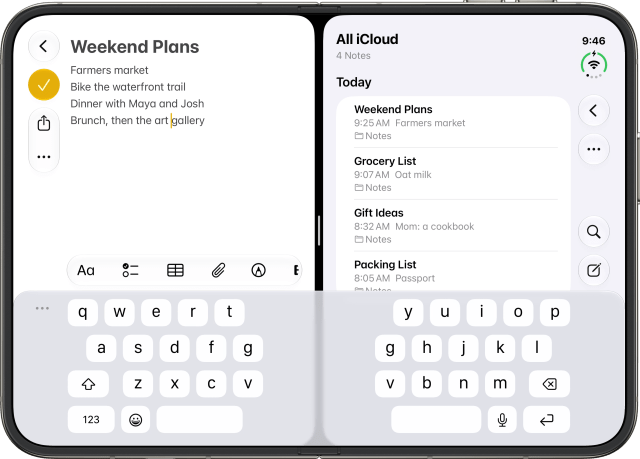
With your iPhone Duo open in landscape, you can split the keyboard to bring the keys closer to your thumbs. Tap where you want to type, like in a note, then tap the three dots at the keyboard's top left and tap Split. To put it back, tap the three dots again and tap Full.