These are instructions on how to set the default application that is used to open a file type in macOS.
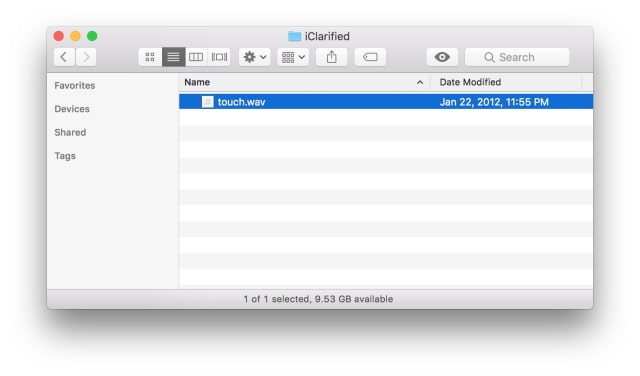
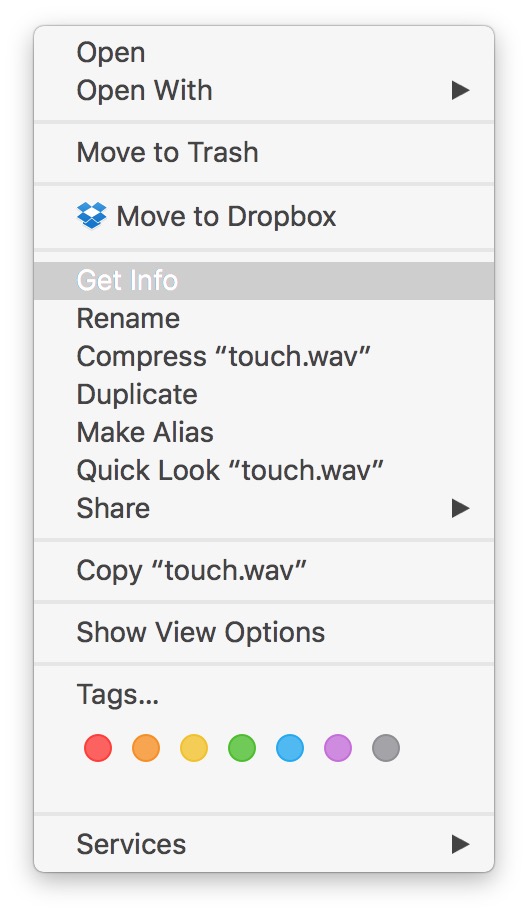
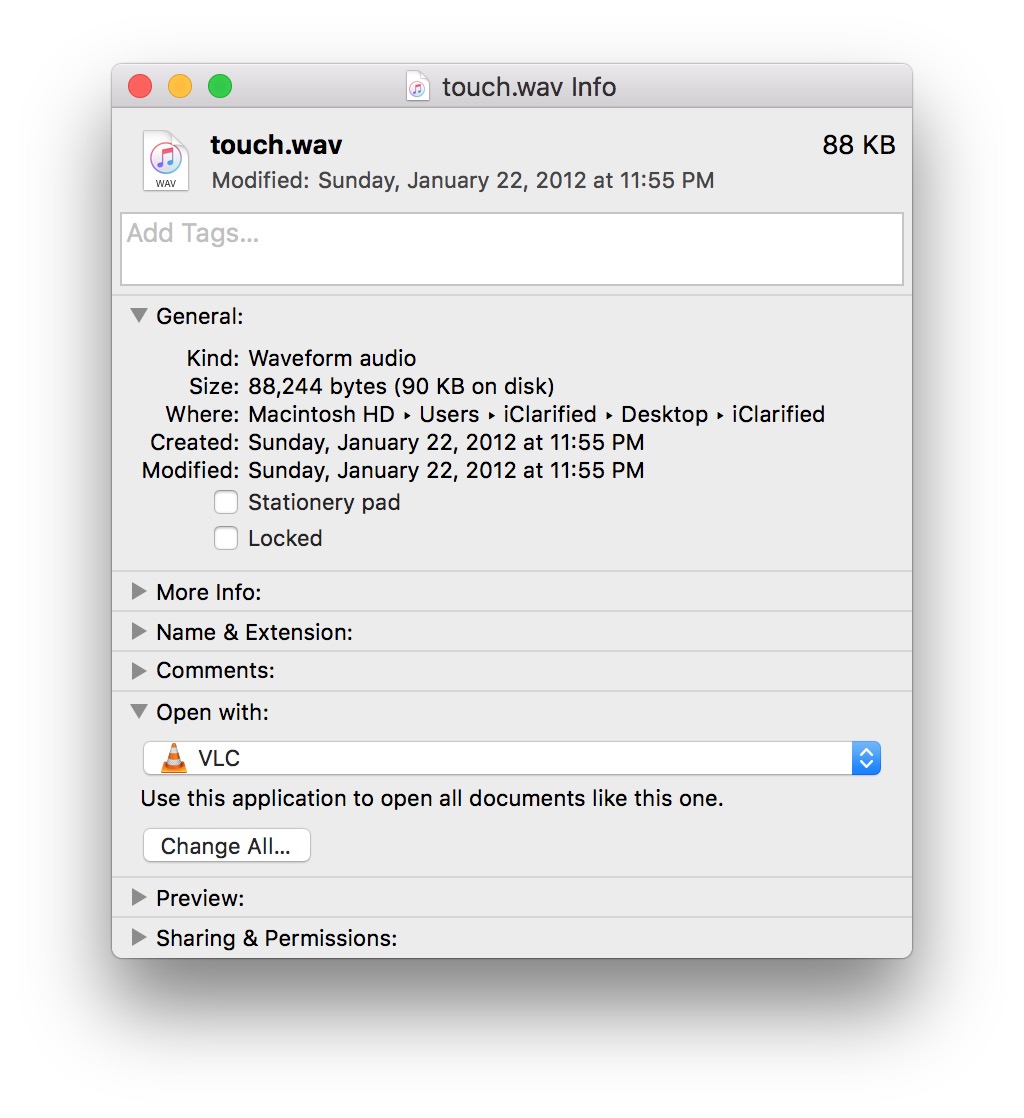
Step One Locate a file of the type you'd like to change the default application for in Finder. Select the file and press Command+I on the keyboard or right click (hold down Control and click) and select Get Info from the contextual menu that appears.
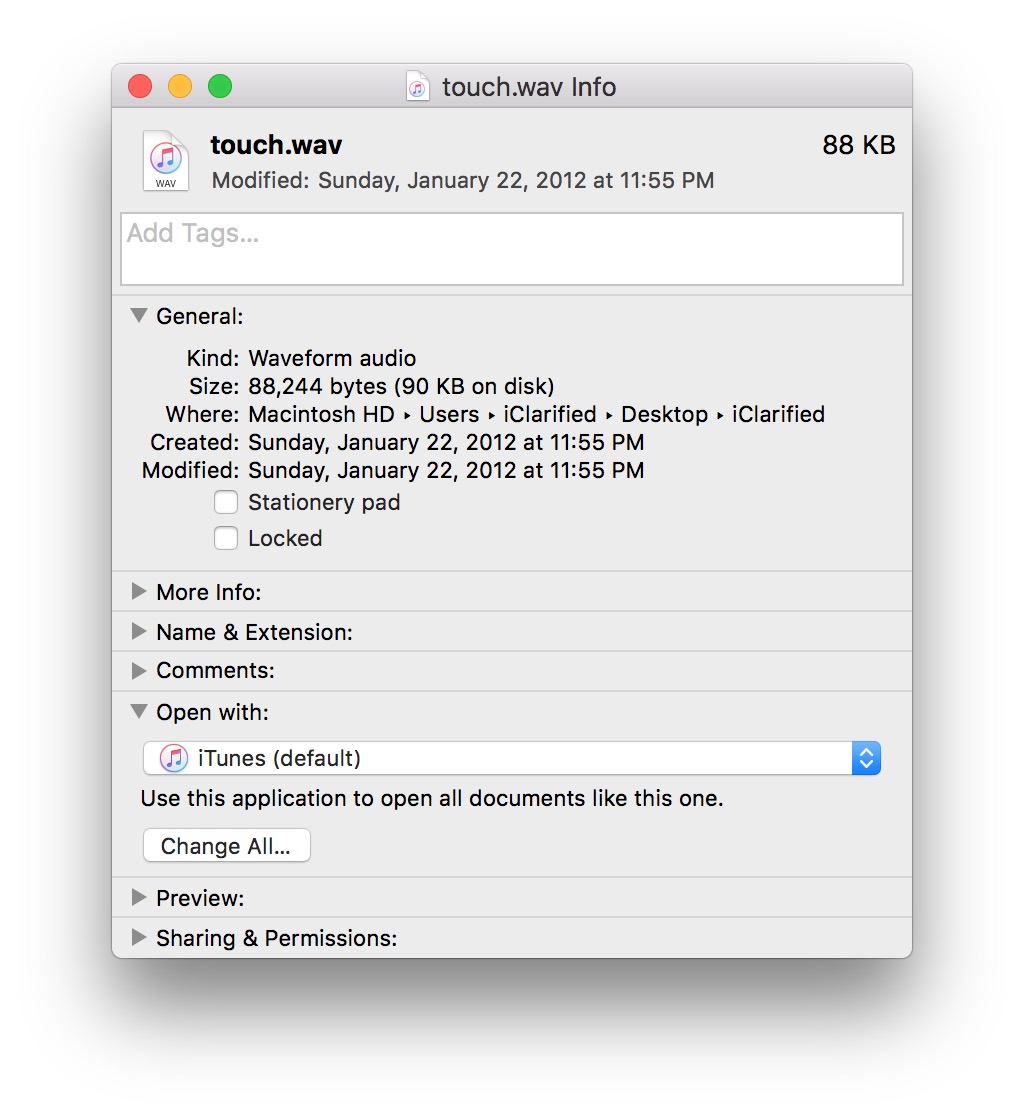
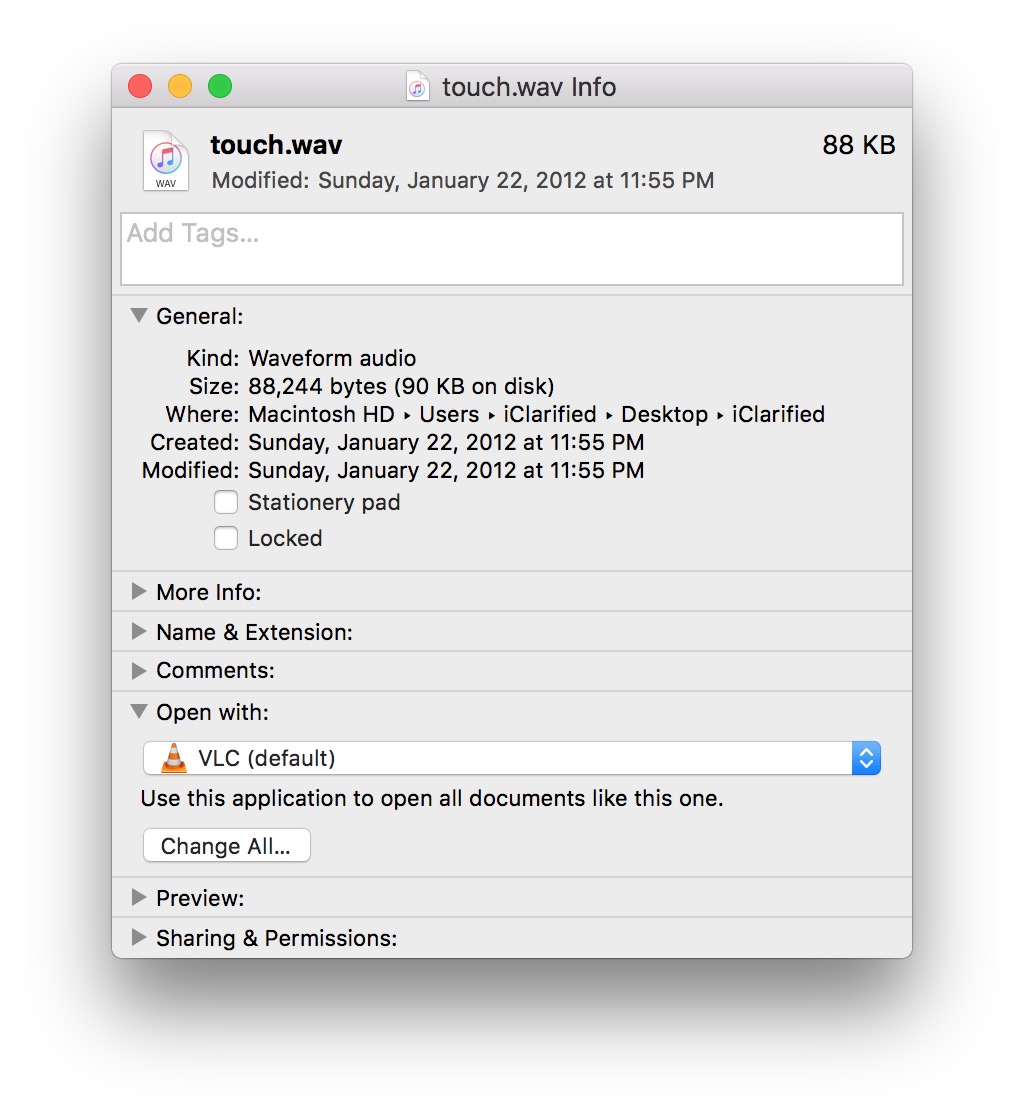
Step Two Expand the Open With section in the Info window.
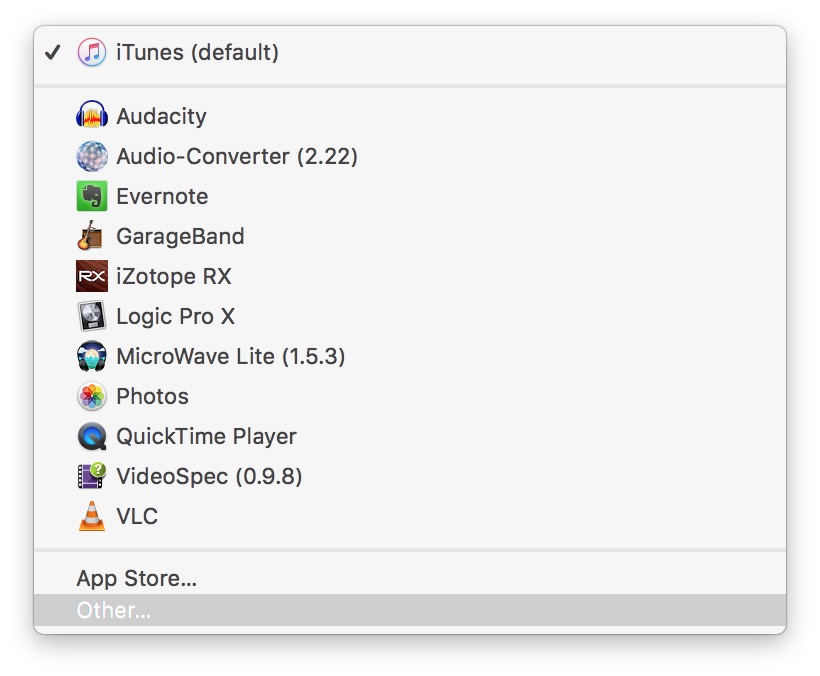
Step Three Click the dropdown to select from a list of suggested applications. If the application you'd like to use is not listed choose Other.
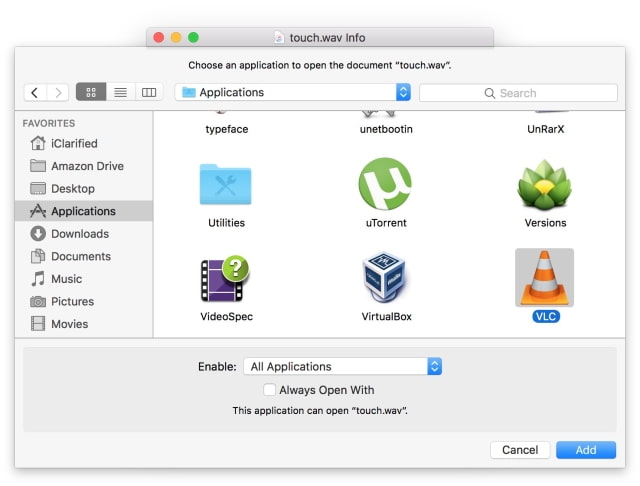
Step Four Change the Enable dropdown box to All Applications and select your application of choice.
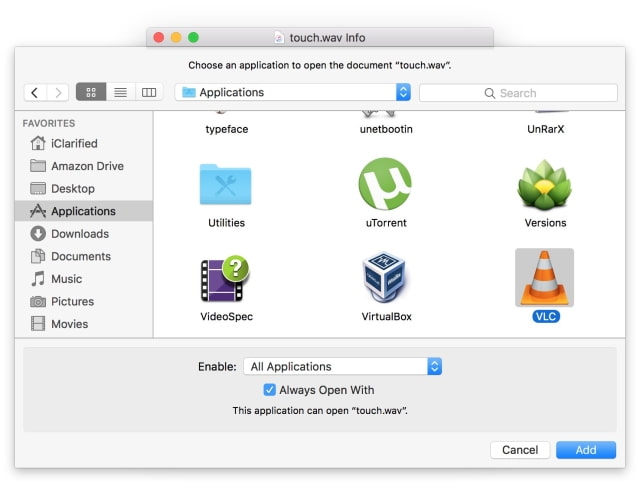
Step Five Check the Always Open With box then click the Add button.
Six Click the Change All... button to use the selected application to open all files of this format.
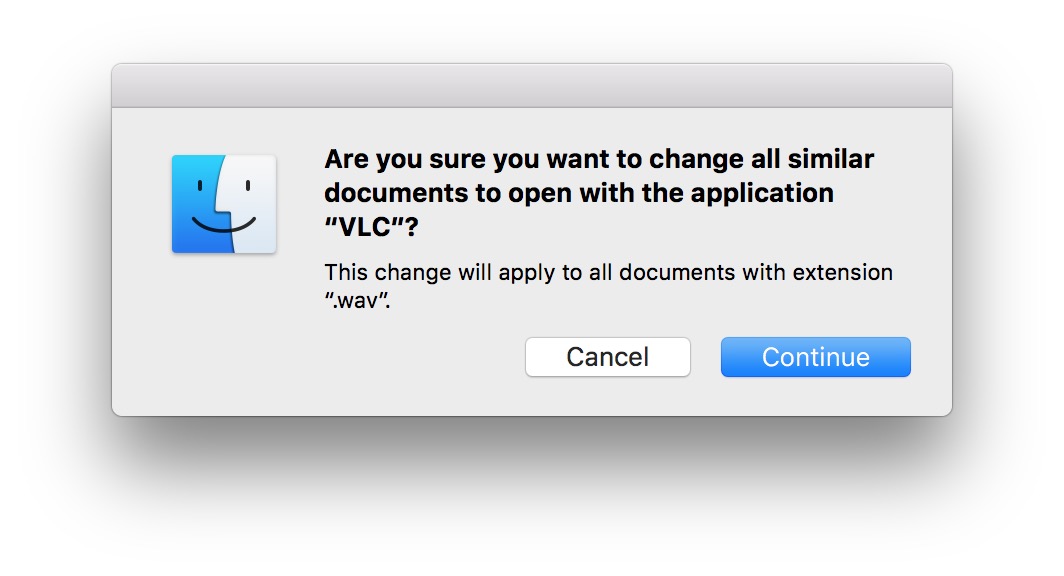
Step Seven Click Continue to confirm the change.
Step Eight All files of the format you selected will now default to opening with the application you've set.
Get the iClarified Daily Newsletter
Apple news, rumors, tutorials, price drop alerts, in your inbox every evening, free.
Unsubscribe at any time.
Success!
You have been subscribed.
Add Comment
Would you like to be notified when someone replies or adds a new comment?
Yes (All Threads)
Yes (This Thread Only)
No
Notifications
Would you like to be notified when we post a new Apple news article or tutorial?




![iPhone Duo's Initial 8 Million-Unit Order Extends Into 2027 [Gurman]](/images/news/102975/102975/102975-160.jpg "iPhone Duo's Initial 8 Million-Unit Order Extends Into 2027 [Gurman]")
![CT Scan Reveals How iPhone Duo's Hinge Works [Video]](/images/news/102981/102981/102981-160.jpg "CT Scan Reveals How iPhone Duo's Hinge Works [Video]")
![Apple Tests Face ID and Action Button for iPhone Duo, Considers Larger Display [Gurman]](/images/news/102972/102972/102972-160.jpg "Apple Tests Face ID and Action Button for iPhone Duo, Considers Larger Display [Gurman]")

![How To Back Up Your iPhone to an External Drive on Mac [Video]](/images/tutorials/72786/72786/72786-160.jpg "How To Back Up Your iPhone to an External Drive on Mac [Video]")

![How To Find Your IP Address on iPhone [Video]](/images/tutorials/496/496/496-160.jpg "How To Find Your IP Address on iPhone [Video]")
![New Fire TV Stick 4K Drops to $29.99 (50% Off) [Deal]](/images/news/102984/102984/102984-160.jpg "New Fire TV Stick 4K Drops to $29.99 (50% Off) [Deal]")
![Apple's iPhone 18 Pro and Pro Max Cases Are Up to 37% Off [Deal]](/images/news/102978/102978/102978-160.jpg "Apple's iPhone 18 Pro and Pro Max Cases Are Up to 37% Off [Deal]")
![16-Inch MacBook Pro With M5 Pro Drops to $2,429 ($570 Off), Lowest Price We've Seen [Deal]](/images/news/102957/102957/102957-160.jpg "16-Inch MacBook Pro With M5 Pro Drops to $2,429 ($570 Off), Lowest Price We've Seen [Deal]")

![16-Inch MacBook Pro With M5 Max Drops to $3,499 ($900 Off), Lowest Price We've Seen [Deal]](/images/news/102900/102900/102900-160.jpg "16-Inch MacBook Pro With M5 Max Drops to $3,499 ($900 Off), Lowest Price We've Seen [Deal]")
