
![How To Change Wallpaper on Mac [Video]](/images/tutorials/90512/433848/433848-64.png "How To Change Wallpaper on Mac [Video]")
Downloaded a new wallpaper for your Mac? Add it under Your Photos in System Settings and it becomes your desktop picture straight away. The same screen has Apple's own wallpapers, and Finder can set an image from its menu without opening System Settings.
We checked these steps on a MacBook Pro running macOS 27, using Apple's MacBook Neo wallpaper.
Set a Downloaded Image as Your Mac Wallpaper
Step One: Open System Settings
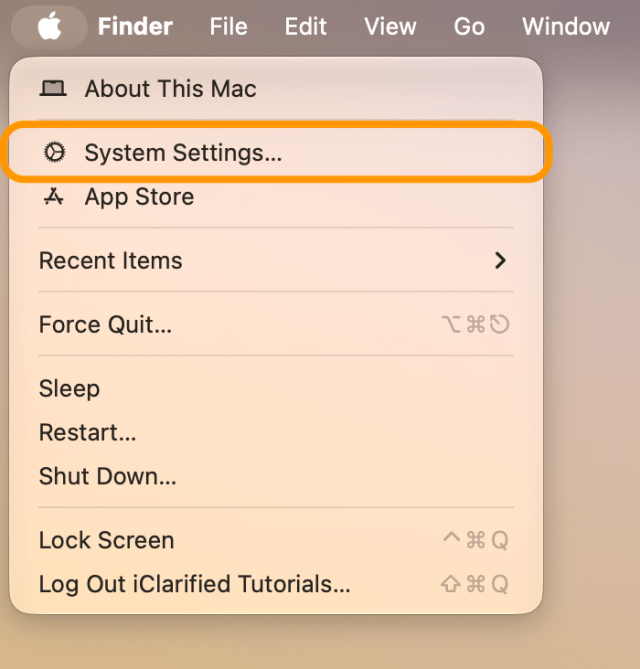
Click the Apple menu in the top-left corner of the screen and choose System Settings….

Step Two: Open Wallpaper Settings
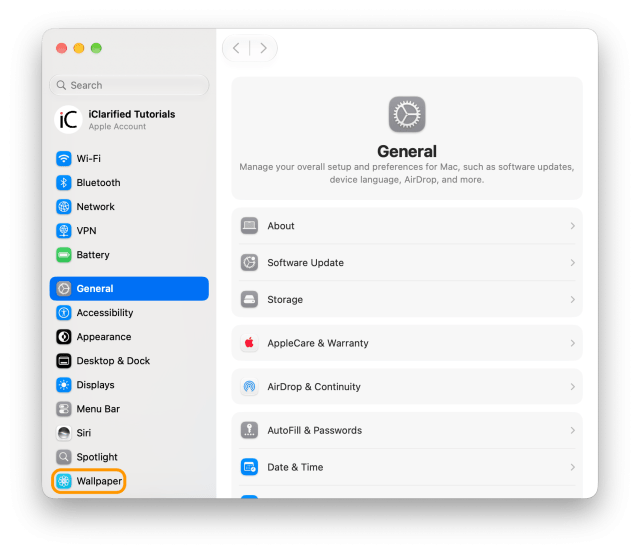
Click Wallpaper in the sidebar. You may need to scroll down to find it.
Step Three: Add a Photo
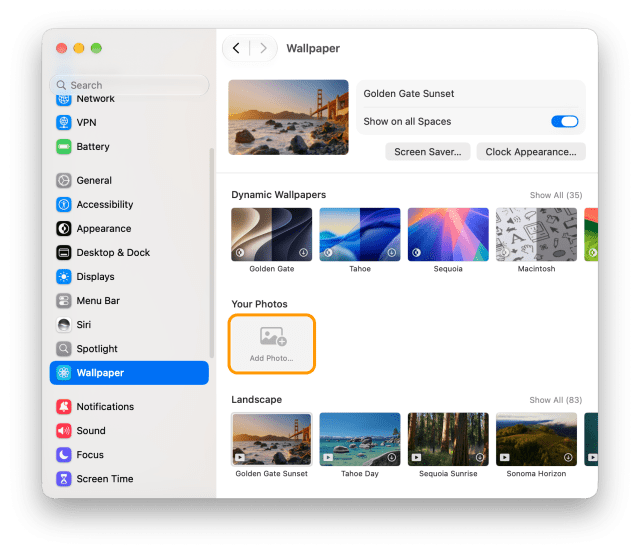
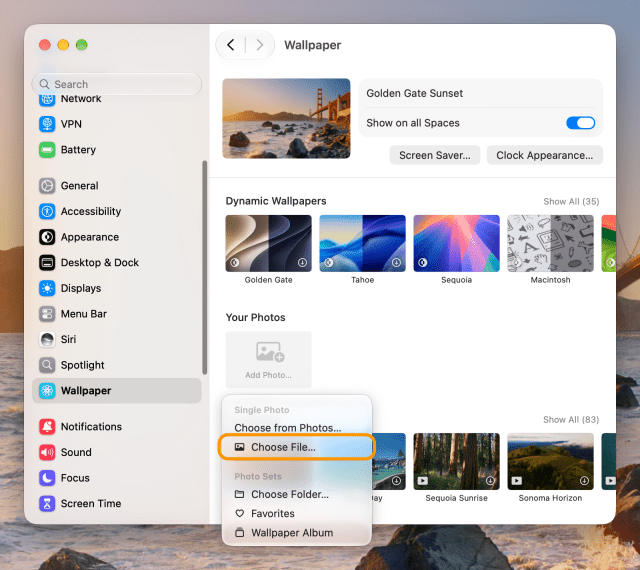
Under Your Photos, click Add Photo…, then click Choose File….
Step Four: Choose the Image
Open the folder where your wallpaper is saved, select the image, then click Open.
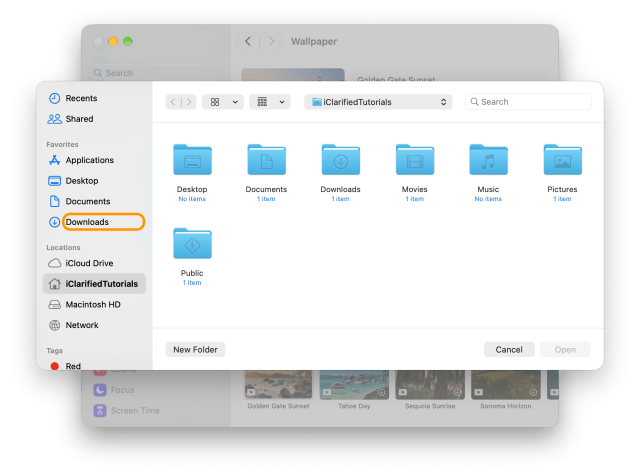
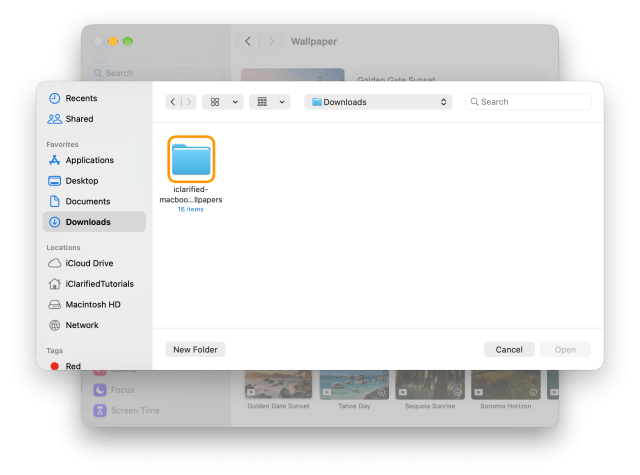
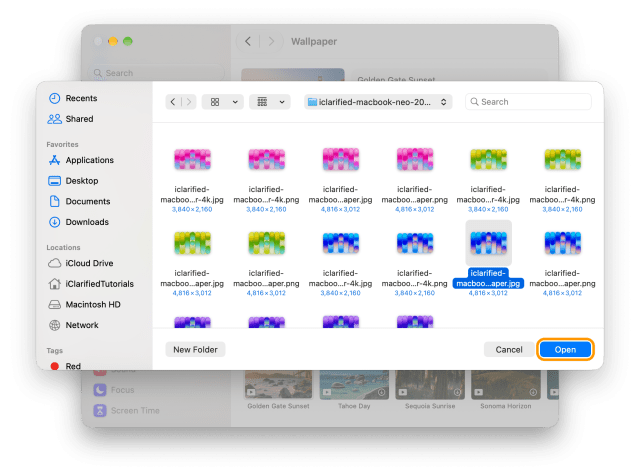
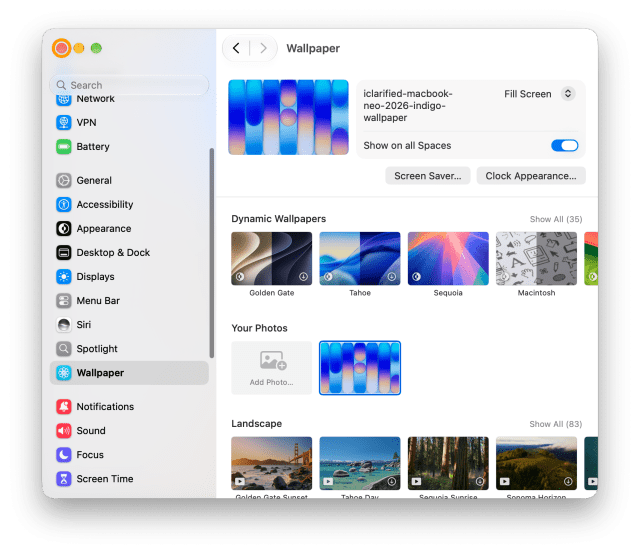
The wallpaper changes right away, and the image joins Your Photos so you can choose it again later. Close System Settings to see it on your desktop.
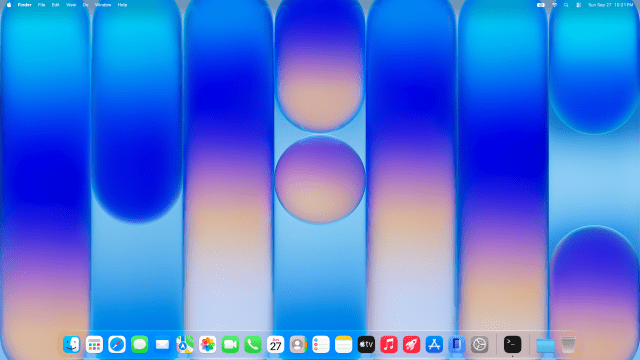
Choose One of Apple's Wallpapers
To use one of Apple's own wallpapers instead, click it in the same Wallpaper settings. They are grouped as Dynamic Wallpapers, Landscape, Cityscape, Underwater, Earth, Mac, Shuffle Aerials, Pictures and Colors.
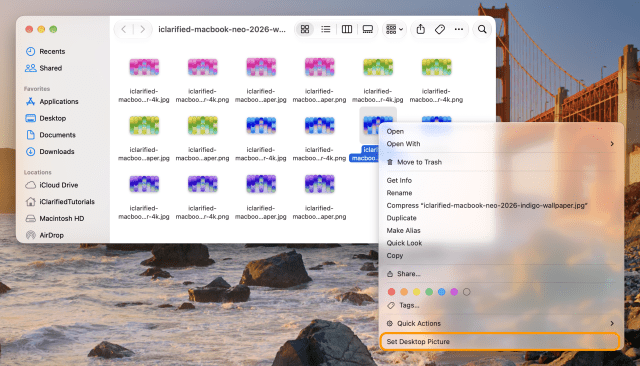
Set a Wallpaper From Finder
In Finder, Control-click the image file, then choose Set Desktop Picture.
For more of Apple's official wallpapers for Mac, iPhone and iPad, see our wallpaper section.

![Apple Previews What's Coming to Apple TV in November 2026 [Video]](/images/news/103230/103230/103230-160.jpg "Apple Previews What's Coming to Apple TV in November 2026 [Video]")
![Bots Are Snapping Up iPhone Duo Pickup Stock Within Seconds [Report]](/images/news/103227/103227/103227-160.jpg "Bots Are Snapping Up iPhone Duo Pickup Stock Within Seconds [Report]")
![Apple HomeView Could Double as a HomeKit Security Camera [Leak]](/images/news/103224/103224/103224-160.jpg "Apple HomeView Could Double as a HomeKit Security Camera [Leak]")
![How To Back Up Your iPhone to an External Drive on Mac [Video]](/images/tutorials/72786/72786/72786-160.jpg "How To Back Up Your iPhone to an External Drive on Mac [Video]")
![How To Find Your IP Address on iPhone [Video]](/images/tutorials/496/496/496-160.jpg "How To Find Your IP Address on iPhone [Video]")


![How To Sideload Apps Onto Your iPhone Using Xcode [Video]](/images/tutorials/52314/52314/52314-160.jpg "How To Sideload Apps Onto Your iPhone Using Xcode [Video]")
![M5 MacBook Air Up to $200 Off, 13-Inch From $1,099.99 [Deal]](/images/news/103233/103233/103233-160.jpg "M5 MacBook Air Up to $200 Off, 13-Inch From $1,099.99 [Deal]")
![Apple Watch Ultra 4 Drops Back to All-Time Low of $699.99 ($99 Off) [Deal]](/images/news/103218/103218/103218-160.jpg "Apple Watch Ultra 4 Drops Back to All-Time Low of $699.99 ($99 Off) [Deal]")
![AirTag 2 4-Pack Hits All-Time Low of $69.99 ($29 Off) [Deal]](/images/news/103203/103203/103203-160.jpg "AirTag 2 4-Pack Hits All-Time Low of $69.99 ($29 Off) [Deal]")
![Beats Headphones, Earbuds, and Pill Speaker Are Up to 41% Off [Deal]](/images/news/103026/103026/103026-160.jpg "Beats Headphones, Earbuds, and Pill Speaker Are Up to 41% Off [Deal]")
