
![How To Screen Record on iPhone [Video]](/images/tutorials/102717/486699/486699-64.png "How To Screen Record on iPhone [Video]")
A screen recording captures everything on your iPhone's screen as a video, along with the sound from your apps. Here's how to add the Screen Recording button to Control Center, start and stop a recording, find it in Photos, and add your voice with the microphone.
We tested each step on an iPhone 18 Pro Max running iOS 27.
Add Screen Recording to Control Center
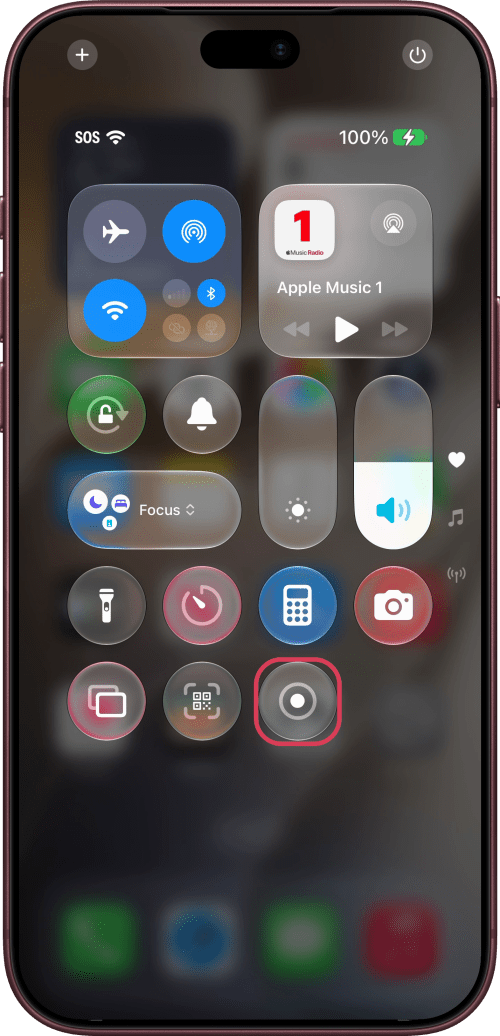
Swipe down from the top-right corner of the screen to open Control Center. If you don't see the Screen Recording button, tap the + in the top-left corner, then tap Add a Control.
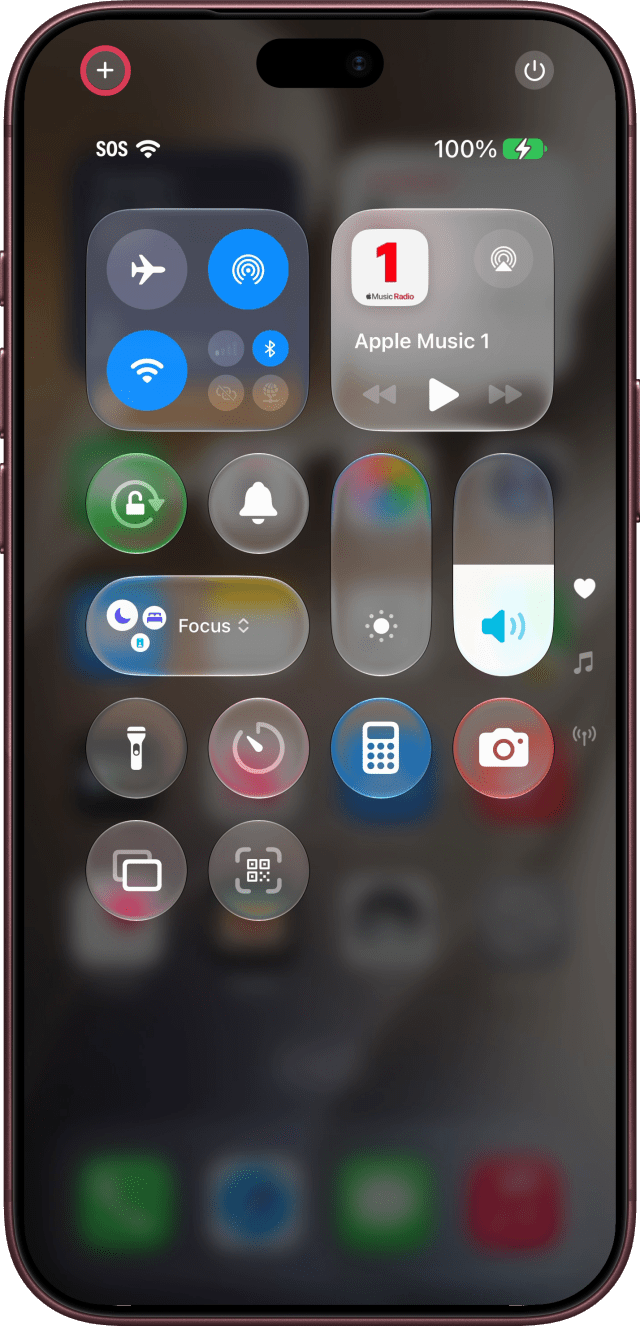
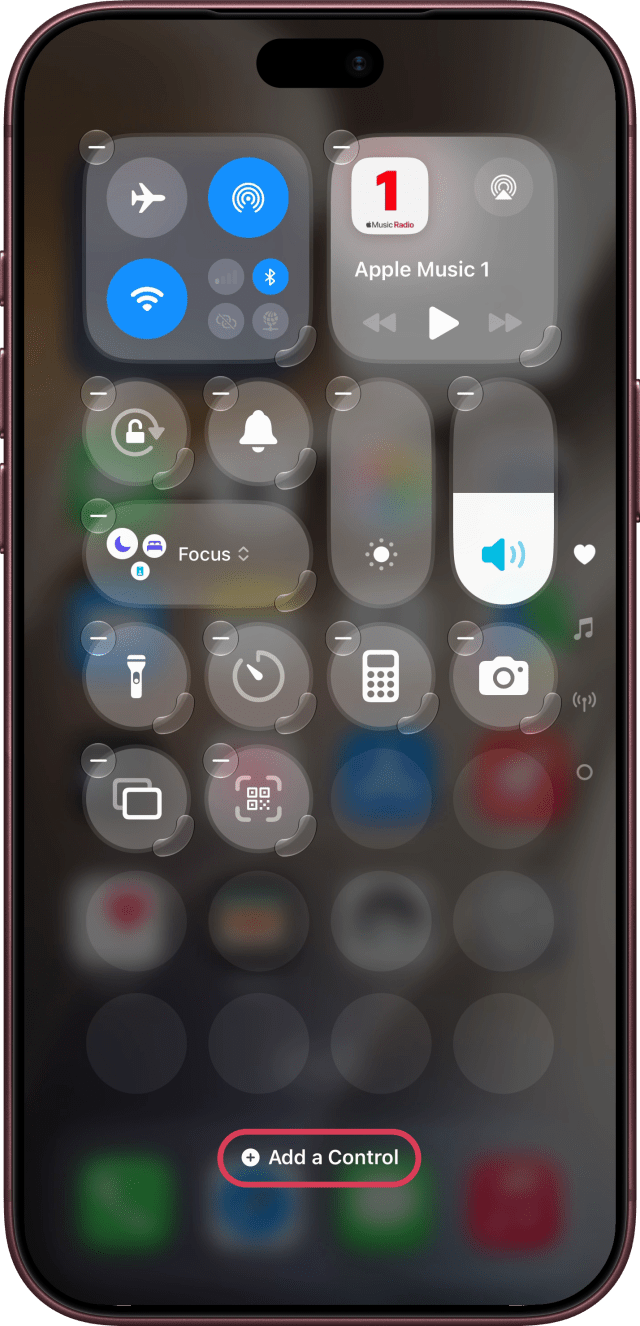
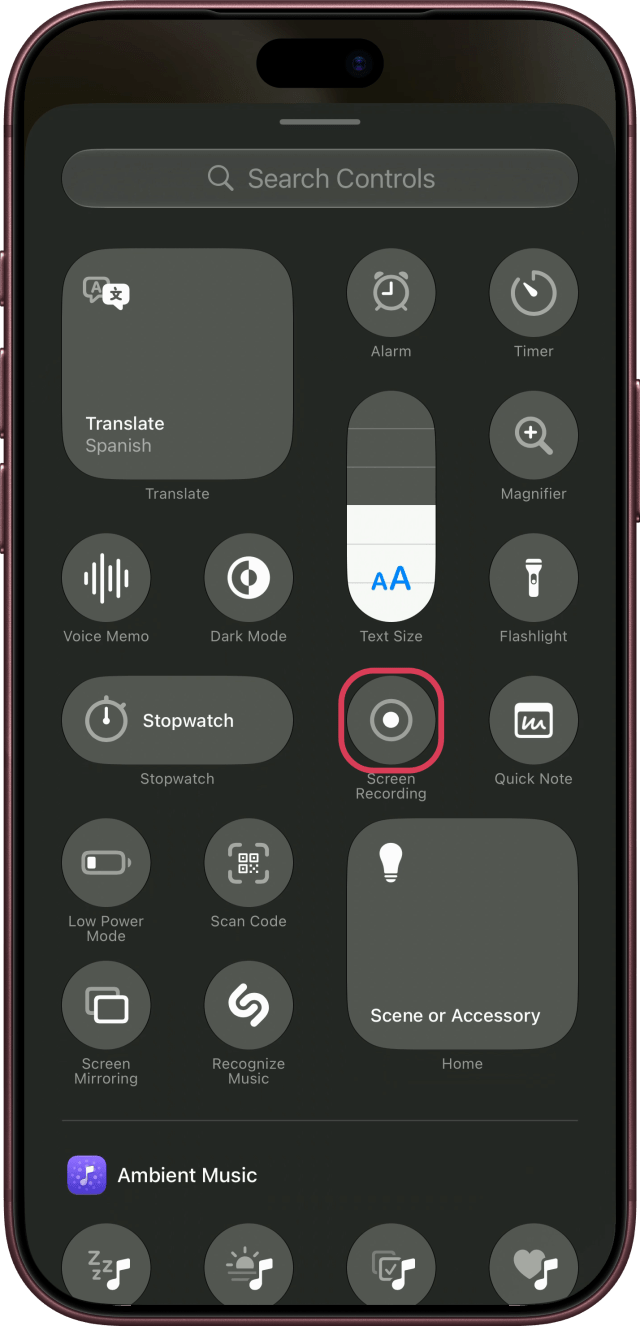
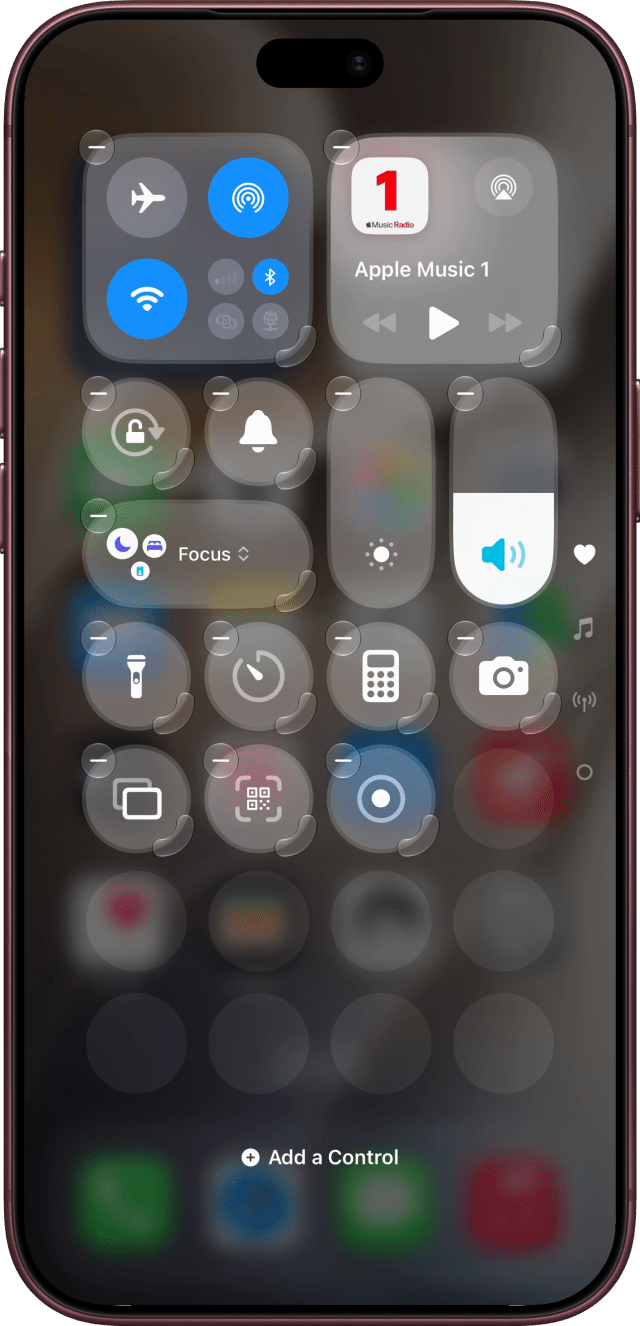
Tap Screen Recording, then tap an empty spot to finish.
Start a Screen Recording
Open Control Center and tap Screen Recording. After a three-second countdown, your iPhone starts recording.
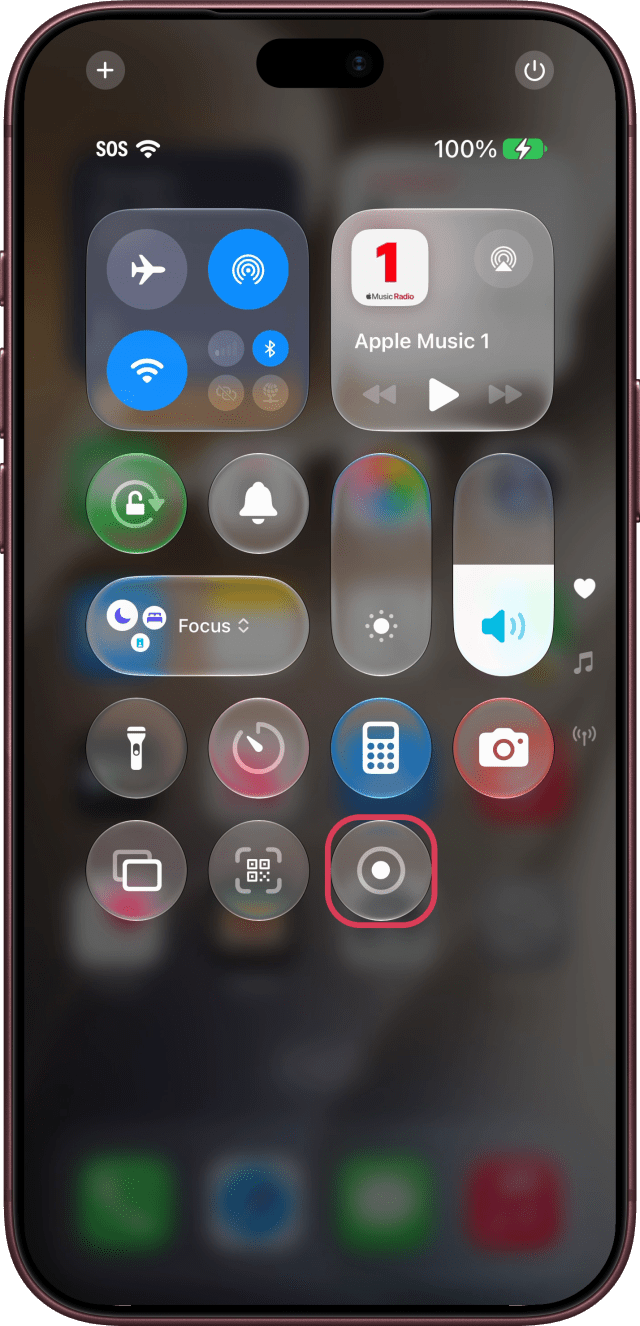
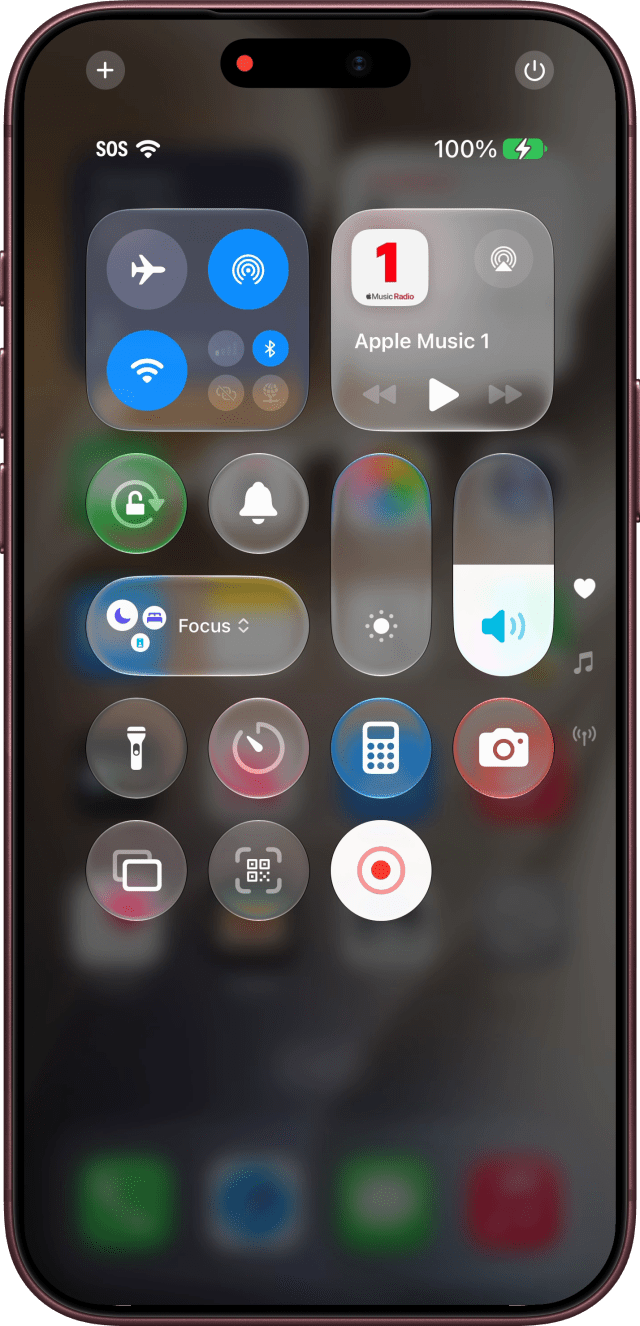
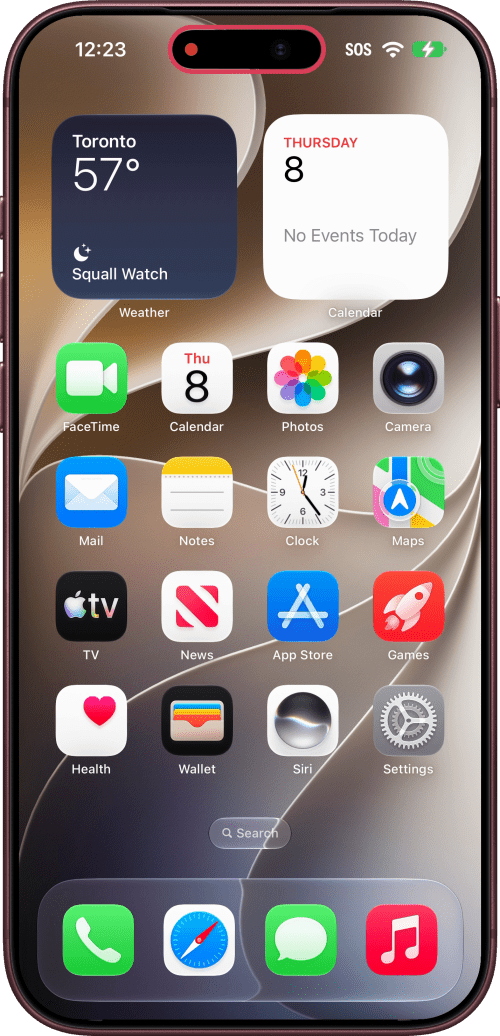
Tap an empty spot to close Control Center, then do whatever you want to record. The red dot in the Dynamic Island shows that your iPhone is recording.
Stop a Screen Recording
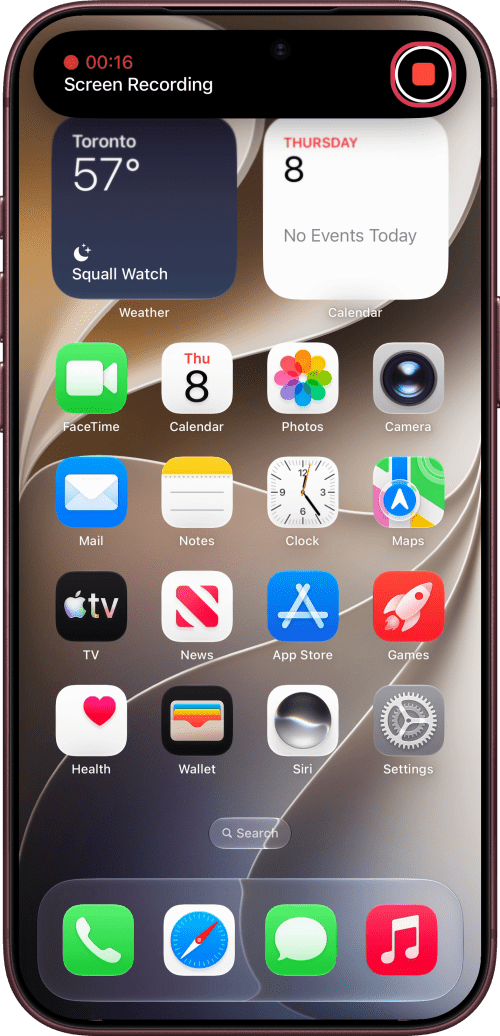
Tap the red dot in the Dynamic Island, then tap the Stop button. Your iPhone shows Recording Saved to Photos.
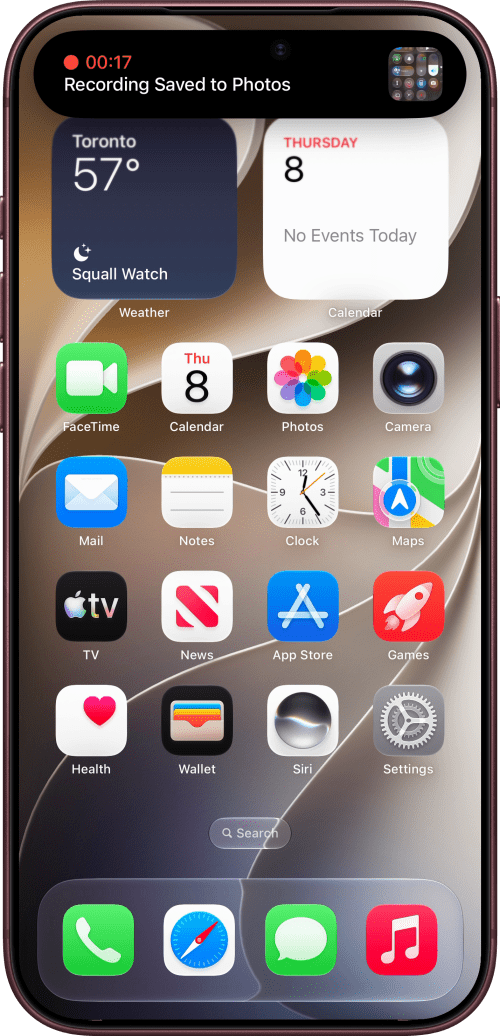
Find Your Recording in Photos
Open Photos. Your recording is the last item at the bottom of your Library. Tap it to play it back.
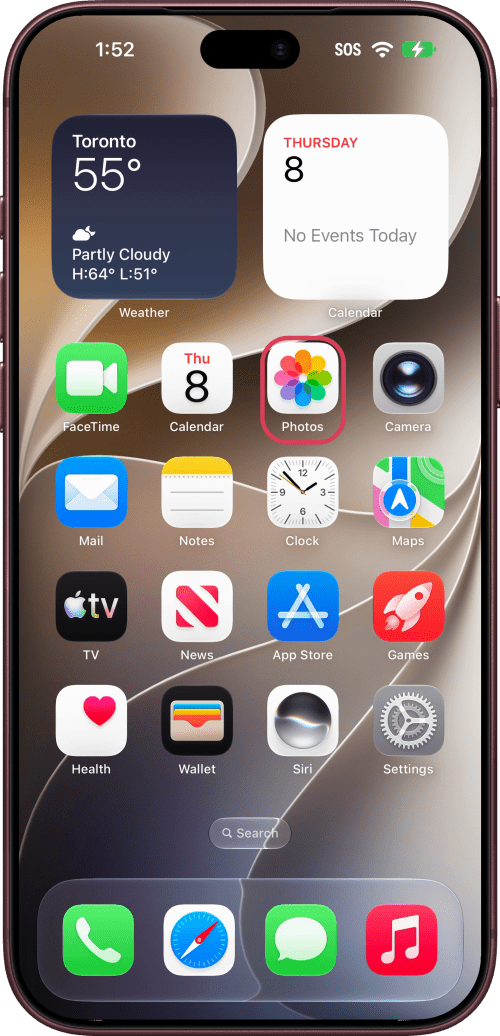
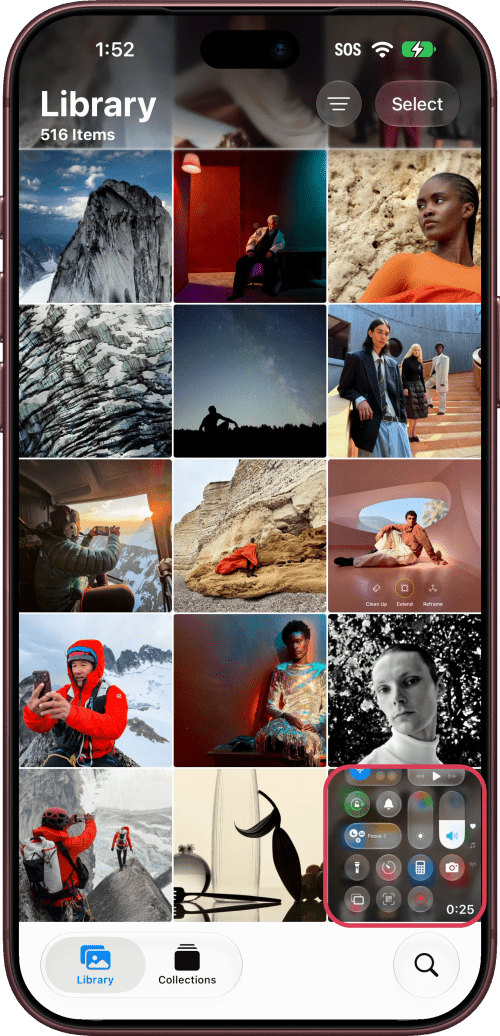
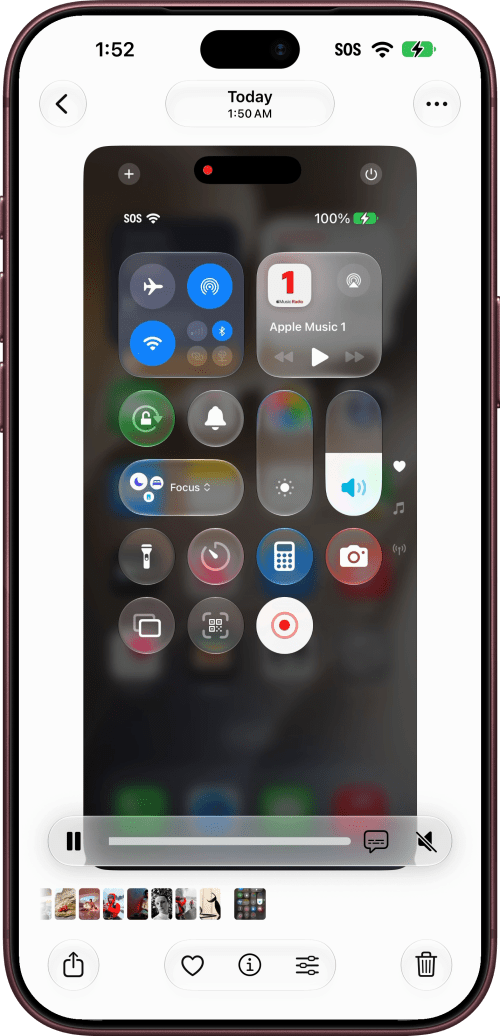
Record Your Voice With the Microphone
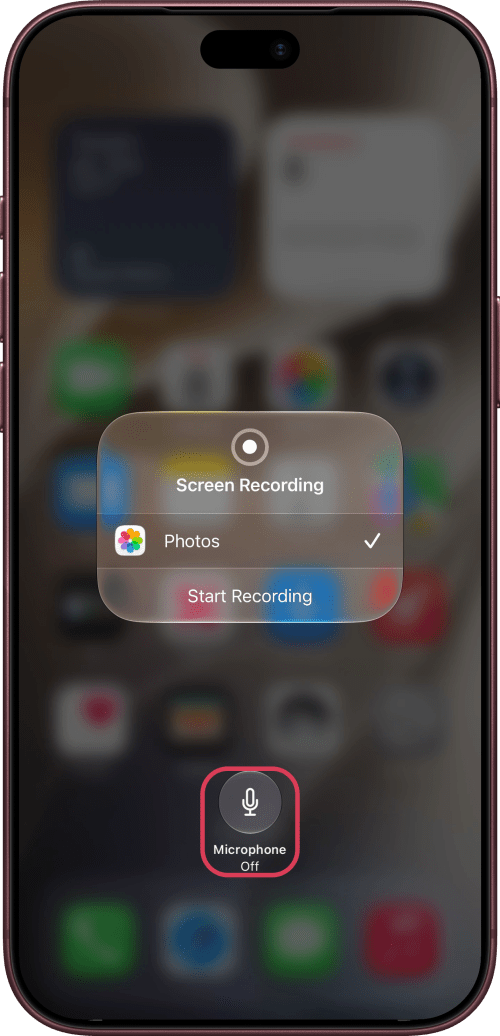
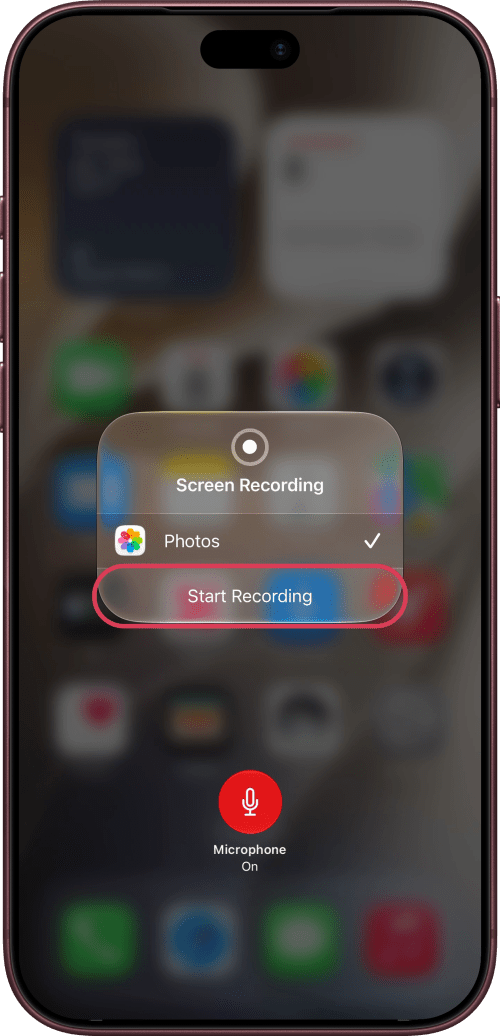
Your recording already includes the sound from most apps. To add your voice, open Control Center and touch and hold Screen Recording. Tap Microphone to turn it on, then tap Start Recording.
Some apps don't allow their sound to be recorded. In our test, Apple Music played silent in the recording.
Tips
Keep your screen on while you record. Locking your iPhone stops the recording.
There's no pause button. To record in parts, stop and start a new recording.


![Apple-LG Home Accessories Could Offer Dynamic Island Proximity Controls [Leak]](/images/news/102711/102711/102711-160.jpg "Apple-LG Home Accessories Could Offer Dynamic Island Proximity Controls [Leak]")

![How To Force Restart iPhone [Video]](/images/tutorials/95012/95012/95012-160.jpg "How To Force Restart iPhone [Video]")
![How To Turn Off iPhone [Video]](/images/tutorials/94999/94999/94999-160.jpg "How To Turn Off iPhone [Video]")
![How To Back Up Your iPhone to an External Drive on Mac [Video]](/images/tutorials/72786/72786/72786-160.jpg "How To Back Up Your iPhone to an External Drive on Mac [Video]")






![Mac mini Drops to $779.99 for Prime Big Deal Days [Deal]](/images/news/102624/102624/102624-160.jpg "Mac mini Drops to $779.99 for Prime Big Deal Days [Deal]")
