

How to Burn an ISO Disc Image Using Mac OS X Snow Leopard
Posted August 5, 2010 at 1:03am by
Shalom Levytam
These are instructions on how to burn an ISO CD or DVD disc image using Mac OS X Snow Leopard.
Step One
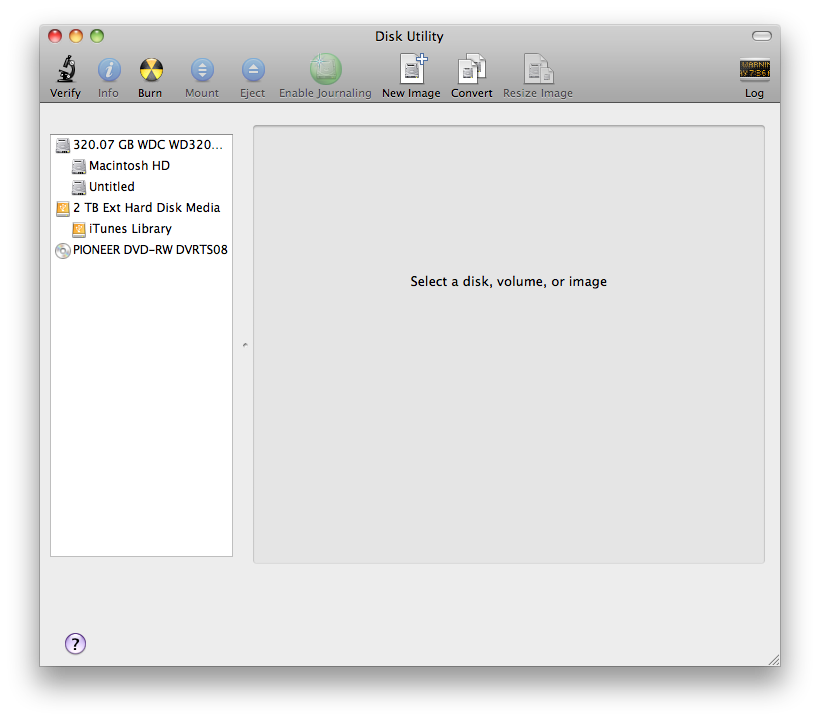
Launch Disk Utility from Applications:Utilities.
Step Two
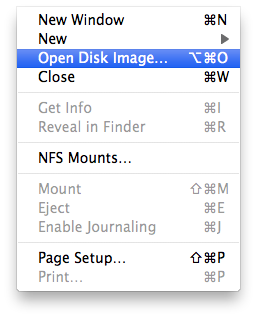
Click to select Open Disc Image... from the File Menu.
Step Three
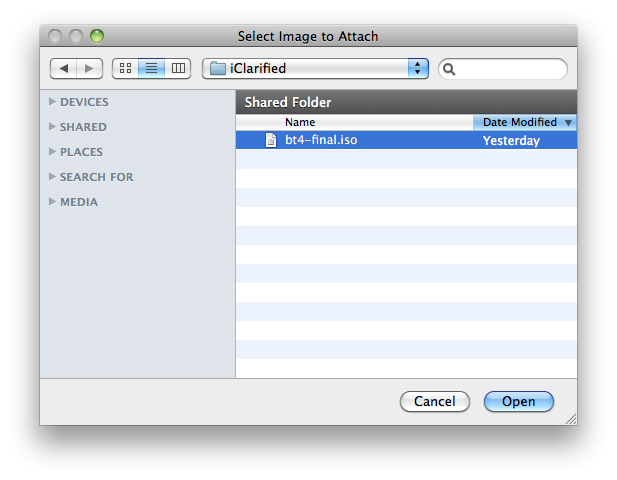
Navigate to your .iso file, select it, then click the Open button.
Step Four
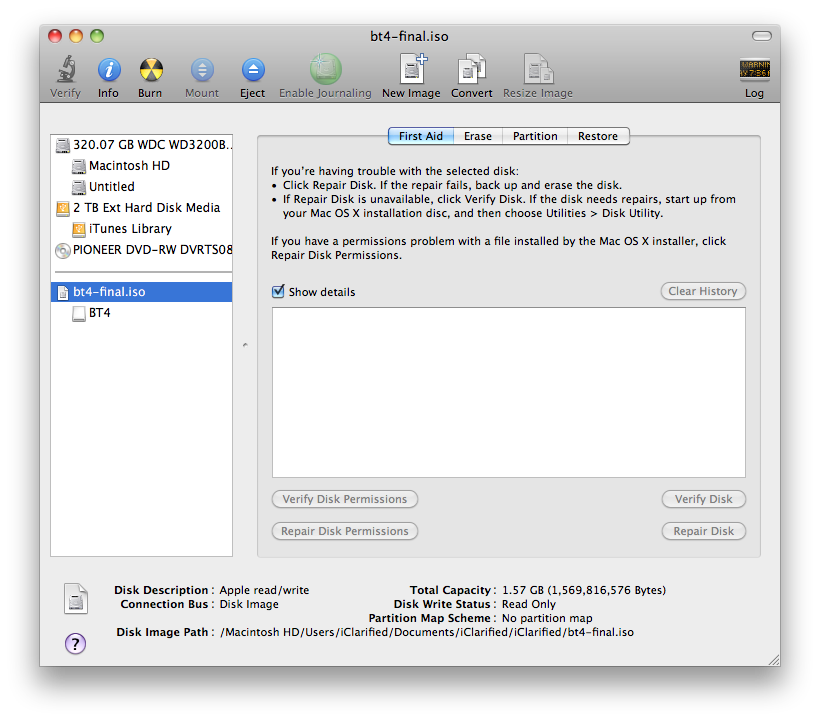
Click to select the disk image from the bottom left pane of the Disk Utility application.
Step Five
Click the Burn toolbar button.

Step Six
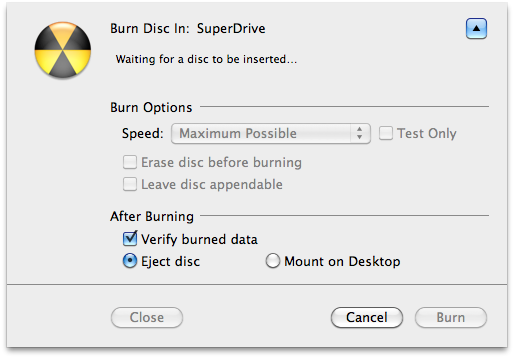
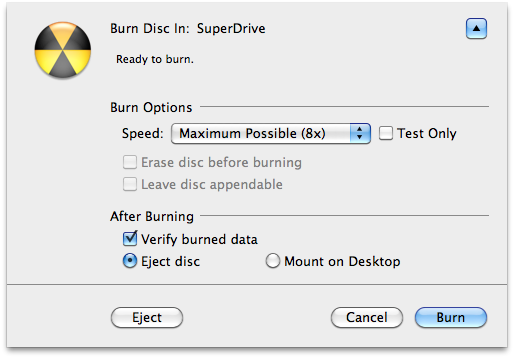
Insert your blank CD or DVD then click the Burn button.
Step Seven
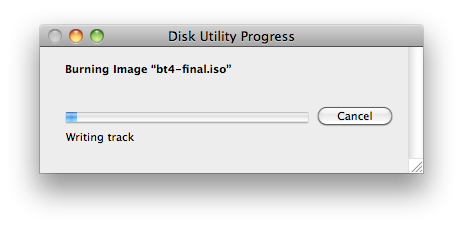
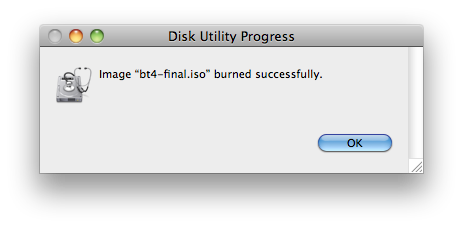
You will be notified once the burning process is complete.
Step One
Launch Disk Utility from Applications:Utilities.
Step Two
Click to select Open Disc Image... from the File Menu.
Step Three
Navigate to your .iso file, select it, then click the Open button.
Step Four
Click to select the disk image from the bottom left pane of the Disk Utility application.
Step Five
Click the Burn toolbar button.
Step Six
Insert your blank CD or DVD then click the Burn button.
Step Seven
You will be notified once the burning process is complete.








![Apple Watch Series 11 is Back on Sale for Just $299 [Deal]](/images/news/101081/101081/101081-160.jpg "Apple Watch Series 11 is Back on Sale for Just $299 [Deal]")
![AirPods Max 2 Drop to New All-Time Low of $499 [Deal]](/images/news/101063/101063/101063-160.jpg "AirPods Max 2 Drop to New All-Time Low of $499 [Deal]")
![AirPods Max 2 Hit All-Time Low Price of $509 ($40 Off) [Deal]](/images/news/101039/101039/101039-160.jpg "AirPods Max 2 Hit All-Time Low Price of $509 ($40 Off) [Deal]")
![New 13-Inch M5 MacBook Air Hits All-Time Low Price of $899.99 [Deal]](/images/news/100969/100969/100969-160.jpg "New 13-Inch M5 MacBook Air Hits All-Time Low Price of $899.99 [Deal]")
![AirPods Pro 3 Drop to $199 Ahead of Memorial Day [Deal]](/images/news/100935/100935/100935-160.jpg "AirPods Pro 3 Drop to $199 Ahead of Memorial Day [Deal]")
