

How to Enable QuickLook Folder Content Previews
Posted October 29, 2009 at 11:55pm by
Shalom Levytam
These are instructions on how to enable QuickLook folder content previews in Mac OS X Leopard and Snow Leopard.
Step One
Launch Terminal from the Applications:Utilities folder.

Step Two
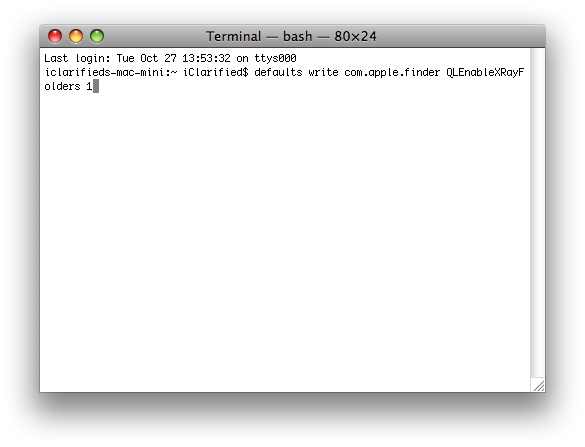
Input the following command into the Terminal window:
defaults write com.apple.finder QLEnableXRayFolders 1
Step Three
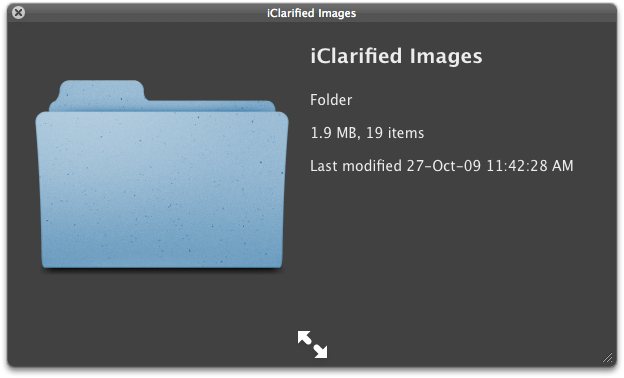
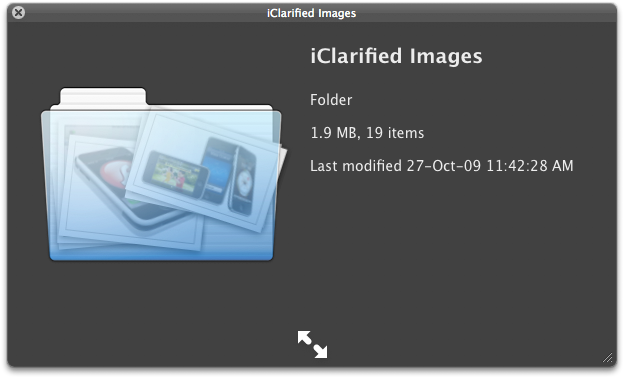
To test the change highlight a folder in the Finder window and press the Spacebar. Notice the folder icon now shows a preview of its contents.
Step Four
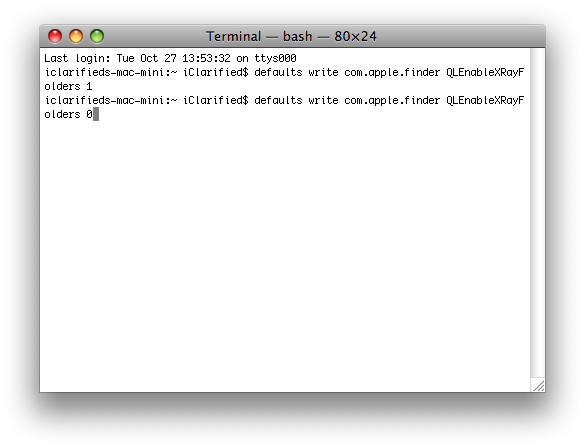
You can undo this change by entering the following command into the Terminal.
defaults write com.apple.finder QLEnableXRayFolders 0
***Thanks to Johnny Mikhael for the heads up. [OSXDaily]
Step One
Launch Terminal from the Applications:Utilities folder.
Step Two
Input the following command into the Terminal window:
defaults write com.apple.finder QLEnableXRayFolders 1
Step Three
To test the change highlight a folder in the Finder window and press the Spacebar. Notice the folder icon now shows a preview of its contents.
Step Four
You can undo this change by entering the following command into the Terminal.
defaults write com.apple.finder QLEnableXRayFolders 0
***Thanks to Johnny Mikhael for the heads up. [OSXDaily]








![Apple Watch Series 11 is Back on Sale for Just $299 [Deal]](/images/news/101081/101081/101081-160.jpg "Apple Watch Series 11 is Back on Sale for Just $299 [Deal]")
![AirPods Max 2 Drop to New All-Time Low of $499 [Deal]](/images/news/101063/101063/101063-160.jpg "AirPods Max 2 Drop to New All-Time Low of $499 [Deal]")
![AirPods Max 2 Hit All-Time Low Price of $509 ($40 Off) [Deal]](/images/news/101039/101039/101039-160.jpg "AirPods Max 2 Hit All-Time Low Price of $509 ($40 Off) [Deal]")
![New 13-Inch M5 MacBook Air Hits All-Time Low Price of $899.99 [Deal]](/images/news/100969/100969/100969-160.jpg "New 13-Inch M5 MacBook Air Hits All-Time Low Price of $899.99 [Deal]")
![AirPods Pro 3 Drop to $199 Ahead of Memorial Day [Deal]](/images/news/100935/100935/100935-160.jpg "AirPods Pro 3 Drop to $199 Ahead of Memorial Day [Deal]")
