
![How To Clear Your Location History on iPhone [Video]](/images/tutorials/102918/487839/487839-64.png "How To Clear Your Location History on iPhone [Video]")
To clear your iPhone's location history, go to Settings > Privacy & Security > Location Services > System Services > Significant Locations & Routes, then tap Clear History. Tap Clear History again to confirm. To stop your iPhone from learning new places, turn off Significant Locations & Routes at the top of the same screen.
We tested the steps on an iPhone 18 Pro Max running iOS 27.
Delete Significant Locations on Your iPhone
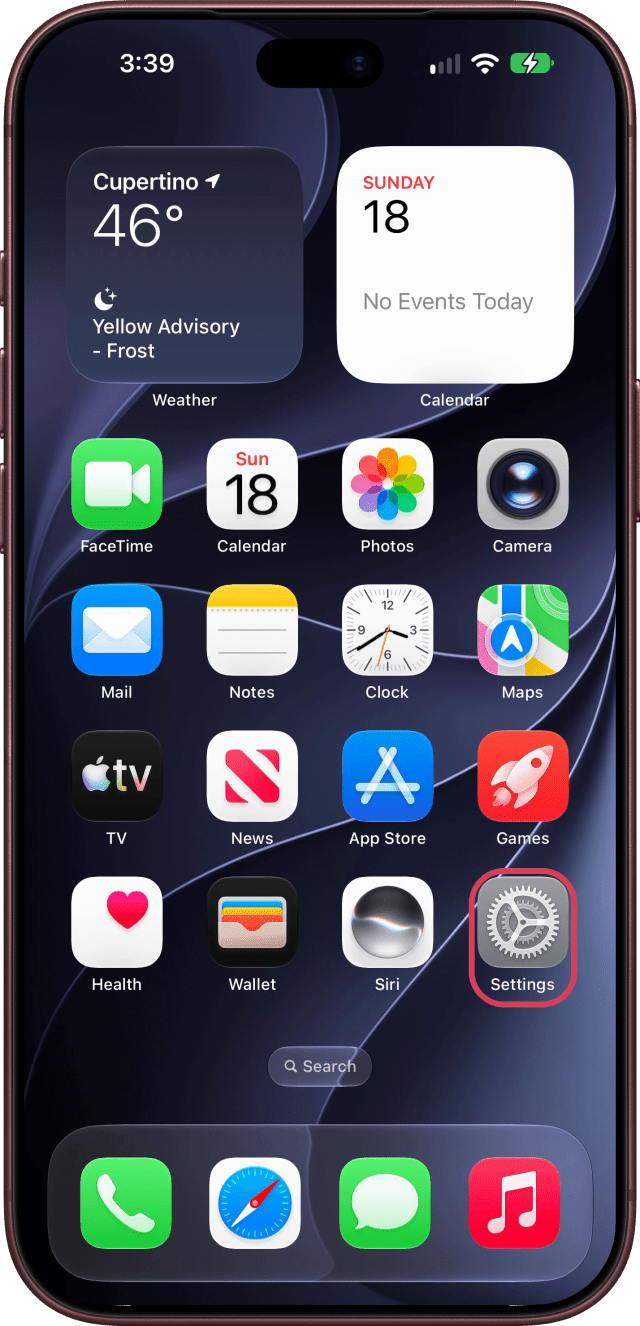
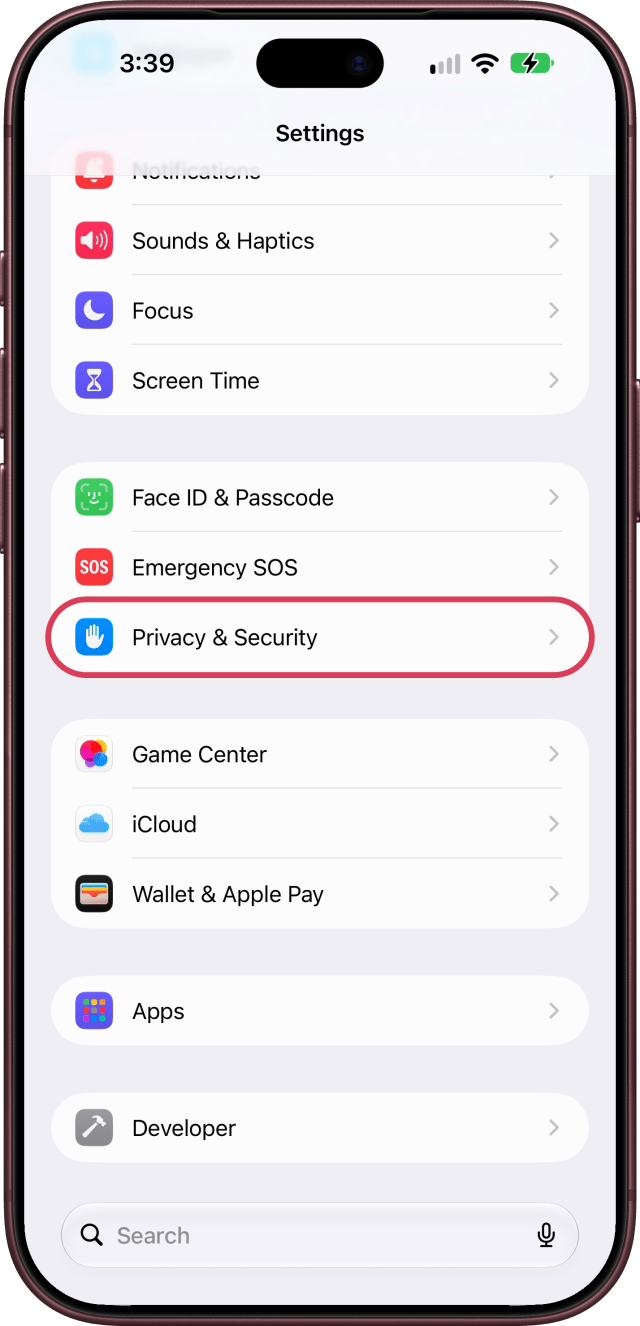
Step One: Open Settings and Tap Privacy & Security
Open Settings, scroll down, and tap Privacy & Security.
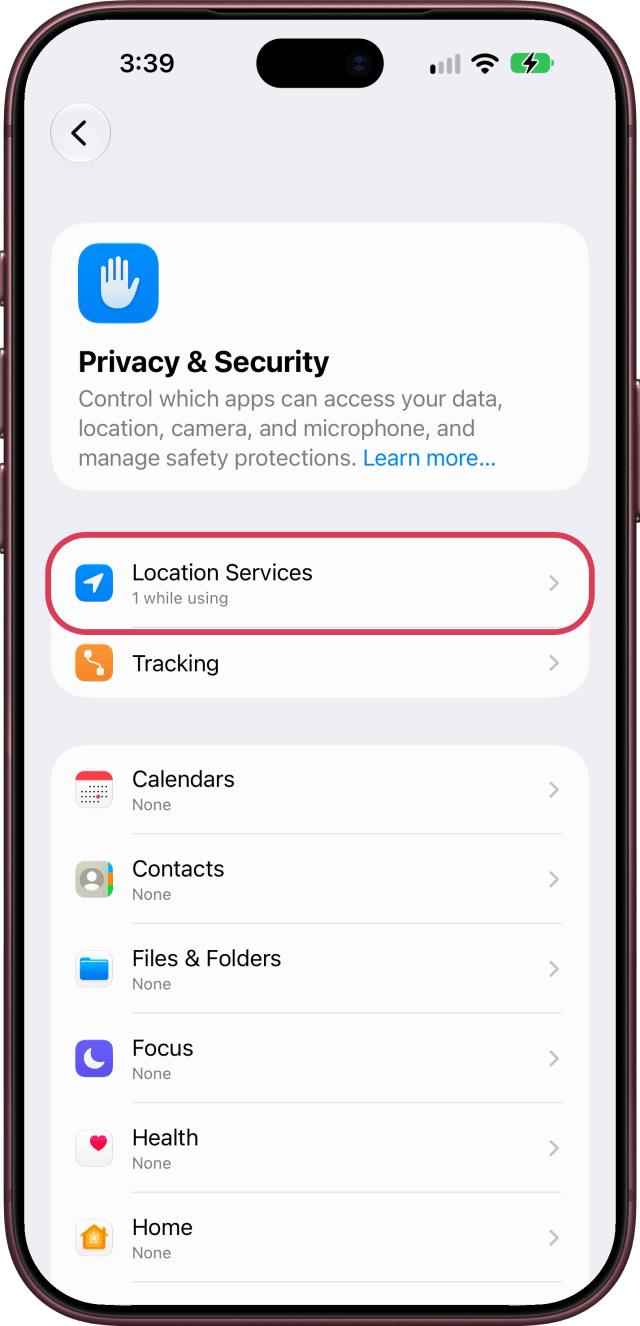
Step Two: Tap Location Services
Tap Location Services.
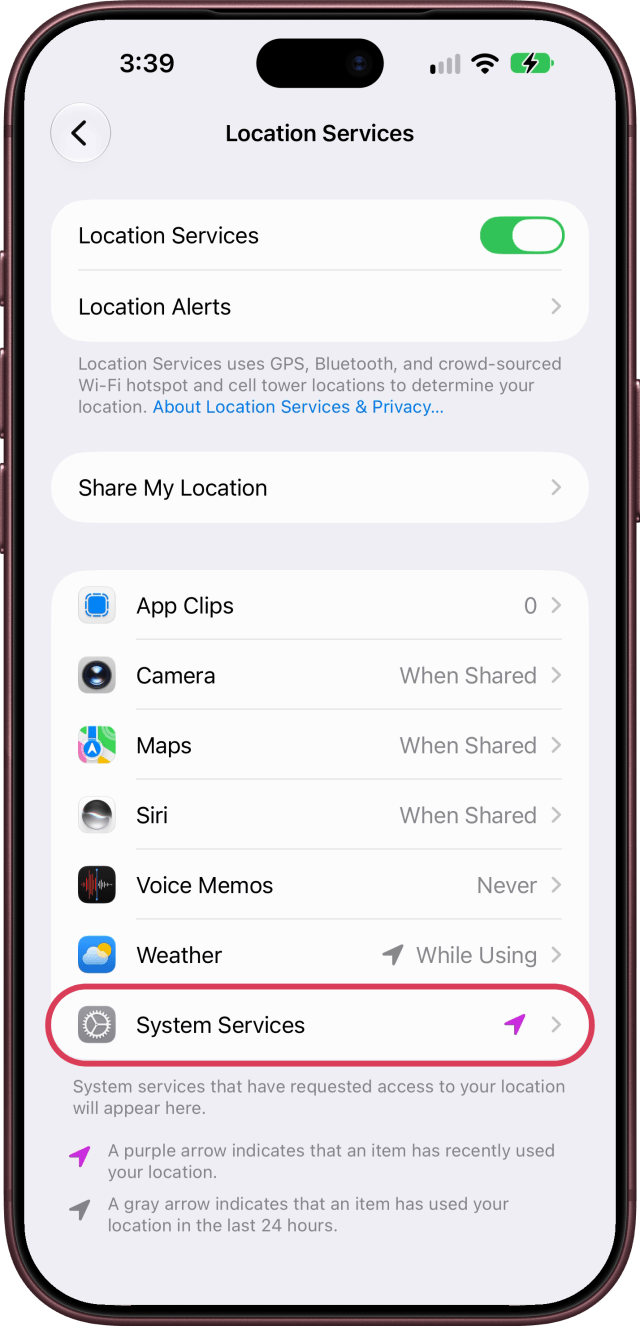
Step Three: Tap System Services
At the bottom of the list, tap System Services.
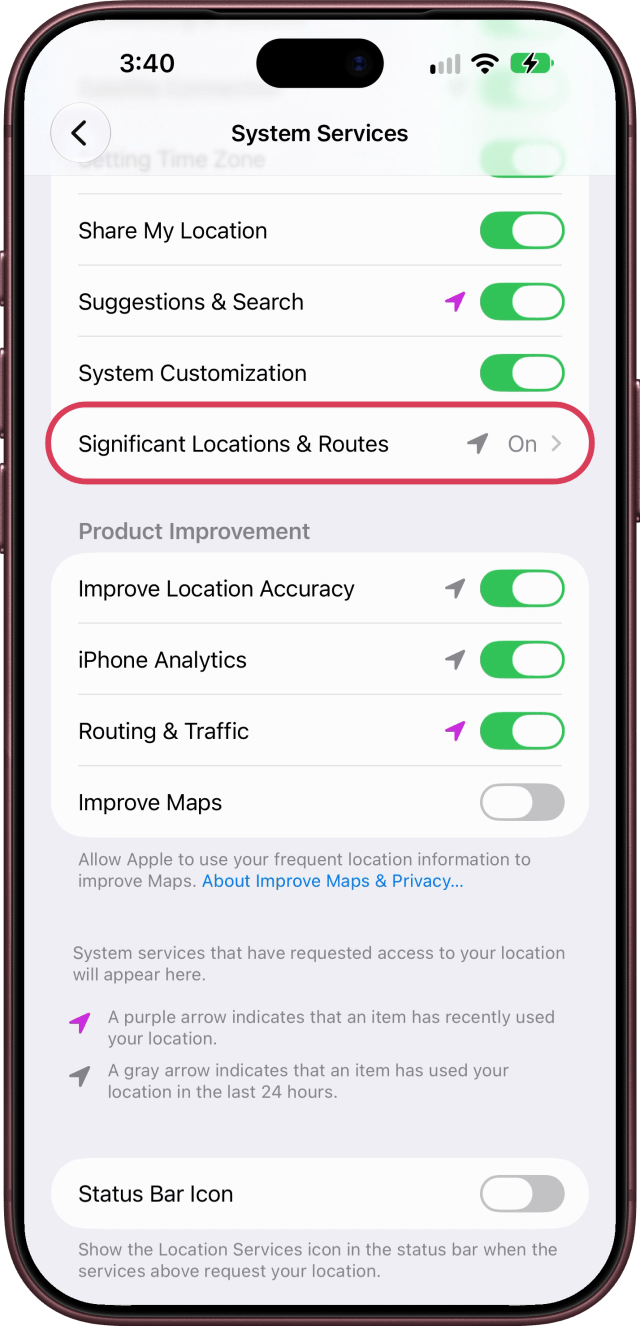
Step Four: Tap Significant Locations & Routes
Scroll down and tap Significant Locations & Routes. If asked, use Face ID, Touch ID, or your passcode to open it.
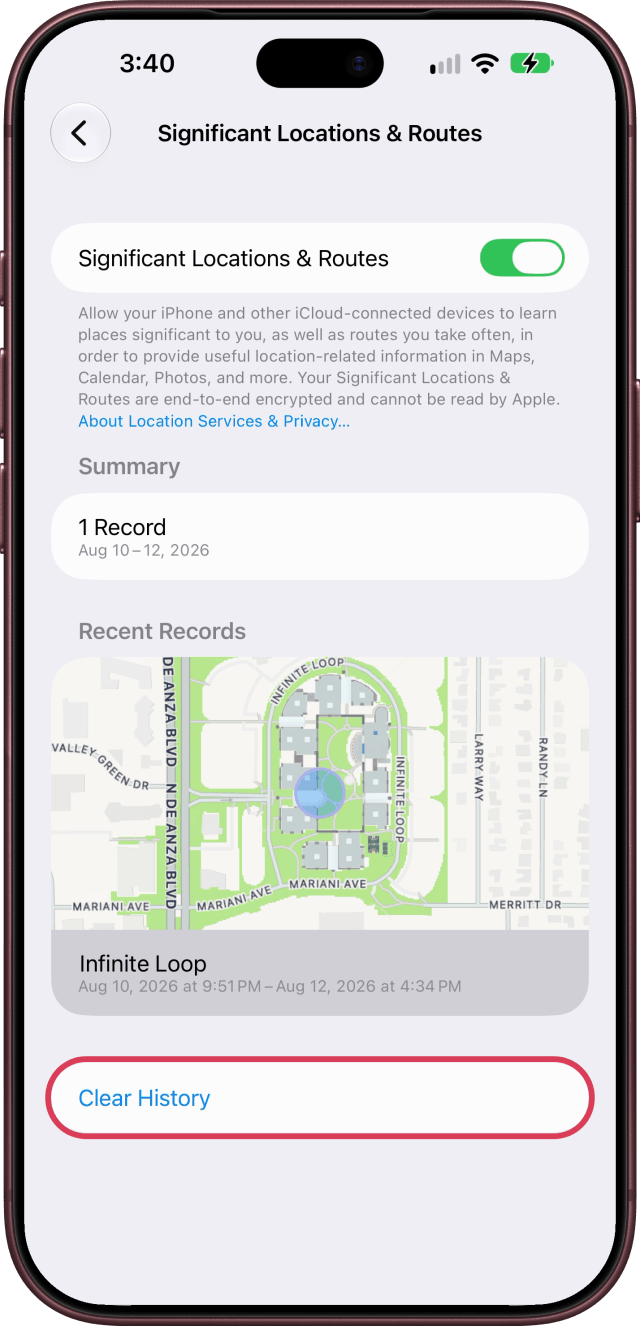
Step Five: Clear the History
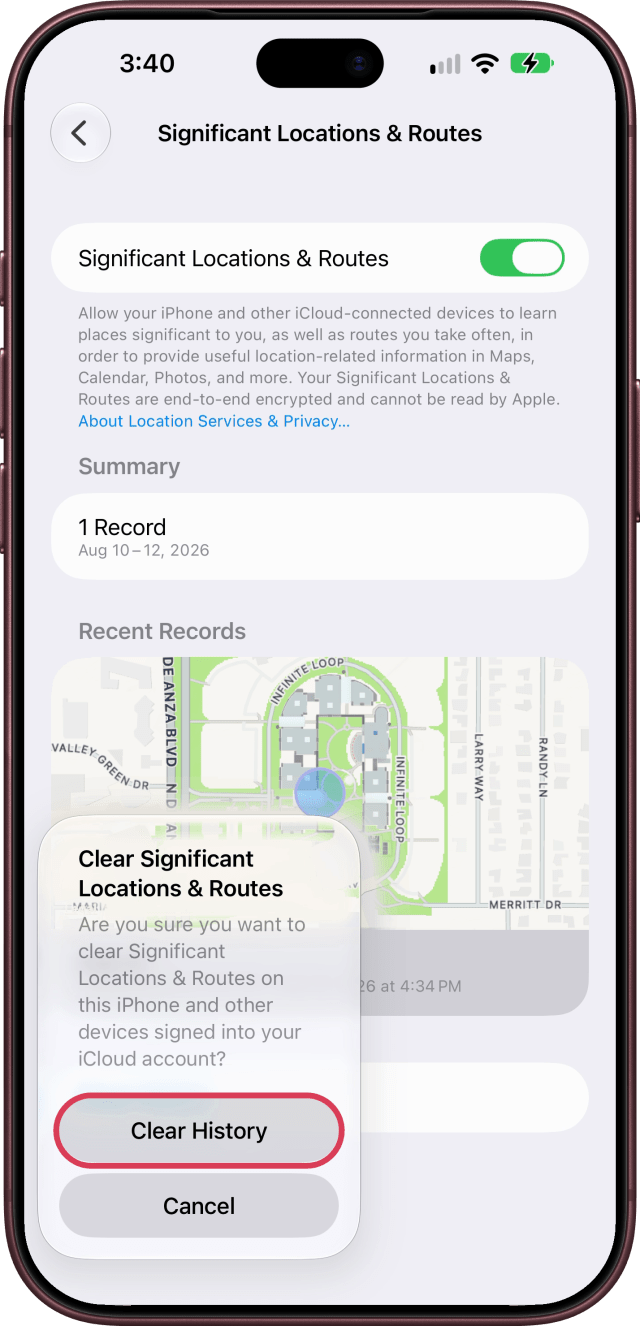
Tap Clear History, then tap Clear History again to confirm.
What Clearing Deletes
Recent Records lists the places your iPhone has learned, with a map and the dates and times you were there, and Summary shows how many records there are. Clearing deletes them everywhere you're signed in with the same Apple Account.
Stop Your iPhone From Learning New Places
To stop your iPhone from learning new places and routes, turn off Significant Locations & Routes at the top of the same screen. Your iPhone uses them for useful information in Maps, Calendar, and Photos, and they're end-to-end encrypted, so Apple can't read them.





![How To Clear Your Location History on iPhone [Video]](/images/tutorials/102918/102918/102918-160.jpg "How To Clear Your Location History on iPhone [Video]")
![How To Back Up Your iPhone to an External Drive on Mac [Video]](/images/tutorials/72786/72786/72786-160.jpg "How To Back Up Your iPhone to an External Drive on Mac [Video]")


![How To Find Your IP Address on iPhone [Video]](/images/tutorials/496/496/496-160.jpg "How To Find Your IP Address on iPhone [Video]")
![16-Inch MacBook Pro With M5 Max Drops to $3,499 ($900 Off), Lowest Price We've Seen [Deal]](/images/news/102900/102900/102900-160.jpg "16-Inch MacBook Pro With M5 Max Drops to $3,499 ($900 Off), Lowest Price We've Seen [Deal]")
![Mac Studio With M5 Max Is $200 Off, Lowest Price We've Seen [Deal]](/images/news/102897/102897/102897-160.jpg "Mac Studio With M5 Max Is $200 Off, Lowest Price We've Seen [Deal]")
![14-Inch MacBook Pro With M5 Pro Drops to $2,069.10 ($429 Off) [Deal]](/images/news/102879/102879/102879-160.jpg "14-Inch MacBook Pro With M5 Pro Drops to $2,069.10 ($429 Off) [Deal]")
![Apple HomeView and New Apple TV 4K Get First Pre-Order Discount on Amazon [Deal]](/images/news/102867/102867/102867-160.jpg "Apple HomeView and New Apple TV 4K Get First Pre-Order Discount on Amazon [Deal]")
