![How To Change Siri's Voice on iPhone [Video]](/images/tutorials/102894/487719/487719-64.png "How To Change Siri's Voice on iPhone [Video]")
To change Siri's voice on iPhone, go to Settings > Siri > Voice, then choose an accent and a voice. With Siri AI, you can also set how fast and how expressively Siri speaks, and Siri talks as you choose, so you hear each voice before you leave the screen.
Pace and Expressivity are part of Siri AI's Expressive Voices, on iPhone 17 Pro, iPhone 17 Pro Max, iPhone Air, iPhone 18 Pro and iPhone 18 Pro Max. Without them, Voice is a list of variations and voices.
We changed Siri's voice on an iPhone 18 Pro Max running iOS 27.
Pick a Siri Voice, Accent and Pace
Step One: Open Siri's Voice Settings
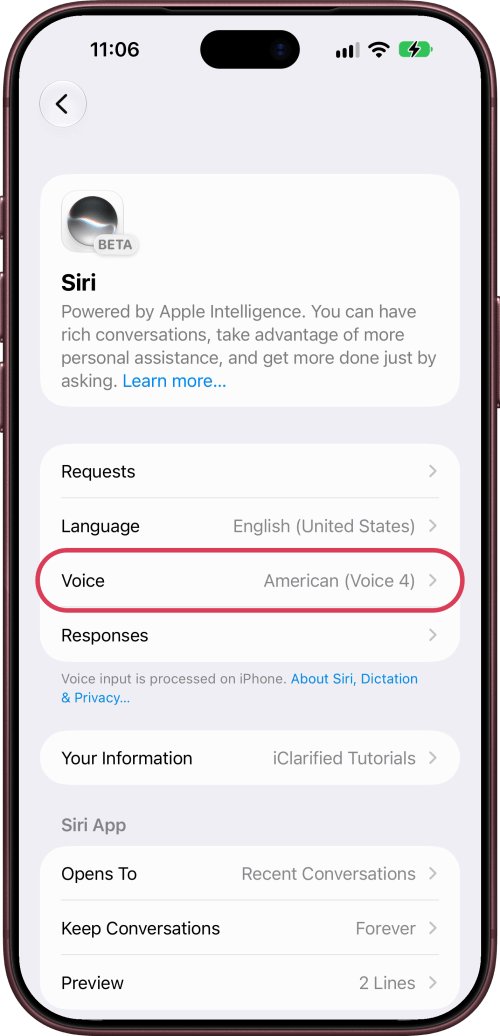
Open the Settings app, scroll down and tap Siri, then tap Voice.
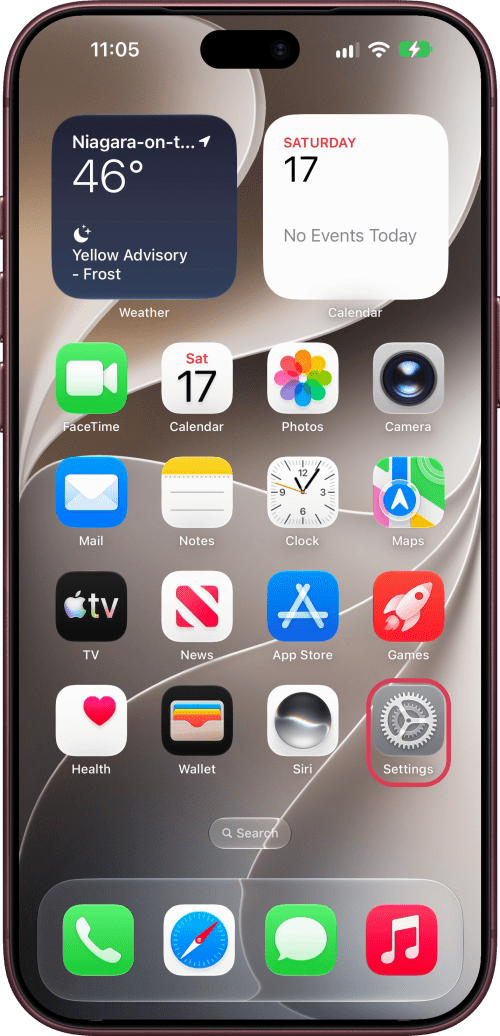
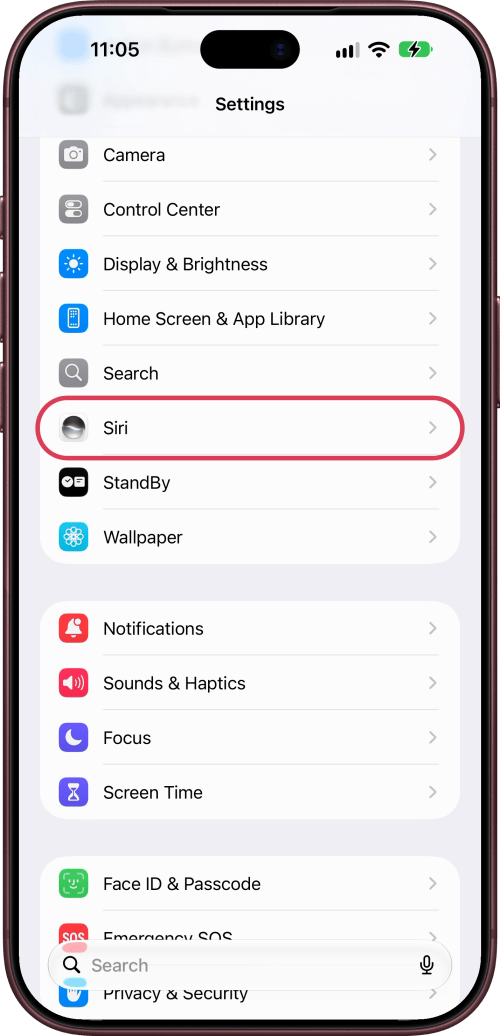
Step Two: Choose an Accent
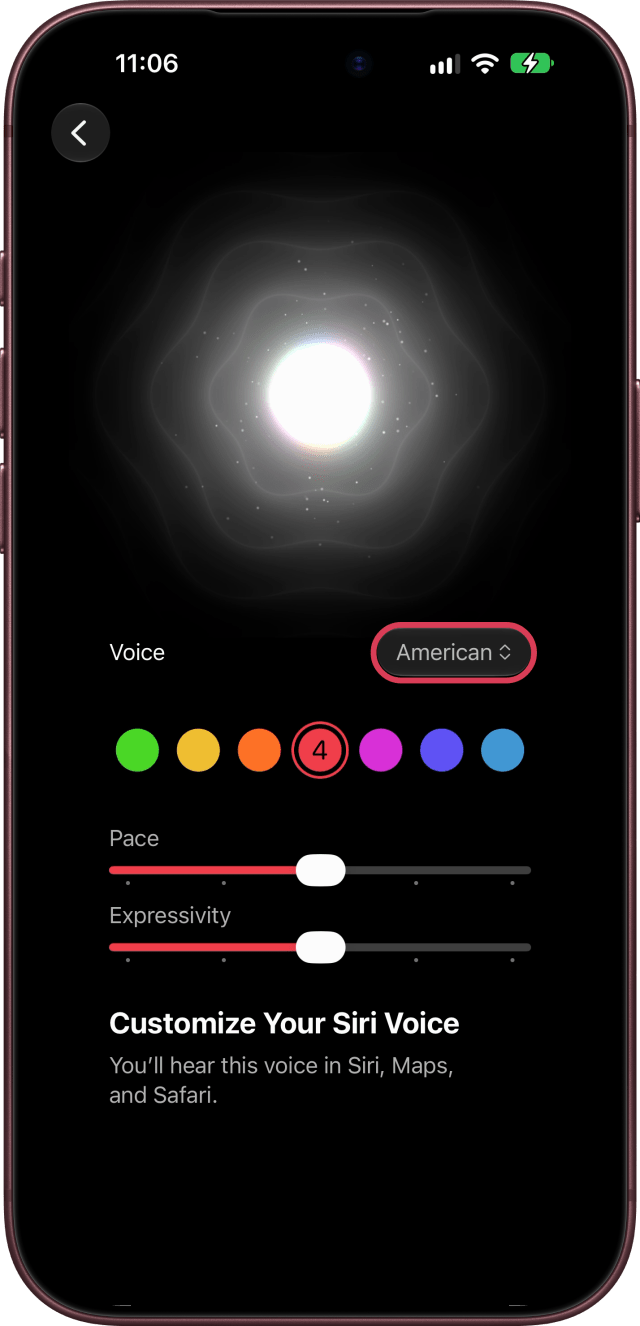
On Customize Your Siri Voice, tap the accent menu beside Voice (it shows your current accent, American on our iPhone) and choose American, Australian, British, Indian, Irish or South African. Siri starts talking as soon as you pick, running through a few things it says so you can hear the voice.
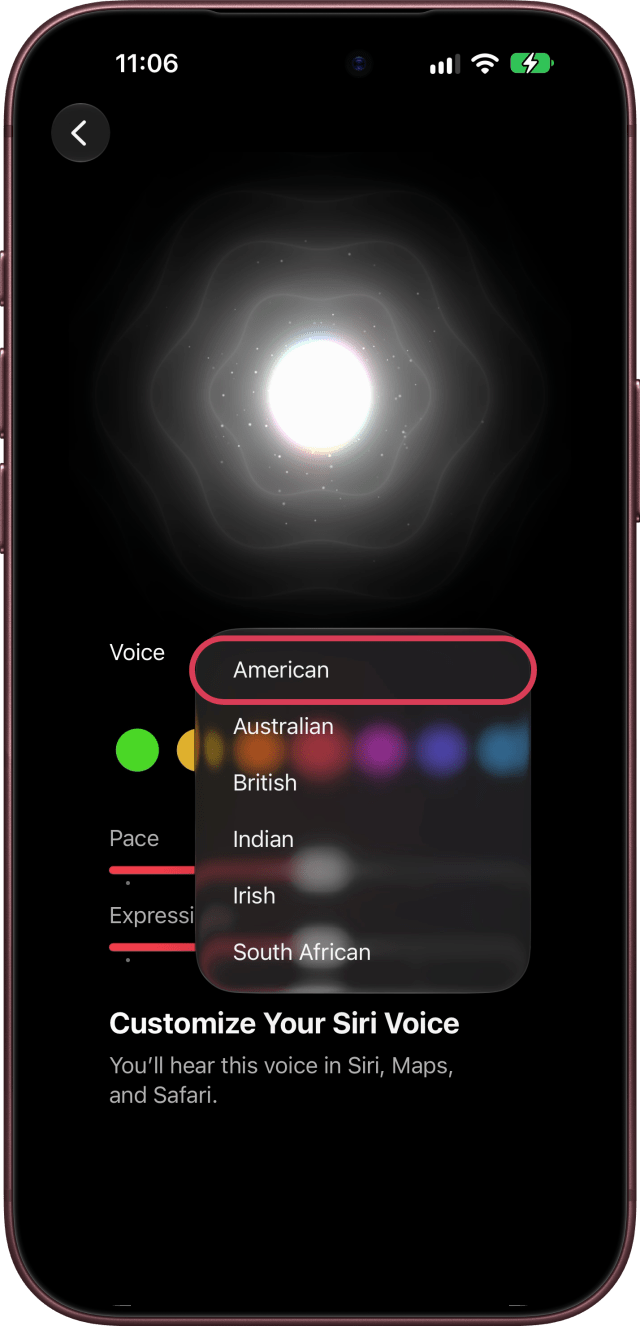
Step Three: Tap a Voice
Tap one of the seven colors to hear its voice: Siri says its line again in that voice. We tapped Voice 2, then Voice 6. There's no Save button; your choice takes effect as you tap it.
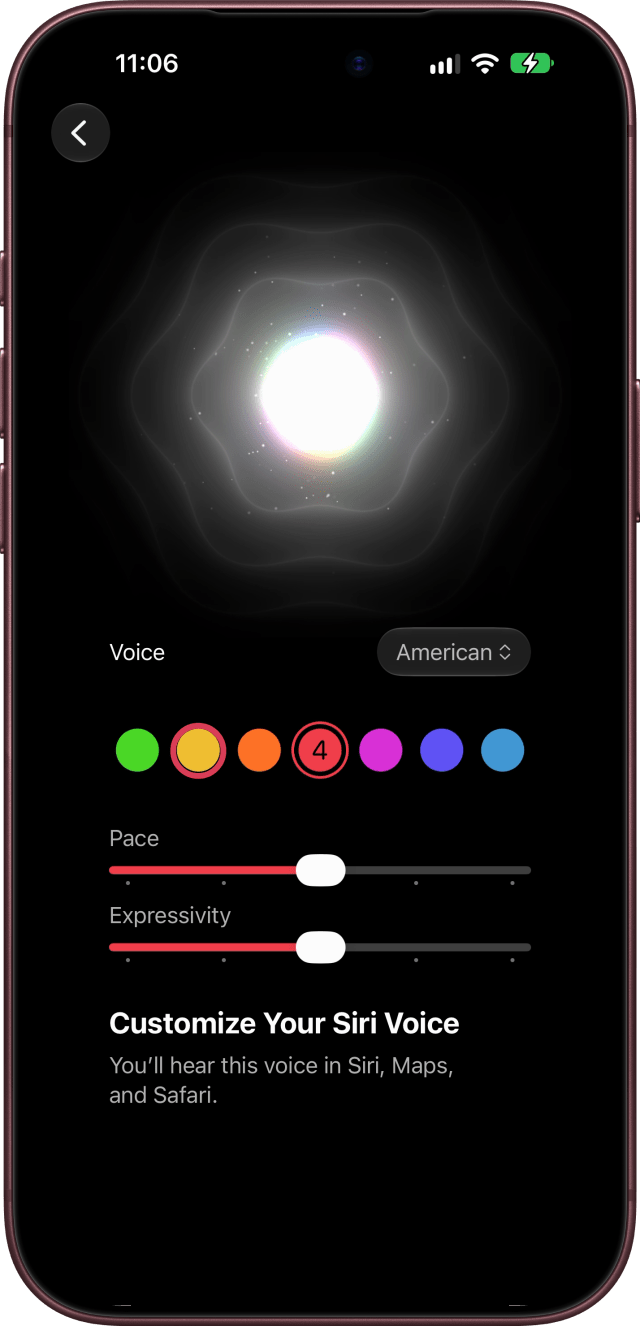
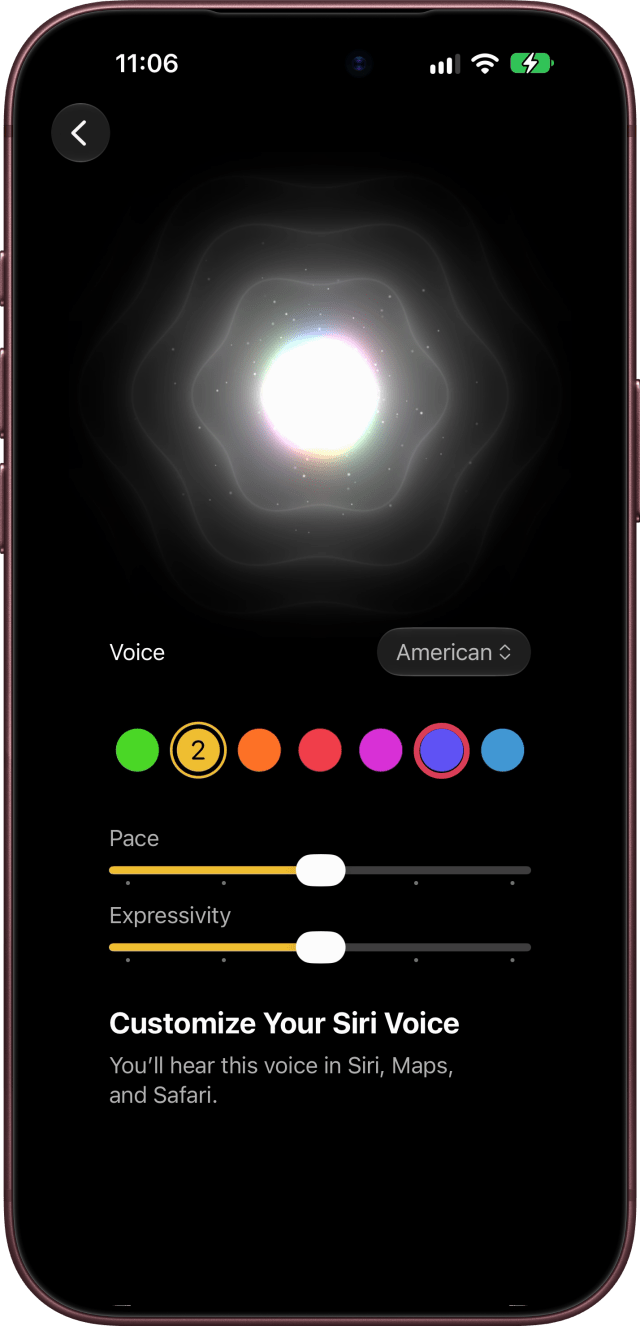
Step Four: Set Pace and Expressivity
Drag Pace to make Siri speak faster or slower, and Expressivity to make it sound more or less expressive. Siri starts its line again with each change, so you hear the difference. Apple notes that Pace and Expressivity are currently available for American and British voices.
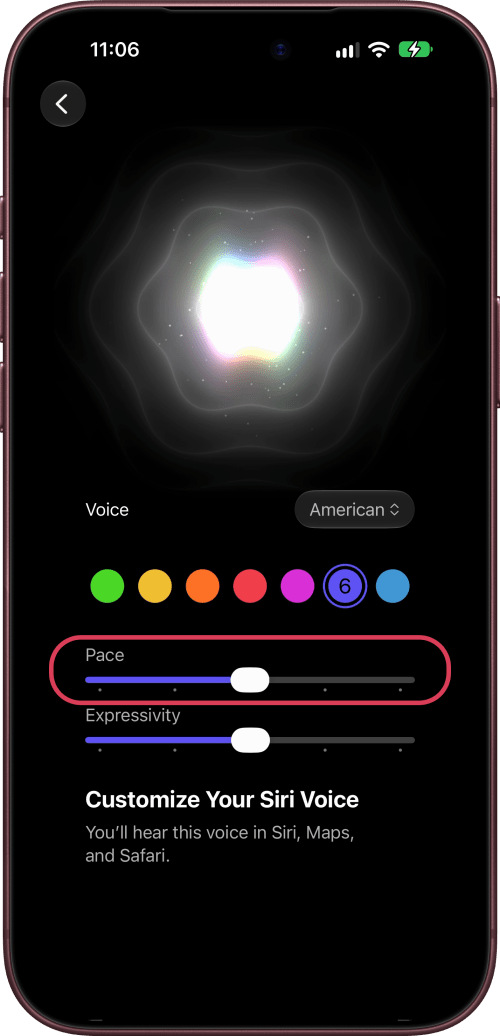
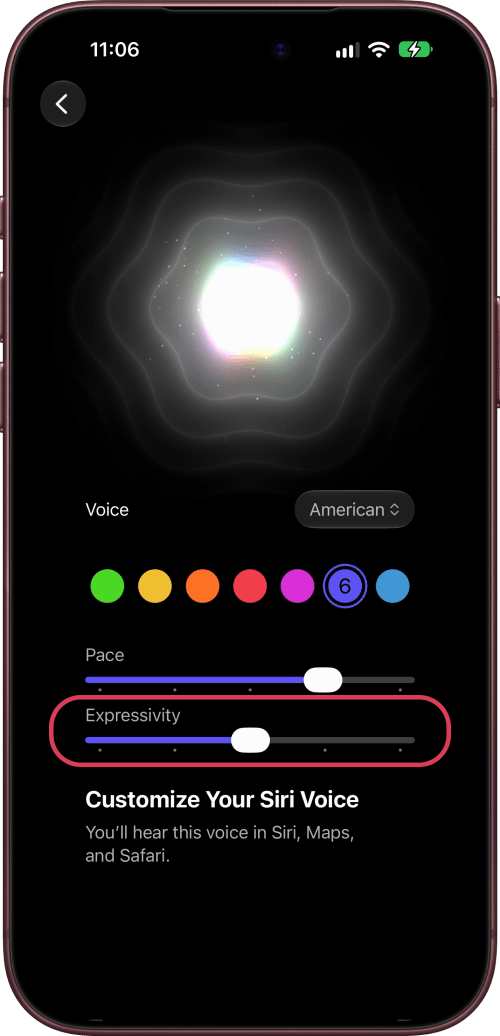
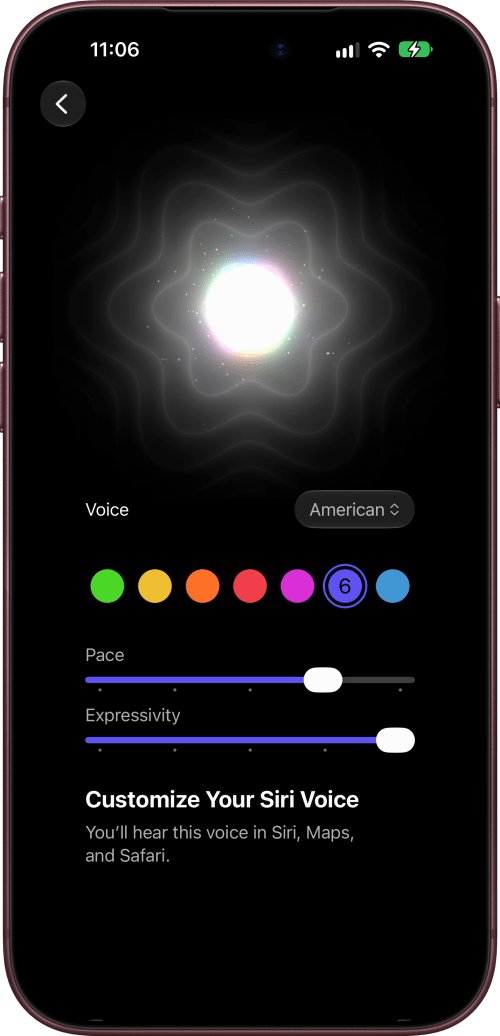
Where You'll Hear Your New Voice
Go back when you're done: the Voice row on the Siri screen shows your choice, such as American (Voice 6). As the screen says, you'll hear this voice in Siri, Maps, and Safari.
If You See a List Instead
Without Siri AI, or on other iPhone models, Voice opens a list: choose an accent under Variations and a voice under Voices. On a supported iPhone, the new voices come with Siri AI: here's how to get Siri AI. You can still change how fast Siri speaks without it: go to Settings > Accessibility > Siri and drag Speaking Rate.

![Apple Developing AI Home Camera That Doesn't Record Video [Report]](/images/news/102888/102888/102888-160.jpg "Apple Developing AI Home Camera That Doesn't Record Video [Report]")
![Untethered iOS 27.0.1 Jailbreak Demonstrated on iPhone 18 Pro [Video]](/images/news/102876/102876/102876-160.jpg "Untethered iOS 27.0.1 Jailbreak Demonstrated on iPhone 18 Pro [Video]")
![iPhone Duo May Be Unavailable for Launch-Day Walk-In Purchases [Report]](/images/news/102882/102882/102882-160.jpg "iPhone Duo May Be Unavailable for Launch-Day Walk-In Purchases [Report]")


![How To Install Homebrew on Mac [Video]](/images/tutorials/83695/83695/83695-160.jpg "How To Install Homebrew on Mac [Video]")
![How To Back Up Your iPhone to an External Drive on Mac [Video]](/images/tutorials/72786/72786/72786-160.jpg "How To Back Up Your iPhone to an External Drive on Mac [Video]")


![14-Inch MacBook Pro With M5 Pro Drops to $2,069.10 ($429 Off) [Deal]](/images/news/102879/102879/102879-160.jpg "14-Inch MacBook Pro With M5 Pro Drops to $2,069.10 ($429 Off) [Deal]")
![Apple HomeView and New Apple TV 4K Get First Pre-Order Discount on Amazon [Deal]](/images/news/102867/102867/102867-160.jpg "Apple HomeView and New Apple TV 4K Get First Pre-Order Discount on Amazon [Deal]")
![14-Inch MacBook Pro With M5 Max Drops to $3,299 ($800 Off) [Deal]](/images/news/102828/102828/102828-160.jpg "14-Inch MacBook Pro With M5 Max Drops to $3,299 ($800 Off) [Deal]")