

These are instructions on how to enable Dark Mode in Mac OS X 10.10 Yosemite. Dark mode or 'night' mode gives your menu bar and Dock a darker look.
Step One
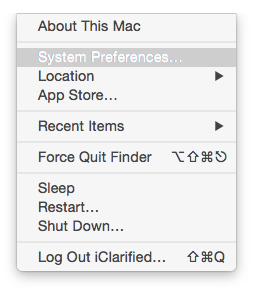
Click the Apple logo at the top left of your screen and select System Preferences.
Step Two
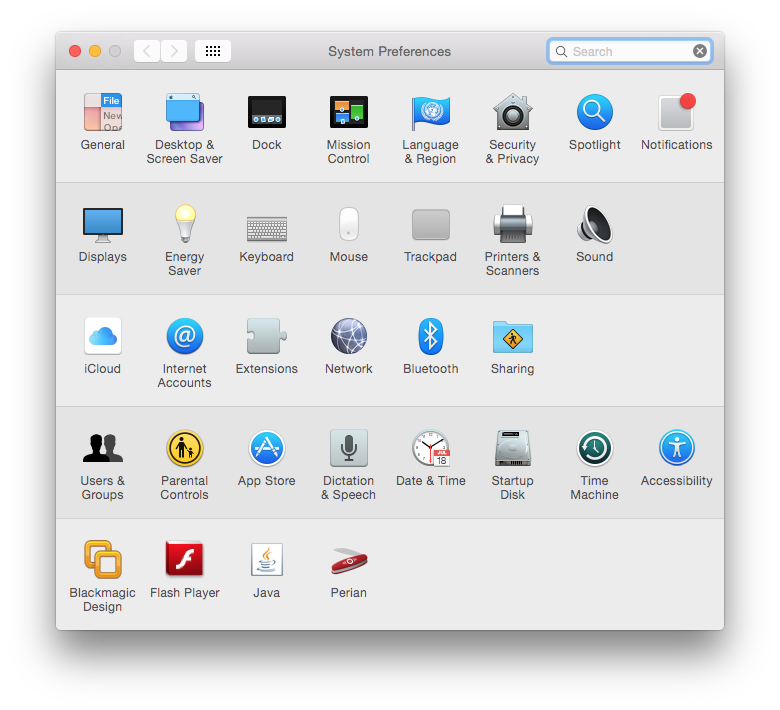
Choose General from the System Preferences window.
Step Three
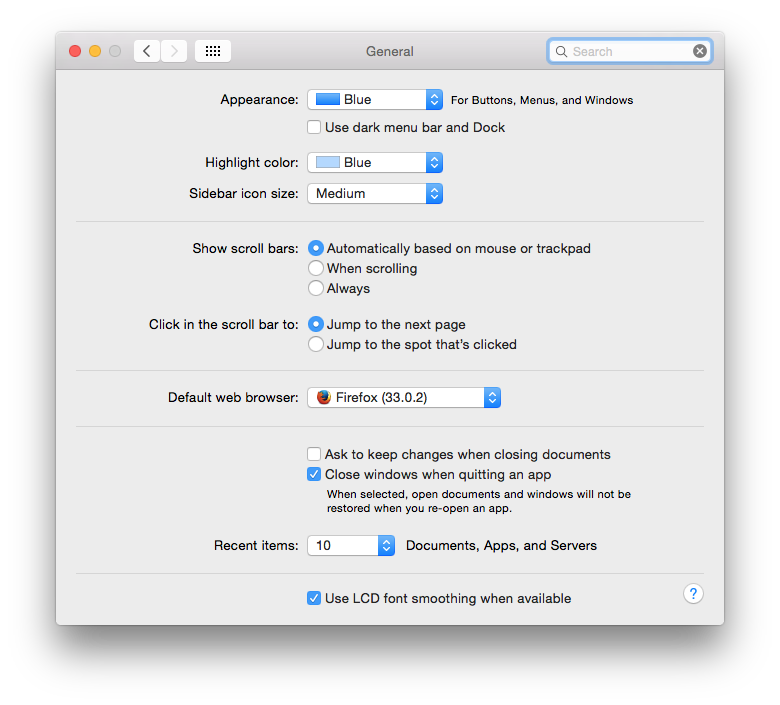
Click to check the box labeled Use dark menu bar and Dock.
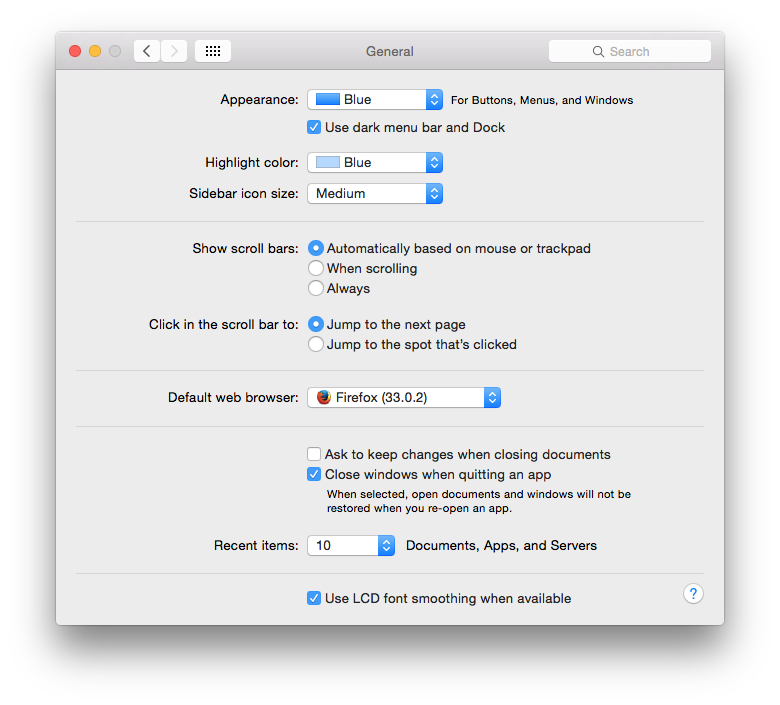
Step Four
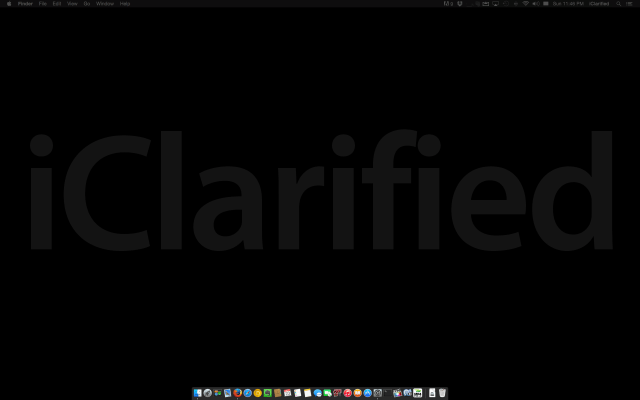
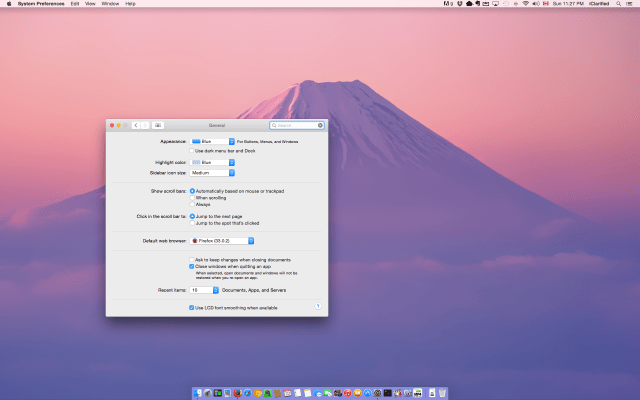
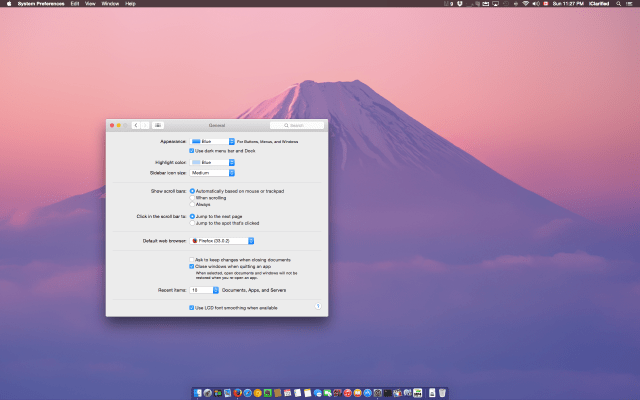
The colors of your menu bar and Dock will change as soon the box is checked. To revert back to the default option, simply uncheck the box.
Step Five
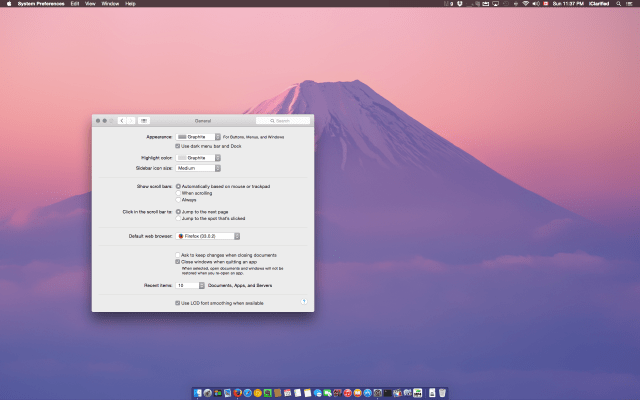
If you want to further darken your OS you can also change the Appearance color to Graphite and the Highlight color to Graphite.
Step One
Click the Apple logo at the top left of your screen and select System Preferences.
Step Two
Choose General from the System Preferences window.
Step Three
Click to check the box labeled Use dark menu bar and Dock.
Step Four
The colors of your menu bar and Dock will change as soon the box is checked. To revert back to the default option, simply uncheck the box.
Step Five
If you want to further darken your OS you can also change the Appearance color to Graphite and the Highlight color to Graphite.







![Apple Watch Series 11 is Back on Sale for Just $299 [Deal]](/images/news/101081/101081/101081-160.jpg "Apple Watch Series 11 is Back on Sale for Just $299 [Deal]")
![AirPods Max 2 Drop to New All-Time Low of $499 [Deal]](/images/news/101063/101063/101063-160.jpg "AirPods Max 2 Drop to New All-Time Low of $499 [Deal]")
![AirPods Max 2 Hit All-Time Low Price of $509 ($40 Off) [Deal]](/images/news/101039/101039/101039-160.jpg "AirPods Max 2 Hit All-Time Low Price of $509 ($40 Off) [Deal]")
![New 13-Inch M5 MacBook Air Hits All-Time Low Price of $899.99 [Deal]](/images/news/100969/100969/100969-160.jpg "New 13-Inch M5 MacBook Air Hits All-Time Low Price of $899.99 [Deal]")
![AirPods Pro 3 Drop to $199 Ahead of Memorial Day [Deal]](/images/news/100935/100935/100935-160.jpg "AirPods Pro 3 Drop to $199 Ahead of Memorial Day [Deal]")
