Google has released its Gemini app for Mac, bringing the AI assistant to macOS as a native desktop experience. The move puts Gemini directly on the desktop, offering a faster and more integrated alternative to the web version.
The app centers around a quick-access shortcut, Option + Space, which brings up a Gemini overlay from anywhere on the system. Users can ask questions, check information, or generate content without switching apps or browser tabs. The release comes as competition on the Mac intensifies, with companies like OpenAI pushing toward a unified desktop experience through projects like its AI 'superapp' for Mac, alongside continued updates from Anthropic.
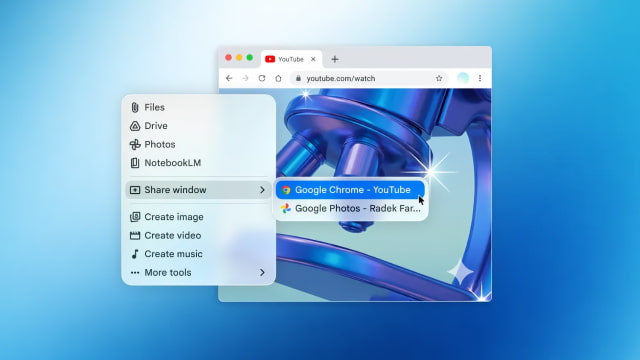
A key feature is the ability to share what's on your screen for instant context. Users can share an active window or a local file and ask Gemini for help based on what it sees. For example, a complex chart or spreadsheet can be shared to quickly extract key takeaways or get help with formulas.
Creative tools are also built in. The app supports image generation and can create video clips using the Veo video engine, letting users produce visual content without leaving their workflow.
The launch also comes as Apple continues working on its next-generation assistant features. Apple has selected Google Gemini to help power future Siri capabilities and is expected to open Siri to third-party AI assistants, including Gemini, in upcoming software updates.
The native macOS app is available starting today for all Gemini users running macOS 15 or later. It is free to download at gemini.google/mac. Google says this is an early step in its broader desktop plans, with more features expected over time.
Get the iClarified Daily Newsletter
Apple news, rumors, tutorials, price drop alerts, in your inbox every evening, free.
Unsubscribe at any time.
Success!
You have been subscribed.
Add Comment
Would you like to be notified when someone replies or adds a new comment?
Yes (All Threads)
Yes (This Thread Only)
No
Notifications
Would you like to be notified when we post a new Apple news article or tutorial?




![Apple Releases visionOS 27.0.1 for Apple Vision Pro [Download]](/images/news/102459/102459/102459-160.jpg "Apple Releases visionOS 27.0.1 for Apple Vision Pro [Download]")
![Boot Speed Test: iPhone 18 Pro Max vs iPhone 17 Pro Max vs iPhone 16 Pro Max [Video]](/images/news/102462/102462/102462-160.jpg "Boot Speed Test: iPhone 18 Pro Max vs iPhone 17 Pro Max vs iPhone 16 Pro Max [Video]")
![Apple Releases macOS Golden Gate 27.0.1, Tahoe 26.7.1, and Sequoia 15.8.1 [Download]](/images/news/102456/102456/102456-160.jpg "Apple Releases macOS Golden Gate 27.0.1, Tahoe 26.7.1, and Sequoia 15.8.1 [Download]")
![Apple Releases iOS 27.0.1, iPadOS 27.0.1, and 26.7.1 Updates [Download]](/images/news/102453/102453/102453-160.jpg "Apple Releases iOS 27.0.1, iPadOS 27.0.1, and 26.7.1 Updates [Download]")


![How To Find Your iPhone IMEI Number [Video]](/images/tutorials/83557/83557/83557-160.jpg "How To Find Your iPhone IMEI Number [Video]")



![16-Inch M5 Max MacBook Pro Drops $900 to New Low of $3,499 [Deal]](/images/news/102438/102438/102438-160.jpg "16-Inch M5 Max MacBook Pro Drops $900 to New Low of $3,499 [Deal]")
![Magic Keyboard for iPad Air Drops to $200 on Amazon [Deal]](/images/news/102402/102402/102402-160.jpg "Magic Keyboard for iPad Air Drops to $200 on Amazon [Deal]")
![13-Inch M5 MacBook Air With 1TB Drops to $1,449 on Amazon [Deal]](/images/news/102345/102345/102345-160.jpg "13-Inch M5 MacBook Air With 1TB Drops to $1,449 on Amazon [Deal]")

