These are instructions on how to use the iMovie '09 green screen feature to change the background of your video clip.
Step One For this tutorial you will need two video clips; one that has been recorded with a green screen background and one that is the background you would like to change to.
Launch iMovie '09 by clicking its icon in the dock or in the Applications folder.
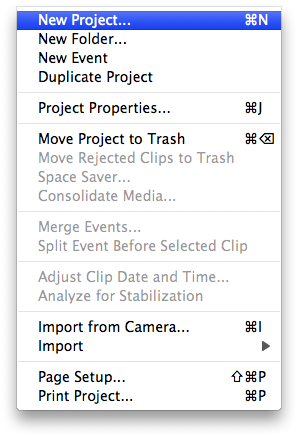
Step Two Click New Project... from the File Menu
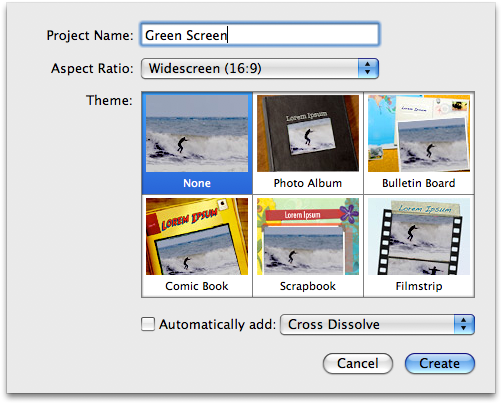
Step Three Give the Project a name then click the Create button.
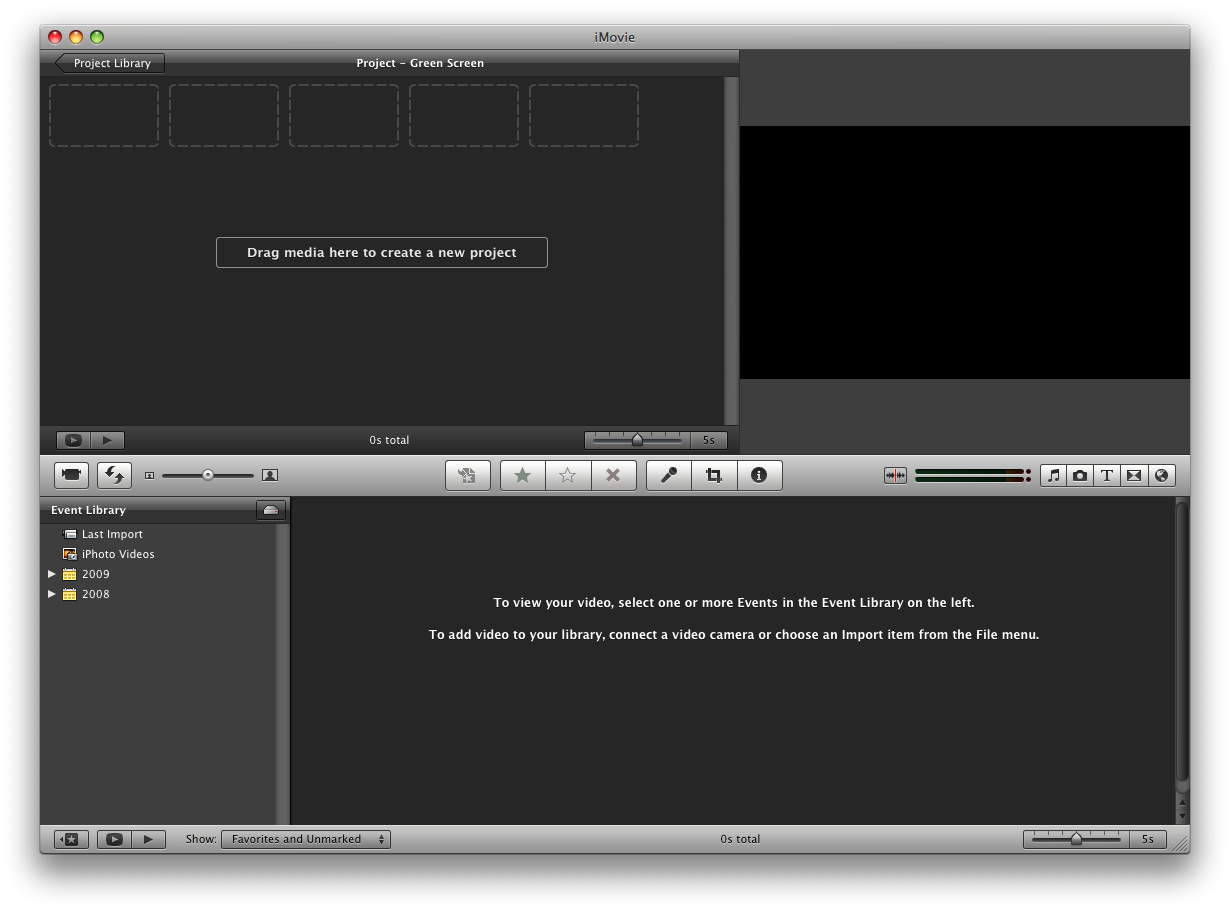
Step Four iMovie will now display your new blank project.
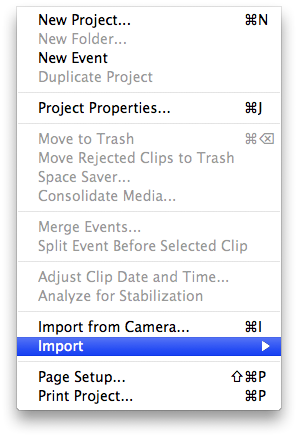
Select Import from the File Menu.
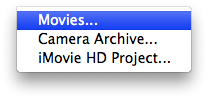
Select Movies... from the Import SubMenu
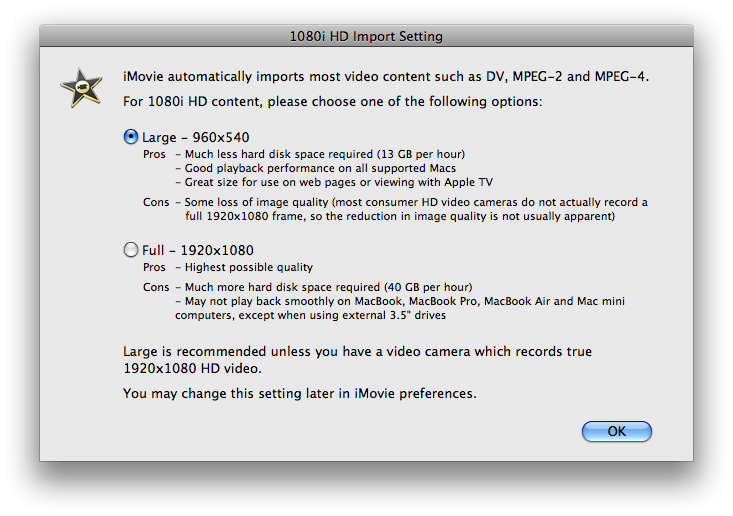
If asked to select a resolution choose the desired size then click the OK button. (Large is usually fine).
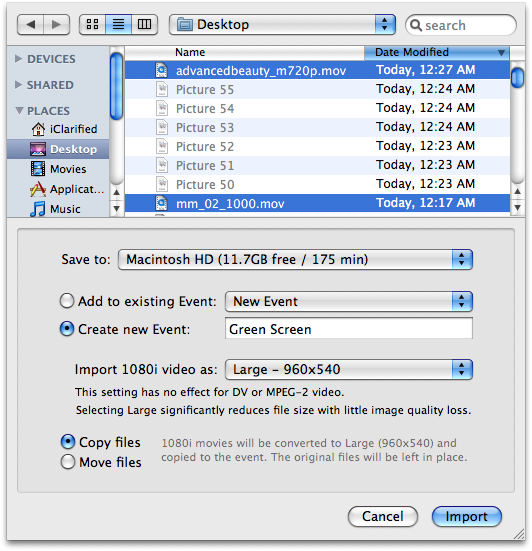
Select the two movies file from your hard drive and click the Import button.
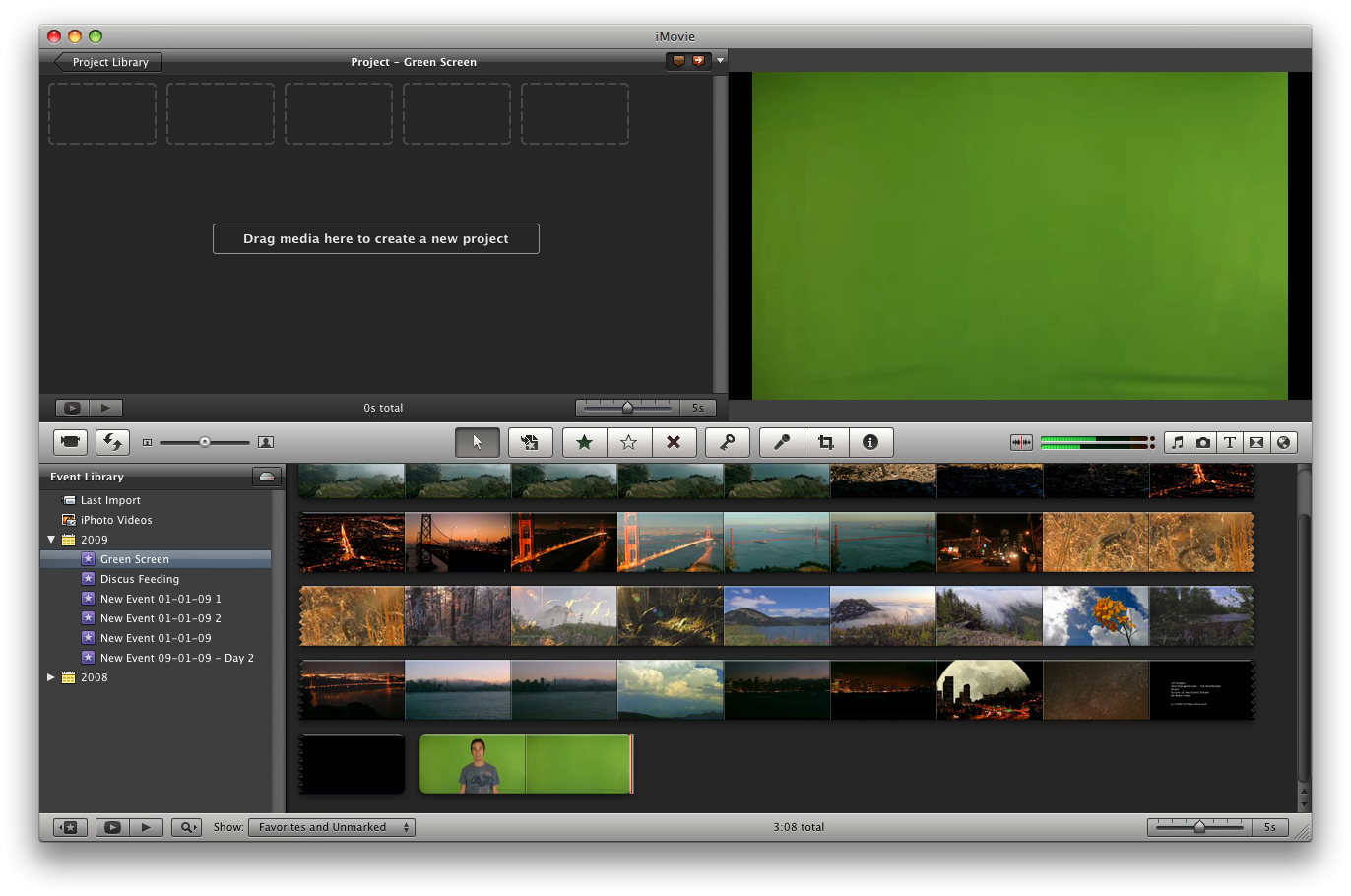
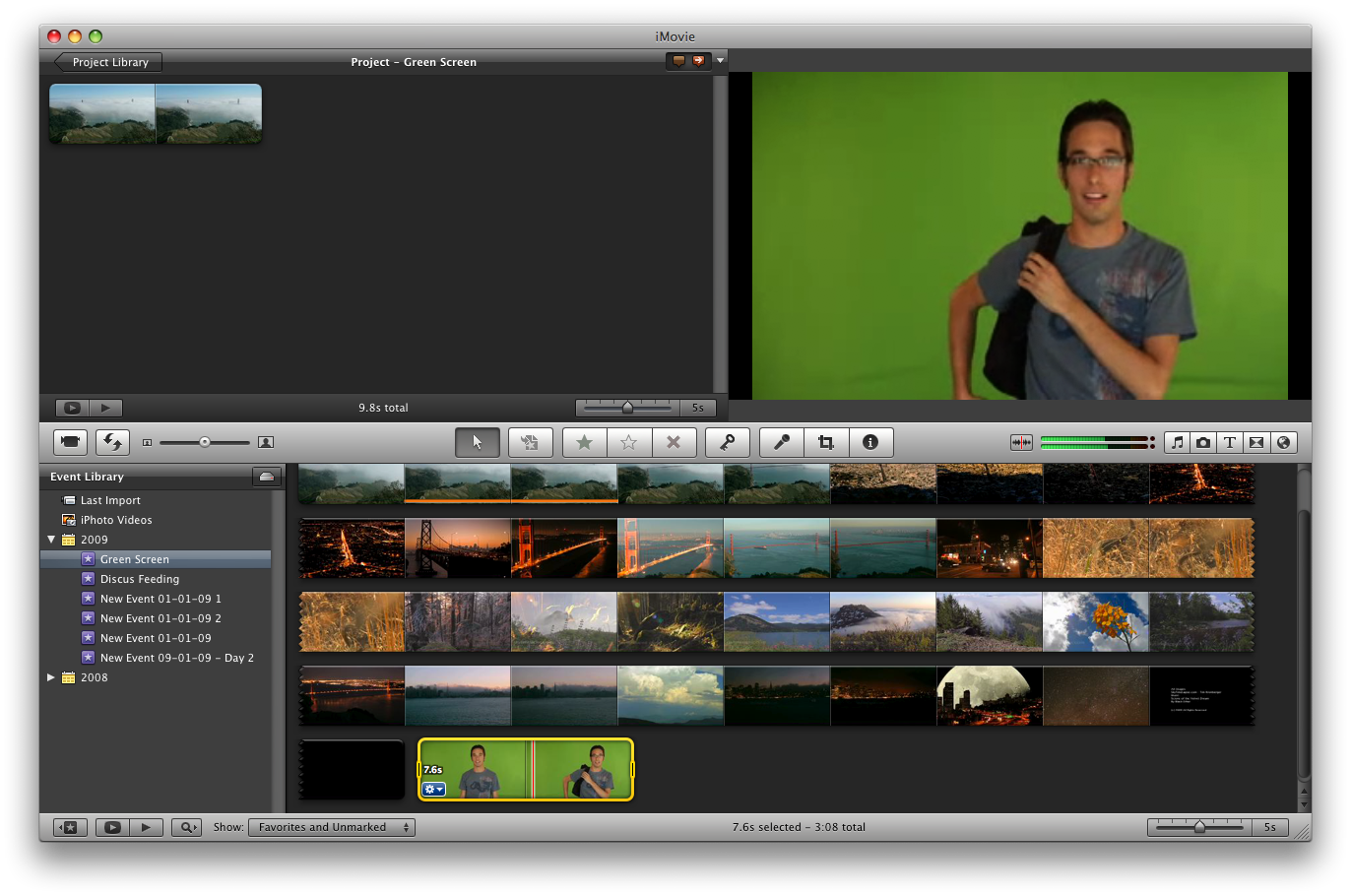
Notice the two clips will be added to your project.
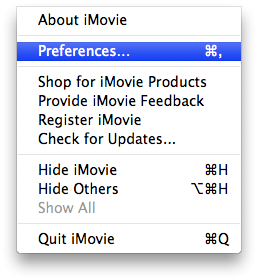
Step Five Click Preferences from the iMovie menu at the top of the screen.
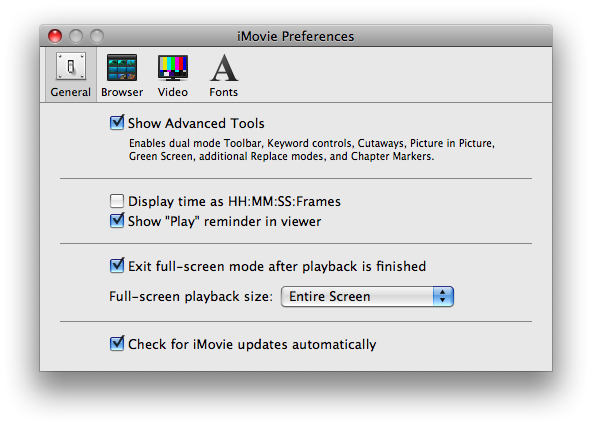
From the General tab of the iMovie Preferences window check the Show Advanced Tools box then close the window.
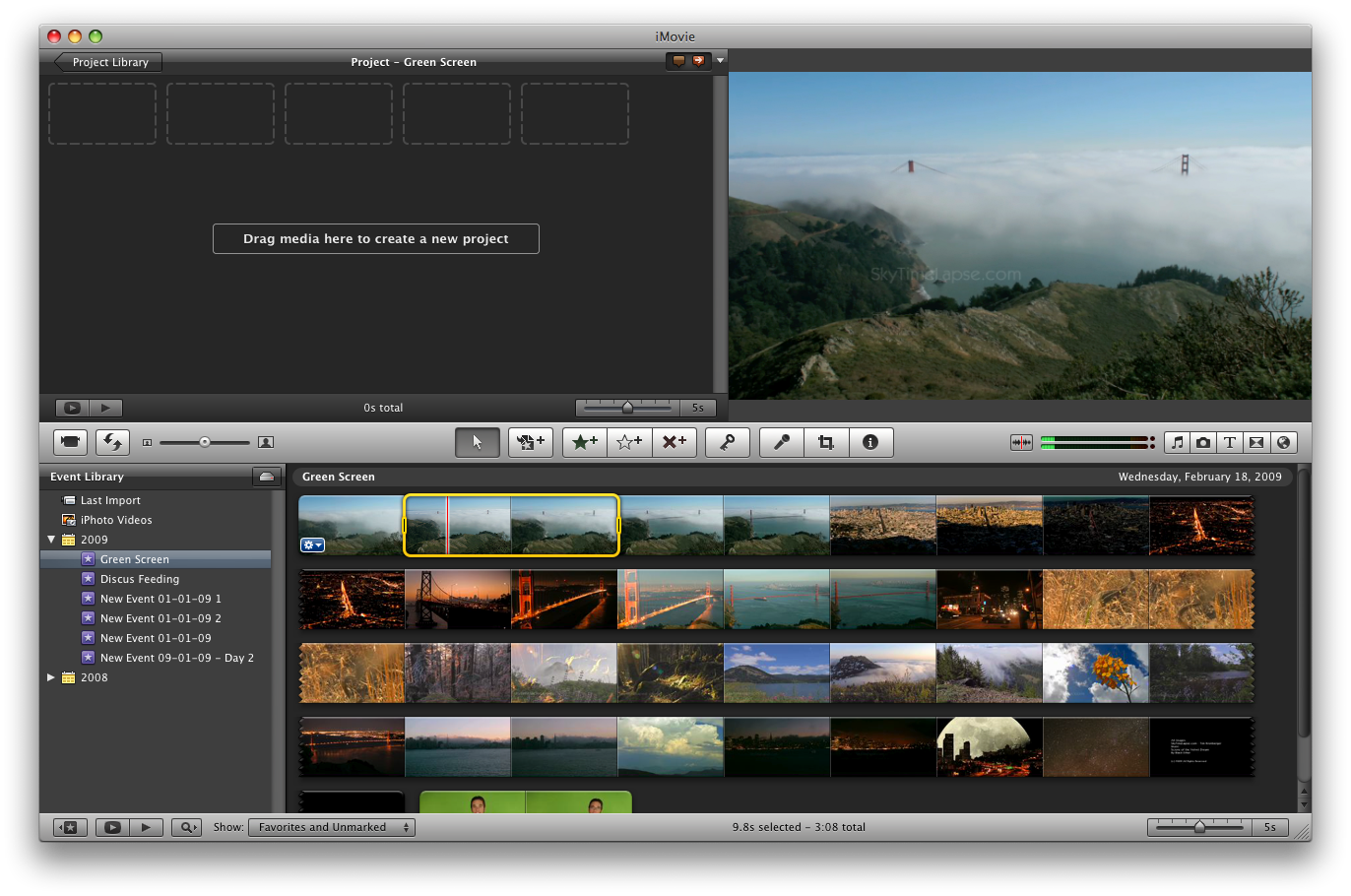
Notice you now have more tools in the iMovie Project window.
Step Six Select a portion of the video you would like to use as your background by clicking and then dragging the mouse pointer from the start to the end of the desired clip.
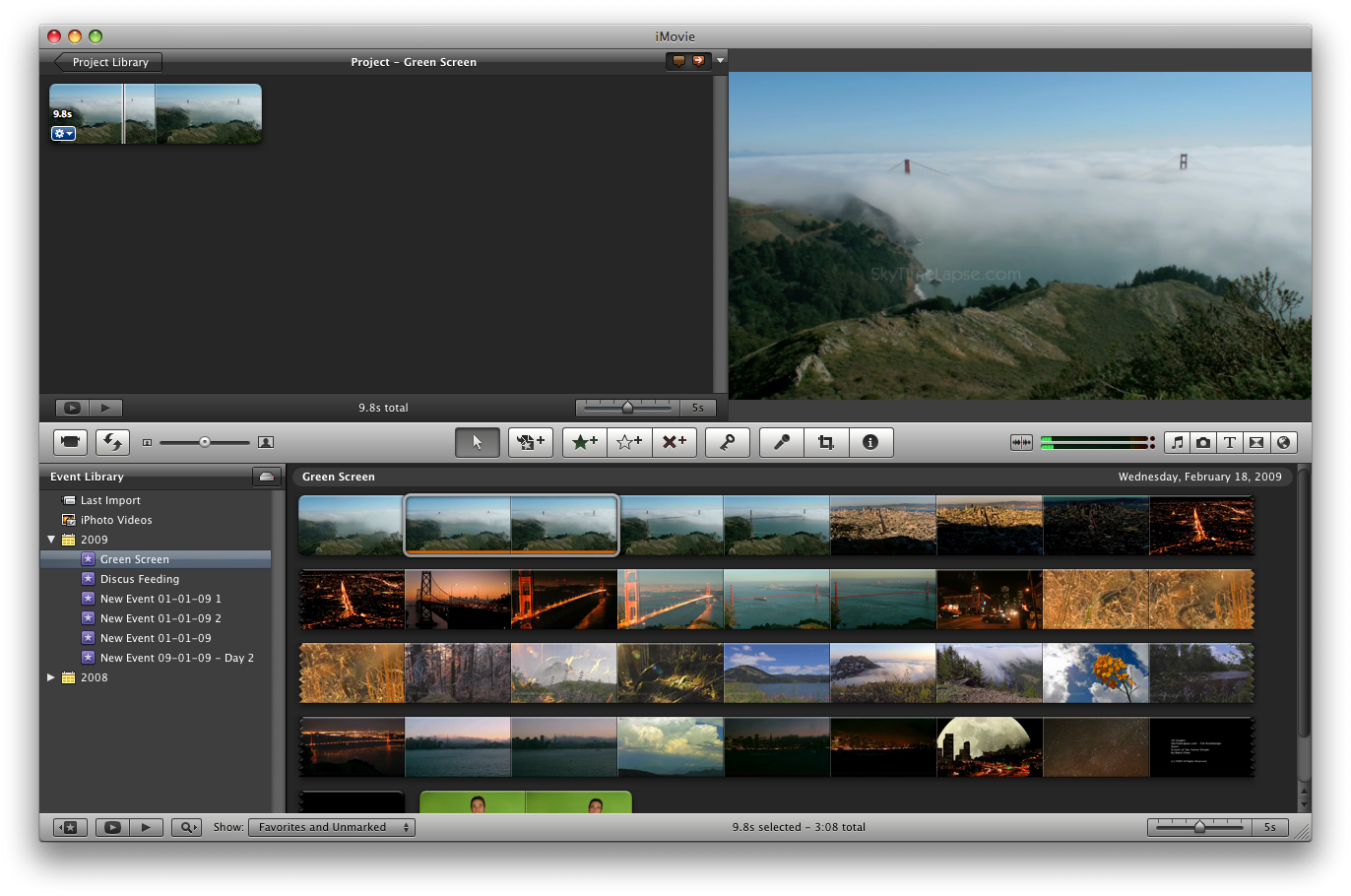
Drag the selected background clip from the bottom event window to the project timeline at the top.
Step Seven Next select a portion of the green screen video you would like to overlay on your background clip by clicking and then dragging the mouse pointer from the start to the end of the desired clip.
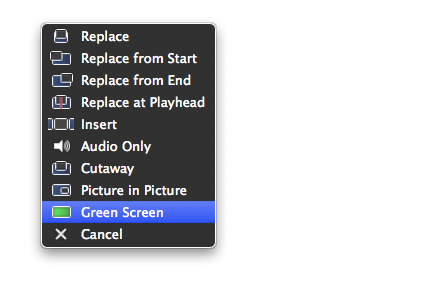
Drag this clip from the bottom event window and drop it on top of the background clip already in your timeline.
Select Green Screen from the popup menu that appears.
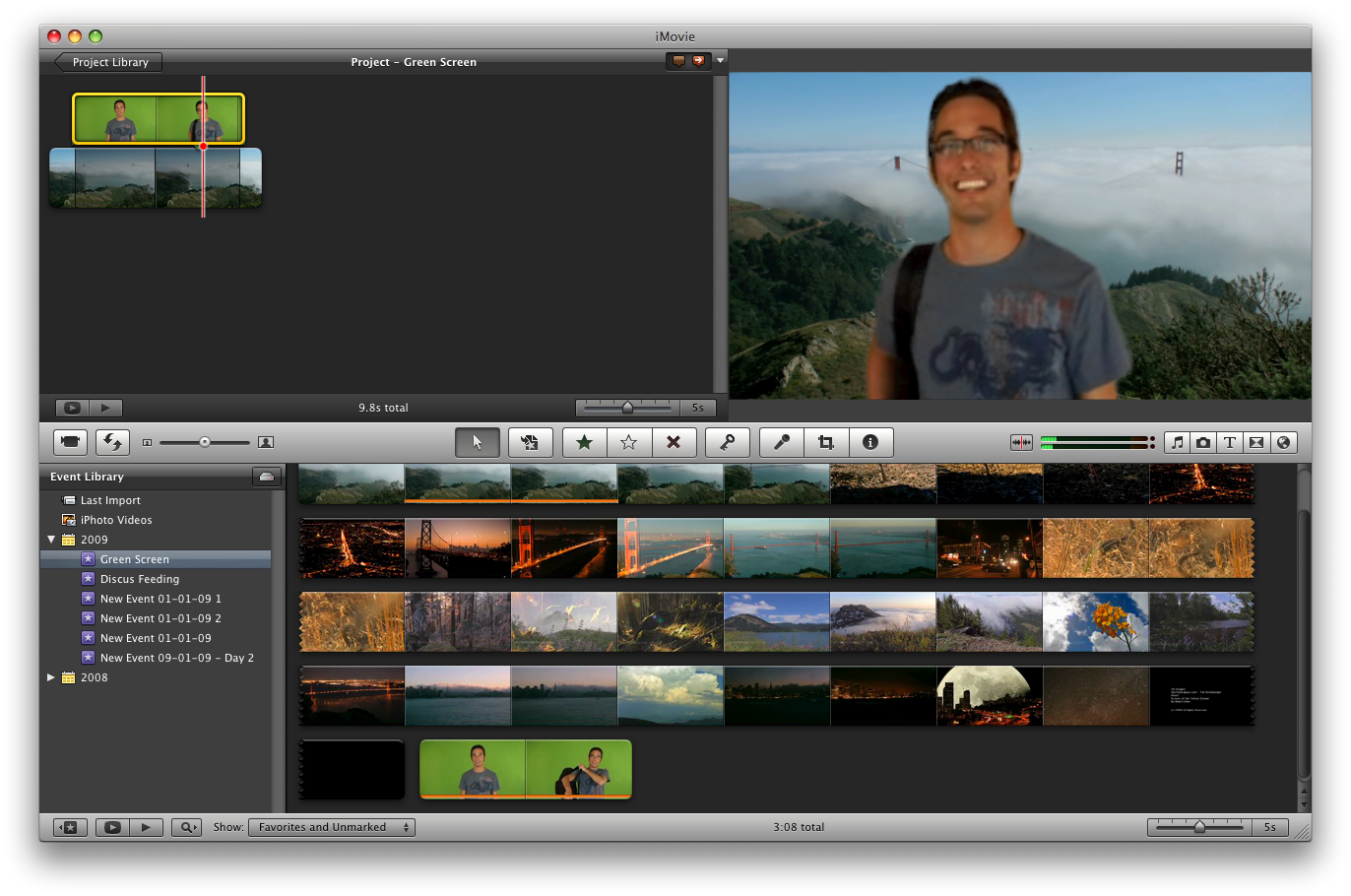
Step Eight Your green screen footage will now automatically be overlayed on the background clip. Click the SpaceBar to play the video from the current location.
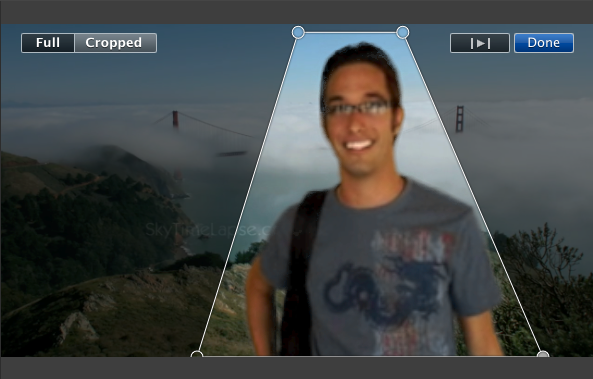
Step Nine If your object is stationary or the green screen didn't quite make it to the edges of the video clip you can crop the area used to green screen.
Select the green screen footage from the timeline then click the Cropped button in the video preview window.
Drag the four corner handles to frame the clip as desired then click the Done button.
Get the iClarified Daily Newsletter
Apple news, rumors, tutorials, price drop alerts, in your inbox every evening, free.
Unsubscribe at any time.
Success!
You have been subscribed.
Add Comment
Would you like to be notified when someone replies or adds a new comment?
Yes (All Threads)
Yes (This Thread Only)
No
Notifications
Would you like to be notified when we post a new Apple news article or tutorial?
Hi, well done, the tutorial explained very well. However, I edit my video (i had a video of a black cat on a colourful background - wanted to change it for a plain, white background) in an exactly the same way as you showed, but unfortunately the background instead of changing completely into white - just overlays and gives a video something similar to TV fuzz effect???
I would be very grateful for your help.
thank you
It seems like you didn't quite understand the concept of green screen. In order to place your cat in front of a different background, you would have to shoot a video of the cat in front of a green wall. It is very important that the green background is a very uniform, even green colour. Then you shoot separately the background where you want y7our cat to appear. When your cat video on top of the background video, iMovie will analyse your shot with the cat and make every green pixel transparent, so that the image below it (the video with the background) would show.
Since your background was colourful, only the parts where there was some green colour were replaced with whatever video was in the background.
thank you very much for your reply, it makes sense now! I thought it would work for different colours of the background - not only green! I do understand now the concept! I have actually tried it and it works! thank you!
Hi, thanks for the quick tutorial. You should definitely do a video of it also. Your video was the clearest when I did a search for iMovie green screen via Google.
Andre
















![Apple Studio Display XDR Hits All-Time Low of $2,969.99 ($329 Off) [Deal]](/images/news/101976/101976/101976-160.jpg "Apple Studio Display XDR Hits All-Time Low of $2,969.99 ($329 Off) [Deal]")
