

How to Share a Printer Wirelessly Using Your AirPort Express
Posted April 17, 2008 at 7:15pm by
Shalom Levytam
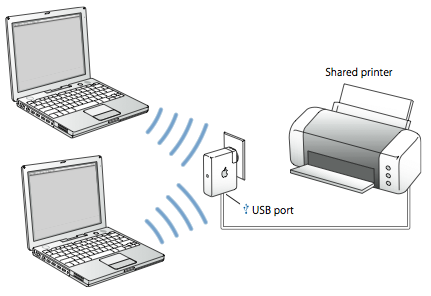
These are instructions on how to share your USB printer wirelessly via your Apple AirPort Express.
Step One
Configure your AirPort Express to create a new network via the tutorial here or to extend an existing network via the tutorial here.
Step Two
Connect your printer to the AirPort Express via USB cable.
Step Three
Launch AirPort Utility from your Applications:Utilities folder.
Step Four
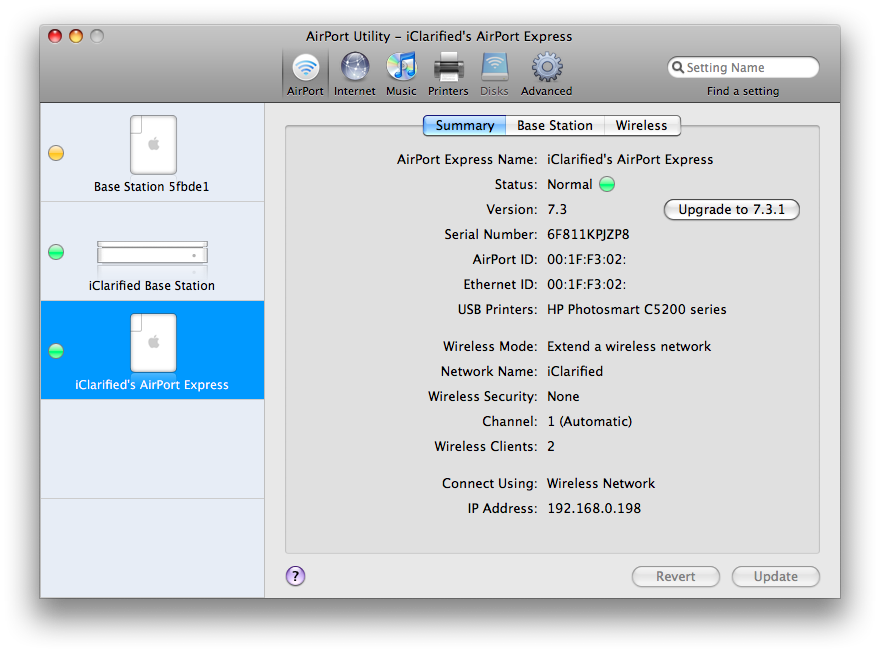
Select your AirPort Express from the list on the left and confirm that it has detected your USB Printer.
Step Five
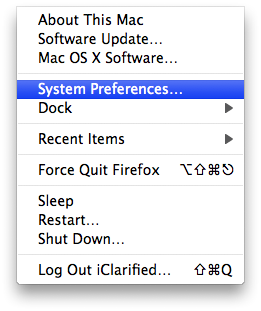
Select Preferences from the Apple Menu at the top left of your screen.
Step Six
Select Print & Fax from the Preferences window
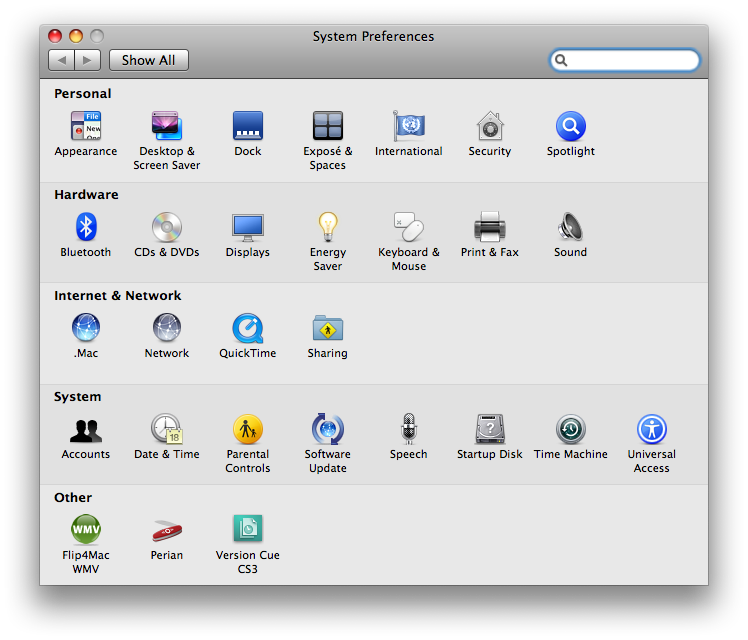
Step Seven
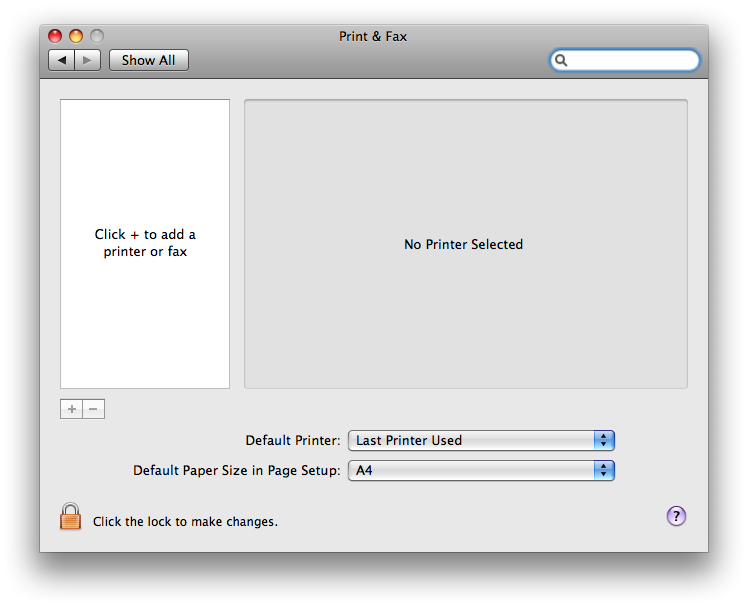
Check the bottom of the Print & Fax window to see if your settings have been locked. If the settings are locked click the lock.
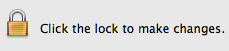
You will be asked to enter an administrator username and password. Do so and click the OK button.
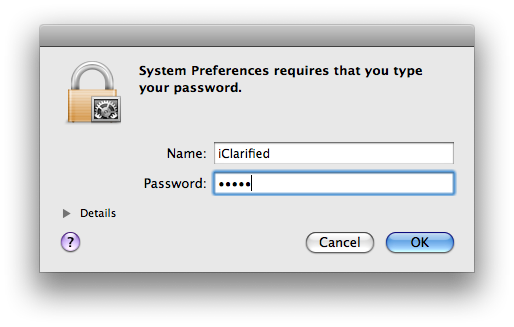
Step Eight
Click the + button on the left side of the window to add a new printer.

Step Nine
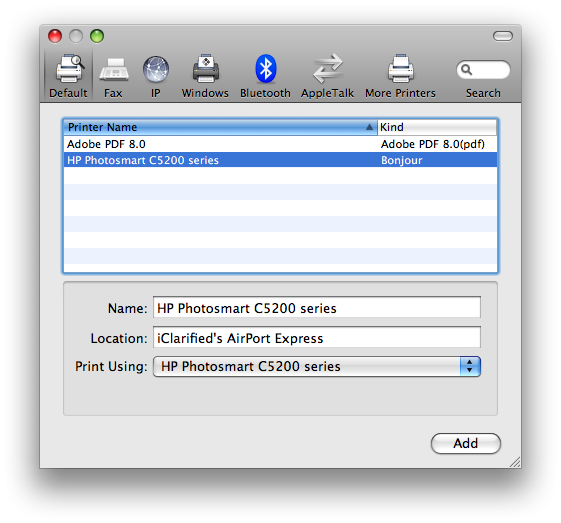
Your printer will appear under the Default tab. Select it then click the Add button.
Step Ten
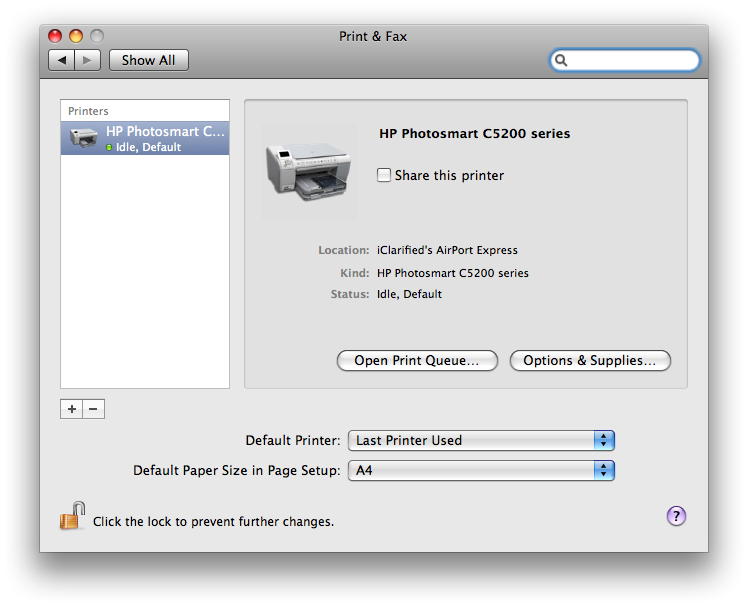
Your printer will now appear in the Print & Fax window and is ready for use!
Step One
Configure your AirPort Express to create a new network via the tutorial here or to extend an existing network via the tutorial here.
Step Two
Connect your printer to the AirPort Express via USB cable.
Step Three
Launch AirPort Utility from your Applications:Utilities folder.
Step Four
Select your AirPort Express from the list on the left and confirm that it has detected your USB Printer.
Step Five
Select Preferences from the Apple Menu at the top left of your screen.
Step Six
Select Print & Fax from the Preferences window
Step Seven
Check the bottom of the Print & Fax window to see if your settings have been locked. If the settings are locked click the lock.
You will be asked to enter an administrator username and password. Do so and click the OK button.
Step Eight
Click the + button on the left side of the window to add a new printer.
Step Nine
Your printer will appear under the Default tab. Select it then click the Add button.
Step Ten
Your printer will now appear in the Print & Fax window and is ready for use!







![Apple Watch Series 11 is Back on Sale for Just $299 [Deal]](/images/news/101081/101081/101081-160.jpg "Apple Watch Series 11 is Back on Sale for Just $299 [Deal]")
![AirPods Max 2 Drop to New All-Time Low of $499 [Deal]](/images/news/101063/101063/101063-160.jpg "AirPods Max 2 Drop to New All-Time Low of $499 [Deal]")
![AirPods Max 2 Hit All-Time Low Price of $509 ($40 Off) [Deal]](/images/news/101039/101039/101039-160.jpg "AirPods Max 2 Hit All-Time Low Price of $509 ($40 Off) [Deal]")
![New 13-Inch M5 MacBook Air Hits All-Time Low Price of $899.99 [Deal]](/images/news/100969/100969/100969-160.jpg "New 13-Inch M5 MacBook Air Hits All-Time Low Price of $899.99 [Deal]")
![AirPods Pro 3 Drop to $199 Ahead of Memorial Day [Deal]](/images/news/100935/100935/100935-160.jpg "AirPods Pro 3 Drop to $199 Ahead of Memorial Day [Deal]")
