![How To Turn Off Automatic Updates on iPhone [Video]](/images/tutorials/102238/483397/483397-64.png "How To Turn Off Automatic Updates on iPhone [Video]")
How To Turn Off Automatic Updates on iPhone [Video]
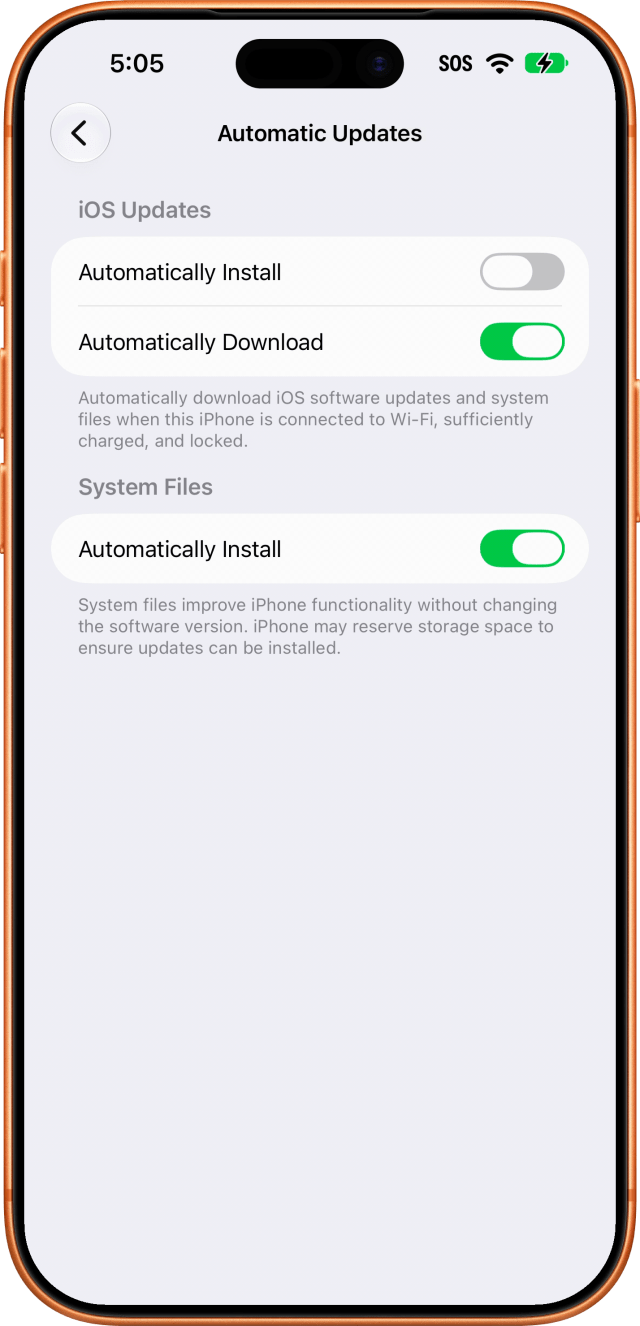
Turning off automatic updates on iPhone looks like one switch. It isn't. When you disable Automatically Install, your iPhone reveals a separate Automatically Download switch that remains on, along with another installation switch for System Files.
That means iOS updates can continue downloading even after you have stopped them from installing automatically.
We verified this behavior on an iPhone 17 Pro Max running iOS 27.0.
Stop iOS Updates From Installing Automatically
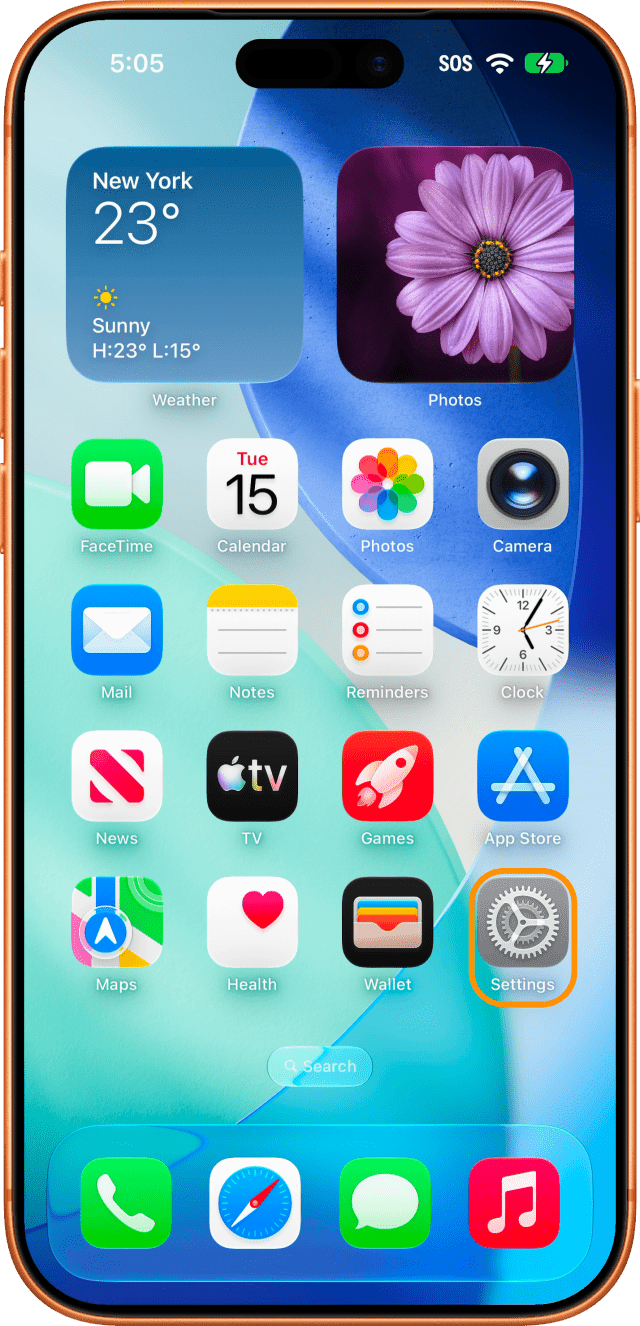
Step One: Open Settings and Tap General
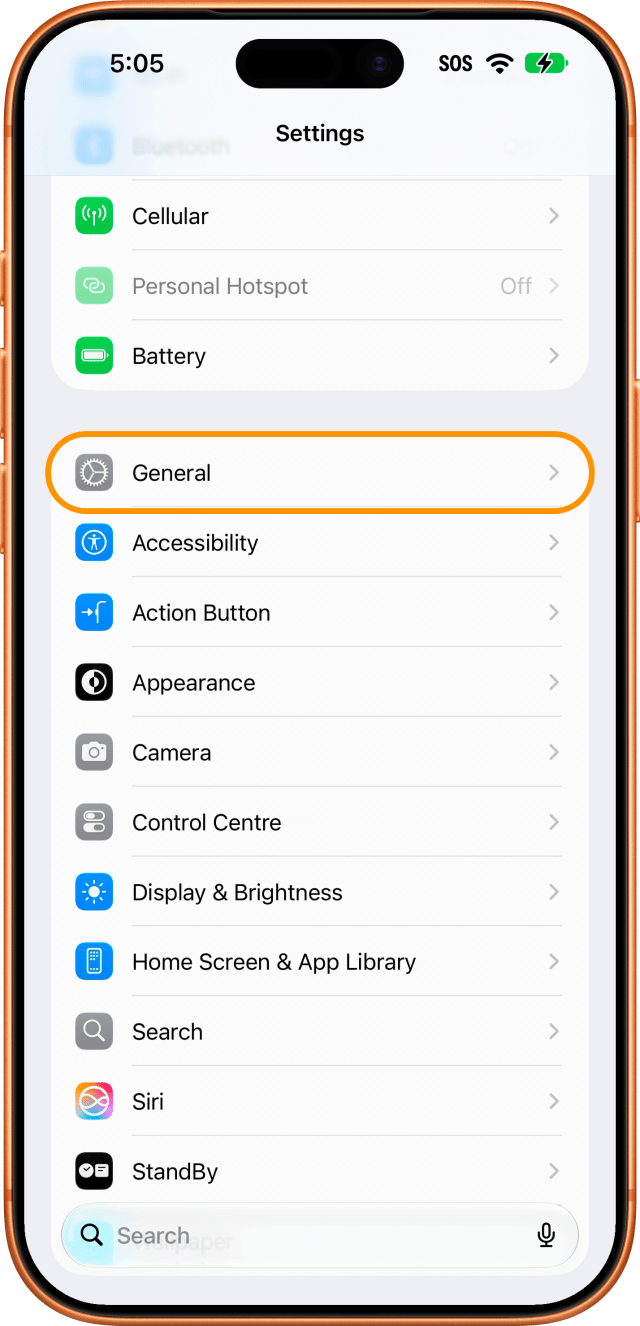
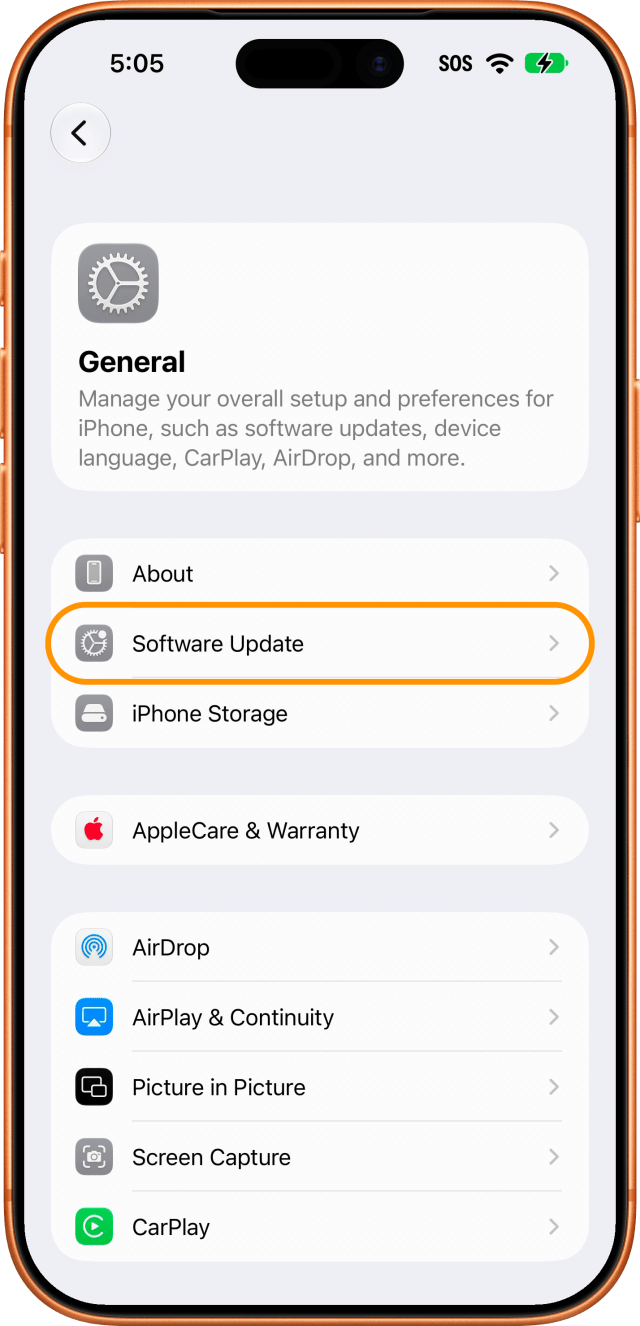
Step Two: Tap Software Update
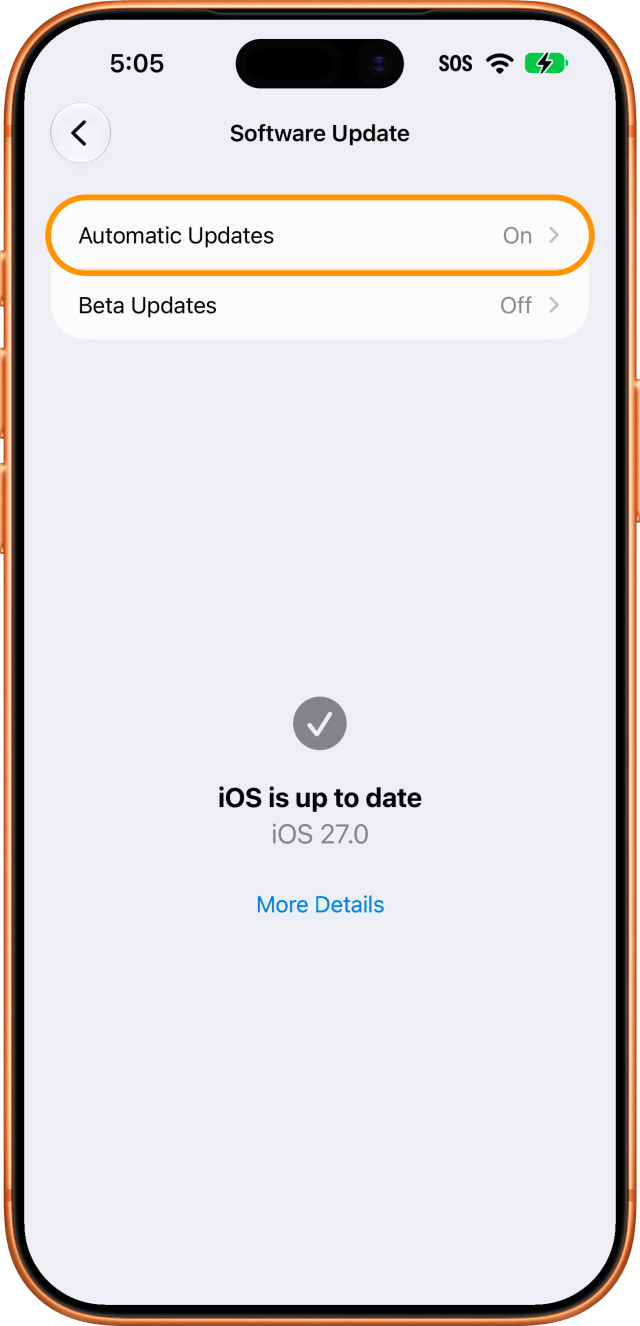
Step Three: Tap Automatic Updates
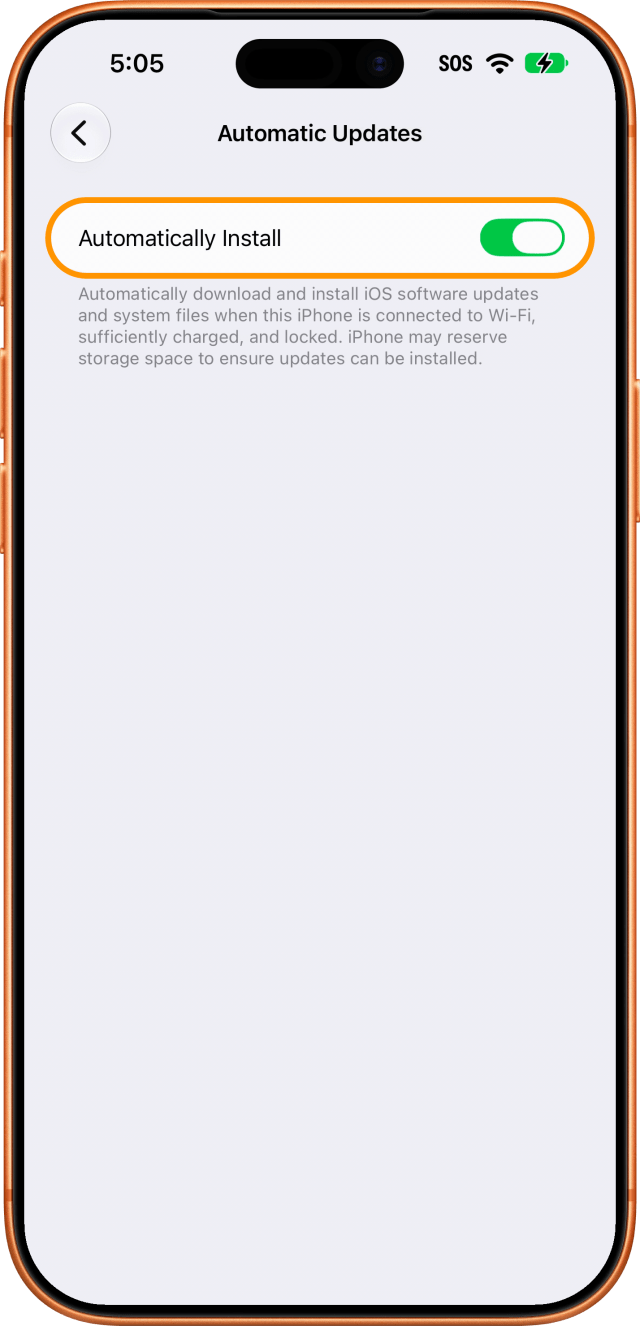
Before you change anything, this screen shows a single switch. Apple describes it as "Automatically download and install iOS software updates and system files when this iPhone is connected to Wi-Fi, sufficiently charged, and locked."
Step Four: Turn Off Automatically Install
The screen expands the moment you do.
What Stays On After You Turn It Off
Automatically Download is still on. It now carries its own description: "Automatically download iOS software updates and system files when this iPhone is connected to Wi-Fi, sufficiently charged, and locked." When those conditions are met, your iPhone can continue downloading iOS software updates in the background. The updates will not install automatically.
System Files has its own Automatically Install switch, and it is on. Apple says these files improve iPhone functionality without changing the software version, and notes that your iPhone may reserve storage space to ensure updates can be installed. This setting operates separately from automatic installation of iOS updates.
Should You Turn Those Off Too?
Turning off these switches does not prevent you from updating manually. You can still install any available update from Settings → General → Software Update.
Automatically Download — turn it off if you don't want updates arriving on their own, or if storage is tight. The trade is that updating later means waiting for the download first.
System Files — leave it on unless you have a specific reason to disable it. It allows supporting system files to be installed without changing your iOS version.
How to Turn Automatic Updates Back On
Same path — Settings → General → Software Update → Automatic Updates — and switch Automatically Install back on. The two extra controls collapse back behind it.

![Apple Cuts Employee AI Budgets, With Further Reductions Planned [Report]](/images/news/103299/103299/103299-160.jpg "Apple Cuts Employee AI Budgets, With Further Reductions Planned [Report]")


![Apple Debuts Official Trailer for 'Snoopy Presents: 12 Days of Snoopy' [Video]](/images/news/103287/103287/103287-160.jpg "Apple Debuts Official Trailer for 'Snoopy Presents: 12 Days of Snoopy' [Video]")
![How To Back Up Your iPhone to an External Drive on Mac [Video]](/images/tutorials/72786/72786/72786-160.jpg "How To Back Up Your iPhone to an External Drive on Mac [Video]")
![How To Sideload Apps Onto Your iPhone Using Xcode [Video]](/images/tutorials/52314/52314/52314-160.jpg "How To Sideload Apps Onto Your iPhone Using Xcode [Video]")
![How To Find Your IP Address on iPhone [Video]](/images/tutorials/496/496/496-160.jpg "How To Find Your IP Address on iPhone [Video]")

![Mac mini and Mac Studio Hit All-Time Lows, Up to $200 Off [Deal]](/images/news/103290/103290/103290-160.jpg "Mac mini and Mac Studio Hit All-Time Lows, Up to $200 Off [Deal]")
![M5 MacBook Air Up to $200 Off, 13-Inch From $1,099.99 [Deal]](/images/news/103233/103233/103233-160.jpg "M5 MacBook Air Up to $200 Off, 13-Inch From $1,099.99 [Deal]")
![Apple Watch Ultra 4 Drops Back to All-Time Low of $699.99 ($99 Off) [Deal]](/images/news/103218/103218/103218-160.jpg "Apple Watch Ultra 4 Drops Back to All-Time Low of $699.99 ($99 Off) [Deal]")
![AirTag 2 4-Pack Hits All-Time Low of $69.99 ($29 Off) [Deal]](/images/news/103203/103203/103203-160.jpg "AirTag 2 4-Pack Hits All-Time Low of $69.99 ($29 Off) [Deal]")