

How to Save Your iPod Touch SHSH Blobs Using RedSnow (Mac)
Posted September 22, 2011 at 4:56am by
Shalom Levytam
These are instructions on how to backup and save your SHSH Blobs to Cydia using RedSn0w for Mac.
Step One
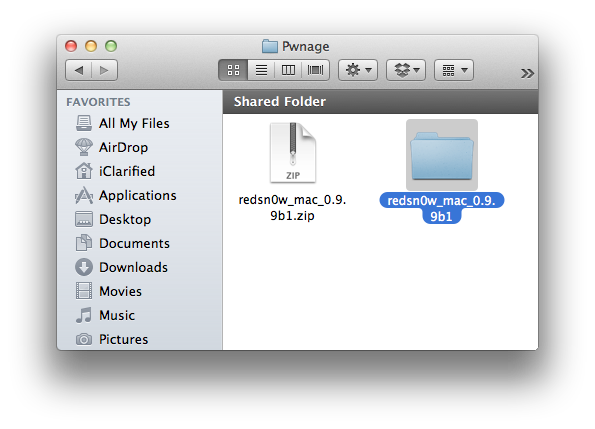
Create a folder on your desktop called Pwnage
Download RedSn0w from 0.9.9b1 here and place it in the Pwnage folder.
Extract the RedSn0w zip file by double clicking it.
Step Two
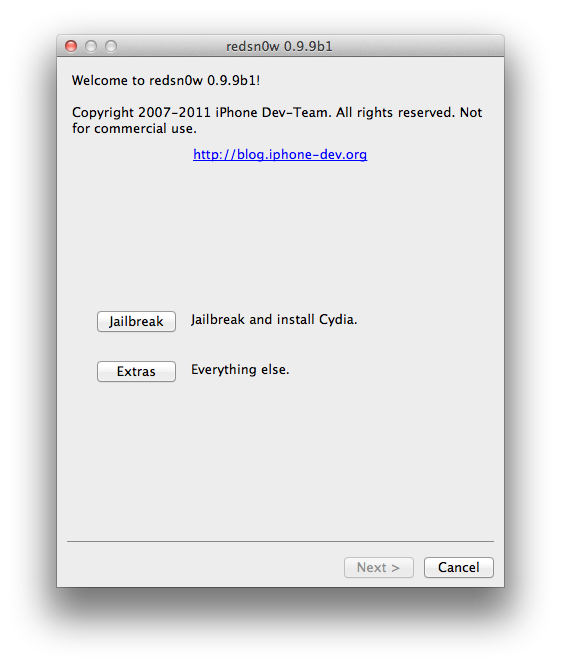
Launch the redsn0w application from the redsn0w folder we just extracted.

Step Three
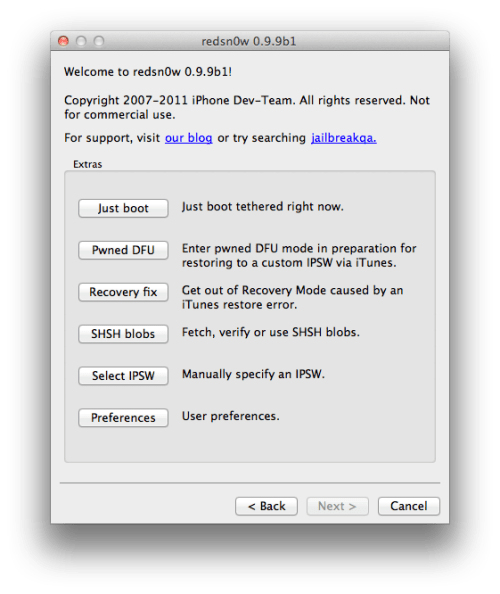
Once RedSn0w opens click the Extras button
Step Four
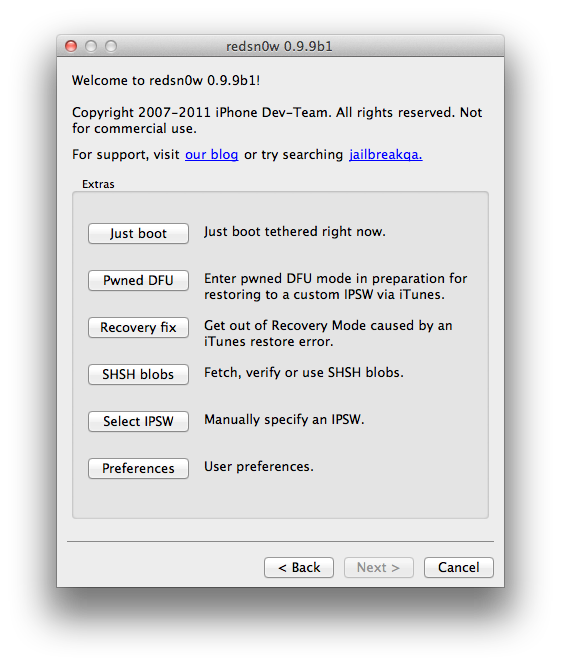
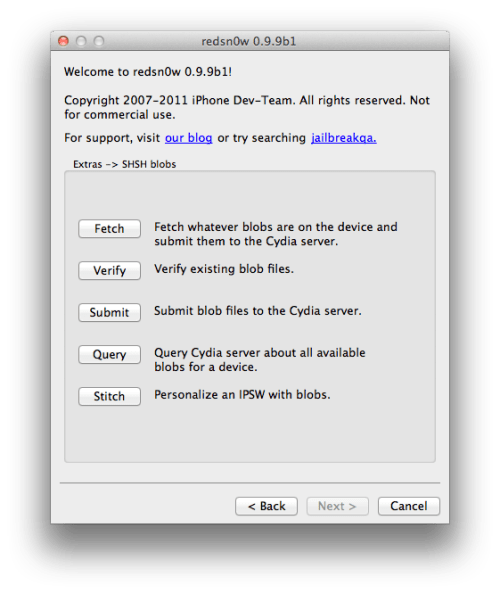
Click the SHSH blobs button from the Extras menu.
Step Five
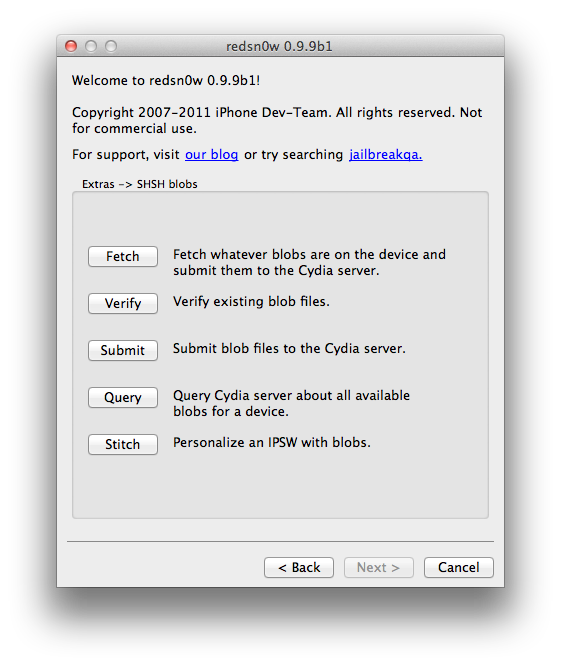
Click the Fetch button to fetch the SHSH blobs on your device and send them to the Cydia server for storage.
Step Six
Please plug your iPod into the computer and make sure its OFF then click the Next button
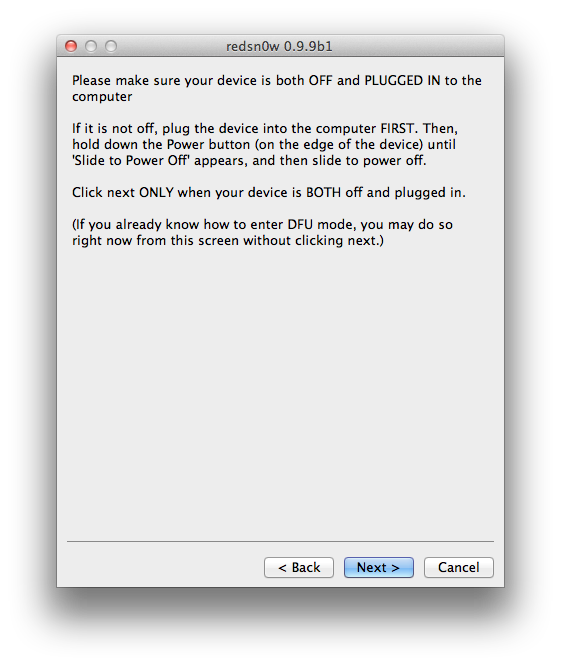
Step Seven
RedSn0w will now guide you through the steps to get into DFU mode. You can find more help with DFU mode here
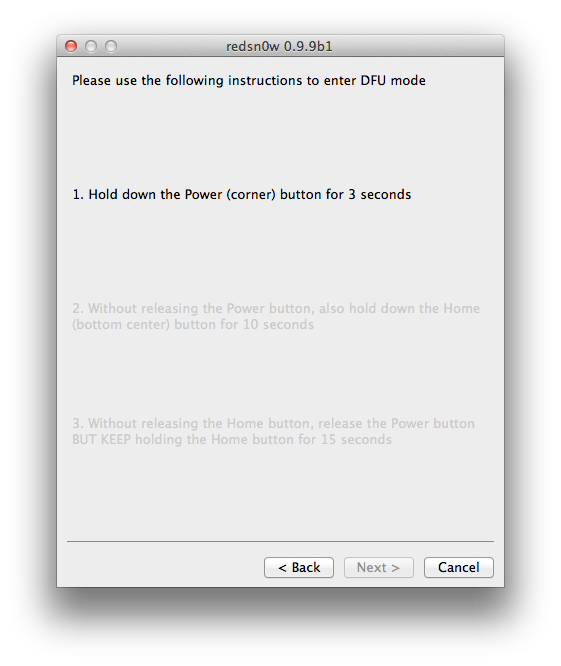
Hold down both the Home button and the Power button for 10 seconds.
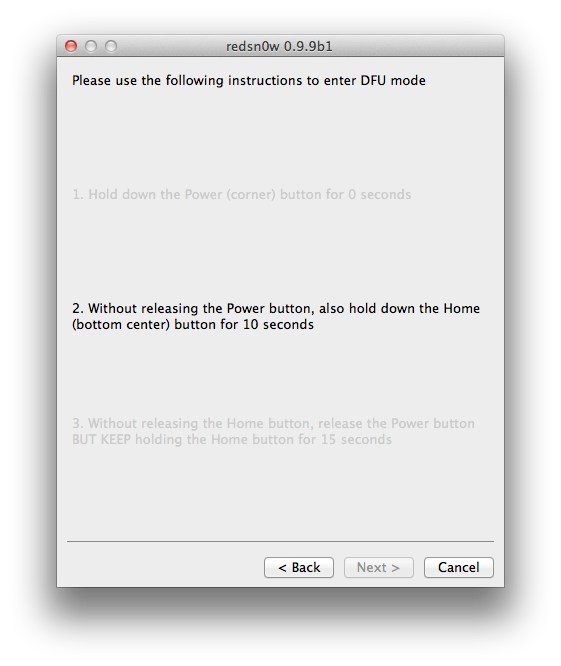
Release the Power button and continue holding the Home button until RedSn0w detects the device.
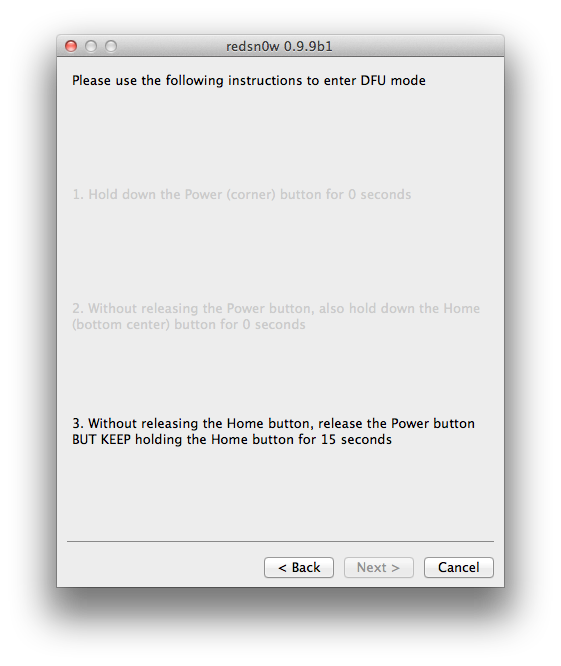
Step Eight
Your iPod will now reboot
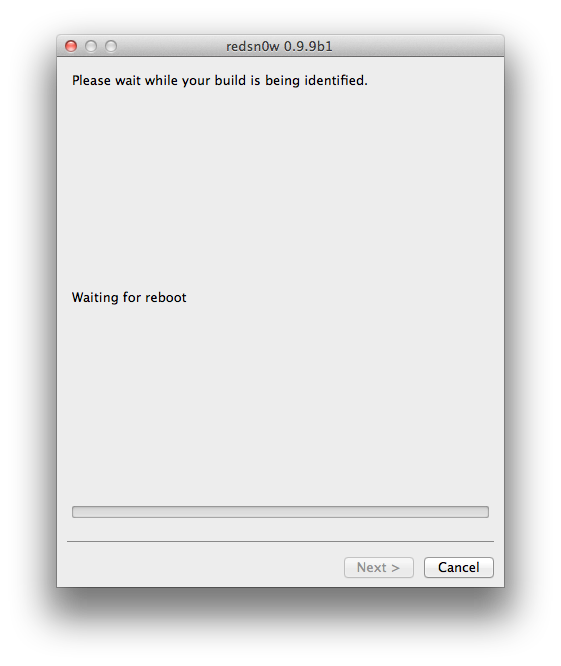
Step Nine
RedSn0w will then begin fetch the SHSH blobs from your device and submit them to Cydia.
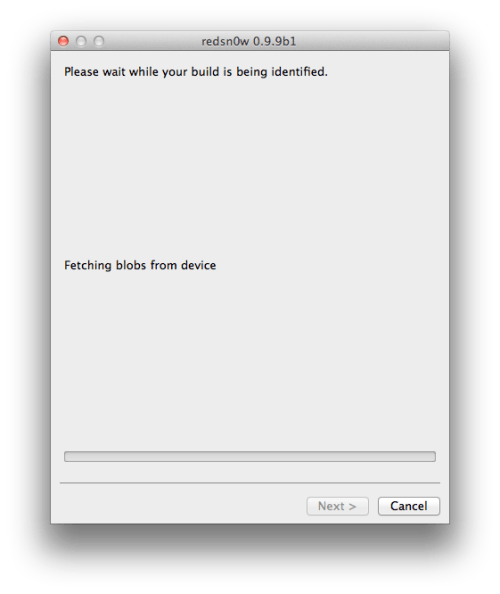
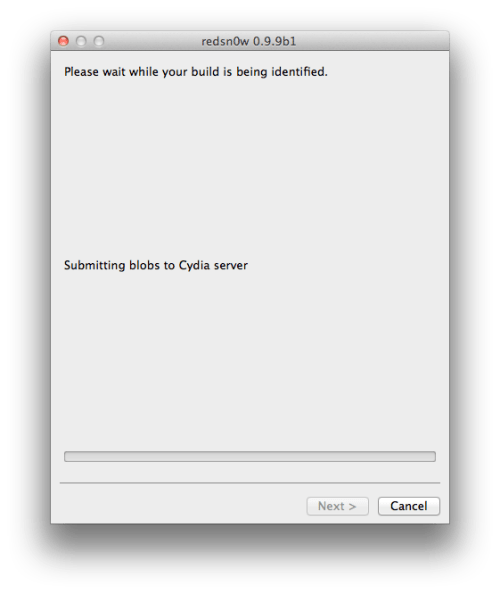
Step Ten
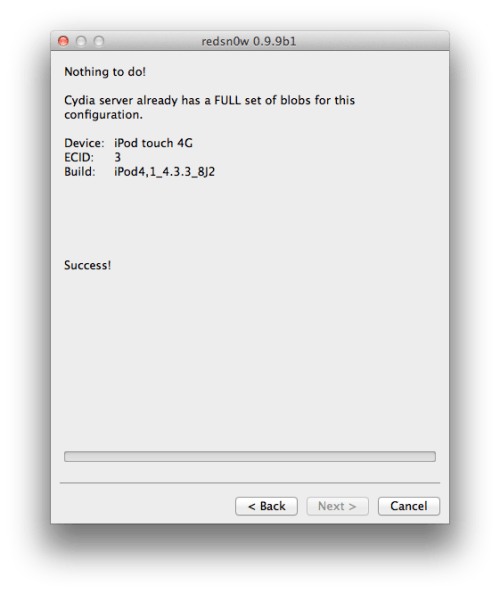
Once this is complete you will be notified that your submission was a success. Click the Back button to return to RedSn0w.
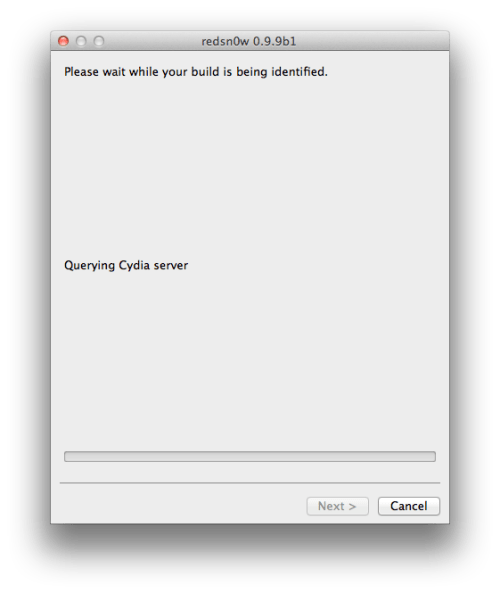
Step Eleven
Click the SHSH blobs button and then click the Query button to make sure Cydia has your blobs saved.
Step Twelve
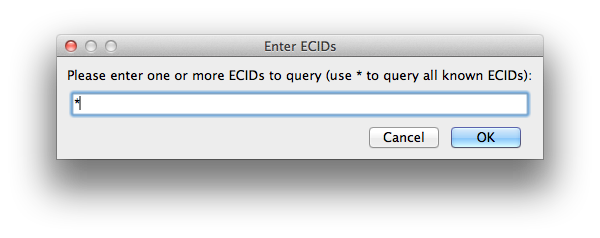
Enter * into the ECID textfield and click OK to check all your devices.
Step Thirteen
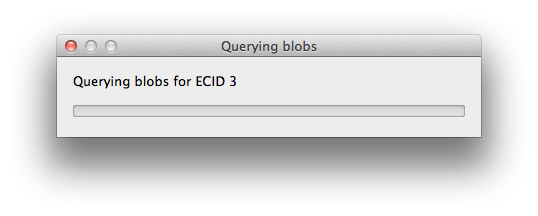
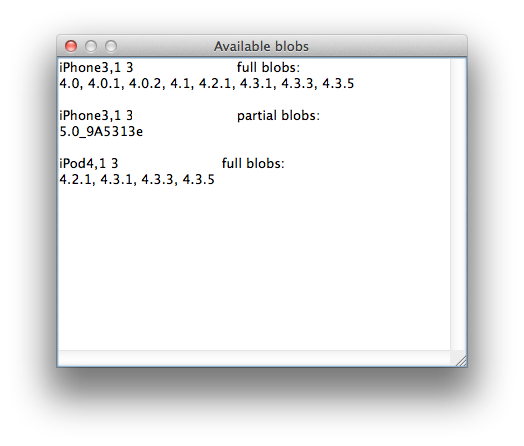
RedSn0w will now query Cydia and display the list of stored blobs.
Important:
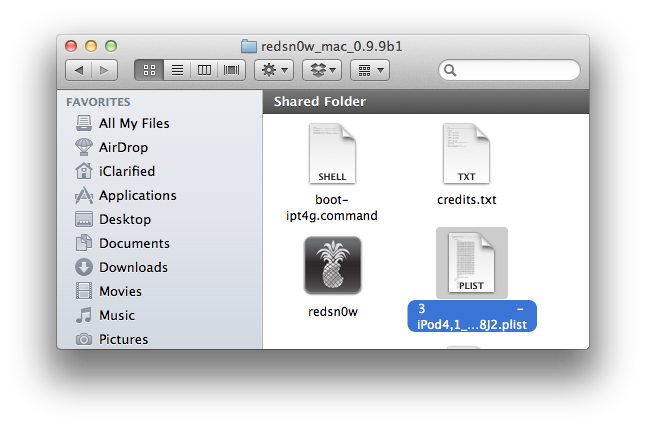
RedSn0w also saves your blobs in a plist located within the RedSn0w folder. We would recommend keeping these for added safety.
Step One
Create a folder on your desktop called Pwnage
Download RedSn0w from 0.9.9b1 here and place it in the Pwnage folder.
Extract the RedSn0w zip file by double clicking it.
Step Two
Launch the redsn0w application from the redsn0w folder we just extracted.
Step Three
Once RedSn0w opens click the Extras button
Step Four
Click the SHSH blobs button from the Extras menu.
Step Five
Click the Fetch button to fetch the SHSH blobs on your device and send them to the Cydia server for storage.
Step Six
Please plug your iPod into the computer and make sure its OFF then click the Next button
Step Seven
RedSn0w will now guide you through the steps to get into DFU mode. You can find more help with DFU mode here
Hold down both the Home button and the Power button for 10 seconds.
Release the Power button and continue holding the Home button until RedSn0w detects the device.
Step Eight
Your iPod will now reboot
Step Nine
RedSn0w will then begin fetch the SHSH blobs from your device and submit them to Cydia.
Step Ten
Once this is complete you will be notified that your submission was a success. Click the Back button to return to RedSn0w.
Step Eleven
Click the SHSH blobs button and then click the Query button to make sure Cydia has your blobs saved.
Step Twelve
Enter * into the ECID textfield and click OK to check all your devices.
Step Thirteen
RedSn0w will now query Cydia and display the list of stored blobs.
Important:
RedSn0w also saves your blobs in a plist located within the RedSn0w folder. We would recommend keeping these for added safety.

![Apple Stores Get iPhone Scanner to Fight Return Fraud [Report]](/images/news/103029/103029/103029-160.jpg "Apple Stores Get iPhone Scanner to Fight Return Fraud [Report]")
![Apple TV Shares 'Full Throttle' With F1 Drivers and Vince Young Ahead of U.S. Grand Prix [Video]](/images/news/103023/103023/103023-160.jpg "Apple TV Shares 'Full Throttle' With F1 Drivers and Vince Young Ahead of U.S. Grand Prix [Video]")
![MacBook Neo Helps Apple Gain PC Market Share Despite Shipment Decline [Report]](/images/news/103020/103020/103020-160.jpg "MacBook Neo Helps Apple Gain PC Market Share Despite Shipment Decline [Report]")
![iPhone Duo Teardowns Reveal Dual-Battery Design and Repair Challenges [Video]](/images/news/103014/103014/103014-160.jpg "iPhone Duo Teardowns Reveal Dual-Battery Design and Repair Challenges [Video]")

![How To Back Up Your iPhone to an External Drive on Mac [Video]](/images/tutorials/72786/72786/72786-160.jpg "How To Back Up Your iPhone to an External Drive on Mac [Video]")

![How To Find Your IP Address on iPhone [Video]](/images/tutorials/496/496/496-160.jpg "How To Find Your IP Address on iPhone [Video]")

![Beats Headphones, Earbuds, and Pill Speaker Are Up to 41% Off [Deal]](/images/news/103026/103026/103026-160.jpg "Beats Headphones, Earbuds, and Pill Speaker Are Up to 41% Off [Deal]")

![New Fire TV Stick 4K Drops to $29.99 (50% Off) [Deal]](/images/news/102984/102984/102984-160.jpg "New Fire TV Stick 4K Drops to $29.99 (50% Off) [Deal]")
![Apple's iPhone 18 Pro and Pro Max Cases Are Up to 37% Off [Deal]](/images/news/102978/102978/102978-160.jpg "Apple's iPhone 18 Pro and Pro Max Cases Are Up to 37% Off [Deal]")
![16-Inch MacBook Pro With M5 Pro Drops to $2,429 ($570 Off), Lowest Price We've Seen [Deal]](/images/news/102957/102957/102957-160.jpg "16-Inch MacBook Pro With M5 Pro Drops to $2,429 ($570 Off), Lowest Price We've Seen [Deal]")
