

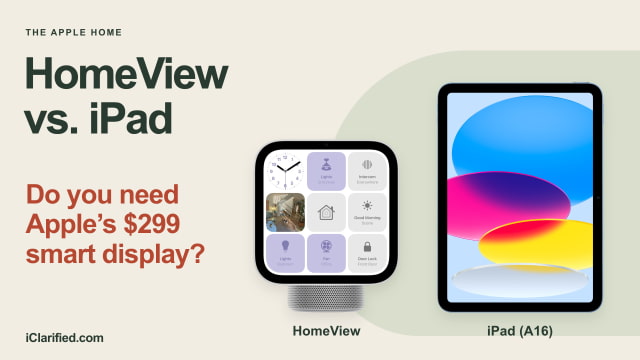
An iPad on a kitchen stand can already show a recipe, play music, and handle a FaceTime call. Apple's $299 HomeView needs a better reason to occupy that same spot. Its strongest one is that it belongs to the household: it recognizes who is standing in front of it and brings up their information, while keeping a shared screen ready for everyone else.
The entry-level A16 iPad is still the more versatile device, with a much larger app library and a battery that lets you take it out of the kitchen. The choice is less about which screen does more than whether you want a personal tablet or a permanent family display. HomeView is available to pre-order on Amazon.
A Shared Screen, Not Someone Else's iPad
HomeView can recognize up to six people by their faces, giving each person a Home Screen with their own apps and widgets. Shared photos and music remain available to the household and guests. That is a more natural fit for a kitchen counter than leaving one person's unlocked iPad there with their messages and calendar.
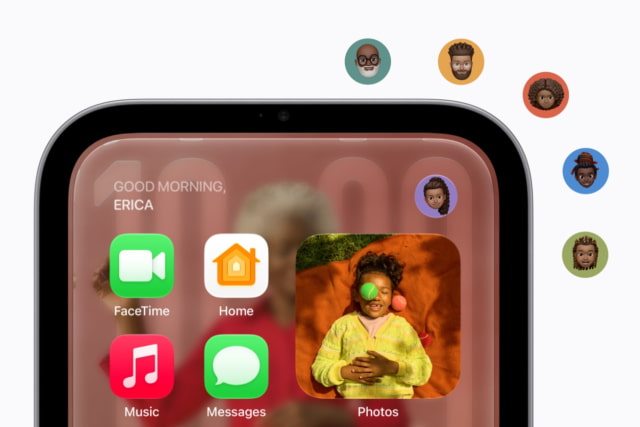
Your iPhone or iPad still plays a part. HomeView shows personal content such as Messages and Calendar when it recognizes the enrolled user and their paired device is present and recently unlocked. Apple also allows a limited cellular fallback when that device was recently on the same Wi-Fi network and remains in the same location.
That makes HomeView appealing to a household of iPhone users, but it is worth thinking about who will actually use it. A family member without a compatible paired device can enjoy shared features; they will not get the same personal experience as someone whose iPhone is set up with HomeView.
The iPad Has Much More Screen Space
HomeView has a square 7-inch display. The entry-level iPad has an 11-inch display, giving recipes, websites, movies, and video calls considerably more room. For reading a dense page or watching a show at the table, the iPad's larger screen is a real advantage.
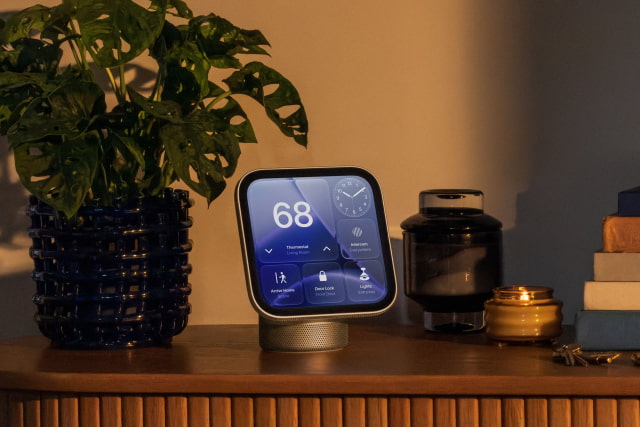
HomeView takes a different approach to viewing from a distance. Its interface shows simpler information across the room and more detail when you move closer. The tabletop model tilts on its built-in hinge, while automatic brightness can drop as low as 0.3 nits for a bedside clock. Both HomeView and the A16 iPad are rated at 500 nits at the bright end.

The base iPad weighs 477 grams with Wi-Fi, roughly half the tabletop HomeView's 952 grams, and has a battery rated for up to 10 hours of Wi-Fi web browsing or video playback. You can carry it to the couch, use it in the car, or take it on a trip. Both HomeView versions require wired power; neither doubles as a portable tablet.
Apps Are the iPad's Biggest Advantage
If you want one device for recipes, email, games, reading, drawing, and occasional work, buy an iPad. It runs iPadOS and App Store apps, and the A16 model supports the USB-C and first-generation Apple Pencil as well as keyboard accessories, all sold separately.

HomeView offers a more focused set of built-in apps, including FaceTime, Messages, Calendar, Reminders, Safari, Music, Podcasts, and Home. Apple separately lists TV, News, audiobooks, classical music, and supported third-party audio and video apps as available from iPhone. Select apps require a compatible paired iPhone nearby.
Early hands-on reporting from WIRED points to a route for more apps: developers can bring existing CarPlay apps to HomeView, and compatible apps installed on your iPhone can appear after setup. That could help familiar services reach the new screen without a full iPad-style App Store.
WIRED reports Spotify support but no dedicated YouTube, Netflix, or Disney+ apps in the early version it saw. The lineup could change before release. If a particular streaming or recipe app is central to your plans, check for HomeView support before ordering; an iPad is the safer choice for a broad app library.
For cooking, HomeView has a useful extra: it can turn a recipe from the web into step-by-step instructions, with hands-free timers and help tracking ingredients. That could be easier to follow with messy hands than a long web page. Apple demonstrates the workflow in its HomeView introduction videos; independent testing will tell us how consistently it handles different recipes.
FaceTime, Music, and the Smart Home
Both devices have a 12-megapixel Center Stage front camera that helps keep people in frame on FaceTime. HomeView's built-in stand makes it easy to leave in a regular calling spot; an iPad gives you a larger picture and lets you move the call elsewhere.
The tabletop HomeView also makes more room for speaker hardware. It has two full-range drivers, a down-firing woofer, and two passive radiators, compared with the iPad's landscape stereo speakers. That is a promising design for music in a shared room, though we would wait for listening tests before judging sound quality. The wall-mounted HomeView has the two full-range drivers but not the tabletop model's woofer and passive radiators.
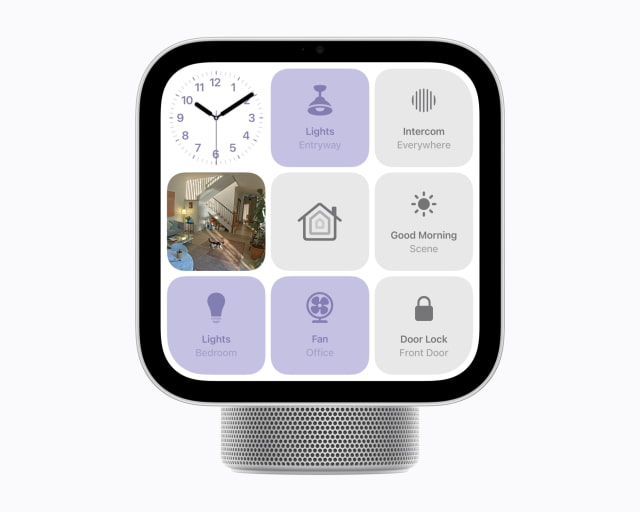
HomeView combines a Home dashboard with a home hub and Thread connectivity. You can leave camera feeds or favorite controls visible and use four far-field microphones for Siri requests. It works with compatible existing Apple Home and Matter accessories, so buying the new Apple Home Collection is optional.
An iPad can control accessories through the Home app, too. If you already have a HomePod or Apple TV acting as your home hub, you do not need HomeView to keep those accessories working. Its advantage is having the controls permanently within reach of the whole household.
Check Your iPhone Before Buying for Siri AI
HomeView includes Siri AI for general questions, conversations, and music discovery even when the user does not have an Apple Intelligence-capable iPhone or iPad. Personalized requests that draw on your messages, calendar, and other app information do require a paired Apple Intelligence device with Siri AI enabled in a supported language.
The A16 iPad does not support Apple Intelligence. That means it cannot supply HomeView's Siri AI personal context on its own, although a compatible iPhone can. Other iPads may qualify—Apple lists iPads with M1 or later and iPad mini with A17 Pro—so check your exact model rather than treating all iPads alike.
HomeView setup requires an iPhone with iOS 27.2 or later, or an iPad with iPadOS 27.2 or later. Siri AI starts in beta with English support in eight countries, including the U.S., Canada, and UK; HomeView is not initially sold in the EU. Some server-based AI features have daily usage limits, and Apple plans paid expanded access later.
Price and Specifications
Both HomeView versions cost $299 and arrive November 13, with pre-orders open now in the U.S. You can also pre-order HomeView on Amazon. The tabletop model includes its USB-C cable and 30W adapter. The wall-mounted version needs a separately purchased mount, cable, and suitable power supply, so the matching sticker prices do not mean identical setup costs.
The A16 iPad starts at $449 for 128GB Wi-Fi or $599 with cellular. A stand is an extra purchase. If you already own a suitable iPad, however, trying it in the kitchen costs far less than buying either device anew.
| Feature | HomeView | iPad (A16) |
|---|---|---|
| U.S. starting price | $299, either model | From $449 Wi-Fi; $599 cellular |
| Display | 7-inch square LCD; 1088 × 1088 | 11-inch LCD; 2360 × 1640 |
| Brightness | 500 nits maximum; 0.3 minimum | 500 nits |
| Chip | A18 | A16 |
| Front camera | 12MP Center Stage, f/2.4 | Landscape 12MP Center Stage, f/2.4 |
| Rear camera | None | 12MP wide, f/1.8 |
| Speakers | Two full-range drivers; tabletop adds woofer and two passive radiators | Landscape stereo speakers |
| Microphones | Four far-field microphones | Two microphones |
| Wireless | Wi-Fi 6E, Bluetooth 6, Thread | Wi-Fi 6, Bluetooth 5.3; optional 5G |
| Power / Apple-rated battery | Wired power required | Battery; up to 10h Wi-Fi web/video, 9h cellular web |
| Weight | 952g tabletop; 286g wall-mounted | 477g Wi-Fi; 481g cellular |
| Dimensions | Tabletop: 145.5mm wide, 136.7–173.2mm high; wall: 145.5 × 145.5 × 9.8mm | 248.6 × 179.5 × 7mm |
| Apps | Built-in apps; selected media apps from iPhone | iPadOS and App Store apps |
| Household use | Up to six face-recognized profiles | Personal iPad; no HomeView-style household profiles |
| Apple Pencil | Not listed | USB-C and 1st-gen Apple Pencil; sold separately |
| Setup | iPhone with iOS 27.2+ or iPad with iPadOS 27.2+ | Apple Account for some features; no paired iPhone required |
| In the box | Tabletop: cable + 30W adapter; wall: mount and power sold separately | USB-C cable and 20W adapter |
Which One Makes More Sense?
HomeView is the more interesting choice for a family that already has iPhones and wants one shared place for home controls, calls, music, and the day's schedule. Its personal profiles and permanent placement give it a purpose an iPad on a stand only partly fills. The tabletop version is the simpler starting point, with power accessories included and no wall installation to plan.
If you are buying one screen to do a bit of everything, get the iPad. Its larger display, apps, and portability are more useful than HomeView's household features for someone who wants a tablet first. And if an old iPad already handles your recipes and FaceTime calls, try using it in that role before spending $299. HomeView is worth adding when sharing that screen is the problem you want to solve.
You can pre-order HomeView on Amazon. For iPad pricing, check the iClarified iPad Price Tracker, including the 128GB A16 iPad, for current pricing and availability from tracked retailers.



![Apple Releases iOS 27.2 Beta 4 and iPadOS 27.2 Beta 4 to Developers [Download]](/images/news/102795/102795/102795-160.jpg "Apple Releases iOS 27.2 Beta 4 and iPadOS 27.2 Beta 4 to Developers [Download]")
![Apple Seeds Fourth Betas of watchOS 27.2 and visionOS 27.2 to Developers [Download]](/images/news/102801/102801/102801-160.jpg "Apple Seeds Fourth Betas of watchOS 27.2 and visionOS 27.2 to Developers [Download]")
![How To Take a Screenshot on iPhone [Video]](/images/tutorials/399/399/399-160.jpg "How To Take a Screenshot on iPhone [Video]")
![How To Forward Calls on iPhone [Video]](/images/tutorials/92926/92926/92926-160.jpg "How To Forward Calls on iPhone [Video]")
![How To Back Up Your iPhone to an External Drive on Mac [Video]](/images/tutorials/72786/72786/72786-160.jpg "How To Back Up Your iPhone to an External Drive on Mac [Video]")






![Mac mini Drops to $779.99 for Prime Big Deal Days [Deal]](/images/news/102624/102624/102624-160.jpg "Mac mini Drops to $779.99 for Prime Big Deal Days [Deal]")
