

Apple's HomeView puts FaceTime, music, family photos, and home controls on a screen everyone can share. Before you order one, though, check the iPhone or iPad you own—and where you plan to put it. Siri AI needs an eligible device in the household, and the $299 wall model costs more to get installed. Our video walks through 20 things to know before buying, with the details below.
1. Two Models, One $299 Price
Apple HomeView comes in tabletop and wall-mounted versions, each priced at $299 in the U.S. Both have the same 7-inch display and core software features, with availability beginning November 13. Amazon pre-orders are open, so check which model you have selected before ordering.
2. The Tabletop Model Has More Color Choices
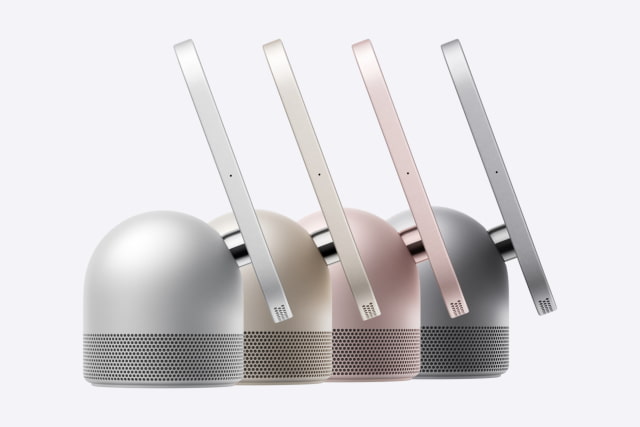
The tabletop HomeView comes in silver, starlight, rose pink, and space gray, with an aluminum display enclosure, a domed speaker base, and a matching cable. The wall model is available in silver or space gray. Its enclosure is only 9.8mm thick, although the separate mount adds to how far it sits off the wall.
3. The Wall Mount Costs Extra
The wall-mounted HomeView box contains the display and documentation, not the hardware to hang or power it. Schneider Home's $59.95 USB-C Wall Connector includes an attached cable but needs a separate USB-C power adapter rated at least 20W. That brings the display and mount to $358.95 before tax, with an adapter still to add if you need one.
The $79.95 AC Wired mount connects to household wiring and supplies power itself; professional installation is the sensible choice for that electrical work. A $129.95 Power over Ethernet mount, which carries both power and a network connection, is due in early 2027. Decide how you will power the display before choosing a spot on the wall.
4. Both Need to Stay Plugged In
Neither model has a battery for portable use. You can move the tabletop HomeView between outlets, but you cannot pick it up and keep watching on the couch as you would with an iPad. The tabletop model includes a 1.5-meter USB-C cable and a 30W adapter, so there is no separate power accessory to buy.
5. The Square Screen Changes With Your Distance
Both models have a 7-inch, 1088-by-1088 display with True Tone. Brightness reaches 500 nits and drops to 0.3 nits at its dimmest, useful for a screen that may sit beside a bed. The interface shows simpler information from across the room and more detail as you approach. A hinge on the tabletop model lets you tilt the screen toward you.
6. It Recognizes Up to Six People
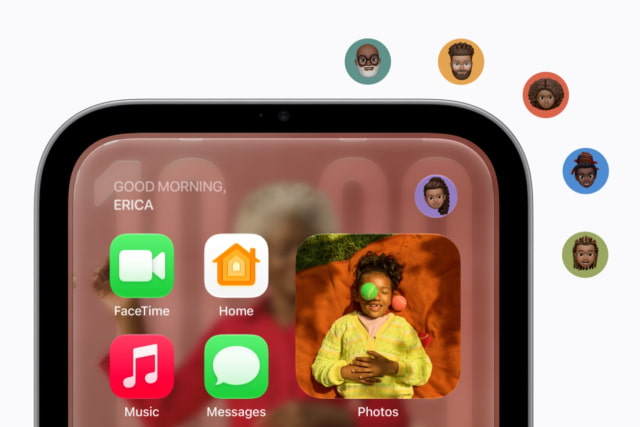
HomeView recognizes enrolled household members by their faces and brings up each person's Home Screen, apps, and widgets. To get that personal experience, each user needs their own Apple Account, a compatible iPhone or iPad, and membership in the shared home in the Home app. Shared albums and music remain available for everyone, including guests.
7. Your Face Alone Does Not Unlock Your Messages
Personal content in apps such as Messages, Calendar, Reminders, and Find My appears when HomeView recognizes you and your paired iPhone or iPad is at home with you and has been recently unlocked. That extra device check helps keep a shared display from exposing one person's information to everyone else. The A18 chip also uses protected Secure Exclaves to process camera and microphone data separately from the rest of the system.
8. Check the Home Owner's Device for Siri AI
To enable Siri AI, the person listed as the home's owner in the Home app must have an Apple Intelligence-enabled iPhone or iPad running the latest software, with Siri AI turned on in a supported language. Once it is enabled, other people can ask general questions, hold conversations, and discover music without each owning an AI-capable device. An older iPhone elsewhere in the household does not exclude its owner from those shared features.
9. Personal Siri Requests Need Your Own Eligible Device
For Siri to use your messages, calendar, and other personal information, your own paired iPhone or iPad must be nearby, support Apple Intelligence, and run the latest software with Siri AI enabled in a supported language. Requests can run on-device or through Apple's Private Cloud Compute, where request data is not stored. Conversations can also continue in the Siri app on your other supported Apple devices.

10. Siri AI Has Usage and Language Limits
Some features that use Apple's server-based models have daily usage limits. Apple plans to offer expanded access for a fee but has not announced a price. Siri AI on HomeView launches in English in the eight countries where the device is being introduced. Canadian French is planned for a later free update.
11. Recipes Become Step-by-Step Instructions
HomeView can turn a recipe from the web into a cooking view with separate steps, ingredient tracking, and hands-free timers. That is a more practical use of a kitchen screen than leaving a long webpage open beside the cutting board: you can ask for help or manage a timer without touching the display.

12. Center Stage Keeps You in the FaceTime Frame
A 12MP Center Stage camera adjusts the framing as you move during a FaceTime call. Both models support video and audio calls over Wi-Fi to other FaceTime devices. Think about camera height before installing the wall version; the tabletop model is easier to reposition and tilt toward whoever is talking.
13. Messages, Intercom, and Find My Are Built In
You can answer messages by voice or with the onscreen keyboard. Intercom sends a message to one room or throughout the home, including supported iPhones, iPads, and Apple Watches. Find My can show people who share their location with you or help locate a misplaced iPhone, supported AirPods charging case, or item with an AirTag.
14. It Doubles as a Shared Photo Frame
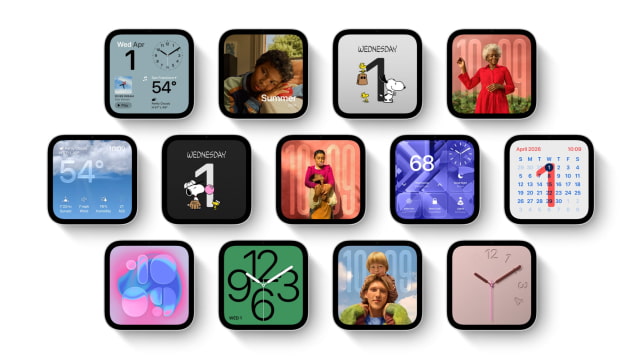
The Photos face adds depth effects to pictures, and choosing a shared album lets family members add photos from wherever they are. Other faces include Flow, which reacts to movement, and Snoopy, whose animations change with the time, weather, and special occasions. Live Activities keep information such as a running timer or the current song visible over the face.
15. The Tabletop Model Has the Bigger Speaker System
Both models have two full-range drivers in the display. The tabletop version adds a down-firing woofer and two force-cancelling passive radiators in its base, while the wall model's audio is tuned for wall placement. That extra bass hardware makes the tabletop the more promising choice for a main music speaker, though we will need listening tests to judge the difference.
16. You Can Hand Off Music From Your iPhone
Bring your iPhone to the display to move playback onto HomeView. You can also group it with other HomeViews, HomePods, and compatible AirPlay speakers running the latest software for music around the house. An Apple Music subscription adds access to its catalog, with animated album art and lyrics on the screen.
17. It Is Not an iPad With an App Store
HomeView is launching without an App Store, so you cannot install the same collection of apps you use on an iPad. It has built-in apps such as FaceTime, Messages, Calendar, Reminders, Safari, Music, Podcasts, and Home. Apple TV, audiobooks, and supported third-party audio and video apps are available through your iPhone, with some requiring the paired phone nearby. If a particular app is the reason you want a screen in that room, check its HomeView support before buying.
18. It Can Be Your Smart Home Hub
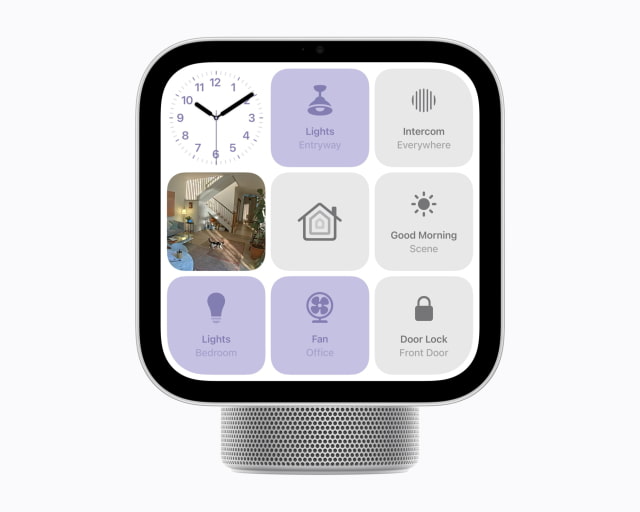
HomeView works as a hub for compatible Apple Home and Matter accessories, so you do not need to add a HomePod or Apple TV just for that role. You can control lights, thermostats, locks, and blinds by touch or voice, and the Home Camera face can show up to nine camera feeds at once.
Compatible cameras and an eligible iCloud+ plan add recognition features for people, pets, packages, and vehicles. AI descriptions of HomeKit Secure Video recordings also require setup with an Apple Intelligence-enabled iPhone or iPad, with supported camera counts depending on the plan. Apple's Home Collection of cameras, thermostats, and a lock begins arriving in December, with some accessories following in early 2027; those are separate purchases.
19. It Can Alert You to an Alarm Sound
HomeView can recognize the sound of a smoke or carbon monoxide alarm and notify your iPhone, iPad, or Apple Watch. The Apple devices that access the home need the latest software. This is an extra notification feature, not a replacement for working alarms or something to rely on in an emergency. Temperature and humidity sensors are built in, too.
20. Check Setup Requirements and Local Availability
Basic setup needs an iPhone with iOS 27.2 or later, or an iPad with iPadOS 27.2 or later, plus Wi-Fi and internet access. HomeView must also be running its latest software. That is separate from the Apple Intelligence requirement for enabling Siri AI: a device that can complete setup is not necessarily one that can enable the assistant.
HomeView's initial markets are the U.S., UK, Canada, Australia, India, New Zealand, Singapore, and South Africa, with availability beginning November 13. Pre-orders are already open in the first six; Singapore opens October 15 at 9 a.m. SGT, and South African orders go through Apple Authorized Resellers. HomeView is not available in the EU at launch.
Which HomeView Makes Sense for You?
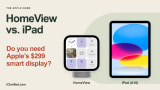
The tabletop model is the easier first choice: power accessories are included, the screen tilts, and you can try different locations without committing to a wall installation. Choose the wall model when you already know where a permanent control panel would be useful and have planned its power supply. If you mainly want a portable screen with a broad choice of apps, our HomeView vs. iPad comparison goes into that decision.
You can pre-order HomeView on Amazon ahead of its November 13 release. Before ordering for Siri AI, check the home owner's iPhone or iPad; before ordering the wall model, add the mount and power solution to your budget.



![Apple Releases iOS 27.2 Beta 4 and iPadOS 27.2 Beta 4 to Developers [Download]](/images/news/102795/102795/102795-160.jpg "Apple Releases iOS 27.2 Beta 4 and iPadOS 27.2 Beta 4 to Developers [Download]")

![How To Take a Screenshot on iPhone [Video]](/images/tutorials/399/399/399-160.jpg "How To Take a Screenshot on iPhone [Video]")
![How To Forward Calls on iPhone [Video]](/images/tutorials/92926/92926/92926-160.jpg "How To Forward Calls on iPhone [Video]")
![How To Back Up Your iPhone to an External Drive on Mac [Video]](/images/tutorials/72786/72786/72786-160.jpg "How To Back Up Your iPhone to an External Drive on Mac [Video]")






![Mac mini Drops to $779.99 for Prime Big Deal Days [Deal]](/images/news/102624/102624/102624-160.jpg "Mac mini Drops to $779.99 for Prime Big Deal Days [Deal]")
